An all-in-one printer, also called a multifunction printer, combines printing with other functions in a single machine, usually scanning and copying, and sometimes faxing. For homes and small offices it saves space and money compared with buying separate devices. This guide explains what to expect and what to look for.
Features vary by model. Check the product page for the exact functions.
By the Reviewstook Editorial Team. Last updated: October 31, 2026.

What an All-in-One Does
- Print from computers and phones.
- Copy pages without a computer.
- Scan to a computer, email or phone; see how to scan a document with a printer.
- Fax on some models.
In this guide
Types of All-in-Ones
They come as inkjets, ink tank printers, monochrome lasers and color lasers. See types of printers. Examples include the Epson EcoTank ET-2850, the Brother MFC-L2820DW and the HP Color LaserJet Pro MFP 3301sdw in our home printer guide.
Key Features to Check
- Automatic document feeder (ADF): scans and copies multi-page documents; see printers with a document feeder.
- Duplex printing and scanning: handles both sides; see how to print on both sides.
- Connectivity: Wi-Fi, Ethernet, USB and AirPrint; see best wireless printers.
- Display: a touchscreen makes setup easier.
- Running costs: compare ink or toner cost per page.
Pros and Cons
- Pros: one device, less clutter, convenient copying and scanning, often lower total cost than separate machines.
- Cons: bigger than a print-only model, more parts that can fail and a repair of one function can mean sending away the whole machine.
Do You Need One?
If you only print, a print-only laser is smaller and cheaper. If you ever scan, copy or sign documents, an all-in-one is a better fit. See best all-in-one printers.
Care and Troubleshooting
Keep the scanner glass clean, update the driver and print regularly. If scanning fails, see printer scanner not working.
Scan and Copy Quality
All-in-ones scan with either a flatbed glass or an automatic document feeder. Flatbeds give the best quality for photos and thick items. Feeders are fast for stacks of paper but can skew or jam on thin or wrinkled pages. Copy quality depends on both the scanner and the print engine, and most home models are fine for documents. Check optical scan resolution on the product page, since interpolated numbers are marketing.
Fax and Other Extras
Fax is a specialist feature found mainly on office models. Other extras include memory card slots, USB drives, scan-to-email and scan-to-cloud, mobile apps and touchscreens. Decide which ones you will really use, and see our list of printers with fax if you need it.
Ink and Toner Systems
The print technology matters more than the extra functions. Cartridge inkjet all-in-one models are cheap to buy and costly to run. Ink tank models cost more and run cheaply. Monochrome laser all-in-ones are cheap to run for text. Our guide to ink tank vs laser compares them, and how to calculate printer cost per page shows how to work out the cost.
Reliability Trade-Offs
An all-in-one has more moving parts than a print-only printer, such as the scanner lid, the feeder and the scan head. A fault in one function may affect the whole machine, but most failures involve paper handling and clogs, which affect any printer. Keep the scanner glass clean and print regularly.
Mobile Printing and Scanning
Most current all-in-ones work with AirPrint and Mopria and have a phone app for scanning and ink status. See how to print from an iPhone and how to print from Android.
Buying Checklist
- Do I need a document feeder or duplex scanning? See printers with a document feeder.
- Will I print in color?
- How much do I print each month?
- Is the footprint right for my desk?
- Does it support my phone and computer?
- What are the ink or toner costs?
Matching an All-in-One to Your Print Volume
How much and what you print should shape the machine more than the feature list does. A household that prints a few pages a month for forms and school work has different needs from a home office that prints reports every day. Think about a typical month, including peak times like tax season or exam weeks.
Occasional users often find that ink can dry out or clog if the printer sits unused for long periods, depending on the technology, so a machine that tolerates gaps in use is worth considering. Check the manual for guidance on idle periods. Frequent printers should pay attention to running costs and to the maker’s stated duty cycle or recommended monthly volume, which is usually listed on the product page.
- Light use: Basic models can be enough, but check ink costs and idle-time advice.
- Regular text printing: Look closely at toner or ink tank systems and cost per page.
- Color graphics and photos: Check whether the machine uses extra inks and suits photo paper.
- Shared use: Look at network features, user access and paper capacity.
Do not buy more machine than you need, but do not pick one so small that you refill the tray every few days. Paper tray size and output speed are both on the specification sheet.
Setting Up an All-in-One at Home
Setup is usually simple but order matters. Unpack carefully and remove all protective tape and packing material inside the machine, including around the scanner and the print head area. Read the quick-start guide before you plug it in, because some models prefer you to install software before you connect a cable.
Install ink or toner as instructed. Many machines run an alignment or priming routine on first use, which can take several minutes and use some ink. Then connect to your network. Wi-Fi setup commonly runs through the printer’s display or a phone app, and a wired Ethernet connection can be more stable for a shared office machine. Make sure your computer and printer are on the same network.
- Download drivers and apps from the maker’s official support page for your exact model.
- Print a test page and run a scan to check each function.
- Set the default paper size and quality to match your habits.
- Register the product and note the warranty terms.
If you have trouble, restart the printer and router, and check the support page for firmware updates. Place the machine where you can open the scanner lid, load paper and clear jams without moving it.
Paper Handling and Media Choices
An all-in-one can only handle the paper it was designed for. Check the product page for supported sizes, weights and types, such as plain paper, envelopes, labels, card stock and photo paper. Not every machine accepts all of them, and using the wrong type can cause jams or poor output.
Notice how paper is loaded. Front trays, rear feeds and cassette drawers all behave differently, and each has a limit on sheet count. A rear feed can handle thicker items in some models, while a cassette keeps paper tidy and dust-free. If you print envelopes or labels often, read the manual about how to load and which path they take.
- Fan the stack and keep it flat before loading.
- Store paper in a dry place, as damp sheets cause jams.
- Do not overfill the tray or mix different types in one load.
- Choose paper that suits the technology, since some papers handle ink better than others.
For an automatic document feeder, check the supported paper weight and what to avoid, such as staples, torn pages or sticky notes. Use the flatbed glass for fragile or unusual originals.
Privacy and Security for Scanned Documents
An all-in-one is a networked computer with a scanner attached, and it deserves some care. It can store recent jobs, network settings and contact lists, and it may send scans to email or cloud services. Treat what you scan, such as IDs, contracts and medical forms, as sensitive.
Change default passwords on the printer’s settings page if it has one, and keep firmware updated using the maker’s official tools. Turn off features you do not use, such as remote printing or guest access, if the manual explains how. On shared networks, check who can send jobs to the machine.
- Pick up printed pages promptly in shared spaces.
- Remove originals from the glass and feeder after scanning.
- Check the manual for how to clear stored data before you sell or give away the printer.
- Be cautious when scanning to public computers or shared cloud folders.
If a machine has a memory card or USB slot, consider who can plug into it. For offices that handle confidential material, ask the maker or seller what security features the model offers.
Signs It Is Time to Repair or Replace
All-in-ones last for years, but parts wear. Common signs of trouble include repeated paper jams, streaks or faded lines that do not clear after cleaning, scanner errors, a noisy feed mechanism, and failing network connections. Start with the basics: clean the glass, run the maker’s cleaning cycle, update the firmware, and check for obstructions.
When problems continue, compare the cost of a repair with a replacement. Because an all-in-one combines several functions, a single failed part may affect only one, such as the scanner, while printing still works. Decide whether you can live without that function, or whether a separate device is cheaper.
- Check whether the warranty is still active.
- Look at whether the maker still supplies ink or toner for your model.
- Consider whether driver support continues for your operating system.
- Check whether the cost of consumables has risen compared with newer models.
When you replace a machine, recycle the old one through a local electronics program or a maker take-back scheme if one is available. Clear stored data first.
A Plain Glossary of All-in-One Printer Terms
Printer pages are packed with jargon. This glossary translates the terms you will see most often so you can compare models on facts.
- Multifunction: another name for a machine that prints, scans and copies.
- ADF: the automatic document feeder, a tray that pulls several pages through the scanner.
- Duplex: printing on both sides of the paper.
- Flatbed: the glass surface under the scanner lid for books and single sheets.
- DPI: dots per inch, a measure of detail for printing and scanning.
- Cartridge: a replaceable container of ink or toner.
- Duty cycle: the maker’s stated maximum pages per month for the machine.
- Wireless direct: a way to connect a phone to the printer without a router.
When two products seem alike on the surface, compare the paper path, the scanner type and the way the ink is supplied. Those details tell you far more than the headline function list.
Inkjet or Laser: Choosing by What You Print
| Question | Inkjet all-in-one | Laser all-in-one |
|---|---|---|
| Best at | Photos, color pages, varied paper | Text documents, steady volume |
| Idle behavior | Heads can clog if unused for long periods | Usually fine after long breaks |
| Size and weight | Often smaller and lighter | Often larger and heavier |
| Consumable | Ink cartridges or refillable tanks | Toner cartridges |
| Warm-up | Short | Can take a moment to heat up |
If you print occasionally and want the occasional photo, an inkjet is a flexible choice. If you print many text pages and want crisp, dependable output, a laser may suit. Either way, follow the maker’s maintenance advice, such as running a cleaning cycle only when needed.
Mistakes That Waste Ink and Patience
- Choosing a model by function count instead of the way you actually print.
- Ignoring the cost and availability of replacement cartridges, which can matter more than the machine.
- Skipping the manual setup steps, so wireless printing works inconsistently.
- Printing with the wrong paper type selected in the driver.
- Leaving the unit unplugged for long spells, which can disrupt maintenance routines.
- Using unsupported paper weights or sizes that jam the tray.
A few minutes with the manual and the driver settings can prevent most of these. Keep the guide in a drawer next to the printer, and store spare cartridges flat in their packaging if the maker advises it.
Home Office or Shared Space: Fit and Placement
An all-in-one is bulkier than a simple printer because of its scanner lid, paper trays and document feeder. Measure your shelf or desk, and leave room above the lid so it can open fully. Check that the front tray and the rear paper path have clearance so paper does not catch.
Place the unit on a stable, level surface away from direct sun and heat sources. Keep it within reach of a power outlet and, if you use a cable, a USB port, and consider that a wireless connection reduces cable clutter but depends on a stable network. In shared spaces, think about noise, since some machines are louder during warm-up and when printing duplex.
Handling Scans and Sensitive Documents
Scanning creates digital copies that may contain personal details. After scanning a contract, tax form or identity document, save the file in a folder you control and remove temporary copies from shared locations. If your printer has internal storage, check the manual for how stored jobs are cleared, and use any password or PIN options the maker provides.
Keep the printer software and firmware updated using the maker’s official update method, since updates can improve stability and fix known problems. Change any default administrator password on a networked printer, and consider placing it on a home network protected with a strong password. When you retire a printer, follow the maker’s instructions for erasing stored data before it leaves the house.
Matching a Machine to Your Print Volume
Print volume is the quiet factor behind most good and bad choices. A household that prints a few pages a week has different needs from a home business that prints invoices and labels daily. Estimate your volume honestly by thinking about the last month: how many school forms, shipping labels, recipes, photos or work documents did you print?
- Light use: a compact inkjet all-in-one with a flatbed is often enough.
- Moderate use: consider a model with an automatic feeder and duplex printing to save time.
- Heavy text use: a laser all-in-one with a high-capacity cartridge may suit better.
- Photos and crafts: look for models that handle varied paper types and borderless printing.
Check the maker’s stated monthly duty cycle and recommended monthly volume. Staying within the recommended range is gentler on the machine, while regularly exceeding it can shorten its life. If your needs are growing, choose a model one step above your current volume so you do not outgrow it quickly.
When to Repair, Refill or Replace
All-in-ones are complex, and some faults are worth fixing while others are not. Simple issues such as a paper jam, a dirty scanner glass or a blocked nozzle can often be solved with the maker’s guidance, a gentle clean or a replacement cartridge. Persistent errors, loud grinding, or a scanner that no longer lines up are signs that a repair quote may be sensible, or that it may be time to move on.
Before deciding, check whether the maker still provides drivers and cartridges for your model, and whether a repair service is available locally. Never open the case while the machine is plugged in, and for electrical faults, rely on the maker or a qualified technician.


Ready to Buy? Start Here
If this guide helped you decide what to look for, these products are a place to start.
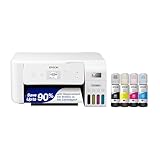
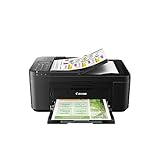

As an Amazon Associate we earn from qualifying purchases. Prices and availability are shown on Amazon.
A Day in the Life of an All-in-One
To understand what an all-in-one really is, follow one through an ordinary household day. In the morning it prints a form that must be signed; an hour later it scans the signed form back into digital life and sends it on its way — the printer and scanner working as two halves of a single errand, which is the all-in-one’s founding idea. At midday it copies a document for a neighbour, an errand that requires no computer at all and reminds everyone that the machine is a citizen of the house, not a peripheral of one laptop. In the afternoon it prints homework, then a photograph, then a set of labels, each job asking a slightly different skill of the same engine. In the evening it sits connected and quiet, ready for the boarding pass someone will remember at midnight.
Notice what the day reveals: the all-in-one’s value is not any single function but the absence of friction between functions. A household with separate devices can do every one of those jobs; what it cannot do is move between them without moving rooms, cables and patience. The integrated machine collapses the geography of paperwork into one spot by the desk, and that collapse — repeated daily, across years — is what owners are actually buying when they choose an all-in-one over a printer alone. The scanner that is right there gets used; the scanner in another room, attached to another device, gets intended.
The day also reveals the machine’s honest limit: it is a generalist, and generalists are judged by the job they do worst among those you need. If the day’s photography matters supremely, a specialist photo printer outprints it; if the day’s documents number in the hundreds, an office machine outlasts it. The all-in-one wins the ordinary day, in the ordinary home, precisely because the ordinary day is mixed — and mixed days are most of life.
How the Scanner Half Earns Its Place
Buyers often treat the scanner as a bonus and then discover it is half the machine’s life. Its value arrives in a recognisable sequence. First come the forms: the signed page returned, the document a portal demands, the record a school or an office insists on receiving digitally. Then come the rescues: the receipt for the warranty claim, the letter that exists once, the certificate whose paper copy lives in a drawer that floods and moves house. Then, for many households, comes the archive — photographs, children’s artwork, family documents — the scanning that is not an errand but a preservation project, done in an afternoon and valued for decades.
The feeder, where a model has one, decides which of those lives the scanner can lead comfortably. Single pages are every flatbed’s joy; multi-page documents are the feeder’s, and a household whose scanning is contracts, records and school packets should weigh the feeder as a first-class feature rather than an accessory. The household whose scanning is photographs and fragile originals should weigh it not at all, and choose the flatbed’s quality and gentleness instead. Either way, the scanner half deserves the same deliberate choosing as the printer half, because in an all-in-one you are buying two machines that share a power cord and a footprint — and both halves will be lived with for years.
The Copy Function: The Feature Nobody Lists and Everybody Uses
Copying is the all-in-one’s least glamorous function and, in many homes, its most democratic one, because it needs no computer, no phone and no account — just the document, the button and thirty seconds. It serves the household members that computers do not: the grandparent copying a letter, the child copying a worksheet, the neighbour copying a form. It serves the moments computers complicate: the single page needed now, the ID for a form, the recipe shared between kitchens. A machine that copies well — quickly, from a cold start, with a lid that handles a book’s spine kindly — becomes a small public utility inside the home.
Judge copying, when you shop, by the errands your household actually runs. Copies per session are usually few, so raw speed matters less than the walk-up experience: how fast the first copy arrives, how clearly the controls explain themselves, how the machine handles the odd original — the thick book, the small card, the page that must be enlarged. These are not specification-sheet qualities, and they are exactly why the all-in-one’s design details — lid hinges, control layout, the honesty of its buttons — matter more than its feature count. The best all-in-one is not the one that lists the most functions. It is the one whose functions a household uses without thinking, and copying is where that thoughtlessness is won or lost.
All-in-One Versus Separate Devices: An Honest Accounting
The case against the all-in-one is real and worth stating at full strength. A single machine that does everything is a single point of failure: when it goes for repair, the household loses printing, scanning and copying together. Its components are compromises by design — a scanner chosen to fit a printer’s price and lid, a printer chosen to carry a scanner’s weight — and a household with a supreme need in one function will feel the compromise in exactly that function. And its size is the size of its largest ambition, so the owner who never scans owns a tall machine for no benefit.
The case for it is the arithmetic of ordinary life. Separate devices cost more in total for most households, occupy more room, draw on more cables and outlets, and — the decisive point — impose friction between the functions that paperwork constantly moves between. Print, sign, scan, send is one errand; across separate devices it is a tour of the house. For the great majority of homes, whose needs in each function are real but moderate, the integrated machine’s compromises are theoretical and its conveniences are daily. For the minority with a dominant need — the photographer’s prints, the office’s document river — the specialist plus a modest all-in-one for everything else is the grown-up architecture, and many such households end up owning both arrangements at once without contradiction.
The question to ask, then, is not whether an all-in-one is better than separate devices in the abstract. It is whether your household’s needs are a democracy of moderate functions or a monarchy of one supreme one. Democracies should buy the all-in-one and enjoy the peace. Monarchies should crown the specialist and let a small all-in-one handle the paperwork of the realm.
More Questions About All-in-One Printers
If the scanner breaks, can I still print?
Usually yes — the functions share a body and a connection but fail independently more often than owners fear, and a printer with a sulking scanner commonly goes on printing for years. The reverse is also true. When one function does fail, the repair decision should be made on the remaining functions’ value rather than on the assumption that the whole machine is finished.
Do all-in-ones cost more to run than plain printers?
The printing half costs what the same printing technology costs anywhere; the scanner and copier add no consumables beyond the copies you choose to make. The honest running-cost question is the technology question — ink system or toner, your volume, your coverage — and it is answered the same way for an all-in-one as for any printer, with the cost-per-page method this site teaches elsewhere.
Can an all-in-one replace a photocopier for a small office?
For the copying volume of a small office — forms, records, handouts in modest runs — yes, and its scanning-to-file abilities often improve on the copier it replaces. For sustained, high-volume copying, a dedicated machine’s pace and stamina still rule. Count your busiest copying week, not your average one, and let that week decide.
What should I check about the lid if I scan books?
Whether the hinges let the lid rise and rest level on a thick original rather than balancing at an angle, because a level lid means even pressure, even light and a readable gutter. A lid that cannot accommodate thickness turns every book scan into a negotiation. It is a small mechanical detail with an outsized effect on anyone scanning bound material regularly.
Is fax worth having on an all-in-one today?
For most households it is a legacy passenger — harmless, occasionally startling when a relative or an old-fashioned office needs it. Some professions and officials still run on fax more than outsiders expect, and for them it remains a genuine feature. Buy it if your world contains fax numbers; ignore it without regret if it does not, and do not let its presence or absence decide a purchase it no longer leads.
Setting Up an All-in-One So Every Function Gets Used
An all-in-one’s tragedy, in many homes, is a setup that configured printing and postponed everything else — and postponed, in household time, means never. Avoid it with a first-day rule: before the machine is allowed to settle into its corner, make it perform each of its functions once, for real. Print a document from each computer and phone. Scan one page to the computer and one to the destination you will actually use — a folder, an email, a cloud — because each destination is a separate small configuration and the emergency is the wrong time to discover the difference. Copy a two-page document so the feeder, if there is one, proves itself. Send the machine’s test or status page so its own voice is familiar before it ever has bad news.
Then place the machine for its whole job, not just its printing. The scanner needs headroom and a lid that can open without moving a shelf’s contents; the feeder needs a clear approach; the copier needs standing room for a person holding a book. A machine exiled to a cramped corner will be printed from remotely and never walked to, and its other functions will quietly die of geography. Give it the small territory its full job requires, keep its glass-cleaning cloth in a drawer within reach, and write its supply numbers into the household records while the boxes are still open. An all-in-one set up completely is a household department. An all-in-one set up partially is a printer with rumours attached, and the rumours never quite become services.
The All-in-One in a Shared and Busy Home
Shared machines develop politics, and the all-in-one — serving everyone’s printing, scanning and copying — develops more than most. The workable constitution is light: supplies are a household responsibility with one named buyer, so the machine never starves amid everyone’s assumption that someone else ordered; output is collected promptly, because a shared tray is a semi-public place and documents deserve privacy; and big jobs announce themselves, because the person copying a chapter and the person printing a boarding pass will meet at the machine, and courtesy is cheaper than conflict. Scanning deserves one extra rule in a shared home: scans land in named folders per person, not in a common heap, because a scan’s value is its findability and a heap is where findability goes to die.
None of this requires a meeting. It requires the household’s printer-keeper — every home has one, named or not — to set the defaults kindly at setup: sensible quality presets, destinations configured for each person, the machine’s name made human. Do that, and the all-in-one becomes what it was designed to be in the fullest sense: not one person’s printer with guests, but the home’s own small office, open to all, ready for the form, the photograph, the copy and the scan, at whatever hour family life decides it needs them. That readiness, maintained across years, is the true definition of the category — and the reason the all-in-one, properly understood and properly set up, remains the natural centre of a household’s paper life.
One closing test separates the households that need an all-in-one from those that merely like the idea: the last time paperwork moved through your home, how many different machines did it wish for? If the answer, across a month of forms, photographs, copies and records, keeps returning three — printer, scanner, copier — the all-in-one is not a compromise at all. It is the shape of your household’s actual work, gathered into one honest machine. Buy it for that shape, set it up for all of its functions, and let it do quietly, for years, what it was built to do: everything, adequately, in one place, whenever it is asked.
How Long an All-in-One Should Serve, and When to Let It Go
An all-in-one ages along several clocks at once, and knowing them turns replacement from a breakdown decision into a planned one. The print engine ages by pages and, for inkjets, by the calendar of its maintenance; the scanner ages by the gentleness of its treatment and the cleanliness of its glass; the network side ages by the world’s changes — new routers, new protocols, new operating systems that gradually leave old firmware behind. A machine can be young on one clock and old on another, which is why owners sometimes describe a printer that ‘still prints beautifully but cannot be found by anything’. That is not a paradox; it is the network clock striking.
Let the machine go when the total of its remaining clocks no longer serves the household’s day described at the start of this section — when repairs queue, when supplies become archaeology, when one dead function forces workarounds weekly. Replace it in a calm week, with the records of its life in hand: the volumes it served, the functions the household actually used, the features paid for and never touched. Those records are the perfect buyer’s brief for its successor, because no review knows what your household learned across five years of forms, photographs, copies and scans. The all-in-one’s final service is to teach its owner exactly what the next one must be — and an owner who listens replaces a machine the way this article hopes you bought it: by the shape of the work, not by the noise of the moment.
There is a reason this category, explained properly, sounds less like a product and more like a household philosophy. Paper enters a home as printouts and leaves as scans; it is copied for neighbours and archived for grandchildren; it arrives as forms and departs as evidence. A machine that stands at the centre of that circulation, doing each job well enough and all of them conveniently, earns a place that specialists — however superior at their single art — cannot occupy. Understand the all-in-one that way, and the buying question answers itself: you are not purchasing features. You are appointing the keeper of your household’s paper, and keepers are chosen for reliability, versatility and calm. Choose yours on those terms and it will not disappoint you.
The All-in-One and the School-Age Household
If one household type vindicates the all-in-one completely, it is the household with school-age children, because school life is a mixed-paper economy in miniature. The worksheet is printed in the evening and scanned back to a teacher by morning. The permission slip is copied before it is signed, so the original’s loss is not a crisis. The project photograph is printed, trimmed and mounted; the certificate is scanned for grandparents before it is filed; the artwork is preserved before the fridge door claims it. Every function of the machine is exercised weekly, by need rather than by intention, and the household discovers what offices learned long ago: integration is not a luxury when the workflow is constant.
Such households should choose with the school rhythm in mind — a feeder for the multi-page packets, painless phone printing for the files schools send to parents’ pockets, and running costs that survive the term’s volume without rationing a child’s homework. They should also teach the machine’s manners early: preview before printing, collect your own output, scan your own documents to your own folder. A child who grows up with a well-run all-in-one absorbs an entire paperwork literacy without a single lesson, and the household gains, almost as a side effect, the archive of a childhood. If your home contains students, the question this article began with has effectively been answered for you. The all-in-one is not one option among several. It is the machine your household’s life is already shaped like.
Appoint the keeper, then, and judge it as keepers are judged — not by its finest hour but by its ordinary years: the forms it never fumbled, the scans that were there when the drawer was emptied, the copies made by people who never learned its name. An all-in-one that achieves that anonymity has achieved everything its category promises.
That is the whole of it: one machine, honestly matched to a household’s mixed paper life, set up completely and kept supplied, quietly doing everything — which is precisely what its name has promised all along.
Frequently Asked Questions
What is the difference between all-in-one and multifunction?
They mean the same thing.
Can an all-in-one fax?
Some can, and many cannot. Check the specs.
Are all-in-one printers more expensive?
Slightly, but cheaper than buying separate devices.
Do I need an ADF?
Only if you scan or copy multi-page documents often.
Can I scan without a computer?
Many all-in-ones can scan to a USB drive, memory card, email or cloud service, but this depends on the model. Check the product page for scan destinations.
Does an all-in-one work with my phone?
Many support printing and scanning from a phone through an app or built-in standards, but it varies. Look at the supported mobile features on the listing.
What is the difference between a flatbed and an ADF scanner?
A flatbed is a glass surface suited to single pages, books and photos. An automatic document feeder pulls in a stack of sheets, which is faster for multi-page documents.
Can I use third-party ink or toner?
Some machines accept it and some block it or may void parts of the warranty. Check the manual and warranty terms before using anything other than the maker's supplies.
How do I clean the scanner glass?
Switch the machine off and wipe the glass with a soft, lint-free cloth. Follow the manual for any cleaning liquid, and avoid spraying liquid directly onto the machine.
Do all-in-one printers use more power?
Power use depends on the model and how it is used. Check the specification sheet and the power-saving settings, and switch it off or use sleep mode when it is idle.
Where should I put an all-in-one?
Choose a stable, level surface with room around it to open lids and trays. Keep it away from heat, direct sun and damp, and within reach of your router or a network cable.
Bottom Line
An all-in-one prints, scans and copies in one machine. Choose by print technology, a document feeder and running costs. See best all-in-one printers.
Related Reading
- How to Find Your Printer’s IP Address (Windows, Mac and Printer)
- How to Fix a Printer Paper Jam (Step by Step)
- How to Fix a Printer Offline Error (Windows and Mac)
- How to Refill an Ink Tank Printer (EcoTank and MegaTank)
- How to Reset a Printer to Factory Settings (Full and Network)
More Printer Guides
- Best Printers for Home Use
- How to Calculate Printer Cost Per Page
- How to Check Printer Ink Levels on Windows, Mac and Phone
- How to Choose Photo Paper
- How to Clean a Printhead
- How to Connect a Printer to WiFi

