Disclosure: As an Amazon Associate, reviewstook.com earns from qualifying purchases. Links to Amazon on this page are affiliate links; they cost you nothing extra.
An automatic document feeder (ADF) pulls pages through the scanner one at a time. It is the feature that turns a printer into a practical scanner for contracts, forms and homework.
This guide covers four printers whose listings mention a document feeder. It is built from published specifications and listings, not our own testing. Confirm feeder capacity and duplex scanning on each product page.
New to printers? Start with our guide to the best printers for home use and how we pick printers.
By the Reviewstook Editorial Team. Last updated: October 31, 2026.

In this guide
Quick Picks
| Printer | Type | Best for |
|---|---|---|
| Canon PIXMA TR4720 | Color inkjet all-in-one | Light, occasional printing in a small space |
| HP OfficeJet Pro 8125 | Color inkjet all-in-one | A step-down OfficeJet with a feeder |
| HP OfficeJet Pro 9125 | Color inkjet all-in-one | Home offices that scan multi-page documents |
| HP OfficeJet Pro 9730 | Wide-format all-in-one | 11×17 printing and scanning with a feeder |
4 Best Printers With an Automatic Document Feeder

Top pickBest for a dorm, spare room or apartment
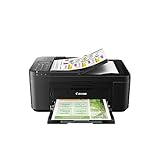
1. Canon PIXMA TR4720
A small 4-in-1 color inkjet that prints, copies, scans and faxes, with an auto document feeder, per the listing.
Good for: A dorm, spare room or apartment. Strengths: Compact body, a document feeder and a simple feature set. Weaknesses: Small cartridges mean it is not meant for heavy use. Skip it if you print daily.

Best for home offices that want a feeder at a lower tier
2. HP OfficeJet Pro 8125
A wireless color inkjet all-in-one with a document feeder and two-sided printing, per the listing.
Good for: Home offices that want a feeder at a lower tier. Strengths: Feeder and duplex in a home-office body. Weaknesses: HP’s ink program applies; confirm differences from the 9125. Skip it if you rarely print.

Best for remote workers who scan contracts and receipts
3. HP OfficeJet Pro 9125
A color inkjet all-in-one with a document feeder and two-sided printing and scanning, per the listing.
Good for: Remote workers who scan contracts and receipts. Strengths: Automatic duplex printing and a feeder speed up longer jobs. Weaknesses: Tied to the manufacturer’s ink program; check the cartridge policy first. Skip it if you print rarely or want third-party ink.

Best for small offices that print and scan tabloid documents
4. HP OfficeJet Pro 9730
A wireless wide-format all-in-one that, per the listing, prints and scans up to 11×17 inches with a document feeder and duplex.
Good for: Small offices that print and scan tabloid documents. Strengths: Wide-format print, copy, scan and fax with a feeder. Weaknesses: HP’s ink program applies, and the body is large. Skip it if you print only letter-size pages.

Feeders: Notes
Capacity
A larger feeder handles longer documents in one go.
Duplex feeders
A feeder that scans both sides in one pass is faster for double-sided originals.
Photos
Use the flatbed glass for photos to avoid damage. See how to scan a document with a printer.
Best Picks by Category
These labels summarize the picks by use case and price tier. They are not hands-on test results.
- Top rated: Canon PIXMA TR4720 — a budget-tier pick for light, occasional printing in a small space; check price on Amazon.
- Most reviewed: HP OfficeJet Pro 8125 — a budget-tier home-office pick with a feeder and duplex printing; check price on Amazon.
- Best value: Canon PIXMA TR4720 — a budget-tier pick for light, occasional printing in a small space; check price on Amazon.
- Lowest price: HP OfficeJet Pro 8125 — a budget-tier home-office pick with a feeder; check price on Amazon.
- Premium option: HP OfficeJet Pro 9730 — a mid-range wide-format pick for 11×17 printing and scanning; check price on Amazon.
Price, Rating and Review Comparison
The table lists the picks by price tier. Prices change often, so check price on Amazon.
| Product | Price | Rating | Ratings | Price tier |
|---|---|---|---|---|
| HP OfficeJet Pro 8125 | Check price on Amazon | — | — | Budget |
| Canon PIXMA TR4720 | Check price on Amazon | — | — | Budget |
| HP OfficeJet Pro 9125 | Check price on Amazon | — | — | Mid-range |
| HP OfficeJet Pro 9730 | Check price on Amazon | — | — | Mid-range |
How Much Feedback Backs Each Rating
Check the current rating and number of reviews for each pick on Amazon before you buy, since that feedback changes over time.
- Canon PIXMA TR4720: Check the current rating and reviews on Amazon.
- HP OfficeJet Pro 8125: Check the current rating and reviews on Amazon.
- HP OfficeJet Pro 9125: Check the current rating and reviews on Amazon.
- HP OfficeJet Pro 9730: Check the current rating and reviews on Amazon.
How to Choose
Check feeder capacity
Capacity is listed in sheets. A bigger feeder handles longer documents.
Check duplex scanning
A feeder that scans both sides in one pass is faster for double-sided originals.
Consider paper size
Wide-format models handle bigger originals such as 11×17.
How We Chose These Products
We start from products sold on Amazon with a full product name and clear specifications, and we skip results that show only a brand name or a vague title. We then read the listing and any manufacturer information for each one and note the features that matter for printers: print technology, running costs, connectivity and size. We do not run our own lab tests, and this guide contains no hands-on measurements. Use it to build a shortlist, then check current prices, dimensions and return terms on the Amazon page before you buy.
Buying Guide: What to Check Before You Choose
Ink tank versus cartridge
Ink tank printers use refillable tanks and usually have a lower cost per page, with a higher purchase price. Cartridge printers are cheaper up front but ink can cost more over time. Check the page yield and the cost of refills.
Laser printers
Laser printers print text quickly and sharply and do not clog like inkjets. Color lasers cost more. Check the toner cost and the print speed.
Photo printing
Photo printers focus on color accuracy and paper handling. Check the number of inks, the paper sizes and the cost per print.
Quick Reference: Which Pick Suits Whom
- Canon PIXMA TR4720: suits A dorm, spare room or apartment
- HP OfficeJet Pro 8125: suits home offices that want a feeder at a lower tier
- HP OfficeJet Pro 9125: suits remote workers who scan contracts and receipts
- HP OfficeJet Pro 9730: suits small offices that print and scan tabloid documents
Common Mistakes to Avoid
- Judging a printer by its price without considering ink cost.
- Ignoring the starter cartridge size.
- Forgetting the paper types needed.
- Assuming all-in-ones are always better.
- Skipping the return window.
Setup and Care
- Install the maker’s app or driver.
- Connect to Wi-Fi.
- Run an alignment and nozzle check.
- Print regularly to avoid clogs.
How Document Feeders Differ From One Another
The phrase automatic document feeder covers several different mechanisms, and the differences show up when you scan a stack of mixed paper. Two printers can both list an ADF and behave very differently on the same pile of receipts.
- Single-sided feeders. Pull the sheet through once, scanning one side. To scan both sides of an original, you flip the stack and run it again, then reorder the pages yourself.
- Reversing feeders. Scan one side, flip the page internally and scan the other side. They handle two-sided originals without help, but the extra path takes more time and puts the paper through more bends.
- Dual-scan or single-pass duplex feeders. Have two scan sensors and capture both sides in one pass. They are the fastest for double-sided stacks and tend to appear on higher-priced office models. A listing that says a printer prints two-sided is not the same as scanning two-sided, a distinction the HP OfficeJet Pro 9125 description draws clearly by mentioning both.
When you read a listing, find the exact wording. Automatic two-sided printing refers to the print engine. Two-sided scanning refers to the feeder. They are separate features, and a printer can offer one without the other.
Specs That Matter for Scanning Work
Feeder capacity
Capacity is stated in sheets of standard paper. A small feeder suits letters, forms and short contracts, while a larger one saves time for long documents and tax files. If you regularly scan more than a few pages at a time, give priority to capacity over the rest of the feature list. A very small tray means refilling again and again, which defeats the purpose.
Paper size and weight
Letter and legal paper are standard. The HP OfficeJet Pro 9730 in this guide is described as handling tabloid size up to 11 by 17 inches, which matters for drawings, spreadsheets and posters. Thin onion-skin paper, glossy sheets and thick cardstock can jam feeders, so check the supported paper weight range. Receipts, odd-sized cards and photos are better scanned on the flatbed glass than through the feeder.
Scan resolution and speed
Resolution is measured in dots per inch. For text, 300 dpi is a common balance of readability and file size, while 600 dpi suits small print and archival copies. Scan speed is often quoted in pages per minute, but real speed depends on resolution, color mode and the connection. Black-and-white is faster than color, and a lower resolution is faster than a higher one.
Scan destinations
Convenient scan-to options save steps. Look for scan to email, to a USB drive, to a network folder, to cloud storage, or to a phone app. Some printers also create searchable PDFs through optical character recognition, which turns scanned text into text you can search and copy. Check whether the OCR happens on the printer, in the maker’s app or in a separate software package.
Inkjet, Laser or Ink Tank for a Feeder-Equipped Printer
All four printers in this guide are inkjet models, so the choice here is between the types in general. If your work leans heavily on scanning, the print technology matters less than it does for printing, but you still pay for it every month.
| Type | Strengths | Watch for |
|---|---|---|
| Inkjet with cartridges | Good color and photo quality, lower purchase price | Cost per page can add up, and nozzles can clog if unused |
| Ink tank | Very low running cost, big ink capacity | Higher purchase price, careful refilling |
| Monochrome laser | Fast, sharp text, cheap per page, no clogging | No color, and some are bulky |
| Color laser | Fast, durable prints, good office text | High purchase price and replacement toner |
Subscription and ink programs deserve scrutiny. Some makers sell ink plans that lower per-page cost but tie the printer to the program, and cancelling can affect cartridge compatibility. The listing notes for the HP models in this guide point to such a program. Read the terms of service, check whether third-party cartridges are blocked, and decide if the arrangement fits how much you print.
Matching a Feeder Printer to Your Situation
A student or occasional home user
You scan a few forms a semester and print the odd assignment. A compact printer with a small feeder meets the need, and a modest design makes sense. Do not pay for a high capacity feeder you will rarely load.
A remote worker handling contracts and receipts
Two-sided scanning and a feeder of decent size are worth paying for, along with scan to email or cloud. Spend time on network setup, because reliable Wi-Fi saves headaches.
A small business with invoices and records
Look at duty cycle, which is the recommended monthly page volume, as well as feeder speed. A printer rated for heavier use lasts longer than a home model pushed past its comfort zone. Think about security, such as password-protected scans and user access.
Anyone digitizing old paperwork
Long projects reward a faster feeder, a USB or network scan destination and good file naming habits. Remove staples, paper clips and sticky notes first, and fan out the stack so pages do not stick together.
Architects, designers and anyone with large drawings
Wide-format printing and scanning is the specific reason to choose a tabloid model. Confirm that the feeder, not just the flatbed, handles the large size.
Keeping the Feeder Reliable
- Remove staples, clips and tape before loading, since a single staple can scratch the glass or jam the path.
- Flatten curled and wrinkled pages, and avoid feeding torn or taped originals. Use the flatbed instead.
- Clean the scanner glass strip and the feeder rollers with a lint-free cloth, lightly dampened with water or the maker’s recommended cleaner. Streaks on scans often come from a dirty strip.
- Do not overfill the tray beyond the stated limit.
- Keep the printer in a room with steady humidity, since damp paper clings together and dry paper jams.
- If the feeder grabs two sheets at once, fan the pages and reload them. If it persists, clean the pickup roller.
Questions to Ask Before You Order
- Does the feeder scan both sides in one pass, or does it only print on both sides?
- How many sheets does the feeder hold, and what paper sizes does it accept?
- Where can scans be sent, and does it support the app or cloud service I use?
- Is there a monthly page volume recommended by the maker?
- Is an ink subscription required or optional?
Setting Up a Scanning Workflow That Saves Time
A feeder only saves time if the files it creates end up somewhere sensible. Before the first big batch, decide how you want scans named, sorted and backed up. A little structure at the start prevents a folder of hundreds of files called scan001.
- Pick a naming pattern that sorts well, such as year, month, day, then a short description. Files will line up in date order without effort.
- Create top-level folders by category, such as taxes, medical, home and work, and add year folders inside them.
- Scan multi-page documents into one PDF rather than separate image files. Most printers have a setting to combine feeder pages into a single file.
- Use black-and-white or grayscale for text pages, and reserve color for items where color matters, because the files are much smaller.
- Keep a second copy on another drive or in cloud storage, since a scanned archive is only useful if it survives a drive failure.
- Decide what to do with the paper. Some documents, such as deeds, birth certificates and signed originals, should be kept even after scanning.
Privacy and Security for Scanned Records
Scanners handle sensitive paperwork, so the printer itself becomes part of your security picture. Use a strong password for the printer’s admin page and change any default login. Keep the firmware updated, because makers release patches for network vulnerabilities. If your model supports it, turn on encrypted connections and disable services you do not use, such as old protocols or remote printing options.
When you scan to email or cloud services, check the account and the destination before sending. Printers with a touchscreen sometimes store address books and credentials, so clear them before you sell or recycle a unit. Many models have a factory reset option that wipes saved data, and some store scans temporarily in internal memory, so review the manufacturer’s guidance on secure disposal.
What an Automatic Document Feeder Really Changes
A flatbed scanner asks you to place each page, close the lid, scan, lift, and repeat. An automatic document feeder turns that ritual into a single action: stack the pages, press scan, and collect them a minute later. The difference is trivial for two pages and transformative for twenty, which is why the feeder is the feature home-office workers miss most when it is absent. It changes scanning from a chore you postpone into a habit you keep — and kept habits are what make digital filing systems actually work.
The feeder also changes copying. A multi-page document copied through a feeder emerges collated and complete, while flatbed copying of the same document invites the classic errors: a skipped page, a duplicated page, a set assembled in the wrong order. For anyone who copies contracts, school packs or medical paperwork more than occasionally, the feeder is not a luxury specification; it is the difference between trusting the copy and checking it page by page.
Feeder Capacity, Speed and Paper Handling in Practice
Feeder capacity is quoted as a number of sheets, but the honest way to read it is against your real stacks. Most household scanning arrives in bundles of five to fifteen pages — a contract, a term’s school letters, a set of receipts — so a feeder in that range covers daily life, while larger capacities serve people digitising archives or processing client paperwork. Remember that capacity assumes standard paper in good condition; a stack of mixed sizes, receipts and a business card needs feeding in smaller, sorted batches whatever the headline number says.
Feeders prefer tidy paper. Remove staples and paper clips, straighten folded corners, and fan the stack so pages are not clinging together. Mixed paper weights in one stack are the most common cause of the double-feed, where two pages pass together and one is silently skipped. For important documents, the professional habit is simple: count the pages before scanning, count the pages in the resulting file, and only then let the originals go. Ten seconds of counting has saved more important documents than any scanner feature.
Duplex Scanning: The Feeder Feature Within the Feature
Two-sided originals expose a quiet divide between feeders. Some scan both sides in a single pass; others scan one side, then flip the stack mechanically and scan again; and the simplest feeders scan one side only, leaving you to turn the stack over and merge the pages in software. For the occasional two-sided form, all three approaches work. For someone digitising double-sided contracts or booklets regularly, single-pass duplex scanning is worth seeking out, because it halves scanning time and eliminates ordering mistakes entirely.
Where does that leave the picks here? The HP OfficeJet Pro models in this guide are built for exactly this office-style work, with feeders designed for stacks of two-sided business documents. The Canon PIXMA TR4720 offers feeder convenience at a household price and pace, suiting families whose scanning is school forms and occasional paperwork rather than daily client files. Matching the feeder to your true stack size — not your imagined one — is the heart of choosing well from this list.
Scanning Workflows the Feeder Makes Possible
With a feeder, several workflows become realistic at home. Digitising a filing cabinet drawer by drawer, one stack at a time, turns a weekend-destroying project into a month of ten-minute sessions. Scanning children’s artwork and school reports as they arrive keeps the originals safe and the fridge door visible. Processing expense receipts in a weekly batch, straight into a dated folder, ends the shoebox era of tax preparation.
Set up destinations before you need them: a folder for household documents, one for work, one for each child’s school paperwork, named so files sort themselves by date. Most feeder-equipped printers can scan to a computer folder, an email address or a cloud service with one button once configured. That one-time configuration is what separates owners who scan everything from owners who meant to — the feeder does the physical work, but the preset does the psychological work.
Comparing the Feeder Picks in This Guide
The Canon PIXMA TR4720 is the entry point: an affordable all-in-one whose feeder handles household stacks, with colour printing for family life as its main event. It suits buyers whose scanning is real but occasional, and who would rather spend the difference on other things. The HP OfficeJet Pro 8125 moves the emphasis to the home office, with a feeder and pace aimed at regular document work, while the OfficeJet Pro 9125 adds speed and polish for workers whose scanning and printing volumes justify it.
The HP OfficeJet Pro 9730 is the wide-format member of the family, and its feeder should be judged alongside its ability to handle larger paper: if your work includes bigger plans, posters or spreadsheets that must be scanned or copied at full size, it occupies a niche the others cannot fill. If everything you handle is standard letter or A4, its extra size buys you nothing — a useful reminder that the best feeder is the one matched to your paper, not the one with the longest specification list.
Keeping a Feeder Reliable for Years
Feeders fail gradually: an occasional double-feed becomes a weekly one, then a habit. The causes are usually mundane. The small rubber rollers that grip each page collect paper dust and lose their bite; wiping them with a slightly damp, lint-free cloth, as the manual describes, restores most tired feeders. Dust and paper scraps inside the feeder path trigger false jam warnings, and a blast of dry air or a careful visual check clears them.
Paper discipline helps more than any cleaning. Feed originals that are flat, dry and uniform; route fragile, torn or very small items through the flatbed instead, where they can be positioned gently by hand. A document you care about — a birth certificate, a signed original — deserves the flatbed anyway, scanned once at high quality rather than trusted to rollers. Use the feeder for the stacks it was born for, and it will still be feeding cleanly when the printer around it is old.
Scanning Quality: Resolution, Format and File Sense
A feeder makes scanning fast; a few settings make it good. For ordinary documents, a moderate resolution is plenty — text stays crisp and files stay small enough to email. Photographs and anything you may print again deserve higher settings, while receipts and reference paperwork can go lower still. The commonest scanning mistake is choosing maximum resolution for everything, producing enormous files that fill drives and fail to attach to emails, for documents that will only ever be read on a screen.
File format matters as much as resolution. PDF is the natural home of multi-page documents — the feeder’s whole output becomes one tidy file — and searchable PDF, where the scanner’s software recognises the text, is the upgrade worth enabling if your model offers it. A searchable archive can be found by typing a word; a picture-only archive must be browsed by memory. For photographs, choose a format that does not degrade the image each time it is saved, and keep the scanner’s colour settings honest rather than vivid.
Naming files at scan time feels tedious and pays forever. A simple pattern — date, then a few words of description — makes a folder of scans self-explanatory years later, when you are hunting for the warranty, the contract or the certificate under time pressure. The feeder gives you the pages; a naming habit gives you the archive.
The Feeder and the Paperless Home
Every paperless-home attempt lives or dies on friction, and the feeder is the friction-killer. Post arrives, the useful items go through the feeder in one small stack each week, and the originals go to recycling or a slim folder for the few that must stay paper. Without a feeder, that weekly stack becomes a monthly pile, then a quarterly box, then a permanent feature of a spare room. Owners of the printers in this guide consistently discover that the feeder, bought for one big project, ends up restructuring how all paper flows through the house.
Start with the present, not the archive. Scanning everything you have ever kept is a project that defeats most people; scanning everything from today forward is a habit that succeeds. Once the habit holds, work backwards through old paper in small batches if you wish, keeping originals for the documents that legally or sentimentally deserve paper — certificates, signed agreements, anything with a seal — and letting the feeder retire the rest.
Back up the archive as you build it. Scans that exist in one place are one accident away from not existing, so let the folder sync to a cloud service or copy it to a second drive as part of the same weekly routine. A feeder plus a backup turns a house full of fragile paper into a durable, searchable record — the real product these printers are selling.
Feeding Difficult Originals Without Tears
Not everything belongs in a feeder, and knowing the exceptions protects both documents and machine. Very small items — receipts are the borderline case — may skew or vanish into the mechanism; group them on the flatbed under a plain sheet, or feed them one at a time with the guides snug. Fragile, torn or folded originals deserve the flatbed too, where nothing pulls at them. Photographs should generally stay out of feeders not designed for them, since rollers and glossy surfaces are uneasy partners.
For the borderline stack — mixed sizes from a cleared-out drawer — sort before you scan. One pass for uniform letters, a second slower pass for the oddments, beats one ambitious pass that jams on the third page. And keep the manufacturer’s warnings in view: staples left in a stack are the feeder’s natural enemy, scratching glass and tearing pages, so the thirty seconds spent removing them is the cheapest insurance in scanning.
From Stack to File: A Feeder Workflow That Takes Ten Minutes a Week
The owners who stay paperless share a rhythm, and it is worth copying exactly. Keep a small tray or folder where the week’s paper lands — post, school letters, receipts, forms. Once a week, sort it into three piles: scan and recycle, scan and keep the original, and no scan needed. The first pile goes through the feeder in batches sorted by size, landing in folders you set up once with names that sort by date. The second pile is scanned the same way, then filed in one slim physical folder. The third pile goes straight to recycling or the household board. Ten minutes, once a week, and paper never accumulates enough to become a project.
Two details make the rhythm stick. First, scan at the moment of sorting, not later — a pile labelled “to scan” is where good systems go to die. Second, glance at each file as it is created: check the page count matches the stack, and that the first page is legible and the right way up. That ten-second inspection is your quality control, and it is only possible because the feeder made the scanning itself effortless. The printers in this guide differ in feeder size and speed, but all of them can sustain this rhythm, which is the real-world test that matters.
Copying With a Feeder: Collated Sets Without the Errors
Copying is the feeder’s quieter talent. A twenty-page document copied from a flatbed must be assembled by hand, and human assembly introduces the skipped page, the duplicated page and the out-of-order set with dreary reliability. Through a feeder, the same document emerges as a complete, collated copy while you do something else — and if the printer also duplexes, the copy matches a two-sided original side for side without any page-turning choreography from you.
Classrooms, clubs and small offices feel this most: the set of handouts, the committee papers, the application packs. If your copying regularly involves multi-page originals, weight the feeder and duplex combination as heavily as print speed when choosing from this list. The HP OfficeJet Pro models are built for exactly this document-centred life, while the Canon PIXMA TR4720 covers the household version of it — school packs, family paperwork, the occasional thick form — at a gentler pace and price.
What Feeder Specifications Cannot Tell You
Specification sheets quote capacity and speed, but the lived quality of a feeder is in things no sheet lists: how forgiving it is of slightly imperfect paper, how loudly it works through a stack during a phone call, how honestly it reports a misfeed instead of scanning on with a page missing. Reviews and guides like this one exist partly to translate those lived qualities. In general, office-bred feeders — the OfficeJet Pro family here — are engineered for imperfect real-world stacks because offices produce nothing else, while budget feeders reward tidier originals and smaller batches.
Your own paper habits should therefore steer the choice as much as the numbers do. If your scanning arrives as neat stacks of uniform letters, every feeder in this guide will please you. If it arrives as the contents of a kitchen drawer — mixed sizes, folded forms, a photograph or two — choose the machine built for offices, feed it in sorted batches, and route the fragile and the tiny through the flatbed. The feeder is a wonderful servant of routine and a poor explorer of chaos; matching the machine to your actual stacks is the whole art of buying one.
Setting Up Scan Destinations Properly, Once
The difference between a feeder that gets used and one that gathers dust is usually decided in the first setup session. Configure the destinations then: a household documents folder, a work folder, an email shortcut for the person you send scans to most, and file naming that begins with the date. Most of these printers can scan directly to a network folder or cloud service from their own panel, without a computer involved, and enabling that path matters because the computer-free scan is the one that happens at 10pm when a form is due at midnight.
Test each destination with a real document before you need it, and check where the file actually landed and what it is called. Then write the two or three button presses on a card kept by the printer, so anyone in the house can scan without a tutorial. It is a small, unglamorous investment — perhaps twenty minutes — and it converts an impressive specification into a household habit, which is the only form in which a document feeder truly pays for itself.
Archiving Family and Legal Paperwork With a Feeder
Some stacks deserve more care than the weekly routine gives them. Wills, property documents, insurance policies, medical records and family certificates form the small archive every household should hold digitally as well as on paper, because paper burns, floods and fades while a backed-up scan does not. Work through this archive in a deliberate session: flatbed for the fragile and the sealed, feeder for the sturdy multi-page documents, high quality settings, and names that a stranger could understand — because one day the person searching may be a family member who never met your filing system.
Store the results in two places, one of them outside the house, whether that is a cloud account or a drive kept elsewhere. Then tell the relevant people where the archive lives. A digital archive nobody can find is only slightly better than none, and the feeder’s contribution — making the scanning of a whole household archive an afternoon rather than a month — only pays out if the archive is findable, backed up, and understood by the people it exists to protect.
Feeder or Flatbed? A Quick Decision Guide
Keep the rule simple. If it is a stack of similar, sturdy pages, use the feeder. If it is one page, a book, something fragile, something tiny, something precious, or a photograph, use the flatbed. If it is a thick document you will scan once and keep forever, consider the flatbed for quality and the feeder for sanity, and choose based on the document’s condition rather than its length. Owners of the printers in this guide have both tools in one machine; the skill is not in the scanning but in the choosing, and it takes about a week of real use to become instinct.
Scanning Books, Bound Volumes and Awkward Originals
Every scanning life eventually meets the book: a family history volume, a manual with a bound spine, a child’s project book that will not lie flat or pass through any feeder. The flatbed is the tool, and patience is the technique. Scan two pages at a time where the binding allows, keep the lid’s pressure gentle on old spines, and accept that a bound original produces slightly curved text near the gutter — character that matters only if you intended to reprint the book rather than preserve it.
For manuals and reference books, consider whether you need the whole volume. Often the honest need is three chapters and the index, and scanning those through a careful flatbed session beats an afternoon of page-turning. Name the files by chapter so the partial archive stays useful, and note on the first page’s file where the physical book lives. A feeder owner’s discipline is knowing when not to feed, and bound originals are the clearest case.
How a Feeder Changes What You Keep
An unexpected effect of owning a good feeder is that it changes your relationship with incoming paper. Households without one keep paper defensively — every letter filed because finding it again feels impossible. Households with a feeder and a weekly routine keep far less, because the digital copy is findable in seconds and the original’s job is mostly done. Drawers empty, folders slim down, and the paper that remains is the paper that genuinely must: certificates, signed originals, documents with seals or sentimental weight.
This is worth stating plainly in a buying guide, because it is the benefit nobody lists on a specification sheet. The HP OfficeJet Pro models and the Canon PIXMA TR4720 in this guide are not really selling scans per minute; they are selling a house with less paper in it, records that survive a flood, and the ability to put your hands on any document in under a minute. Judged on that outcome, a document feeder is among the highest-value features a home printer can offer, and the easiest to underestimate before you have lived with one.
If you take one step after buying, make it the setup session described earlier: destinations configured, a test stack scanned, a card by the machine. The feeder will do the rest, one unremarkable weekly stack at a time, until the day you search for a five-year-old document and find it before your tea cools — and wonder how you ever lived the other way.
Frequently Asked Questions
What is an ADF?
An automatic document feeder: a tray on top of the scanner that feeds pages automatically.
Do all all-in-ones have an ADF?
No. Many budget models have only a flatbed glass.
Can a feeder scan photos?
Use the flatbed glass for photos to avoid damage.
Which is cheaper to run, inkjet or laser?
Laser is usually cheaper per page for text, and ink tank printers are cheaper for color and photos.
How do I connect my printer to Wi-Fi?
Use the printer’s setup menu or the maker’s app. See our Wi-Fi guide.
Do I need genuine ink?
Not always, but some printers restrict third-party ink. Check the terms.
What is the difference between duplex printing and duplex scanning?
Duplex printing means the printer puts ink on both sides of a sheet. Duplex scanning means the feeder captures both sides of an original. A printer can have one without the other, so read the listing carefully if you plan to scan double-sided documents regularly.
How many sheets should an ADF hold?
It depends on your documents. Smaller feeders suit a few forms at a time. If you regularly scan contracts, tax records or long reports, look for a larger tray so you do not refill it constantly. Check the capacity in sheets on the product page.
What resolution should I use to scan documents?
For most text documents, 300 dpi is a good balance between readability and file size. Use 600 dpi for small print or archival copies. Higher resolution makes slower scans and bigger files, so use it only when the content needs it.
Can a printer scan to a searchable PDF?
Many can, using optical character recognition built into the printer, its app or separate software. The result is a PDF where you can search and copy text. Check how the printer handles OCR before buying if searchable files are important.
Why does my document feeder jam?
Common causes are staples, curled or damp paper, overfilled trays and dirty rollers. Remove fasteners, flatten pages, load within the stated limit and clean the pickup rollers with a lint-free cloth. Use the flatbed for torn, thick or fragile originals.
Bottom Line
For a budget feeder, the Canon PIXMA TR4720 is the entry point. For serious scanning, the HP OfficeJet Pro 9125 or the wide-format OfficeJet Pro 9730 are better fits.
Related Reading
- Types of Printers Explained: Inkjet, Laser, Ink Tank and More
- 7 Best Wireless Printers for Home Use
- 5 Best 11×17 Tabloid Printers for Home and Office
- 7 Best All-in-One Printers for Scanning and Printing
- 6 Best Brother Laser Printers for Home and Office
More Printer Guides
- Best Printers for Home Use
- Best Printers With Automatic Duplex
- Best Printers With Fax
- Best Small and Compact Printers for Home
- Best AirPrint Printers for iPhone, iPad and Mac
- Best Basic Printers for Home

