Disclosure: As an Amazon Associate, reviewstook.com earns from qualifying purchases. Links to Amazon on this page are affiliate links; they cost you nothing extra.
A compact printer fits on a shelf, a dorm desk or a corner of a spare room. The price of small size is usually a smaller paper tray, small cartridges or fewer features.
These five compact picks come from published specifications, not our own testing. Check each product page for exact dimensions before you buy.
New to printers? Start with our guide to the best printers for home use, then come back here for the details.

In this guide
Quick Picks
| Printer | Type | Best for |
|---|---|---|
| Canon PIXMA TR4720 | Color inkjet all-in-one | Light, occasional printing in a small space |
| Brother Work Smart 1360 | Color inkjet all-in-one | Compact everyday color printing |
| HP DeskJet 4155e | Color inkjet all-in-one | Small-space everyday printing |
| HP LaserJet M207dw | Monochrome laser | Compact text-only laser printing |
| Brother HL-L2350DW | Monochrome laser | Text-only printing at home |
5 Best Small and Compact Printers for Home

Top pickBest for a dorm, spare room or apartment
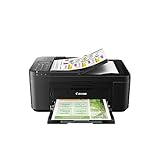
1. Canon PIXMA TR4720
A small, plain color inkjet all-in-one that prints, copies and scans.
Good for: A dorm, spare room or apartment. Strengths: Compact body and a simple feature set. Weaknesses: Small cartridges mean it is not meant for heavy use. Skip it if you print daily.

2. Brother Work Smart 1360
A compact color inkjet all-in-one that prints, scans and copies, from Brother’s Work Smart line.
Good for: Households that want occasional color without a bulky machine. Strengths: Small size and a basic, easy feature set. Weaknesses: Cartridge refills add up if volume grows. Skip it if you need a document feeder; check the product page.

Best for apartments and shared rooms
3. HP DeskJet 4155e
A compact color inkjet all-in-one with a feature set above the entry tier.
Good for: Apartments and shared rooms. Strengths: Compact body and basic automation. Weaknesses: Cartridge costs can climb with volume. Skip it if you need heavy-duty output.

Best for text-only printing in tight spaces
4. HP LaserJet M207dw
A compact single-function monochrome laser with two-sided printing; check connectivity options on the product page.
Good for: Text-only printing in tight spaces. Strengths: Compact size and toner that keeps between uses. Weaknesses: No scanner and black-and-white only. Skip it if you need scanning or color.


Best for homework, forms and shipping paperwork
5. Brother HL-L2350DW
A compact monochrome laser with wireless and automatic two-sided printing.
Good for: Homework, forms and shipping paperwork. Strengths: Crisp text, and toner does not dry out between uses. Weaknesses: No color, and no scanning or copying. Skip it if you print photos or need a scanner.

Choosing a Small Printer Without Giving Up Too Much
Measure everything
Measure width, depth and height, then add room to open the lid, load paper and let pages exit. A printer that fits on the shelf but cannot open is a bad buy.
Paper tray size
Compact printers often hold fewer sheets. If you print long jobs, you will refill more often.
Cartridges and supplies
Small inkjets use small cartridges that run out sooner, while compact lasers hold toner for longer. Choose by how much you print.
Features you may lose
Very small printers often lack a feeder, duplex printing or a display. Decide which of these you need before you pick on size alone.
Best Picks by Category
They summarize listing data and are not hands-on test results.
- Top rated: Canon PIXMA TR4720 — check price on Amazon.
- Most reviewed: HP DeskJet 4155e — check price on Amazon.
- Best value: Canon PIXMA TR4720 — a mid-range pick; check price on Amazon.
- Lowest price: Brother Work Smart 1360 — a budget-tier pick; check price on Amazon.
- Premium option: HP DeskJet 4155e — check price on Amazon.
Price, Rating and Review Comparison
The table lists the picks by price tier. Prices change often, so confirm the current price on Amazon.
| Product | Price | Rating | Ratings | Price tier |
|---|---|---|---|---|
| Brother Work Smart 1360 | Check price on Amazon | — | — | Budget |
| HP LaserJet M207dw | Check price on Amazon | — | — | Mid-range |
| Canon PIXMA TR4720 | Check price on Amazon | — | — | Mid-range |
| HP DeskJet 4155e | Check price on Amazon | — | — | Mid-range |
| Brother HL-L2350DW | Check price on Amazon | — | — | n/a |
How Much Feedback Backs Each Rating
A high average from a handful of ratings is weaker evidence than a slightly lower average from thousands. Here is how the sample size looks for each pick.
- Canon PIXMA TR4720: A moderate sample.
- Brother Work Smart 1360: A large sample.
- HP DeskJet 4155e: A large sample.
- HP LaserJet M207dw: A moderate sample.
- Brother HL-L2350DW: A large sample.
How to Choose
Measure your space
Check width, depth and height, and leave room for the paper tray and the output tray.
Consider the paper tray
Compact printers often hold fewer sheets. If you print long jobs, that matters.
Think about ink or toner
Small inkjets use small cartridges. A compact laser’s toner lasts longer between uses.
How We Chose These Products
We start from products sold on Amazon with a full product name and clear specifications, and we skip results that show only a brand name or a vague title. We then read the listing and any manufacturer information for each one and note the features that matter for printers: print technology, running costs, connectivity and size. We do not run our own lab tests, and this guide contains no hands-on measurements. Use it to build a shortlist, then check current prices, dimensions and return terms on the Amazon page before you buy.
Buying Guide: What to Check Before You Choose
Ink tank versus cartridge
Ink tank printers use refillable tanks and usually have a lower cost per page, with a higher purchase price. Cartridge printers are cheaper up front but ink can cost more over time. Check the page yield and the cost of refills.
Laser printers
Laser printers print text quickly and sharply and do not clog like inkjets. Color lasers cost more. Check the toner cost and the print speed.
Photo printing
Photo printers focus on color accuracy and paper handling. Check the number of inks, the paper sizes and the cost per print.
Quick Reference: Which Pick Suits Whom
- Canon PIXMA TR4720: suits A dorm, spare room or apartment
- Brother Work Smart 1360: suits households that want occasional color without a bulky machine
- HP DeskJet 4155e: suits apartments and shared rooms
- HP LaserJet M207dw: suits text-only printing in tight spaces
- Brother HL-L2350DW: suits homework, forms and shipping paperwork
Common Mistakes to Avoid
- Judging a printer by its price without considering ink cost.
- Ignoring the starter cartridge size.
- Forgetting the paper types needed.
- Assuming all-in-ones are always better.
- Skipping the return window.
Setup and Care
- Install the maker’s app or driver.
- Connect to Wi-Fi.
- Run an alignment and nozzle check.
- Print regularly to avoid clogs.
What You Give Up When a Printer Shrinks
Small printers are not simply regular printers made smaller. The savings in size come from specific compromises, and knowing them helps you decide which ones you can live with.
- Paper capacity: input trays are often shallow, sometimes holding around 100 sheets or fewer. That means refilling more often, which is fine for occasional printing and irritating for a long report.
- Output tray: compact designs may use a fold-out tray or no tray at all, so pages land on a shelf or the desk. Leave space in front of the machine.
- Consumable size: small inkjets use small cartridges, and starter cartridges are often partly filled. A compact laser can use small toner cartridges too, though toner generally lasts longer than ink in the same body.
- Features: automatic two-sided printing, document feeders and large screens are less common on the smallest models. Check each one rather than assuming.
- Speed: smaller engines tend to print more slowly, so a ten-page job takes longer than you may expect.
None of this makes a compact printer a poor choice. If you print a few pages a week, a small footprint and a modest price are the right trade.
Matching a Compact Printer to Your Situation
Dorm room or shared student housing
You print essays, readings and the odd form, and space is tight. A small inkjet all-in-one such as the Canon PIXMA TR4720 or the HP DeskJet 4155e can print, copy and scan from a shelf. Because dorm printing tends to come in bursts around deadlines, avoid models whose ink dries out easily if left idle for weeks. A compact laser is the alternative if you print mostly text, since toner does not dry out.
Apartment with a home-office corner
If you work from home several days a week, you probably print shipping labels, invoices and contracts. A monochrome laser such as the HP LaserJet M207dw or the Brother HL-L2350DW fits this use. The pages are sharp, the toner lasts, and the machine sits idle without trouble. These models print only, so if you need to scan, use your phone or a separate scanner.
Family household with occasional color
Kids bring home projects that need color pages, and nobody wants a large printer in the living room. A compact inkjet all-in-one covers school printouts, coloring sheets and the occasional photo. Look at the cost of replacement cartridges before buying. If your household prints often, a model with higher-yield cartridges can make a big difference over a year.
Renters and anyone who moves often
Weight and packaging matter here. A lightweight inkjet is easier to carry than a laser. Keep the original box if you can, since printers travel better in their foam packing, and remove cartridges before a long move to reduce spills.
Specs and Features That Actually Matter at Small Size
Dimensions and clearance
A listing may show the printer’s measurements with the trays closed. The footprint changes when you open the input tray, extend the output tray and lift the scanner lid. Add several inches to each dimension, and leave room at the back for the power cable and any USB or Ethernet cord. Measure the shelf, not just the space you see on the desk.
Connectivity
Most compact printers here offer Wi-Fi, and many support printing from phones. Check that your phone’s operating system is supported by the maker’s app and the standard printing services. A USB port is a useful fallback if your Wi-Fi acts up, and a printer without any wired option can become a problem when the router changes. Some laser models add Ethernet, which is steadier but needs a cable run.
Duplex and scanning
Automatic two-sided printing saves paper, but it is not present on every small model. If you print school or work documents regularly, it is worth looking for. Scanning is available only on the all-in-one inkjets in this guide, and some scan on a flatbed glass with no feeder, which suits single pages and photos but is slow for multi-page documents.
Software and account requirements
Some inkjets, particularly newer models, work best with a maker account and a subscription ink plan. Read the listing for any requirement to sign in, to use particular cartridges or to keep the printer connected to the internet. These conditions can change the real cost and the ease of use, and a printer that stops working if its account lapses is a poor fit for an occasional user.
Running Costs on a Small Printer
The smaller the printer, the easier it is to ignore the ink or toner bill. Do the arithmetic before buying. Divide the price of a standard cartridge by its stated page yield to get a cost per page, then multiply by the pages you expect to print each month.
| Printer type | Purchase price | Running cost | Good for |
|---|---|---|---|
| Compact inkjet all-in-one | Low | Higher per page | Occasional color, scanning |
| Compact monochrome laser | Moderate | Low per page for text | Documents, forms, shipping |
Occasional printers should also consider shelf life. Ink in a cartridge can dry or degrade if a printer is used rarely, and maintenance cycles that clear the nozzles use a little ink each time they run. A laser sitting unused for months usually still prints on the first try.
Inkjet or Laser: Choosing for a Small Space
For most small-space buyers, this is the real decision. An inkjet all-in-one gives you color, scanning and copying in one box, and it usually costs less to buy. A compact laser prints only black and white in the models listed here, but it prints text faster, keeps its toner for months and tends to cost less per page for documents.
Ask yourself three plain questions. Do you print in color at least once a month? Do you need to scan or copy? Do you go weeks without printing anything? If you answer yes to the first two, an inkjet is the sensible match. If you answer no to those and yes to the third, a laser will frustrate you less.
There is also a middle path. Some households keep a compact laser for everyday paperwork and use a phone app or a print shop for the rare color job. That can cost less than feeding color cartridges that dry out between uses.
Questions to Ask Before You Order
- Does the shelf have room for the open trays and scanner lid, not just the closed body?
- What is the cost of one replacement cartridge, and how many pages does it print?
- Does the printer need an online account, subscription or particular cartridges to work?
- Is automatic duplex printing included, or only manual?
- Will it support my phone and computer for wireless printing?
- What is the return window if the size or the setup turns out to be wrong?
These questions take a few minutes to answer and prevent most of the disappointment people feel after unpacking a compact printer. They also help you compare listings that look similar at first glance.
Common Setup Problems on Compact Printers
First-time setup trips up many new owners. Pull off every piece of orange or blue packing tape inside and outside the printer, and remove the protective sheet over the cartridge area, since a partly removed strip causes error messages. Install cartridges slowly and press until they click.
If Wi-Fi setup fails, check that the phone or computer is on the 2.4 GHz band if the printer supports only that band, and move the printer closer to the router during setup. Keep the paper in the tray flat, and avoid overfilling, which is a common cause of misfeeds in shallow trays.
If prints look streaky, run the cleaning cycle once and print a test page. Repeated cleaning wastes ink and rarely solves a problem that a new cartridge would.
Keeping it working for years
Dust is the quiet enemy of small machines, since compact housings leave little room between paper path and electronics. Wipe the exterior with a dry cloth, close trays when the printer is idle and keep it off the floor. Use paper that matches the printer’s weight range, and store the ream sealed so it does not absorb moisture. Keep the box or note the model number, because replacement cartridges are specific to each series, and similar-looking models often take different ones.
Small Printers in Depth: Living Well in a Small Footprint
The main sections of this guide cover what to buy and why. This section covers what ownership actually feels like once the compact printer is on your desk: the habits, settings and small decisions that decide whether it delights you or nags at you. None of it requires technical skill. It requires only that you set the machine up around your real life once, thoughtfully, instead of rediscovering the same lessons one paper jam at a time.
Measure the printer’s real footprint, not its brochure footprint
A compact printer’s working size is bigger than its closed size. Trays extend, paper sticks up and out, scanner lids swing open, and cables need slack. Before choosing among the picks here, measure your space with the printer imagined in working position: lid up, tray out, a stack of paper loaded. A printer that fits closed but cannot open is a daily frustration, and small-space buyers are the ones most likely to be caught by it, because the shelf or cubby that inspired the purchase constrains exactly those movements.
Height is the measurement people forget. A printer under a shelf may fit perfectly until the scanner lid needs to rise, or a feeder needs vertical room for pages. If the space is truly tight, a model whose lid opens partway for single sheets, or a design that loads paper at the front, can be worth more than a slightly smaller box that demands space it cannot have.
Small printers in dorms, rentals and shared rooms
Compact printers thrive where space is rented by the semester or shared with other people. In those settings, noise and courtesy matter: a printer that clatters through a long job at midnight will not make its owner popular, so lighter, shorter jobs and sensible hours are part of the ownership deal. Ink or toner logistics matter too, because storage for spares is limited; a model whose supplies are easy to find locally saves the day when a deadline and an empty cartridge coincide.
Security of a different kind applies in shared housing: your printer on a shared network can receive other people’s jobs, accidentally or otherwise. Use the printer’s controls or your router’s settings to keep it on your own network where you can, and clear your print queue of anything sensitive once printed. At term’s end, a compact printer that kept its box is a printer that moves home undamaged, which is no small thing in student life.
What small printers trade away, and how to live with it
Shoehorning printing into a small box means smaller trays, simpler controls and, on many models, fewer paper options. The way to live happily with those trades is to match them to light, varied home use rather than fighting them. Refilling a small tray is painless when jobs are short; it is miserable during a long document, so send long jobs in parts or accept the pause. Simple controls are fine when the phone app carries the settings, which is how most compact models are designed to be run.
Where a compact model asks too much is sustained volume: frequent long documents, heavy card, or a household of heavy users will outgrow it and make its small trays and supplies feel like obstacles. Read the picks here with your honest volume in mind. For the light, occasional printing they are built for, a good compact printer is not a compromise at all; it is the right size of tool.
How the Picks in This Guide Compare in Everyday Use
Specifications separate these machines on paper, but daily life separates them differently. The paragraphs below revisit each pick in this guide strictly in the role the guide itself assigns it, and set that role against the neighbouring picks, so you can feel the shape of the choice rather than just reading it. Read the pick that matches your situation first, then read its neighbours: the right decision usually becomes obvious in the contrast.
Canon PIXMA TR4720 earns its place in this lineup as a color inkjet all-in-one, picked for light, occasional printing in a small space. In daily use, what that positioning really means is that its strengths arrive exactly where light, occasional printing in a small space matters, and its compromises fall where that kind of user rarely looks. Readers comparing it with the neighbouring picks should start from their own habits rather than the headline features: the household or office that matches this description will find it quietly dependable, while someone whose printing looks very different will get more from a pick designed around their pattern instead.
Canon PIXMA TR4720 is the Color inkjet all-in-one option here, chosen for light, occasional printing in a small space. Set beside the other picks, its character is defined by that role: it is the answer when light, occasional printing in a small space is the priority, and it is not trying to be the answer to every other question in this guide. That focus is a virtue rather than a limitation. Printers that chase every strength tend to serve no one particularly well, whereas a model with a clear job, matched to the buyer who has that job, tends to be the one still earning praise years later.
Consider Brother Work Smart 1360 if your printing centres on compact everyday color printing. As a color inkjet all-in-one it approaches the work differently from the alternatives around it, and the detailed review above sets out where that approach pays off. The honest skip case matters just as much: if compact everyday color printing is something you do rarely, this pick’s particular strengths will sit unused while its trade-offs remain, and another model in this guide will fit you better. Matching the pick to the pattern of use, rather than to the longest feature list, is the decision this whole guide is built around.
Within this guide, Brother Work Smart 1360 covers the compact everyday color printing ground. Its detailed section explains the specifics; the comparative point is that no other pick here occupies quite the same position. Where two picks seem to overlap, the difference usually shows up in daily rhythm rather than in specifications: how the machine suits the space it will live in, the people who will share it, and the mix of documents it will actually see. Choose on that rhythm, and the specification sheet becomes a confirmation rather than a gamble.
HP DeskJet 4155e earns its place in this lineup as a color inkjet all-in-one, picked for small-space everyday printing. In daily use, what that positioning really means is that its strengths arrive exactly where small-space everyday printing matters, and its compromises fall where that kind of user rarely looks. Readers comparing it with the neighbouring picks should start from their own habits rather than the headline features: the household or office that matches this description will find it quietly dependable, while someone whose printing looks very different will get more from a pick designed around their pattern instead.
HP DeskJet 4155e is the Color inkjet all-in-one option here, chosen for small-space everyday printing. Set beside the other picks, its character is defined by that role: it is the answer when small-space everyday printing is the priority, and it is not trying to be the answer to every other question in this guide. That focus is a virtue rather than a limitation. Printers that chase every strength tend to serve no one particularly well, whereas a model with a clear job, matched to the buyer who has that job, tends to be the one still earning praise years later.
Consider HP LaserJet M207dw if your printing centres on compact text-only laser printing. As a monochrome laser it approaches the work differently from the alternatives around it, and the detailed review above sets out where that approach pays off. The honest skip case matters just as much: if compact text-only laser printing is something you do rarely, this pick’s particular strengths will sit unused while its trade-offs remain, and another model in this guide will fit you better. Matching the pick to the pattern of use, rather than to the longest feature list, is the decision this whole guide is built around.
Within this guide, HP LaserJet M207dw covers the compact text-only laser printing ground. Its detailed section explains the specifics; the comparative point is that no other pick here occupies quite the same position. Where two picks seem to overlap, the difference usually shows up in daily rhythm rather than in specifications: how the machine suits the space it will live in, the people who will share it, and the mix of documents it will actually see. Choose on that rhythm, and the specification sheet becomes a confirmation rather than a gamble.
Brother HL-L2350DW earns its place in this lineup as a monochrome laser, picked for text-only printing at home. In daily use, what that positioning really means is that its strengths arrive exactly where text-only printing at home matters, and its compromises fall where that kind of user rarely looks. Readers comparing it with the neighbouring picks should start from their own habits rather than the headline features: the household or office that matches this description will find it quietly dependable, while someone whose printing looks very different will get more from a pick designed around their pattern instead.
Brother HL-L2350DW is the Monochrome laser option here, chosen for text-only printing at home. Set beside the other picks, its character is defined by that role: it is the answer when text-only printing at home is the priority, and it is not trying to be the answer to every other question in this guide. That focus is a virtue rather than a limitation. Printers that chase every strength tend to serve no one particularly well, whereas a model with a clear job, matched to the buyer who has that job, tends to be the one still earning praise years later.
Setup, Workflow and Troubleshooting: The Rest of Ownership
Choosing the right compact printer is half the task; the other half is the environment it works in and the routines around it. The topics below are the ones that generate most of the questions owners ask after the first month, whatever model they bought, and each one is cheaper to handle early than late.
Printing from phones and tablets without the usual friction
Phones are where most casual printing starts now, and most phone printing failures are really network failures: the phone and the printer must be on the same network, and a phone that has roamed onto a guest network or a different band will not see the printer at all. If the printer vanishes from the share sheet, check the network name on both devices before anything else. Manufacturer apps add scanning, ink levels and maintenance tools, while the built-in print services on phones handle straightforward documents with less setup; using the built-in route for documents and the maker’s app for scans and settings is a combination many households settle on.
Remember that a phone screen hides layout problems. A document that looks fine on a small screen may print with margins cropped or text shrunk, so for anything formal, open the file on a computer, check the preview, and print from there. For photos, send the full-resolution file rather than a screenshot or a messaging-app copy, because those copies are compressed and the print will show it. When guests need to print, walking them through joining your network once is simpler and safer than leaving the printer in a direct-connect mode permanently.
Placement, ventilation and a stable connection
Where a printer lives has more effect on reliability than most buyers expect. Put it on a flat, stable surface with clearance on every side: paper needs room to feed and exit without bending, output trays need to extend fully, and the vents that shed heat from the fuser or print engine should never be blocked by books or fabric. Keep the machine away from radiators, sunny windows and steamy rooms, because heat and humidity curl paper and thicken the dust that ends up on rollers and scanner glass.
Placement is also a network decision. A printer at the far edge of your Wi-Fi coverage will drop jobs, stall halfway through large files and disappear from phones even though it works fine when tested next to the router. If the printer has to live in a weak-signal corner, a wired Ethernet connection where available, or moving it one room closer to the router, usually fixes more problems than any amount of reinstalling drivers. Finally, leave enough slack in the power lead that the printer is never dragged by its cable when the desk moves, and plug it directly into a wall outlet rather than a switched strip that other people turn off without thinking.
Paper storage and handling habits that prevent jams
Most jams and misfeeds are paper problems, not printer problems. Store paper flat, in its wrapper, off the floor, and away from damp rooms; a ream that has absorbed moisture will curl, stick together and feed two or three sheets at once. When you load a tray, fan the stack lightly, square the edges, and set the paper guides snug against the stack without squeezing it. Guides left loose let sheets drift sideways, which is how skewed prints and corner-fold jams start.
Never mix paper types or sizes in the same stack, and do not top up a half-used stack with fresh paper from a new ream without blending them first, because different surface finishes feed at different rates. When you switch to heavier or glossy stock, change the media setting in the driver at the same time: that setting controls how slowly the paper travels and how much ink or toner is laid down, and using plain-paper settings on photo or card stock is the single most common cause of smearing and poor adhesion. Take printed pages off the output tray regularly on long jobs so finished sheets are not pushed back into the mechanism.
Keeping drivers, firmware and apps up to date
Printing problems that appear out of nowhere are often software problems. Operating system updates change how print queues and network discovery behave, and printer makers respond with driver and firmware updates of their own. If a printer that worked last month suddenly shows as offline, prints gibberish or loses its scanner, check for an updated driver or firmware before you change any hardware. Install updates from the manufacturer’s own support page or app for your exact model, and let a firmware update finish completely: interrupting one can leave the printer unable to start.
It also pays to remove the ghosts of printers past. Old queues for a previous printer with a similar name cause the classic mistake of sending a job to a machine that no longer exists, then assuming the new printer is broken. Delete queues you no longer use, set the current printer as the default, and rename it something recognisable that includes the room it sits in. On shared computers, that one small naming habit saves more confusion than any other step in this guide.
Frequently Asked Questions
What is the smallest laser printer?
Models like the HP LaserJet M207dw are among the most compact monochrome lasers.
Do compact printers scan?
Some do. The inkjet all-in-ones here scan; the laser models listed print only.
Are compact printers less reliable?
Not necessarily, but small cartridges mean more frequent refills.
What are the best small printers for home?
Compact inkjets like the Canon PIXMA TR4720 and compact lasers like the Brother HL-L2350DW fit small spaces. See also our best basic printers for home.
Which is cheaper to run, inkjet or laser?
Laser is usually cheaper per page for text, and ink tank printers are cheaper for color and photos.
How do I connect my printer to Wi-Fi?
Use the printer’s setup menu or the maker’s app. See our Wi-Fi guide.
Do I need genuine ink?
Not always, but some printers restrict third-party ink. Check the terms.
What is the smallest printer I can buy for home?
The smallest are typically compact monochrome lasers and slim inkjet all-in-ones, often sized to fit on a shelf. Specific footprints vary by model, so compare width, depth and height on the product page, and add space for the trays and the scanner lid.
Are small printers good for occasional printing?
Yes, they are a natural fit. If you print a few pages a week, a compact printer saves space and money. A laser handles gaps without drying out, while an inkjet works best if used at least every week or two.
Can a compact printer print on both sides of the paper?
Some do automatically and some do not. Check the listing for automatic duplex printing. Models without it can still print two-sided pages manually, which means flipping the stack yourself and feeding it back in.
Do I need a printer with a scanner?
Only if you scan regularly. Occasional scans can often be done with a phone app, which is quick and free. An all-in-one makes sense if you copy documents, scan forms or digitize photos often enough to justify a larger body.
How do I keep a small inkjet from clogging?
Print a page or two every week or so, keep the printer powered on through its standby mode so it can run automatic maintenance, and store it away from heat and direct sunlight. If it sits unused for long stretches, consider a compact laser instead.
How much space does a compact printer really need?
Measure it working, not closed: allow room for the output tray to extend, paper to stand in the feed, the scanner lid to open fully, and cables to bend without strain. Leave a little clearance at the vents as well. If your space is a shelf or cubby, check the height with the lid raised, because that is the measurement that catches people out. A tape measure now beats a printer that almost fits later.
Can a compact printer handle a student’s workload?
For essays, readings, forms and the occasional project, yes, comfortably, provided the running costs suit a student budget and supplies are easy to replace locally. The strain points are very long documents, which mean refilling a small tray repeatedly, and last-minute printing when a cartridge runs dry, so keeping a spare is wise. For art or photography courses with specialist printing, a compact general model is a companion to the department’s machines, not a replacement.
Why does my small printer shake or walk on the desk?
Light printers can vibrate as the carriage moves, especially on a hollow or uneven surface. Put the printer on a solid, level base, ideally with a thin non-slip mat beneath it, and make sure all its feet are in contact with the surface. Keep the desk clear enough that the printer is not nudged against other objects mid-job. If shaking is new and violent, check for a paper scrap or obstruction inside before assuming a fault.
Is a compact printer a good choice for a home office?
It depends on the office. For one person printing modest volumes, a compact model frees desk space and handles the work well. For an office printing long documents daily, scanning contracts or sharing the machine across people, the small trays, basic feeders and lighter build of compact models become daily friction, and a full-size home office model earns its larger footprint. Match the printer to the busiest week, not the quietest.
Bottom Line
For occasional color, the Canon PIXMA TR4720 or Brother Work Smart 1360 fit small spaces. For text, the HP LaserJet M207dw and Brother HL-L2350DW are the compact laser choices.
Related Reading
- Types of Printers Explained: Inkjet, Laser, Ink Tank and More
- 7 Best Wireless Printers for Home Use
- 6 Best Printers for Small Business Use
- 5 Best 11×17 Tabloid Printers for Home and Office
- 7 Best All-in-One Printers for Scanning and Printing
More Printer Guides
- Best Printers for Home Use
- Best AirPrint Printers for iPhone, iPad and Mac
- Best Basic Printers for Home
- Best Printers for Chromebook Users
- Best Printers for High-Volume Printing at Home or Office
- Best Printers for Low-Volume Printing

