Disclosure: As an Amazon Associate, reviewstook.com earns from qualifying purchases. Links to Amazon on this page are affiliate links; they cost you nothing extra.
A small business needs a printer that is reliable under steady use, handles two-sided printing and, in many cases, scans or faxes. Lasers usually win on speed and cost per page for text.
These six picks are built from published specifications and manufacturer documentation, not our own testing. Check monthly duty cycle and supply costs on each product page.
New to printers? Start with our guide to the best printers for home use, then come back here for the details.

In this guide
Quick Picks
| Printer | Type | Best for |
|---|---|---|
| Brother MFC-L2820DW | Monochrome laser all-in-one | Black-and-white offices that also scan and fax |
| HP LaserJet Pro MFP M234dw | Monochrome laser all-in-one | Compact laser multifunction for a small team |
| Canon imageCLASS MF465dw II | Monochrome laser all-in-one | Office-grade black-and-white multifunction |
| HP OfficeJet Pro 9125 | Color inkjet all-in-one | Home offices that scan multi-page documents |
| Brother HL-L3300CDW | Color laser all-in-one | Color laser with copy and scan |
| Epson WorkForce Pro WF-4820 | Color inkjet all-in-one | Business-oriented inkjet |
6 Best Printers for Small Business Use

Top pickBest for freelancers and small sellers who live on paperwork
1. Brother MFC-L2820DW
A compact monochrome laser all-in-one that prints, copies, scans and faxes, with two-sided printing.
Good for: Freelancers and small sellers who live on paperwork. Strengths: Laser text quality with copy, scan, fax and duplex in one body. Weaknesses: No color, and larger than a compact inkjet. Skip it if color matters or desk space is tight.

Best for a small office that scans and prints text
2. HP LaserJet Pro MFP M234dw
A compact monochrome laser all-in-one with wireless and two-sided printing.
Good for: A small office that scans and prints text. Strengths: Multifunction in a modest footprint. Weaknesses: No color, and toner cost varies by cartridge size. Skip it if you need color.
Best for small offices with steady document volume
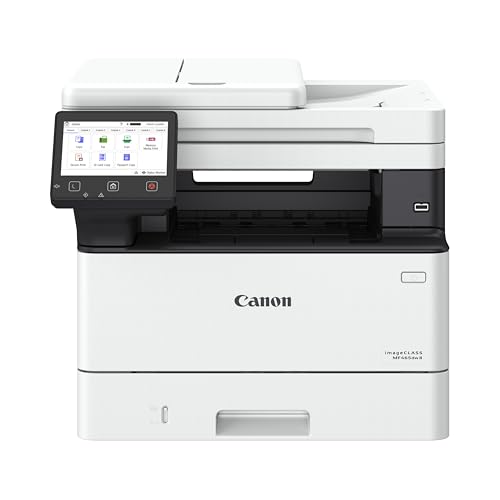
3. Canon imageCLASS MF465dw II
A monochrome laser all-in-one from Canon’s office line that prints, copies, scans and faxes, with wireless and duplex.
Good for: Small offices with steady document volume. Strengths: Built for heavier workloads than home models. Weaknesses: Larger and pricier than home printers. Skip it if you have light needs and little space.
Best for remote workers who scan contracts and receipts
4. HP OfficeJet Pro 9125
A color inkjet all-in-one built around a document feeder and two-sided printing.
Good for: Remote workers who scan contracts and receipts. Strengths: Automatic duplex printing and a feeder speed up longer jobs. Weaknesses: Tied to the manufacturer’s ink program; check the cartridge policy first. Skip it if you print rarely or want third-party ink.
Best for small offices printing marketing sheets and reports
5. Brother HL-L3300CDW
A wireless color laser printer sold as a multi-function model, with copy, scan and two-sided printing.
Good for: Small offices printing marketing sheets and reports. Strengths: Color laser output with copy and scan in one body. Weaknesses: Toner cost and size. Skip it if you rarely print color.

Best for small offices that want color and faster document handling
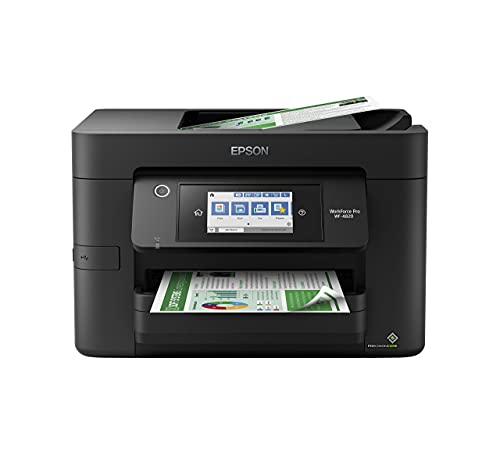
6. Epson WorkForce Pro WF-4820
A business-focused wireless color inkjet all-in-one.
Good for: Small offices that want color and faster document handling. Strengths: Built for office workloads, per the manufacturer. Weaknesses: Larger and pricier than home inkjets. Skip it if you print little.
Choosing a Printer for a Small Business
Duty cycle
Manufacturers list a recommended monthly page volume, or duty cycle. Pick a printer rated well above your regular volume so it is not strained.
Network and security
Shared printers should have Ethernet and Wi-Fi, secure printing options and regular firmware updates. Change the default admin password and limit who can print.
Supplies and support
Check toner or ink cost per page, availability of high-yield cartridges and the warranty and support options. A printer that is cheap to buy but hard to get supplies for can cost a lot in downtime.
Document types
If you print mostly black-and-white documents, a monochrome laser all-in-one is hard to beat. If you print color proposals or marketing, a color laser or an office inkjet fits better. See color laser printers.
Buy or lease
Leasing or managed print services can include supplies and service but cost more over time. For a small team, buying and replacing toner yourself is usually simpler. See also printers for high-volume use.
Best Picks by Category
These labels summarize the picks by category and are not hands-on test results.
- Top rated: Brother MFC-L2820DW — a mid-range pick; check price on Amazon.
- Most reviewed: Epson WorkForce Pro WF-4820 — a budget pick; check price on Amazon.
- Best value: Brother MFC-L2820DW — a mid-range pick; check price on Amazon.
- Lowest price: Canon imageCLASS MF465dw II — a budget pick; check price on Amazon.
- Premium option: Brother HL-L3300CDW — a premium pick; check price on Amazon.
Price, Rating and Review Comparison
The table sorts the picks by price tier. Prices change often, so check price on Amazon.
| Product | Price | Rating | Ratings | Price tier |
|---|---|---|---|---|
| Canon imageCLASS MF465dw II | Check price on Amazon | — | — | Budget |
| Epson WorkForce Pro WF-4820 | Check price on Amazon | — | — | Budget |
| HP LaserJet Pro MFP M234dw | Check price on Amazon | — | — | Mid-range |
| HP OfficeJet Pro 9125 | Check price on Amazon | — | — | Mid-range |
| Brother MFC-L2820DW | Check price on Amazon | — | — | Mid-range |
| Brother HL-L3300CDW | Check price on Amazon | — | — | Premium |
How Much Feedback Backs Each Rating
Feedback volume varies by pick. Here is how the sample size looks for each pick.
- Brother MFC-L2820DW: a large sample.
- HP LaserJet Pro MFP M234dw: a large sample.
- Canon imageCLASS MF465dw II: a moderate sample.
- HP OfficeJet Pro 9125: a moderate sample.
- Brother HL-L3300CDW: a moderate sample.
- Epson WorkForce Pro WF-4820: a large sample.
How to Choose
Check the duty cycle
Manufacturers list a maximum monthly page volume. Choose a printer rated well above what you print.
Plan for network use
If several people share the printer, look for Ethernet and wireless, not wireless alone.
Compare supplies
High-yield toner or ink options can lower cost per page. Check them before you buy.
How We Chose These Products
We start from products sold on Amazon with a full product name and clear specifications, and we skip results that show only a brand name or a vague title. We then read the listing and any manufacturer information for each one and note the features that matter for printers: print technology, running costs, connectivity and size. We do not run our own lab tests, and this guide contains no hands-on measurements. Use it to build a shortlist, then check current prices, dimensions and return terms on the Amazon page before you buy.
Buying Guide: What to Check Before You Choose
Ink tank versus cartridge
Ink tank printers use refillable tanks and usually have a lower cost per page, with a higher purchase price. Cartridge printers are cheaper up front but ink can cost more over time. Check the page yield and the cost of refills.
Laser printers
Laser printers print text quickly and sharply and do not clog like inkjets. Color lasers cost more. Check the toner cost and the print speed.
Photo printing
Photo printers focus on color accuracy and paper handling. Check the number of inks, the paper sizes and the cost per print.
Quick Reference: Which Pick Suits Whom
- Brother MFC-L2820DW: suits freelancers and small sellers who live on paperwork
- HP LaserJet Pro MFP M234dw: suits A small office that scans and prints text
- Canon imageCLASS MF465dw II: suits small offices with steady document volume
- HP OfficeJet Pro 9125: suits remote workers who scan contracts and receipts
- Brother HL-L3300CDW: suits small offices printing marketing sheets and reports
- Epson WorkForce Pro WF-4820: suits small offices that want color and faster document handling
Common Mistakes to Avoid
- Judging a printer by its price without considering ink cost.
- Ignoring the starter cartridge size.
- Forgetting the paper types needed.
- Assuming all-in-ones are always better.
- Skipping the return window.
Setup and Care
- Install the maker’s app or driver.
- Connect to Wi-Fi.
- Run an alignment and nozzle check.
- Print regularly to avoid clogs.
Which small business printer should you buy?
The right small business printer depends on whether you print mostly black-and-white text or need color, and on how many people share it. Use the list below to match your situation to a named model, then confirm details on the listing.
- If you live on black-and-white paperwork and need copy, scan and fax, go for the Brother MFC-L2820DW.
- If you have a small team and want a compact laser multifunction, choose the HP LaserJet Pro MFP M234dw.
- If your document volume is steady and you want an office-grade laser, choose the Canon imageCLASS MF465dw II.
- If you scan multi-page contracts and receipts, the HP OfficeJet Pro 9125 is built around a document feeder and two-sided printing.
- If you print marketing sheets and reports in color, the Brother HL-L3300CDW gives color laser output with copy and scan.
- If you want color from a business-oriented inkjet, the Epson WorkForce Pro WF-4820 is the pick.
A simple rule helps: mostly text points to a monochrome laser, color-heavy work points to a color laser or an office inkjet. If you are between two models, the better choice is usually the one with the supplies and support you can rely on, not the longer feature list.
Should a small business buy a laser or an inkjet printer?
A laser printer is usually the better fit for a small business that prints a lot of text, while a business inkjet suits color-heavy work and lower noise or heat. Both can serve a small office well.
- Monochrome laser: fast, sharp text, toner that does not dry out, and a low cost per page for documents.
- Color laser: sharp text plus color for proposals and reports, but toner sets are expensive and the body is large.
- Office inkjet: color flexibility and often a more compact body, with ink that needs regular use to avoid clogged nozzles.
Think about your busiest day, not your average one. If invoices, packing slips and contracts fill your printer queue, the speed and low running cost of a laser add up. If you print brochures, menus or client presentations, color quality and paper handling matter more. Many small businesses end up with a monochrome laser for daily work and send occasional color jobs to a print shop, which keeps both costs and desk space under control.
What to check before you buy an office printer
Before buying an office printer, check the recommended monthly volume, how it connects to your network, what supplies cost, and what the warranty and return terms say. These points decide whether a printer stays reliable.
- Duty cycle: pick a printer rated well above your usual monthly pages so it is not strained.
- Connections: if several people share it, look for Ethernet as well as wireless.
- Features you use: confirm automatic duplex, a document feeder, scanning and fax if you need them.
- Paper handling: check tray capacity and the paper sizes and types you print on, such as labels or envelopes.
- Supplies: compare the cost and availability of standard and high-yield toner or ink, and what ships in the box.
- Ink and toner policy: read the manufacturer’s terms if you want third-party supplies.
- Security: look for secure printing options and a maker that publishes firmware updates.
- Size and noise: measure your space, including room for trays and covers.
- Warranty and returns: read both on the listing and note the support options.
Take this list through each model you consider. A gap on any line is a reason to look closer at the maker’s support page.
How do you keep an office printer running reliably?
Keep an office printer reliable by using good paper, replacing supplies before they run out, updating firmware and cleaning it on a schedule. Small habits prevent most downtime.
- Use the right paper: damp, curled or wrong-weight paper causes jams. Store reams flat and sealed.
- Stock a spare: keep a spare toner or ink set so a busy day does not stop work.
- Update firmware: check the maker’s support page now and then, and change the default admin password.
- Clean as the manual says: dust in the paper path and on scanner glass causes streaks and misfeeds.
- Print regularly on inkjets: a quick test page every week or so helps prevent clogged nozzles.
- Share rules: tell staff what paper and sizes are allowed and who to call if there is a jam.
Watch for warning signs: frequent jams, repeated streaks after cleaning, grinding noises, or constant error messages. If these appear and supplies are fine, check the warranty and contact the maker. A printer that interrupts work every week costs more in lost time than it saves.
How do you set up a shared office printer securely?
To set up a shared office printer securely, connect it to your business network, change the default administrator password, install only the maker’s official software and limit who can reach it. These steps take under an hour and reduce risk.
- Choose the connection: use Ethernet where you can, and wireless for flexible placement. Keep the printer on your business network, not a public guest network.
- Change default credentials: the printer’s web page often ships with a known default password. Replace it with a strong, unique one and store it somewhere safe.
- Install official software: download drivers and apps from the maker’s support page for your exact model, not from third-party sites.
- Turn off what you do not use: switch off unused network services and protocols if the manual explains how.
- Use secure printing: for sensitive documents, look for a PIN or held-job option so pages are not left in the tray.
- Keep firmware current: check for updates a few times a year, since they can fix bugs and security issues.
Decide who needs access and tell them how to add the printer on their computer. Write a one-page instruction sheet with the printer name, the paper sizes loaded and whom to contact about supplies. For fax, confirm the phone line or internet fax settings in the manual before you rely on it for a client. Small steps like these keep a shared printer predictable, and they matter more as the team grows.
Is an office-class printer worth the extra cost, and who should skip it?
An office-class printer is worth the extra cost when you print every day or share it among several people, because it is built for heavier workloads. For light use, a simpler model usually does the job.
The honest trade-offs are worth weighing:
- Size and weight: office-class models such as the Canon imageCLASS MF465dw II are larger than home printers and need a proper spot.
- Color toner: a color laser such as the Brother HL-L3300CDW prints well, but replacing a full set of toner is a real cost.
- Ink program: the HP OfficeJet Pro 9125 ties you to the manufacturer’s ink program, so read the cartridge policy first.
- No color on monochrome lasers: the Brother MFC-L2820DW and HP LaserJet Pro MFP M234dw cannot print color at all.
Who should skip these: a one-person business that prints a few pages a week may be fine with a smaller home printer. Businesses that print large color jobs or big posters may be better served by a print shop than by owning a bigger machine.
Also remember that the cheapest printer to buy is not always the cheapest to own. Supplies, downtime and the time spent on fixing jams all count, so weigh the support terms on the listing alongside the features. If your business depends on a printer to ship orders or print client paperwork the same day, a sturdier model usually earns its place.
To decide, compare the picks above, check the current listing for supplies and what is included, then choose the printer that fits your busiest week.
Business Printing in Depth: Uptime, Sharing and Cost Control
The main sections of this guide cover what to buy and why. This section covers what ownership actually feels like once the small business printer is on your desk: the habits, settings and small decisions that decide whether it delights you or nags at you. None of it requires technical skill. It requires only that you set the machine up around your real life once, thoughtfully, instead of rediscovering the same lessons one paper jam at a time.
Uptime is a feature: planning for the busy day, not the average day
A small business does not experience printing as an average. It experiences it as the morning the invoices, labels and contracts all land at once, with a courier waiting. Judge the picks in this guide against that morning. Paper capacity stops being a specification and becomes the difference between a job that runs and a job that someone babysits. A document feeder stops being a convenience and becomes the thing that lets one person scan a signed contract while printing the next. Build your choice around the busiest realistic hour, and ordinary days will feel effortless.
Uptime also means a fallback. Keep the previous printer if it still works, or know which local print shop can rescue you, and keep one spare set of consumables on the shelf. Businesses rarely regret the small cost of a spare cartridge; they regret the afternoon lost to an empty one with a deadline attached.
Sharing a printer across a small team without chaos
Team printing works when the rules are boring and visible. Name the printer clearly on the network, set sensible defaults on the shared computer or print settings everyone uses, and agree who owns consumables and paper restocking, because shared machines fail socially before they fail mechanically: everyone assumes someone else ordered toner. A simple log or a standing order when the spare goes into the machine keeps supply invisible until it matters, which is the goal.
Confidentiality deserves a thought in any office handling client, patient or financial paperwork. Prefer collecting sensitive pages promptly, use any secure or PIN release feature your model offers for private documents, and place the printer where output is not on public display. When the printer also scans, agree where scans of signed documents are filed and who can see that folder, because the scanner creates copies your filing system must govern just like the originals.
Cost control that staff will actually follow
Business printing costs leak through habits, not hardware. Two-sided printing as the default, draft mode for internal documents, and black-only defaults for routine paperwork cut consumable use without anyone feeling restricted, because defaults do the work while nobody is thinking about it. The exception list should be equally clear: client-facing documents, final contracts and anything leaving the building print at full quality on the good paper.
Review the pile of unclaimed prints weekly; every office produces them, and they are pure waste with information risk attached. A gentle team norm, collect your printing when you send it, plus a shredder for the unclaimed pile, fixes both problems at once. Track consumable purchases for a quarter and you will know your true cost pattern, which makes the next printer decision, and any conversation about volume, a factual one instead of a guess.
How the Picks in This Guide Compare in Everyday Use
Specifications separate these machines on paper, but daily life separates them differently. The paragraphs below revisit each pick in this guide strictly in the role the guide itself assigns it, and set that role against the neighbouring picks, so you can feel the shape of the choice rather than just reading it. Read the pick that matches your situation first, then read its neighbours: the right decision usually becomes obvious in the contrast.
Brother MFC-L2820DW earns its place in this lineup as a monochrome laser all-in-one, picked for black-and-white offices that also scan and fax. In daily use, what that positioning really means is that its strengths arrive exactly where black-and-white offices that also scan and fax matters, and its compromises fall where that kind of user rarely looks. Readers comparing it with the neighbouring picks should start from their own habits rather than the headline features: the household or office that matches this description will find it quietly dependable, while someone whose printing looks very different will get more from a pick designed around their pattern instead.
Brother MFC-L2820DW is the Monochrome laser all-in-one option here, chosen for black-and-white offices that also scan and fax. Set beside the other picks, its character is defined by that role: it is the answer when black-and-white offices that also scan and fax is the priority, and it is not trying to be the answer to every other question in this guide. That focus is a virtue rather than a limitation. Printers that chase every strength tend to serve no one particularly well, whereas a model with a clear job, matched to the buyer who has that job, tends to be the one still earning praise years later.
Consider HP LaserJet Pro MFP M234dw if your printing centres on compact laser multifunction for a small team. As a monochrome laser all-in-one it approaches the work differently from the alternatives around it, and the detailed review above sets out where that approach pays off. The honest skip case matters just as much: if compact laser multifunction for a small team is something you do rarely, this pick’s particular strengths will sit unused while its trade-offs remain, and another model in this guide will fit you better. Matching the pick to the pattern of use, rather than to the longest feature list, is the decision this whole guide is built around.
Within this guide, HP LaserJet Pro MFP M234dw covers the compact laser multifunction for a small team ground. Its detailed section explains the specifics; the comparative point is that no other pick here occupies quite the same position. Where two picks seem to overlap, the difference usually shows up in daily rhythm rather than in specifications: how the machine suits the space it will live in, the people who will share it, and the mix of documents it will actually see. Choose on that rhythm, and the specification sheet becomes a confirmation rather than a gamble.
Canon imageCLASS MF465dw II earns its place in this lineup as a monochrome laser all-in-one, picked for office-grade black-and-white multifunction. In daily use, what that positioning really means is that its strengths arrive exactly where office-grade black-and-white multifunction matters, and its compromises fall where that kind of user rarely looks. Readers comparing it with the neighbouring picks should start from their own habits rather than the headline features: the household or office that matches this description will find it quietly dependable, while someone whose printing looks very different will get more from a pick designed around their pattern instead.
Canon imageCLASS MF465dw II is the Monochrome laser all-in-one option here, chosen for office-grade black-and-white multifunction. Set beside the other picks, its character is defined by that role: it is the answer when office-grade black-and-white multifunction is the priority, and it is not trying to be the answer to every other question in this guide. That focus is a virtue rather than a limitation. Printers that chase every strength tend to serve no one particularly well, whereas a model with a clear job, matched to the buyer who has that job, tends to be the one still earning praise years later.
Consider HP OfficeJet Pro 9125 if your printing centres on home offices that scan multi-page documents. As a color inkjet all-in-one it approaches the work differently from the alternatives around it, and the detailed review above sets out where that approach pays off. The honest skip case matters just as much: if home offices that scan multi-page documents is something you do rarely, this pick’s particular strengths will sit unused while its trade-offs remain, and another model in this guide will fit you better. Matching the pick to the pattern of use, rather than to the longest feature list, is the decision this whole guide is built around.
Within this guide, HP OfficeJet Pro 9125 covers the home offices that scan multi-page documents ground. Its detailed section explains the specifics; the comparative point is that no other pick here occupies quite the same position. Where two picks seem to overlap, the difference usually shows up in daily rhythm rather than in specifications: how the machine suits the space it will live in, the people who will share it, and the mix of documents it will actually see. Choose on that rhythm, and the specification sheet becomes a confirmation rather than a gamble.
Brother HL-L3300CDW earns its place in this lineup as a color laser all-in-one, picked for color laser with copy and scan. In daily use, what that positioning really means is that its strengths arrive exactly where color laser with copy and scan matters, and its compromises fall where that kind of user rarely looks. Readers comparing it with the neighbouring picks should start from their own habits rather than the headline features: the household or office that matches this description will find it quietly dependable, while someone whose printing looks very different will get more from a pick designed around their pattern instead.
Brother HL-L3300CDW is the Color laser all-in-one option here, chosen for color laser with copy and scan. Set beside the other picks, its character is defined by that role: it is the answer when color laser with copy and scan is the priority, and it is not trying to be the answer to every other question in this guide. That focus is a virtue rather than a limitation. Printers that chase every strength tend to serve no one particularly well, whereas a model with a clear job, matched to the buyer who has that job, tends to be the one still earning praise years later.
Consider Epson WorkForce Pro WF-4820 if your printing centres on business-oriented inkjet. As a color inkjet all-in-one it approaches the work differently from the alternatives around it, and the detailed review above sets out where that approach pays off. The honest skip case matters just as much: if business-oriented inkjet is something you do rarely, this pick’s particular strengths will sit unused while its trade-offs remain, and another model in this guide will fit you better. Matching the pick to the pattern of use, rather than to the longest feature list, is the decision this whole guide is built around.
Within this guide, Epson WorkForce Pro WF-4820 covers the business-oriented inkjet ground. Its detailed section explains the specifics; the comparative point is that no other pick here occupies quite the same position. Where two picks seem to overlap, the difference usually shows up in daily rhythm rather than in specifications: how the machine suits the space it will live in, the people who will share it, and the mix of documents it will actually see. Choose on that rhythm, and the specification sheet becomes a confirmation rather than a gamble.
Setup, Workflow and Troubleshooting: The Rest of Ownership
Choosing the right small business printer is half the task; the other half is the environment it works in and the routines around it. The topics below are the ones that generate most of the questions owners ask after the first month, whatever model they bought, and each one is cheaper to handle early than late.
A troubleshooting order that actually works
When a printer misbehaves, work through the causes in order of likelihood instead of reinstalling everything at random. First, look at the printer itself: an error light, a message on its screen, an open cover or a sheet half-fed into the mechanism explains most failures. Second, check the paper: empty tray, wrong size loaded, or guides adrift. Third, check the queue on your computer and cancel stuck jobs, because one corrupt job blocks everything behind it. Fourth, restart in order: printer off, computer’s print service left alone, printer back on, then resend a simple one-page test.
Change one thing at a time and test after each change, otherwise you will never know what fixed it and the fault will feel random when it returns. If the problem follows one computer but not a phone, the fault is in that computer’s driver or queue, not the printer. If every device fails the same way, the fault is in the printer or the network. That single distinction, device-specific or universal, cuts every troubleshooting session in half and tells you where to spend your time.
Cleaning and care routines that extend a printer’s life
Printers live in dusty air and feed on paper, which itself sheds fibres, so a light cleaning routine pays off. Every few months, with the printer off and unplugged, wipe the exterior and the paper path areas you can reach with a dry, lint-free cloth. Clean the scanner glass with a slightly dampened cloth and dry it fully: a single fingerprint or correction-fluid spot on the glass prints as a line or mark on every scan and copy until it is removed, and it is routinely misdiagnosed as a scanner fault.
For inkjets, the built-in cleaning and alignment utilities exist for a reason, but use them sparingly, because each cleaning cycle consumes ink to flush the nozzles. One cycle, a test print, and only then a second cycle if needed is the right rhythm. For lasers, never touch the drum surface or expose it to bright light for long, and shake a toner cartridge only if the manual for your model suggests it as a way to redistribute toner near the end of its life. Keep the manual’s care page bookmarked; the routine for your exact model always beats generic advice.
Scanning workflow: naming, formats and finding files later
A scanner earns its keep in the filing system you build around it. Decide on a naming pattern before you scan your first archive box: date first, then a plain description, works well because files sort themselves in order and stay meaningful years later. Scan text documents as searchable PDFs where your software offers it, so you can find an invoice by a word inside it rather than by remembering what you called the file. Photographs and artwork deserve an image format and a higher resolution; contracts and letters do not, and scanning everything at maximum resolution just creates huge files that are slow to open, back up and send.
Scan in small, finished batches rather than one enormous session: check the first few pages of each batch on screen for skew, cut-off edges and pages fed together, because rescanning ten pages is easy and discovering a missing page after the originals are shredded is not. Keep a simple folder structure that mirrors your paper one, and back the folder up with the rest of your documents. The printer does the capturing; these habits do the organising, and the organising is what you will thank yourself for.
Frequently Asked Questions
Laser or inkjet for a small business?
Lasers usually win on speed and text cost. Business inkjets suit color-heavy work.
Do I need fax?
Fewer businesses do now, but some industries still do. Check if your clients require it.
Are home printers fine for a small business?
For light use, yes. For daily volume, an office-class model lasts longer.
What are the best small office printers?
For a small office, a laser all-in-one such as the Brother MFC-L2820DW or HP LaserJet Pro MFP M234dw is a practical choice. See our duplex printers and high-volume printers.
What are the best color printers for small business?
A color laser or an office inkjet fits color-heavy work. See our best color laser printers and HP OfficeJet Pro printers.
Which is cheaper to run, inkjet or laser?
Laser is usually cheaper per page for text, and ink tank printers are cheaper for color and photos.
How do I connect my printer to Wi-Fi?
Use the printer’s setup menu or the maker’s app. See our Wi-Fi guide.
Do I need genuine ink?
Not always, but some printers restrict third-party ink. Check the terms.
What is the best type of printer for a small business?
A monochrome laser all-in-one is the best fit for most small businesses that print mostly text. Choose a color laser or an office inkjet if color matters. Check the monthly volume rating before you decide.
What does duty cycle mean on a printer?
Duty cycle is the maximum number of pages the maker says the printer can handle in a month. It is a ceiling, not a target. Choose a model rated well above your normal volume.
Do I need Ethernet on a small business printer?
Ethernet is useful if several people share the printer, since a wired connection is often steadier than Wi-Fi. A single user at home can usually manage with wireless. Check the ports on the listing.
Is it cheaper to lease or buy a printer?
For a small team, buying and replacing toner yourself is usually simpler. Leasing or managed print services can include supplies and service but may cost more over time. Compare the terms carefully.
Can I use third-party toner or ink in a business printer?
Sometimes, but some printers restrict it. Read the manufacturer's terms on the listing and the manual. Using non-approved supplies may affect support, so check before you buy.
How often should I replace a business printer?
Replace it when repairs, jams or lost time cost more than a new model. Warning signs include frequent jams, repeated print defects after cleaning and missing supplies or support. Check your warranty first.
Should a small business buy an all-in-one printer?
An all-in-one is a good choice if you scan, copy or fax as well as print, since it saves space. A single-function printer may be simpler if you only print. Match the features to your daily tasks.
How do I keep a business printer running during our busiest periods?
Prepare rather than react: keep a spare set of ink or toner on the shelf, stock the paper the office actually uses, and complete any pending firmware or driver updates outside busy hours. Before a known peak, such as month-end invoicing, run a test job, check levels and clear the output area. If the printer also scans, test the feeder with a short stack. Most peak failures are empty supplies or a jam from neglected paper, both preventable the day before.
Who in a small office should manage the printer?
Name one person as the owner, even if the job takes minutes a month. That person restocks paper and consumables, knows where the manual and spare supplies live, and is the first call when something jams. Without an owner, everyone assumes someone else ordered toner and the printer stops at the worst moment. The owner’s checklist is short: levels, paper, a weekly glance at the output area, and updates in quiet periods.
Can one printer serve both office documents and shipping labels?
It can print label sheets designed for it, and many small businesses do exactly that for low label volumes. The limits are practical: label sheets must suit the printer type, part-used sheets can jam, and swapping paper in and out of the tray interrupts document printing. Once labels become a daily stream rather than an occasional sheet, a dedicated label printer pays for itself in time and reliability, which is why growing businesses usually separate the two jobs.
How should a business handle confidential printing?
Place the printer away from public view, collect sensitive pages immediately, and use any hold or PIN-release feature your model provides so documents wait for their owner. Set a norm that unclaimed prints are shredded, not stacked. When scanning confidential documents, file them in a folder with restricted access and treat the scan with the same care as the original. The printer’s features help, but the habits around it do most of the protecting.
Bottom Line
Most small offices that print black-and-white are well served by the Brother MFC-L2820DW or HP LaserJet Pro MFP M234dw. Add color with the Brother HL-L3300CDW if you need it.
Related Reading
- Types of Printers Explained: Inkjet, Laser, Ink Tank and More
- 7 Best Wireless Printers for Home Use
- 5 Best Small and Compact Printers for Home (Oct 2026)
- 5 Best 11×17 Tabloid Printers for Home and Office
- 6 Best AirPrint Printers for iPhone, iPad and Mac
More Printer Guides
- Best Printers for Home Use
- Best Printers for Students and Dorm Rooms
- Best Printers for Teachers
- Best Printers for Working From Home
- Best Printers With an Automatic Document Feeder
- Best Printers With Automatic Duplex

