Disclosure: As an Amazon Associate, reviewstook.com earns from qualifying purchases. Links to Amazon on this page are affiliate links; they cost you nothing extra.
A student printer should be small, cheap to run and easy to connect to a laptop. Most students print essays, readings and the odd poster, so low running cost matters more than photo quality.
This guide covers six printers for students and dorm rooms. It is built from published specifications and listings, not our own testing, so check size and connectivity on each product page.
New to printers? Start with our guide to the best printers for home use and how we pick printers.
By the Reviewstook Editorial Team. Last updated: October 31, 2026.

In this guide
Quick Picks
| Printer | Type | Best for |
|---|---|---|
| Canon PIXMA TR4720 | Color inkjet all-in-one | Light, occasional printing in a small space |
| Epson EcoTank ET-2800 | Ink tank all-in-one | Entry-level ink tank printing |
| Brother HL-L2460DW | Compact monochrome laser | Text-only printing with two-sided output |
| HP Envy 6555e | Color inkjet all-in-one | Everyday home color printing |
| Canon MegaTank G3290 | MegaTank all-in-one | Everyday printing with refillable tanks |
| Brother DCP-L2640DW | Monochrome laser all-in-one | Copy and scan on a laser |
6 Best Printers for Students and Dorm Rooms

Top pickBest for a dorm, spare room or apartment
1. Canon PIXMA TR4720
A small, plain color inkjet all-in-one that prints, copies and scans.
Good for: A dorm, spare room or apartment. Strengths: Compact body and a simple feature set. Weaknesses: Small cartridges mean it is not meant for heavy use. Skip it if you print daily.
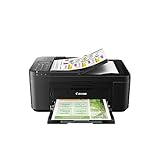

Best for light-to-moderate printing where ink cost matters
2. Epson EcoTank ET-2800
A simple entry model in Epson’s EcoTank range that prints, copies and scans over wireless.
Good for: Light-to-moderate printing where ink cost matters. Strengths: Refillable tanks and a basic feature set. Weaknesses: Fewer conveniences than higher-tier models; check duplex and feeder support. Skip it if you need an automatic document feeder.
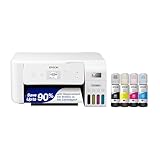

Best for students and home workers who print text
3. Brother HL-L2460DW
A wireless compact monochrome laser with duplex printing, from the same family as the HL-L2350DW.
Good for: Students and home workers who print text. Strengths: Toner does not dry out between uses, and duplex saves paper. Weaknesses: No color, and no scanning or copying. Skip it if you need color or a scanner.

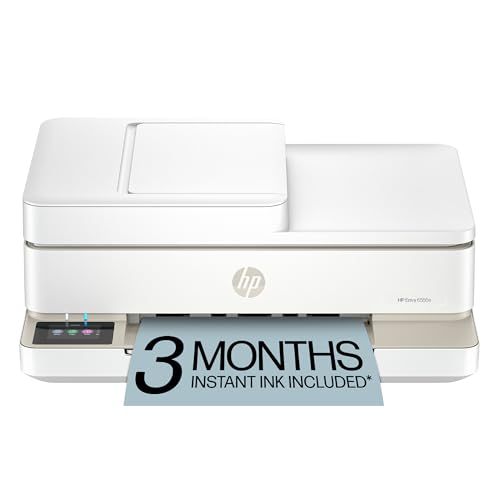
Best for homework, recipes and occasional photos
4. HP Envy 6555e
A home-focused color inkjet all-in-one aimed at families.
Good for: Homework, recipes and occasional photos. Strengths: A straightforward feature set at a modest price. Weaknesses: Cartridges and HP’s ink program may add running cost. Skip it if you print in volume.


Best for families and students who print a lot
5. Canon MegaTank G3290
A wireless MegaTank all-in-one from Canon, a newer model in the line that includes the G3270.
Good for: Families and students who print a lot. Strengths: Refillable tanks tend to lower the cost per page. Weaknesses: Bigger than a cartridge printer; check the feeder and duplex support on the product page. Skip it if you print very little.


Best for home offices that need laser text plus a scanner
6. Brother DCP-L2640DW
A wireless compact monochrome laser all-in-one that prints, copies and scans with two-sided printing.
Good for: Home offices that need laser text plus a scanner. Strengths: Laser text with copy, scan and duplex in one body. Weaknesses: No color and no fax. Skip it if you need color or fax.

What Students Should Look For
Budget and running cost
Students print essays, readings and the odd poster, so low cost per page matters more than photo quality. See printers under $100.
Size and power
Dorm desks are small. Measure first and check whether the printer needs a wall socket.
Laptop support
Most wireless printers work with Windows, Mac and Chromebook. Confirm support on the product page. See printers for Chromebook.
Shared use
If roommates share it, a wireless printer on a shared network saves cables. Agree on who buys ink.
Best Picks by Category
These labels summarize the role each pick fills best in this guide. They are not hands-on test results.
- Top rated: Canon PIXMA TR4720 — check price on Amazon.
- Most reviewed: Epson EcoTank ET-2800 — check price on Amazon.
- Best value: Canon PIXMA TR4720 — check price on Amazon.
- Lowest price: HP Envy 6555e — check price on Amazon.
- Premium option: Canon MegaTank G3290 — check price on Amazon.
Price, Rating and Review Comparison
The table lists the picks with their price tier. Check price on Amazon for the current price.
| Product | Price | Rating | Ratings | Price tier |
|---|---|---|---|---|
| HP Envy 6555e | Check price on Amazon | — | — | Budget |
| Brother HL-L2460DW | Check price on Amazon | — | — | Budget |
| Canon PIXMA TR4720 | Check price on Amazon | — | — | Budget |
| Epson EcoTank ET-2800 | Check price on Amazon | — | — | Mid-range |
| Brother DCP-L2640DW | Check price on Amazon | — | — | Mid-range |
| Canon MegaTank G3290 | Check price on Amazon | — | — | Mid-range |
How Much Feedback Backs Each Rating
A high average from a handful of ratings is weaker evidence than a slightly lower average from thousands.
- Canon PIXMA TR4720: check the Amazon listing for the latest feedback.
- Epson EcoTank ET-2800: check the Amazon listing for the latest feedback.
- Brother HL-L2460DW: check the Amazon listing for the latest feedback.
- HP Envy 6555e: check the Amazon listing for the latest feedback.
- Canon MegaTank G3290: check the Amazon listing for the latest feedback.
- Brother DCP-L2640DW: check the Amazon listing for the latest feedback.
How to Choose
Estimate your pages
A few pages a month suits a compact inkjet. Heavy printing suits an ink tank or a laser.
Check size and power
Dorm desks are small. Measure the printer and check whether it has a battery or needs a wall socket.
Look at your laptop
Most wireless printers work with Windows, Mac and Chromebook. Check support for your laptop on the product page.
How We Chose These Products
We start from products sold on Amazon with a full product name and clear specifications, and we skip results that show only a brand name or a vague title. We then read the listing and any manufacturer information for each one and note the features that matter for printers: print technology, running costs, connectivity and size. We do not run our own lab tests, and this guide contains no hands-on measurements. Use it to build a shortlist, then check current prices, dimensions and return terms on the Amazon page before you buy.
Buying Guide: What to Check Before You Choose
Ink tank versus cartridge
Ink tank printers use refillable tanks and usually have a lower cost per page, with a higher purchase price. Cartridge printers are cheaper up front but ink can cost more over time. Check the page yield and the cost of refills.
Laser printers
Laser printers print text quickly and sharply and do not clog like inkjets. Color lasers cost more. Check the toner cost and the print speed.
Photo printing
Photo printers focus on color accuracy and paper handling. Check the number of inks, the paper sizes and the cost per print.
Quick Reference: Which Pick Suits Whom
- Canon PIXMA TR4720: suits A dorm, spare room or apartment
- Epson EcoTank ET-2800: suits light-to-moderate printing where ink cost matters
- Brother HL-L2460DW: suits students and home workers who print text
- HP Envy 6555e: suits homework, recipes and occasional photos
- Canon MegaTank G3290: suits families and students who print a lot
- Brother DCP-L2640DW: suits home offices that need laser text plus a scanner
Common Mistakes to Avoid
- Judging a printer by its price without considering ink cost.
- Ignoring the starter cartridge size.
- Forgetting the paper types needed.
- Assuming all-in-ones are always better.
- Skipping the return window.
Setup and Care
- Install the maker’s app or driver.
- Connect to Wi-Fi.
- Run an alignment and nozzle check.
- Print regularly to avoid clogs.
Inkjet, ink tank or laser: which printer type suits a student?
For a student printer, a compact inkjet suits occasional printing, an ink tank suits regular printing with color, and a monochrome laser suits mostly text. The right type depends on how often you print and whether you ever need color.
A cartridge inkjet such as the Canon PIXMA TR4720 or the HP Envy 6555e is cheap to start with and small enough for a desk. The catch is that cartridges can run out quickly if you print a lot, and ink left unused can dry out.
An ink tank printer such as the Epson EcoTank ET-2800 or the Canon MegaTank G3290 uses refillable tanks. These tend to lower the cost per page, but they are usually bulkier and cost more up front.
A monochrome laser such as the Brother HL-L2460DW or the Brother DCP-L2640DW prints text sharply and does not dry out between uses. That makes it a good fit for a student who prints a big batch before exams, then nothing for weeks.
- Print rarely: a compact inkjet is enough.
- Print often, some color: an ink tank keeps running costs down.
- Print mostly essays and readings: a monochrome laser is the practical choice.
Whichever type you pick, check the product page for page yield and supply costs, because the cost of ink or toner decides what you really pay over a semester.
Which student printer should you buy?
Buy the printer that matches your printing habits and your desk space. Here is a quick decision guide using the six printers already covered above.
- If you have a tiny desk and print only now and then, go for the Canon PIXMA TR4720, a compact color all-in-one.
- If you want lower ink costs and print regularly, choose the Epson EcoTank ET-2800 for entry-level ink tank printing.
- If you print mostly text and want two-sided output, choose the Brother HL-L2460DW, but remember it has no color and no scanner.
- If you want a basic color printer for homework and the odd photo, the HP Envy 6555e is the straightforward option.
- If you print a lot and want refillable tanks, go for the Canon MegaTank G3290.
- If you want laser text plus copy and scan, choose the Brother DCP-L2640DW.
If two options tie, pick the one with the simpler supplies for your habits. A student who prints in bursts often does better with laser, while a student who prints a little every week and needs color is better served by an inkjet or tank model.
Also think about whether you need a scanner at all. Many phone apps can scan a page well enough for coursework, which can make a print-only model enough.
What to check before you buy a dorm printer
Before buying a dorm printer, check your residence rules, the printer size, how it connects, and what supplies it needs. A short checklist saves a return later.
- Residence rules: some halls restrict certain appliances or network devices, so confirm what is allowed.
- Size and weight: measure your desk or shelf and leave room to open the paper tray and cover.
- Power: check whether it needs a wall socket and how long the cord is.
- Wireless setup: some campus networks require extra steps for devices, so check that the printer can join the network you will use.
- Laptop support: confirm it works with Windows, Mac or Chromebook on the product page.
- Supplies included: look at what starter ink or toner comes in the box and what refills cost.
- Paper handling: check tray capacity, duplex support and whether it has a document feeder if you need one.
- Return window and warranty: read the terms on the listing, since printers can arrive damaged or fail to connect.
Moving between rooms matters too. A student who relocates each term should think about how heavy the printer is and whether the original packaging can be kept for storage.
If you share the printer with roommates, agree in advance who buys supplies and where it sits, so no one is surprised by a dry cartridge before a deadline.
How can students keep printing costs low?
Students can keep printing costs low by choosing a printer type that matches their volume, printing double-sided and previewing every job. Small habits add up across a semester.
- Print duplex where the printer supports it, which halves the paper used.
- Use draft or grayscale mode for notes and readings that do not need full quality.
- Shrink pages by printing two or more per sheet for reference material.
- Preview first so you do not waste a page on a stray blank sheet or cut-off table.
- Print in a batch if you own an inkjet, which helps avoid long idle periods that dry out ink.
It is also worth being honest about volume. If you print only a handful of pages a month, a library or campus print station may cost less than owning a printer. If you print regularly, owning one usually makes more sense, and an ink tank or laser tends to cost less per page than a small cartridge model.
Finally, read the manufacturer’s policy on third-party supplies before you buy. Some printers limit what you can use, which affects long-term cost.
What common problems do student printers have, and how do you fix them?
The most common student printer problems are connection drops, streaky prints, paper jams and surprise ink warnings, and most have simple fixes. Knowing them early keeps a deadline from turning into a crisis.
- Printer shows as offline: restart the printer and your laptop, confirm both are on the same network and check that the printer has not gone to sleep.
- Streaky or faint color: run the cleaning and nozzle check from the maker’s app. This mostly affects inkjets that sit unused.
- Paper jams: use the right paper size, fan the stack, and do not overfill the tray. Remove jammed sheets gently in the direction the manual shows.
- Wrong or blank pages: check the page range and preview in your document first, since a stray table or margin can push content onto an extra page.
- Ink or toner warnings: read what the message means before replacing anything, as some warnings appear well before supplies are fully used.
Keep the paper in a dry place. Damp or curled sheets cause jams, and a dorm room can be humid in some seasons.
It also helps to know where your device drivers come from. Install the maker’s app from the official source for your printer model, and update it if printing stops working after a laptop update.
Finally, save the model name and manual somewhere easy to reach. When something goes wrong at midnight, having the exact steps for a reset or cleaning cycle saves time.
If a problem keeps coming back, check the warranty terms on the listing before attempting anything beyond the manual’s own steps.
Is a student printer worth it, and who should skip it?
A student printer is worth it if you print every week and value being able to print at any hour. It is not worth it for everyone, so here are the honest trade-offs.
- Is it worth paying more? An ink tank or laser can cost more up front but often costs less to run, so it pays off only if you print regularly.
- Downside of cheap inkjets: cartridges may need replacing often, and the ink can dry out if the printer sits unused.
- Downside of lasers: no color, and some models have no scanner.
- Downside of ink tanks: larger bodies and a higher purchase price.
Who should skip it: if you print only a few pages a term, use campus print services instead. Skip a color model if you only print text, and skip a bulky tank printer if your dorm desk is tiny.
Think about your course load too. Subjects with many readings or lab reports lean toward steady text printing, where a laser shines, while design or presentation work leans toward color. Be realistic about next year as well, since a printer that suits a first-year dorm may need to serve a shared flat later.
When you are ready, compare the picks above, check the current listing for size, connectivity and what is included, then choose the one that fits how much you print.
How Student Printing Actually Breaks Down Over a Semester
Most students do not print evenly across the term, and that uneven pattern is what should drive the choice between the picks above. The first weeks are light: a syllabus here, a reading packet there, maybe a form for a part-time job. Then the load arrives in bursts. Midterms bring revision notes and practice problems, group projects bring shared drafts that everyone wants on paper, and the final stretch brings essays, lab reports and presentation handouts all in the same fortnight. A printer that feels perfectly adequate in September can feel painfully slow or expensive in December, not because it changed, but because the work changed around it.
Think about your own courses before you think about specifications. A humanities student mostly prints text: essays, articles and lecture slides, usually in black and white, often at the last minute. A science or engineering student prints problem sets, diagrams and lab write-ups, where legibility of fine lines and small labels matters more than color. A design or media student prints images and layouts, where color accuracy and borderless output start to matter. The Canon PIXMA TR4720 and the HP Envy 6555e suit the first pattern well because they are compact all-in-ones that scan and copy as happily as they print. The Brother HL-L2460DW suits the second pattern if the diagrams are monochrome, because a laser engine produces crisp text and fine lines quickly and then sits idle without complaint. The Epson EcoTank ET-2800 and the Canon MegaTank G3290 suit anyone whose bursts are large, because the ink is already in the machine in quantity rather than waiting in a small cartridge.
Also consider where the pages go after printing. If you annotate by hand, you want output that takes pen and highlighter without smearing, which is one reason laser prints and pigment-based inkjet prints feel different in daily use. If you print double-sided drafts for your own revision, automatic two-sided printing saves both paper and the desk space a thick stack takes up. If you mostly print single final copies to hand in, speed matters less than reliability at midnight the night before the deadline.
Sharing a Printer With Roommates Without the Arguments
A shared dorm printer fails socially long before it fails mechanically. The usual flashpoints are predictable: one person prints a huge reading packet and empties the ink, someone else cannot connect because the printer is paired to a single laptop, and nobody knows whose turn it is to buy paper. Agreeing on a few ground rules at the start of term prevents nearly all of it. Decide whose room the printer lives in and when it is reasonable to send jobs to it, because a printer starting up at two in the morning is a genuine nuisance in a shared room. Decide how supplies are split before the first cartridge runs out, not after. A simple shared note on a phone, where each person logs roughly how much they printed, keeps the split feeling fair without turning anyone into an accountant.
Technically, a shared printer should live on the Wi-Fi network rather than being tethered to one person’s machine, so everyone can print from their own laptop or phone. The Brother DCP-L2640DW earns its place in this list partly for that scenario: it adds scanning and copying to the laser engine, so the shared machine can also handle the ID copies, signed forms and worksheet scans that dorm life generates. The trade-off is that a shared all-in-one gets used harder, so the person who hosts it should keep the paper tray loaded and the output area clear; most jams in shared machines are really housekeeping problems, caused by curled paper, overloaded trays or printouts left sitting in the exit path.
If your building runs a managed campus network, test the printer on it during the first week rather than the night of a deadline. Some campus networks isolate devices from each other, which blocks direct wireless printing even though the printer itself is fine. The fallbacks are a direct wireless connection to the printer, a USB cable, or printing from a phone through the maker’s app. Knowing which fallback works in your building is worth more than any single specification on the box.
Setting Up in a Small Room: Placement, Noise and Power
Dorm desks are small, and a printer competes for space with a laptop, a lamp, books and the general clutter of student life. Measure the footprint with the paper tray extended and the output support open, not just the closed box dimensions, because a printer that fits on the shelf but cannot open its lid for scanning is a printer you will move every time you copy a page. Leave clearance above an all-in-one so the scanner lid can open fully, and keep the rear of an inkjet accessible if it has a rear feed for thicker paper.
Noise is the specification nobody lists honestly. Inkjet printers make a series of small mechanical sounds as the carriage moves; laser printers make a steadier hum and a fan noise as they cool. Neither is loud in an office, but in a room where someone sleeps three metres away, the difference between a short text job and a long color job is the difference between unnoticed and resented. If you print late, choose draft quality for your own working copies: the job finishes sooner, uses less ink, and the lighter output is perfectly readable for revision purposes.
Power is simpler than students expect. A printer should plug into a wall socket or a good-quality extension lead, and it should be switched off at the printer’s own power button rather than at the wall, because inkjets park their print heads in a capped position when they shut down properly. That parked position slows ink drying, which matters for students who print in bursts and then ignore the machine for a fortnight. Toner-based machines such as the Brother picks are more forgiving of idle gaps, one of the practical reasons they suit students whose printing is mostly essays with long quiet stretches between them.
Keeping Costs Down Without Printing Worse Work
The cheapest page is the one you do not print, and students waste more pages on avoidable errors than on any other cause. Preview every job before sending it. Check that the page range is the pages you actually need, that a web article has not brought along pages of comments and advertisements, and that the orientation matches the document. Printing lecture slides at several slides per page transforms the economics of a course with heavy slide decks, and printing your own drafts double-sided halves the paper a term consumes.
Separate your draft printing from your final printing in your own habits. Drafts can be monochrome, lighter quality and double-sided. Finals deserve the standard settings, a fresh look at the paper type setting, and a moment to confirm the document is the final version. Students routinely print a near-final essay, spot one error, fix it and print the whole document again; printing only the corrected pages the second time is a small habit with a large cumulative effect.
Finally, match the machine to the volume honestly. If your realistic total is a few pages a week, the running-cost advantage of the EcoTank ET-2800 or the MegaTank G3290 takes a long time to repay their higher purchase price, and a simpler cartridge machine such as the PIXMA TR4720 may be the more sensible spend. If your course prints hundreds of pages a month, the calculation reverses completely, and the tank and laser picks stop looking like luxuries and start looking like the frugal choice. The mistake is buying for the student you imagine being rather than the one your timetable describes.
Troubleshooting the Problems Students Actually Hit
The printer shows as offline. This is the most common dorm problem and it is usually a network issue rather than a broken printer. Restart the printer, confirm it and the laptop are on the same network, and re-add the printer in the laptop’s settings if it still refuses. If the building network was recently changed or the password rotated, the printer needs the new details too.
Prints come out faded or streaky after a break. Inkjet heads that sit unused can partially clog, especially after a holiday. Run one cleaning cycle from the maintenance menu, print a test page, and only repeat the cycle once if needed; repeated cleaning wastes ink. If a laser print is faded, gently rocking the toner cartridge can redistribute the toner as a short-term measure, but persistent light prints mean the cartridge is nearing its end.
The job prints the wrong size or cuts off the edges. Check the paper size in the print dialog against the paper actually loaded. A document set to a different size than the tray contents is the classic cause of scaled, cropped or oddly margined output. Confirm the same setting in the application and in the printer driver, because the two can disagree.
Paper jams on the first cold morning of term. Paper absorbs moisture and curls. Fan the stack, load it flat, do not overfill the tray, and keep spare paper in its wrapper until you need it. Most repeated jams trace back to paper condition rather than to the machine.
More Questions Students Ask Before Buying
Should I buy a printer before term starts or wait?
Waiting a few weeks is often wiser. Once you have your reading lists and know how your lecturers distribute material, you know whether you need color, scanning or high volume. Students who buy in a panic before term frequently buy the wrong type; students who wait buy once.
What should I do with the printer over the summer?
Switch it off with its own power button, leave the ink or toner installed, and store it somewhere dry and level. For an inkjet, printing a page shortly before you leave and again when you return reduces the chance of a clog becoming permanent. Do not store cartridges separately in a hot car or a damp storage unit.
Is it worth bringing a printer from home instead of buying new?
Often, yes, provided it still works on a modern laptop and its supplies are easy to obtain. Check that it connects to Wi-Fi, that your laptop’s operating system supports it, and that replacement ink or toner is still sold. An older machine that meets those tests beats a new purchase; one that fails them becomes e-waste with a power cable.
How do I print reading packets without spending a fortune?
Print double-sided, use draft quality for your own copies, print several slides per page for slide decks, and be selective: many packets contain appendices and reference lists you will never annotate. Printing the core pages and reading the rest on screen is a legitimate strategy, not a shortcut.
Comparing the Picks Against Each Other, Honestly
Students often ask which of these six is simply the best, but the honest answer is that each one wins a different argument. The Canon PIXMA TR4720 wins the small-room argument: it is the machine least likely to dominate a desk, it scans and copies, and for a student printing a modest number of mixed pages it asks the least of its owner. Its weakness is the familiar cartridge one — if your volume grows mid-course, the running cost grows with it, and there is no way to change that after purchase.
The Epson EcoTank ET-2800 wins the forget-about-ink argument. Once the tanks are filled, a student can print reading packets, drafts and handouts for a long stretch without watching a level gauge or timing a cartridge order around a deadline. The trade-off is that it is a deliberate, unhurried printer; if your habit is printing a long document minutes before leaving for a lecture, its pace will test you. The Canon MegaTank G3290 makes the same tank argument with a feature set aimed slightly more at busy households, and choosing between the two usually comes down to which control layout and app you prefer, and whether you value the Canon’s handling of documents and copies more than the Epson’s straightforward tank routine.
The Brother HL-L2460DW wins the essay argument. For text-heavy courses it produces sharp pages quickly, asks almost nothing between toner changes, and tolerates idle weeks without drying or clogging. What it cannot do is color, scanning or copying, and students who discover mid-term that they need those things end up at the library anyway. That is exactly the gap the Brother DCP-L2640DW fills: same laser virtues, plus a scanner and copier, at the cost of a larger footprint. The HP Envy 6555e sits between the camps — a compact all-in-one with a polished phone experience that suits students who print from a phone as often as from a laptop, and who value a machine that handles photos and color handouts gracefully over one built purely for volume.
A useful way to decide is to name your worst printing moment of the last term and buy for that. If it was running out of ink the night before a deadline, buy a tank or a laser. If it was a printer too big for the room, buy the compact Canon. If it was needing a scan of a signed form at short notice, buy an all-in-one. Specifications describe average days; purchases should survive the bad ones.
A First-Month Routine That Prevents Most Problems
Week one: set the printer up properly rather than quickly. Connect it to Wi-Fi, print a test page from every device you own, and scan one document to each place you might send scans. Problems found in week one are inconveniences; the same problems found in deadline week are crises. Save the maker’s support page for your exact model in your bookmarks, because searching for it while stressed wastes time you will not have.
Week two: establish your defaults. Set monochrome and double-sided as the driver defaults if most of your work is text drafts, so the money-saving choice is the automatic one and the full-color choice is the deliberate one. Load the tray with decent everyday paper and keep a small separate supply of better paper for final submissions, so you are never printing an important document on the last curled sheet from the bottom of the pack.
Week three: print something, even if nothing is due. A single page keeps an inkjet’s heads exercised and confirms the machine is still on the network after any building maintenance or router restart. Students who build this tiny habit almost never meet the dried-ink problem that dominates printer complaints.
Week four: check your supplies with fresh eyes. Look at the ink or toner level, count your paper, and decide then — calmly, with delivery time to spare — whether anything needs ordering before the assessment period begins. Nearly every student printing emergency is a supply emergency that was visible a month earlier.
Paper, Files and the Unglamorous Details That Decide Deadline Night
Paper choice sounds trivial until it is the reason a submission looks poor. Everyday copier paper is right for drafts and most essays, but it is thin enough that heavy ink coverage can show through and cockle the sheet. For a final project with charts or images, a slightly heavier, brighter sheet makes the same printer look noticeably better, because the paper holds ink on its surface instead of soaking it through. Keep the two papers physically separate and label the tray load when you switch, because the commonest paper mistake is printing the important job on whatever happened to be left in the machine.
File preparation matters as much as the printer. Submit and print from a PDF whenever a document matters, because a PDF freezes layout, fonts and pagination in a way that a word-processing file passed between machines does not. The essay that looked perfect on your laptop can reflow on a library computer with different fonts; the PDF you print at midnight in your room is the document you actually wrote. Check the PDF once at full size before printing — page count, widowed headings and figure placement are all easier to fix on screen than on paper.
Finally, keep a small deadline kit together: spare paper, a pen for signing printed forms, and the cable for a wired connection if your printer supports one. When Wi-Fi misbehaves at the worst moment, a cable turns a crisis into a two-minute detour. None of this is exciting, and all of it is the difference between students who describe their printer as reliable and students who describe the same model as useless. Reliability in a dorm is mostly preparation wearing a disguise.
One more habit separates calm students from frantic ones: print the night before, not the morning of. Printers fail, networks drop and documents surprise you at the same rate regardless of when you print — the only variable is how much time you have to respond. A printer bought for a dorm room is ultimately a device for buying back that time, and using it early is what makes the purchase pay off across every course, every term and every deadline you will meet while it sits on your desk.
Frequently Asked Questions
Do students need a color printer?
Only for presentations or posters. A monochrome laser is cheaper if you print mainly text.
Is it cheaper to print at the library?
For a few pages, yes. For regular printing, owning a printer can cost less over a semester.
Can I print from my phone?
Most wireless printers support phone printing through an app or a built-in system.
What are the best printers for dorm rooms?
A compact wireless inkjet or a small monochrome laser suits a dorm. See our small printers and printers under $100.
Which is cheaper to run, inkjet or laser?
Laser is usually cheaper per page for text, and ink tank printers are cheaper for color and photos.
How do I connect my printer to Wi-Fi?
Use the printer’s setup menu or the maker’s app. See our Wi-Fi guide.
Do I need genuine ink?
Not always, but some printers restrict third-party ink. Check the terms.
What kind of printer is best for college students?
A compact wireless printer matched to your volume is best. Occasional printers can use a small inkjet, while frequent printers do better with an ink tank or a monochrome laser. Check size and laptop support on the listing.
Do I need a scanner in a student printer?
Not always. A phone app can scan most coursework well enough, so a print-only model may be enough. If you need to copy or scan documents often, choose an all-in-one such as the Brother DCP-L2640DW.
Is a laser printer better than an inkjet for essays?
A laser is often a better fit for text because it prints sharply and does not dry out between uses. An inkjet is better if you need color. Pick based on what you print most.
Can a printer work on a campus Wi-Fi network?
Sometimes, but campus networks can have extra login or device rules. Check your residence guidelines and the printer manual. A direct connection or a phone hotspot may be a simpler option in some cases.
How long does printer ink last if I do not use it?
Ink can dry out when a printer sits idle for a long time, especially in cartridge inkjets. Printing a test page now and then helps. Laser toner does not dry out in the same way.
Should I buy a printer for a dorm or share one?
Sharing with roommates can split the cost, but you need to agree on supplies and placement. If you print rarely, campus print stations may be cheaper. Buy your own if you need late-night printing.
What should I do if my printer will not connect to my laptop?
Restart the printer and laptop, then check that both are on the same network. Reinstall the maker's app or driver and confirm your laptop is supported. The manual or maker's support page lists further steps.
Bottom Line
For light use in a small room, the Canon PIXMA TR4720 is the compact choice. For heavy printing, an ink tank such as the Epson EcoTank ET-2800 keeps costs down, and the Brother HL-L2460DW is the low-fuss text-only option.
Related Reading
- Types of Printers Explained: Inkjet, Laser, Ink Tank and More
- 7 Best Wireless Printers for Home Use
- 5 Best 11×17 Tabloid Printers for Home and Office
- 6 Best AirPrint Printers for iPhone, iPad and Mac
- 7 Best All-in-One Printers for Scanning and Printing
More Printer Guides
- Best Printers for Home Use
- Best Printers for Teachers
- Best Printers for Working From Home
- Best Printers With an Automatic Document Feeder
- Best Printers With Automatic Duplex
- Best Printers With Fax

