Printers differ in how they put marks on paper, and that difference decides cost, speed, quality and how much care they need. The main types are inkjet, ink tank, laser, thermal and photo printers, with all-in-one models combining printing with scanning. This guide explains each type so you can match it to your use.
Product recommendations in our other guides are based on listings and manufacturer information, not our own testing.
By the Reviewstook Editorial Team. Last updated: October 31, 2026.

Inkjet Printers
Inkjets spray microscopic drops of liquid ink through nozzles. They are inexpensive to buy, print well in color and handle photos, but ink can be expensive and nozzles can clog if the printer is unused. Best for occasional color printing. See best inkjet printers.
In this guide
Ink Tank Printers
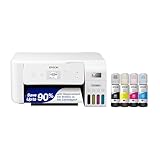
Ink tank printers are inkjets with refillable tanks. They cost more to buy and much less to run. Best for families and offices that print regularly in color. See EcoTank printers, Canon MegaTank and ink tank vs laser.
Laser Printers
Lasers use a drum, toner and heat to fuse text onto paper. They are fast, sharp and reliable, and the toner does not dry out. Monochrome lasers suit documents; color lasers add color at a higher price. See best laser printers, color laser printers and wireless laser printers.
All-in-One (Multifunction) Printers
All-in-ones print, scan, copy and sometimes fax. They suit homes and offices that want one device. See what is an all-in-one printer and best all-in-one printers.
Photo Printers
Photo printers focus on color accuracy and smooth tones, with extra inks. Portable photo printers print small sizes from phones. See best photo printers and portable printers.
Thermal and Label Printers
Thermal printers heat special paper or use ribbons, so they need no ink. They are used for shipping labels, receipts and barcodes. See best label printers.
Specialty Printers
Large-format printers print posters and 11×17 pages; see 11×17 printers. Sublimation and heat-transfer printers print designs for fabrics and mugs; see sublimation printers.
How to Choose
- Mostly black-and-white documents: a monochrome laser.
- Color, photos and school projects: an inkjet or ink tank printer.
- Heavy color volume: an ink tank printer.
- Labels and shipping: a thermal printer.
- Rare use: a laser or a low-cost inkjet.
Compare costs with how to calculate printer cost per page and inkjet vs laser for home.
Print Quality and How to Read Resolution Claims
Printer listings often headline a resolution number, but that number tells only part of the story. Resolution describes how many dots a printer can place in an inch, yet the way those dots are used, the type of ink or toner and the paper all shape the final result. Two printers with the same quoted resolution can look quite different on paper.
For text, nearly any modern laser or inkjet produces clean, readable pages. Laser output is crisp and uniform, which suits letters, reports and forms. Inkjet text is also sharp on plain paper, though it can look slightly softer and may smudge on some papers before the ink dries. For color graphics and photos, inkjet and ink tank printers generally produce smoother tones, particularly models that use extra ink colors to widen the range.
When you read the specification, look beyond the resolution:
- Number of ink colors: more colors typically help with smooth gradients and skin tones in photos.
- Ink type: dye inks tend to give vivid color, while pigment inks are known for resisting fading and smudging. Check the listing for the type used.
- Toner quality in color lasers: look at how well it handles fills and gradients, not only text.
- Supported paper types: glossy, matte and card stock capabilities differ.
If print quality is critical, look at sample prints from the maker or from users, and request a sample from a lab if you can. Ask yourself how large you will print and from what distance you will view the result.
Paper Handling and Media Support
Printers differ in how they feed and handle paper, and the details can matter as much as the printing technology. A tray that holds only a small stack means constant refilling in an office, while a larger tray suits steady use. Check whether the printer has a rear feed or a separate slot for thick media such as card stock or envelopes.
Automatic two-sided printing, often called duplex printing, saves paper and is useful for documents. Not every model has it, so check the listing. The same goes for the automatic document feeder in an all-in-one, which lets you scan or copy multi-page documents without placing each sheet by hand.
- List the paper sizes you use, such as letter, legal or photo sizes, and confirm the printer supports them.
- Check the maximum paper weight if you print on card or labels.
- Look for borderless printing if you want photos to reach the paper edge.
- Consider whether you need multiple trays for different paper types.
- For envelopes and labels, check that the printer supports them, since the path can jam otherwise.
Using the wrong paper is a common source of trouble. Laser printers heat the paper, so labels and film must be rated for laser use. Inkjets need paper that absorbs ink well. When in doubt, read the paper packaging and the printer manual, and run a test page.
Connectivity and Printing From Phones and Tablets
Modern printers connect in several ways, and the right one depends on your household or office. A USB cable is the simplest, though it ties the printer to one computer. Wi-Fi lets several devices print without cables and makes it easy to place the printer anywhere in range. Ethernet suits offices that want a stable wired connection.
Mobile printing has become common. Many printers support printing directly from phones and tablets through the operating system’s built-in tools or through the maker’s app. Check which methods your devices use and whether the printer lists support for them. Some printers also offer email printing, which sends a document to the printer through a cloud service, but you should read the privacy and account terms before relying on it.
- Check the Wi-Fi band the printer supports, since some older models connect only to one band.
- Make sure your router and security settings are compatible.
- Look at how easy the setup is, including whether a companion app is needed and whether it requires an account.
- Consider a printer with a screen if you want to change settings without a computer.
Security deserves a thought in shared spaces. Change default passwords, keep firmware updated when updates are offered and restrict access to the printer’s settings page. For home users, a simple, reliable setup is better than extra features you will never use.
Running Costs, Supplies and Waste
The price on the box is only part of what you will pay. Supplies are the long-term cost, so think about them early. Look at the price and stated page yield of replacement cartridges, tanks or toner, and compare it with how many pages you print. A quick calculation helps: divide the cost of a set of supplies by the pages it prints to get a cost per page, then multiply by your monthly volume.
Some printers use a starter set of supplies that is only partly full. Check the listing for what is included. Also look at whether cartridges are separate for each color, so you can replace only the one that has run out, or combined in a single unit, which wastes ink if one color finishes first.
- Subscription programs: some makers offer plans that deliver ink or toner based on usage. Read the terms carefully before joining.
- Compatible and refilled supplies: some printers work with them and others have restrictions or may be affected by firmware updates. Check the warranty and the maker’s policy.
- Maintenance parts: laser printers have drums, fusers and waste containers, and inkjets may have a maintenance box. Check how these are replaced.
- Recycling: many makers and retailers offer recycling for used cartridges.
If you print rarely, avoid a printer whose nozzles dry out. A laser or an inkjet that offers regular automatic cleaning cycles is better, though these also use some ink. Printing a page occasionally can help keep an inkjet healthy.
Size, Noise and Where the Printer Will Live
Printers are bulky, and the space available is an essential part of the decision. Measure the shelf or desk, and include extra room for trays that extend, doors that open and the clearance needed above for lifting covers. All-in-one printers with a flatbed scanner need space to open the lid fully. A printer with a rear feed needs clearance behind it.
Noise and heat also differ. Inkjets and ink tank printers are relatively quiet in most uses, though they make sounds during cleaning and printing. Laser printers can be louder at start-up and when the fuser heats, and they give off some warmth. In a small shared room or a bedroom, you may notice the difference.
- Measure the available space, including height with the lid open.
- Check the listed weight if you will carry the printer or place it on a shelf.
- Think about the sound level, especially for a home office.
- Look at the energy use and sleep mode, since printers spend most of their time idle.
- Ensure good ventilation, particularly for laser printers.
A printer you can reach easily is a printer you will use well. Place it where you can load paper and replace supplies without difficulty. Finally, think about how long you will keep it. A sturdy model with replaceable parts usually lasts longer than the cheapest option. Signs it is time to replace a printer include repeated paper jams, streaks that cleaning does not fix, supplies that cost more than the printer is worth and a maker that no longer provides drivers for your computer.


Ready to Buy? Start Here
If this guide helped you decide what to look for, these products are a place to start.


As an Amazon Associate we earn from qualifying purchases. Prices and availability are shown on Amazon.
Matching Printer Types to Your Weekly Print Habits
Choosing among printer types is easier when you begin with how you actually print. Instead of comparing technologies in the abstract, picture your typical week and match it to the strengths below.
- Occasional printing, mostly forms and boarding passes: a compact inkjet or a basic mono laser is usually enough. If the printer sits idle for long stretches, laser toner tends to cope with that better than liquid ink.
- Large volumes of black text: a mono laser is a natural fit, since text comes out crisp and the consumable is built for volume.
- Colour documents for school or a small office: a colour laser or an ink tank model, depending on how much colour you use and how often.
- Photos and craft projects: an inkjet designed for photo work, ideally with extra colour channels.
- Labels, receipts and shipping slips: a thermal label printer, which uses heat instead of ink or toner.
If two options seem close, consider the space you have and whether you need scanning or copying as well.
Comparing the Main Families Side by Side
| Type | Strength | Trade-off |
|---|---|---|
| Cartridge inkjet | Flexible, good colour, low entry cost | Ink can dry if unused; refills add up |
| Ink tank | Large ink reserves, steady running cost | Bulkier body; bottle refilling takes care |
| Mono laser | Fast, sharp text, tidy output | Black and white only |
| Colour laser | Quick colour pages, smudge-resistant | Larger footprint, several toners to replace |
| Thermal | No ink or toner needed | Specialised output, mostly labels |
Five Honest Questions About Your Own Printing
Run through a few honest questions. How many pages do you print in a normal month, and does that number swing wildly? Do you print on both sides, or on thick paper and envelopes? Will you print from a phone, a laptop or a shared network? And how much desk or shelf room can you spare?
Also consider how you will feel about maintenance. An inkjet that sits unused may need cleaning cycles, which use ink. A laser needs less fuss but is heavier to move. Reading the maker’s specification sheet for paper types, tray capacity and connection options will tell you whether a given model suits your habits.
Setup and Care Notes for Any Printer
Place the printer on a flat surface with space around the vents and paper path. Keep it away from direct sun and damp spots. Use the paper types the maker lists, because the wrong stock is a common cause of jams and smeared pages.
Replace consumables with parts the maker approves, power the unit off with its own button instead of pulling the plug, and keep the manual handy for cleaning steps. When a fault keeps returning, contact the maker’s support or a qualified technician instead of opening the case yourself.
Common Mistakes When Picking a Printer
The most common error is buying for the lowest entry cost while ignoring how the machine will be fed over the years. A printer with a low purchase figure can become a nuisance if its consumables run out quickly or if you have to buy several of them at once. Read the maker’s yield information on the product page and imagine your own use.
- Ignoring how often you will print before choosing between ink and toner.
- Assuming every printer scans, copies and faxes without checking the model code.
- Forgetting to check wireless support and whether your phone can print to it.
- Skipping the paper size and weight limits for envelopes, labels or photo stock.
- Overlooking the physical size, especially the space needed to open trays and covers.
- Leaving a printer unused for months and expecting it to behave perfectly.
Another trap is buying a multifunction machine when you only need one task done well. Extra features add parts that can fail and menus that confuse others in the household. If you only print occasionally, a simple model with a clear setup process may serve you better than a feature-heavy one.
Finally, think about who else will use it. A shared printer in a family or small office benefits from automatic two-sided printing, a decent paper tray and a way to print from different devices. A solo user with a single laptop can usually keep things simpler.
Printer Terms Worth Knowing Before You Compare
- Duplex: automatic printing on both sides of a sheet.
- ADF: an automatic document feeder that pulls pages through the scanner one at a time.
- Yield: the number of pages a cartridge or toner is expected to produce under the maker’s test conditions.
- Duty cycle: the monthly page volume the maker says the machine is designed to handle.
- Resolution: the level of detail a printer can place on the page, often shown as dots per inch.
Knowing these words makes a specification sheet far easier to compare across models.
Reading the Printer Landscape as a Whole
Stepping back from individual models, the printer market makes more sense when you see it as a set of trade-offs that never disappear, only move. Every design trades speed against quality, purchase cost against running cost, size against capability, and convenience against control. Inkjet technology places tiny droplets with great colour subtlety but involves liquid ink that must be managed. Laser technology fuses dry toner quickly and cheaply for text but asks more of the machine in size, warm-up and colour subtlety. Tank designs move money from cartridges into the machine itself. Thermal designs give up generality to do one narrow job extremely reliably. Once you see the trade-offs, marketing language loses its power, because you can ask of any model: what did this design give up, and do I care about the thing it gave up?
The second lens is duty rhythm. Manufacturers design for a monthly rhythm, and households have rhythms too, whether they know it or not. Bursty printing, nothing for three weeks then two hundred pages in a weekend, punishes machines designed for a steady trickle and rewards machines that wake up ready. Steady daily printing punishes machines with small, expensive supplies and rewards designs built around volume. Neither rhythm is wrong, but honesty about yours is the single best predictor of satisfaction, better than brand loyalty and better than any individual feature.
The third lens is the ecosystem around the machine: the cost and availability of its supplies in two or three years, whether its software still supports the devices you will own then, and how much help exists when something goes wrong. Popular, long-running model families tend to win here quietly. Supplies stay in stock, answers to error messages are easy to find, and replacement parts and advice accumulate. An obscure bargain can print beautifully and still be the worse purchase because its ecosystem is thin.
Use these lenses in order when you shop: trade-offs first, to find your technology; rhythm second, to find your size and duty class; ecosystem third, to choose between the finalists. That sequence mirrors how satisfaction actually forms. The first month is about the trade-offs, the first year is about rhythm, and every year after that is about the ecosystem you bought into, often without realising you were choosing one at all.
Putting the main types of printers Into a Real Weekly Workflow
The difference between a good choice and a frustrating one rarely shows up in the first test page. It shows up on the tenth ordinary day, when you are printing in you are comparing machines side by side, you are in a hurry, and the job has to come out right the first time because there is no spare paper, no spare cartridge and no spare half hour. That is why it helps to think about the main types of printers in terms of a weekly workflow rather than a single impressive print. Walk through the jobs you actually repeat: the quick single page you need right now, the longer run you start and walk away from, the job you reprint because the first version had a typo, and the job that matters enough that you check it under good light before it leaves the house.
For each of those jobs, note what slows you down. Is it swapping paper types and remembering which tray or feed slot each one uses? Is it waiting for the printer to wake, connect and accept the job? Is it checking ink or toner levels and discovering a colour is low only when the print comes out striped? Writing these friction points down sounds trivial, but it turns a vague feeling that a printer is annoying into a list you can actually act on. You can tape a small note near the machine with the correct feed direction for your most-used paper, keep the paper you use most often loaded as the default, and set the driver preset for your everyday job so you are not re-choosing settings every time.
Batching is the simplest workflow improvement most people never use. Instead of printing one page at a time throughout the day, group similar jobs together: all the documents on plain paper in one run, all the work on heavier or glossier stock in another. Every paper change is a chance to load a sheet the wrong way round, leave the driver set to the wrong media type, or forget to move the paper guides back. Fewer changes means fewer of those small errors, and the errors are what waste supplies, not the printing itself. Batching also makes problems easier to diagnose, because if a fault appears you know it started with a particular paper or a particular setting rather than somewhere in a mixed pile of jobs.
Finally, build a two-minute end-of-job habit. Check the output while the printer still holds the settings you used, note anything odd such as a faint line, a colour shift or a page that fed slightly crooked, and deal with it then rather than discovering it next week on a job that matters more. Keep a small folder of reference prints from when everything was working well; comparing a new print against a known-good one is the fastest way to tell whether the printer, the paper or the file has changed. Good workflow is not about buying more features. It is about making the features you already have behave predictably, week after week.
A First-Week Test Routine That Tells You the Truth
Whatever you choose from this guide, give it a structured first week instead of judging it on the first page out of the tray. Start with a test file you will keep: one page of ordinary text at a normal size, one page mixing text with a simple chart or table, and one image or colour page if colour work matters to you. Print that same file on your everyday paper with the standard quality setting, label the print with the date, the paper and the settings, and keep it. That labelled page becomes your baseline. Every future question about whether quality has slipped, whether a new paper is better, or whether a replacement cartridge performs as well as the old one can be answered by printing the same file again and comparing the two side by side.
On the second or third day, deliberately test the edges of what you bought. Print the thickest paper you realistically plan to use, one sheet at a time, through the feed path the manual recommends for heavy stock. Print a multi-page document and watch whether pages stay in order, whether the second side aligns acceptably if you print double-sided, and whether the printer handles a longer run without pausing, misfeeding or producing a page with a crease. Try printing from every device you actually use, not just the computer next to the printer, and note how long each route takes and whether any device produces a different result because it is using a simplified mobile driver.
Also test the boring failures while they are still cheap to discover. Let the printer sit idle for two days and then print your test page to see how it recovers. Start a job with the paper tray nearly empty and see whether the last sheets feed cleanly. Open the ink or toner information the printer reports and compare it with what the maker promises in the manual, so you know where to find those figures later when a warning appears mid-job. If something performs badly, change one variable at a time: paper first, then the media-type setting, then the quality setting. Changing everything at once may fix the problem, but you will never learn which change mattered, and you will waste the most expensive supplies first.
By the end of the week you should be able to answer three questions honestly. Does this setup produce the quality you need on the paper you actually buy? Do you understand its settings well enough to reproduce a good result on demand? And is there any recurring annoyance, a slow connection, a noisy warm-up, a tray that is awkward to load, that will still be annoying in a year? If the answer to the last question is yes, that is worth more than any single specification, because specifications describe a printer on its best day and you have to live with it on all the others.
Ownership Costs: Looking Past the Purchase Itself
The purchase is only the first payment. What you spend over the life of the main types of printers is dominated by supplies, wasted prints and, occasionally, your own time, and those costs behave very differently depending on how you print. A household that prints a few pages a month is mostly paying for readiness: ink that slowly gets used in cleaning cycles, paper that sits in the tray, and a machine that must simply work after weeks of doing nothing. A busy home office is paying for volume: every page carries a small cost, and a small difference per page multiplied by hundreds of pages becomes the biggest number in the whole calculation. Knowing which household you are is more useful than any single yield figure printed on a box.
Yield figures deserve a careful read. Cartridge and toner yields are measured on standard test pages with modest coverage, which resemble a business letter far more than they resemble a full-page photograph or a dense, colour-heavy document. If your typical page carries much more ink or toner than a plain letter, your real yield will be lower, sometimes dramatically lower, and that is not a defect in the product. It is a mismatch between the test and your work. The honest way to estimate your own cost is to note the date and page count when you install a cartridge, then note them again when it runs out. Two cartridges of your own data are worth more than any published average, because they reflect your paper, your coverage and your settings.
Waste is the hidden line in the budget. A misprinted page costs the paper, the ink or toner on it, and the time to print it again. Most waste comes from a short list of causes: the wrong media type selected, so ink pools or toner does not fuse properly; a file sent at the wrong size, so it prints cropped or tiny; a job started before anyone checked the levels; and test prints made on expensive stock when cheap plain paper would have answered the same question. A simple rule removes most of it: proof on plain paper first, check the preview at full size, and only load the good stock when the layout is confirmed. On expensive media, print one copy, inspect it, and only then run the rest.
There is also a decision to make about spares. Keeping one spare set of supplies on the shelf costs money up front but prevents the most expensive outcome of all, which is an urgent job that cannot print. Keeping too many spares is its own mistake, because cartridges age, opened paper absorbs moisture, and a printer replaced next year may not use any of it. One spare of the colour or cartridge you use fastest, stored sealed, upright and away from heat, is a sensible middle ground for most homes and small offices. Review that habit once a year, along with whether your print volume has changed enough that a different type of machine would now serve you better.
Care, Storage and the Small Habits That Prevent Big Problems
Most printing problems that feel like hardware failures are really housekeeping problems that built up slowly. Dust settles on paper and gets carried through the feed path. Paper left in an open tray absorbs moisture from the room, curls slightly, and starts feeding two sheets at a time or jamming at the same corner every run. A printer pushed back against a wall vents heat poorly and sits in a cloud of its own paper dust. None of this appears in a specification table, yet all of it decides whether a machine is still printing cleanly in its third year. The good news is that the countermeasures are cheap, quick and mostly about consistency.
Store paper the way the ream wrapper suggests: flat, sealed until needed, off the floor and away from radiators, kettles and sunny windows. When you open a new pack, fan the sheets lightly, square the stack, and load only roughly what you expect to use in the near term rather than filling every tray to its limit. Set the paper guides so they touch the stack without bending it; guides left loose let sheets drift and skew, and guides forced tight cause the buckling that turns into jams. If you switch between paper types often, keep each opened type in its own labelled envelope or resealable sleeve, because guessing which similar-looking white sheet is which leads to exactly the wrong-media mistakes that ruin prints.
Cleaning should be gentle and specific. Use the printer’s own utility for printhead or nozzle maintenance only when a test print shows a problem, because every cleaning cycle consumes ink and running cycles out of habit is one of the fastest ways to empty a cartridge without printing a single page. For laser machines, never reach inside near the fuser area while the machine is warm, and only ever remove toner dust with a dry, lint-free cloth as the manual describes. Keep the exterior vents clear, wipe the outside with a slightly damp cloth to lift dust before it migrates inside, and if your model has a scanner, clean the glass with a soft cloth, since a single fingerprint on scanner glass repeats as a line or smudge on every copy and scan you make.
Placement matters more than people expect. A printer needs a flat, stable surface that does not wobble when it prints, enough clearance for its doors and rear feed to open fully, and a power connection that is not shared with high-draw appliances that can cause dips. It also needs to be somewhere you will actually use and maintain it. A machine exiled to a damp garage or a dusty workshop corner will print worse and fail sooner than the same machine in a normal room. Finally, keep the manual, or at least its troubleshooting pages, findable. The first time a warning light pattern appears, the manual’s explanation of that exact pattern will save you more time than any general advice, including this guide.
Going Deeper: The Decisions People Usually Get Wrong
When readers write in about disappointing results with the main types of printers, the cause is seldom that they bought a bad product. It is usually a mismatch in one of four places: the job they described to themselves, the paper or media they paired with it, the settings they left on default, or the volume they quietly grew into. The job mismatch is the subtlest. People describe their printing by its most impressive example, the portfolio page, the party invitation, the big document, when ninety percent of their real printing is something much more ordinary. A choice optimised entirely for the impressive ten percent can be slower, fussier and more expensive for the ninety percent, and the frustration builds in the ordinary work, not the showcase work. Before deciding, count a real fortnight of printing and let that count, not the showcase, lead the decision.
The media mismatch is the most fixable. Printers and papers are systems: the same machine produces a sharp, durable page on one stock and a dull, smudged one on another, and the difference is usually the media-type setting rather than the hardware. That setting controls how much ink is laid down, how long it is given to dry, or how much heat and pressure a laser applies to fuse toner. Selecting plain paper while printing on glossy or heavy stock is behind a large share of complaints about smearing, pooling, dull colour and pages that feel damp. It takes five seconds to change and it should change every time the paper does. Treat the setting as part of the paper, not as an optional refinement.
The volume mismatch cuts both ways. Printing far more than a light-duty machine expects shows up as slow output, frequent supply changes and feed problems that appear only on long runs. Printing far less than an ink-based machine expects shows up differently: idle weeks, clogged nozzles, cleaning cycles and cartridges that seem to empty themselves. Neither machine is faulty. Each is being used outside the rhythm it was designed for, and the honest fix is to match the rhythm, either by choosing the technology that tolerates your pattern or by changing the pattern, for example printing a small colour page weekly to keep an inkjet exercised. For anyone comparing types, add one more check: price the supplies for your likely volume before falling for any single technology, because running pattern, not mechanism, decides most running costs.
The last mistake is judging too quickly and changing too much. A new setup deserves a fair test on familiar work before it is declared a success or a failure, and a problem deserves a methodical check, paper, settings, levels, then hardware, before money is spent on replacements. Keep notes as you go: which paper, which setting, which file, what changed. Printing has many variables, and memory is the least reliable of them. A few written lines next to the printer will outperform guesswork every time, and they turn the next problem, whenever it comes, from a mystery into a short checklist.
Frequently Asked Questions
Which printer type is cheapest to run?
Ink tank and monochrome laser printers usually have the lowest cost per page.
Which is best for photos?
Photo-oriented inkjet or ink tank printers.
Which is best for home?
An all-in-one inkjet or ink tank for most households; see best printers for home use.
Do lasers clog?
No. Toner is dry.
What does duplex printing mean?
Duplex printing means printing on both sides of the paper automatically. It saves paper and is handy for documents, but not every printer has it, so check the specifications.
Are dye and pigment inks different?
Dye inks tend to give vivid color, while pigment inks are known for resisting fading and smudging. The listing or manual should tell you which a printer uses.
Can I print from my phone without installing an app?
Often yes. Many phones can print using the operating system's built-in tools if the printer supports them. Check your device and the printer's listing for compatible methods.
How do I keep an inkjet from clogging?
Print a page every week or two, keep the printer powered so it can run its cleaning cycles and avoid leaving it in a dry, hot place. Follow the maker's advice on storage.
Is a starter cartridge the same as a full one?
Not always. Some printers ship with partly filled supplies, so check the listing for what is included and how many pages it is expected to print.
Should I use third-party ink or toner?
It depends on the printer and the maker's policy. Some work well with them, while others may block them or void a warranty. Check the terms before you decide.
What paper should I use for photos?
Use paper designed for photo printing, in glossy, satin or matte finishes, and match it to your printer's supported media. Select the matching paper type in the print settings.
How do I tell when a printer is not worth repairing?
If the repair cost approaches the price of a new model, if parts are unavailable or if the maker has ended driver support, replacement is usually more sensible.
Bottom Line
Pick the type by what you print: lasers for documents, inkjet or ink tank for color and photos, thermal for labels. Add scanning with an all-in-one if you need it. See best printers for home use.
Related Reading
- 7 Best Wireless Printers for Home Use
- 6 Best AirPrint Printers for iPhone, iPad and Mac
- 6 Best Basic Printers for Home: Simple, Easy and Reliable
- 6 Best Brother Laser Printers for Home and Office
- 6 Best Brother Printers for Home and Office
- 6 Best Canon PIXMA Printers for Home and Photos
- 6 Best Canon Printers for Home and Office
- 4 Best Large-Format Printers for Canvas and Art Prints
More Printer Guides
- Best Printers for Home Use
- What Is an All-in-One Printer? Features and Who Needs One
- How to Calculate Printer Cost Per Page
- How to Check Printer Ink Levels on Windows, Mac and Phone
- How to Choose Photo Paper
- How to Clean a Printhead

