Disclosure: As an Amazon Associate, reviewstook.com earns from qualifying purchases. Links to Amazon on this page are affiliate links; they cost you nothing extra.
A canvas printer is usually a wide-format inkjet that can handle thick or textured media. Not every wide-format printer supports canvas, and large prints cost much more to produce than letter-size ones.
This guide covers four large-format photo printers. It is built from published specifications and listings, not our own testing. Check the manufacturer media list before you buy to make sure the printer supports canvas rolls or sheets.
New to printers? Start with our guide to the best printers for home use and how we pick printers.
By the Reviewstook Editorial Team. Last updated: October 31, 2026.

In this guide
Quick Picks
| Printer | Type | Best for |
|---|---|---|
| Epson Expression Photo HD XP-15000 | Wide-format photo printer | Enthusiasts who print up to 13×19 inches at home |
| Canon PIXMA PRO-200S | Professional photo printer | Serious photo prints from a 13-inch printer |
| Epson SureColor P900 | 17-inch professional photo printer | Gallery and art prints up to 17 inches |
| Canon imagePROGRAF PRO-1100 | 17-inch professional photo printer | Large professional prints on a wide range of media |
4 Best Large-Format Printers for Canvas and Art Prints
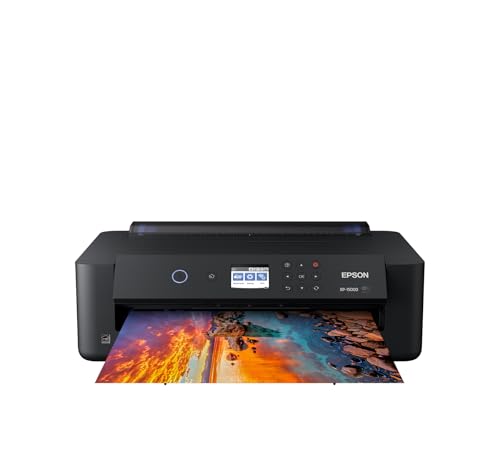
Top pickBest for hobbyists who print large photos and posters at home
1. Epson Expression Photo HD XP-15000
A wireless wide-format inkjet printer from Epson’s Expression Photo HD line, built for prints larger than a standard letter page.
Good for: Hobbyists who print large photos and posters at home. Strengths: Wide-format output from a desktop machine, with no scanner to add bulk. Weaknesses: Single-function, so no scanning or copying; ink for large prints is a real expense. Skip it if you rarely print larger than letter size.

Best for photographers who want gallery-style prints at home
2. Canon PIXMA PRO-200S
A 13-inch wireless photo printer with an 8-color dye ink system and a 3-inch LCD, per the listing.
Good for: Photographers who want gallery-style prints at home. Strengths: An 8-color dye ink system aimed at photo quality. Weaknesses: Expensive to run, and not meant for everyday documents. Skip it if you mostly print text documents.

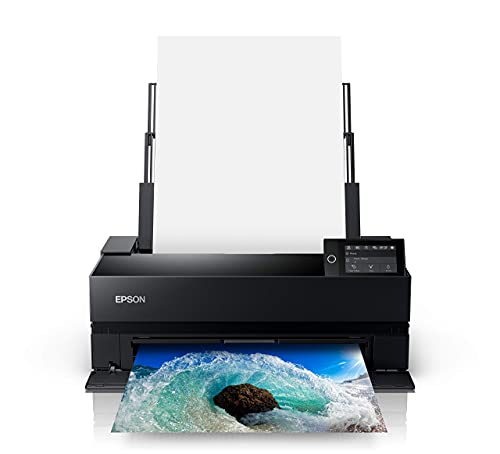
Best for photographers and artists selling or exhibiting large prints
3. Epson SureColor P900
A 17-inch professional photo printer from Epson’s SureColor line. The listing is a bundle, so confirm what is included on the product page.
Good for: Photographers and artists selling or exhibiting large prints. Strengths: Built for large, high-end photo and art output. Weaknesses: Large, expensive and overkill for casual use. Skip it if you only print occasionally or at small sizes.

Best for professional photographers and print sellers
4. Canon imagePROGRAF PRO-1100
A 17-inch professional wireless inkjet photo printer from Canon’s imagePROGRAF line.
Good for: Professional photographers and print sellers. Strengths: Wide-format professional output. Weaknesses: Very expensive, large and heavy. Skip it if you are not printing professionally.

Printing for Canvas and Art: What to Check
Media and paper path
Canvas and fine-art media are thick or textured. Check the manufacturer’s media list and the maximum thickness the printer accepts before buying specialty media.
Ink type
Pigment inks tend to resist fading and water better, which matters for art that will hang on a wall. Dye inks give vivid color but may fade sooner.
Size and cost
13-inch printers print up to 13×19 inches. 17-inch printers print larger and cost a lot more. For occasional large canvas prints, a print service may cost less than owning the printer.
Finishing
Canvas prints often need a clear coating to protect the surface. Follow the media maker’s instructions.
Best Picks by Category
They summarize listing data and are not hands-on test results.
- Budget option: Epson Expression Photo HD XP-15000 — check price on Amazon.
- Premium option: Epson SureColor P900 — check price on Amazon.
Price, Rating and Review Comparison
Prices change often, so confirm the current price on Amazon.
| Product | Price tier |
|---|---|
| Epson Expression Photo HD XP-15000 | Budget |
| Canon imagePROGRAF PRO-1100 | Mid-range |
| Canon PIXMA PRO-200S | Mid-range |
| Epson SureColor P900 | Premium |
How Much Feedback Backs Each Rating
A high average from a handful of ratings is weaker evidence than a slightly lower average from thousands. Here is how the sample size looks for each pick.
- Epson Expression Photo HD XP-15000: check the current listing on Amazon for the latest feedback.
- Canon PIXMA PRO-200S: check the current listing on Amazon for the latest feedback.
- Epson SureColor P900: check the current listing on Amazon for the latest feedback.
- Canon imagePROGRAF PRO-1100: check the current listing on Amazon for the latest feedback.
How to Choose
Check the supported media
Look for canvas and fine-art paper on the manufacturer media list and note the maximum thickness the printer accepts.
Think about size
13-inch printers print up to 13×19 inches. 17-inch printers print larger and cost much more.
Compare with a print service
For occasional large canvas prints, a lab print or canvas wrap service is often cheaper than owning the printer.
How We Chose These Products
We start from products sold on Amazon with a full product name and clear specifications, and we skip results that show only a brand name or a vague title. We then read the listing and any manufacturer information for each one and note the features that matter for printers: print technology, running costs, connectivity and size. We do not run our own lab tests, and this guide contains no hands-on measurements. Use it to build a shortlist, then check current prices, dimensions and return terms on the Amazon page before you buy.
Buying Guide: What to Check Before You Choose
Ink tank versus cartridge
Ink tank printers use refillable tanks and usually have a lower cost per page, with a higher purchase price. Cartridge printers are cheaper up front but ink can cost more over time. Check the page yield and the cost of refills.
Laser printers
Laser printers print text quickly and sharply and do not clog like inkjets. Color lasers cost more. Check the toner cost and the print speed.
Photo printing
Photo printers focus on color accuracy and paper handling. Check the number of inks, the paper sizes and the cost per print.
Quick Reference: Which Pick Suits Whom
- Epson Expression Photo HD XP-15000: suits hobbyists who print large photos and posters at home
- Canon PIXMA PRO-200S: suits photographers who want gallery-style prints at home
- Epson SureColor P900: suits photographers and artists selling or exhibiting large prints
- Canon imagePROGRAF PRO-1100: suits professional photographers and print sellers
Common Mistakes to Avoid
- Judging a printer by its price without considering ink cost.
- Ignoring the starter cartridge size.
- Forgetting the paper types needed.
- Assuming all-in-ones are always better.
- Skipping the return window.
Setup and Care
- Install the maker’s app or driver.
- Connect to Wi-Fi.
- Run an alignment and nozzle check.
- Print regularly to avoid clogs.
Why Canvas Is Harder for a Printer Than Paper
A canvas print starts as woven cotton or polyester fabric coated with a receptive layer so ink sits on the surface instead of soaking into the weave. That coating, the thickness of the material and its tendency to curl are what separate canvas from ordinary photo paper. Three printer traits decide whether a machine copes.
The paper path
Inkjet printers move media through a curved path or a straighter one. Thin paper bends easily around the rollers. Canvas does not like tight bends, because it can crack its coating, skew or jam. Printers aimed at fine-art work usually offer a rear or front manual feed with a flatter route for thick stock. Look in the manual rather than the marketing page for the words canvas, fine art or thick media, and note the maximum thickness the printer lists.
Sheet versus roll
Canvas is sold both as cut sheets and as rolls. Sheets in common photo sizes are simple and suit a 13-inch printer. Rolls let you print panoramas or very large wall pieces, but they need a roll holder and a cutter, and those are features of larger professional machines. Confirm whether roll support is built in or an extra part, and what the bundle includes. The post notes that the Epson SureColor P900 listing is a bundle, so read the contents carefully.
Drying and handling
Fresh canvas prints are delicate. The surface is textured, so a finger drag can smear ink or leave a mark. Leave prints flat, away from dust and direct heat, for the drying time the media maker gives. Printing in a humid room can lengthen that time and cause beading, so a dry, stable spot makes a difference.
Color Management: Getting the Print to Match the Screen
Disappointing prints are more often a color management problem than a printer problem. Canvas absorbs and reflects light differently from glossy paper, and a screen shows a lit image while a print reflects the room’s light. A few habits close most of the gap.
- Use the correct media profile. Manufacturers supply profiles for their own papers and canvases, and some third-party media makers provide profiles for popular printers. Selecting the wrong profile gives dull or tinted results.
- Calibrate your display. A monitor set too bright makes prints look dark by comparison. An inexpensive calibration tool helps, and you only need to repeat it every month or so.
- Soft-proof before printing. Many editing programs can preview how an image will look on a given paper. Canvas tends to reduce contrast and darken shadows, so you may need a small boost to brightness and sharpening.
- Print a small test strip. Spending a little ink on a section of the image saves wasting an expensive canvas sheet.
None of this requires a high-end printer, but the 17-inch professional models in this guide are built around wider color ranges and finer control, so the effort pays off more on them.
Which Type of Buyer Are You?
The four printers in this guide serve quite different people. Matching your situation to the right tier prevents overspending.
The home hobbyist who wants the occasional large print
If you print a few posters, family photos or craft projects a year, the Epson Expression Photo HD XP-15000 is the entry point in this group, with output up to 13 by 19 inches. Verify its canvas support carefully, since a wide-format printer is not automatically a canvas printer. If the manual does not list canvas, treat it as a photo and poster machine.
The serious photographer printing for the wall
If you shoot regularly and want gallery-style output at home, the Canon PIXMA PRO-200S uses an 8-color dye ink system according to its listing. Dye can look vivid, but it generally resists fading less well than pigment, so it suits prints you will frame behind glass or rotate often more than prints you intend to hang for decades.
The artist who sells or exhibits
If customers will pay for your work, the 17-inch machines make more sense. The Epson SureColor P900 and the Canon imagePROGRAF PRO-1100 are described as professional models. Selling prints raises the stakes on longevity, consistency from one print to the next and the size of the largest print you can offer.
The person who prints big only occasionally
This buyer should seriously consider a print service. A lab can print and stretch a canvas wrap on a frame for less than the cost of a printer, a set of inks and stretcher bars. A home printer starts to win only when volume is steady or when you need prints right away.
The Real Cost of a Canvas Print
The printer’s purchase price is only the first expense. A canvas wall piece adds several others, and adding them up shows why services are competitive.
- Ink. Large prints use a lot, and photo printers have many separate cartridges. Heavy coverage on a big image can empty several at once.
- Media. Canvas costs far more per square foot than plain paper. Wasted test prints add to it.
- Finishing. A protective spray or varnish, and the labor to apply it evenly.
- Framing. Stretcher bars, a stapler and time, or a mount if you prefer a flat print.
- Maintenance ink. Many printers use a little ink during automatic cleaning cycles, even if you print rarely.
A sensible exercise is to price one print from a service, then price the same print at home using the media and ink costs on the maker’s pages. Multiply by how many you expect to make in a year. If the home total is higher, you are paying for convenience and control, which can be worth it but should be a deliberate choice.
Questions to Ask Before You Order
- Does the manufacturer’s media list name canvas, and what thickness does the printer accept?
- What is the largest size I need, and does the printer reach it as sheets, rolls or both?
- Are the inks pigment or dye, and how many separate cartridges are there?
- Do I need a computer connection with a specific driver, or will the printer work from a phone?
- What are the sizes of the starter cartridges, and how soon will I need to buy full ones?
- Where will the printer sit, and is the desk or shelf deep enough for the paper path and rear feed?
Keeping a Large-Format Printer Healthy
Photo printers with many nozzles are more prone to clogs when left idle. Print a small color test page every week or two if you cannot print regularly, and keep the printer powered by the standard off button so it can cap the print head. Store spare ink in a cool room and away from direct sun. Use paper and canvas from sealed packaging, because humidity changes how media feeds and dries. Finally, keep a record of which profile you used for each material. When a print turns out well, you want to repeat it exactly.
Choosing the Right Media: Canvas, Fine Art Paper and Photo Paper
Printer and media form a pair, and picking the wrong paper wastes ink. Three families cover most art printing, and each suits a different goal.
Canvas
Inkjet canvas comes in matte and glossy finishes, and in cotton or polyester blends. Polyester canvas tends to resist moisture and stretch evenly, while cotton has a more traditional texture. Look for a product labeled for pigment or dye inkjet printers and match it to your printer. Many canvas rolls have a coating on one side only, so load them the right way up.
Fine art paper
Cotton rag and textured fine art papers give a traditional gallery look without a stretcher frame. They are often thicker and absorb ink differently from photo paper, so a media profile is important. Many of these papers pair best with pigment inks, and the manufacturer publishes recommended settings for popular printers.
Photo paper
Glossy, luster and satin papers give strong color and detail and are easiest to feed. They suit framed photographs more than wall hangings that go on stretcher bars, because they crack when stretched. Choose the surface based on where the print will hang and how much glare the room has.
Buy a sample pack before committing to a roll. Print the same image on three or four media and compare them in the lighting where the work will hang. A small investment in samples prevents an expensive roll that does not suit your style. Store unused media flat or rolled in its original wrapping, away from humidity, heat and sunlight, so it feeds and prints consistently.
Large-Format and Canvas Printing in Depth: From File to Wall
The main sections of this guide cover what to buy and why. This section covers what ownership actually feels like once the large-format canvas printer is on your desk: the habits, settings and small decisions that decide whether it delights you or nags at you. None of it requires technical skill. It requires only that you set the machine up around your real life once, thoughtfully, instead of rediscovering the same lessons one paper jam at a time.
Resolution and viewing distance: the honest maths of big prints
Large prints forgive more than beginners fear, because they are viewed from further away. A canvas across a room does not need the fine detail density of a photograph examined in the hand; it needs clean edges, smooth gradients and no visible damage from enlarging a small file. The practical test is to view your file on screen at the size you intend to print, from the distance you will view the finished piece. If it looks good under those conditions, it will print well. If faces smear and edges crumble on screen at that size, no printer setting will restore what the file never contained.
Upscaling software can smooth an enlargement and is worth using thoughtfully on borderline files, but it invents plausibility, not detail. For your most important pieces, start from the largest original available, ideally the camera’s full file rather than a copy passed through messaging or social platforms. Canvas texture itself is forgiving: the weave breaks up minor softness gracefully, which is one reason canvas suits big, bold images so well.
Canvas handling: printing, drying and stretching
Canvas is a material, not just a big sheet of paper. It feeds differently, it needs the printer set for its thickness and surface, and its printed side marks easily while fresh. Give prints generous drying and curing time before handling, rolling or stretching, because the ink film on canvas needs to set fully to survive being pulled over a frame. Handle by the edges, roll with the printed side protected and never stack fresh canvases face to face.
Think about the wrap before you print. A gallery wrap folds the image around the frame’s edges, which consumes part of the picture on every side, so compose and size with that loss in mind, or mirror or extend the edges in software where your tools allow. A border or a mirrored edge saves an important detail, a face near the edge, from being folded around the side. Planning the wrap at the file stage is the difference between a canvas that looks designed and one that looks cropped by accident.
Colour and black-and-white at large sizes
At large sizes, colour problems become wall-sized, so proof small and proof honestly. Print a reduced test of the whole image and, if your software allows, a small section at full size to judge sharpness and texture where it matters. Check skin tones and skies, the two areas viewers read instantly, under the light of the room where the piece will hang. Canvas warms and softens colour compared with glossy paper, which flatters landscapes and portraits alike, but it can mute a graphic image that depends on punch, and the test print will tell you.
Black-and-white work has its own trap: a print that looks neutral on one paper can lean warm or cool on canvas depending on ink and material. Use the printer’s dedicated black-and-white mode where offered, rather than letting a colour workflow interpret your greys, and judge the test under final lighting. A slight warmth often suits canvas and interiors, provided it is chosen rather than discovered after the full-size print is on the stretcher bars.
How the Picks in This Guide Compare in Everyday Use
Specifications separate these machines on paper, but daily life separates them differently. The paragraphs below revisit each pick in this guide strictly in the role the guide itself assigns it, and set that role against the neighbouring picks, so you can feel the shape of the choice rather than just reading it. Read the pick that matches your situation first, then read its neighbours: the right decision usually becomes obvious in the contrast.
Epson Expression Photo HD XP-15000 earns its place in this lineup as a wide-format photo printer, picked for enthusiasts who print up to 13×19 inches at home. In daily use, what that positioning really means is that its strengths arrive exactly where enthusiasts who print up to 13×19 inches at home matters, and its compromises fall where that kind of user rarely looks. Readers comparing it with the neighbouring picks should start from their own habits rather than the headline features: the household or office that matches this description will find it quietly dependable, while someone whose printing looks very different will get more from a pick designed around their pattern instead.
Epson Expression Photo HD XP-15000 is the Wide-format photo printer option here, chosen for enthusiasts who print up to 13×19 inches at home. Set beside the other picks, its character is defined by that role: it is the answer when enthusiasts who print up to 13×19 inches at home is the priority, and it is not trying to be the answer to every other question in this guide. That focus is a virtue rather than a limitation. Printers that chase every strength tend to serve no one particularly well, whereas a model with a clear job, matched to the buyer who has that job, tends to be the one still earning praise years later.
Consider Canon PIXMA PRO-200S if your printing centres on serious photo prints from a 13-inch printer. As a professional photo printer it approaches the work differently from the alternatives around it, and the detailed review above sets out where that approach pays off. The honest skip case matters just as much: if serious photo prints from a 13-inch printer is something you do rarely, this pick’s particular strengths will sit unused while its trade-offs remain, and another model in this guide will fit you better. Matching the pick to the pattern of use, rather than to the longest feature list, is the decision this whole guide is built around.
Within this guide, Canon PIXMA PRO-200S covers the serious photo prints from a 13-inch printer ground. Its detailed section explains the specifics; the comparative point is that no other pick here occupies quite the same position. Where two picks seem to overlap, the difference usually shows up in daily rhythm rather than in specifications: how the machine suits the space it will live in, the people who will share it, and the mix of documents it will actually see. Choose on that rhythm, and the specification sheet becomes a confirmation rather than a gamble.
Epson SureColor P900 earns its place in this lineup as a 17-inch professional photo printer, picked for gallery and art prints up to 17 inches. In daily use, what that positioning really means is that its strengths arrive exactly where gallery and art prints up to 17 inches matters, and its compromises fall where that kind of user rarely looks. Readers comparing it with the neighbouring picks should start from their own habits rather than the headline features: the household or office that matches this description will find it quietly dependable, while someone whose printing looks very different will get more from a pick designed around their pattern instead.
Epson SureColor P900 is the 17-inch professional photo printer option here, chosen for gallery and art prints up to 17 inches. Set beside the other picks, its character is defined by that role: it is the answer when gallery and art prints up to 17 inches is the priority, and it is not trying to be the answer to every other question in this guide. That focus is a virtue rather than a limitation. Printers that chase every strength tend to serve no one particularly well, whereas a model with a clear job, matched to the buyer who has that job, tends to be the one still earning praise years later.
Consider Canon imagePROGRAF PRO-1100 if your printing centres on large professional prints on a wide range of media. As a 17-inch professional photo printer it approaches the work differently from the alternatives around it, and the detailed review above sets out where that approach pays off. The honest skip case matters just as much: if large professional prints on a wide range of media is something you do rarely, this pick’s particular strengths will sit unused while its trade-offs remain, and another model in this guide will fit you better. Matching the pick to the pattern of use, rather than to the longest feature list, is the decision this whole guide is built around.
Within this guide, Canon imagePROGRAF PRO-1100 covers the large professional prints on a wide range of media ground. Its detailed section explains the specifics; the comparative point is that no other pick here occupies quite the same position. Where two picks seem to overlap, the difference usually shows up in daily rhythm rather than in specifications: how the machine suits the space it will live in, the people who will share it, and the mix of documents it will actually see. Choose on that rhythm, and the specification sheet becomes a confirmation rather than a gamble.
Setup, Workflow and Troubleshooting: The Rest of Ownership
Choosing the right large-format canvas printer is half the task; the other half is the environment it works in and the routines around it. The topics below are the ones that generate most of the questions owners ask after the first month, whatever model they bought, and each one is cheaper to handle early than late.
Cleaning and care routines that extend a printer’s life
Printers live in dusty air and feed on paper, which itself sheds fibres, so a light cleaning routine pays off. Every few months, with the printer off and unplugged, wipe the exterior and the paper path areas you can reach with a dry, lint-free cloth. Clean the scanner glass with a slightly dampened cloth and dry it fully: a single fingerprint or correction-fluid spot on the glass prints as a line or mark on every scan and copy until it is removed, and it is routinely misdiagnosed as a scanner fault.
For inkjets, the built-in cleaning and alignment utilities exist for a reason, but use them sparingly, because each cleaning cycle consumes ink to flush the nozzles. One cycle, a test print, and only then a second cycle if needed is the right rhythm. For lasers, never touch the drum surface or expose it to bright light for long, and shake a toner cartridge only if the manual for your model suggests it as a way to redistribute toner near the end of its life. Keep the manual’s care page bookmarked; the routine for your exact model always beats generic advice.
Scanning workflow: naming, formats and finding files later
A scanner earns its keep in the filing system you build around it. Decide on a naming pattern before you scan your first archive box: date first, then a plain description, works well because files sort themselves in order and stay meaningful years later. Scan text documents as searchable PDFs where your software offers it, so you can find an invoice by a word inside it rather than by remembering what you called the file. Photographs and artwork deserve an image format and a higher resolution; contracts and letters do not, and scanning everything at maximum resolution just creates huge files that are slow to open, back up and send.
Scan in small, finished batches rather than one enormous session: check the first few pages of each batch on screen for skew, cut-off edges and pages fed together, because rescanning ten pages is easy and discovering a missing page after the originals are shredded is not. Keep a simple folder structure that mirrors your paper one, and back the folder up with the rest of your documents. The printer does the capturing; these habits do the organising, and the organising is what you will thank yourself for.
Printing from phones and tablets without the usual friction
Phones are where most casual printing starts now, and most phone printing failures are really network failures: the phone and the printer must be on the same network, and a phone that has roamed onto a guest network or a different band will not see the printer at all. If the printer vanishes from the share sheet, check the network name on both devices before anything else. Manufacturer apps add scanning, ink levels and maintenance tools, while the built-in print services on phones handle straightforward documents with less setup; using the built-in route for documents and the maker’s app for scans and settings is a combination many households settle on.
Remember that a phone screen hides layout problems. A document that looks fine on a small screen may print with margins cropped or text shrunk, so for anything formal, open the file on a computer, check the preview, and print from there. For photos, send the full-resolution file rather than a screenshot or a messaging-app copy, because those copies are compressed and the print will show it. When guests need to print, walking them through joining your network once is simpler and safer than leaving the printer in a direct-connect mode permanently.
Placement, ventilation and a stable connection
Where a printer lives has more effect on reliability than most buyers expect. Put it on a flat, stable surface with clearance on every side: paper needs room to feed and exit without bending, output trays need to extend fully, and the vents that shed heat from the fuser or print engine should never be blocked by books or fabric. Keep the machine away from radiators, sunny windows and steamy rooms, because heat and humidity curl paper and thicken the dust that ends up on rollers and scanner glass.
Placement is also a network decision. A printer at the far edge of your Wi-Fi coverage will drop jobs, stall halfway through large files and disappear from phones even though it works fine when tested next to the router. If the printer has to live in a weak-signal corner, a wired Ethernet connection where available, or moving it one room closer to the router, usually fixes more problems than any amount of reinstalling drivers. Finally, leave enough slack in the power lead that the printer is never dragged by its cable when the desk moves, and plug it directly into a wall outlet rather than a switched strip that other people turn off without thinking.
Frequently Asked Questions
Can any printer print on canvas?
No. The printer must accept thick media and use inks suited to it. Check the manufacturer media list.
Are large-format printers expensive to run?
Yes. Ink sets and large paper are costly, so they pay back only with regular use.
Is dye or pigment ink better for art prints?
Pigment inks tend to last longer on matte and art media. Check the ink type of each model.
What are the best printers for art prints?
Wide-format photo printers with multi-color ink systems suit art prints. See our best printers for graphic designers and artists.
Which is cheaper to run, inkjet or laser?
Laser is usually cheaper per page for text, and ink tank printers are cheaper for color and photos.
How do I connect my printer to Wi-Fi?
Use the printer’s setup menu or the maker’s app. See our Wi-Fi guide.
Do I need genuine ink?
Not always, but some printers restrict third-party ink. Check the terms.
Can a 13-inch printer print on canvas?
Some can, but support varies by model. Look for canvas or thick media in the manufacturer’s supported paper list and note the maximum thickness. Many 13-inch photo printers handle sheets of canvas through a manual feed, while rolls and large wall pieces usually need a 17-inch or larger machine.
Is it cheaper to print canvas at home or use a print service?
For occasional prints, a service is usually cheaper once you count the printer, ink, media, finishing and framing. Home printing starts to make sense with steady volume, when you want quick turnaround or when you sell prints and need control over color and quality.
How long do canvas prints last?
Longevity depends on the ink, the coating and where the print hangs. Pigment inks generally resist fading better than dye, and a protective varnish helps with scratches and moisture. Keep prints out of direct sunlight and away from damp walls. Check the ink maker’s stated ratings, which come from controlled tests.
Do I need to varnish a canvas print?
It is strongly recommended in most cases. A clear coating protects the surface from scratches, fingerprints, moisture and some fading. Use a product intended for inkjet canvas, apply it in light, even coats, and let the print dry fully first. Follow the media and coating makers’ instructions.
Why do my canvas prints look darker than my screen?
A bright, uncalibrated monitor is the most common cause, and canvas also absorbs more light than glossy paper. Calibrate your display, use the right media profile and soft-proof before printing. Many people raise brightness and sharpening slightly for canvas, then adjust after a small test print.
How big can I print from my camera or phone file?
Judge by viewing distance and file quality rather than a fixed rule. On screen, view the file at the intended print size and step back to where the piece will be seen; clean edges and smooth tones at that distance mean the file is big enough. Canvas is forgiving of modest files because its texture softens detail. The files that fail are small, heavily compressed copies, so always start from the largest original you have, and print a full-size section as a test for an important piece.
Why does my canvas print look different from the same image on photo paper?
Canvas has a textured, matte surface that absorbs and scatters light, softening contrast and saturation compared with glossy or satin photo paper. Most people find the effect flattering for portraits and landscapes, but graphics lose some snap. Compensate in editing with a little extra contrast and vibrancy for canvas, and proof on the actual material, because settings that are perfect for paper rarely transfer unchanged to canvas.
How long should a canvas print dry before I stretch it?
Longer than impatience suggests. Follow the guidance for your ink and canvas, and as a working habit allow the print to rest flat, untouched, well beyond the point where it feels dry to a fingertip, because the ink film continues to set after the surface feels ready. Rushing to stretch is how fresh canvases get scuffed edges and fingerprints worked into the image. When in doubt, overnight is a minimum, not a luxury.
What is the best way to protect a finished canvas print?
Hang it out of direct sunlight and away from steam and cooking grease, dust it with a dry, soft cloth, and never use household cleaners or water on the printed surface. Where the maker of your canvas and ink recommends a protective coating or varnish for prints in bright or busy rooms, apply it only after full curing and test on a spare print first. Handled this way, a canvas keeps its presence for many years.
Bottom Line
For hobby-level large prints, the Epson Expression Photo HD XP-15000 is the entry point. For professional output, look at the Epson SureColor P900 or Canon imagePROGRAF PRO-1100. If you only print big a few times a year, a print service is likely cheaper.
Related Reading
- Types of Printers Explained: Inkjet, Laser, Ink Tank and More
- 7 Best Wireless Printers for Home Use
- 5 Best 11×17 Tabloid Printers for Home and Office
- 6 Best AirPrint Printers for iPhone, iPad and Mac
- 7 Best All-in-One Printers for Scanning and Printing
More Printer Guides
- Best Printers for Home Use
- Best Label Printers for Shipping and Small Business
- Best Wireless Photo Printers for Home Use
- Best Portable Photo Printers for Your Phone
- Best Printers for Crafters and Cardstock
- Best Printers for Cricut Print Then Cut Projects

