Disclosure: As an Amazon Associate, reviewstook.com earns from qualifying purchases. Links to Amazon on this page are affiliate links; they cost you nothing extra.
Crafters ask more of a printer than most people: thick cardstock, photo paper, stickers and large sheets. The model that prints homework well may jam on cardstock, so paper handling matters more than speed.
This guide covers five printers for crafts, scrapbooking and cards. It is built from published specifications and listings, not our own testing. Check the maximum paper weight and the paper path on each product page before you buy.
New to printers? Start with our guide to the best printers for home use and how we pick printers.
By the Reviewstook Editorial Team. Last updated: October 31, 2026.

In this guide
Quick Picks
| Printer | Type | Best for |
|---|---|---|
| Canon PIXMA TS9521Ca | Color inkjet all-in-one | Photos and documents with auto duplex |
| Epson Expression Photo XP-980 | Wide-format photo all-in-one | Home photo prints with scanning and copying |
| Canon PIXMA G620 | MegaTank photo all-in-one | Photo printing with refillable tanks |
| Epson EcoTank Photo ET-8550 | Wide-format photo tank all-in-one | Large photo prints with tank economy |
| Canon PIXMA PRO-200S | Professional photo printer | Serious photo prints from a 13-inch printer |
5 Best Printers for Crafters and Cardstock

Top pickBest for households that print photos and documents
1. Canon PIXMA TS9521Ca
A wireless home all-in-one inkjet that prints, copies and scans, with auto duplex printing and a 4.3-inch touchscreen, per the listing.
Good for: Households that print photos and documents. Strengths: Automatic two-sided printing, a touchscreen and a five-ink system, per the listing. Weaknesses: The listing mentions no document feeder, and cartridge costs add up with volume. Skip it if you need a feeder for scanning stacks or the lowest ink cost.


2. Epson Expression Photo XP-980
A wireless wide-format all-in-one from Epson’s Expression Photo line.
Good for: Hobbyists who want borderless photos and everyday documents from one machine. Strengths: Wide-format printing plus scanner and copier in one body. Weaknesses: Bigger and heavier than a standard all-in-one, and cartridge ink is not cheap per page. Skip it if you only print documents.


Best for photo hobbyists who print often and want low ink cost
3. Canon PIXMA G620
A wireless MegaTank all-in-one aimed at photo printing, with print, copy and scan.
Good for: Photo hobbyists who print often and want low ink cost. Strengths: Refillable tanks with a photo focus. Weaknesses: Pricey up front, and check the ink set it uses. Skip it if you print mostly black-and-white documents.

Best for photographers and crafters who print large photos regularly
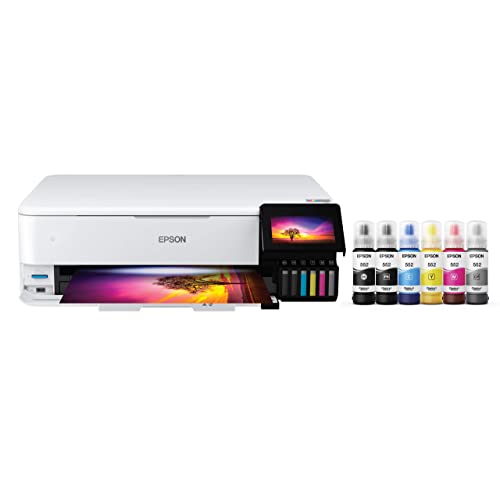
4. Epson EcoTank Photo ET-8550
A wireless wide-format all-in-one tank printer aimed at photo printing.
Good for: Photographers and crafters who print large photos regularly. Strengths: Wide-format printing with refillable tanks. Weaknesses: Expensive and large for a home printer. Skip it if you mostly print documents.


Best for photographers who want gallery-style prints at home
5. Canon PIXMA PRO-200S
A 13-inch wireless photo printer with an 8-color dye ink system, per the listing.
Good for: Photographers who want gallery-style prints at home. Strengths: An 8-color dye ink system aimed at photo quality. Weaknesses: Expensive to run, and not meant for everyday documents. Skip it if you mostly print text documents.

Choosing a Printer for Crafting
Cardstock and thick paper
Check the maximum paper weight and whether the printer has a rear feed. See how to print on cardstock and best cardstock for printers.
Specialty media
Stickers, heat transfer paper and vinyl need the right printer type. See printers for Cricut and heat transfers.
Ink cost
Craft projects use a lot of ink. A tank printer lowers the cost per sheet.
Size
If you use 12×12 or 13×19 sheets, you need a wide-format model.
Best Picks by Category
These labels summarize the picks by category and are not hands-on test results. Check price on Amazon for each pick before you buy.
- Budget option: Canon PIXMA TS9521Ca — check price on Amazon.
- Premium option: Epson EcoTank Photo ET-8550 — a premium-tier wide-format tank model; check price on Amazon.
Price, Rating and Review Comparison
The table groups the picks by price tier. Prices change often, so check price on Amazon for the current price, rating and number of ratings on the listing.
| Product | Price | Rating | Ratings | Price tier |
|---|---|---|---|---|
| Canon PIXMA TS9521Ca | Check price on Amazon | Check on Amazon | Check on Amazon | Budget |
| Canon PIXMA G620 | Check price on Amazon | Check on Amazon | Check on Amazon | Mid-range |
| Epson Expression Photo XP-980 | Check price on Amazon | Check on Amazon | Check on Amazon | Mid-range |
| Canon PIXMA PRO-200S | Check price on Amazon | Check on Amazon | Check on Amazon | Premium |
| Epson EcoTank Photo ET-8550 | Check price on Amazon | Check on Amazon | Check on Amazon | Premium |
How Much Feedback Backs Each Rating
Check the current rating and the number of ratings on each Amazon listing before you buy, since feedback changes over time.
How to Choose
Check the paper weight limit
Cardstock is thicker than office paper. Look for the maximum paper weight on the product page and a straight paper path for thick media.
Think about the size
Many crafts use 12×12 or 13×19-inch sheets. Standard printers stop at letter or legal size.
Plan the ink cost
Heavy color printing uses a lot of ink. Tank printers lower the cost per page; photo printers cost more but print better.
How We Chose These Products
We start from products sold on Amazon with a full product name and clear specifications, and we skip results that show only a brand name or a vague title. We then read the listing and any manufacturer information for each one and note the features that matter for printers: print technology, running costs, connectivity and size. We do not run our own lab tests, and this guide contains no hands-on measurements. Use it to build a shortlist, then check current prices, dimensions and return terms on the Amazon page before you buy.
Buying Guide: What to Check Before You Choose
Ink tank versus cartridge
Ink tank printers use refillable tanks and usually have a lower cost per page, with a higher purchase price. Cartridge printers are cheaper up front but ink can cost more over time. Check the page yield and the cost of refills.
Laser printers
Laser printers print text quickly and sharply and do not clog like inkjets. Color lasers cost more. Check the toner cost and the print speed.
Photo printing
Photo printers focus on color accuracy and paper handling. Check the number of inks, the paper sizes and the cost per print.
Quick Reference: Which Pick Suits Whom
- Canon PIXMA TS9521Ca: suits households that print photos and documents
- Epson Expression Photo XP-980: suits hobbyists who want borderless photos and everyday documents from one machine
- Canon PIXMA G620: suits photo hobbyists who print often and want low ink cost
- Epson EcoTank Photo ET-8550: suits photographers and crafters who print large photos regularly
- Canon PIXMA PRO-200S: suits photographers who want gallery-style prints at home
Common Mistakes to Avoid
- Judging a printer by its price without considering ink cost.
- Ignoring the starter cartridge size.
- Forgetting the paper types needed.
- Assuming all-in-ones are always better.
- Skipping the return window.
Setup and Care
- Install the maker’s app or driver.
- Connect to Wi-Fi.
- Run an alignment and nozzle check.
- Print regularly to avoid clogs.
What Crafting Does to a Printer
Crafting asks more of a printer than office work does. Paper is thicker, ink coverage is heavier, and the media may be something the printer was never designed to handle. Understanding the three main stresses explains why the cheapest printer is often the wrong one.
The first stress is the paper path. Office printers pull a thin sheet through a series of tight turns. Cardstock is stiff, and it resists those bends, which causes misfeeds, skewed prints and sometimes a jam that damages the rollers. Printers with a rear feed tray or a straighter path handle thick stock with less strain. Always check the stated maximum paper weight, usually listed in gsm or pounds, and treat it as a hard limit rather than a suggestion.
The second stress is ink volume. A scrapbook page with a full-bleed background can use many times more ink than a text document. Over a weekend of projects, cartridges disappear fast. This is where ink tank models such as the Canon PIXMA G620 or the Epson EcoTank Photo ET-8550 earn their keep, since refilling a tank is cheaper than replacing cartridges at heavy use.
The third stress is accuracy. Crafters care about edges, color and registration. A page that prints a millimeter off can ruin a card layout or a cut file. Look for borderless printing, good alignment and color reproduction that matches what you see on the screen.
Craft Types and the Printer Features They Call For
Card making and scrapbooking
These crafts use cardstock, patterned paper and photos. Sheet size matters, because 12×12 inch scrapbook pages exceed what a normal home printer accepts. If you need that size, you need a wide-format printer or a print shop for those pages. Cardstock in the 65 to 110 pound range is common, so check what the printer supports.
Cut-file projects with a cutting machine
Print then cut workflows print a design with registration marks, and the cutting machine reads those marks to trim along the edge. This depends on accurate, consistent printing, plus the right paper size for the cutter’s mat. Check the cutting machine’s maximum print area, which is often smaller than letter size, and leave margins around the design.
Photo-based crafts
Framed prints, photo books, collage and gifts depend on color quality. Printers with more inks, like the Canon PIXMA PRO-200S with its eight-color dye system, are aimed at this work, but they cost more and use ink quickly. Dye inks give vivid color, while pigment inks resist fading and water better, so choose according to how long the project must last.
Party goods, invitations and labels
Invitations, banners, place cards and tags need sharp text and reliable cardstock feeding. A standard color inkjet is fine, but coated or glossy cardstock must be inkjet-compatible. Printing on the wrong coating smears and wastes materials.
Iron-on and heat transfer work
Transfers for shirts and totes use special paper, and the printing rules differ from normal paper. Check the transfer paper’s instructions for the right settings, and remember that mirror printing is often required for light-fabric transfers. A printer that only supports plain paper types can still work, but results depend on the transfer paper more than the printer.
Paper, Ink and Settings That Affect Craft Results
Many craft failures come from settings, not hardware. Before you blame the printer, review the basics.
- Select the paper type in the print dialog. Cardstock, matte photo paper and glossy paper each need different ink amounts. The wrong setting leads to smearing or washed-out color.
- Use the highest quality mode for finished pieces and draft mode for test prints. Draft mode saves ink while you check layout.
- Feed one sheet at a time for thick stock, even if the tray holds many. Stacks of cardstock often feed two sheets at once.
- Let prints dry before stacking or cutting. Glossy and heavy-ink prints can take several minutes, and handling too soon leaves smudges.
- Print a nozzle check before a big project. Missing lines in a test pattern signal clogged nozzles that need cleaning.
- Store cardstock flat in a dry place. Humidity makes paper curl, which causes jams.
Color matching is another issue. Screens show color with light, and printers produce color with ink on paper, so results will not match exactly. Calibrating your monitor and using the printer’s color management settings improves consistency. Fine paper textures can also shift how colors look, so test the exact stock you plan to use.
Cost Planning for Heavy Color Use
The purchase price is the smaller number over time. A crafter who prints several dozen pages a week can spend more on ink than on the printer within a year. Estimate your volume before choosing.
Cartridge printers like the Canon PIXMA TS9521Ca have a lower entry price, but each cartridge holds a modest amount of ink. If you print occasionally, the cost is acceptable. For heavy use, the cost per page climbs.
Tank printers cost more upfront and cost much less per page. They also let you see the ink level in the tank, which helps you avoid running out mid-project. The downside is that they are usually bulkier and refilling takes care to avoid spills. Read the guidance for the type of ink the printer uses, and use the maker’s bottles unless you have checked compatibility.
Photo printers sit at the premium end. Their cost per print is higher, but the quality and archival life suit keepsakes, wall art and gifts. If photo work is only a small part of your crafting, a general inkjet or tank printer plus occasional prints from a lab can be cheaper than owning a photo printer.
Remember paper costs too. Specialty cardstock, transfer sheets and photo paper can cost more than the ink used to print on them, so waste from test pages adds up. Keep a log of what works for each stock so that you do not repeat mistakes.
Matching a Printer to Your Craft Room
Think about space and noise. Wide-format printers need a large desk, and they need room behind and in front for paper feeding. Measure before buying, and leave clearance for the output tray. If you craft at a kitchen table or in a shared room, a quieter and more compact model may be easier to live with.
Also consider how you design. If you work in an app on a tablet or a phone, wireless printing and good app support matter. If you use desktop software for cut files or layout, check that the printer driver works with your operating system. Finally, keep your return window in mind and run a trial project on your favorite paper in the first week.
Common Craft Printing Problems and Fixes
Even a good printer misbehaves on craft media. These are the problems that come up most often and what usually causes them.
Streaks and banding
Horizontal lines across a print point to clogged nozzles or low ink. Run the maker’s cleaning cycle, print a nozzle check, and repeat if needed. Cleaning uses ink, so do not run it more than a couple of times in a row. If streaks persist, check that the cartridges or tanks are seated correctly.
Colors that look muddy or dull
Wrong paper settings are the usual cause. Choose the correct media type, use the high quality mode, and use paper made for inkjets. Matte paper looks softer than glossy by nature. Compare the printout with the screen under good light, since a dim room changes how you judge the color.
Smearing and ink that will not dry
Heavily inked designs on coated paper need time. Let sheets dry flat before stacking. If the ink never dries, the paper may be incompatible, or the printer may be laying down too much ink for the media. Lower the saturation or choose a different paper setting.
Curling and cockling
Wet ink makes thin paper wavy. Heavier stock resists it, as does using less ink. Press finished pieces under a book overnight, or use a dry iron on low heat over a protective sheet if the material allows.
Misalignment in print-then-cut work
Check that the page is printed at actual size, not scaled to fit. Many print dialogs shrink the image by default. Confirm the paper size in the printer settings matches what is loaded, and keep the sheet flat on the mat when cutting.
Frequent jams
Remove stacked sheets and feed thick stock singly. Clean the paper feed rollers with a lint-free cloth lightly dampened with water, following the maker’s guidance. Keep scraps and bits of adhesive out of the paper path, because they cause repeated jams.
Keep a small supply of test paper and a notebook of settings that worked. When something fails, you will know which variable to change first.
Craft Printing in Depth: Materials, Registration and Repeatable Results
The main sections of this guide cover what to buy and why. This section covers what ownership actually feels like once the printer for crafters is on your desk: the habits, settings and small decisions that decide whether it delights you or nags at you. None of it requires technical skill. It requires only that you set the machine up around your real life once, thoughtfully, instead of rediscovering the same lessons one paper jam at a time.
Know your materials: a crafter’s paper library
Serious craft printing runs on a small library of known materials rather than a pile of experiments. Build yours deliberately: a reliable cardstock in white and one in a colour you use, a matte and a gloss photo paper, a label or sticker stock, and one specialty material your projects love, such as printable vinyl or transfer paper. For each, record the driver settings that worked, on the packet, in pencil. That record is the difference between a craft room that repeats successes and one that rediscovers them monthly at the cost of ruined sheets.
Respect each material’s limits in the printer. Thick card needs the paper path and weight support your model actually offers, fed as directed, often one sheet at a time through a rear or manual feed. Forcing a stack of heavy card through a standard tray is how rollers glaze and feeds fail. When a project demands material beyond your printer’s honest limits, print the elements it handles well and source the rest; hybrid projects are normal in craft, not a defeat.
Registration: making print and cut agree
Print-then-cut work stands or falls on registration, the agreement between where the printer put the image and where the cutter believes it is. The habits that protect it are unglamorous: never resize or re-scale a design between printing and cutting, keep fit-to-page options off for these jobs, print registration marks cleanly on the correct paper setting, and feed the sheet squarely. When cuts drift consistently in one direction, calibrate the cutter’s alignment using its own routine on the same material, because calibration on thin paper does not transfer perfectly to thick card.
Lighting and cleanliness matter more than beginners expect. Cutting machines read marks with a small sensor that dust, glitter and stray fibres confuse, and craft rooms are full of all three. Keep the printed sheet clean, wipe the sensor area as the cutter’s manual directs, and give the machine steady, even light rather than a flickering desk lamp. Most registration mysteries end with a clean sensor and an unscaled file.
Colour for crafts: cheerful, consistent and reproducible
Craft printing rarely needs laboratory colour, but it does need repeatability: the invitation suite, the set of favour boxes, the batch of toppers must match each other. Achieve it by printing a whole project in one session on one material with one set of settings, because ink levels, paper batches and even room humidity nudge colour between sessions. Print a proof sheet of the project’s key colours first, adjust once, then commit. Trying to match a print from last month exactly is a path to madness; printing the set together is the professional’s shortcut.
Design with the material in the loop. Colours deepen on matte card, sparkle on gloss, and soften on textured stock, and metallic or glitter elements in a design print as flat colour, so set expectations accordingly and use real specialty materials where the shine itself is the point. Keep a project folder, digital and physical: the file, the settings note, and one finished sample. The next time that design is requested, and in a craft room it always is, you will reproduce it in minutes.
How the Picks in This Guide Compare in Everyday Use
Specifications separate these machines on paper, but daily life separates them differently. The paragraphs below revisit each pick in this guide strictly in the role the guide itself assigns it, and set that role against the neighbouring picks, so you can feel the shape of the choice rather than just reading it. Read the pick that matches your situation first, then read its neighbours: the right decision usually becomes obvious in the contrast.
Canon PIXMA TS9521Ca earns its place in this lineup as a color inkjet all-in-one, picked for photos and documents with auto duplex. In daily use, what that positioning really means is that its strengths arrive exactly where photos and documents with auto duplex matters, and its compromises fall where that kind of user rarely looks. Readers comparing it with the neighbouring picks should start from their own habits rather than the headline features: the household or office that matches this description will find it quietly dependable, while someone whose printing looks very different will get more from a pick designed around their pattern instead.
Canon PIXMA TS9521Ca is the Color inkjet all-in-one option here, chosen for photos and documents with auto duplex. Set beside the other picks, its character is defined by that role: it is the answer when photos and documents with auto duplex is the priority, and it is not trying to be the answer to every other question in this guide. That focus is a virtue rather than a limitation. Printers that chase every strength tend to serve no one particularly well, whereas a model with a clear job, matched to the buyer who has that job, tends to be the one still earning praise years later.
Consider Epson Expression Photo XP-980 if your printing centres on home photo prints with scanning and copying. As a wide-format photo all-in-one it approaches the work differently from the alternatives around it, and the detailed review above sets out where that approach pays off. The honest skip case matters just as much: if home photo prints with scanning and copying is something you do rarely, this pick’s particular strengths will sit unused while its trade-offs remain, and another model in this guide will fit you better. Matching the pick to the pattern of use, rather than to the longest feature list, is the decision this whole guide is built around.
Within this guide, Epson Expression Photo XP-980 covers the home photo prints with scanning and copying ground. Its detailed section explains the specifics; the comparative point is that no other pick here occupies quite the same position. Where two picks seem to overlap, the difference usually shows up in daily rhythm rather than in specifications: how the machine suits the space it will live in, the people who will share it, and the mix of documents it will actually see. Choose on that rhythm, and the specification sheet becomes a confirmation rather than a gamble.
Canon PIXMA G620 earns its place in this lineup as a megaTank photo all-in-one, picked for photo printing with refillable tanks. In daily use, what that positioning really means is that its strengths arrive exactly where photo printing with refillable tanks matters, and its compromises fall where that kind of user rarely looks. Readers comparing it with the neighbouring picks should start from their own habits rather than the headline features: the household or office that matches this description will find it quietly dependable, while someone whose printing looks very different will get more from a pick designed around their pattern instead.
Canon PIXMA G620 is the MegaTank photo all-in-one option here, chosen for photo printing with refillable tanks. Set beside the other picks, its character is defined by that role: it is the answer when photo printing with refillable tanks is the priority, and it is not trying to be the answer to every other question in this guide. That focus is a virtue rather than a limitation. Printers that chase every strength tend to serve no one particularly well, whereas a model with a clear job, matched to the buyer who has that job, tends to be the one still earning praise years later.
Consider Epson EcoTank Photo ET-8550 if your printing centres on large photo prints with tank economy. As a wide-format photo tank all-in-one it approaches the work differently from the alternatives around it, and the detailed review above sets out where that approach pays off. The honest skip case matters just as much: if large photo prints with tank economy is something you do rarely, this pick’s particular strengths will sit unused while its trade-offs remain, and another model in this guide will fit you better. Matching the pick to the pattern of use, rather than to the longest feature list, is the decision this whole guide is built around.
Within this guide, Epson EcoTank Photo ET-8550 covers the large photo prints with tank economy ground. Its detailed section explains the specifics; the comparative point is that no other pick here occupies quite the same position. Where two picks seem to overlap, the difference usually shows up in daily rhythm rather than in specifications: how the machine suits the space it will live in, the people who will share it, and the mix of documents it will actually see. Choose on that rhythm, and the specification sheet becomes a confirmation rather than a gamble.
Canon PIXMA PRO-200S earns its place in this lineup as a professional photo printer, picked for serious photo prints from a 13-inch printer. In daily use, what that positioning really means is that its strengths arrive exactly where serious photo prints from a 13-inch printer matters, and its compromises fall where that kind of user rarely looks. Readers comparing it with the neighbouring picks should start from their own habits rather than the headline features: the household or office that matches this description will find it quietly dependable, while someone whose printing looks very different will get more from a pick designed around their pattern instead.
Canon PIXMA PRO-200S is the Professional photo printer option here, chosen for serious photo prints from a 13-inch printer. Set beside the other picks, its character is defined by that role: it is the answer when serious photo prints from a 13-inch printer is the priority, and it is not trying to be the answer to every other question in this guide. That focus is a virtue rather than a limitation. Printers that chase every strength tend to serve no one particularly well, whereas a model with a clear job, matched to the buyer who has that job, tends to be the one still earning praise years later.
Setup, Workflow and Troubleshooting: The Rest of Ownership
Choosing the right printer for crafters is half the task; the other half is the environment it works in and the routines around it. The topics below are the ones that generate most of the questions owners ask after the first month, whatever model they bought, and each one is cheaper to handle early than late.
Paper storage and handling habits that prevent jams
Most jams and misfeeds are paper problems, not printer problems. Store paper flat, in its wrapper, off the floor, and away from damp rooms; a ream that has absorbed moisture will curl, stick together and feed two or three sheets at once. When you load a tray, fan the stack lightly, square the edges, and set the paper guides snug against the stack without squeezing it. Guides left loose let sheets drift sideways, which is how skewed prints and corner-fold jams start.
Never mix paper types or sizes in the same stack, and do not top up a half-used stack with fresh paper from a new ream without blending them first, because different surface finishes feed at different rates. When you switch to heavier or glossy stock, change the media setting in the driver at the same time: that setting controls how slowly the paper travels and how much ink or toner is laid down, and using plain-paper settings on photo or card stock is the single most common cause of smearing and poor adhesion. Take printed pages off the output tray regularly on long jobs so finished sheets are not pushed back into the mechanism.
Keeping drivers, firmware and apps up to date
Printing problems that appear out of nowhere are often software problems. Operating system updates change how print queues and network discovery behave, and printer makers respond with driver and firmware updates of their own. If a printer that worked last month suddenly shows as offline, prints gibberish or loses its scanner, check for an updated driver or firmware before you change any hardware. Install updates from the manufacturer’s own support page or app for your exact model, and let a firmware update finish completely: interrupting one can leave the printer unable to start.
It also pays to remove the ghosts of printers past. Old queues for a previous printer with a similar name cause the classic mistake of sending a job to a machine that no longer exists, then assuming the new printer is broken. Delete queues you no longer use, set the current printer as the default, and rename it something recognisable that includes the room it sits in. On shared computers, that one small naming habit saves more confusion than any other step in this guide.
Sensible default settings that save ink, toner and paper
The cheapest page is the one you never print, and the second cheapest is the one printed with sensible defaults. Set two-sided printing as the default if your model supports it, and make draft or economy mode the default for internal documents, reference material and anything you will read once and recycle. Reserve the highest quality setting for the final version of work that leaves the house. These defaults live in the driver or the printer’s own settings panel, and setting them once beats remembering them on every job.
Use print preview every time. Preview catches the blank trailing page from a web article, the spreadsheet that wants to print sideways across several sheets, and the photo that is about to be cropped in the wrong place. Scaling a document to fit, printing only the pages you need, and choosing black and white for a document whose colour adds nothing are small decisions that, repeated over a year of printing, matter more to your running cost than the difference between two similar printers on the shelf.
A troubleshooting order that actually works
When a printer misbehaves, work through the causes in order of likelihood instead of reinstalling everything at random. First, look at the printer itself: an error light, a message on its screen, an open cover or a sheet half-fed into the mechanism explains most failures. Second, check the paper: empty tray, wrong size loaded, or guides adrift. Third, check the queue on your computer and cancel stuck jobs, because one corrupt job blocks everything behind it. Fourth, restart in order: printer off, computer’s print service left alone, printer back on, then resend a simple one-page test.
Change one thing at a time and test after each change, otherwise you will never know what fixed it and the fault will feel random when it returns. If the problem follows one computer but not a phone, the fault is in that computer’s driver or queue, not the printer. If every device fails the same way, the fault is in the printer or the network. That single distinction, device-specific or universal, cuts every troubleshooting session in half and tells you where to spend your time.
Frequently Asked Questions
Can a home printer print on cardstock?
Many can, within their paper weight limit. Check the specification and test a single sheet first.
Do I need a wide-format printer?
Only if you print larger than letter or legal size, for example for posters or 12×12 scrapbook pages.
Is dye or pigment ink better for crafts?
Dye inks give vivid color. Pigment inks resist fading and water better. Check what your model uses.
Which is cheaper to run, inkjet or laser?
Laser is usually cheaper per page for text, and ink tank printers are cheaper for color and photos.
How do I connect my printer to Wi-Fi?
Use the printer’s setup menu or the maker’s app. See our Wi-Fi guide.
Do I need genuine ink?
Not always, but some printers restrict third-party ink. Check the terms.
What is the heaviest cardstock a home printer can handle?
It varies by model, so check the stated maximum paper weight. Many home inkjets accept stock up to roughly 65 to 110 pounds, and some do less. Use a rear feed or straight path where possible, and test a single sheet first before running a stack.
Can I use my regular printer for Cricut print then cut?
Often yes, if it prints accurately on the paper size your cutter needs. Print then cut depends on clear registration marks, so test alignment first. Check the cutting machine’s maximum print area and keep margins around the design.
Why does my printer jam on cardstock?
Cardstock is stiff and resists the printer’s curved paper path. Jams also come from stacking too many sheets, damp paper or exceeding the weight limit. Try feeding one sheet at a time, use the rear tray if available, and keep paper stored flat and dry.
What is the best way to print 12×12 scrapbook pages?
Standard home printers do not take 12×12 sheets. You need a wide-format printer that supports that size, or you can print the design at a smaller size, or send files to a print shop. Check the supported sizes before relying on a printer for scrapbook pages.
Are tank printers worth it for occasional crafting?
Only if you print regularly. Tank models cost more upfront and save money through cheaper refills when volume is high. If you print crafts a few times a month, a cartridge printer may cost less overall. Heavy color use tips the balance toward tanks.
Why does my printer refuse or jam on thick cardstock?
Most refusals are the printer protecting itself: the card exceeds the weight or thickness the paper path is built for, or it is being fed through a tray that bends it too sharply. Check the model’s stated card limit, use the rear or manual feed if it offers one, feed single sheets, and select the card or thick-paper setting so the machine adjusts its feed and ink. If a card is beyond the limit, no setting makes it safe; print on the heaviest stock the printer supports and layer or mount it for stiffness.
How do I stop ink smearing on glossy or coated craft papers?
Smearing means the ink is sitting on a coating it cannot enter, or the sheet was handled before it dried. Confirm the paper is made for your printer type, select its exact media type in the driver, which reduces ink and slows drying appropriately, and let prints rest untouched until fully dry. Pigment and dye inks behave differently on coatings, so a paper that smears in one printer may be flawless in another; test a single sheet of any new stock before a project depends on it.
Why do my print-then-cut projects cut slightly off the design?
Small, consistent offsets call for the cutting machine’s calibration routine, run on the same material as the project. Random offsets point elsewhere: the file was scaled by a fit-to-page setting, the sheet fed crooked, or the sensor misread dirty or glittery marks. Print at actual size, keep marks clean and the sheet flat and square, and recalibrate when you change material thickness. Test the full workflow on one sheet before printing the whole project.
How can I match colours across a set of craft prints?
Print the set in one session, on the same material batch, with identical settings, and proof the key colours before committing. Colour drifts subtly between sessions as ink levels, paper and conditions change, so a single run is the simplest matching tool you own. Save the design file with a note of the paper and settings used, and keep one finished sample with it. For a repeat project later, reprint the whole set rather than trying to match one new piece to old prints.
Bottom Line
For a flexible all-round crafting printer, the Canon PIXMA TS9521Ca is the practical pick. For large prints, look at the Epson Expression Photo XP-980, EcoTank ET-8550 or Canon PIXMA PRO-200S, and confirm the cardstock limit first.
Related Reading
- Types of Printers Explained: Inkjet, Laser, Ink Tank and More
- 7 Best Wireless Printers for Home Use
- 5 Best 11×17 Tabloid Printers for Home and Office
- 6 Best AirPrint Printers for iPhone, iPad and Mac
- 7 Best All-in-One Printers for Scanning and Printing
More Printer Guides
- Best Printers for Home Use
- Best Printers for Cricut Print Then Cut Projects
- Best Printers for Etsy Sellers
- Best Printers for Graphic Designers and Artists
- Best Printers for Heat Transfers and Iron-On Paper
- Best Printers for Invitations, Greeting Cards and Business Cards

