Connecting a printer to Wi-Fi lets everyone in the house print from their own devices without cables. The steps depend on whether your printer has a screen, whether it has a setup app and how your router is configured. This guide covers the three common methods and the checks that make setup go smoothly.
If setup fails, see what to do when a printer will not connect to Wi-Fi for troubleshooting.
By the Reviewstook Editorial Team. Last updated: October 31, 2026.

Before You Begin
- Unbox the printer, install ink or toner and load paper.
- Place the printer near your router for setup.
- Have your network name and password ready.
- Check that your phone or computer is connected to the same network.
- Note whether your router has separate 2.4 GHz and 5 GHz networks. Many printers support only 2.4 GHz.
In this guide
Method 1: Use the Printer’s Screen
- On the printer, open Settings, Setup or Network, then choose Wi-Fi Setup Wizard or Wireless Setup.
- Select your network from the list.
- Enter the password with the on-screen keyboard. Passwords are case-sensitive.
- Wait for the confirmation. The Wi-Fi light usually turns solid.
Method 2: Use the Maker’s App
- Install the printer maker’s app on your phone.
- Turn on Bluetooth and Wi-Fi on the phone.
- Open the app and choose Add Printer or Set Up Printer.
- Follow the prompts. The app finds the printer and sends your Wi-Fi details to it.
Method 3: Use WPS
If your router has a WPS button, start WPS on the printer, then press the WPS button on the router within about two minutes. The printer joins automatically. WPS is quick, but not all routers support it, and you should disable it afterward if you do not use it.
Method 4: Use a USB or Ethernet Cable
If your printer has an Ethernet port, plug it into the router for a wired network connection, which is the most stable option. A USB cable lets you set up Wi-Fi from a computer using the maker’s installer.
Add the Printer to Your Computers and Phones
Once the printer is on the network, add it on each device.
- Windows: Settings, Bluetooth and devices, Printers and scanners, Add device.
- Mac: see how to set up a wireless printer on a Mac.
- iPhone: see how to print from an iPhone.
- Android: see how to print from Android.
- Chromebook: see how to print from a Chromebook.
Test and Secure
Print a test page from each device. Print a network configuration page and note the IP address; see how to find a printer’s IP address. Update the firmware and set an admin password on the printer’s web page if it has one.
Tips for a Reliable Connection
- Keep the printer within good range of the router.
- Reserve a fixed IP address for the printer in the router.
- Avoid placing it inside a cabinet or near metal and microwaves.
- Restart the router occasionally.
Understanding Your Home Network First
Most setup problems come from not knowing what the home network looks like. A few minutes of preparation saves a lot of repeated attempts. Start by finding the exact name of your Wi-Fi network, called the SSID, and the password. Both are usually printed on a label on the router. Check that the name matches what you see on your phone, because some routers show several similar names.
Next, find out whether your router broadcasts one name for both bands or separate names for 2.4 GHz and 5 GHz. A printer may only see the 2.4 GHz network, so if your router combines both under one name, the printer will usually pick the band it supports. If you cannot see your network on the printer, look for an option in the router settings to give each band its own name.
- Check for a guest network. Printers are often not visible across a guest network, and devices on different networks cannot find each other.
- Look for a setting called client isolation or AP isolation, which can block devices from seeing one another.
- Note whether the router uses a security type the printer supports. Check the printer manual for supported Wi-Fi security.
- Find out if a mesh system is in use, since the printer may connect to a distant node with a weak signal.
If you do not manage the router, ask whoever does. Being on the same network as the printer is what lets your computer and phone find it.
Setting Up From a Computer With the Maker’s Installer
If the printer has no screen, or the app does not work for you, the installer for your computer is a reliable route. Download the driver and setup software from the printer maker’s support page for your exact model and operating system. Avoid copies from other sites, since the maker’s own page is the safest source.
Run the installer and follow the prompts. Most installers offer a choice between connecting by USB cable and connecting wirelessly. A common method is to plug in the USB cable at the start, let the software pass the Wi-Fi details to the printer and then remove the cable when it tells you to. Others ask you to choose the network from a list and enter the password on the computer.
- Keep the printer powered on and close to the computer during setup.
- Do not unplug the cable until the software says the connection is finished.
- Pick the same network the computer uses.
- Decline extra offers if you only want the driver and basic tools.
After setup, the installer usually adds the printer to the computer. If it does not appear, open the printer settings and add it by hand. Windows and macOS both offer a list of nearby printers, and many can find a network printer on their own when both are on the same network.
Keep the installer file in case you need to reinstall the printer later.
Setting Up a Printer With No Screen
Many low-cost printers have only a few buttons and some indicator lights. These are set up through the app or the installer, but a few have a simple button-driven process. The details vary, so check the manual for the correct sequence for your model.
A common pattern is that the printer enters a setup mode when it is first turned on or when you hold the wireless button for a few seconds. A light then blinks to show that it is ready to accept the Wi-Fi details. The phone app or computer software finds the printer in this mode and sends the details. When the light turns solid, the connection has worked.
- Learn what each light pattern means by reading the light guide in the manual.
- If the setup mode times out, repeat the button sequence and start again.
- If the printer was used before, reset its network settings first so old details do not interfere.
- Keep the phone close to the printer during setup.
Some printers create their own temporary network during setup. In that case, your phone may need to join the printer’s network briefly, and then switch back to your home network once setup ends. If your phone seems to lose internet access during this step, that is normal and usually temporary.
When in doubt, use the app, since it gives on-screen messages that a row of lights cannot.
Using a Fixed Address and Keeping the Printer Findable
A printer on Wi-Fi normally receives an address from the router, and that address can change after a restart. If a computer was set up using the address, it may then lose track of the printer, and print jobs sit in the queue. A fixed address avoids this.
There are two ways to keep the address stable. The cleaner method is to reserve an address for the printer in the router settings, often called a DHCP reservation or address reservation. You pick the printer from the list of connected devices and assign it an address. The other method is to enter a fixed address on the printer itself, but this is easier to get wrong because it must match the router’s range and must not clash with another device.
- Print the network configuration page to see the current address and settings.
- Use the router’s device list to find the printer by name or hardware address.
- Write the address down and keep it with the printer’s manual.
- After a change, restart the printer and print a test page.
Router menus differ between makers, so check the router’s manual or help page for the exact steps. If you are not comfortable with router settings, skip this and rely on the printer’s name, which most current systems can find automatically. Reserve an address if you notice that the printer keeps going offline after power cuts or router restarts.
Improving Signal and Placement
A weak signal is one of the most common reasons a printer drops its connection. Wi-Fi signal gets weaker with distance and with obstacles such as thick walls, floors, large appliances and metal. A printer in a back room or a closet may see a poor signal even if your phone shows full bars nearby, because printers often have small antennas.
First, move the printer closer to the router and see if the connection improves. If it does, you can decide whether to keep it there or find a compromise spot. If the printer must stay where it is, there are several ways to improve the signal.
- Move the router to a more central, higher position if you can.
- Use a mesh system or a wireless extender placed between the router and printer.
- Use an Ethernet cable if the printer has a port, which avoids Wi-Fi altogether.
- Keep the printer away from microwaves, cordless phones and baby monitors, which can interfere with 2.4 GHz signals.
The printer’s network configuration page or its settings menu may show a signal strength rating. Use it as a guide, and check the printer manual for what the rating means. If the printer connects but prints slowly or drops jobs, a weak signal is a likely cause. Another sign is a printer that works in the morning and goes offline in the afternoon, which can point to interference or router overload at busy times.
After a Router Change or a Move
Printers remember the network they were set up on. When you replace the router, change the network name, change the password or move house, the printer cannot rejoin by itself and has to be set up again. This catches many people by surprise, since everything else in the home reconnects after a new router arrives.
The simplest approach is to repeat the setup using the same method you used before. Some printers let you open the network menu and choose a new network without a full reset. Others work better if you first reset the network settings so that the old details are cleared. Check the manual to see which option is correct for your model, and do not do a full factory reset unless you need one, since that can clear other settings as well.
- If you keep the same network name and password on the new router, the printer may reconnect with no changes.
- If you switch to a different network name, run the Wi-Fi setup again.
- After moving house, set up the printer before you place it in its final spot.
- Remove the old printer entry from each computer if it shows up twice, then add it again.
Once the printer is connected, print a test page from each device and update any saved addresses. Keep a note of the new network name and password with the printer paperwork so the next change is quicker.


Ready to Buy? Start Here
If this guide helped you decide what to look for, these products are a place to start.

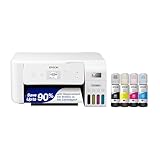
As an Amazon Associate we earn from qualifying purchases. Prices and availability are shown on Amazon.
Gather These Details Before You Connect
A printer setup usually fails for a dull reason: someone is missing a piece of information at the moment it is needed. Spend two minutes collecting everything first and the rest tends to go quickly. Keep these items within reach of the printer.
- The exact network name, spelled with the right capital letters and spacing.
- The network password, often printed on a label on the router.
- Confirmation that the router offers a 2.4 GHz band, since many printers cannot join a 5 GHz-only network.
- The printer model code from the front or the label inside the cover.
- A phone or computer already joined to the same network you plan to use.
- The maker’s setup page or app, downloaded in advance.
Many routers broadcast one name for both bands. That is fine for most printers, but if yours refuses to join, check the router’s settings page for a way to give each band its own name, then pick the 2.4 GHz one. Guest networks are a common trap as well, because they often block devices from seeing one another, so a printer placed on a guest network may be invisible to your laptop.
Choosing the Right Method for Your Situation
Not every household needs the same approach. Use this comparison to pick the path that fits your printer and your comfort level, then follow the maker’s own instructions for the exact button names.
| Your situation | Most sensible method | Why |
|---|---|---|
| Printer has a touch screen | Menu on the printer | You pick the network and type the password directly |
| Printer has few or no buttons | Maker’s phone app | The app passes the network details to the printer |
| Router has a WPS button and the printer supports it | WPS pairing | No password typing needed, but both devices must support it |
| Wireless keeps failing | Cable setup, then switch | A wired link rules out signal problems while you set options |
| Shared by several family members | App first, then add each device | One setup, then each computer or phone adds the printer |
If a first attempt does not work, do not keep pressing buttons at random. Power the printer off, wait a short while, switch it on and begin the chosen method from the top. A clean attempt beats a half-finished one nearly every time. Once connected, print a network summary page if the printer offers one, and keep it with your manual in case you change routers later.
One last habit pays off later: give the printer a name you will recognize, such as the room it sits in, if the setup screen allows it. When several nearby printers appear in a list, a clear name prevents you from sending a private document to the wrong machine. Keep the setup page bookmarked so you can find it quickly after a router swap or a long absence.
Why Printers Fall Off Wi-Fi: The Four Real Causes
When a printer ‘keeps disconnecting’, owners tend to blame the printer, but the pattern of the failures usually names the true culprit. The first cause is signal: the printer sits at the edge of the router’s comfortable range, where the connection survives ordinary days and fails on busy ones, when the household’s other devices crowd the airwaves. The signature is intermittency that follows the household’s schedule — fine in the morning, absent in the evening. The cure is geography: move the printer or the router, elevate the router, or add coverage to that part of the home, and the ‘faulty’ printer becomes faithful.
The second cause is sleep and power management. Printers sleep deeply to save energy, and some network equipment treats a long-silent device as departed, dropping its lease and forgetting its face. The printer wakes to find itself a stranger. The signature is a printer that vanishes after quiet periods and returns when restarted. Router settings that reserve an address for the printer — giving it the same address every time — cure most of this, because the network stops reintroducing the printer to itself after every nap.
The third cause is change: a new router, a new password, an internet provider’s overnight update, a relative who ‘improved’ the settings. The printer, holding yesterday’s credentials with perfect loyalty, cannot join today’s network. The signature is a total, sudden absence after years of service, beginning on a specific day. The cure is to rejoin the printer deliberately, exactly as on its first day, and to write the new details in the household’s records so the next change is a five-minute errand.
The fourth cause is the network’s structure itself: extenders and mesh nodes that present the same name but behave as separate territories, guest networks that isolate devices, and band steering that moves a printer between frequencies it handles unequally. The signature is a printer that appears and disappears as devices move around the house. The cures are structural — one network name the printer can hold, a fixed band if the model prefers it, the printer placed within one node’s confident territory. Diagnose by pattern before replacing anything: in Wi-Fi printing, the printer is the messenger, and the message is usually about the network.
After the Connection Works: Making It Stay Working
A connection made once is a connection that will be tested by every change your home network undergoes, so a few finishing steps convert a successful setup into a durable one. Reserve the printer’s address in the router if the router offers reservations, so the computers’ saved routes to the printer never point at a stranger. Name the printer clearly in each computer’s settings — room and model, not the factory string of characters — because the day two printers appear in a list is the day someone prints a contract into the children’s bedroom.
Update the printer’s firmware while the setup is fresh in your mind, and note how you did it, because firmware is where makers repair the network behaviours that updates to routers and operating systems disturb. Then print one page from every device that will ever use the printer, including the phone that only prints boarding passes, because each device negotiates its own relationship with the printer and an undiscovered failure is just a failure scheduled for a worse day.
Write the household’s printer facts on one card kept near the router: the network name the printer uses, the method that connected it, the location of its WPS button or its screen menu, and the supply it takes. That card is the difference between a future network change being an anecdote and being an afternoon. Routers are replaced every few years; printers live longer; the card is how the printer’s knowledge survives the router’s funeral.
Security for a Printer on Your Network
A printer is a small computer with a memory, and on a home network it deserves the same calm attention as any other device — neither panic nor neglect. Change its administrative password from the factory default if it has one, through its web page or the maker’s app, because defaults are public knowledge. Keep its firmware current for the same reason you update anything connected: updates close doors that were found open. Turn off the features you do not use, particularly any that expose the printer beyond your home network; remote printing conveniences are valuable exactly when you use them and are pure surface when you do not.
Think, too, about the printer’s memory of your documents. Printers can retain images of printed and scanned pages, which matters in two moments: when a document was sensitive, and when the machine leaves your home — sold, donated or recycled. The maker’s instructions describe how to reset the machine and clear its stored data, and doing so before it leaves is the digital equivalent of emptying a desk drawer before the desk is sold. In daily life, the habit that protects most documents is simpler: collect sensitive printouts promptly rather than leaving them in a shared tray. A network printer’s security is mostly this — a default changed, an update applied, a feature list pruned, a tray emptied — small acts that keep a helpful device from becoming an unconsidered one.
Connecting in Difficult Buildings: Flats, Houses and Shared Networks
Some homes fight the standard setup with their architecture. Thick walls, foil-backed insulation and long floor plans eat Wi-Fi for a living, and the printer — often placed where the desk is, not where the signal is — inherits the problem. In such homes the order of solutions matters: first, place the printer where the signal is demonstrably good, testing with a phone held at the printer’s spot, because a printer cannot outperform the air it breathes. Second, consider the wired option without embarrassment; an Ethernet cable to a nearby point or a powerline adapter converts an impossible wireless corner into the most reliable printer in the house. Third, if a mesh system or an extender is added, give the printer a settled home within one node’s range rather than a frontier between two, because frontier devices are the ones that wander.
Shared buildings add a different difficulty: many networks, much interference, and occasionally a landlord’s or institution’s managed system with rules of its own. In managed networks, devices may be isolated from each other by design, and no printer setting can repeal the building’s policy. The workable answers are the printer’s own direct wireless mode, where the phone or laptop joins the printer’s network for the job, or a plain USB cable, which has settled more student-hall printing arguments than any app. Know which fallback your printer offers before the deadline teaches you.
Rented homes and temporary stays teach the final lesson: document your setup as you make it, because you will make it again. The household that keeps the card described earlier — network, method, quirks — sets up its printer in a new home in minutes, while the household that relied on memory repeats the whole archaeology. Wi-Fi printing is a solved problem with a hundred small variations; the card is how your household’s particular solution becomes permanent.
More Questions About Printer Wi-Fi
Should I connect the printer to the 2.4 or 5 GHz band?
If your router offers separate names, the slower, longer-range band is usually the printer’s friend: printers move small amounts of data and value reach and stability over speed, and the longer-range band penetrates walls more kindly. If your router merges the bands under one name, let it — most modern printers negotiate happily — and intervene only if the printer’s connection proves unstable, in which case a dedicated name for the gentler band is the standard remedy.
Can I print if the internet is down?
Yes, provided the router is running. Printing travels between your device and the printer inside your home; the wider internet is not a participant. What an outage removes is cloud features and the printer’s own calls home, not the local path your documents take. A household that understands this stops rebooting the internet connection when the printer sulks, and starts checking the local network instead.
Why does the printer ask to join a network with its own name during setup?
Many printers create a temporary network of their own so your phone can talk to them before they know your home’s details — a private handshake in which you hand over the home network’s name and password, after which the printer leaves its temporary network and joins yours. If your phone seems to lose the internet during setup, this is why, and it resolves itself when the handshake completes.
Is it safe to leave the printer connected all the time?
With the ordinary precautions described above — firmware current, default password changed, unused remote features off — yes, and it is how printers are designed to live. A printer that sleeps on the network wakes for jobs, maintains itself and stays findable. The household that unplugs it nightly spends more time on connection problems than the household that lets it rest, and gains little for the effort.
How do I connect a printer that has no screen and no WPS button?
Through the maker’s app or a temporary USB connection from a computer, which are the two paths makers design for screenless models: the app passes the network details from your phone, or the computer’s setup software passes them down the cable. The manual for the exact model names the intended path, and following it — rather than improvising — is the difference between a ten-minute setup and a folklore expedition.
A Methodical Rescue: When Nothing Above Has Worked Yet
There comes a point in a stubborn setup where random retries must give way to a sequence, and the sequence matters because each step eliminates a territory. Begin by proving the printer can print at all: its own test or status page, printed from its buttons. A machine that cannot print its own page has a printer problem, and no network work will cure it. Next, prove the network can see the printer: print the network status from the machine itself, and read what it believes — which network it joined, what address it holds, how strong it finds the signal. Printers are honest witnesses; the status page is the machine’s own account of its situation, and it frequently names the problem outright, in the form of a network name you do not recognise or a signal described as weak.
Then simplify the world. Bring the printer into the router’s room, temporarily, and connect it there. Remove extenders from the story. Forget the printer on one computer and add it fresh. If it connects in the simplified world, the fault lives in geography or structure, and you can rebuild the real arrangement one element at a time, testing as you go, until the element that breaks it identifies itself. If it does not connect even there, the fault lives in the printer’s configuration or the router’s rules, and resetting the printer’s network settings to factory and beginning again — a remedy owners avoid out of a misplaced sense of defeat — is in fact the professional’s move: a clean configuration built on a known network beats an inherited tangle every time.
Throughout the rescue, change one thing at a time and test after each change. The household that changes three settings and succeeds never learns which one mattered, and will face the same mystery at the next router change with no knowledge banked. The household that changes one thing, tests, and proceeds is doing slow-looking work that finishes faster — and finishes with a card’s worth of knowledge about its own network, which is the real prize. Wi-Fi problems feel like weather, but they are machinery all the way down, and machinery yields to sequence.
The Guest, the Grandchild and the Borrowed Laptop
A connected home printer eventually serves people who do not live with it, and a little preparation makes those moments graceful. A guest who needs a boarding pass or a ticket can usually print from their own phone if they are on your home network — which raises the household question of whether guests get the main network or the guest network, and the printer sits on the main one by design. Decide the policy before the moment arrives: many households keep the printer reachable by joining a trusted guest’s device to the main network briefly, or by receiving the file on a household device and printing it from there, which also keeps private documents from travelling through strangers’ accounts.
For grandchildren, students home for a term, and anyone with a borrowed or employer-managed laptop, expect the managed device to be the difficult one: workplace machines may forbid adding printers, and school devices may restrict networks. The fallbacks that save these days are the phone as intermediary — the document sent to a household phone and printed from it — and the humble USB cable. Keep the cable. Every connected household eventually has a day when the wireless path is philosophically unavailable and the cable simply ends the discussion, and on that day the cable’s owner looks like the wisest person in the building. Connectivity is a means. The page, printed, in hand, on time, is the end — and a household with a fallback owns both.
Close the subject with the perspective it deserves. A printer’s Wi-Fi connection is a small piece of domestic infrastructure, like a doorbell or a thermostat: unglamorous when it works, disproportionately annoying when it does not, and — once set up with the method in this guide — capable of working for years without asking to be thought about. The households that suffer with printer networking are rarely suffering from bad equipment. They are suffering from a setup done in a hurry, on a network whose quirks were never written down, and every change since has been archaeology. Do the setup once, slowly, with the tests and the card. After that, let the printer join the category of things your home simply has: light, heat, water, and pages that appear when they are asked for.
Teaching the Whole Household the Connection’s Logic
The last step in a durable setup is social: everyone who uses the printer should understand its connection in one sentence — the printer lives on this network, at this name, and if it ever vanishes, restart it and check that your device is on the same network before touching anything else. That sentence, shared, prevents the two classic household injuries: the helpful relative who resets the printer’s network settings while troubleshooting blind, and the duplicate printer entries created when three people each add the machine under a different name. Add the printer’s card by the router to the household’s shared knowledge, agree that network changes get announced like water shutoffs, and the connection stops being one person’s expertise and becomes the home’s infrastructure. Infrastructure is not exciting. It is better than exciting: it is there, every day, for everyone, including on the morning of the flight, the night of the deadline and the afternoon the grandchildren need a coloring page. Set it up once with the method in this guide, write it down, tell the household — and let Wi-Fi printing take its proper place among the things your home does without discussion.
Remember, too, that a successful connection is worth verifying again after the household’s next network event — a new router, a provider change, a password rotation — at a calm moment of your choosing, with a single test page. Five minutes spent then is the whole difference between a printer that has ‘always worked’ and one that fails on the one morning it is truly needed. Reliability is rarely a property of equipment. It is a property of the small verifications a household performs before life performs them on its behalf.
There is one more quiet benefit to a printer connected properly and permanently: it changes what the household bothers to print. When printing requires a cable hunt or a laptop pilgrimage, documents wait, forms linger and photographs stay on phones. When any device in the house can print in seconds, the waiting folder empties, the forms get filed and the photographs get walls. Connectivity, in other words, is not a technical garnish on a printer’s real job — it is the difference between a machine that is used and a machine that is merely owned. The hour you spend connecting it well is repaid every week the household reaches for it without thinking, which is why this guide treats a network cable’s worth of patience at setup as the best investment in home printing you will ever make.
Connect it once, connect it properly, and then forget the subject entirely — that forgetting, earned by an hour of method, is the true measure of a successful setup, and it is available to every household willing to follow the sequence rather than improvise around it.
Frequently Asked Questions
Why does my printer not see my network?
It may support only 2.4 GHz and your network may be 5 GHz only, or the signal may be weak.
Do I need the app?
Not always, but it helps with setup.
Can I connect without a password?
No. You must enter the Wi-Fi password, unless you use WPS.
What if I change my router or Wi-Fi password?
You must reconnect the printer to the new network.
Can I connect my printer to a guest Wi-Fi network?
You can, but computers on the main network may not be able to see it. Guest networks often isolate devices from one another, so use the main network unless your router allows access between them.
Why does my phone lose internet during printer setup?
Some printers create a temporary network for setup, and your phone joins it for a short time. Once setup finishes, the phone should return to your home network.
Does the printer need to be near the router during setup?
It helps. A strong signal during setup avoids failed attempts. Once connected, you can move the printer, as long as it still gets a good signal in its new spot.
Should I use Ethernet instead of Wi-Fi?
If the printer has an Ethernet port and the router is nearby, a wired connection is the most stable choice. Wi-Fi is more flexible when the printer must sit away from the router.
How do I find my printer's IP address?
Print the network configuration page or check the network menu on the printer. The router's device list can also show it. Check the manual for the exact menu name.
Why does my printer keep going offline?
Common causes include a weak signal, a changed address, router restarts and power saving modes. Reserving an address in the router and moving the printer closer often helps.
Is it safe to leave WPS turned on?
WPS is convenient but not always needed after setup. Many people turn it off once the printer is connected, which reduces the chance of unwanted connections. Check your router settings.
Do I need to reinstall the driver after connecting to Wi-Fi?
Often not, since modern systems find network printers automatically. If your computer does not list the printer, install the driver from the maker's support page for your model.
Bottom Line
Place the printer near the router, choose the setup wizard, the maker’s app or WPS, then add the printer on each device and print a test page. Reserve an IP address to keep the connection stable. See best wireless printers.
Related Reading
- Types of Printers Explained: Inkjet, Laser, Ink Tank and More
- How to Calculate Printer Cost Per Page (With Examples)
- How to Check Printer Ink Levels on Windows, Mac and Phone
- How to Refill an Ink Tank Printer (EcoTank and MegaTank)
- How to Reset a Printer to Factory Settings (Full and Network)
More Printer Guides
- Best Printers for Home Use
- How to Fix a Printer Paper Jam
- How to Fix a Printer Offline Error
- How to Make Stickers at Home With a Printer
- How to Print Envelopes at Home
- How to Print From a Chromebook

