Macs make wireless printing easy, particularly with AirPrint-compatible printers, which need no driver. The main steps are to connect the printer to your Wi-Fi network and then add it in System Settings. This guide covers both and the fixes for a printer that does not appear.
Menu names follow recent versions of macOS. Older versions use System Preferences instead of System Settings.
By the Reviewstook Editorial Team. Last updated: October 31, 2026.

Step 1: Connect the Printer to Wi-Fi
Set up the printer on your network first with its screen or its app; see how to connect a printer to Wi-Fi. Make sure your Mac is on the same network.
In this guide
Step 2: Add the Printer on the Mac
- Open the Apple menu and choose System Settings.
- Click Printers and Scanners.
- Click Add Printer, Scanner or Fax (the plus button).
- Select your printer from the list. If it supports AirPrint, choose AirPrint in the Use menu.
- Click Add. macOS downloads any driver it needs.
Step 3: Print a Test Page
Open a document, press Command+P, choose the printer and print. If you see “Printer offline” or the queue is paused, press Resume in the print queue.
If the Printer Does Not Appear
- Check the network: the Mac and printer must be on the same network and band. See printer won’t connect to Wi-Fi.
- Add by IP address: in the Add Printer window, choose the IP tab, enter the printer’s IP address and choose the protocol (usually IPP or AirPrint). See how to find a printer’s IP address.
- Restart: restart the printer, the Mac and the router.
- Update macOS and the printer firmware.
- Remove and re-add the printer using the minus and plus buttons.
Installing the Maker’s Software
If you need scanning or special features, install the maker’s full software package from their support site. See how to update a printer driver.
Scanning on a Mac
Use Image Capture or the Preview app (File, Import from Scanner). See how to scan a document with a printer.
Choosing a Printer for a Mac
AirPrint support makes life easier; see AirPrint printers and printers for Mac.
Before You Start: A Network Checklist
Most failed Mac printer setups come down to the network, not the printer or the computer. Spend two minutes checking a few things before you open System Settings, and the rest of the process tends to go smoothly.
- Same network name: the Mac and printer should be on the same Wi-Fi network. Some routers broadcast separate names for different bands, and a printer that only supports one band can end up on a different segment than a laptop on the other.
- Guest networks: many routers isolate devices on a guest network from each other, so a Mac and a printer on guest Wi-Fi may never see one another. Use the main network for printing.
- VPN and content filters: a VPN client on the Mac can hide local devices while it is connected. Pause it during setup and turn it back on afterwards.
- Router settings: features sometimes called client isolation or AP isolation block device-to-device traffic. If your printer is never discovered, look for that setting in the router manual.
- Signal strength: a printer in a far corner or behind thick walls may connect poorly. Check the signal indicator on the printer screen if it has one, and move the printer or the router if it looks weak.
Also note the printer’s exact model name. You will see it in the list of printers on the Mac, and it helps you pick the right entry if several similar names appear.
AirPrint Versus the Maker’s Driver
When you add a printer, macOS can use one of two approaches, and understanding the difference helps you choose when the list offers both.
AirPrint is a built-in standard. The Mac asks the printer what it can do and prints without extra software. It is the simplest option, and it is easy to maintain because there is nothing to update on the Mac. The tradeoff is that some maker-specific features may not appear in the print dialog, such as certain finishing options, special media types or detailed color controls.
A maker-supplied driver is a software package from the printer manufacturer. It can expose more settings, and it often includes utilities for ink or toner levels, maintenance routines and scanning. The tradeoff is that it must be downloaded, installed and kept in step with macOS updates. If a driver is outdated after a major macOS release, printing can break until a new version is installed.
A sensible approach is to start with AirPrint. If you later find that a feature you need is missing, such as a particular paper tray option or borderless photo setting, add the printer a second time using the maker’s driver and compare. Check the maker’s support page for your exact model to see which macOS versions are supported.
Keeping the Printer Reachable Over Time
A common complaint is that a printer works for a few days and then shows as offline. This usually happens for one of three reasons: the printer’s address changed, the printer went into a deep sleep mode, or the Wi-Fi connection dropped and did not recover.
Routers hand out addresses automatically, and the address given to your printer can change after a restart or lease renewal. If you added the printer by IP address, the Mac will keep looking at the old address. Two fixes are common. Many routers let you reserve a fixed address for a device, often called an address reservation, which keeps it stable. Alternatively, add the printer using its network name through Bonjour or AirPrint rather than a raw IP address, because the name keeps working when the address changes.
For sleep problems, look in the printer’s menu for an energy saving or auto-off setting. A very short timeout can leave the Wi-Fi radio unreachable until you press a button. Lengthen the timeout if you print often, or wake the printer before sending a job. If the printer regularly loses its connection, check whether a firmware update is available, and consider moving it closer to the router.
If the problem keeps returning, write down the date and what happened just before it, such as a router restart, a power cut or a macOS update. A short log often shows that the failures follow one event, which points you to the right fix.
Print Settings Worth Knowing on a Mac
Once the printer is added, a few settings in the print dialog save paper and frustration. Click Show Details if you only see a short dialog, then look through the pop-up menu in the middle of the window.
- Paper size: make sure the size in the dialog matches what is loaded in the tray. A mismatch between letter and A4 is a frequent reason a job pauses or prints scaled.
- Two-sided printing: if your printer supports automatic duplex, the Layout or Two-Sided options appear in the dialog. If it does not, you may need to flip pages by hand.
- Quality and media: choose plain paper for drafts and a photo or glossy setting only when you have loaded matching paper.
- Presets: once you have a combination you like, save it as a preset from the Presets menu so you can pick it again in one click.
- Default printer: in Printers and Scanners you can set a default, or let the Mac use the last printer you chose.
The options you see depend on the printer and on whether the Mac is using AirPrint or a maker driver, so a missing option is not necessarily a fault.
If you print the same kind of job often, such as double-sided drafts, build the preset once and name it clearly. Check the paper size after a preset is applied, because a preset created for one paper size can carry over to a job where you have loaded something different.
Security and Privacy for a Networked Printer
A wireless printer is a small computer on your network, so it is worth a few minutes of care. Change any default administrator password if the printer has a web settings page, because factory passwords are often the same across a product line and easy to look up. Keep the firmware current, since updates sometimes close security gaps as well as fix bugs.
If the printer has a feature that lets you print by email or from the internet, decide whether you really need it. Turning off remote features you do not use reduces the number of ways in. Likewise, if your router has a guest network for visitors, keep the printer on your main network and let guests print only if you choose to share it with them.
When you sell or give away a printer, use its reset option to clear stored Wi-Fi details and any saved accounts. On the Mac, remove printers you no longer use from Printers and Scanners so the list stays clear and you do not send documents to the wrong place by accident.
If several people share the Mac, create standard user accounts instead of giving everyone administrator rights, so that only one person can add or remove printers. Review the printer list now and then, and ask whether anyone still needs access to a printer that was set up for a one-time job.
Finally, keep the printer manual or its support page address in a note, since reset steps and security options differ by model.
A Troubleshooting Order That Saves Time
When a printer refuses to show up on a Mac, it is tempting to try everything at once. A calmer approach is to work from the simplest cause to the most involved, one change at a time, so you know what fixed the problem. Follow this order and stop as soon as the printer appears.
- Check the printer itself. Look at its display for errors such as paper jams, open covers or low ink, and confirm it shows a wireless connection.
- Confirm both devices share a network. The Mac and the printer need to be on the same Wi-Fi network, not a guest network or a separate band that blocks device discovery.
- Reboot the printer. Turn it off, wait about half a minute and turn it on again.
- Reboot the Mac. A reboot clears many temporary glitches in printing services.
- Reboot the router. Do this only if other devices on the network are also acting up.
- Remove and re-add the printer. Delete it from the printer list on the Mac and add it again.
- Update software. Check for macOS updates and any printer updates the maker offers.
Write down each step you try. If you need to contact support later, the list will save you from repeating yourself.
Wired or Wireless: Which Connection Fits
Wireless setups are convenient, but a cable has its place. This table helps you decide which route suits your situation.
| Situation | Better route | Why |
|---|---|---|
| Printer shared by several people | Wireless on the home network | Everyone can print from their own device |
| Weak Wi-Fi near the printer | Wired network or USB connection | Avoids dropped connections |
| Printing large photo files | Wired connection if the printer offers one | Can be more steady for big jobs |
| Temporary setup or travel | USB cable or direct wireless mode if offered | No network needed |
| Shared or public network | Check the network rules first | Some networks block device discovery |
If your printer supports both options, you can keep a USB cable as a backup. Many printers allow a cable and a wireless connection to coexist.
Mistakes That Make Setup Harder
Several small slips cause most of the trouble people report during setup.
- Connecting the Mac to a different network than the printer without noticing.
- Typing the Wi-Fi password incorrectly on the printer’s small screen.
- Installing old software from a disc instead of the current version from the maker.
- Keeping several copies of the same printer in the list, which confuses the system.
- Leaving the printer in a sleep or low power state that stops it from answering.
- Using a network name that includes unusual symbols the printer cannot enter.
Take a moment to double-check the network name and password before you blame the hardware. A single wrong character is a common culprit.
A Short Glossary of Printer Terms
The vocabulary around printer setup can be confusing. These plain definitions should help you follow instructions from the maker.
- SSID: the name of your Wi-Fi network.
- Router: the device that creates your home network.
- Driver: software that lets the Mac communicate with a specific printer.
- Bonjour: the Apple technology that helps devices find each other on a network.
- IP address: a number that identifies a device on a network.
- Queue: the list of jobs waiting to print.
You do not need to master these terms, but knowing them helps when you read a support page or talk to a technician.
When to Ask the Maker or an IT Professional
Most home setups work after a few basic checks. If yours does not, the maker’s support pages usually have steps for your exact model, including firmware updates and reset instructions. Follow those instructions carefully, since reset procedures differ between models.
If you are setting up a printer in an office, school or shared building, ask the network administrator before changing router settings or connecting new devices. Some networks use security rules that block printers, and changing them yourself could break other things. Never share your Wi-Fi password in a place you do not control, and avoid adjusting security settings you do not understand.
Keeping Your Printer Healthy After Setup
Once the printer works, a few habits keep it that way. Leave it switched on or in a standard standby state if the maker advises, since a printer that is fully off may need to rejoin the network. Print something small every week or two so that ink systems stay active, according to the maker’s guidance. Keep a note of the printer model, the network name and the support page address in a safe place.
Where to Put the Printer for a Steady Signal
Placement affects reliability more than most people expect. Keep the printer within reasonable range of the router, away from thick walls, large metal objects and microwave ovens that can interfere with Wi-Fi. A shelf at a moderate height usually works better than a cabinet or the floor. If the signal is weak, a mesh node or an extender near the printer can help, as long as the Mac and the printer remain on the same network.


Ready to Buy? Start Here
If this guide helped you decide what to look for, these products are a place to start.
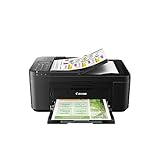

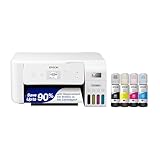
As an Amazon Associate we earn from qualifying purchases. Prices and availability are shown on Amazon.
How macOS Finds and Talks to Your Printer
A Mac does not install printers the way older computers did, and understanding its method explains both its elegance and its occasional mysteries. When you add a printer, macOS listens on the local network for devices announcing themselves, and it builds the printer’s entry from what the device reports: its name, its capabilities, its queues. For most modern printers the Mac then uses a driverless path — the printer describes what it can do and the Mac speaks that standard language — which is why a new printer can be printing within a minute of being found, with nothing downloaded. The maker’s own software, when you choose to install it, adds the extras the standard language does not carry: finer media controls, maintenance tools, scanning refinements and firmware updates.
This architecture has two consequences worth knowing. The first is that the network is part of the driver: a printer the Mac cannot discover is a printer the Mac cannot use, however healthy the machine itself is, which is why the network checklist earlier in this guide precedes everything else. The second is that the Mac remembers the printer as a network identity, not as a cable. Move the printer to a different network, change its name or let a router hand it a new identity, and the Mac may keep knocking on the old address with complete confidence. The ‘offline’ mystery that haunts Mac households is usually this — a faithful computer visiting a stale address — and its cure is the unglamorous one: remove the entry, let the Mac discover the printer as it is now, and add it fresh.
Knowing this turns setup from a ritual into a diagnosis. When something fails, ask which layer is speaking: discovery, identity, capability or the document itself. Each layer has its own remedy, and applying a capability remedy to a discovery failure — reinstalling software for a printer the network cannot see — is how setup afternoons are lost. Work the layers in order and a Mac printer setup is one of the calmest in all of home computing, which is exactly what its designers intended.
Printing Well From a Mac: The Settings That Matter
The Mac’s print dialog rewards a minute’s study, because it holds, in one place, nearly every decision a print job involves. Its presets are the headline feature: configure a job once — monochrome, two-sided, draft quality for your own documents — and save it as a named preset, and every future job of that kind is one selection rather than five. Households that use presets stop having the two classic Mac printing accidents: the long document printed single-sided in color by a forgotten setting, and the important document printed in draft by the same ghost.
The preview pane deserves its reputation as the dialog’s conscience. It shows the document as the printer will render it — page count, orientation, the effect of two-sided and scaling choices — and ten seconds spent there prevents the errors that paper makes permanent. Below it, the paper size and type controls carry the same weight they carry everywhere in printing: they must describe the paper actually loaded, because the Mac will faithfully instruct the printer to print a size that is not in the tray and then wait, with you, for a sheet that is not coming.
For photographs and design work, the dialog’s color and quality sections are where a Mac earns its keep in creative households: the choice between the printer managing color and the application managing it, made consistently and never in both places at once, is the difference between prints that match intentions and prints that argue with them. Choose one manager, note the choice with the project’s records, and let consistency do what no single setting can. The dialog is not deep, but it is complete — and a Mac user who has learned it owns their printer in a way that a user who merely added it does not.
Scanning From a Mac Without the Maker’s Software
A pleasant surprise awaits Mac owners who never installed the maker’s scanning tools: the Mac can usually scan on its own, through the same system paths it uses for printing, in the preview and capture tools the operating system provides. For the everyday scan — the form, the letter, the photograph for sharing — this built-in path is quick, clean and free of extra accounts and dashboards. It names files sensibly, saves to the formats offices want, and files the result where you tell it, which is most of what scanning ever needs to do.
The maker’s software earns its installation at the edges: scanning from the printer’s own buttons to the Mac, multi-page feeder workflows with automatic naming, and the finer controls over correction and filing that production scanning wants. The sensible household installs it when one of those edges becomes a weekly reality, and not before — because every additional piece of software is a thing to update, to learn and to one day troubleshoot. Start with the Mac’s own tools, learn what they cannot do for you specifically, and let that specific gap, rather than a setup disc’s enthusiasm, decide what gets installed. It is the same philosophy this guide applies to drivers, and for the same reason: a Mac printing setup should contain exactly what the household uses, and nothing it merely might.
When a macOS Update Changes the Weather
Every Mac household that prints eventually meets the morning after a system update, when the printer seems different — a setting vanished, a queue confused, a machine described as unsupported by a dialog that supported it yesterday. The weather metaphor is apt because the change came from the sky, not from anything the household did, and the response should be meteorological too: wait a moment, check the maker’s page for your model against the new system version, and apply the printer’s firmware update if one is offered, because makers and Apple repair these frictions in the weeks after a release and the repair arrives as updates on both sides.
Resist the dramatic remedies in the first days. Deleting and re-adding the printer is reasonable and often sufficient, since the Mac rebuilds its picture of the machine from the current system. Reinstalling everything, resetting the printing system or hunting for third-party drivers belongs later in the sequence, and resetting the printing system — a real macOS remedy — should be understood before it is used: it removes every printer and queue, which is a fine price for a cure and a foolish one for a hiccup. Keep the household’s printer card current through these events, noting which remedy worked under which system version; the next update’s weather will be familiar, and familiar weather frightens nobody.
More Questions From Mac Owners
Can I print from my Mac when I am away from home?
The Mac’s printing is local by design, like the iPhone’s. The practical patterns are to leave the document ready and print it on your return, to send it to someone at home, or to use a maker’s remote feature if your printer offers one and you have enabled it deliberately. For most households the honest need is rare, and the wait costs nothing but a little planning.
Why does my Mac show the same printer twice?
Because it has met the printer by two paths — commonly once through the standard network discovery and once through the maker’s software or a USB connection — and kept both introductions. Keep the entry that works with the connection you actually use, remove the other, and the duplication ends. If you are unsure which is which, print a test page from each; the one that produces paper is the keeper.
Should I share my Mac’s printer with other computers?
Sharing through the Mac suits a printer that is wired to it or lacks its own network connection; a network printer needs no host and should be added directly by each computer instead, so it stays available when the Mac sleeps or leaves. Choose sharing when the printer genuinely depends on the Mac, and direct connection whenever the printer can speak for itself.
How do I print in black and white by default?
Set a job up the way you want everyday printing to behave — monochrome, your chosen quality, two-sided if you use it — and save those choices as a preset, then make that preset your habit’s starting point. The Mac remembers the last-used settings in many applications, which is a convenience and a trap in equal measure; the named preset is how you make the memory deliberate rather than accidental.
What should I do before selling or giving away the Mac or the printer?
On the printer’s side, run its reset so your network details and any stored document traces leave with a clean machine. On the Mac’s side, nothing about the printer endangers you, but removing the printer entries is tidy housekeeping before a handover. The pair served your household’s documents for years; a clean reset is the polite full stop at the end of that service.
Two Macs, One Printer: The Household Configuration
Homes with several Macs should treat the printer as the network citizen it is: each Mac adds the printer directly, under the same clear name, with its own presets reflecting its owner’s habits. Resist the temptation to route everyone through one machine’s shared entry, because that machine becomes a part-time print server whose sleep schedule governs the household’s printing. Direct addition takes a minute per Mac and buys years of independence, in which any computer can print while the others are closed, away or updating.
Agree on the small conventions that keep a shared printer peaceful across several Macs. The queue belongs to everyone: a stuck job is cleared by its owner, and the household knows how to look at the queue on any Mac before concluding the printer is broken. Supplies have one keeper, as in every system this site’s guides describe. And the printer’s name, once chosen, is not improved upon by individual Macs renaming it locally into private jokes, because troubleshooting a household printer begins with everyone describing the same machine in the same words. These conventions sound like office management because they are — miniaturised, kind, and exactly as much governance as a shared resource needs and not a gram more.
A Calm Troubleshooting Order for Mac Printing
When a Mac will not print, the order of your questions decides how long the problem lives. First: can anything print? Send one small job from a phone or another computer. If the household prints happily around the Mac, the printer and network are innocent and the Mac’s own entry is the suspect — remove it, rediscover, re-add, and the great majority of Mac printing problems end there, in under five minutes. If nothing can print, the question moves to the printer and its network, and the Wi-Fi guide’s sequence — status page, sameness of network, restart order — takes over.
Second, if the Mac prints but prints wrongly: read the preview as the job’s confession. Wrong size, wrong orientation, wrong pages and draft quality on a final document are all visible there, and all are settings, not faults. Third, if jobs vanish into a queue that never empties, open the queue and read it; a paused printer, a held job awaiting a response, or a first job stuck on a paper state will be sitting there explaining itself to anyone who looks. The Mac’s queue window is the most underused diagnostic in home printing — a plain list in which nearly every mystery is written in ordinary language.
Only after these should software be reinstalled or the printing system reset, and by then you will usually know what you are treating. Method is not slowness. In Mac printing, method is the whole difference between a five-minute errand and a Saturday — and between a household that trusts its setup and one that approaches the print dialog the way sailors approach weather. Be the first household. The Mac, the printer and the network are all on your side; they only ask to be questioned in the right order.
Finish where every good Mac setup finishes: with a printer that appears in the dialog as reliably as the applications themselves, presets that make your everyday choices automatic, and a household card that records how it was all done. From that point the Mac and the printer stop being a topic. Documents print, scans arrive, copies happen, and the setup you performed once — slowly, in layers, with tests — dissolves into the background of a working home, which is where all good infrastructure belongs. That dissolution is the real deliverable of this guide. Everything else was just the careful path to it.
The MacBook Life: Printing Across Homes, Offices and Campuses
A MacBook accumulates printers the way it accumulates Wi-Fi networks — one for home, one for a parent’s house, one for the office, a ghost or two from flats and campuses past — and a little curation keeps the collection an asset rather than a menu of traps. Name each entry for its place as well as its machine, because ‘the printer’ in a list of five is a coin toss at deadline time. Remove the ghosts when a move is final; a stale entry costs nothing until the day it is chosen by accident and a private document sails toward a network you no longer live on. And before printing anything sensitive on a borrowed network’s printer, remember the tray rule that runs through all of this site’s advice: output is public until it is collected, and a document’s privacy is decided at the moment of printing, not at the moment of regret.
On managed networks — a campus, an employer’s building — expect the rules to be the institution’s: printers may require accounts, release codes or a specific queue, and the Mac’s cheerful discovery may be deliberately disabled. Follow the institution’s own instructions rather than improvising around them, because their system is designed to account for every page and a workaround is a misunderstanding waiting to happen. The MacBook’s virtue in all these territories is that it treats each printer as a place it has been: set each one up once, properly, in its own home, and returning is effortless. A well-travelled MacBook with a curated printer list is a small portrait of its owner’s life — and every entry in it, set up by the method in this guide, will work on the first try, in the place where it belongs.
One last habit, small enough to overlook and valuable enough to close with: after any successful setup or rescue, print one ordinary page and note, on the household card, the date and what worked. Macs and printers both outlive the memory of their configuration afternoons, and that single line — dated, factual, findable — is the difference between a future problem being a mystery and being a repetition. Repetitions are cheap. Mysteries are expensive. Keep the card, and your Mac’s printing life will be made almost entirely of repetitions.
There is a fitting symmetry in ending a Mac setup guide with the observation that the best setup is the one you never revisit. Apple’s side of the bargain is a printing system designed to disappear; the printer’s side is a machine designed to be found; your side is an hour of method at the beginning and a card’s worth of memory thereafter. Keep your side, and the other two will keep theirs — through updates, through new routers, through the household’s changes of address and fortune — and the print dialog on your Mac will go on offering the same quiet miracle it offered on the first day: a list, a preview, a button, and then, from the corner of the room, the sound of a page being made. Set it up once. Set it up properly. Then go and use it for years.
And should a future problem ever make you doubt that promise, return to the layers — discovery, identity, capability, document — and ask the system its questions in order. It has answered them before, in your own home, on your own card. It will answer them again.
Consider, as a parting encouragement, how much of a modern home quietly runs on setups performed exactly once and performed well: the network itself, the backups, the photo library’s organisation. A wireless printer on a Mac belongs to that honourable list, and it asks less than most of its members — an hour, a few test pages, a card in a drawer. Pay it that hour with the method above and it will not ask again, which is more than can be said for most of the technology in a modern house, and is reason enough to do this one properly.
Set it up once, set it up properly, and print happily ever after.
Frequently Asked Questions
Do I need to install a driver on a Mac?
Not for AirPrint printers.
Why does my Mac say the printer is offline?
The printer may be asleep, off the network or paused. Resume the queue and check the connection.
Can I print from a Mac to a USB printer?
Yes. Plug in the cable and add the printer.
How do I share a printer from a Mac?
Use Printer Sharing in General settings, Sharing.
Why does my Mac show the printer twice in the list?
The same printer can be offered once through AirPrint and once through a maker driver or a different protocol. Either entry can work. Pick the one that gives you the features you need, and remove the extra entry later if it causes confusion.
Can I print to a wireless printer when I am away from home?
Not through a normal local setup, because the Mac needs to reach the printer on the same network. Some printers offer a cloud or email printing feature set up through the maker's app. Check your printer's manual to see whether it supports one and how it is secured.
Do I need to keep the Mac and printer on the same Wi-Fi band?
They need to be on the same network, and some routers separate bands in a way that stops devices finding each other. If discovery fails, try joining both to the same band or turning on a single combined network name in the router.
What should I do if the print queue is stuck?
Open the queue from Printers and Scanners, cancel the stuck job and try again. If it keeps stalling, restart the printer, then remove and re-add it. A job with a very large file or the wrong paper size is a common cause.
Will a macOS update break my printer?
It can occasionally, especially for printers that rely on a maker driver. AirPrint printers are less likely to be affected. Before a major update, check the maker's support page for your model to see whether it lists the new version.
Is it better to use USB or wireless on a Mac?
Wireless is more convenient and lets several devices share one printer. USB can be steadier if your Wi-Fi is weak, and it needs no network setup. Many printers support both, so you can fall back to a cable when troubleshooting.
Bottom Line
Connect the printer to Wi-Fi, add it in Printers and Scanners using AirPrint if possible, and test with a document. If it does not appear, add it by IP address. See best printers for Mac.
Related Reading
- Types of Printers Explained: Inkjet, Laser, Ink Tank and More
- 7 Best Wireless Printers for Home Use
- Is the Rollo Wireless Label Printer Worth Buying? Review
- Printer Won’t Pick Up Paper: Why It Happens and How to Fix It
- Rollo Wireless vs Rollo USB Label Printer: Which Should You Buy?
More Printer Guides
- Best Printers for Home Use
- How to Stop Inkjet Printer Ink From Drying Out and Clogging
- Ink Tank vs Laser Printer
- Inkjet vs Laser Printer for Home Use
- Printer Ink vs Toner
- Printer Terms Explained

