A printer that will not join Wi-Fi is one of the most common printer problems, and the causes are usually simple: the wrong password, the wrong band, a signal that is too weak, or a router setting that blocks new devices. This guide walks through the fixes in order and explains why each one works.
Steps vary by printer brand and by router, so check your printer’s manual for the exact buttons.
By the Reviewstook Editorial Team. Last updated: October 31, 2026.

Before You Start: Gather What You Need
Have your Wi-Fi network name (SSID) and password in front of you. Check them by looking at the label on your router. Make sure other devices can connect to the network, which tells you the router is working. Then move the printer close to the router for the setup, since a weak signal is a common cause of failed connections.
In this guide
Fix 1: Check the Password and Network Name
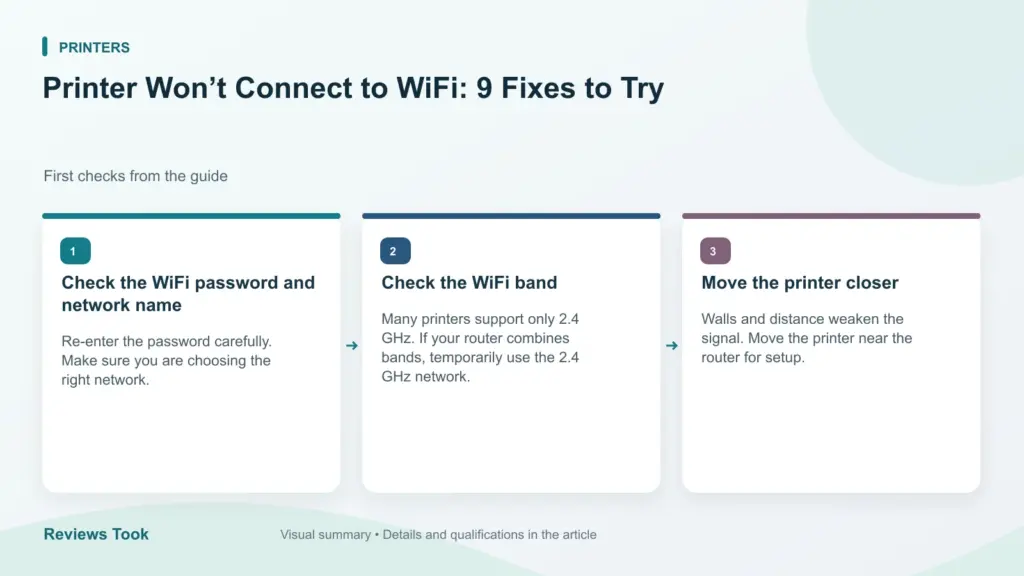
Passwords are case-sensitive. A single wrong character stops the connection. Retype the password carefully, using the printer’s screen or the maker’s app. Watch for look-alike characters such as the number 0 and the letter O. Make sure you choose your own network and not a neighbor’s network with a similar name.
Fix 2: Use the 2.4 GHz Band
Many printers connect only to the 2.4 GHz band and cannot see 5 GHz networks. If your router uses one name for both bands, some printers get confused. Either connect your phone to the 2.4 GHz network during setup, or turn off the 5 GHz band temporarily, or give each band its own name in the router settings. After the printer is connected, you can turn the 5 GHz band back on.
Fix 3: Restart the Printer and the Router
Turn off the printer and unplug it for 30 seconds. Restart your router and wait until its lights settle. Then turn on the printer and try again. This clears many glitches, including the printer holding on to an old connection.
Fix 4: Improve the Signal
Walls, floors and appliances weaken Wi-Fi. Move the printer closer to the router, or move the router closer to the printer. If that is not possible, a Wi-Fi extender can help, or use an Ethernet cable if the printer has a port. A printer that has a weak signal may connect and then drop out.
Fix 5: Check the Router Settings
Some routers block new devices. Look for MAC filtering, parental controls or a limit on the number of connected devices. Make sure the router uses a standard security mode, such as WPA2. Older printers may not support WPA3-only networks, so choose WPA2 or a mixed WPA2/WPA3 mode.
Fix 6: Use the Wi-Fi Setup Wizard or the WPS Button
Most printers have a setup wizard in the menu: choose Wi-Fi settings, pick your network and enter the password. Many routers also have a WPS button: start WPS on the printer, then press the button on the router within the time limit (usually two minutes). WPS is quick but not available on every router and is considered less secure, so use it only for setup.
Fix 7: Use the Maker’s App
Printer apps often make setup easier: they find the printer over Bluetooth or a temporary network, ask you for the Wi-Fi details and send them to the printer. Install the app on your phone, follow the prompts and keep your phone close to the printer.
Fix 8: Reset the Network Settings
If the printer holds on to bad settings, reset its network settings from the menu and set up Wi-Fi again. Read how to reset a printer to factory settings first so you understand what a reset erases.
Fix 9: Use USB or Ethernet as a Workaround
While you work on Wi-Fi, connect the printer by USB so you can keep printing. If it has an Ethernet port, a wired network connection is the most reliable option.
After It Connects
Print a network configuration page and note the IP address. Add the printer on your computer and phone. Then print a test page. If the printer later shows as offline, see how to fix a printer offline error and how to find a printer’s IP address.
Why a Printer Drops Off the Network Later
Many people get a printer connected, only to find it shows as offline a day or a week later. The common reasons are not mysterious. Routers hand out IP addresses to devices for a limited time, and if the printer receives a new address after a restart or a lease renewal, computers that remember the old address can no longer find it. Printers also enter low-power sleep modes in which the Wi-Fi radio may take a while to wake, so the first print job after a long idle period can fail.
To make the connection more stable, try these steps:
- Reserve a fixed address for the printer in the router’s settings, often called DHCP reservation or address binding. The menu names differ by router, so check its manual.
- Print the network configuration page to note the current address and the network name the printer is using.
- Keep the printer’s firmware up to date through the maker’s app or the printer’s menu.
- Adjust the sleep or power-saving settings if the printer fails to wake reliably.
- Keep the router firmware current as well, following its manual.
If you change your router, rename your network or alter the password, the printer will need to be set up again, because it stores the old details. Make a note of the steps so you can repeat them quickly. If the printer repeatedly disconnects even after these changes, a wired connection may be more dependable, assuming the printer has a port for one.
Understanding Your Home Network Setup
A little knowledge of how your network is arranged can save a lot of trial and error. Many homes use a router from an internet provider, sometimes with extra mesh units or extenders placed around the house. In these setups, the printer may connect to a different access point than your computer, and some systems isolate devices on separate networks or guest networks. If your phone or laptop is on a guest network, it may not be able to see the printer on the main network, even though both are connected to the internet.
Points to check:
- Make sure the computer, phone and printer are all on the same network name, not one on a guest network.
- If you use a mesh system, see whether the printer is attached to the nearest unit and whether the system supports older devices.
- Look for a router feature that isolates wireless devices from one another; it is sometimes called client isolation or AP isolation, and it can prevent printing.
- If you use a VPN on your computer, try pausing it, since some VPN apps block access to local devices.
- Check firewall settings, which can block printer discovery on some computers.
When in doubt, run through the setup with all the devices close to each other and on the main network. After you have a working configuration, move the printer to its final position and see whether it keeps the connection. If it does not, the location is the likely cause, not the settings.
Security Settings and Older Printers
Router security settings can prevent a printer from joining, particularly older models. Printers differ in which security modes they support, and the manual or the maker’s support page lists them. A router configured only for the newest security mode may reject a printer that supports earlier ones. A mixed mode that supports both older and newer standards is often the most compatible choice, but check your router’s instructions before changing anything, because changes affect every device on the network.
Things to consider carefully:
- Write down your current router settings before changing them so you can restore them.
- Change one setting at a time and test the printer after each change.
- Do not turn security off to make a printer work. An open network is a risk to every device in the home.
- Check for features like MAC address filtering, and add the printer’s address to the allowed list if it is switched on.
- Think about a separate network for older devices if your router supports it.
If the printer is old and supports only dated security options, the safer long-term answer may be a wired connection or a replacement model. Compare the cost of replacement with the value of the printer, and weigh any convenience features that would come with a newer one. Look at whether the maker still provides firmware updates for your model, since ongoing updates help with both compatibility and safety.
Choosing a Printer That Is Easier to Connect
If you are replacing a printer partly because of connection trouble, a few features make life easier. Check the product listing for the supported Wi-Fi bands, since a model that handles both 2.4 GHz and 5 GHz gives more flexibility than one limited to 2.4 GHz. Look for an Ethernet port if your printer will sit near the router, because a cable avoids wireless problems entirely. USB is a useful fallback when the network is down.
Setup experience varies. Some printers are set up through a phone app that guides you step by step, while others rely on a small control panel. A screen with a keyboard makes entering a password much easier than a few buttons. Find out whether the maker offers a mobile app for your phone type, and whether printing works from a phone without installing extra software.
Questions to ask before buying:
- Which Wi-Fi bands and security modes does the printer support?
- Does it have Ethernet and USB ports as backups?
- Does the setup need an account with the maker?
- How does the printer print from phones, tablets and laptops?
- Will the maker keep providing firmware updates?
Budget models tend to have simpler displays and fewer ports, while higher-priced ones add more interfaces and easier controls. Check the return policy so that you can test the connection with your own router, and keep the box for the first few weeks.
Network Words That Show Up During Printer Setup
Printer menus and router pages use technical terms that can feel like a foreign language. A short glossary makes the steps easier to follow.
- SSID: the name of your wireless network, as it appears in a list of available networks.
- Router: the box that creates your home network and shares your internet connection.
- Band: the radio frequency a network uses. Many routers offer two, and some printers only work on one of them.
- IP address: the number your router hands a device so it can be found on the network.
- Firmware: the built-in software of the printer or router, which makers update from time to time.
- Access point: a device that broadcasts wireless signal, either the router itself or an add-on unit.
- Guest network: a separate wireless network that often keeps its devices apart from the main one.
You do not need to master any of this. You only need enough familiarity to recognize which setting a guide is pointing at.
A Checklist to Run Before You Contact Support
Support teams will usually ask the same questions in the same order, so working through them first saves time. Go down this list and note your answers as you go.
- Confirm that other devices, such as a phone or laptop, can reach the internet on the same network right now.
- Check that the printer is within a reasonable distance of the router and not blocked by thick walls or large appliances.
- Make sure the printer’s wireless indicator or on-screen status shows that it is looking for a network.
- Look at the network name and password for hidden characters, similar-looking letters and capital letters.
- Confirm you are choosing the printer’s network from the same list your phone uses and not a guest network.
- Check that the printer’s firmware and your router’s firmware are current, using the maker’s own update tools.
- Write down the exact message the printer displays, along with the model number and any error code.
Having those notes ready turns a long phone call into a short one, and it often reveals the fix before anyone picks up the phone.
Symptom Guide: What You See and Where to Look
| What you see | Where to look first | Reason |
|---|---|---|
| Printer never finds your network | Band settings and distance to router | Some printers cannot see every band |
| Password keeps being rejected | Typing on the printer screen | Small keyboards make errors easy |
| Connects, then shows offline | Router address settings and power saving | The printer may lose its place on the network |
| Works on one computer only | Printer software and drivers on the other device | The printer itself may be fine |
| Fails after a router change | Re-run setup with the new network name | Old settings no longer match |
This kind of mapping stops you from changing router settings when the real culprit is a missing driver, or the other way around.
When to Follow the Maker and When to Call a Professional
Every printer maker publishes its own connection guide, and the steps differ between models. When a general tip conflicts with the manual for your specific printer, follow the manual. Maker support pages often include a step-by-step wizard, a troubleshooting tool and a list of known issues for each model.
Router settings deserve some care. Changing security modes, address ranges or firewall rules can affect every device in the house. Write down the original value before you change anything so you can put it back. If you are unsure what a setting does, check the router maker’s help pages or ask your internet provider.
Call your internet provider if other devices also struggle to connect, the router keeps dropping, or you suspect the equipment itself is faulty. Contact the printer maker if the printer shows a hardware error, will not power on correctly or fails after a factory reset. If the printer sits in a shared office or on a managed network, the person who runs that network may need to approve or adjust settings on your behalf.
Keep your receipt and warranty details nearby. If the printer turns out to be faulty, the maker or seller will ask for them, and having them to hand speeds up any replacement.
Understand What the Printer Is Trying to Do
A wireless printer joining your network has to complete several distinct steps, and a failure at any one of them produces the same useless result: not connected. It must find your network by name, authenticate with the password, receive an address, and then stay reachable. When setup fails, work out which step failed, because the fixes for finding, authenticating and addressing are entirely different.
The printer’s own network configuration page is your best witness. Most models can print one from their panel menus, and it reports whether the printer believes it is connected, which network name it joined, the address it received and the strength of the signal it sees. Print that page before changing anything. A printer that reports itself connected to the right network with a valid address has a different problem from one that reports no connection at all, even though both refuse to print from your laptop.
Note also whether the printer ever connected. A printer that worked for months and dropped after a router change, an outage or a password update is a configuration casualty. A printer that has never connected, even during its first setup, is more likely fighting a compatibility setting, a band problem or a mistyped credential. The history divides the suspect list in half.
The 2.4 GHz Problem, Explained Properly
Most printers, including many current models, connect only on the 2.4 GHz Wi-Fi band. Modern routers broadcast both 2.4 GHz and 5 GHz, often under the same network name, and they actively steer devices toward 5 GHz. A printer that cannot use 5 GHz may then fail setup, connect intermittently or vanish, while every other device in the house seems fine.
The symptoms are characteristic: setup fails at the final step, or the printer connects when it is in the same room as the router and drops later. The cure is to give the printer a clean 2.4 GHz path. Many routers can broadcast a separate network name for the 2.4 GHz band, or offer a dedicated smart-device or IoT network; joining the printer to that network ends the steering problem permanently. If your router has a band-steering or smart-connect toggle, disabling it during setup, or permanently if nothing else suffers, achieves the same thing.
Distance interacts with band choice. The 2.4 GHz band reaches further through walls than 5 GHz, which is another reason printers are built for it. A printer at the far end of a home from the router is exactly the device that benefits, provided it is actually allowed to stay on that band.
Router Settings That Quietly Block Printers
Several router features, each sensible on its own, can prevent a printer from joining or being found. Work through them in the router’s administration pages, changing one at a time and retesting.
Client or AP isolation, sometimes called guest isolation, prevents devices on the network from seeing each other. It is correct for a guest network and fatal for printing: the printer may join successfully yet remain invisible to every computer. Printers belong on your main network, not the guest one, and isolation should be off there.
MAC address filtering blocks any device whose hardware address is not on an approved list. If it is enabled, add the printer’s address, which is printed on its network configuration page or on a label on the machine. Security modes matter too: older printers may not support the newest WPA3-only configurations, and a router set to WPA3-only can refuse them while accepting everything modern. A mixed WPA2/WPA3 mode is the usual compromise that lets the printer join without weakening the network for other devices.
Finally, some routers limit the number of connected devices or reserve addresses in ways that exhaust the pool. If the printer fails with an address error while the house fills with smart devices, check the DHCP range and consider widening it, or reserve a fixed address for the printer so it always lands in the same place.
Passwords, Names and the Tyranny of Small Typos
Credential failures are the most common and the most embarrassing cause of connection problems, and printer keyboards make them worse. Entering a long password on a small printer panel, where each character is selected from a scrolling list, invites errors that the printer reports only as a generic failure. Characters that look alike, the number zero and the letter O, a lowercase L and the number one, cause a large share of these failures.
Network names cause their own version. If your network name contains unusual characters or spaces at the start or end, some printers handle them poorly. If two networks in range share similar names, a neighboring network among them, it is easy to join or attempt the wrong one during setup. Confirm the exact name from the printer’s own scan list and compare it character by character with the name your phone reports.
When a password changes, every device must learn the new one, and printers are the devices everyone forgets. A printer that stopped connecting on the day the household password changed has not broken; it is knocking with an old key. Re-run its wireless setup with the new password rather than troubleshooting anything else first.
Where the printer supports it, setup through the maker’s app or a temporary direct connection can transfer credentials from your phone, which already knows them, and eliminates the panel-typing problem entirely. That route is worth preferring on any printer whose panel makes text entry painful.
Signal, Placement and the Physics of the Last Few Meters
A printer that connects and then drops, especially during longer jobs, is often a signal problem rather than a settings problem. Printers are typically placed where desks are, not where radios are happy: inside cabinets, under desks, behind monitors and at the far end of the house from the router. Each wall, metal shelf and large appliance between printer and router taxes the link.
Read the signal strength on the printer’s network page and treat a weak reading as a placement task. Moving the printer even a meter, out of a cabinet and onto an open surface, can transform the link. Moving the router is the other half of the equation, and a mesh node or extender placed between router and printer solves the cases where neither device can move.
Interference adds a time dimension. Microwaves, baby monitors and neighboring networks crowd the 2.4 GHz band, so a printer may hold its connection all morning and drop it in the evening when the neighborhood comes home. If drops follow a daily rhythm, changing the router’s 2.4 GHz channel to a less crowded one, which the router’s administration pages allow, is the targeted fix.
For a printer whose location cannot improve and whose work matters, remember that wireless is a choice, not a requirement. Many models also offer USB or wired Ethernet, and a cable ends the physics debate permanently. Choosing the cable for a fixed desk printer is not defeat; it is engineering.
After It Connects: Making It Stay Connected
A successful setup is the beginning, not the end. Printers drop off networks weeks later for predictable reasons, and a few minutes of hardening prevents the sequel.
Give the printer a stable address. Reserve its address in the router’s settings so the printer always receives the same one, and computers always find it where they expect. Most recurring “the printer vanished again” stories are address changes after a router restart, and a reservation ends them.
Revisit sleep settings. A printer that sleeps deeply may take long enough to wake that the computer declares it offline; lengthening the sleep delay or enabling wake-on-network options, where the model offers them, keeps it responsive. Keep firmware current from the maker’s support pages, since connection stability is a frequent subject of quiet firmware fixes.
Finally, document your own network for the printer’s sake: the network name it joins, the band, and where its address reservation lives. The next router, password change or house move will go faster with that note than with anyone’s memory.
More Questions About Printer Wi-Fi
My printer connects to Wi-Fi but my computer says it is offline. What gives?
The printer is on the network, but the computer is looking in the wrong place or through a stale configuration. Print the printer’s network page to confirm its current address, then compare it with the address or port your computer’s printer entry uses. Remove and re-add the printer if they disagree, and confirm both devices are on the same network rather than one being on a guest network.
Why does setup fail at the very last step?
The last step is usually address assignment or the computer discovering the printer, not the password. Causes include band steering pushing the printer toward 5 GHz, isolation settings hiding it, or the setup device, your phone or laptop, switching to a different network mid-setup. Keep the setup device on the same network throughout, and give the printer a dedicated 2.4 GHz network name if your router offers one.
Will a Wi-Fi extender help my printer?
It helps when the printer’s problem is distance or walls, because the printer can join the closer, stronger signal. It does not help password, band or isolation problems, and the printer must join the extended network by name if the extender broadcasts a different one. Check the printer’s reported signal strength before and after to confirm the extender actually improved its position.
The printer worked until we got a new router. Nothing else changed. Why?
Almost everything changed from the printer’s perspective: the network name or password may differ, the new router’s defaults for band steering, security mode and isolation differ from the old one’s, and the printer’s address certainly changed. Treat it as a fresh setup: join the printer to the new network deliberately, then reserve its address and re-add it on each computer.
WPS and Other Shortcut Setup Methods, With Their Caveats
Many printers and routers offer push-button setup, where pressing a button on each device pairs them without typing a password. When it works, it is the fastest route past a painful panel keyboard. When it fails, it fails silently, so give it one attempt and then move to the manual method rather than pressing buttons repeatedly and hoping.
Understand what the shortcut does not do: it does not choose the band for you, fix isolation settings or reserve an address. A printer joined by a shortcut can still suffer every staying-connected problem described above. Treat shortcut setup as a way to get credentials into the printer, then do the hardening steps afterward.
Security policies vary by household, and some users disable push-button pairing on the router deliberately. If the button method does nothing at all, check whether it is enabled in the router’s settings before assuming the printer is at fault. PIN-based pairing variants exist on some equipment; follow the maker’s instructions exactly for your models rather than improvising, because pairing windows are short and attempts made outside them fail confusingly.
Diagnosing With Another Device
When a printer refuses to connect or to be found, a second device is a powerful diagnostic. If a phone joins the same network and can see the printer through the maker’s app while your computer cannot, the network and printer are healthy and the computer’s configuration is the suspect. If no device can see the printer, the problem sits between printer and router, whatever any single computer claims.
The router’s own device list is the other witness. Open the router’s administration pages and look for the printer among connected devices. A printer present in that list with an address has joined the network successfully, and your remaining problem is discovery or addressing on the computers. A printer absent from the list has not joined at all, and passwords, bands and security modes go back to the top of the list.
Keep notes as you test: which step failed, what the printer’s network page reported and what you changed. Wireless problems tempt people into changing five settings at once, after which the printer connects and nobody knows why, guaranteeing a repeat performance at the next router restart. One change at a time is slower for ten minutes and faster for the life of the network.
Can too many devices push my printer off the network?
Indirectly, yes. Routers assign addresses from a limited pool, and a home full of smart devices can exhaust a narrow pool or crowd the 2.4 GHz band the printer depends on. If connection failures began as the household’s device count grew, check the router’s address range and consider reserving the printer a permanent address outside the busiest part of the pool.
One last placement trick is worth knowing: printers with external obstructions on one side often do better rotated or moved a short distance along the same desk, because Wi-Fi signals reflect around a room in ways that create strong and weak spots a meter apart. If the network page reports a weak signal, small moves are a legitimate experiment before buying any networking hardware.
Setting Up a Printer on a Network You Do Not Control
Dormitories, shared offices and rented accommodation add a wrinkle: you may not control the router, and the network may be designed to keep devices apart. If the building’s network isolates devices, a network printer may join successfully yet remain unreachable from your computer, and no printer-side setting can change that.
In those environments, the practical routes are the printer’s own direct wireless mode, where the printer creates a small network your device joins for printing, or a simple USB cable. Direct modes have limits, typically your device leaves the main network while connected to the printer, but for occasional printing in a managed building they are often the difference between printing and not printing at all.
Ask the network’s administrator before buying extenders or replacement routers for a managed space; many such networks have an approved process for registering a printer’s hardware address, which solves the problem properly and permanently.
When you finally succeed, resist the urge to close the router’s administration pages immediately. While you are there, save the address reservation, note the channel and security mode that worked, and export the router’s configuration backup if it offers one. Networks fail and routers get replaced; the household that can restore its settings from a backup turns a half-day of re-setup, printer included, into a ten-minute restore.
Should I connect the printer to the same network name as my phone?
Yes, in almost every home setup. Printing requires the sending device and the printer to reach each other, and the simplest reliable arrangement is one main network for both. Separate band-specific names are the exception, used when a printer needs a dedicated 2.4 GHz network; in that case your phone and computer can stay on the main network as long as the router lets the two networks see each other, which home routers normally do. If printing fails only across that split, join one computer to the printer’s network temporarily to confirm reachability is the issue.
Treat repeated failure after all of these checks as information too: a printer that cannot hold a connection in a strong-signal spot, on a clean 2.4 GHz network, with current firmware, may have a failing wireless module, and that is a warranty or service conversation rather than another evening of settings.
Frequently Asked Questions
Why will my printer not connect to 5 GHz Wi-Fi?
Many printers support only 2.4 GHz. Use the 2.4 GHz band for setup.
Why does my printer connect and then disconnect?
A weak signal, router settings or an IP address change can cause this. Move it closer, reserve an IP address and update the firmware.
Do I need the printer’s app to connect to Wi-Fi?
Not always, but the app often makes it easier.
Is it safe to use WPS?
It is convenient for setup, but you should turn it off on the router if you do not use it.
Why does my printer show offline even though it is connected?
The computer may be looking for an old IP address, or the printer may be asleep. Reserve an address in your router, wake the printer and make sure the computer is using the correct port or address.
What is a DHCP reservation?
It is a router setting that always gives the same address to a particular device. This helps keep the printer easy to find after restarts.
Can a guest network block printing?
Yes. Devices on a guest network often cannot see devices on the main network. Put the computer, phone and printer on the same network.
Should I turn off my router's security to connect the printer?
No. Leaving the network open exposes every device on it. Try a compatible security mode instead, or use a wired connection.
Does a Wi-Fi extender help a printer?
It can if the printer is in a weak-signal area, but extenders and mesh units can complicate things. Test the printer near the main router first to see whether the signal is the problem.
Can I print without Wi-Fi?
Yes, if the printer has a USB port, or an Ethernet port when connected to a wired network. Some printers also offer direct connections, so check the manual.
Do I have to set up the printer again after changing my router?
Usually yes, because the printer stores the old network name and password. Use the setup steps again with the new details.
How often should I update printer firmware?
Check occasionally through the printer menu or the maker's app. Updates can fix connection bugs, but read the notes and follow the maker's instructions.
Bottom Line
Check the password, use the 2.4 GHz band, restart both devices, improve the signal and check router settings. If it still fails, try the maker’s app or a wired connection. See our step-by-step Wi-Fi setup guide and best wireless printers.
Related Reading
- Types of Printers Explained: Inkjet, Laser, Ink Tank and More
- Printer Won’t Pick Up Paper: Why It Happens and How to Fix It
- How to Calculate Printer Cost Per Page (With Examples)
- How to Check Printer Ink Levels on Windows, Mac and Phone
- How to Fix a Printer Paper Jam (Step by Step)
More Printer Guides
- Best Printers for Home Use
- How to Fix a Printer Offline Error
- How to Connect a Printer to WiFi
- Printer Terms Explained

