A printer that shows “offline” is one your computer cannot reach right now. The printer might be asleep, off the network, using a different IP address or set to offline mode by mistake. The good news is that the error is usually fixed in a few minutes. This guide covers the causes and the fixes, in order of how often they work.
Steps are written for Windows and macOS. Menu names vary slightly by version and by printer brand.
By the Reviewstook Editorial Team. Last updated: October 31, 2026.

What “Offline” Actually Means
Your computer keeps a list of printers and checks whether each one answers. “Offline” means the printer did not answer. That can happen because the printer is switched off or asleep, because it lost its Wi-Fi connection, because the router gave it a new address so the computer is calling the wrong one, or because the setting “Use Printer Offline” got switched on. It does not necessarily mean the printer is broken.
In this guide
Fix 1: Wake the Printer and Check It Is Ready
Press a button on the printer or open its menu to wake it. Check that it is on, that it has paper and ink and that no error is shown on its display. Then print a test page from the printer itself. If the printer cannot print a test page, solve that first with our printer not printing guide.
Fix 2: Restart the Printer, Computer and Router
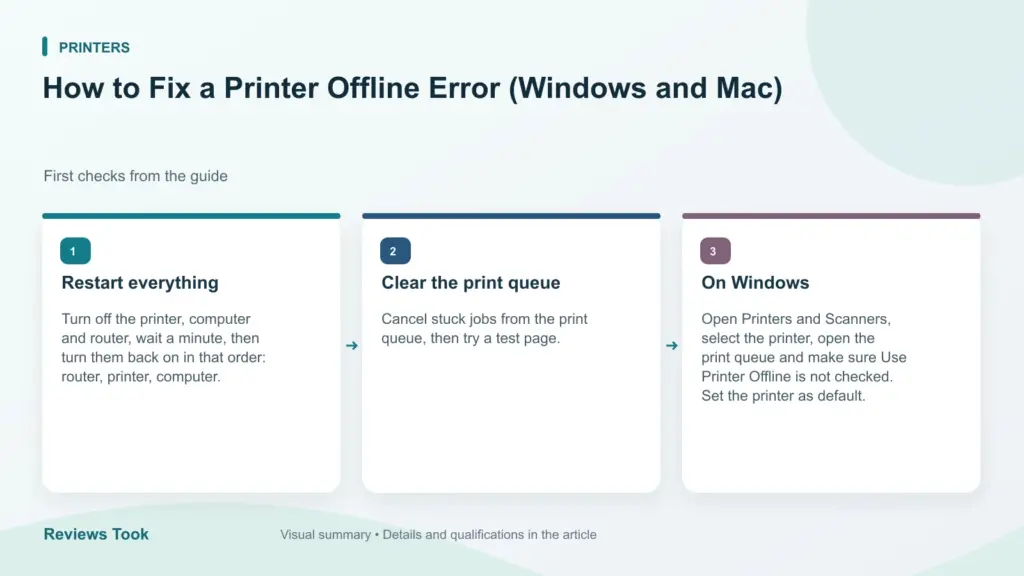
Turn off the printer and unplug it for 30 seconds. Restart your computer. If you use Wi-Fi, restart your router, wait until it is fully back, and then turn on the printer. Wait for the printer’s Wi-Fi light to become steady before printing.
Fix 3: Make Sure the Printer Is on the Same Network
Your computer and printer must be on the same network. Printers that are connected to a guest network, to a different router or to a different band can be invisible to your computer. Print a network configuration page from the printer and check the network name and the IP address. If the printer is not connected, reconnect it with the steps in how to connect a printer to Wi-Fi or what to do when a printer will not connect to Wi-Fi.
Fix 4: Turn Off “Use Printer Offline” (Windows)
In Windows, open Settings, then Bluetooth and devices, then Printers and scanners. Choose your printer and select Open print queue. In the Printer menu, make sure “Use Printer Offline” is not ticked. If it is ticked, untick it. Cancel any stuck jobs while you are there; see clearing the print queue in Windows.
Fix 5: Check the IP Address and Port
If your router gave the printer a new IP address, Windows may still be sending jobs to the old one. Find the printer’s current IP address on its network page or its screen, as described in how to find a printer’s IP address. In Windows, open the printer’s properties, go to the Ports tab, and check that the port uses the current address. If it does not, edit the port. To stop this happening again, log in to your router and reserve a fixed address for the printer.
Fix 6: Remove and Add the Printer Again
If settings are corrupted, delete the printer from your computer and add it again. In Windows, remove it in Printers and scanners, then choose Add device. In macOS, open System Settings, Printers and Scanners, remove the printer with the minus button and add it again with the plus button. Choose the AirPrint or the maker’s driver as instructed in your printer’s manual.
Fix 7: Update the Driver and Firmware
An outdated driver or firmware can cause connection problems. Update your operating system, then follow how to update a printer driver and check the maker’s site for printer firmware updates.
Fix 8: Try a USB Cable to Isolate the Problem
Connect the printer to the computer with a USB cable. If it prints, the printer works and the problem is the network. If it does not print, look at the printer, its driver or the print queue.
If You See This Error on a Mac
In macOS, an offline printer often shows as a paused or greyed-out queue. Open the print queue and press Resume if the printer is paused. Remove and re-add the printer if needed. Our guide to setting up a wireless printer on a Mac explains how to add it correctly.
Preventing It Next Time
- Reserve a fixed IP address for the printer in the router.
- Keep the printer within good Wi-Fi range or use Ethernet if it has a port.
- Turn off the printer’s deep-sleep setting if it keeps losing the connection and the maker allows it.
- Keep the printer’s firmware and your system updated.
Quick Diagnosis by Symptom
Before working through every fix, a few observations can point you to the right one. Notice when the error appears and what else is happening on your network, because the pattern often reveals the cause.
- Offline only after the printer has sat idle: the printer is probably in a sleep mode that drops its connection. Look at power and sleep settings in the printer menu.
- Offline after a power cut or router restart: the printer may have received a different address or not reconnected. Restart it and check its network page.
- Offline on one computer but fine on others: the fault is likely on that computer, such as a wrong port, a paused queue or a damaged driver.
- Offline on every device: the printer or the network is the problem, so check the printer’s connection and the router.
- Offline right after an update: a driver or setting may have changed. Remove and re-add the printer, or check for a newer driver.
- Offline only when printing from a phone: check that the phone is on the same network and that the printer supports the phone’s printing method.
Write down what you find. If you end up contacting the manufacturer’s support, a clear description of when the error began, what changed just before and what you have already tried saves a lot of time. Support teams often ask for the exact message on the printer’s display and the model name, so have those ready.
Also check the simplest signs first. A loose power cable, a switched-off power strip or a disconnected Ethernet cable is easy to miss and quick to fix. A glance at the printer’s display and lights can save you a long troubleshooting session.
Wi-Fi Bands, Signal Strength and Router Settings
Many offline errors come from the wireless connection rather than the printer itself. Printers are often placed in a corner of the house or in a room far from the router, where the signal is weak. A printer that connects fine at first may drop out when other devices compete for the network.
Check which band the printer supports. Some printers only connect to the older, longer-range band, and if your router combines both bands under one name, setup can become confusing. Check the manual for what your printer supports and, if needed, look at your router’s settings to see how the networks are named. Putting the computer and printer on the same band can sometimes help, though many setups work across both.
A few router features can block communication between devices on purpose. Guest networks usually keep devices apart from the rest of the network, and some routers have a setting that isolates wireless devices from each other. If the printer is connected to a guest network, move it to the main network. If you suspect isolation, check the router’s manual for the option and whether turning it off is appropriate for your home.
If the signal is weak, move the printer closer, move the router, or consider a network extender. An Ethernet connection, if your printer has a port, is the most stable choice. Avoid placing the printer near sources of interference, such as thick walls or other electronics, when you can.
Drivers, the Print Spooler and Stuck Services
Sometimes the printer and network are fine and the problem lives inside the computer. In Windows, a background service called the print spooler manages jobs. If it stops or gets stuck, printers may show as offline or jobs may never leave the queue. Restarting the computer usually restarts the service, but you can also restart it from the services tool if you are comfortable doing so. Follow instructions for your version of Windows carefully, and avoid changing settings you do not understand.
Driver trouble is another common cause. A generic driver may work for basic printing but miss features, while a driver that was damaged by an update can cause connection errors. Removing the printer and its driver, restarting and then reinstalling from the maker’s site is a clean approach. Download only from the manufacturer’s official support page for your exact model.
Try these checks in order:
- Open the print queue and cancel any stuck jobs, then try one small test page.
- Restart the computer to clear temporary problems.
- Remove the printer, restart, and add it again.
- Install the latest driver from the maker’s official page, choosing the one for your operating system.
- If you have two entries for the same printer, remove the extra one so jobs go to the right place.
Duplicate entries are an easy trap. After several reinstalls you may see two or three copies of the same printer, and the one set as default may be the offline copy. Check which is marked default and make sure you print to the working one.
Shared Printers, Print Servers and Office Setups
If the printer is shared through another computer or a print server, there is an extra link that can fail. Your computer is not talking to the printer directly; it is talking to the machine that shares it. If that machine is off, asleep or disconnected, you will see the printer as offline even though the printer itself is fine.
Start by checking that the sharing computer or server is on and awake and that the printer is shared correctly. Then confirm that your computer can reach it on the network. If the name or address of the sharing computer changed, you may need to reconnect to the shared printer. Sleep settings on the sharing computer are a frequent culprit, so adjust them if the printer needs to be available all day.
In offices, the network may use security settings that limit which devices can print. Permissions, firewall rules and separate network segments can all make a printer look offline. Ask whoever manages the network before changing anything. Do not alter security settings on a work network without permission.
For a home setup with several computers, it is simplest to connect each computer directly to the printer over the network instead of relying on one computer to share it. That removes a dependency, and the printer stays available whichever computer is on. Reserving a fixed address for the printer helps in both cases.
When to Contact Support or Consider Replacing the Printer
If you have worked through the fixes and the printer still goes offline, step back and decide whether the problem is solvable by you. A printer that cannot print a test page by itself, shows persistent error codes or fails to hold any network connection even on a different router may have a hardware fault in its networking part. At that point, contacting the manufacturer is a sensible step.
Before you call, gather the model name, the exact messages, what you have tried and how old the printer is. Check whether the printer is still under warranty, since a repair or replacement may be available. Ask support whether a firmware update is recommended and whether there are known issues with the network connection of your model.
Consider replacing the printer when it is old, the maker no longer provides drivers for your current operating system, or repeated fixes only buy a few days of reliability. Weigh the cost of a repair against the value of a new machine, and think about how you actually use a printer. If you print rarely, a model that tolerates long idle periods, or one with a stable wired connection, may suit you better.
When shopping again, look for clear details on wireless support, mobile printing standards and how the printer handles sleep and reconnection. Choose a model with an Ethernet port if you can run a cable, since a wired link avoids many of the issues in this guide.
Questions to Ask Before You Touch Any Setting
An offline message feels like a single problem, but it comes from several different ones. Answering a few plain questions first will point you toward the right repair and spare you from changing settings that were never at fault.
- Did the printer work earlier today, or has it never worked on this computer?
- Can another device on the same network print to it without trouble?
- Did anything change recently, such as a new router, a system update, a new password or a house move?
- Is the printer screen showing a clear status, or is it dark and asleep?
- Is it connected by wireless, by cable or through a shared computer?
If another device prints fine, the printer and network are probably healthy and the fault sits with the one computer, usually its driver, its saved port or its status flag. If nothing can print, look at the printer itself and the router. A changed router or password almost always means the printer needs to be joined to the network again.
Write down what you find. A short note such as “phone prints, laptop does not” will save you time if you later ask the maker’s support team for help.
Where the Fault Usually Hides
Once you know which side is affected, this table helps you narrow the search without trying every fix in turn.
| What you notice | Likely area | Sensible next move |
|---|---|---|
| Only one computer shows offline | Driver, port or status flag on that computer | Remove the printer entry and add it again |
| Every device fails at once | Printer asleep, off the network or in error | Check the printer screen, then power cycle |
| Problem began after a router change | Printer holds old network details | Join the new network again using the maker’s steps |
| Printer works by cable only | Wireless signal or network name mismatch | Move it closer and confirm the correct band |
| Happens every morning | Deep sleep or power saving | Check the energy settings in the printer menu |
If you have worked through the likely area and the message stays, take it as a sign to read the maker’s support page for your exact model. Firmware notes and known issues are listed there, and following official guidance is safer than hunting through forum advice for registry edits or service changes.
Patience helps here. Give each change a minute or two to take effect before judging it, because a printer can take a short while to rejoin the network and report itself as ready. Make one change at a time so that, if the problem clears, you know precisely which step solved it and can repeat it quickly the next time.
Working Through the Fixes in a Smarter Order
When a printer shows as offline, the temptation is to try fixes at random until something works. That approach often creates new problems: a removed printer, a changed port, or a half-finished driver reinstall can leave you worse off than the original fault. A better method is to work from the outside in, checking the physical world first, then the network, then the computer, and only then the software. Each step either fixes the problem or rules out a whole category of causes, so you always know more than you did a minute earlier.
Start by confirming the printer itself is healthy. It should be powered on, awake, showing no error lights, and able to print its own internal test or network configuration page from its control panel. If the printer cannot print its own page, the problem is inside the printer — paper, ink, a jam, or a hardware fault — and no computer setting will help. If the internal page prints fine, the printer works and the fault lies somewhere between the printer and your computer.
Next, confirm the printer and computer are genuinely on the same network. Print the network configuration page and note the network name and the IP address it reports. Then check the Wi-Fi name your computer is connected to. Homes with a main network, a guest network, and a mesh system can easily have a printer on one network and a laptop on another, and the two will never see each other even though both are technically online.
Only after those two checks should you touch settings on the computer. Work through the queue, the offline toggle, the port, and the driver in that order, testing with a single simple page after each change. Testing after every step matters: if you change three things at once and the printer starts working, you will not know which change mattered, and you will be stuck guessing again the next time it happens.
Reading the Printer’s Own Network Page Like a Technician
The network configuration page your printer can print from its own menu is the single most useful diagnostic tool you own, and it costs nothing. It tells you the exact network the printer joined, the IP address it was given, the signal strength it sees, and whether it considers its own connection active. Comparing that page with what your computer believes is true resolves most offline mysteries in minutes.
If the page shows an IP address that starts with 169.254, the printer failed to get a proper address from the router and gave itself a placeholder instead. That points at the router or at a weak signal rather than at your computer. Moving the printer closer to the router, or restarting the router and then the printer in that order, usually clears it.
If the signal strength on the page reads very low, the printer is simply too far away or blocked by walls, metal shelving, or appliances. Printers have small antennas and are often tucked into cupboards or under desks where reception is poor. A printer that works in the morning and drops offline in the evening is frequently a signal problem made worse by neighbouring networks getting busier.
Keep that printed page. Writing the printer’s IP address on it and storing it with the manual saves real time later, because when the printer goes offline again you can compare the new address with the old one and immediately see whether the address changed — the most common cause of a printer that worked yesterday and refuses today.
Why IP Addresses Change, and How to Stop the Cycle
Most home routers hand out IP addresses dynamically, and the lease on an address expires. When a printer sleeps, restarts, or loses connection, the router may give it a different address next time. Your computer, however, may still be trying to send jobs to the old address, and it reports the printer as offline because nothing answers there any more.
The durable fix is to make the address predictable. Most routers let you reserve an address for a device, so the printer receives the same address every time it joins. Reserving an address in the router’s settings is a one-time job that prevents the whole class of recurring offline errors caused by address drift. The reservation is usually found under LAN or DHCP settings, tied to the printer’s MAC address, which is printed on that same network configuration page.
An alternative on some printers is setting a static address directly on the printer’s panel or web interface. If you do this, choose an address inside your network’s range but outside the pool the router hands out automatically, so two devices never end up with the same address. Two devices sharing one address causes exactly the intermittent behaviour that is hardest to diagnose.
After any address change, remove the stale printer entry on your computer and add the printer fresh so it learns the new address cleanly. On both Windows and Mac, an old entry pointing at a dead address will keep reporting offline no matter how healthy the printer actually is.
Offline Problems That Only Happen on One Device
When one computer prints happily and another insists the same printer is offline, the printer and network are almost certainly fine, and the fault lives on the complaining machine. That narrows the search enormously: focus on that device’s queue, its saved printer entry, its driver, and its own network connection.
Laptops add their own wrinkles. A laptop that joins a work network, a hotspot, or a VPN during the day may come home with settings that route traffic oddly, or it may be sitting on the guest band while the printer is on the main one. VPN software in particular can hide local network devices entirely, so a printer that vanishes only while the VPN is connected is behaving exactly as the VPN intends.
Also check for duplicate entries. Many people end up with two or three copies of the same printer in their device list — one added by Windows or macOS automatically, one added by the manufacturer’s app, and one added manually months ago. One copy works and the others point at stale addresses. Printing to the wrong copy produces an offline error from a printer that is, in fact, online. Deleting all copies and adding the printer once, cleanly, fixes this for good.
Finally, consider the queue on that device. A single corrupted job stuck at the front of the queue can block everything behind it and make the printer look dead. Clearing the queue and restarting the print spooler service on Windows, or resetting the printing system on a Mac as a last resort, gives that machine a completely fresh start.
Keeping a Home Office Printer Online Day After Day
If you rely on your printer for work, prevention is worth more than any fix. Place the printer where it gets a strong, unobstructed signal, ideally in the same room as the router or a mesh node. Avoid putting it inside closed cabinets, behind televisions, or next to microwave ovens and cordless phone bases, all of which interfere with the signal.
Leave the printer powered on or in its normal sleep mode rather than switching it off at the wall. Printers that stay connected maintain their network lease and wake reliably; printers that are fully powered down rejoin the network from scratch every time and are far more likely to pick up a new address or fail to reconnect before you print.
Print something small at least once a week or two. Regular use keeps the printer associated with the network, keeps inkjet nozzles clear, and means you discover problems on a quiet Tuesday rather than five minutes before a deadline. A short test page habit is the cheapest reliability upgrade there is.
When you replace your router, expect to reconnect the printer and re-add it on every computer. Router swaps change network names, address ranges, and security settings, and printers rarely migrate gracefully. Budgeting ten minutes for the printer during a router change avoids the confusing situation where everything else works and only printing is broken.
A Calm Checklist for the Next Time It Happens
Because offline errors tend to strike when you are in a hurry, it helps to decide your routine in advance. First, look at the printer: is it on, awake, and free of error messages? Second, print its network page and confirm it is on your network with a normal address. Third, check your computer is on that same network and not on a guest band or VPN. Fourth, clear the queue and make sure the offline toggle is off. Fifth, restart in order — router, printer, computer — if nothing else has worked.
Notice what this routine avoids: reinstalling drivers and deleting printers come last, not first, because they are the most disruptive steps and the least likely to be the cause. Most offline errors are simple mismatches — an address that changed, a network that differs, a queue that jammed — and simple checks find them.
If you have worked through the routine twice and the printer still drops offline regularly, keep notes on when it happens. A pattern, such as failing after the printer sleeps or only from one laptop, is valuable information whether you troubleshoot further yourself or hand the problem to the manufacturer’s support team.
And if the printer is old, out of support, and drops its connection despite a strong signal and a reserved address, that pattern itself is an answer: the wireless hardware may simply be failing. At that point a USB connection, a wired Ethernet connection if the model offers one, or a replacement printer will serve you better than another afternoon of fixes.
Windows and Mac: Where the Same Problem Wears Different Clothes
Although the offline error looks identical on both systems, the machinery behind it differs, and knowing the difference saves time. On Windows, printing runs through the print spooler service, and a stalled spooler can make a healthy printer appear offline to every application. Restarting that service, or simply restarting the computer, clears a surprising share of Windows offline errors without touching the printer at all.
Windows also has the explicit “Use Printer Offline” toggle described earlier in this guide, a leftover from the days of dial-up connections. It can switch on after a failed job and stay on silently, so it is worth checking even when you are sure you never touched it. While you are in the same window, confirm the printer is set as the default if it is the one you use most; printing to a forgotten old default is another quiet cause of “offline” confusion.
On a Mac, the printing system rarely has a manual offline switch, so an offline message usually means the Mac cannot reach the printer at the address it remembers, or the printer paused itself. Opening the printer’s queue window shows whether jobs are held, and the resume button hides in plain sight there. Macs also handle printer discovery automatically, which means deleting a stale entry and letting the Mac find the printer again is often the entire fix.
Both systems suffer from the same trap after a router change or a house move: everything else connects happily, so the printer is blamed, when in fact every computer is simply looking for it at its old address. Re-adding the printer on each machine after any network change should be a standing habit, like updating your address after moving house.
Print Queues, Stuck Jobs and the Documents That Block Everything
A print queue is a line, and like any line, one person who cannot move blocks everyone behind them. A single damaged job — often a large PDF, a web page that printed badly, or a job sent while the printer was asleep — can sit at the front of the queue in an error state while every later document waits. The printer then reports offline or busy even though it is perfectly capable of printing the second document in line.
The cure is to empty the queue completely, not just delete the job you can see at the top. Cancel all documents, wait a few seconds for the printer itself to clear its memory, and then send one small test page. If the test page prints, resend your real documents one at a time until you find the one that jams the queue — there usually is one, and it is usually the same file every time.
Files that repeatedly break printing share traits: they are very large, they contain unusual fonts, or they were generated by an old application. Printing such a file as a PDF first, or choosing a “print as image” option in your PDF reader, renders it in a form the printer handles easily. This is a well-known workaround in support circles because it bypasses the exact rendering step that fails.
On shared family printers, teach everyone the golden rule: if your document does not print, do not send it five more times. Five copies of a stuck job turn a thirty-second fix into a paper-wasting flood when the queue finally clears. One attempt, then check the queue, is the habit that keeps home printing calm.
When the Printer Is Fine but the App Is Not
Sometimes a single application cannot print while everything else can. The printer shows online in system settings, other programs print, and one stubborn app insists the printer is offline or missing. This usually means the app is holding an old reference to the printer — common after a driver update or after the printer was removed and re-added.
Closing and reopening the app is the first step, because many applications only look for printers when they start. If that fails, check whether the app has its own printer selection separate from the system default; design and accounting software often does. Selecting the freshly added copy of the printer inside the app resolves the mismatch.
Browser printing has its own quirks. A browser may offer its own print service or a saved cloud printer from an old setup, and choosing the system printer from the browser’s print dialog — rather than the first entry in the list — is often the difference between success and a phantom offline message.
If one app still refuses after these steps, printing the document to PDF and then printing the PDF from a known-good app is a perfectly respectable workaround. Deadlines matter more than elegance, and the PDF route also gives you a saved copy of exactly what was sent to the printer.
Offline Errors After Updates, Moves and New Routers
Certain life events reliably trigger offline errors, and recognising them turns a mystery into a checklist. After an operating system update, drivers and permissions can change, so a printer that worked before the update deserves a fresh test page and, if needed, a driver refresh before deeper surgery. After a house move, the printer may be trying to join a network with the same name but different security, or sitting much farther from the router than before; reconnecting it to Wi-Fi from scratch is the fastest cure.
A new internet provider means a new router, a new address range, and often a combined network name that merges the two Wi-Fi bands into one. Some printers struggle with merged bands during setup, connecting happily only when the bands are temporarily separated or when setup is done from the printer’s own panel. Once connected, most printers cope fine with the merged network, so treat band separation as a setup tool rather than a permanent change.
Power cuts deserve a mention too. When power returns, routers take longer to wake than printers, and a printer that tries to connect before the router is ready can end up in a failed state that a simple printer restart fixes. If an offline error follows an outage, restart the printer after the internet is visibly back, and the problem usually ends there.
The pattern in all these cases is the same: something around the printer changed, so the fix is to reintroduce the printer to its new surroundings — reconnect it, re-add it, and let it learn fresh addresses — rather than hunting for a fault inside a healthy machine.
Frequently Asked Questions
Why does my printer go offline every day?
Often the printer sleeps and drops its Wi-Fi connection, or the router changes its IP address. Reserve an address for it and update the firmware.
Does restarting the router fix the offline error?
Often yes, because it forces devices to reconnect and renew their addresses.
What if the printer says online on its screen but offline on my computer?
Check that both are on the same network and that the port address on your computer matches the printer’s current IP address.
Will reinstalling the driver fix it?
Sometimes, particularly if the printer settings are corrupted. Remove and add the printer again.
Why does my printer show offline only on my laptop?
The laptop may be on a different network or band, have a wrong port or a damaged driver, or have a paused queue. Check the network name first, then the printer port and the queue.
Can a guest network cause the offline error?
Yes. Guest networks usually keep devices apart from the rest of the home network, so your computer may not be able to reach the printer. Put both on the main network.
What is the print spooler?
It is the Windows service that holds and sends print jobs. If it stops or gets stuck, printers can appear offline. Restarting the computer often clears it.
Do I have two copies of my printer listed?
This often happens after reinstalling. Remove the extra entry and make sure the working one is set as default so jobs go to the right place.
Is a USB connection a good long-term fix?
It works well if the printer sits next to one computer. It avoids network problems but is less convenient for sharing. Use it as a test or as a fallback.
Will a network extender help?
It can help if the printer is far from the router and the signal is weak. Check that the printer connects to the extender's network and stays on the same network as the computer.
Should I contact the manufacturer?
Yes, if the printer cannot print a test page, shows persistent error codes or will not hold a connection on any network. Have the model name, messages and the steps you have tried ready.
Does a firmware update really help?
It can, because updates sometimes fix connection and sleep problems. Check the maker's support page for your exact model and follow its instructions.
Bottom Line
Wake the printer, restart everything, confirm that both devices are on the same network, turn off offline mode and check the IP address. Reserve a fixed IP address to prevent the error from returning. See our best wireless printers if your printer keeps dropping off the network.
Related Reading
- Types of Printers Explained: Inkjet, Laser, Ink Tank and More
- How to Fix a Printer Paper Jam (Step by Step)
- How to Calculate Printer Cost Per Page (With Examples)
- How to Check Printer Ink Levels on Windows, Mac and Phone
- How to Refill an Ink Tank Printer (EcoTank and MegaTank)
More Printer Guides
- Best Printers for Home Use
- How to Make Stickers at Home With a Printer
- How to Print Envelopes at Home
- How to Print From a Chromebook
- How to Print From Android Phone
- How to Print From iPhone

