Android phones and tablets print through a built-in print service, and most printers sold today work with it. Some printers also have a maker’s app that adds features. This guide shows how to print and what to do if your printer does not appear.
Menus vary by Android version and phone brand.
By the Reviewstook Editorial Team. Last updated: October 31, 2026.

Before You Start
Connect the printer to Wi-Fi; see how to connect a printer to Wi-Fi. Connect your phone to the same network.
In this guide
Step 1: Check the Print Service
Open Settings and search for Printing, or go to Connected devices, Connection preferences, Printing. Make sure Default Print Service is on. Android uses this to find printers that support standard network printing (such as Mopria).
Step 2: Print From an App
- Open the file, photo or web page.
- Tap the menu (three dots) or the Share button.
- Tap Print.
- Tap the printer drop-down at the top, and choose your printer. If it is not listed, choose All printers.
- Set copies, paper size, color and other options.
- Tap the Print button.
Step 3: Install the Maker’s Plugin or App if Needed
If your printer does not appear, open the Play Store and install the printer maker’s print plugin or app (for example from HP, Canon, Epson or Brother). Enable it in Printing settings. The app may add duplex and tray selection.
If the Printer Is Not Found
- Make sure the phone and printer are on the same Wi-Fi network, not cellular.
- Restart the printer, the phone and the router.
- Turn off VPN or private DNS temporarily.
- Add the printer by IP address in Printing settings (Add printer, Add by IP address).
- Check that the printer is not in sleep or offline mode. See how to fix a printer offline error.
Printing Without a Router: Wi-Fi Direct
Some printers support Wi-Fi Direct, which creates a direct link between the phone and printer. Join the printer’s network from Wi-Fi settings and print as usual. The phone will not have internet access while connected.
Tips
Use the preview to check the layout. For photos, use the correct paper and quality; see how to print photos at home. For more options on a Chromebook or iPhone see how to print from a Chromebook and how to print from an iPhone.
Printing Different Kinds of Content
The Print option looks the same in most Android apps, but what you get on paper depends on the type of content and how the app prepares it. Knowing the differences helps you avoid surprises.
Web pages. In a browser, the Print command usually renders the page for paper, which may differ from the screen. Menus, ads and side panels can appear or vanish, and long pages can split awkwardly across sheets. Use the preview to check the page count before you send it. If the layout is messy, try a reader or simplified view first, then print from there.
Documents and PDFs. Files from a cloud storage app or a document viewer are generally the most predictable, because they already have fixed page sizes. Open the file in its own app and print from there instead of from a message attachment preview, which may offer fewer options.
Photos. The gallery app can print images, but it may fit them to the page or crop them to a standard size. Check the preview for cropping, and choose a paper size that matches the paper actually loaded. For good results on glossy paper, you will also need to set the paper type, which is often available only through the printer maker’s app.
Emails and messages. Many mail apps print the whole thread, including long reply chains. Delete extra messages or select only the part you need.
- Preview before printing, every time, to catch cut-off text or blank pages.
- If an app offers no Print command, save or export the item as a PDF and print the PDF.
- For a quick copy of what is on screen, a screenshot can be printed from the gallery, though text may look softer.
Paper Size, Orientation and Scaling Settings
When a printout looks wrong, the cause is often a setting on the print screen, not the printer. Expand the options area in the print dialog to see everything available, since some phones hide advanced controls behind a small arrow.
Start with paper size. The default is usually a standard size for your region, but if you load a different size, such as a photo size or a smaller card, change the setting to match. A mismatch can lead to cropped edges, shrunken content or a printer error asking you to load the right paper. Next, check orientation. A wide spreadsheet or slide often fits better in landscape, and switching it can avoid a split across two pages.
Scaling options vary by app and printer. Some offer fit to page, which shrinks content so nothing is cut off, while others print at actual size. Use fit to page for documents with wide content, but note that small text can become hard to read. Margins are often set by the printer, and edge-to-edge printing is available only on some models and paper types.
- Use the page range option to print only what you need and save ink and paper.
- Choose black and white or grayscale for drafts and text, which can reduce ink use.
- Select two-sided printing only if your printer supports it, and check that the binding edge matches your layout.
- Consult your printer’s manual for supported paper sizes and weights.
Menu names differ between Android versions and phone brands, so look for similar wording if you do not see an exact match.
Choosing a Printer That Works Smoothly With Phones
If you are buying a printer and plan to print mostly from an Android phone, a few checks before purchase save trouble later. First, look at the specifications or the box for statements about mobile printing support, including Mopria or the maker’s own mobile printing system. Because labeling varies, confirm the details on the product listing or manual rather than assuming.
Next, look at connectivity. Wi-Fi is essential for convenience, and Wi-Fi Direct is helpful when no router is available, such as in a small office, a classroom or while traveling. Check which Wi-Fi bands the printer supports. Some older or budget printers connect only to the 2.4 GHz band, which matters if your router combines bands or you use a mesh system. Bluetooth or NFC features can simplify setup on some models.
- Look for a companion app with a good reputation for ease of use, since it often handles setup, scanning and maintenance reminders.
- Consider automatic two-sided printing if you print long documents often.
- Check paper handling, including tray capacity and support for photo paper or envelopes, if those matter to you.
- Think about running costs. Cartridge pricing, refillable tank designs and page yields differ, so compare what suits your volume.
- Check that the maker offers firmware updates and support for your Android version.
Read the manual for setup steps before buying if you can, or look for clear documentation online. A printer that is easy to set up is far more likely to stay connected.
Keeping the Connection Stable Over Time
Many people set up printing once, then find it fails weeks later. Most of the time, the cause is a network change, not a broken printer, and a few habits prevent it.
The most common issue is a changing IP address. Routers hand out addresses automatically, and the printer may receive a new one after a restart or a long period offline. Apps that remember the old address then fail to find it. Reserving an address for the printer in your router settings, sometimes called a DHCP reservation, keeps it constant. The router manual will explain how.
Other causes include moving to a new router, changing the Wi-Fi password, or switching to a mesh system. In these cases, the printer must be reconnected to the network using its control panel or its app. Printers also go into deep sleep to save power, and some take a while to wake when they receive a job, so wait a moment before assuming a failure.
- Keep the phone and printer on the same network and the same subnet. Guest networks and separate access points can block discovery.
- Turn off VPN apps and data-saving modes if the printer does not appear, then try again.
- Update the printer firmware and the print service app when updates are available.
- Turn on battery-saver exceptions for the print service if your phone restricts background activity.
- Place the printer within good Wi-Fi range, away from thick walls and other devices that cause interference.
A short check of these items usually restores printing without a reinstall or reset.
Printing Sensitive Documents and Using Shared Printers
Printing from a phone is convenient, but sensitive documents deserve a little extra care, especially on shared networks. At home, you control who is on the network. In an office, school or public place, other people may be able to see the same printer, and pages left in the output tray can be picked up by anyone.
Before printing something private, such as financial records, medical forms or identity documents, think about where it will land. Stay near the printer so you can collect the pages right away. If the printer supports secure or held printing, which releases the job only when you enter a code at the device, use it. Ask the administrator whether a shared printer offers this. Avoid sending sensitive files to a printer you do not recognize, and check the printer name in the list before tapping Print.
- Cancel stuck jobs from the notification or the print service screen so documents do not print later when the printer wakes.
- Protect your home Wi-Fi with a strong password, and change the printer’s default admin password if it has one.
- Keep the printer and phone updated, since updates often fix security issues.
- Shred or securely dispose of printed pages that contain personal data.
- On a work printer, follow your employer’s policy, which may restrict what you can print or how.
These habits take only a moment and reduce the chance that private information ends up in the wrong hands. If you share a household printer, a basic rule of collecting pages promptly goes a long way.
A Quick Checklist Before You Try to Print
Most failed print jobs from a phone come down to a handful of simple causes, so a short check can save a lot of frustration. Work through the list in order before you dig into settings.
- Make sure the printer is switched on, has paper, and shows no error light or message on its screen.
- Confirm that the phone and the printer are on the same Wi-Fi network, or that the printer supports direct connection.
- Check that the phone is not using mobile data only, and that a guest or separate network is not isolating devices.
- Look at the printer’s manual or its model page to see whether it supports Mopria, a built-in print service or a maker app.
- Update the phone’s system software and the maker’s print app, if you use one.
- Keep the phone close to the printer for the first connection.
If everything on the list looks fine and the printer still does not appear, move on to the sections below, which explain the different ways Android can find and talk to a printer.
Choosing Between Built-In Service, Mopria and a Maker App
Android offers more than one route to a printer. The default print service that comes with the system works with many wireless printers and needs very little setup. Mopria is a widely supported standard that many printer makers include, and it lets the phone discover compatible printers on the same network. Maker apps, available from the printer’s manufacturer, often add features such as scanning, ink level checks and special paper settings.
| Method | Best for | Trade-off |
|---|---|---|
| Default print service | Quick everyday printing | Fewer advanced options |
| Mopria | Mixed brands and shared printers | Depends on printer support |
| Maker app | Scanning, photo options, maintenance tools | Another app to install and update |
If one method does not find the printer, try another. Sometimes switching from the default service to the maker’s app resolves a stubborn connection problem, and sometimes the reverse is true.
When a Printer Does Not Show Up
If the phone cannot see the printer, look at the network first. Many home routers have settings that block devices from seeing each other, and some mesh systems place phones and printers on separate segments. Check that both are on the same band or network name, and avoid guest networks. Rebooting the printer, the router and the phone one at a time often clears temporary glitches. After that, remove and re-add the printer in the print service settings, using the printer’s name or its network address if the phone asks for it.
Consult the maker’s instructions for how to find the printer’s address, and for firmware updates, which can fix discovery problems. If you changed your router or Wi-Fi password recently, the printer may need to be reconnected to the new network using its control panel or maker app.
Print Settings Worth Knowing
Once connected, take a moment to look over the page layout and settings before sending a job. Choose paper size, orientation, number of copies and page range. Black and white printing saves color ink for when you need it. For photos, pick the right paper type so the printer uses the correct settings. Documents from web pages may need a reader view or a saved PDF for clean layout. Save a PDF first if you want to be sure the layout is right.
Mistakes to Avoid
Sending a job to the wrong printer on a shared network, leaving the print queue clogged with old jobs and choosing the wrong paper size are the usual causes of wasted paper. Cancel stuck jobs from the notification area or the print service screen before sending a new one.
Printing Over Wi-Fi Direct or a Cable
Not every home has a smooth wireless network, and a few printers support other connection methods. Wi-Fi Direct lets the phone connect straight to the printer without a router, usually by joining a network the printer creates itself. The printer’s manual describes how to turn this on and where to find the name and password. Some printers also accept a USB cable with an adapter for the phone, though support differs by model, so check the maker’s notes.


Ready to Buy? Start Here
If this guide helped you decide what to look for, these products are a place to start.
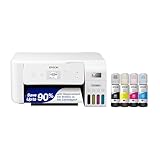

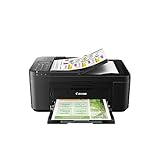
As an Amazon Associate we earn from qualifying purchases. Prices and availability are shown on Amazon.
How Android Printing Actually Works Behind the Scenes
Printing from an Android phone feels like a single tap, but several pieces have to agree before a page comes out. The app you are using hands the document to the Android print framework, the framework asks a print service how to reach a printer, and the service converts the document into a form the printer understands and sends it over the local network or a direct wireless link. Understanding that chain explains most failures. If the print option is missing entirely, the app itself may not support printing, and sharing the file to another app that does is the workaround. If the printer never appears in the list, the phone and printer are usually not seeing each other on the network, or the print service that knows your printer brand is not installed or not switched on. If the printer appears but the job fails, the document conversion or the printer itself, which may be asleep, offline or out of paper, is the place to look.
Android has changed how this works over the years. Older phones relied on a cloud service that has since been retired, and current phones use local discovery on your home network, the manufacturer own print service, or the shared Mopria standard that many brands support. This is why advice written for an old phone may mention menus that no longer exist on yours. The names of settings also vary slightly between phone makers, because each maker arranges its settings app differently, but the underlying pieces, a print service, a network connection and a printer that advertises itself, are the same on every recent device.
Knowing which print service your phone is using is the single most useful piece of troubleshooting information. Open the printing section of the settings, see which services are listed and which are switched on, and note the name. When a printer stops appearing after a phone update, the cause is often that a service was switched off or needs to be added again, not that the printer has broken. Checking that screen first can save a long session of restarting equipment in the wrong order.
Why the Printer List Sometimes Shows Duplicates or Ghosts
Phones remember printers they have discovered, and networks can advertise the same printer in more than one way, for example once through the manufacturer service and once through the default service. The result is a list with the same printer appearing twice, or an entry for a printer that was replaced months ago. Duplicates are mostly harmless, but printing to the wrong entry can send a job to a method the printer no longer answers on. If jobs behave oddly, remove saved printers you no longer own from the settings, choose the entry that shows the printer as ready rather than unavailable, and, where the service allows it, add the printer by its network address so the phone has one stable route to it.
Getting Reliable Results With Different Kinds of Documents
Different documents stress the printing path in different ways, and a few habits make phone printing far more predictable. Photographs are the most sensitive. A photo printed from a gallery app may be cropped to fill the paper unless you choose a fit option in the print preview, and the colors depend on the paper type setting matching the paper you loaded. Before printing a photo you care about, use the preview screen to confirm the orientation, the paper size and whether the image is being cropped, and print one copy first rather than a set.
PDF files are usually the most dependable format from a phone, because the layout is fixed and the print service does not need to reflow text. If a document from a word-processing app prints with changed spacing or missing fonts, exporting or sharing it as a PDF first and printing the PDF often produces a faithful page. Web pages sit at the other extreme: they are designed to scroll, not to paginate, so the print preview may show many pages with awkward breaks. Using the browser own print option, which applies a print layout where the site provides one, generally works better than printing a screenshot of the page.
Boarding passes, tickets and forms with codes deserve a specific check. Make sure the code is not cut off by scaling, choose a size that keeps the whole page on the sheet, and prefer black and white output where color adds nothing, since a crisp dark code scans more reliably than a faded color one. If the venue accepts the phone version, printing is a backup rather than a necessity, but a paper copy that is complete and legible is the entire point of making one.
Printing Email Attachments and Cloud Files
Many phone printing jobs start as an attachment or a file stored in a cloud drive rather than as a document already open in an app. The dependable sequence is to open the file in its own viewer first, confirm it is the right version and that every page loads, and only then choose print from that viewer. Printing directly from a notification or a preview thumbnail can send an incomplete download or an older cached copy. For shared files, also check whose copy you are printing: a file shared with view-only access still prints, but edits made by someone else after you opened it will not appear until you reload the document.
Large files, such as a long report or a photo-heavy presentation, can take a while for the print service to prepare, and the phone may need to stay awake and connected while that happens. If a big job stalls, splitting it into page ranges and printing in two passes is a practical workaround that also lets you check the first pages before committing paper to the whole document.
Network Habits That Keep Phone Printing Working
Most Android printing problems that appear after months of good service are network changes in disguise. A new router, a changed network name or password, a router setting that separates devices from each other, or a printer that quietly joined a different network band can all break discovery while leaving ordinary internet use untouched. When printing stops working, confirm the phone and printer are on the same network by checking the network name on both, and remember that many printers connect only to the more widely supported band, so a phone connected to the other band of the same router can sometimes fail to see it depending on how the router bridges the two.
Guest networks deserve special mention. A phone signed in as a guest is often deliberately prevented from seeing other devices, which is correct behavior for security but baffling when you are standing next to your own printer. The same applies to network extenders that create a separate network name: the phone may be on the extender while the printer is on the main router. Putting both on the same named network, at least while you set printing up and test it, removes a whole category of guesswork.
Distance and interference matter more for printers than for phones, because printers are often tucked into corners, inside cabinets or on the far side of a home from the router, and their wireless hardware may be less capable. If discovery is intermittent, moving the printer or the router a modest distance, away from thick walls and metal shelving, can be more effective than any software change. A printer that shows a weak signal in its own network settings is telling you the likely cause of jobs that start and then vanish.
Printing When There Is No Home Network
Direct wireless printing, where the phone connects to a network the printer itself broadcasts, is useful in a dorm room, a small office without shared wireless, or when the home network is down. The trade-offs are worth knowing: while the phone is connected to the printer direct network it may lose internet access, so download or open the document first, print it, then reconnect the phone to your usual network. Direct connections also suit one-off jobs from a visitor phone, since nothing about your home network needs to be shared. Afterward, check that the printer direct feature is set the way you want it, because leaving it broadcasting with a simple or no password in a shared building lets neighbors see, and potentially print to, your machine.
Privacy, Security and Shared Printers
A printed page sits in an output tray until someone collects it, which makes printing from a phone a privacy question as well as a technical one. Sending a bank statement, a medical letter or a contract to a shared household or office printer from another room means the document may be read, or simply picked up with someone else pages, before you arrive. For sensitive documents, print when you are near the machine, check whether the printer or its service offers a hold or PIN release feature that waits for you to confirm at the panel, and collect the pages immediately. If a job fails after you sent something sensitive, remember that resending without cancelling the first attempt can produce two copies, one of which may appear later when the printer recovers.
Print services and manufacturer apps also handle your documents as data. A document sent through a manufacturer cloud route may pass through that company servers, while local network printing generally keeps the job inside your home. Neither is automatically wrong, but for work documents your employer policy may specify which methods are allowed, and it is worth checking before printing confidential material through a personal app. Keeping the phone print services limited to the ones you actually use reduces both confusion and exposure, so remove or switch off services for printer brands you no longer own.
A Calm Troubleshooting Order for Phone Printing
When a job fails, work from the simplest outward checks inward. Confirm the printer is on, awake, has paper and shows no error on its own screen, because a printer reporting a jam or an empty tray cannot accept jobs from any source. Confirm the phone is on the expected network and can open an ordinary web page. Print a tiny one-line document from a simple app to separate document problems from connection problems. Then check the print service screen, restart the printer, and only then restart the router or reinstall a service. Changing one thing at a time feels slower, but it tells you what actually fixed the problem, which means the next failure, months later, takes minutes instead of another full afternoon.
Choosing Defaults So Everyday Printing Needs No Thought
Once phone printing works, a few default choices determine whether it stays effortless or becomes a small negotiation with settings screens every time. Most print services and manufacturer apps let the phone remember preferences such as color or black and white, single or double sided where the printer supports it, and a preferred paper size. Set those defaults to match what you print most often, which for most households is ordinary documents in black and white on standard paper. Special jobs, such as a color photo or a single-sided form that must not print on the back of another page, then become deliberate exceptions you change in the preview, rather than the other way around. This matters because the most common phone printing mistakes are not connection failures at all, but a color job sent when the color supply was low, a long document printed single sided by accident, or a letter-sized job sent to a printer loaded with a different size, discovered only when the tray empties.
The print preview deserves to become a habit rather than a formality. It is the one place where page count, orientation and scaling are all visible before any paper is used. A document that should be two pages but previews as nine is telling you that something, usually a web page layout or an oversized image, needs attention before printing. A form that previews with its edges cropped needs a fit-to-page choice rather than a larger printer. Ten seconds in the preview prevents most wasted runs, and on a phone, where the original app may present the document differently from how the print service renders it, the preview is the more truthful view of what will actually come out of the printer.
Helping Family Members and Guests Print
In most homes one person sets printing up and everyone else simply expects it to work, usually at the moment they need a ticket, a form or homework immediately. A small amount of preparation removes that pressure. Show each person where the print option hides in the apps they use most, since it lives in different menus in a browser, a mail app and a photo app, and make sure the correct print service is switched on for their phones too, not only on yours. For guests, direct wireless printing or printing from your own phone after they share the file with you avoids handing out your network password for a single page. If a family member prints from a school or work account, remind them that managed accounts can restrict printing or add identifying information to pages, which is normal for those accounts and not a fault with the home printer.
Keep one printed page near the printer with the printer exact name as it appears in the phone list. When several similar entries appear, especially in homes with an older printer still connected or a neighbor printer visible, that small reference prevents jobs being sent confidently to the wrong machine and then reported as lost. Combined with sensible defaults and a preview habit, these small arrangements are what turn Android printing from a feature that worked once during setup into one the whole household can rely on without thinking about it.
What to Do After a Phone, App or Router Change
Printing setups rarely fail at random; they fail after something changes, and the change is usually an improvement that had a side effect. A new phone restores apps and settings from a backup but may not restore print service switches, so printing should be one of the things you test in the first week rather than the night before a trip. A router change alters the network name, the password or the way devices are separated, and the printer must be joined to the new network with its own setup routine before any phone can find it again. An app update can move the print command to a different menu or change how the app shares files, which looks like printing has vanished when it has only moved. Working through the change you know happened, instead of resetting everything, usually restores printing in minutes and leaves the rest of a working setup untouched.
Keeping a Simple Record When Printing Matters
Households that print rarely can go months between problems, which is exactly why each problem feels new. A short note kept in a notes app solves this: record the printer name as it appears on the phone, the print service you use, the network the printer belongs to, and the one fix that worked the last time something went wrong. Add the date whenever you change the router, the network password or the printer itself. That tiny record turns the next failure into a lookup instead of an investigation, and it helps anyone else in the house restore printing when the person who set it up is away. It also prevents a common waste of effort, reinstalling services and resetting network settings that were never the problem, when the note shows the last three failures were all a printer that had been switched off at the wall or a phone that had joined the guest network at a family visit.
Finally, test printing at calm moments rather than urgent ones. Print one page from the phone after a system update, after a router change and at the start of a school or work term, when a failure is an inconvenience rather than a crisis. A setup that is exercised occasionally stays familiar, the printer stays ready, and the steps in this guide remain a quick refresher instead of a rescue operation. That habit, more than any single setting, is what makes printing from an Android phone feel as ordinary and dependable as printing from a computer.
A Final Check That Everything Still Works Together
Finish any setup or repair session by proving the whole chain once, end to end, while you are still in a troubleshooting frame of mind. From the phone you use most, print one short document from the app you use most, confirm in the preview that the correct printer and paper size are selected, and watch the job through until the page is in your hand. Check both sides of the sheet if you print double sided, confirm that nothing was cut off at the edges, and cancel any duplicate jobs that may be waiting in the queue from earlier attempts so they do not emerge unexpectedly days later. If a second person in the household prints from their own phone, have them send one page as well, because services and permissions are set per phone and your success does not guarantee theirs. Only when both phones, the printer and the network have worked together in that calm test should you consider the job done. It is a modest ritual, but it converts a fragile fix that might fail under pressure into a verified setup, and it leaves the queue empty, the defaults sensible and the household confident that printing from Android is simply available whenever it is needed.
Frequently Asked Questions
Do I need a special app?
Usually not. Android’s default print service handles most printers.
What is Mopria?
A standard that lets many printers work with Android without extra software.
Can I print from Android without Wi-Fi?
Only with Wi-Fi Direct or a USB-OTG connection on some devices.
Why does my printer disappear?
The IP address may have changed. Reserve an address in the router.
Why does my printout look different from the screen?
The app prepares content for paper, which can change the layout, margins and page breaks. Use the preview, check the paper size and scaling, and consider printing from a PDF for a fixed layout.
Can I print from Android to a printer on another network?
Usually not directly, because discovery works on the same local network. Some printers offer an email or cloud printing feature through the maker's service, so check the manual to see what your model supports.
Why is only half of the page printing?
This is often caused by a paper size mismatch or a scaling setting. Confirm the selected size matches the loaded paper, choose fit to page, and check the preview before printing.
Do I need to keep the maker's app installed after setup?
Often the default print service is enough for everyday printing, but the app may be needed for extra features such as ink checks, cleaning cycles or photo paper settings. Check what your printer needs in its manual.
Can I print from Android over USB?
Some phones and printers support a wired connection with an adapter, but compatibility varies. Check both devices' documentation before buying a cable or adapter.
How do I print a specific page range?
Open the print options and look for pages or page range, then enter the pages you want. Options differ between apps, so use the preview to confirm.
Why does the printer print blank pages?
Causes include empty or clogged cartridges, a wrong paper type, or a problem with the file. Run a test page from the printer, check ink levels and try printing a different document.
Bottom Line
Enable the default print service, use Share or the menu to choose Print and select the printer. Install the maker’s plugin if it is missing, and add it by IP address if needed. See best wireless printers.
Related Reading
- Types of Printers Explained: Inkjet, Laser, Ink Tank and More
- How to Clear a Stuck Print Queue on Windows and Mac
- How to Print Envelopes at Home (Settings and Tips)
More Printer Guides
- Best Printers for Home Use
- How to Print From iPhone
- How to Print Labels at Home
- How to Print on Both Sides of Paper
- How to Print on Cardstock at Home
- How to Print Photos at Home

