Chromebooks print through the Chrome operating system, and most modern network printers work without any driver. This guide shows how to add a printer, how to print and what to do when the printer is not found.
Steps follow recent versions of ChromeOS.
By the Reviewstook Editorial Team. Last updated: October 31, 2026.

Before You Start
Connect the printer to Wi-Fi; see how to connect a printer to Wi-Fi. Connect the Chromebook to the same network.
In this guide
Add a Printer
- Open Settings and go to Advanced, then Printing, then Printers.
- Under Saved printers, choose Add printer. Nearby printers appear in the list.
- Select your printer and choose Add.
If your printer is not listed, choose Add manually. Enter a name, the printer’s IP address and choose the IPP protocol (or IPP Everywhere), then select the printer model if asked.
Print a Page or Document
- Open the page or file.
- Press Ctrl+P.
- Next to Destination, choose your printer.
- Set pages, copies, color and other options under More settings.
- Click Print.
Printer Compatibility
Chromebooks work best with printers that support driverless standards such as IPP Everywhere or Mopria, and AirPrint on many printers. Check the printer’s specification. See printers for Chromebook.
If You Cannot Find the Printer
- Make sure the printer is on and on the same network.
- Restart the printer and Chromebook.
- Add the printer by IP address; see how to find a printer’s IP address.
- Check that the printer supports driverless printing.
- Update ChromeOS and printer firmware.
See how to fix a printer offline error.
Scanning From a Chromebook
Use the Scan app that comes with ChromeOS, found in the app launcher, with supported printers. Choose the scanner, set options and scan.
School and Work Chromebooks
If your Chromebook is managed by a school or business, the administrator may control which printers you can add. Ask your IT department.
Print to PDF and Share Files
If you cannot print right now, save the page or document as a PDF. Press Ctrl+P, choose Save as PDF as the destination and click Save. You can then print the PDF later from another computer, email it or put it on a USB drive. This is also handy for school work.
Printing to a USB Printer
Many printers that connect by USB work with a Chromebook if they support driverless printing. Plug in the cable and add the printer in Settings, under Printing. If it does not appear, check the printer’s support page for ChromeOS compatibility. See printers for Chromebook.
Troubleshooting a Printer That Will Not Print
- Make sure the printer is on, has paper and is not showing an error.
- Confirm that the Chromebook and printer are on the same Wi-Fi network.
- Remove the printer in Settings and add it again.
- Restart the Chromebook, the printer and the router.
- Try printing from another device. If that works, the problem is on the Chromebook side.
- Update ChromeOS under Settings, About ChromeOS.
See our printer not printing guide and how to fix a printer offline error.
Managed School and Work Chromebooks
If a school or employer manages your Chromebook, an administrator may add printers for you or restrict the printers you can use. If you cannot add a printer, ask your IT department. They can also tell you whether printing to a home printer is allowed.
Print Settings Worth Knowing
- Use More settings in the print dialog for page ranges, scale, two-sided printing and margins.
- Choose Black and white to save ink; see how to save ink when printing.
- Use Fit to page if content is cut off.
- For two-sided printing, see how to print on both sides.
Checking Your Network Before You Print
Most Chromebook printing problems are network problems. A Chromebook usually prints over Wi-Fi to a printer on the same network, so both devices need to be connected to the same router. Confirm this first, because it solves a large share of cases.
Look at the Wi-Fi name on the Chromebook and compare it with the name shown on the printer’s screen or network report. Some routers broadcast separate networks, for example one for each frequency band or a guest network. Devices on different networks may not see each other, even in the same room. If your router has a guest network, make sure neither device is on it unless you have set it up for sharing.
A printer that has been idle may also have gone to sleep. Wake it by pressing a button or opening the lid, then try adding it again. If the printer was recently moved, check that its signal is still strong, since a weak connection can cause it to appear and disappear.
- Same network name on both devices.
- No guest network or device isolation.
- Printer awake and showing as connected.
- Router restarted if devices still fail to connect.
If you use a school or work network, it may block device-to-device traffic by design. In that case, ask the administrator which printers are available.
Choosing a Printer That Works Well With Chromebooks
If you are buying a printer for a Chromebook, compatibility matters more than speed or features. Chromebooks cannot install the drivers that Windows and macOS computers use, so they rely on built-in printing standards instead.
Look in the product listing for wording such as Mopria, driverless printing, IPP or Chromebook support. These indicate that the printer can accept jobs without a separate driver. Some makers also state ChromeOS compatibility in a list on their support pages, so check there for your model before you buy.
Pay attention to how you plan to connect. A wireless printer is convenient for a household that shares a printer among several devices. A model with Ethernet suits a fixed spot, and a USB port gives a backup connection for a single Chromebook. Check that the listing mentions the connection type you need.
- Wireless models: flexible for phones, tablets and laptops.
- USB models: simple for one user, but confirm ChromeOS support.
- Older printers: may not support driverless printing, so verify first.
Also think about supply costs. A printer that is cheap to buy can be expensive to run if the ink or toner is costly or limited to the maker’s own supplies. Compare cartridge details in the listing and read how the printer handles non-original supplies.
Setting Print Preferences for Better Results
The Chromebook print dialog is simple, but the options it offers can save paper, ink and time. Spend a minute learning them before printing something important.
Start with the destination, then choose the number of copies and the pages you want. If you only need one page of a long web page, enter the page number rather than printing everything. Use the preview on the right to see what will actually appear on paper.
Under more settings, you will find paper size, layout, margins, scale and color options. Make sure the paper size matches what is loaded in the printer. A mismatch is a common cause of a job that stalls or prints with the wrong margins. If a web page is cut off, try changing the scale, or switch the layout between portrait and landscape.
If you want to save ink, choose black and white, and look for a draft or economy quality option if the printer offers one. Two-sided printing appears only if the printer supports it, so it may be missing from the dialog for some models.
- Match the paper size to the tray.
- Print only the pages you need.
- Use the preview to catch layout problems.
- Check that options such as duplex appear for your printer.
Settings available vary by printer, so check the manual if an option is missing.
Keeping Your Printer and Chromebook Working Smoothly
A little routine care avoids many printing problems. Keep the Chromebook updated, because ChromeOS updates can improve printer detection and fix bugs. Updates usually install in the background, and a restart completes them.
Update the printer firmware too, if the maker offers updates. This is often done from the printer menu or its web page. Firmware updates can improve network reliability and compatibility, though the details vary by maker.
If the printer’s address changes often, the Chromebook may lose the connection. Ask your router to reserve an address for the printer, or remove and re-add the printer in the Chromebook settings. Also remove old printers you no longer use, so you do not send jobs to the wrong place.
For paper and ink, store paper flat and dry, and print something occasionally if you use an inkjet, because infrequent use can lead to dried ink on some models. Follow the maker’s care advice for cleaning print heads, and replace supplies when the printer reports them low.
- Update ChromeOS regularly.
- Update printer firmware when available.
- Remove printers you no longer use.
- Reserve a fixed address if the connection keeps dropping.
When something still fails, restart the printer, the router and the Chromebook in that order, then add the printer again.
A Pre-Print Checklist for Chromebook Users
Most printing problems on a Chromebook come down to a handful of simple causes: the printer and the device are on different networks, a setting is off, or the printer is not ready. Running through a short checklist first saves a lot of guessing.
- Turn the printer on and check that it has paper, ink or toner and no error lights.
- Confirm the network. The Chromebook and the printer should be on the same wireless network, unless the printer is connected by cable or through a cloud service.
- Check the Chromebook is up to date. Open the settings and look for pending system updates, since they can fix compatibility issues.
- Look for the printer in the list. In the settings, open the printing section and see whether the printer already appears.
- Test with a simple page. Try a plain web page or a short document before a large job.
- Check the file type. Most web pages, PDFs and images print well, while some special formats may need a different app.
- Read the printer maker’s notes. Many makers publish instructions for Chromebook use on their support pages.
If the printer appears in the list and the test page works, you are ready. If not, the sections below explain the main routes for connecting.
Ways to Connect: A Comparison
There are several routes to a working print setup, and the right one depends on the printer you own. The table summarizes the main options.
| Method | How it works | Good for | Watch out for |
|---|---|---|---|
| Automatic network discovery | The Chromebook finds compatible printers on the same network | Most modern wireless printers | Needs both devices on the same network |
| Manual add by address | You enter the printer’s network address and protocol | Printers that do not appear in the list | You need the correct address from the printer’s settings |
| USB cable | The printer is connected directly | Quick setups with no network | Not every printer supports it with a Chromebook |
| Maker’s mobile or cloud service | Printing through an app or an account from the maker | Printers with a cloud feature | Requires an account, and features vary |
| Print to PDF and transfer | Save as a file and print from another device | A fallback when direct printing fails | Adds extra steps |
If your printer is very old, check whether the maker offers support for Chromebooks. Some older models do not work with these devices, and a newer model may be the only practical route.
Step-by-Step: Adding a Printer in Settings
The menu names may vary slightly with the version of the system software, but the general path is similar. Follow these steps, and consult official help for your version if the labels differ.
- Open the settings from the system tray, then find the section for printers or advanced device options.
- Choose the option to add a printer. The Chromebook will search for nearby devices.
- Select your printer from the list and confirm. If the Chromebook asks for a name, give it one you will recognize.
- If the printer is not listed, choose the option to add one manually, and enter the name, the address and the protocol the printer uses. This information is usually in the printer’s network settings or its manual.
- Pick the driver or the generic option that matches your printer model, if asked.
- Save the printer, then try a test page.
When the printer appears, it will be available in the print window of apps and web pages. Open the print dialog with the keyboard shortcut for printing, choose your printer and check the number of copies, the page range and the paper size before you press the print button.
Fixing Common Printing Problems
Even a correct setup can fail on a bad day. These simple checks resolve many issues without special skills.
- The printer shows as offline. Turn the printer off and on, and check that it is still joined to the wireless network. Rebooting the router can also help.
- Nothing happens after pressing print. Check the print queue, and clear any stuck jobs.
- Pages come out blank or faded. Look at the ink or toner levels, and run the printer’s own cleaning routine as the maker describes.
- Wrong size or cut-off edges. In the print dialog, check the paper size and the scale option, and set margins as needed.
- Printer not found after an update. Remove the printer from the list and add it again.
- Slow printing of large files. Try printing fewer pages at a time, or a lower quality setting for drafts.
If problems continue, the printer maker’s support pages are the best source for model-specific advice. Keep the model name ready when you search, and note any error code shown on the printer’s display.
Printing From Specific Places: Web Pages, Documents and Photos
The way you print depends partly on what you are printing. For web pages, open the print dialog from the browser menu and look at the page view on the right, where you can remove headers and footers, change margins and decide whether to include background colors. Choosing a simplified or reader view first often gives a cleaner page with less ink.
For documents created in online office tools, use the print option inside the tool, which usually gives control over page ranges and orientation. Downloading the file as a PDF and printing that is another reliable method, since the layout is fixed and does not change with the printer.
For photos, check the paper type setting in the print dialog and choose the matching option for glossy or matte paper. Photo prints need more ink and time, so allow plenty of both. If you want accurate color, look at the printer maker’s guidance on color management, since a Chromebook offers fewer color controls than a full computer. When you only need a quick copy of a letter or form, standard paper and a draft quality setting are fine. Save the best settings in a note so you can repeat them next time.


Ready to Buy? Start Here
If this guide helped you decide what to look for, these products are a place to start.

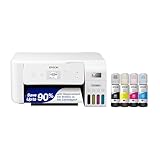
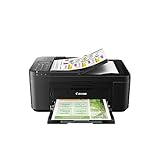
As an Amazon Associate we earn from qualifying purchases. Prices and availability are shown on Amazon.
How Chromebook Printing Is Organized, and Why It Feels Different
Printing from a Chromebook feels different from printing from a Windows or Mac computer because ChromeOS does not build its printing around long-lived installed drivers in the same way. Instead, the system discovers printers on the local network, matches them with built-in support for common printing standards, and saves the printers you use so they appear in the print dialog for every app and web page. Once a printer is saved, printing is mostly a matter of choosing it in the destination list and confirming the settings in the preview. When something goes wrong, it is usually at one of three points: the Chromebook and printer are not on the same network, the printer uses a method this Chromebook does not support directly, or an administrator has restricted printing on a managed device. Keeping those three possibilities in mind gives you a short checklist instead of a maze of settings.
The print preview itself deserves attention because ChromeOS puts more responsibility there than other systems do. The preview is where you choose the destination, the page range, the number of copies, the layout, the paper size and whether to print in color. A document that looks wrong in the preview will look wrong on paper, so the preview is a genuine proofing step rather than a formality. It is also where a saved printer that has gone offline reveals itself, since the dialog reports when a destination cannot be reached. Learning to read that screen calmly, and to use its option to print to a PDF file instead, covers most everyday situations, including the useful trick of saving a web page or a document as a PDF first and printing the file later when a printer is available.
Another difference is how much depends on the account you are signed in with. Saved printers are associated with your profile, so a printer added while signed in as one user may not appear for another user of the same Chromebook until it is added for them too. On a family Chromebook this explains the familiar puzzle where printing works for one person and not for another on the same machine. On a school or work device, policies set by the administrator can add approved printers automatically, restrict printing to those devices, or remove the option to add printers entirely, which no amount of home troubleshooting will change.
Setting Up Printing for More Than One Person
If the Chromebook is shared, spend ten minutes making printing boring for everyone. Add the home printer under each person profile that needs it, print one test page from each profile, and write the printer exact name on a note near the machine so nobody has to guess between similar entries. Where the printer supports it, giving the printer a recognizable name during its own setup, rather than leaving a model number and a string of characters, makes the destination list far clearer for children and guests. For a visiting relative who only needs one document printed, it is simpler to have them share the file with you and print it from your profile than to configure their profile or hand over network details.
Printing Well From the Apps and Sites You Actually Use
Most Chromebook printing starts in the browser, and web content behaves differently from documents created for paper. A school worksheet delivered as a PDF will print exactly as its author laid it out, provided the paper size in the preview matches the paper in the tray. A web page, by contrast, is laid out for a screen and will be divided into pages by the browser, sometimes cutting a table or a form in an awkward place. Where a site offers its own print or download option, that version is almost always better paginated than the browser raw output. Saving the page as a PDF first lets you inspect the result and reprint a single corrected page instead of the whole set.
Documents from online office suites print through the same dialog but carry their own traps. A document shared with you may be set to a paper size common in another country, so check the size in the preview when margins look wrong. Comments and suggestion marks that are visible on screen may or may not appear in print depending on the app settings, which matters when you are printing a draft for review or a final copy for submission. Photographs printed from a browser or a photo service need the same care as on any system: confirm whether the image will fill the page or fit within it, choose the paper type that matches what is loaded, and print one copy before a set.
Forms deserve a specific mention because Chromebooks are common in schools and in homes that handle official paperwork online. If a form must be returned on paper, print it at full size rather than scaled to fit when the instructions require original size, check that no field is cut off at the edge, and keep the PDF you saved as part of the process. That saved copy is your evidence of exactly what you printed if a question arises later, and it lets you reprint an identical page if the first copy is spoiled.
Printing When the Internet Is Unavailable
A Chromebook is at its best online, but printing to a printer on the same local network does not inherently require the wider internet once the printer is set up. In practice this means a temporary broadband outage at home should not stop you printing a document that is already open or saved on the device, although cloud-stored files cannot be fetched until the connection returns. Downloading important files ahead of time, for a trip or before a known outage, keeps local printing useful. A USB connection to a supported printer is the other fallback, and it is worth knowing whether your printer and Chromebook work together over a cable before the day you urgently need that answer.
Managing Print Jobs Instead of Fighting Them
When a job goes wrong, the instinct is to press print again, which usually creates a queue of duplicates waiting behind the original problem. ChromeOS shows active jobs and lets you cancel them, and cancelling everything before you change anything is the cleanest way to recover. Clear the queue, fix the cause, which might be an empty tray, a printer that has fallen asleep or a destination that points to an old printer, and then send a single short test job. Only when that page emerges should you resend the real document. This sequence feels slower than repeated attempts, but it prevents the classic outcome where the printer suddenly recovers and produces five copies of a ten-page document while you are out of the room.
Paper handling causes as many failed jobs as software does. Chromebooks are often used away from the printer, on a sofa or at a kitchen table, so the person printing cannot see that the tray is empty, loaded with a different size, or that a previous job has left a jam message on the printer screen. Making a habit of checking the printer before sending a long job, and collecting pages promptly so the output tray does not overflow, removes most of these failures. In a household, agreeing that whoever finds the printer out of paper refills it, rather than leaving the discovery for the next person, keeps shared printing civil.
Security and Privacy on a Chromebook
School and workplace Chromebooks may route printing through managed queues that record what was printed, and some organizations restrict printing of certain documents entirely. That is a policy matter rather than a fault, and personal documents are better printed from a personal device and account. At home, the privacy questions are simpler but still real: a print job sent from another room leaves pages in the tray for anyone to read, and a saved printer list can include machines at a workplace or a relative home that you no longer intend to use. Removing old saved printers keeps the list honest and prevents a confidential document being sent to a printer in another building because its name looked familiar. Where the printer offers a job hold or release code feature and your Chromebook workflow supports it, using it for tax, medical or financial pages is a sensible habit.
Choosing and Placing a Printer for a Chromebook Household
If a Chromebook is the main computer in the house, printer choice should start with confirmed ChromeOS support rather than with print speed or ink claims. Look for explicit mention of Chromebook compatibility from the maker, support for standard network printing, and a setup routine that does not depend on installing software from a disc. A printer that joins your network and advertises itself clearly will usually appear in the Chromebook printer list with little effort, and that ease is worth more over years of use than a small difference in headline speed. Households that also use phones and other computers should prefer a printer that all of them can discover in their own standard ways, so no single device becomes the only one able to print.
Placement matters more than it first appears. A printer at the far end of the home from the router may work for a computer with a strong wireless adapter and fail intermittently for everyone. Placing the printer where its own signal indication is healthy, on an open surface rather than inside a closed cabinet, and within reach of the people who will load paper and clear jams, prevents a steady drip of small frustrations. Finally, keep the printer firmware and the Chromebook itself updated through their normal update mechanisms. Compatibility fixes arrive in those updates, and a combination that struggles today sometimes prints without drama after both sides have been brought up to date, with no other change made at all.
Worked Examples: Three Common Chromebook Printing Situations
A School Worksheet Due Tomorrow Morning
A typical evening problem is a worksheet that a teacher has shared as a PDF, discovered after dinner and needed on paper in the morning. Work through it in a fixed order and it stops being a drama. Open the file and confirm it is the complete document, not a preview of the first page. Open the print dialog and read the destination name in full rather than assuming it, because a previously used printer at school or at a relative home may still be selected. Set the pages to all, the layout to the orientation the worksheet itself uses, and the paper size to the size loaded at home. Look at the preview long enough to see that the last page is present and that nothing is scaled so small that handwriting will not fit in the spaces provided. Print one copy, check it against the screen version question by question, and only then put it in the school bag. Saving the PDF into a homework folder at the same time gives you an identical reprint if the first copy is lost, spilled on or left behind, without needing to find the original message again under time pressure.
A Form That Must Look Exactly Right
Official forms punish casual printing. A form scaled even slightly can shift boxes so that entries no longer sit where the receiving office expects them, and a page printed on the wrong size can be rejected outright. For these documents, use the PDF version wherever one exists, select the paper size the form was designed for, avoid any fit or shrink choice unless the form instructions explicitly allow it, and inspect the printed page against the screen at full size, paying attention to the edges where content is most often lost. If the form will be scanned by the receiving office, print in black and white at a normal quality setting so lines and codes are crisp, and keep your saved PDF with the date you printed it. If anything about the printed copy differs from the screen version, fix the setting and reprint rather than hoping the difference will not matter, because resubmitting a rejected form costs far more time than one extra sheet of paper.
Photos and Projects From a Family Chromebook
Creative printing, a photo for a grandparent or pages for a school project, rewards the same preview discipline with a different emphasis. Photographs need the paper type in the dialog to match the photo paper actually loaded, and the layout choice decides whether the image fills the sheet with cropped edges or fits whole with borders. Decide that deliberately rather than accepting the default, and print a single copy to judge color and cropping before producing a set. Project pages that mix text and images should be checked for pages where an image has flowed onto a page of its own, which the preview reveals instantly. Children using the family Chromebook benefit from being shown the preview habit explicitly, since the difference between a wasted stack and a successful job is almost always visible on that one screen before any ink is used.
A Short Maintenance Routine for Chromebook Printing
Once a term, or whenever the household routine changes, spend five minutes keeping the printing setup honest. Remove saved printers that no longer exist, such as a replaced machine or a workplace printer you no longer visit, so the destination list shows only real choices. Print one page from each profile that uses the printer, confirm the printer still reports a healthy network connection, and check for Chromebook and printer updates through their normal channels. Look at the paper and ink or toner situation with fresh eyes, since the start of a school term and the end-of-year holiday season are the two moments when home printing demand spikes without warning. This tiny audit is the difference between a setup that quietly stays ready and one that is rediscovered as broken at the least convenient moment of the year.
Finally, remember that a Chromebook printing setup is a small system with three owners: the person who uses the Chromebook, whoever maintains the home network, and the printer itself. Most persistent problems come from one of the three changing without the others being told, a new router, a moved printer, a managed account replacing a personal one. Naming that pattern to the household, and agreeing that whoever changes the network or the printer also prints a test page afterward, prevents nearly every recurring Chromebook printing mystery before it starts.
Understanding Print Settings in Plain Language
The settings in the ChromeOS print dialog are few, but each one changes the physical page in a way worth understanding once. Copies and page range decide how much paper a job consumes, and printing only the pages you need is the simplest economy available, since documents shared online often carry cover sheets, comment pages or blank trailing pages that nobody wants on paper. Layout decides orientation, and a document that previews sideways or squeezed is usually a mismatch between the document layout and the paper in the tray rather than a printer fault. Paper size is the setting with the most serious consequences when it is wrong, because the printer will either scale the content, crop it, or refuse the job, depending on the model, and none of those outcomes is obvious until the page emerges. Color should be chosen deliberately: black and white output for text documents is faster, uses no color ink or toner, and produces crisper characters on many machines, while color is worth its cost when the information itself is carried by color, such as a chart, a map or a child project. The option to print on both sides, where the printer supports it automatically or the dialog offers a manual route, halves paper use for long documents but should be switched off for forms, single sheets that will be scanned, and anything that will be written on the back. Finally, the scale and fit choices exist for the minority of documents that genuinely need them, such as a slightly oversized worksheet, and leaving them alone for ordinary documents is what keeps printed pages faithful to the files they came from. A reader who understands these few controls owns the whole dialog, and Chromebook printing stops being a matter of accepting whatever the defaults happen to be.
When to Ask for Help Instead of Changing More Settings
There is a sensible point to stop and ask. If the Chromebook is managed by a school or an employer and the option to add a printer is missing or greyed out, the answer lies with the administrator, and no home setting will override a policy. If the printer prints happily from a phone and another computer on the same network but never appears for the Chromebook, note exactly that pattern when you seek help, because it narrows the problem to the Chromebook side immediately. If nothing on the network can find the printer, the printer own network setup is the place to look, and the maker support pages for your model will walk through rejoining it to the network in the right order. Bring the facts: the printer name, the network name, what changed recently and what you have already tried. A clear account shortens any support conversation, and it protects a working setup from being dismantled in search of a fault that was never in it.
Frequently Asked Questions
Do Chromebooks need a printer driver?
No. ChromeOS uses built-in driverless printing.
Can I print from a Chromebook to a USB printer?
Yes if the printer supports it. Plug it in and add it.
Why does my printer say offline?
It may be asleep or off the network.
Can I print to any printer?
Printers that support IPP Everywhere, Mopria or AirPrint work best.
Can I print from a Chromebook without Wi-Fi?
Yes, if the printer has a USB connection that ChromeOS supports. Connect the cable and check whether the printer appears in the settings. Support depends on the model.
Why is my printer not showing in the list?
The Chromebook and printer may be on different networks, or the printer may be asleep or off. Restart both, check the network names and try adding the printer manually with its address.
Can I print from Android apps on a Chromebook?
Many apps offer a print option that uses the same system settings, but it depends on the app. If you cannot find it, try printing from the web version or saving a PDF.
Do I need to install a printer app?
Often not, because ChromeOS can print driverless. Some makers offer an app for extra functions such as scanning, so check the maker's support page.
Why does my document print the wrong size?
The paper size or scale in the print dialog may not match the paper in the tray. Check the settings and use the preview before printing.
Can I print two-sided pages?
Only if your printer supports it, and the option should appear in the dialog. Otherwise you may need to turn pages by hand.
What should I do if print jobs stay in the queue?
Cancel the jobs, restart the printer, then add it again if needed. Check the printer for paper jams, empty supplies or error messages.
Bottom Line
Connect the Chromebook and printer to the same network, add the printer in Settings, Printing, then press Ctrl+P to print. If it is not found, add it by IP address. See best printers for Chromebook.
Related Reading
- Types of Printers Explained: Inkjet, Laser, Ink Tank and More
- 7 Best Wireless Printers for Home Use
- How to Clear a Stuck Print Queue on Windows and Mac
- How to Print Envelopes at Home (Settings and Tips)
- How to Print Photos at Home: Settings, Paper and Tips
More Printer Guides
- Best Printers for Home Use
- How to Print From Android Phone
- How to Print From iPhone
- How to Print Labels at Home
- How to Print on Both Sides of Paper
- How to Print on Cardstock at Home

