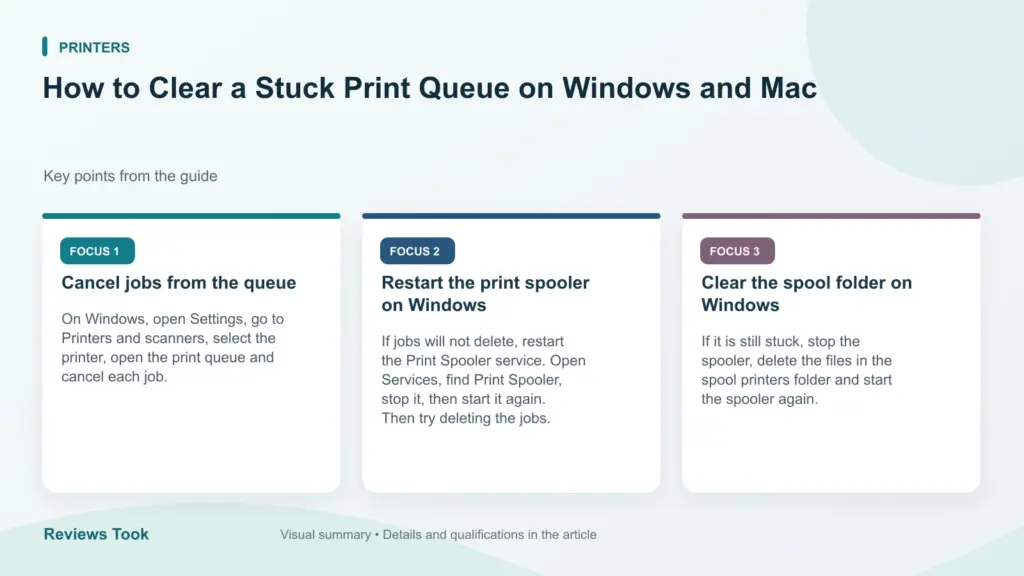
A stuck print job can block every document behind it. Sometimes the job disappears when you cancel it, and sometimes it refuses to go, even after a restart. This guide shows the quick way to clear the queue and the more thorough way, which restarts the print spooler service and deletes the stuck files.
The steps are for Windows 10 and Windows 11. You may need administrator rights for the second method.
By the Reviewstook Editorial Team. Last updated: October 31, 2026.

Why Print Jobs Get Stuck
When you print, Windows sends the document to the print spooler, a background service that stores jobs and sends them to the printer one at a time. If a job is corrupted, if the printer goes offline halfway or if the document is too large, the spooler can get stuck. Because it handles jobs in order, every other job waits behind the stuck one.
In this guide
Method 1: Cancel From the Print Queue
- Open Settings and go to Bluetooth and devices, then Printers and scanners.
- Select your printer and choose Open print queue.
- Click the stuck job, then choose Document and Cancel. Or choose Printer and Cancel All Documents.
- Wait a few seconds. If the job disappears, try printing a test page.
If the job says “Deleting” and never leaves, move to Method 2.
Method 2: Restart the Print Spooler and Delete Stuck Files
This clears every stuck job. It is safe, but it deletes all pending print jobs.
- Press the Windows key, type services and open the Services app.
- Scroll to Print Spooler, right-click it and choose Stop.
- Open File Explorer and go to C:WindowsSystem32spoolPRINTERS. Windows may ask for permission to continue.
- Delete all files inside the PRINTERS folder, but not the folder itself.
- Return to Services, right-click Print Spooler and choose Start.
- Open the print queue and confirm it is empty, then print a test page.
Method 3: Use Command Prompt
If you prefer commands, open Command Prompt as an administrator and run these three commands one at a time:
net stop spooler
del /Q /F /S "%systemroot%System32spoolPRINTERS*.*"
net start spooler
The first stops the spooler, the second deletes the files in the spool folder and the third starts the spooler again.
If the Queue Clears but the Printer Still Will Not Print
A clean queue only fixes part of the problem. Check that the printer is online, has paper and ink and is connected. Follow our printer not printing guide and how to fix a printer offline error. If the printer keeps getting stuck, update the driver using how to update a printer driver.
Why Jobs Keep Getting Stuck
- A damaged driver: reinstall or update it.
- An unstable connection: the printer drops off the network mid-job.
- Large or complex documents: try printing as a PDF or reduce the quality.
- Several programs sending jobs at once: wait for one to finish.
- Security software interfering: try allowing the print spooler.
On a Mac
On macOS, open the printer’s queue from Printers and Scanners, select the job and click the X to cancel. If a job stays, remove the printer and add it again. Our guide to setting up a wireless printer on a Mac helps.
Reading the Status Messages in the Queue
Before you delete anything, look at the Status column in the print queue. The wording often tells you why a job is not moving, and the right fix depends on it. Common messages include Printing, Spooling, Paused, Error, Offline and Deleting. They are worth understanding because clearing the queue is not always the right first move.
A job marked Paused usually means the job or the whole printer was paused. In the queue window, the Printer menu has a Pause Printing option that may be ticked. Untick it, and a paused queue often resumes by itself. An Error status often points to a problem at the printer, such as a paper jam, an empty tray or an open cover. Fix the physical problem, then check whether the job resumes.
An Offline status means Windows cannot reach the printer. Clearing jobs will not help until the connection is restored, so look at power, cables or the network first. A job stuck on Spooling for a long time may be a very large file still being processed, so give it a few minutes before you assume it is stuck.
- Paused: resume the printer or the job.
- Error: check paper, covers, ink or toner and cables.
- Offline: restore the connection, then retry.
- Deleting that never finishes: a stuck spooler, covered in the methods above.
Reading the status first saves you from deleting jobs that would have printed once a simple fault was fixed.
When the Spooler Will Not Stop
Sometimes the Print Spooler service refuses to stop, hangs on Stopping or restarts itself before you can delete files. This tends to happen when a program or driver component still holds a file open. A few steps usually resolve it without drastic measures.
First, close any program that might be printing, such as a word processor, a PDF viewer or a printer utility, and try again. If you see a prompt that stops the service, wait for it to finish. In the Services window, check the status after a short pause, because the service may take a moment to change state.
If the spooler still will not stop, restarting the computer is a legitimate fix. A restart ends the service and releases locked files, and in many cases the stuck job is cleared by the restart itself. If the job returns after the restart, stop the spooler again straight away and delete the files in the PRINTERS folder before launching other programs.
Check that you are using an account with administrator rights, since a standard account may be unable to stop services or delete the files. On a work or school computer, the device may be managed, and a policy may stop you from changing the spooler. In that case, ask the person who looks after the device rather than trying to work around the limits.
Avoid deleting files from other folders to force the issue. Only the contents of the PRINTERS folder are involved in this fix.
Stuck Jobs on Shared and Network Printers
In offices and shared homes, a stuck job can come from another computer or from a print server rather than from your own spooler. If you print to a shared printer, your document first goes to the machine hosting the printer, which queues jobs from everyone. A problem there can block your job even though your own queue looks empty.
Start by checking your own queue. If the job has left your computer and the printer still has not printed it, check the queue on the computer or server that shares the printer. Clearing the queue on that host machine, using the same methods on that machine, is usually what is needed. If you do not manage that device, ask the person who does.
Also check whether someone else’s large job is working through the queue. Jobs print in order, so a long document ahead of yours delays the rest. Waiting a few minutes is sometimes the right answer.
Network printers can also drop their connection partway through a job. If the printer has a control panel, look for a status message there, and check it still shows as connected to the network. Restarting the printer and then clearing the queue is a sensible sequence, since it resets both sides.
Be careful about deleting other people’s jobs on a shared device. Cancelling all documents removes everyone’s pending work, so tell colleagues or housemates before you do it.
Clearing a Single Problem Document
Sometimes the issue is one file, not the whole system. If the same document jams the queue every time, the file may be at fault. Rather than clearing the queue again and again, change how that document is sent to the printer.
Try saving or exporting the document as a PDF and printing the PDF. This often removes formatting quirks that confuse the driver. If a PDF viewer offers a print-as-image or similar option, that can bypass font or graphics problems, though it may print more slowly. Reducing the print quality or splitting a very large document into smaller page ranges can also help.
Check the document for unusual fonts, embedded objects or very large images. Removing or replacing them may solve a stubborn problem. If the file prints fine from a different program, the original program may be the source of the trouble.
Try printing a short test page from the printer’s properties or settings, which confirms whether the printer and driver work with a simple job. If the test page prints and your document does not, the document is the likely cause. If the test page also sticks, look at the driver, the connection or the printer itself.
Keep a note of what worked, since a repeating pattern, such as a certain program or file type, points to the cause.
Clearing Jobs Safely and Avoiding Data Loss
Clearing the print queue removes pending print jobs, not your original documents. The files in the spool folder are temporary copies prepared for printing, so deleting them does not touch the document on your computer. You will need to send the job again afterwards.
That said, a few habits keep things tidy. Make a note of what was in the queue before you clear it, especially in a shared setting, so you can resend anything that matters. Close programs that were printing so they do not resubmit the same stuck job. After clearing, print a single short document first to confirm everything works before sending a large batch.
Only delete files inside the PRINTERS folder, and leave the folder itself in place. Deleting anything else in the system folders can cause new problems. If you are not comfortable typing commands, the Services method is the gentler route, and the Command Prompt method is simply a faster version of the same steps.
If the same problem returns every few days, treat it as a sign rather than something to keep clearing. Look at the driver, the connection and the printer’s own error messages, and consider whether a recent software or system update coincided with the change. If none of that helps, the printer maker’s support pages or a technician can look at the device itself.
A Quick Checklist Before You Clear Anything
Clearing a queue is usually safe, but a few seconds of checking can save you from losing a document you still need. Before you touch the queue, work through these points in order.
- Look at the printer itself. A paper jam, an empty tray, an open cover or a low ink warning can stop a job without anything being wrong in the software.
- Check the connection. Confirm the printer is switched on, and that the cable or wireless link is working. A printer that dropped off the network will hold jobs until it returns.
- Note which documents are waiting. If a file is important and unsaved elsewhere, make sure you can print it again from the original program.
- Look at the status text. Messages such as paused, offline or error give clues about the real cause.
- Find out whether the printer is shared. On a shared printer, other people may have jobs in the same line, so cancel only your own where possible.
- Be patient for a moment. Large files and photos can sit on a status such as spooling for a while before the first page moves.
If the printer is managed by a workplace or school, follow your organization’s guidance, because some settings are locked on purpose.
A Small Glossary of Printing Terms
Printer messages use words that are rarely explained. Knowing them makes the steps in this guide easier to follow.
- Queue. The waiting list of documents sent to a printer, shown in order.
- Spooler. The background service that stores print jobs and passes them to the printer one at a time.
- Driver. The software that lets your computer talk to a specific printer model.
- Port. The connection path a printer uses, whether it is a cable, a network address or a wireless link.
- Offline. A status that means the computer cannot reach the printer, even if the printer looks fine.
- Paused. A state where jobs are held on purpose until you resume them.
- Default printer. The printer your programs choose automatically unless you pick another.
A surprising number of stuck jobs come from the default printer being set to something other than the one you meant to use, such as a saved file option or a printer that is no longer connected.
When to Stop and Ask for Help
Most stuck jobs clear with a basic restart or a simple cancel. Some situations call for more help. If you work in an office, a school or any managed network, the printer may be controlled by a server that you cannot change from your own device. In that case, contact your IT team and tell them what you see, including the exact message text and which printer is affected.
It is also wise to stop and seek guidance if the same error returns right after you clear it, if several computers show the problem at once or if the printer displays an error code. The printer maker’s support pages usually explain what each code means and what to do next. Avoid deleting system files or changing settings you do not understand, and rely on the maker’s instructions or official support for your operating system when something looks unfamiliar.
Habits That Keep the Queue From Jamming Again
A few simple routines make stuck jobs rare. Send one job at a time when you are testing a new printer or a large file, and wait for it to finish before sending the next. Keep the printer driver current by using the maker’s official downloads or your system’s update tool. Restart both the printer and the computer now and then, since a long uptime can leave services in a confused state.
Avoid sending a huge document over a weak wireless connection, because the link may drop partway through. If you often print photos, check that the paper size in the program matches the paper in the tray. A mismatch makes some printers stop and wait for you to confirm, which looks like a stuck job to everyone else in the line.
What the Spooler Folder Is Really Doing
To understand why the manual method works when the cancel button does not, it helps to know what a print job physically is. When you print, the spooler service converts your job into temporary files on disk and keeps them until the printer confirms completion. The queue window is just a view of those files. A job that refuses to cancel is usually a file the service still has open, which is why stopping the service first, then deleting the files, then starting the service again succeeds where clicking cancel fails: nothing can hold a file that its owner has released.
This also explains the order of operations. Deleting files while the service runs accomplishes little, because the service recreates or re-reads them. Restarting the computer sometimes works for the same reason the manual method works: the service stops, and on a lucky boot it discards the damaged job on its own. The manual method is simply the controlled version of that luck.
One caution belongs here: clearing the spooler deletes every waiting job for every printer on that computer, not just the stuck one. If other people share the machine, or a long job you care about is waiting behind the stuck one, resend expectations accordingly. Jobs are cheap to resend; surprise is the only real cost, and a quick warning eliminates it.
Finding the Jobs That Are Not Yours to Clear
Not every stuck queue is on your computer. On a network printer with its own internal queue, or an office printer managed by a server, jobs can be stuck in a line you cannot see from your own queue window. Your computer cheerfully reports the job as sent, because from its perspective it was: the blockage lives downstream.
The printer’s own display or its embedded web page usually shows its internal queue. If your computer’s queue is empty and the printer still will not start, check there before reinstalling anything. Clearing a printer-side queue may require the printer’s own cancel controls or, in managed offices, the person who administers the machine.
Shared home setups create a subtler version. When one computer shares its printer with the household, every job passes through that computer’s spooler. If the sharing computer sleeps or is switched off, jobs from everyone else stall in a queue that lives on a machine in another room. Waking the host computer, not the printer, is the fix, and it is missed constantly because the printer itself looks ready.
Permissions, Passwords and the Jobs You Cannot Cancel
Sometimes a job will not cancel because you do not have the right to cancel it. On shared and office systems, jobs belong to their owners, and standard accounts can typically manage only their own. A queue full of a colleague’s stuck jobs is an administrator’s task, not a sign your computer is broken.
At home this appears in miniature on family computers with multiple accounts. The job stuck at the front may belong to another family member’s session, even a session that is no longer signed in. Signing in as that user, or using an administrator account on the machine, gives you the cancel rights the queue is waiting for.
On a Mac, the equivalent gate is the administrator password requested when you try to reset the printing system. That reset is a powerful step that removes printers and their queues entirely; it is the right medicine for a corrupted printing configuration, but it means re-adding every printer afterward, so treat it as the last step rather than the first.
When Clearing Works but the Next Job Sticks Too
A queue that jams again on the very next job is telling you the original job was a symptom, not the disease. Work through the repeat offenders in order of likelihood.
The document is the first suspect if the same file jams repeatedly while others pass. Print it in smaller sections to find the page that breaks it, print it as an image from a PDF reader, or rebuild it in a fresh file. Large photographs, complex vector pages and damaged PDFs are the classic queue-breakers.
The driver is the second suspect if many different documents jam after a system update or a printer change. Remove the printer, restart, and install the maker’s current full package rather than relying on a basic driver the operating system supplied. A driver that renders jobs incorrectly can corrupt every job in the same way, which looks exactly like a queue problem until the pattern is noticed.
The connection is the third suspect, especially on Wi-Fi. A job that starts, stalls mid-way and then blocks the queue may have been cut off when the printer’s address changed or its signal dropped. Print the printer’s network page, confirm its address is stable, and reserve that address in the router so mid-job disappearances stop happening.
Preventing the Next Stuck Queue
Most stuck queues are born in a handful of habits. Printing a very large job to a printer that is off or asleep gives the spooler a job it cannot deliver and plenty of time to tangle with the jobs behind it. Confirm the printer is awake and ready before sending the big photo book, not after.
Let jobs finish before closing the laptop. A computer that sleeps or shuts down mid-job can leave a partial job in the queue that greets you at the next session as an unexplained blockage. The same applies to switching a printer off at the wall while jobs remain queued on several household computers; each of those queues keeps its own copy of the confusion.
Keep drivers and firmware reasonably current, and revisit the queue after any major operating system update, since updates are the most common moment for driver behavior to change. A monthly test print does double duty: it keeps inkjet nozzles healthy and proves the whole path, driver, queue and connection, while nothing urgent depends on it.
Clearing Queues on Phones and Tablets
Mobile printing has its own queues and its own stuck jobs, hidden inside the print service or the maker’s app rather than in a window most users ever open. When a phone insists a job is printing long after the printer has forgotten it, open the print service’s job list, on Android through the printing settings, or the app you printed from, and cancel the job there.
Mobile jobs also fail silently when the phone leaves the network: a job sent at home and carried to work in a pocket will sit in a pending state, sometimes resurfacing confusingly when the phone rejoins. Clearing old pending jobs on the phone is part of queue hygiene in a household that prints from everything.
If the whole household prints through one maker’s app, keep that app updated on every device. Queue and discovery problems are among the most common fixes in those apps’ updates, and a household where one phone runs a years-old version manufactures mysteries that the updated phones cannot reproduce.
More Questions About Stuck Queues
Does clearing the queue delete the document I was printing?
No. Clearing the queue deletes the temporary copy the spooler made for the printer. Your original document on disk is untouched, and you can print it again as soon as the queue is healthy. The only loss is the waiting jobs themselves, which is why noting what was queued, if anything important waited behind the stuck job, is a courteous step on a shared machine.
Why does the stuck job come back after I restart the computer?
Because the spooler preserved it. The service stores jobs on disk precisely so they survive interruptions, and it reloads them at startup. A restart that does not clear the underlying files returns the same blockage to the front of the line. The stop, delete, start sequence exists to break exactly that cycle.
The queue is empty but the printer still shows a job. Where is it?
In the printer’s own memory or internal queue. Cancel it from the printer’s panel or its web interface, and if it persists, power the printer off for half a minute to clear its memory. Jobs sent by other computers in the house also land in the printer’s queue without ever appearing in yours.
How often should a queue need clearing before something is actually wrong?
An occasional stuck job across months of printing is normal life. A queue that needs clearing weekly is a symptom with a cause, usually a troublesome document type, a driver due for replacement or an unstable network address. Track what precedes each jam for a few weeks and the pattern will name the culprit.
A Calm Order of Operations for Bad Days
When the queue is stuck and a deadline is not, resist the urge to try everything at once. A fixed order keeps the situation recoverable at every step. First, look at the queue and write down the jobs in it, so nothing anyone needs is silently lost. Second, try cancelling the stuck job normally and give the printer a full minute to respond; queues sometimes clear slowly rather than not at all.
Third, cancel all jobs if the single cancellation fails. Fourth, restart the printer itself and check its panel for a job held in its own memory. Fifth, use the spooler stop, delete and start method on the computer. Sixth, print a test page, then the simplest waiting document, and only then the document that caused the trouble, so that if it jams again you learn that immediately and in isolation.
That order is deliberately boring. Each step eliminates a layer, and skipping to the aggressive steps first, resetting the printing system or reinstalling drivers, destroys evidence and creates setup work you may never have needed. Most stuck queues surrender by step three; nearly all of the rest by step five.
Understanding Spool Settings: Print Directly, and Other Temptations
Windows printer properties include spooling options, including printing directly to the printer without spooling. It is occasionally suggested as a queue fix. Understand the trade before using it: without a spooler, the application must feed the printer at the printer’s speed, which ties up the application for the whole job and removes the queue’s ability to manage several jobs. For a single-user machine with a chronic spooler problem it can be a diagnostic, printing one job directly proves whether the spooler is the broken layer, but it is rarely the right permanent setting.
The related option to keep printed documents in the queue is genuinely useful in offices, where reprinting a job from the queue beats recreating it, and genuinely risky on shared machines, where it preserves a copy of everything printed. Know which way your machine is set before troubleshooting surprises in either direction.
On the Mac side, the printing system’s reset is the equivalent deep setting. It removes all printers, queues and presets. Used deliberately, it cures corrupted configurations that survive every gentler step. Used casually, it costs you the re-setup of every printer you own. Reserve it for queues that jam again immediately after the standard clearing methods, with a known-good document and a current driver.
Stuck Queues in Small Offices
An office queue multiplies the home problem by the number of people sending jobs. One damaged job from one workstation can block a department, and the person who sent it may have gone to lunch. Office discipline starts with naming: most print servers show the job’s owner and document name, so the fastest fix is often a short walk to the owner’s desk rather than administrative force.
Administrators can reduce the drama structurally. A separate queue for the large-format or photo printer keeps experimental jobs away from the everyday document flow. Keeping drivers uniform across workstations prevents the one oddly configured machine that generates the monthly blockage. And a short printed note near the printer, explaining how to cancel your own job from the queue window, resolves a surprising share of incidents before they become tickets.
Where jobs are confidential, remember that a stuck queue displays document names to anyone who opens the window. Clearing a jam promptly is not only a productivity habit in an office; it is basic information hygiene.
Will clearing the queue fix a printer that prints gibberish?
It clears the gibberish that is already waiting, which is worth doing, but the cause of gibberish is usually a driver mismatch: the computer is speaking a printer language the machine interprets badly. Clear the queue, then check that the driver matches the exact model, and reinstall the maker’s package if pages of symbols return. The queue was the messenger, not the author.
After the Fix: Proving the Queue Is Healthy
Do not declare victory on the strength of the queue window looking empty. Prove the path end to end: send the operating system’s test page, then a short real document, then, if the original troublemaker matters, that document again on its own. A queue that handles three jobs in a row, including the one that jammed it, is fixed. A queue that jams again on the original document has given you a clean, reproducible case, and the document, not the queue, becomes the project.
If the jam returns with different documents, the driver and connection checks described earlier move to the front. Keep a brief note of what you cleared and what jammed next; two incidents with notes are worth ten remembered vaguely, especially if the machine is under warranty and a support conversation is coming.
Finally, tell anyone who shares the printer what happened and which jobs were discarded. The human half of queue clearing is the part most often skipped, and it is why cleared queues have a reputation for eating documents that were, in fact, announced and resendable all along.
Can a stuck queue damage the printer?
No. A stuck queue is a software traffic jam on the computer side; the printer simply waits, or holds a partial job in memory until it is cancelled or the machine is switched off. No mechanical wear follows from jobs waiting. The only real costs are time, confusion and, on shared machines, other people’s delayed work, which is reason enough to clear jams promptly and to fix the pattern if they recur.
Likewise, clearing a queue cannot damage your computer. The spooler files are temporary by design, and the service recreates its working state when it restarts. The methods in this guide are the same ones support technicians use, which is why they are worth learning once and reusing calmly.
One prevention habit deserves emphasis because it is free: pause before printing the enormous job. A several-hundred-page document or a batch of full-resolution photographs is where queues go to die, especially over Wi-Fi to a printer that may sleep mid-job. Send large work in sections, confirm the first section lands, and keep the computer awake until the last page is out. The queue you never have to clear is the one that never jams.
Why did only some of my queued jobs disappear when I cleared the queue?
Because queues exist in more than one place. Jobs you cancelled from your computer’s window were in your spooler; jobs sent from your phone, or from another household computer, live in their own queues and in the printer’s memory. Clearing one queue cannot reach the others. When a phantom job prints later, it almost always comes from a queue you did not clear, so check phones, other computers and the printer’s own panel before assuming the blockage survived.
Keep this guide’s order somewhere near the printer if the machine is shared. The next stuck queue will belong to someone else half the time, and a calm sequence on paper beats a household folklore of random restarts.
With practice, the whole sequence takes under five minutes, and most of that is waiting for services and printers to restart.
Calm, in order, one step at a time: that is the whole technique.
Frequently Asked Questions
Is it safe to delete files in the PRINTERS folder?
Yes, when the Print Spooler is stopped. It only deletes pending jobs.
Why does the job say “Deleting”?
The spooler is stuck. Restart it and delete the stuck files.
Do I need administrator rights?
Yes, for stopping the spooler and deleting the files.
Will clearing the queue fix an offline printer?
No. It only removes jobs. See the offline guide.
Does clearing the print queue delete my original document?
No. The queue holds temporary copies prepared for printing. Your original file stays where it is, and you can send it to the printer again.
Why does my print job reappear after I delete it?
The program may be resubmitting it, or the stuck file may still be in the spool folder. Close the program, stop the Print Spooler, delete the files in the PRINTERS folder and start the service again.
What does a Paused status mean in the print queue?
It means the job or the printer was paused. Check the Printer menu in the queue window and untick Pause Printing, or resume the job.
Can a large file block the queue?
Yes. A very large or complex file can take a long time to spool or can fail midway, holding up the jobs behind it. Printing as a PDF or splitting the document can help.
Do I need to restart the computer after clearing the queue?
Usually not. If the spooler will not stop or the job comes back, a restart can release locked files and is a reasonable fix.
Why is the queue empty but nothing prints?
The problem may be the printer, the connection or the driver rather than the queue. Check that the printer is online, has paper and ink or toner, and is correctly connected.
Is it safe to cancel all documents on a shared printer?
It is safe for the system, but it removes everyone's pending jobs. Tell other users first so they can resend anything they need.
Bottom Line
Cancel jobs from the queue first. If that fails, stop the Print Spooler, delete the files in the PRINTERS folder and start it again. Then check the connection and the driver so the problem does not return. See our printer not printing guide.
Related Reading
- Types of Printers Explained: Inkjet, Laser, Ink Tank and More
- 7 Best Wireless Printers for Home Use
- How to Print Envelopes at Home (Settings and Tips)
- How to Print From a Chromebook (Add a Printer Step by Step)
- How to Print From Android Phone (Mopria and Print Service)
More Printer Guides
- Best Printers for Home Use
- How to Fix a Printer Offline Error
- How to Connect a Printer to WiFi
- Printer Terms Explained

