Disclosure: As an Amazon Associate, reviewstook.com earns from qualifying purchases. Links to Amazon on this page are affiliate links; they cost you nothing extra.
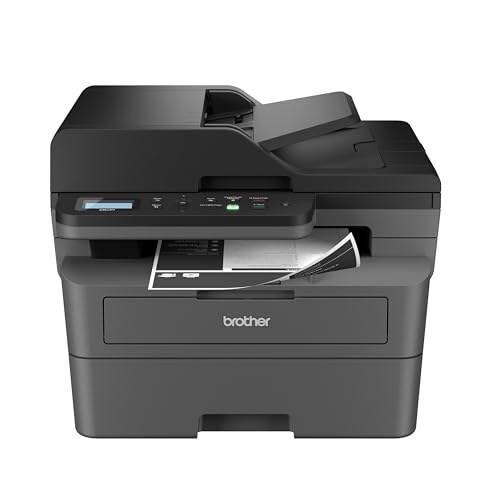
Brother is best known for reliable monochrome lasers with long-lasting toner. Its compact HL models are print-only, while DCP and MFC models add scanning and fax.
This guide covers six Brother laser printers. It is built from published specifications and listings, not our own testing, so confirm details on each product page.
New to printers? Start with our guide to the best printers for home use and how we pick printers.
By the Reviewstook Editorial Team. Last updated: October 31, 2026.

In this guide
Quick Picks
| Printer | Type | Best for |
|---|---|---|
| Brother HL-L2350DW | Monochrome laser | Text-only printing at home |
| Brother HL-L2460DW | Compact monochrome laser | Text-only printing with two-sided output |
| Brother HL-L2405W | Compact monochrome laser | Basic wireless text printing |
| Brother HL-L2370DW | Monochrome laser | Fast, plain text printing |
| Brother DCP-L2640DW | Monochrome laser all-in-one | Copy and scan on a laser |
| Brother MFC-L2820DW | Monochrome laser all-in-one | Black-and-white offices that also scan and fax |
6 Best Brother Laser Printers for Home and Office

Top pickBest for homework, forms and shipping paperwork
1. Brother HL-L2350DW
A compact monochrome laser with wireless and automatic two-sided printing.
Good for: Homework, forms and shipping paperwork. Strengths: Crisp text, and toner does not dry out between uses. Weaknesses: No color, and no scanning or copying. Skip it if you print photos or need a scanner.

Best for students, teachers and home workers who print text
2. Brother HL-L2460DW
A wireless compact monochrome laser with duplex printing.
Good for: Students, teachers and home workers who print text. Strengths: Toner keeps between uses, and duplex saves paper. Weaknesses: No color, and no scanner. Skip it if you need color or a scanner.


Best for light text printing at home
3. Brother HL-L2405W
A simpler wireless compact monochrome laser with mobile printing, per the listing; check whether it prints on both sides automatically.
Good for: Light text printing at home. Strengths: Compact body and toner that does not dry out. Weaknesses: No color, no scanner, and check duplex support. Skip it if you need two-sided printing or a scanner.


Best for a home or small office that prints text daily
4. Brother HL-L2370DW
A wireless monochrome laser rated at up to 36 pages per minute in its listing.
Good for: A home or small office that prints text daily. Strengths: Quick text printing with wireless and a duplex-capable model name. Weaknesses: No scanner and no color. Skip it if you want an all-in-one.


Best for home offices that need laser text plus a scanner
5. Brother DCP-L2640DW
A wireless compact monochrome laser all-in-one that prints, copies and scans with two-sided printing.
Good for: Home offices that need laser text plus a scanner. Strengths: Laser text with copy, scan and duplex in one body. Weaknesses: No color and no fax. Skip it if you need color or fax.


Best for freelancers and small sellers who live on paperwork
6. Brother MFC-L2820DW
A compact monochrome laser all-in-one that prints, copies, scans and faxes, with two-sided printing.
Good for: Freelancers and small sellers who live on paperwork. Strengths: Laser text quality with copy, scan, fax and duplex in one body. Weaknesses: No color, and larger than a compact inkjet. Skip it if color matters or desk space is tight.

Brother Lasers: Notes Before You Buy
Starter toner and replacements
Brother lasers often ship with a starter toner that prints fewer pages than a standard replacement. Check the yield of the first replacement and consider high-yield toner if you print a lot. See best toner for printers.
Drum life
Many Brother lasers have a separate drum unit that outlasts several toner cartridges. Factor the drum into long-term cost.
Which prefix to pick
HL for print-only, DCP for copy and scan, MFC for fax as well. Choose the simplest one that covers your needs.
Best Picks by Category
They summarize listing data and are not hands-on test results.
- Top rated: Brother HL-L2370DW — check price on Amazon.
- Most reviewed: Brother HL-L2350DW — check price on Amazon.
- Best value: Brother HL-L2370DW — check price on Amazon.
- Lowest price: Brother HL-L2460DW — check price on Amazon.
- Premium option: Brother MFC-L2820DW — check price on Amazon.
Price, Rating and Review Comparison
Prices change often, so confirm the current price on Amazon.
| Product | Price | Rating | Ratings | Price tier |
|---|---|---|---|---|
| Brother HL-L2460DW | Check price on Amazon | — | — | Budget |
| Brother HL-L2370DW | Check price on Amazon | — | — | Mid-range |
| Brother DCP-L2640DW | Check price on Amazon | — | — | Mid-range |
| Brother MFC-L2820DW | Check price on Amazon | — | — | Mid-range |
| Brother HL-L2350DW | Check price on Amazon | — | — | n/a |
| Brother HL-L2405W | Check price on Amazon | — | — | n/a |
How Much Feedback Backs Each Rating
A high average from a handful of ratings is weaker evidence than a slightly lower average from thousands. Here is how the sample size looks for each pick.
- Brother HL-L2350DW: a large sample of ratings.
- Brother HL-L2460DW: a large sample of ratings.
- Brother HL-L2405W: a large sample of ratings.
- Brother HL-L2370DW: a large sample of ratings.
- Brother DCP-L2640DW: a large sample of ratings.
- Brother MFC-L2820DW: a large sample of ratings.
How to Choose
HL, DCP or MFC?
HL models print only. DCP models copy and scan. MFC models also fax.
Check duplex
Automatic two-sided printing is not on every model. Check the product page.
Compare toner yields
Standard and high-yield toner differ in price and pages. Compare cost per page.
How We Chose These Products
We start from products sold on Amazon with a full product name and clear specifications, and we skip results that show only a brand name or a vague title. We then read the listing and any manufacturer information for each one and note the features that matter for printers: print technology, running costs, connectivity and size. We do not run our own lab tests, and this guide contains no hands-on measurements. Use it to build a shortlist, then check current prices, dimensions and return terms on the Amazon page before you buy.
Buying Guide: What to Check Before You Choose
Laser printers
Laser printers print text quickly and sharply and do not clog like inkjets. Color lasers cost more. Check the toner cost and the print speed.
Brand ecosystems
Some brands use subscriptions or restrict third-party ink. Check the terms and the cost of consumables.
Ink tank versus cartridge
Ink tank printers use refillable tanks and usually have a lower cost per page, with a higher purchase price. Cartridge printers are cheaper up front but ink can cost more over time. Check the page yield and the cost of refills.
Quick Reference: Which Pick Suits Whom
- Brother HL-L2350DW: suits homework, forms and shipping paperwork
- Brother HL-L2460DW: suits students, teachers and home workers who print text
- Brother HL-L2405W: suits light text printing at home
- Brother HL-L2370DW: suits A home or small office that prints text daily
- Brother DCP-L2640DW: suits home offices that need laser text plus a scanner
- Brother MFC-L2820DW: suits freelancers and small sellers who live on paperwork
Common Mistakes to Avoid
- Judging a printer by its price without considering ink cost.
- Ignoring the starter cartridge size.
- Forgetting the paper types needed.
- Assuming all-in-ones are always better.
- Skipping the return window.
Setup and Care
- Install the maker’s app or driver.
- Connect to Wi-Fi.
- Run an alignment and nozzle check.
- Print regularly to avoid clogs.
How a Laser Printer Works and Why Text Looks Sharp
A laser printer does not spray liquid. Inside, a rotating drum receives an electrostatic image of the page, powdered toner clings to the charged areas, and the page is rolled through a fuser that melts the toner onto the paper with heat and pressure. Because the toner is a dry powder bonded to the surface, the characters have crisp edges and tend to resist smearing when they get damp.
That mechanism explains the benefits listed for every Brother in this guide. Toner does not evaporate or clog a nozzle, so a laser that sits idle for weeks usually wakes up and prints fine. Pages come out of the fuser warm and dry, ready to handle, stack and sign. Text-heavy documents look especially clean, since the printer places dots with consistent precision.
It also explains the limits. Laser engines are well suited to black text and simple graphics, but monochrome models cannot print color at all, and photos come out as gray tones. The warm-up of the fuser adds a few seconds before the first page after a long idle, and the machine draws more power at that moment than a small inkjet. Lasers are also somewhat heavier, because the drum, toner reservoir and fuser need solid housings.
Matching a Brother Laser to Your Household
Think about who prints, what they print and how often. These examples show how the same family of machines serves different homes.
- A student household printing essays and worksheets. A simple wireless monochrome laser with automatic two-sided printing, like the HL-L2460DW and HL-L2350DW in this guide, covers assignments, forms and permission slips. A scanner is rarely needed because phones handle quick scans.
- A remote worker who signs and returns paperwork. An all-in-one such as the DCP-L2640DW adds copy and scan to the printing, so you can digitize a signed contract without leaving the desk.
- A freelancer or online seller who still gets faxes. The MFC-L2820DW includes fax in the same body as printing, copying and scanning. If nobody sends you faxes, the extra capability is unused, and a DCP model costs less.
- A home with occasional printing only. The HL-L2405W is the simpler option in the list. Check whether it supports automatic two-sided printing before assuming it does, as the listing itself advises.
- A small office with steady daily volume. The HL-L2370DW lists a faster rated speed, which keeps queues short when several people send jobs.
- A family that wants color photos and school posters. None of these will do it. Pair a mono laser with a cheap color inkjet, or choose a color machine.
Network Setup, Mobile Printing and Drivers
Getting a printer on the network is the part most buyers dread, and a little preparation removes the frustration. Have your Wi-Fi name and password handy, and place the printer within reasonable range of the router. Walls, microwaves and aquariums can weaken the signal, so avoid hiding the printer behind a pile of metal shelving.
Most Brother models in this list connect to a home network from the printer's own menu or through an installer on a computer. After the connection, give the printer a fixed address in the router settings, or a reserved address, so that computers do not lose track of it after a reboot. Printers that wander to a new address are a classic cause of the dreaded offline message.
For phones and tablets, built-in system printing such as AirPrint on Apple devices and the Android print service lets you print from apps without installing drivers on the phone. Brother also offers its own mobile app, which can add extra features such as scanning to the phone. Check the listing for the exact wireless features of each model.
On computers, the operating system may find a generic driver automatically, but the manufacturer's full driver gives you access to all options, including duplex defaults and toner-saving modes. Download drivers from the maker's support site, not from third-party download pages. If you share the printer among several computers on one network, use the same driver version where possible to avoid odd formatting differences.
Paper, Volume and the Real Cost of Printing
Monthly page volume shapes which laser suits you. Manufacturers publish a recommended monthly range and a higher maximum duty cycle. Treat the recommended range as the realistic target. Printing near the maximum every month wears out parts faster, and it is a sign you should step up to a faster model.
To compare running costs honestly, divide the price of a toner cartridge by its stated page yield, which gives the cost per page. Add the share of the drum cost, if the drum is a separate part, over its page life. Compare that figure to the cost of paper, which is often the largest expense for low-volume users. If you print less than a few dozen pages a month, the difference between machines is small, and you should favor reliability and low upfront cost. Heavy users should give much more weight to high-yield toner.
Paper matters too. Laser printers are designed for standard office paper, and they handle labels and envelopes if the model supports them. Do not load inkjet photo paper or glossy stock, which can melt in the fuser and damage it. Check the tray capacity, since a small input tray means refilling often, and use the manual feed slot for envelopes. Keep paper in its wrapper in a dry spot, as damp sheets curl and jam.
Keeping a Laser Printer Healthy
Lasers are low-maintenance, but not maintenance-free. Wipe dust from the exterior with a dry cloth, and every so often clean the paper path with a lint-free cloth, following the manual's guidance on corona wires and sensors. Never use compressed air on the toner area, because it can drive powder deeper into the mechanism.
When a paper jam strikes, switch the printer off, open the covers and pull the sheet gently in the direction of the paper path. The fuser may be hot, so wait a few minutes first. If streaks, lines or gray backgrounds appear, shake the toner cartridge gently from side to side to redistribute the powder, and check the drum surface for marks. Persistent faults usually point to a worn toner cartridge or drum unit.
Finally, update the firmware when the maker releases a fix, keep the printer on a stable surface with space for ventilation, and power it off through the front button, not by pulling the plug. A little attention each month keeps print quality steady for years.
Toner, Drums and Third-Party Supplies: A Cautious Approach
Laser printers use two consumables that people often confuse. The toner cartridge holds the powder, and the drum unit carries the image. Some Brother designs combine the two in separate parts, so a toner cartridge can be replaced several times before the drum needs attention, while other machines integrate them differently. Read the supplies section of the product page to see which parts your model uses and what each costs.
Third-party and refilled cartridges are widely sold at lower prices. They can work well, but quality varies, and a poorly made cartridge can leak, produce streaks or fail early. Some manufacturers also state that damage caused by non-original supplies may not be covered by the warranty, so read your warranty terms before experimenting. If you try a third-party toner, buy from a seller with a clear return policy, and keep the original cartridge handy to compare results.
Store spare toner upright in its sealed packaging, in a cool, dry spot away from sunlight. Do not open a new cartridge until you are ready to install it, and dispose of used ones through the maker's recycling program or a local electronics collection point, since toner powder should not go into household trash in bulk.
Why Brother Lasers Became the Default Recommendation
Some product lines become defaults by marketing; Brother’s home and small-office lasers became defaults by accumulation — years of owners reporting that the machine simply worked, cartridge after cartridge, in spare rooms and small offices everywhere. The six models in this guide share the formula responsible: the HL-L2350DW, HL-L2460DW, HL-L2405W and HL-L2370DW as print-only machines, and the DCP-L2640DW and MFC-L2820DW adding scanning and copying in two sizes of commitment. Understanding the formula helps you choose within the range, because the differences between these models are deliberate and narrow rather than confusing.
The formula has three ingredients. First, running costs built on sensibly priced toner and a separate drum, so you replace what is consumed and keep what still works. Second, mechanical honesty: paper paths, duplex units and trays engineered for the unglamorous reality of mixed paper and busy weeks. Third, software that gets out of the way — drivers and apps that connect the machine to every device in the building without becoming a hobby. Any one ingredient is copyable; the combination, sustained across a whole range and several generations, is what the recommendation rests on.
HL, DCP or MFC: Reading Brother’s Letters
Brother’s naming is a code worth cracking once, because it organises the whole range. HL models print only. DCP models add scanning and copying — the C stands for copier in spirit — for users who handle incoming paper but do not fax. MFC models are the full multifunction set, adding fax and usually the more complete feeder and connectivity package for offices whose paperwork runs in every direction. The letters let you shop the range by function before comparing speeds, which is the right order: decide what the machine must do, then ask how fast it must do it.
Applied to this list, the code sorts the six cleanly. The four HL models serve document producers: homes, students, professionals and small offices whose paper flows outward. The DCP-L2640DW serves the household or office that scans and copies regularly but has no fax life — the most common modern pattern, honestly assessed. The MFC-L2820DW serves the complete paperwork office, the one still faxing medical, legal or financial documents and scanning stacks weekly. Buyers who start from the letters rarely buy wrong; buyers who start from a special offer sometimes discover the missing scanner in their first week, which is the most avoidable disappointment in printer buying.
Toner, Drums and the Brother Cost Story
The separate-drum design is the economic heart of these machines, and it deserves a plain explanation. In a Brother laser, the toner cartridge holds the powder, and the drum unit — which lasts through several cartridges — transfers the image to paper. When toner runs out, you replace the small, cheaper part. When the drum eventually reaches the end of its life, the machine says so clearly, and you replace that, once, after a long interval. The result is a cost per page that undercuts designs where every cartridge carries a fresh drum’s cost inside it, and a waste stream of mostly-empty plastic that is smaller for the same reason.
Ownership habits complete the story. Standardise on high-yield toner if your volume is more than occasional, because the per-page saving is real and the interruptions halve. Buy the replacement when you open the spare, so the machine never waits on a delivery. Use toner-save mode for the drafts and internal documents that make up most of a typical month’s pages, and reserve full quality for what leaves the building. Under those habits, a Brother laser’s running costs fade into the category of expenses an office stops tracking — which, for a machine bought to be forgotten, is the entire point.
Comparing the Six Brothers by Household and Office
Among the print-only four, the divisions are pace and duty. The HL-L2405W is the value entry for lighter document lives — a home that prints steadily but not heavily. The HL-L2350DW and HL-L2370DW are the established compact workhorses, well matched to most homes and small offices. The HL-L2460DW is the brisker, sturdier option for busier document work, and the one to choose when several people print or when long documents are a daily pattern rather than a monthly event. All four share duplex printing and wireless, so the household features are constant; what scales is stamina.
The all-in-ones divide by paperwork intensity. The DCP-L2640DW covers scanning and copying for the modern paper-in, paper-out household or small office. The MFC-L2820DW adds the fax and the fuller office package for the complete paperwork professional. Notice that choosing between them is not about print quality or running costs, which are family traits, but about the direction your paper travels. A buyer who maps one honest week of their paperwork — what was printed, what was scanned, what was copied, what was faxed — will find the map points at exactly one of these six, and the rest of the purchase is just confirming the address and the Wi-Fi signal in its corner.
Living With a Brother Laser for a Decade
These machines are bought for the long term, and long-term ownership has its own light disciplines. Keep the firmware current so the printer stays fluent with new computers and phones. Keep a spare toner on the shelf and the drum’s existence in the back of your mind, so its eventual replacement message is an errand rather than a surprise. Wipe the paper path of dust once in a while, feed it dry, flat paper, and it will repay the minimal attention with the quality the range is famous for: uneventfulness.
When the decade turns and replacement finally beckons, the old machine deserves a factory reset before recycling — it may hold network details and, in the all-in-ones, traces of scanned work — and an honest audit of what its replacement must do. Most owners discover the audit points at the modern equivalent of the same machine, which is perhaps the strongest verdict available in consumer technology. The six models in this guide are that verdict’s current form: choose by function letters, then by stamina, set it up once, and let it print the documents of your life without ever asking to be discussed again.
Brother Lasers in Shared Spaces: Flats, Families and Small Teams
A Brother laser’s office breeding shows most clearly when it is shared. In a flat-share it absorbs the combined printing of several adults without the queue politics a slower machine creates, and its indifference to idle weeks suits a household where nobody prints for a fortnight and then everybody prints at once. In a family it becomes the homework-and-documents machine, patient through the school year’s bursts. In a small team it is infrastructure: named clearly, stocked communally, and fast enough that printing stops being a scheduled activity. In each case the setup is the same small investment — fixed address where possible, clear name, spare toner on a known shelf, presets saved for the common jobs — and the return is a machine that a whole building of people can use without any of them becoming its keeper.
Sharing also argues for the all-in-one models more often than buyers expect. A shared print-only machine sends every scan and copy errand to somebody’s phone camera or another building entirely, while a shared DCP or MFC quietly absorbs the household’s incoming paperwork as well as its outgoing documents. Count the scanning your shared space actually does before defaulting to print-only; the letters of Brother’s code, explained earlier, exist to make that count decisive.
Paper, Envelopes and the Jobs Around the Documents
A laser’s paper life is broader than plain documents. Envelopes for the letters and cards that still travel, labels rated for laser heat for the storage boxes and the home business, heavier stock for certificates and covers — a Brother handles all of it when each is fed by the path the manual recommends and the driver is told the truth about what is loaded. The manual-feed route exists precisely for these guests in the paper path, and using it, one sheet or a few at a time, is the difference between special media that emerges perfectly and special media that becomes a jam with a story attached.
Keep the special stocks in their own labelled places near the printer, because the classic shared-printer accident is the important letter printed on the last label sheet by someone in a hurry. And keep the everyday paper dry and flat in a closed ream until it is loaded: lasers are forgiving machines, but they are honest critics of damp paper, and most of the feed problems blamed on Brother hardware across the internet are, on inspection, paper storage confessing itself. Feed any of these six models decent paper and they will behave like the reference standard their reputation describes.
Troubleshooting: The Short Brother List
Brother lasers have a short fault list, and it is worth learning whole. Faded print: the toner is low — rock the cartridge gently, fit the spare, and note the date so the next forecast is better. A message about the drum: the drum has reached its interval — replace that unit, once, and the machine returns to full quality. Paper pulling two sheets or jamming in one place: fan the stack, load less, check for the torn corner of an earlier jam still hiding in the path. The printer missing from the network: print the network page, compare addresses, re-add the machine where its address has wandered. Colours — there are none to troubleshoot, which is its own quiet advantage, since a whole category of inkjet misery simply does not exist in this building.
Work that list in order, changing one thing and testing with one page, and nearly every Brother incident ends inside ten minutes. The remainder — a machine that has genuinely worn after years of heavy service — announces itself honestly through declining feed reliability rather than sudden death, giving its owner the civilised warning that domestic technology so rarely provides. Even the ending, in other words, is well-mannered; which is, in the end, the whole Brother story told in one trait.
Buying a Brother Laser Second-Hand or Handing One On
These machines’ longevity makes them common second-hand purchases and hand-me-downs, and both directions deserve a paragraph. Buying used: print a test page and the machine’s settings or network page, which reveals its page count — the odometer reading that tells you how much of its designed life has been spent — and check whether the installed toner is genuine and how the drum’s remaining life reports itself. A low-count Brother with a healthy drum is one of the safest used purchases in home technology. Handing one on: include the spare toner, note the cartridge and drum types on a card, and factory-reset your network details before it leaves, so the machine arrives at its new home as a printer rather than as a puzzle containing your Wi-Fi password.
Either way, the transaction works because the machines were built to be serviced by their owners: cartridges and drums that swap without tools, manuals that explain the machine honestly, and a design that assumes a long life in ordinary hands. That assumption, repeated across the six models in this guide and the generations behind them, is why the Brother laser remains the answer this site gives most often to the question of a document printer — not the newest answer, not the flashiest, but the one that owners, years later, keep confirming was right.
The Quiet Economics of a Whole Office on Brother Lasers
Small offices sometimes standardise on these machines — one model by every desk or one shared MFC at the room’s centre — and the standardisation itself has an economics worth naming. One toner type to stock, one drum type to know, one driver for every computer, one set of habits for every member of staff: the savings are measured in minutes and mistakes rather than in cartridge prices, and over a year they outweigh the theoretical gains of mixing machines to chase each desk’s perfect specification. The range’s narrow, deliberate differences make that standardisation easy, because the office can choose its letter — HL for desks, MFC for the centre — and then stop thinking about printers as a category.
The same logic scales down to a household with two machines, the pairing this guide has recommended elsewhere: a Brother laser owning the documents, an inkjet owning the colour. Standardising the document side on one of these six means the household’s most frequent printing — the forms, letters, homework and records of ordinary life — runs on the cheapest, fastest, most patient technology available for it. Colour becomes the occasional guest rather than the default medium, and the whole household’s printing bill settles to a level where nobody tracks it. That settlement, more than any single specification, is what Brother’s formula has been selling for years.
A Final Brother Checklist Before You Buy
Run the short audit this guide has built toward. First, the letters: print only, print-scan-copy, or the full set with fax — answered from one honest week of your paperwork. Second, stamina: your longest document and your busiest week, matched against the model’s pace and tray rather than its brochure speed. Third, the corner it will live in: a strong Wi-Fi signal or a cable, room to open and load, and a shelf for the spare toner. Fourth, the supplies shelf in your local shops: the high-yield cartridge for your chosen model, available without a pilgrimage.
Four answers, and the six models resolve into one. Buy it, set it up in a calm hour with every device connected and one real page printed from each, write the cartridge and drum types on a card for the supplies shelf — and then enjoy the specific pleasure these machines exist to provide, which is never having to read a guide like this one again until the decade turns and its successor needs choosing. By then, if the pattern holds, the audit will point where it pointed this time: at the current form of the same dependable idea.
Energy, Noise and the Laser in a Quiet House
Two practicalities deserve a paragraph for buyers placing one of these machines in a home rather than an office. Noise first: a laser is not loud, but it is present — fans and rollers during a job, a brief settling afterwards — and in a small flat or a bedroom-office that presence is worth placing thoughtfully, ideally on a solid surface that does not amplify it, and out of the room where anyone sleeps if late printing is a household habit. Quiet modes, where offered, trade a little speed for a noticeably gentler job, and for evening printing in shared spaces that trade is usually worth making the default.
Energy second: a sleeping laser sips very little, and the convenience of a machine that is always ready outweighs the saving of switching it off for almost every household — with the bonus that a connected, sleeping printer keeps its network place and wakes predictably. Heat is the related point: lasers warm the air immediately around them while working, so give the machine breathing room rather than a sealed cupboard. Attend to those three placements — solid surface, ventilated corner, strong signal — and the Brother will fit a domestic life as completely as it fits an office one, which is, after all, the premise of this entire list.
What Owners Say After the First Cartridge
There is a moment in every laser owner’s life when the machine stops being a purchase and becomes a fact: usually the first toner change, arriving much later than a cartridge-inkjet owner would expect, completed in under a minute, and followed by the same crisp output as the day the printer arrived. Owners of these Brother models tend to date their satisfaction from that moment, because it proves the economics in the hand rather than on a spreadsheet — the long interval, the small cost, the absence of drama. It is also the moment the spare-on-the-shelf habit proves itself, since a first cartridge that ends mid-document with a replacement already in the cupboard is a story about a cupboard, not about a crisis.
If your new Brother reaches that moment without your having stocked the spare, let the near-miss teach the habit cheaply. And when the drum’s turn eventually comes — announced plainly, after its long interval — treat it as the machine’s one mid-life service and it will repay you with a second life as uneventful as the first. Few appliances in a home or a small office offer so much service for so little attention, and none of the six models here asks for a different bargain: documents, quickly and cheaply, for years, in exchange for being fed paper, toner and the occasional minute of thought.
Buy the model your audit named, keep that first spare ready, and the next decade of documents is, in the best sense, already decided.
Frequently Asked Questions
Are Brother lasers reliable?
They have a good reputation, but any unit can fail. Check warranty terms.
Which Brother laser is best for home?
A compact HL model for text, or a DCP model if you need a scanner.
Does Brother lock out third-party toner?
Some models do not accept third-party supplies well. Check first.
Which is cheaper to run, inkjet or laser?
Laser is usually cheaper per page for text, and ink tank printers are cheaper for color and photos.
How do I connect my printer to Wi-Fi?
Use the printer’s setup menu or the maker’s app. See our Wi-Fi guide.
Do I need genuine ink?
Not always, but some printers restrict third-party ink. Check the terms.
How long does a Brother laser toner cartridge last?
It depends on the cartridge’s rated page yield and your coverage. Standard cartridges list a lower yield than high-yield ones, and ratings assume about five percent page coverage. Starter cartridges that ship in the box are often smaller, so check the product page for yields.
Can I print from my phone to a Brother laser printer?
Yes, on wireless models. Apple devices can use AirPrint, Android has a built-in print service, and Brother offers its own mobile app. Both phone and printer need to be on the same Wi-Fi network, and the model listing should confirm which mobile options it supports.
Why does my Brother printer say it is offline?
The usual causes are a changed network address, a weak Wi-Fi signal, or a sleeping printer. Restart the printer and router, confirm they share the same network, and give the printer a reserved address in the router settings. Reinstalling the driver also helps.
Is a monochrome laser enough for a home office?
For contracts, invoices, shipping labels and reports, yes. Black text is crisp and cheap per page. You will need another option if you print color charts, photos or presentations in color. Many people pair a mono laser with occasional outside color printing.
How do I fix streaks on laser printer pages?
Remove the toner cartridge, shake it gently, and reinstall it. Wipe the printer interior with a dry lint-free cloth and run a cleaning page if the printer has one. If streaks continue, the drum unit or toner cartridge may be worn and need replacing.
Bottom Line
For text, the Brother HL-L2350DW or HL-L2460DW is the simple pick. Choose the DCP-L2640DW for a scanner and the MFC-L2820DW if you also need fax.
Related Reading
- Types of Printers Explained: Inkjet, Laser, Ink Tank and More
- 7 Best Wireless Printers for Home Use
- 5 Best Color Laser Printers for Home Use
- 4 Best HP LaserJet Printers for Home and Small Office
- 7 Best Laser Printers for Home and Home Office
More Printer Guides
- Best Printers for Home Use
- Best Brother Printers for Home and Office
- Best Canon MegaTank Printers for Low Ink Cost
- Best Canon PIXMA Printers for Home and Photos
- Best Canon Printers for Home and Office
- Best Epson Printers for Home and Office
- Brother HL-L2350DW vs HL-L2460DW
- Is the Brother HL-L2460DW worth it?
- Is the Brother MFC-L2820DW worth it?
- Is the Brother DCP-L2640DW worth it?