Disclosure: As an Amazon Associate, reviewstook.com earns from qualifying purchases. Links to Amazon on this page are affiliate links; they cost you nothing extra.
Laser printers earn their place at home when you print text regularly or leave the printer idle for weeks. Toner does not dry out the way ink can, and text tends to look sharp.
This list covers seven laser models for home and home-office use. It is built from published specifications, not hands-on testing, so confirm each model on its product page.
New to printers? Start with our guide to the best printers for home use, then come back here for the details.

In this guide
Quick Picks
| Printer | Type | Best for |
|---|---|---|
| Brother HL-L2350DW | Monochrome laser | Text-only printing at home |
| Brother HL-L2370DW | Monochrome laser | Fast, plain office printing |
| HP LaserJet M207dw | Monochrome laser | Compact text-only laser printing |
| Brother MFC-L2820DW | Monochrome laser all-in-one | Black-and-white offices that also scan and fax |
| HP LaserJet Pro MFP M234dw | Monochrome laser all-in-one | Compact laser multifunction for a small team |
| Canon imageCLASS MF465dw II | Monochrome laser all-in-one | Office-grade black-and-white multifunction |
| HP Color LaserJet Pro MFP 3301sdw | Color laser all-in-one | Sharp text plus color for a busy workspace |
7 Best Laser Printers for Home and Home Office

Top pickBest for homework, forms and shipping paperwork
1. Brother HL-L2350DW
A compact monochrome laser with wireless and automatic two-sided printing.
Good for: Homework, forms and shipping paperwork. Strengths: Crisp text, and toner does not dry out between uses. Weaknesses: No color, and no scanning or copying. Skip it if you print photos or need a scanner.


Best for a home or small office that prints text daily
2. Brother HL-L2370DW
A monochrome laser in the same family as the HL-L2350DW with a faster stated print speed; confirm exact specs on the product page.
Good for: A home or small office that prints text daily. Strengths: Quick text printing and automatic two-sided output. Weaknesses: No scanner and no color. Skip it if you want an all-in-one.

Best for text-only printing in tight spaces
3. HP LaserJet M207dw
A compact single-function monochrome laser with two-sided printing; check connectivity options on the product page.
Good for: Text-only printing in tight spaces. Strengths: Compact size and toner that keeps between uses. Weaknesses: No scanner and black-and-white only. Skip it if you need scanning or color.

Best for freelancers and small sellers who live on paperwork
4. Brother MFC-L2820DW
A compact monochrome laser all-in-one that prints, copies, scans and faxes, with two-sided printing.
Good for: Freelancers and small sellers who live on paperwork. Strengths: Laser text quality with copy, scan, fax and duplex in one body. Weaknesses: No color, and larger than a compact inkjet. Skip it if color matters or desk space is tight.

Best for a small office that scans and prints text
5. HP LaserJet Pro MFP M234dw
A compact monochrome laser all-in-one with wireless and two-sided printing.
Good for: A small office that scans and prints text. Strengths: Multifunction in a modest footprint. Weaknesses: No color, and toner cost varies by cartridge size. Skip it if you need color.
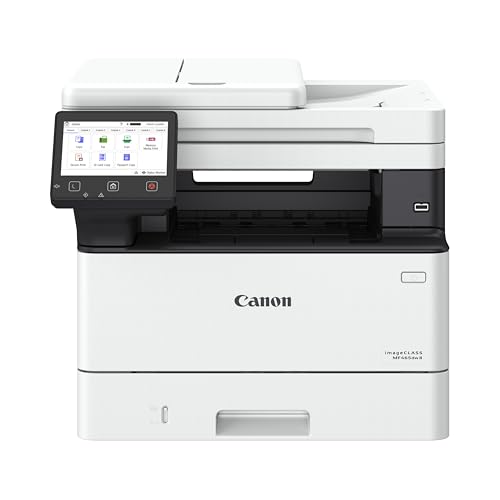
Best for small offices with steady document volume
6. Canon imageCLASS MF465dw II
A monochrome laser all-in-one from Canon’s office line that prints, copies, scans and faxes, with wireless and duplex.
Good for: Small offices with steady document volume. Strengths: Built for heavier workloads than home models. Weaknesses: Larger and pricier than home printers. Skip it if you have light needs and little space.

Best for a home office printing reports and charts
7. HP Color LaserJet Pro MFP 3301sdw
A current color laser all-in-one from HP’s Color LaserJet Pro line with wireless and two-sided printing.
Good for: A home office printing reports and charts. Strengths: Laser text quality with color, and prints resist smearing. Weaknesses: Color toner sets are expensive and the body is big. Skip it if you mostly print black-and-white.

How a Laser Printer Works and What It Costs
What happens inside
A laser printer charges a drum, draws your page on it with a laser or LED light, attracts toner powder to the charged areas and then melts the toner onto the paper with a heated fuser. That heat is why laser prints are dry and smudge-resistant when they come out.
Toner, drum and yield
Toner cartridges list a page yield. Many lasers also have a drum or imaging unit that lasts much longer than the toner. Check whether the drum is built into the toner cartridge, because that changes the cost of each replacement.
Monochrome or color
A monochrome laser is the cheapest laser to buy and run. A color laser needs four toner cartridges and costs more, so it makes sense only if you print color regularly.
Warm-up and speed
Lasers need a few seconds to warm the fuser, then print quickly. For many short jobs a day, the warm-up time is noticeable; for batches, the speed wins.
When a laser is not the right choice
If you print photos or color graphics, an inkjet does better. If you print only a few pages a month, a cheap inkjet may cost less overall. See inkjet vs laser for home and printer ink vs toner.
Best Picks by Category
These labels summarize the picks in this guide by category and price tier. They are not hands-on test results — check price on Amazon for the current listing details.
- Top rated: Brother HL-L2370DW — a mid-range monochrome laser pick; check price on Amazon.
- Most reviewed: Brother HL-L2350DW — a monochrome laser pick for text-only home printing; check price on Amazon.
- Best value: Brother HL-L2370DW — a mid-range pick; check price on Amazon.
- Lowest price: HP LaserJet M207dw — a budget pick; check price on Amazon.
- Premium option: Brother MFC-L2820DW — a premium monochrome all-in-one pick; check price on Amazon.
Price, Rating and Review Comparison
The table compares the picks by price tier. Prices change often, so check price on Amazon to confirm the current price.
| Product | Price | Rating | Ratings | Price tier |
|---|---|---|---|---|
| HP LaserJet M207dw | Check price on Amazon | — | — | Budget |
| HP Color LaserJet Pro MFP 3301sdw | Check price on Amazon | — | — | Budget |
| Canon imageCLASS MF465dw II | Check price on Amazon | — | — | Mid-range |
| HP LaserJet Pro MFP M234dw | Check price on Amazon | — | — | Mid-range |
| Brother HL-L2370DW | Check price on Amazon | — | — | Mid-range |
| Brother MFC-L2820DW | Check price on Amazon | — | — | Premium |
| Brother HL-L2350DW | Check price on Amazon | — | — | n/a |
How Much Feedback Backs Each Rating
Check the current listing on Amazon for the latest feedback on each pick before you buy.
- Brother HL-L2350DW: check price on Amazon for current listing details.
- Brother HL-L2370DW: check price on Amazon for current listing details.
- HP LaserJet M207dw: check price on Amazon for current listing details.
- Brother MFC-L2820DW: check price on Amazon for current listing details.
- HP LaserJet Pro MFP M234dw: check price on Amazon for current listing details.
- Canon imageCLASS MF465dw II: check price on Amazon for current listing details.
- HP Color LaserJet Pro MFP 3301sdw: check price on Amazon for current listing details.
How to Choose
Mono or color?
Black-and-white lasers are cheaper to buy and to run. Color lasers cost more and take more space.
Single-function or all-in-one?
A print-only laser is smaller and cheaper. An all-in-one adds a scanner but needs more room.
Check the starter toner
Many lasers ship with a partly filled starter toner. Look up the yield of the first replacement.
How We Chose These Products
We start from products sold on Amazon with a full product name and clear specifications, and we skip results that show only a brand name or a vague title. We then read the listing and any manufacturer information for each one and note the features that matter for printers: print technology, running costs, connectivity and size. We do not run our own lab tests, and this guide contains no hands-on measurements. Use it to build a shortlist, then check current prices, dimensions and return terms on the Amazon page before you buy.
Buying Guide: What to Check Before You Choose
Laser printers
Laser printers print text quickly and sharply and do not clog like inkjets. Color lasers cost more. Check the toner cost and the print speed.
Ink tank versus cartridge
Ink tank printers use refillable tanks and usually have a lower cost per page, with a higher purchase price. Cartridge printers are cheaper up front but ink can cost more over time. Check the page yield and the cost of refills.
Photo printing
Photo printers focus on color accuracy and paper handling. Check the number of inks, the paper sizes and the cost per print.
Quick Reference: Which Pick Suits Whom
- Brother HL-L2350DW: suits homework, forms and shipping paperwork
- Brother HL-L2370DW: suits A home or small office that prints text daily
- HP LaserJet M207dw: suits text-only printing in tight spaces
- Brother MFC-L2820DW: suits freelancers and small sellers who live on paperwork
- HP LaserJet Pro MFP M234dw: suits A small office that scans and prints text
- Canon imageCLASS MF465dw II: suits small offices with steady document volume
- HP Color LaserJet Pro MFP 3301sdw: suits A home office printing reports and charts
Common Mistakes to Avoid
- Judging a printer by its price without considering ink cost.
- Ignoring the starter cartridge size.
- Forgetting the paper types needed.
- Assuming all-in-ones are always better.
- Skipping the return window.
Setup and Care
- Install the maker’s app or driver.
- Connect to Wi-Fi.
- Run an alignment and nozzle check.
- Print regularly to avoid clogs.
What to Check Before You Buy
- Compare toner cost and page yield.
- Decide on monochrome or color.
- Check duplex printing and tray size.
- Look at print speed.
- Check wireless support.
What to Check Before You Buy a Laser Printer
Before you buy a laser printer, confirm five things: the space it needs, how it connects, what the first toner will cover, whether it prints on both sides, and what the return terms say. A few minutes on the listing saves most of the common regrets.
- Footprint and weight: Lasers are boxier than many inkjets. Measure the shelf or desk, and leave room above the unit so the top cover and paper tray can open.
- Connectivity: Look for wireless, USB or Ethernet on the product page, and check that your phone, laptop or tablet is supported by the maker’s app or driver.
- Starter toner: Many models ship with a partly filled cartridge. Find the replacement cartridge name and its stated page yield before you commit.
- Drum design: Check whether the drum is separate or built into the toner cartridge, because it changes what each replacement costs.
- Paper handling: Check tray capacity, whether it supports envelopes or labels, and whether two-sided printing is automatic.
- What is in the box: Confirm that a power cable, starter toner and setup guide are included. A USB cable may not be.
- Returns and warranty: Read the return window and the warranty terms on the listing, and keep the box until you are sure the printer suits you.
Do not skip the operating system line. Some printers need a driver that your computer may not support, so match the listed compatibility to the device you will print from. If you share the printer across several devices, wireless setup matters more than raw speed.
Finally, think about who will use it. If several people print, a sturdy tray and quick text output help. If only you print, a compact single-function model is usually enough.
Monochrome vs Color Laser Printers: Which Do You Need?
Choose a monochrome laser printer if most of your pages are text, and a color laser printer only if you print charts, reports or graphics often enough to justify the extra cost. Color adds capability, but it also adds toner cartridges, size and running costs.
A monochrome laser uses one toner cartridge. That keeps replacement simple and the machine smaller. For homework, shipping labels, contracts and forms, it does the job without extras. Several picks here, such as the Brother HL-L2350DW and HP LaserJet M207dw, follow this approach.
A color laser such as the HP Color LaserJet Pro MFP 3301sdw prints in four toner colors. Your pages gain color headings, charts and logos with the same dry, smudge-resistant finish that laser prints are known for. The trade-off is that you replace several cartridges, and each one has its own yield.
Consider these questions:
- How many pages a month include real color, not just a colored logo?
- Would you accept a black-and-white copy of most documents?
- Do you have room for a larger body on your desk?
- Will you print photos? If so, an inkjet is usually the better tool.
If color is rare, a monochrome laser plus an occasional trip to a print shop often costs less than owning a color machine. If color documents are part of your work week, a color laser spares you that trip. Be honest about your habits rather than the best-case scenario.
How Do You Keep Laser Printing Costs Down?
You keep laser printing costs down by matching the cartridge size to your volume, printing on both sides and avoiding unneeded color. Toner is the main ongoing cost, so small habits add up over a year.
Start with the cartridge. Many makers sell a standard and a higher-yield version. If you print often, the higher-yield version usually spreads the cost over more pages, while a light user may never finish a large one. Check the stated yield on the listing and compare it with how many pages you actually print.
Then look at settings:
- Duplex by default: Two-sided printing saves paper on every long document.
- Draft or toner-save mode: Fine for internal documents and drafts, though text will look lighter.
- Print preview: Check page breaks first so stray pages with one line do not waste toner and paper.
- Grayscale default: On a color model, set black-and-white as the default and choose color only when needed.
Storage matters too. Keep spare toner in its packaging, in a cool, dry place. Keep paper in its wrap so it does not absorb humidity, which can cause jams. Dust inside the unit can also affect output, so follow the maker’s cleaning steps in the manual rather than improvising.
Third-party toner exists, but terms vary by model and may affect warranty or compatibility, so read the printer’s terms before choosing it.
Which Laser Printer Should You Buy?
The right laser printer depends on whether you need only printing, also want scanning and copying, or need color. Use the matches below as a starting shortlist.
- If you want simple, text-only printing at home, go for the Brother HL-L2350DW.
- If you print text every day and want a faster stated speed, choose the Brother HL-L2370DW.
- If your desk or shelf is tight and you only print, the HP LaserJet M207dw is the compact option.
- If you also scan, copy and fax, pick the Brother MFC-L2820DW for a black-and-white all-in-one.
- If a small team shares one machine, look at the HP LaserJet Pro MFP M234dw for a compact multifunction body.
- If document volume is steady and you want an office-grade build, consider the Canon imageCLASS MF465dw II.
- If you need color charts and reports with sharp text, choose the HP Color LaserJet Pro MFP 3301sdw.
A simple way to decide: first choose single-function or all-in-one. If you ever scan more than a few pages a month, an all-in-one saves you from buying a separate scanner later. Then choose monochrome or color. Only after that compare the remaining models on size and connectivity.
If two models seem close, favor the one whose replacement toner is easier to find and whose size fits your space. A slightly slower printer that suits your desk beats a faster one that does not fit.
What Are the Downsides, and Who Should Skip a Laser Printer?
A laser printer is not right for everyone: skip it if you mostly print photos, print only a few pages a month, or have very little space. Knowing the downsides now makes the choice easier.
- Photos: Lasers handle text and simple graphics well, but photo prints are usually better from an inkjet.
- Upfront cost: Laser models, especially color and office-grade ones, can cost more to buy than basic inkjets.
- Size: Many are large and heavy compared with compact inkjets.
- Color toner: A full replacement set for a color laser can be a notable expense.
- Warm-up: The fuser needs a few seconds before the first page, which you may notice on single-page jobs.
Is it worth paying more? Moving from a basic monochrome model to an all-in-one or an office-grade machine makes sense only if you use the added functions. A scanner you never touch is a cost with no return. Likewise, an office-grade build matters if volume is steady and not if you print once a week.
Who should skip it? Occasional printers who print a handful of pages a month, photographers, and anyone with a very small desk may be happier with another type. The guide on inkjet versus laser above covers that comparison.
Ready to choose? Compare the picks above, check the current listing for size and what is included, then choose the one that fits how you will print.
Laser Printing in Depth: Toner, Drums and Decades of Documents
The main sections of this guide cover what to buy and why. This section covers what ownership actually feels like once the laser printer is on your desk: the habits, settings and small decisions that decide whether it delights you or nags at you. None of it requires technical skill. It requires only that you set the machine up around your real life once, thoughtfully, instead of rediscovering the same lessons one paper jam at a time.
Why laser text looks different, and when it matters
A laser forms characters from toner fused onto the paper’s surface, which gives edges a crispness that liquid ink, soaking into fibres, rarely matches on ordinary paper. For contracts, invoices, essays, forms and anything that will be filed, copied or read under office light, that crispness is the laser’s home advantage. It also explains the laser’s indifference to sitting idle: toner is a dry powder that does not dry out, clog or need weekly exercise, so a laser that prints nothing for a month prints its next page exactly like its last.
The same surface process is why laser output shrugs off a highlighter pen and a few raindrops where inkjet text may smear or run. If your documents live real lives, in folders, bags and kitchens, that durability is worth as much as the sharpness. Where the laser concedes ground is photographic subtlety, and for a documents-first household that trade is usually the right one, which is why so many home offices standardise on a laser and treat photo printing as a separate, occasional job.
Cartridges, drums and the parts that wear
Inside a laser, the toner cartridge is only part of the story. The drum, which carries the image, may be built into the cartridge or live separately in the printer, and transfer components and the fuser also age with use. When print quality fades evenly across the page late in a cartridge’s life, toner is the likely cause. When the same mark repeats at regular intervals down many pages, a drum or roller is marking the paper, and the spacing of the repeat points at which round component is responsible, a diagnosis the manual often helps you make.
Handle cartridges by their body, keep them out of strong light, and never touch the drum surface, whose coating is sensitive to fingers and light alike. Store spares in their sealed packaging, flat and at room temperature. A laser’s consumables keep far longer than ink cartridges, so having the next toner ready is cheap insurance rather than a waste risk, provided you buy for the model you own and not a similar-looking sibling.
Duty, volume and the honest meaning of speed
Lasers are built around volume in a way inkjets are not. Every model is designed for a certain amount of monthly printing, and while home users rarely approach those ceilings, the design shows in sturdier trays, larger cartridges and mechanisms that do not mind a long document. Speed, similarly, is about sustained pace after the first page: a laser warms up once, then produces page after page at a steady rate, which is why a long report feels effortless on a laser and interminable on many inkjets.
For home use, the practical reading is this: if your printing comes in bursts of long documents, a laser’s rhythm suits you; if it comes as single pages scattered through the day, you will pay the warm-up pause often, and a model that wakes quickly matters more than headline speed. Either way, two-sided printing, where fitted, halves the paper handling of long jobs and is worth confirming in the driver rather than assuming.
How the Picks in This Guide Compare in Everyday Use
Specifications separate these machines on paper, but daily life separates them differently. The paragraphs below revisit each pick in this guide strictly in the role the guide itself assigns it, and set that role against the neighbouring picks, so you can feel the shape of the choice rather than just reading it. Read the pick that matches your situation first, then read its neighbours: the right decision usually becomes obvious in the contrast.
Brother HL-L2350DW earns its place in this lineup as a monochrome laser, picked for text-only printing at home. In daily use, what that positioning really means is that its strengths arrive exactly where text-only printing at home matters, and its compromises fall where that kind of user rarely looks. Readers comparing it with the neighbouring picks should start from their own habits rather than the headline features: the household or office that matches this description will find it quietly dependable, while someone whose printing looks very different will get more from a pick designed around their pattern instead.
Brother HL-L2350DW is the Monochrome laser option here, chosen for text-only printing at home. Set beside the other picks, its character is defined by that role: it is the answer when text-only printing at home is the priority, and it is not trying to be the answer to every other question in this guide. That focus is a virtue rather than a limitation. Printers that chase every strength tend to serve no one particularly well, whereas a model with a clear job, matched to the buyer who has that job, tends to be the one still earning praise years later.
Consider Brother HL-L2370DW if your printing centres on fast, plain office printing. As a monochrome laser it approaches the work differently from the alternatives around it, and the detailed review above sets out where that approach pays off. The honest skip case matters just as much: if fast, plain office printing is something you do rarely, this pick’s particular strengths will sit unused while its trade-offs remain, and another model in this guide will fit you better. Matching the pick to the pattern of use, rather than to the longest feature list, is the decision this whole guide is built around.
Within this guide, Brother HL-L2370DW covers the fast, plain office printing ground. Its detailed section explains the specifics; the comparative point is that no other pick here occupies quite the same position. Where two picks seem to overlap, the difference usually shows up in daily rhythm rather than in specifications: how the machine suits the space it will live in, the people who will share it, and the mix of documents it will actually see. Choose on that rhythm, and the specification sheet becomes a confirmation rather than a gamble.
HP LaserJet M207dw earns its place in this lineup as a monochrome laser, picked for compact text-only laser printing. In daily use, what that positioning really means is that its strengths arrive exactly where compact text-only laser printing matters, and its compromises fall where that kind of user rarely looks. Readers comparing it with the neighbouring picks should start from their own habits rather than the headline features: the household or office that matches this description will find it quietly dependable, while someone whose printing looks very different will get more from a pick designed around their pattern instead.
HP LaserJet M207dw is the Monochrome laser option here, chosen for compact text-only laser printing. Set beside the other picks, its character is defined by that role: it is the answer when compact text-only laser printing is the priority, and it is not trying to be the answer to every other question in this guide. That focus is a virtue rather than a limitation. Printers that chase every strength tend to serve no one particularly well, whereas a model with a clear job, matched to the buyer who has that job, tends to be the one still earning praise years later.
Consider Brother MFC-L2820DW if your printing centres on black-and-white offices that also scan and fax. As a monochrome laser all-in-one it approaches the work differently from the alternatives around it, and the detailed review above sets out where that approach pays off. The honest skip case matters just as much: if black-and-white offices that also scan and fax is something you do rarely, this pick’s particular strengths will sit unused while its trade-offs remain, and another model in this guide will fit you better. Matching the pick to the pattern of use, rather than to the longest feature list, is the decision this whole guide is built around.
Within this guide, Brother MFC-L2820DW covers the black-and-white offices that also scan and fax ground. Its detailed section explains the specifics; the comparative point is that no other pick here occupies quite the same position. Where two picks seem to overlap, the difference usually shows up in daily rhythm rather than in specifications: how the machine suits the space it will live in, the people who will share it, and the mix of documents it will actually see. Choose on that rhythm, and the specification sheet becomes a confirmation rather than a gamble.
HP LaserJet Pro MFP M234dw earns its place in this lineup as a monochrome laser all-in-one, picked for compact laser multifunction for a small team. In daily use, what that positioning really means is that its strengths arrive exactly where compact laser multifunction for a small team matters, and its compromises fall where that kind of user rarely looks. Readers comparing it with the neighbouring picks should start from their own habits rather than the headline features: the household or office that matches this description will find it quietly dependable, while someone whose printing looks very different will get more from a pick designed around their pattern instead.
HP LaserJet Pro MFP M234dw is the Monochrome laser all-in-one option here, chosen for compact laser multifunction for a small team. Set beside the other picks, its character is defined by that role: it is the answer when compact laser multifunction for a small team is the priority, and it is not trying to be the answer to every other question in this guide. That focus is a virtue rather than a limitation. Printers that chase every strength tend to serve no one particularly well, whereas a model with a clear job, matched to the buyer who has that job, tends to be the one still earning praise years later.
Consider Canon imageCLASS MF465dw II if your printing centres on office-grade black-and-white multifunction. As a monochrome laser all-in-one it approaches the work differently from the alternatives around it, and the detailed review above sets out where that approach pays off. The honest skip case matters just as much: if office-grade black-and-white multifunction is something you do rarely, this pick’s particular strengths will sit unused while its trade-offs remain, and another model in this guide will fit you better. Matching the pick to the pattern of use, rather than to the longest feature list, is the decision this whole guide is built around.
Within this guide, Canon imageCLASS MF465dw II covers the office-grade black-and-white multifunction ground. Its detailed section explains the specifics; the comparative point is that no other pick here occupies quite the same position. Where two picks seem to overlap, the difference usually shows up in daily rhythm rather than in specifications: how the machine suits the space it will live in, the people who will share it, and the mix of documents it will actually see. Choose on that rhythm, and the specification sheet becomes a confirmation rather than a gamble.
HP Color LaserJet Pro MFP 3301sdw earns its place in this lineup as a color laser all-in-one, picked for sharp text plus color for a busy workspace. In daily use, what that positioning really means is that its strengths arrive exactly where sharp text plus color for a busy workspace matters, and its compromises fall where that kind of user rarely looks. Readers comparing it with the neighbouring picks should start from their own habits rather than the headline features: the household or office that matches this description will find it quietly dependable, while someone whose printing looks very different will get more from a pick designed around their pattern instead.
HP Color LaserJet Pro MFP 3301sdw is the Color laser all-in-one option here, chosen for sharp text plus color for a busy workspace. Set beside the other picks, its character is defined by that role: it is the answer when sharp text plus color for a busy workspace is the priority, and it is not trying to be the answer to every other question in this guide. That focus is a virtue rather than a limitation. Printers that chase every strength tend to serve no one particularly well, whereas a model with a clear job, matched to the buyer who has that job, tends to be the one still earning praise years later.
Setup, Workflow and Troubleshooting: The Rest of Ownership
Choosing the right laser printer is half the task; the other half is the environment it works in and the routines around it. The topics below are the ones that generate most of the questions owners ask after the first month, whatever model they bought, and each one is cheaper to handle early than late.
Frequently Asked Questions
Are laser printers cheaper to run than inkjets?
For text, usually yes. For color and photos, it depends on the model.
Do laser printers print photos well?
Basic lasers are not made for photos. Inkjets generally do better on color graphics.
Do lasers need much maintenance?
Typically just a toner swap now and then. Drums wear out on a much longer schedule.
What are the best LaserJet printers for home use?
HP’s LaserJet range suits home and small offices; the LaserJet Pro MFP M234dw and LaserJet M207dw are popular compact options. See our best HP LaserJet printers.
What are the best black and white (monochrome) laser printers?
Compact monochrome lasers such as the Brother HL-L2350DW and HL-L2460DW are the simple choices for text. See our best wireless laser printers and best Brother laser printers.
Which is cheaper to run, inkjet or laser?
Laser is usually cheaper per page for text, and ink tank printers are cheaper for color and photos.
How do I connect my printer to Wi-Fi?
Use the printer’s setup menu or the maker’s app. See our Wi-Fi guide.
Do I need genuine ink?
Not always, but some printers restrict third-party ink. Check the terms.
Is laser better than inkjet?
Laser is typically better for text and volume; inkjet suits photos.
Do laser printers dry out?
Toner does not dry out like ink.
How long does a laser printer last?
It depends on the model and how much you print, so check the maker's stated duty and drum life. Home models used lightly often run for years. Replacing toner on schedule and keeping the unit clean helps it last longer.
Can a laser printer print on both sides of the paper?
Yes, if it supports automatic two-sided printing, often called duplex. Several picks in this guide list it, but confirm it on the product page. Models without it need you to flip pages by hand.
Is a laser all-in-one worth it for a home office?
It is worth it if you scan, copy or fax regularly, since one machine replaces two devices. If you only print, a single-function laser is smaller and simpler. Think about what you will actually use each month.
What size toner cartridge should I buy?
Match the cartridge to your print volume. A higher-yield cartridge usually costs less per page but only helps if you will use it before it ages. Check the page yield on the listing and compare it with your typical use.
Can I print labels and envelopes on a laser printer?
Many lasers can, but check the manual for supported media types and weights. Use labels made for laser printers, because heat from the fuser can damage unsuitable sheets. Feed them through the manual slot if the printer has one.
Why are my laser prints coming out faded or streaky?
Low toner is the usual cause, so check the toner level and shake the cartridge gently if the manual allows it. A worn drum or dust inside can also cause streaks. Follow the cleaning steps in the manual or contact the maker if the problem stays.
Do laser printers work with phones?
Many do over Wi-Fi through the maker's app or built-in phone printing. Check the product page for the supported systems. Setup steps differ by brand, so follow the manual.
Are laser printers noisy?
They make some noise while warming up and printing, but the level varies by model. If the printer sits near where you work, check the listing and customer feedback for comments on noise.
Why is there a faint repeat mark down every page?
A mark that repeats at the same spacing is the signature of a round component: drum, roller or fuser. First check for a scrap of label or debris in the paper path, then try a different cartridge if you have one, since a cartridge that includes the drum removes that suspect in one step. If the mark survives a cartridge change, the printer’s own drum unit or fuser is involved and the manual or maker support is the right next step.
Can a laser printer sit unused for months without harm?
Yes, and this is one of its great strengths. Toner does not dry out, so there are no nozzles to clog. Keep the printer somewhere dry, with paper removed or stored properly if the room is humid, because the paper suffers more from storage than the machine does. On your return, print a test page, check the output is clean, and carry on. No special revival routine is normally needed.
Why do pages come out curled or wavy from a laser?
Heat and moisture are the usual causes. Paper that has absorbed humidity curls more as it passes the hot fuser, so try fresh paper from a sealed ream stored in a dry room. Very light paper curls more than standard stock, and printers often have a setting or an alternative rear exit that gives pages a flatter path. Persistent severe curling on fresh, standard paper is worth raising with the maker.
Is toner dust something I should worry about at home?
In normal use the toner stays inside the cartridge and the machine. If a cartridge leaks or is dropped, avoid breathing the dust, do not use a household vacuum whose fine filter and motor can spread or be damaged by it, and wipe spills with a cold, damp cloth, since heat sets toner into fabric and surfaces. Wash hands with cold water and soap. A cartridge that leaks repeatedly should be replaced and handled as the maker directs.
Bottom Line
For text-only home printing, the Brother HL-L2350DW is the simple pick. Add the Brother MFC-L2820DW if you also want to scan, and the HP Color LaserJet Pro MFP 3301sdw if you need color.
Related Reading
- Types of Printers Explained: Inkjet, Laser, Ink Tank and More
- 5 Best Color Laser Printers for Home Use
- Best Paper for Inkjet and Laser Printers: What to Buy
- 5 Best 11×17 Tabloid Printers for Home and Office
- 6 Best AirPrint Printers for iPhone, iPad and Mac
More Printer Guides
- Best Printers for Home Use
- Best Wireless Laser Printers for Home and Small Office
- Best Wireless Printers for Home Use
- Best All-in-One Printers for Scanning and Printing
- Best Cheap Printers

