A laser printer suits a home office that prints documents on a regular basis. The first choice is between mono and color. The second is print only or all-in-one, which adds a scanner and copier. Paper tray size, duplex printing and the way a machine connects matter just as much as raw speed.
The six printers below range from a compact mono all-in-one to a color all-in-one with a document feeder. Sizes, speeds and features come from each product’s listing page, and speeds are the makers’ own figures. We have not used these printers ourselves.
As an Amazon Associate we earn from qualifying purchases. Links below are affiliate links, and they do not change the product information we give.
What to Look For
| Feature | Why it matters |
|---|---|
| Mono or color | Mono suits text and forms; color adds charts and graphics |
| Functions | Print only is simpler; all-in-one adds scan and copy |
| Duplex | Automatic two-sided printing handles long documents |
| Connections | Wi-Fi, Ethernet and USB decide how many devices can share it |
| Footprint | Check width, depth and height against your desk or shelf |
In this guide
Specs at a Glance
| Printer | Type and speed | Connections | Notes |
|---|---|---|---|
| Canon LBP646Cdw | Color, print only; 26 ppm | Wi-Fi, USB | 250-sheet cassette; duplex; 5-line LCD; 27.6 lb |
| HP LaserJet Pro 3101sdw | Mono all-in-one; 35 ppm | Wi-Fi, Ethernet, USB | 250-sheet tray; 50-sheet feeder; duplex; 23.1 lb |
| Canon MF753Cdw II | Color all-in-one; 35 ppm | Wi-Fi, Ethernet, USB | Print, scan, copy, fax; touch control; 50 lb |
| HP LaserJet Pro 3001dw | Mono; 35 ppm | Wi-Fi, Ethernet, USB | Auto duplex; one tray; 16.1 lb |
| Brother HL-L3220CDW | Color; 19 ppm | Wi-Fi, USB | 250-sheet tray; manual feed slot; duplex; 24.7 lb |
| Brother HL-L2480DW | Mono 3-in-1; 36 ppm | Dual-band Wi-Fi, Ethernet, USB | Flatbed scanner; 2.7 in touchscreen; duplex; 22.2 lb |
The 6 Best Laser Printers for Home Offices
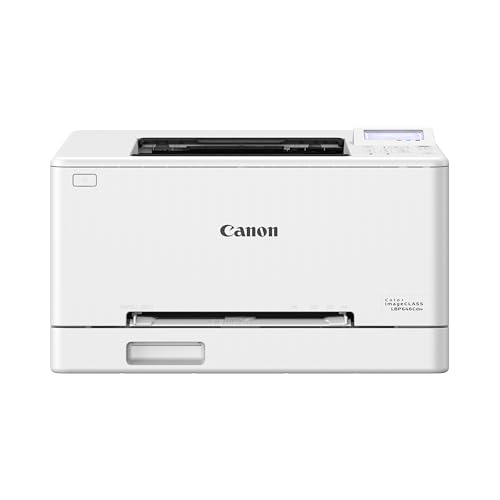
Top pickBest for a home office that wants color prints without a scanner
1. Canon imageCLASS LBP646Cdw Color Laser Printer
A print-only color laser printer that the maker lists at up to 26 pages per minute in both color and mono, with a 250-sheet cassette, a one-sheet multipurpose tray, automatic two-sided printing and a five-line LCD. It connects by Wi-Fi or USB and uses Canon toner 075.
Suits: a home office that wants color prints without a scanner. Strengths: the same speed in color and mono and a 250-sheet cassette. Weaknesses: no scanning, copying or faxing. Skip it if you need to scan paper.

View Canon imageCLASS LBP646Cdw Color Laser Printer on Amazon
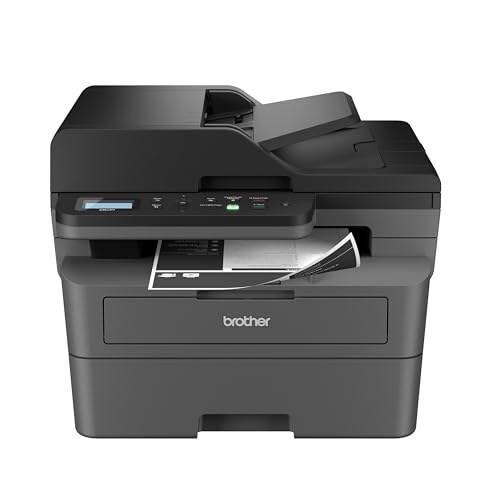
Best for a busy home office that prints, scans and copies mono pages
2. HP LaserJet Pro MFP 3101sdw Mono All-in-One
A mono laser all-in-one with print speeds up to 35 pages per minute, a 250-sheet input tray, a 50-sheet automatic document feeder, automatic two-sided printing and Wi-Fi, Ethernet and USB. The listing notes it works only with cartridges that carry HP chips and blocks others.
Suits: a busy home office that prints, scans and copies mono pages. Strengths: a document feeder and three connection types. Weaknesses: cartridges with non-HP chips are blocked. Skip it if you want color.
View HP LaserJet Pro MFP 3101sdw Mono Laser All-in-One on Amazon

3. Canon imageCLASS MF753Cdw II Color All-in-One
A four-in-one color laser that prints, scans, copies and faxes, with up to 35 pages per minute, touch control, two trays, Wi-Fi, Ethernet and USB and a 1200 by 1200 resolution listed. It weighs 50 pounds and uses Canon toner 069.
Suits: a home office that wants color and a document feeder in one machine. Strengths: four functions and a speed of 35 ppm. Weaknesses: the largest and heaviest here at 18.2 by 16.8 by 17 inches. Skip it if desk space is limited.

View Canon imageCLASS MF753Cdw II Color Laser All-in-One on Amazon
Best for a small desk and plain mono documents
4. HP LaserJet Pro 3001dw Mono Laser Printer
A mono laser printer that the maker lists at up to 35 pages per minute, with automatic two-sided printing, Wi-Fi, Ethernet and USB, one tray and a 15.7 by 14.4 by 8.5 inch body at 16.1 pounds. The listing says it works only with cartridges that carry original HP chips.
Suits: a small desk and plain mono documents. Strengths: the lightest and lowest printer in the group and a quick listed speed. Weaknesses: the details table lists Copy and Scan while the name does not say all-in-one, so confirm the functions on the page. Skip it if you want a sure scanner.
View HP LaserJet Pro 3001dw Mono Laser Printer on Amazon
Best for an occasional color printer for a home office
5. Brother HL-L3220CDW Color Laser Printer
A color laser printer listed at up to 19 pages per minute, with a 250-sheet tray, a manual feed slot for envelopes and specialty media, automatic two-sided printing, Wi-Fi and USB. It measures 15.7 by 15.7 by 9.4 inches.
Suits: an occasional color printer for a home office. Strengths: a manual feed slot and a short body. Weaknesses: the slowest speed in the group. Skip it if you print long mono jobs often.
View Brother HL-L3220CDW Color Laser Printer on Amazon
Best for a compact all-in-one for text documents
6. Brother HL-L2480DW Mono 3-in-1 Laser Printer
A compact mono laser that prints, scans and copies, with up to 36 pages per minute, a flatbed scanner, a 2.7 inch touchscreen, automatic two-sided printing, dual-band Wi-Fi, Ethernet and USB. It measures 15.7 by 16.1 by 10.7 inches.
Suits: a compact all-in-one for text documents. Strengths: the fastest listed speed here and cloud scan options on the touchscreen. Weaknesses: flatbed only, with no feeder listed. Skip it if you scan stacks of pages.
View Brother HL-L2480DW Mono 3-in-1 Laser Printer on Amazon
Best Picks by Category
These labels summarize the picks in this guide by function and price tier. They are not hands-on test results — check price on Amazon for current pricing.
- Top rated: Brother HL-L2480DW Mono 3-in-1 Laser Printer — check price on Amazon.
- Most reviewed: Brother HL-L3220CDW Color Laser Printer — check price on Amazon.
- Best value: Brother HL-L2480DW Mono 3-in-1 Laser Printer — a mid-range pick — check price on Amazon.
- Lowest price: Canon imageCLASS MF753Cdw II Color All-in-One — a budget-tier pick — check price on Amazon.
- Premium option: Canon imageCLASS LBP646Cdw Color Laser Printer — check price on Amazon.
Price, Rating and Review Comparison
The table lists the picks with their price tier. Prices change often, so confirm the current price on Amazon, and check the listing for the current rating and number of ratings.
| Product | Price | Rating | Ratings | Price tier |
|---|---|---|---|---|
| Canon imageCLASS MF753Cdw II Color All-in-One | Check price on Amazon | See listing | See listing | Budget |
| HP LaserJet Pro 3001dw Mono Laser Printer | Check price on Amazon | See listing | See listing | Mid-range |
| Brother HL-L2480DW Mono 3-in-1 Laser Printer | Check price on Amazon | See listing | See listing | Mid-range |
| Brother HL-L3220CDW Color Laser Printer | Check price on Amazon | See listing | See listing | Mid-range |
| HP LaserJet Pro MFP 3101sdw Mono All-in-One | Check price on Amazon | See listing | See listing | Mid-range |
| Canon imageCLASS LBP646Cdw Color Laser Printer | Check price on Amazon | See listing | See listing | Mid-range |
How Much Feedback Backs Each Rating
A high average from a handful of ratings is weaker evidence than a slightly lower average from a larger sample. Check each Amazon listing for the current rating and number of ratings.
- Canon imageCLASS LBP646Cdw Color Laser Printer: see its Amazon listing for current feedback.
- HP LaserJet Pro MFP 3101sdw Mono All-in-One: see its Amazon listing for current feedback.
- Canon imageCLASS MF753Cdw II Color All-in-One: see its Amazon listing for current feedback.
- HP LaserJet Pro 3001dw Mono Laser Printer: see its Amazon listing for current feedback.
- Brother HL-L3220CDW Color Laser Printer: see its Amazon listing for current feedback.
- Brother HL-L2480DW Mono 3-in-1 Laser Printer: see its Amazon listing for current feedback.
Setup Tips
- Measure the space for the body and for the paper tray that sticks out.
- Use the maker’s own toner type named on the listing.
- Join the printer to your network and test a page after setup.
- Keep the vents clear and the paper dry.
Mistakes to Avoid
- Buying print only when you also need to scan.
- Ignoring chip rules that block other cartridges.
- Skipping a size check for deep or tall models.
- Choosing color when you print only text.
Laser Printer FAQ
Is a laser printer better for a home office than inkjet?
Laser printers suit steady document printing. Inkjets can suit photos. Check each listing for the details that matter to you.
Do these printers scan?
The HP 3101sdw, Canon MF753Cdw II and Brother HL-L2480DW do. The Canon LBP646Cdw is print only. Confirm the HP 3001dw on its page.
The Short Version
For color without a scanner, the Canon LBP646Cdw. For a mono all-in-one with a feeder, the HP 3101sdw. For color and four functions, the Canon MF753Cdw II. For a compact mono printer, the HP 3001dw. For occasional color, the Brother HL-L3220CDW. For a compact mono 3-in-1, the Brother HL-L2480DW.
How a Laser Printer Works and Why It Suits Office Documents
A laser printer does not spray liquid. A light source draws the page image onto a charged drum, fine toner powder clings to the charged areas, and the page passes through a heated fuser that melts the powder into the paper. The process is quick, produces sharp small text and keeps working after long idle periods because toner is a dry powder that cannot clog a nozzle.
These traits explain why laser printers dominate offices. Contracts, invoices, reports and shipping labels all depend on crisp black text, and the pages come out dry, so there is no smudging when you grab them. The trade-offs are a larger body, a warm-up delay before the first page, and a higher purchase price than a basic inkjet. Color laser models add more toner cartridges, which makes them bulkier and more expensive to maintain.
Laser printing is less suited to photographs. Color lasers can produce good business graphics, charts and presentation pages, but glossy photo output is a strength of inkjet systems. If you print family photos more often than documents, a laser may disappoint, and a hybrid arrangement with a cheaper photo inkjet might fit better.
Mono or Color: Making the Call for Your Workload
The mono-versus-color decision shapes the price of everything that follows: the machine itself, the toner, the footprint and the long-term cost per page.
When mono is enough
If you print mostly text, such as letters, spreadsheets, legal documents and forms, a mono laser does the job and costs less to run. Mono machines also tend to be smaller and lighter, as the HP LaserJet Pro 3001dw shows in this guide at 16.1 pounds. Color on screen can be printed in black and white, and for many working documents the lack of color is never noticed.
When color earns its place
Color becomes worth it if you print client-facing pages, charts, brochures, schedules with color coding or school projects. It also helps when you want to highlight markup in a proof. Be realistic about the volume, because color toner is the largest recurring cost in the category. If color pages are a small share of your work, you may still want a color machine for the occasional need, but price the replacement set of four cartridges before you commit.
Understanding toner costs
Start with the page yield of the cartridge, which is the number of pages the maker expects from it at a standard coverage level, usually about five percent of the page. High-yield cartridges generally cost less per page than standard ones, but they cost more at the till, and they only pay off if you print enough to use them before the toner ages. Starter cartridges that ship in the box are often partially filled, so they do not tell you how a printer will behave in steady use.
Chip rules and compatible toner
Some makers add chips that check whether a cartridge is original, and a firmware update can block third-party supplies. The HP listings in this guide note that they work only with cartridges that carry HP chips. If you plan to use compatible toner to cut costs, read the printer’s supply policy before ordering and consider that a later update may change what is accepted. If you prefer to use only the maker’s toner, this matters less.
Matching a Laser Printer to Your Home Office
Home offices vary widely, and the same machine can feel perfect in one and wrong in another. These scenarios may help you recognize your own.
The solo remote worker
You print a few pages a day, scan receipts and sign documents now and then. A compact mono all-in-one with a flatbed scanner fits on a desk and covers nearly everything. A document feeder is a bonus if you digitize multi-page contracts, but it adds bulk. Look for quiet standby behavior and a small footprint, since the printer sits near you all day.
Two people sharing a space
Once two people print, network reliability becomes important. A wired Ethernet port avoids the dropped wireless connections that come with crowded routers, and a bigger paper tray cuts the number of times someone has to reload. Automatic duplex is worth having here because it reduces both paper and waste.
The small business owner
If you print invoices, packing slips and labels, speed matters and so does a feeder for scanning inbound paperwork. A color all-in-one with four functions can replace a separate copier and fax. The Canon imageCLASS MF753Cdw II in this guide is the largest and heaviest of the six, so confirm that you have a stable surface and room for the paper tray.
Student and family study space
Assignments are usually text with a few color diagrams. A compact color laser that prints at a moderate speed is plenty. Wi-Fi printing from tablets and phones matters more here than raw speed, so look for mobile support and a simple setup process that a teenager can follow without help.
The occasional printer
If your printing comes in bursts, a laser is a good fit because dry toner does not spoil between jobs. Choose a machine with a straightforward feature set instead of a full office unit, and keep a spare toner cartridge on hand if the print gets critical, such as for tax time.
Network, Security and Placement
A laser printer lives on your network for years, so it deserves a small amount of attention to settings that many people skip.
- Change the default administrator password. Printers have a web page for settings, and the default login is often well known. Set your own, and store it somewhere safe.
- Keep firmware current. Updates fix security problems and compatibility issues. Check the maker’s support page when you set up and every few months after that.
- Use a reserved address. Assigning the printer a fixed address in your router prevents computers from losing track of it after a reboot.
- Turn off services you do not use. If you never print by email or from the cloud, disabling those features reduces what is exposed.
- Prefer a wired connection for shared use. Ethernet is less prone to interference, and it frees wireless bandwidth for other devices.
Placement matters too. A laser printer produces heat and a small amount of fine particles, so give it ventilation and avoid pushing it into a closed cabinet. Keep it away from a bed or the spot where you sleep, and clear the area around the vents. Paper stored in a damp room curls and jams, so store it flat in its wrapper until you need it.
A Pre-Purchase Checklist
These questions can save you from a return, and they tie directly to specs found on each listing.
- What are the dimensions with the trays and covers open, not only closed?
- Does the listing say that scanning and copying are included, or is it print only?
- What are the yields of the cartridges, and what does a full replacement set cost?
- Does the machine accept compatible toner, and has the maker restricted it?
- Does the warranty cover the drum and fuser, and who handles support?
- Is the first-page time acceptable for the kind of quick, single-page printing you do?
Treat the answers as a checklist. When two printers look equal on speed and price, the one with a clearer toner policy and a friendlier size usually wins in everyday life.
Consumables and Long-Term Upkeep
A laser printer is a long-lived machine if you look after its wear parts. Beyond toner, the drum slowly loses its coating, the fuser ages with heat and the paper pickup rollers wear as they grip sheets. Some printers warn you when these parts need attention, while others only slow down or print faint lines.
When a printer reports low toner, remove the cartridge, rock it gently from side to side to redistribute the powder and put it back. That often buys a few more pages. Do not shake it hard, and do not breathe in loose toner if a cartridge leaks. Wipe spills with a dry cloth or a damp one, never with hot water, because heat melts toner into fabric and surfaces.
Use paper that suits laser machines. Very glossy or coated stock designed for inkjets can melt or jam in the fuser, and label sheets should say that they are made for laser printers. Fan the stack before loading, and keep the guides snug against the sheets so pages feed straight.
If jams repeat, check for torn scraps left in the paper path, a worn roller or damp paper before assuming the machine is faulty. Clean rollers only as the manual directs.
Going Deeper: The Details That Decide How a Laser Printer For A Home Office Works Out
Spec sheets and headline features only tell part of the story with any laser printer for a home office. The picks above were chosen against the criteria in the main guide, but once a laser printer for a home office is in daily use, a second layer of detail decides whether it stays convenient or becomes a chore. The points below dig into that second layer, so you can weigh the options in this guide against the way you actually work rather than against a generic checklist.
Duty cycle versus your real month
Manufacturers publish a maximum monthly duty cycle that describes survival, not comfort. What matters is the recommended monthly volume, which is far lower and far more honest. Add up your true printing for a busy month, including the reprints and the household’s extras, and choose a machine whose recommended range holds that figure in its lower half. A printer loafing inside its comfort zone outlasts and outprints one run at its ceiling.
When you compare the picks in this guide on this point, look past the headline claim and ask how it behaves in the second month rather than the first day. Small differences here compound: a slightly better design choice saves a few minutes or avoids one recurring annoyance every single time you use the laser printer for a home office, and over a year that matters more than a feature you will only touch once. If two options look equal elsewhere, let this criterion break the tie.
Toner economics beyond the starter cartridges
Most printers ship with starter toner that yields a fraction of a full cartridge, so the machine’s real running cost begins at the first replacement. Compare the yield and availability of the standard and high-yield cartridges for each pick, and note whether the drum is built into the cartridge or separate. That single design choice changes both the cost per page and the list of parts you will eventually replace.
When you compare the picks in this guide on this point, look past the headline claim and ask how it behaves in the second month rather than the first day. Small differences here compound: a slightly better design choice saves a few minutes or avoids one recurring annoyance every single time you use the laser printer for a home office, and over a year that matters more than a feature you will only touch once. If two options look equal elsewhere, let this criterion break the tie.
Paper handling decides daily friction
Home offices print on more than plain letter paper: envelopes, labels, the occasional card. A straight-through rear path or a generous multipurpose slot saves the bent, jammed results that make people dread odd jobs. Check tray capacity against your habits too; a tray that holds a full ream’s worth of your usual paper turns refilling from a daily interruption into a weekly one.
When you compare the picks in this guide on this point, look past the headline claim and ask how it behaves in the second month rather than the first day. Small differences here compound: a slightly better design choice saves a few minutes or avoids one recurring annoyance every single time you use the laser printer for a home office, and over a year that matters more than a feature you will only touch once. If two options look equal elsewhere, let this criterion break the tie.
Connectivity that matches how you actually print
If most documents start on a phone or a laptop that moves around the house, reliable wireless printing and painless mobile setup matter more than another paper tray. If the printer serves one desk, a wired connection removes a whole category of mysteries. Be honest about which user you are, because connectivity complaints dominate real-world printer frustration far more than print quality ever does.
When you compare the picks in this guide on this point, look past the headline claim and ask how it behaves in the second month rather than the first day. Small differences here compound: a slightly better design choice saves a few minutes or avoids one recurring annoyance every single time you use the laser printer for a home office, and over a year that matters more than a feature you will only touch once. If two options look equal elsewhere, let this criterion break the tie.
Planning Around Your Space, Routine and Budget of Attention
Place the printer where its heat, noise and paper path make sense. Laser printers want ventilation around them, a surface that does not wobble, and room to open trays and covers fully. A printer wedged into a cupboard will be serviced reluctantly and cooled badly, and both show up later as jams and faded prints.
Decide the household rules before the first arguments. Who may print in colour, what the big tray holds, and whether personal projects belong on the office machine are small agreements that prevent the slow resentments of shared equipment. A spare toner on the shelf, bought before the low warning, is the other household peace treaty worth signing early.
Keep the printer’s environment boring: away from radiators, sunny windows and steamy rooms. Heat and humidity age paper, curl sheets and invite the misfeeds that get blamed on the machine. Paper stored flat in its wrapper near the printer stays in better condition than paper living open in the tray for months.
Which Setup Fits Your Situation?
The same laser printer for a home office can be the right answer in one home and the wrong one in another. These scenarios translate the criteria above into recognisable situations, so you can find the one closest to yours and borrow its conclusion.
The solo remote worker printing contracts and notes
Your pattern is many small jobs, often urgent, usually text. A fast first page, dependable duplex and wireless that never needs re-teaching are your real specifications. Colour is likely a luxury; a mono machine with low running costs and a small footprint usually serves this desk better than a colour model bought for the two charts a year that could have gone to a print shop.
A household sharing one machine
School projects, returns labels, boarding passes and work documents arrive from every device in the house. Colour earns its place here, as does simple mobile printing that guests and children can use without your help. Choose the machine with the friendliest everyday operation, because you are also choosing how often you will be summoned as technical support.
A small business run from home
Client-facing documents raise the stakes on consistency and cost control. Duplex and a decent paper capacity cut both paper use and refill interruptions, and high-yield toner keeps the cost per page predictable. Keep a written note of cartridge models and yields in the drawer; when toner runs out mid-proposal, the note is the difference between a quick order and a guessing game.
First-Time Setup, Done Carefully
Unpack and set up on a clear desk with time to spare, because most early problems are setup shortcuts. Remove every piece of transit material, including the ones hiding inside the paper path, install toner as directed, and load paper before the first test page so the machine calibrates with its real load. Connect one device first, print successfully, then add the rest of the household one at a time.
Set your defaults deliberately on day one: duplex on if you want it, mono as the default on a colour machine if colour should be a choice rather than an accident, and the paper size and type matched to what you actually load. Defaults decide the cost and look of ninety percent of everything the machine will ever print.
Print and keep a configuration or test page in the drawer with the manual. It records the machine’s settings and network details in one place, which is invaluable the day a router changes or a new laptop cannot find the printer. Note the toner model numbers on the same sheet while the boxes are still in front of you.
A Care Routine That Keeps Performance Steady
Keep the paper path clean and the firmware current. A soft, dry cloth for the accessible rollers and a periodic check for the small scraps that torn pages leave behind prevent most feeding problems. Firmware updates, applied when the machine is idle, quietly fix the connectivity and compatibility issues that otherwise masquerade as hardware faults.
Treat toner warnings as planning signals, not emergencies or lies. Most machines warn early; learn how many pages your warning actually represents by noting it once, and order the replacement then. Shaking a cartridge to redistribute toner can rescue a few urgent pages, but plan the replacement rather than making the shake a monthly ritual.
Print something every week or two even in quiet periods. Laser printers are happier used than idle: moving parts stay free, toner stays distributed, and you discover problems on a calm Tuesday rather than in the hour before a deadline. A single test page is enough to keep the machine honest.
Troubleshooting: Working Through the Common Problems
Most problems with a laser printer for a home office announce themselves gradually and have ordinary causes. Work through these checks in order before assuming anything has failed outright; each one starts with the cheapest, most likely explanation.
Pages come out with streaks or repeating marks
Measure the distance between repeating marks if you can; a defect that repeats at a fixed interval usually belongs to a roller or the drum, while random streaks point to toner or a dirty path. Try a fresh sheet from a new ream first, because damp or damaged paper causes more print defects than any component. If the machine has a cleaning cycle, run it before concluding anything has failed.
The printer keeps losing its wireless connection
Place the printer where the signal is genuinely strong, not merely present, and give it a fixed address in your router settings if drops persist. Many home printers sleep deeply and wake slowly, so test whether the problem is disconnection or simply a long wake-up that impatient software reports as failure. A wired connection, where the layout allows it, ends the entire category of problem permanently.
Paper jams in the same place repeatedly
A jam with a favourite location is telling you something specific: worn or dirty rollers at that point, paper loaded slightly skewed, or a scrap from an earlier jam still hiding in the path. Clear the whole path with a torch, fan the paper before loading, and confirm the guides touch the stack without buckling it. Repeated forceful yanking of stuck pages makes future jams more likely, not less.
How the Leading Picks Compare in Daily Use
Readers often ask how the leading picks in this guide differ once the obvious differences are set aside. The Canon imageCLASS LBP646Cdw Color Laser Printer earns its place at the top of the list through all-round balance: it is the option to start from if your needs are mixed and you want the fewest compromises. The HP LaserJet Pro MFP 3101sdw Mono All-in-One suits a narrower, more specific set of demands, and it makes most sense when that speciality matches the job you described in the scenarios above. The Brother HL-L2480DW Mono Laser Printer is the one to study closely if your priority is long-term running convenience, because its design choices favour steady day-to-day use over headline features.
None of that makes any of them the wrong choice in isolation. The honest way to choose is to rank your own criteria first, using the deep-dive section above, and then see which pick’s strengths line up with the top of your list. Where two picks tie, prefer the one whose routine care and consumables fit the habits you already have, because the best laser printer for a home office is the one you will actually look after properly.
More Questions, Answered
Should a home office buy colour or mono first?
Buy for the documents you produce monthly, not the ones you imagine. If colour appears in your work rarely and can be outsourced without pain, a mono machine’s lower purchase and running costs, smaller size and simpler upkeep usually win. If clients see your colour documents and judge you by them, colour is a business tool and should be bought properly the first time.
How do I keep printing costs from creeping up?
The levers are duplex as a default, draft or eco modes for internal documents, high-yield cartridges bought before you are desperate, and mono defaults on colour machines so colour toner is spent deliberately. Track one month of real usage before optimising; most households discover their cost sits in a few habits, like full-colour web pages printed for reading, rather than in the machine itself.
Can one printer serve both a home office and family use well?
Yes, provided the rules are set while everyone is calm. Separate paper for special jobs, a shared understanding about colour, and a spare toner in the house cover most friction. Machines with user-friendly mobile printing reduce the support burden on the household’s unofficial technician, which over a year may be the most valuable specification of all.
When is a laser printer ready to replace rather than repair?
When the faults stop being consumables and start being the machine: repeated path jams with clean rollers, a fuser that marks every page, or electronics that lose settings. Compare the cost of the part and your time against a new machine whose toner system you already understand. Sentiment aside, a printer that interrupts work weekly is expensive at any price.
Thinking Long Term: The Second Year With Your Laser Printer For A Home Office
The first month with a new laser printer for a home office is mostly about learning its habits, but the second year is where its true character shows. Parts that felt minor at purchase, such as a stiff control, a fiddly cover or a consumable that is oddly hard to source, become the texture of ownership. This is why the criteria in this guide lean so heavily on everyday behaviour rather than first impressions: a buying decision has to survive hundreds of ordinary uses, not one exciting unboxing.
Keep a light record as the months pass: what you replaced, what you cleaned, what surprised you. That record is worth more than any single review when the time comes to replace or supplement the laser printer for a home office, because it describes your usage rather than a stranger’s. Owners who keep even a few lines of notes make their second purchase in this category dramatically better than their first, and they waste far less money relearning lessons they already paid for once.
Getting More From What You Already Own
Before replacing a laser printer for a home office that seems disappointing, it is worth auditing the setup around it, because a surprising share of disappointment belongs to placement, settings and routine rather than to the product itself. Work through the basics in this guide once more, slowly, and change one thing at a time. Many owners discover that the performance they were about to pay for again was already in the house, hidden behind one wrong setting or one skipped maintenance habit.
There is also real value in mastering the mid-range option you own instead of chasing the premium one you do not. Skill and routine compound: a keeper who understands their equipment deeply, who has notes on what works in their own rooms and with their own habits, gets results that a casual owner of finer equipment often cannot match. Upgrade when a genuine limit is reached and you can name it precisely, not when frustration is merely general.
When to Repair, When to Replace
Every laser printer for a home office eventually presents the same question, and it helps to have principles ready before emotion and urgency get a vote. Repair when the fault is isolated, the part is available, and the rest of the unit is sound; a machine with one tired component and years of good structure is worth the fix. Replace when faults arrive in clusters, when the core of the product is what has aged, or when repair costs approach the price of a modern equivalent that would also be cheaper or kinder to run.
Sentiment complicates the maths, and so does familiarity, but downtime has a cost too, especially when other work or living things depend on the equipment. A calm rule used by many experienced owners: if you have repaired the same class of fault twice, the third occurrence is the product telling you its story. Listen early, budget honestly, and the replacement, when it comes, will feel like a decision rather than a defeat.
Teaching Someone Else to Use It Well
In most homes and small offices, a laser printer for a home office has more than one user, and its results quietly depend on the least careful of them. A few minutes spent showing a partner, a colleague or an older child the basics, how to load it, what to check, and what never to force, prevents the slow damage that mysterious hands cause. Write the essentials on a card kept with the equipment; memories differ, but the card is the same for everyone.
Shared equipment also benefits from a simple agreement about consumables and problems: who orders replacements, where the spare lives, and what to do when something behaves oddly. The goal is that a problem is reported the day it appears, while it is small, rather than worked around silently until it becomes the kind of failure that interrupts everyone’s week. Good equipment in a home with good habits outlasts premium equipment in a home without them, and the difference is rarely close.
FAQ
How long does laser printer toner last?
Toner cartridges are rated in pages, usually at about five percent page coverage, so real life varies. Light users may go many months on one cartridge. Toner powder does not dry out like liquid ink, but storing cartridges in a cool, dry place helps them last.
Is a color laser printer worth it for a home office?
It is worth it if you regularly print charts, client documents or school projects in color. If most of your pages are plain text, a mono laser costs less to buy and run. Check the price of the full toner set before you decide.
Can a laser printer print photos?
It can print photos on plain or laser-rated paper, but the result usually looks flatter than an inkjet photo on glossy paper. Color lasers suit business graphics better than portraits. If photos are a priority, an inkjet or tank printer is usually the better tool.
Do laser printers use a lot of electricity?
They draw a burst of power while the fuser heats up, then much less in standby or sleep mode. For a home office the overall cost is small. Choosing a model with a sleep mode and printing in batches can reduce the heat-up cycles.
What is the difference between toner and a drum unit?
Toner is the powder that forms the image. The drum is the light-sensitive part that carries the image to the page. Some printers combine them in one cartridge, and others use separate parts, so check which replacement parts your model needs and how often.