Disclosure: As an Amazon Associate, reviewstook.com earns from qualifying purchases. Links to Amazon on this page are affiliate links; they cost you nothing extra.
OfficeJet Pro is HP’s office-focused inkjet range, with document feeders, two-sided printing and in some models wide-format output. It suits people who scan and print documents regularly.
This guide covers four OfficeJet Pro models. It is built from published specifications and listings, not our own testing, so confirm details and the ink policy on each product page.
New to printers? Start with our guide to the best printers for home use and how we pick printers.
By the Reviewstook Editorial Team. Last updated: October 31, 2026.

In this guide
Quick Picks
| Printer | Type | Best for |
|---|---|---|
| HP OfficeJet Pro 8125 | Color inkjet all-in-one | A step-down OfficeJet with a feeder |
| HP OfficeJet Pro 9125 | Color inkjet all-in-one | Home offices that scan multi-page documents |
| HP OfficeJet Pro 9720 | Wide-format all-in-one | HP’s wide-format option in the 9700 family |
| HP OfficeJet Pro 9730 | Wide-format all-in-one | 11×17 printing and scanning with a feeder |
4 Best HP OfficeJet Pro Printers for Home Offices

Top pickBest for home offices that want a feeder at a lower tier
1. HP OfficeJet Pro 8125
A wireless color inkjet all-in-one with a document feeder and two-sided printing, per the listing.
Good for: Home offices that want a feeder at a lower tier. Strengths: Feeder and duplex in a home-office body. Weaknesses: HP’s ink program applies; confirm differences from the 9125. Skip it if you rarely print.

Best for remote workers who scan contracts and receipts
2. HP OfficeJet Pro 9125
A color inkjet all-in-one with a document feeder, fax and two-sided printing and scanning, per the listing.
Good for: Remote workers who scan contracts and receipts. Strengths: Automatic duplex printing and a feeder speed up longer jobs. Weaknesses: Tied to the manufacturer’s ink program; check the cartridge policy first. Skip it if you print rarely or want third-party ink.
Best for small offices that need occasional tabloid output
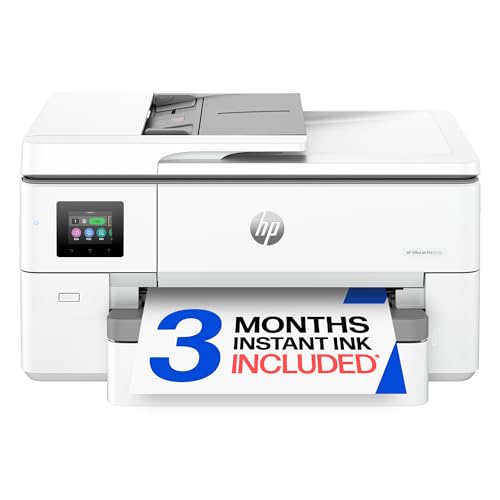
3. HP OfficeJet Pro 9720
A wireless color inkjet all-in-one from HP’s wide-format OfficeJet Pro line; confirm the differences from the 9730 on the product page.
Good for: Small offices that need occasional tabloid output. Strengths: Wide-format office features from HP. Weaknesses: HP’s ink program and a large body. Skip it if you print only letter-size pages.

Best for small offices that print and scan tabloid documents
4. HP OfficeJet Pro 9730
A wireless wide-format all-in-one that, per the listing, prints and scans up to 11×17 inches with a document feeder, fax and duplex.
Good for: Small offices that print and scan tabloid documents. Strengths: Wide-format print, copy, scan and fax with a feeder. Weaknesses: HP’s ink program applies, and the body is large. Skip it if you print only letter-size pages.

OfficeJet Pro: Buying Notes
Feeder and duplex
These are the main reasons to buy an OfficeJet Pro. Confirm them for your model.
Wide-format models
The 9700 series handles larger sheets. See best 11×17 printers.
Ink program
HP printers may require supported cartridges. Read the policy.
Volume
OfficeJet Pro suits regular office printing. For very heavy volume, consider an ink tank or laser.
Best Picks by Category
These labels summarize listing data and are not hands-on test results.
- Top rated: HP OfficeJet Pro 8125 — check price on Amazon.
- Most reviewed: HP OfficeJet Pro 8125 — check price on Amazon.
- Lowest price: HP OfficeJet Pro 8125 — check price on Amazon.
- Premium option: HP OfficeJet Pro 9720 — check price on Amazon.
Price, Rating and Review Comparison
The table compares the picks by price tier. Prices change often, so confirm the current price on Amazon.
| Product | Price | Rating | Ratings | Price tier |
|---|---|---|---|---|
| HP OfficeJet Pro 8125 | Check price on Amazon | — | — | Budget |
| HP OfficeJet Pro 9125 | Check price on Amazon | — | — | Mid-range |
| HP OfficeJet Pro 9720 | Check price on Amazon | — | — | Mid-range |
| HP OfficeJet Pro 9730 | Check price on Amazon | — | — | Mid-range |
How Much Feedback Backs Each Rating
A high average from a handful of ratings is weaker evidence than a slightly lower average from thousands. Here is how the sample size looks for each pick.
- HP OfficeJet Pro 8125: A moderate sample behind its average.
- HP OfficeJet Pro 9125: A moderate sample behind its average.
- HP OfficeJet Pro 9720: A small sample behind its average, so treat it cautiously.
- HP OfficeJet Pro 9730: A moderate sample behind its average.
How to Choose
Check the feeder and duplex
These features are the reason to buy an OfficeJet Pro. Confirm them for your model.
Wide-format or letter?
The 9700 series handles larger sheets. The 8100 and 9100 series are letter-size.
Consider the ink program
HP printers may require supported cartridges. Read the policy first.
How We Chose These Products
We start from products sold on Amazon with a full product name and clear specifications, and we skip results that show only a brand name or a vague title. We then read the listing and any manufacturer information for each one and note the features that matter for printers: print technology, running costs, connectivity and size. We do not run our own lab tests, and this guide contains no hands-on measurements. Use it to build a shortlist, then check current prices, dimensions and return terms on the Amazon page before you buy.
Buying Guide: What to Check Before You Choose
Brand ecosystems
Some brands use subscriptions or restrict third-party ink. Check the terms and the cost of consumables.
Ink tank versus cartridge
Ink tank printers use refillable tanks and usually have a lower cost per page, with a higher purchase price. Cartridge printers are cheaper up front but ink can cost more over time. Check the page yield and the cost of refills.
Laser printers
Laser printers print text quickly and sharply and do not clog like inkjets. Color lasers cost more. Check the toner cost and the print speed.
Quick Reference: Which Pick Suits Whom
- HP OfficeJet Pro 8125: suits home offices that want a feeder at a lower tier
- HP OfficeJet Pro 9125: suits remote workers who scan contracts and receipts
- HP OfficeJet Pro 9720: suits small offices that need occasional tabloid output
- HP OfficeJet Pro 9730: suits small offices that print and scan tabloid documents
Common Mistakes to Avoid
- Judging a printer by its price without considering ink cost.
- Ignoring the starter cartridge size.
- Forgetting the paper types needed.
- Assuming all-in-ones are always better.
- Skipping the return window.
Setup and Care
- Install the maker’s app or driver.
- Connect to Wi-Fi.
- Run an alignment and nozzle check.
- Print regularly to avoid clogs.
How the OfficeJet Pro Range Is Organized
HP names its printers with number series, and in this line the series tells you the basic size and purpose of the machine. Reading the number before you read the feature list narrows the choice quickly.
The 8100 and 9100 series
These are letter-size office inkjets. They print and scan standard pages, add an automatic document feeder for multi-page originals and offer two-sided printing. The OfficeJet Pro 8125 and 9125 in this guide belong here. The 9125 sits a tier above the 8125 in the guide’s listings, so the practical question is whether the extra features justify the step up for the way you work.
The 9700 series
These models, including the 9720 and 9730, handle wide-format sheets up to 11 by 17 inches. They suit architectural drawings, spreadsheets that print on tabloid paper, posters and large forms. They are bigger and heavier, and they need desk or shelf space to match.
Why the series matters more than the model year
Printer lineups change often, and a model that looks like a successor may differ only in cosmetic details or in ink program terms. When two models look alike, compare the specification pages side by side and focus on paper capacity, feeder type, connectivity and cartridge policy.
Matching an OfficeJet Pro to Your Work
- Remote worker who signs and scans contracts. A feeder that scans both sides of a page saves repeated trips to the glass. Look for the option to scan to email or a network folder and to send to cloud services from the printer’s screen.
- Freelancer who prints invoices and proposals. Automatic duplex printing keeps paper use low. Check the paper tray capacity so you are not refilling it constantly.
- Small team in a shared room. Network features matter. Ethernet, user access controls and the ability to print from several computers and phones become important.
- Designer or builder who needs tabloid output. The 9700 series is the reason to consider this range, but check scan size, since not every wide-format printer scans at the same size.
- Occasional home user. If you print a few pages a month, an office inkjet may be more than you need. Ink can dry out when a printer sits idle, so a laser or a simpler inkjet might fit better.
Ink, Cartridges and Running Costs
The purchase price is only the start. Over a few years, ink usually costs more than the printer, so it is worth understanding how this range handles it.
HP offers a subscription service that charges by pages printed per month and sends cartridges automatically, and it also sells standard cartridges in different sizes. Some printers in the range are designed to work with supported cartridges and may display warnings or refuse cartridges that do not meet the terms. The details change with firmware updates and with the model, so read the current terms on the product page and in the printer’s documentation before you buy.
Think about page yield. High-capacity cartridges generally cost less per page than standard ones, and the starter cartridges that ship with a printer often hold less ink than later replacements. If you print mostly black text, check whether the printer uses a separate black cartridge, since that cuts the cost of document printing. Color-heavy printing, such as reports with charts, consumes the colored cartridges faster.
Finally, ask whether subscription plans are worth it for your volume. They can lower the cost for steady use, but they commit you to a monthly fee, and cartridges may stop working if the plan lapses. Light users often find standard cartridges simpler.
Paper Handling, Scanning and Fax Features
The features that justify an office printer are all about handling paper efficiently. The automatic document feeder lets you scan a stack without lifting the lid, and the useful variant scans both sides in one pass. Without that, a duplex scan requires flipping the stack, which defeats part of the purpose. Check whether the feeder handles different paper weights and sizes, such as legal pages or receipts.
Automatic duplex printing saves paper and gives a more professional result for handouts. Tray capacity affects how often you refill, and a printer that accepts envelopes, labels or heavier stock may need a different path through the machine. Read the supported media list for the types you actually use.
Fax is still a requirement in some professions, such as healthcare and legal work. The listed 9125 and 9730 mention fax, and that feature often requires a phone line or a compatible internet service. If you never send faxes, treat it as a bonus, not a reason to choose a model.
Connectivity, Security and Software
Most OfficeJet Pro printers connect over Wi-Fi, Ethernet and USB, and they work with a mobile app for printing and scanning. Setting one up usually takes a few minutes, but a few points deserve attention:
- Use the setup app from the manufacturer, and keep the printer firmware updated, since updates fix bugs and security issues.
- Change the default administrator password if the printer has a web page for settings.
- Assign a fixed address or reserve one in your router if several computers print to it, which prevents the printer from disappearing after a restart.
- Confirm support for your operating system and for driverless printing on phones and Chromebooks.
Some HP printers require an online account for setup or certain functions. If that bothers you, read the setup requirements first.
Common Reasons Buyers Regret an Office Inkjet
The disappointments are predictable. People buy a wide-format printer for an occasional large print and then struggle with the size and ink cost. Others choose the cheapest model and later wish for a feeder or two-sided scanning. Some forget that print heads and nozzles can clog if the printer sits unused, so a printer used once a month needs regular maintenance cycles, which use a small amount of ink. A few overlook the extra cost of high-yield cartridges, and others discover that the printer needs a replacement part sooner than expected. A clear idea of your monthly page count prevents most of these.
Placement, Noise and Everyday Practicalities
An office inkjet is a larger object than a home printer, and where it sits affects how pleasant it is to use. Leave clearance above the unit for the scanner lid and the feeder, and behind it for paper movement in duplex printing, which pulls the page partway back into the machine. Place it on a stable surface, away from direct sun and heat vents, and close enough to your router for a steady wireless signal or within reach of an Ethernet cable.
Noise is worth a thought if the printer shares a room with calls. Duplex printing and feeder scanning make more movement sounds than a single-page job. Manufacturers sometimes publish a quiet mode that slows printing, and it can help in a small apartment. Wide-format models are louder and need more space, so measure the footprint and check the weight if you plan to place it on a shelf. Finally, keep a spare set of cartridges on hand during busy periods, since running out of ink in the middle of a deadline is a common frustration.
Questions to Ask Before You Order
- How many pages do I print each month, and are they mostly text or color?
- Do I need letter-size only, or occasional 11 by 17 printing?
- Does the feeder scan both sides in one pass?
- What are the cartridge options and the cost per page for high-yield sizes?
- Does the printer require a subscription or an account for full features?
- Do I have the desk space and a power outlet suited to the footprint?
Entry Level Versus Higher Tiers
The lowest-priced model in this guide gives you the main reason to buy an OfficeJet Pro, a feeder with two-sided printing, in a smaller body. Moving up adds convenience features and, in the 9700 series, a larger paper size. The ratings in the comparison table above come from listing data, and the 9720 has only a small number of ratings behind its average, so treat it with care. Compare the sample sizes before deciding, and weigh the added cost against how often you will use the extra capability.
The OfficeJet Pro Idea: Inkjet Running Costs, Office Manners
The OfficeJet Pro line exists to answer a specific office problem: colour printing is necessary, laser colour is expensive to run, and the machine must still behave like office equipment — fast, feeder-equipped, and cheap enough per page that nobody rations it. The four models in this guide, the OfficeJet Pro 8125, 9125, 9720 and 9730, pursue that answer with high-capacity ink cartridges, proper document feeders and print speeds that respect a working day. They are inkjets in technology and office machines in intent, and judging them by home-inkjet standards — or by laser standards — misses what they are for.
Who they are for is equally specific: the home office or small business that prints colour documents weekly — proposals, reports with charts, teaching materials, client paperwork — scans multi-page documents as part of its routine, and needs the whole performance at a running cost that survives contact with a monthly budget. A household that prints occasionally will find these machines more than it needs; a document professional will find them precisely enough, which is why this guide separates them from the general home lists and treats them as the office tools they are.
Feeders, Duplex and the Paperwork Day
The OfficeJet Pro’s working day is paperwork-shaped, and its features are arranged accordingly. The automatic document feeder turns scanning and copying of contracts, applications and records into a load-and-walk-away job; duplex printing halves the paper in every report and reads more professionally for it; and the combination — a two-sided document scanned, copied or printed without page-by-page attention — is the daily reality these machines were engineered around. Offices upgrading from a home inkjet feel the difference in the first week, not in print quality, which was always adequate, but in the disappearance of small frictions that used to structure the day.
Two of the picks widen the brief literally. The OfficeJet Pro 9720 and 9730 handle wide-format paper, which serves offices whose documents include large spreadsheets, plans, posters and proofs that must be seen at full size rather than tiled or shrunk. If your work never leaves standard sizes, that capability buys you nothing but a larger machine; if it does, these are among the very few office all-in-ones that cover it without stepping into specialist equipment. Size your choice to your largest regular document, as this guide advises for every feeder and tray, and the range divides itself by paper as cleanly as by pace.
Ink Economics: Cartridges, Yields and Programmes
OfficeJet Pro running costs live or die on cartridge choice. The machines accept high-yield cartridges whose cost per page undercuts ordinary home inkjet printing decisively, and an office should standardise on them from the first replacement cycle, buying when the spare is opened so a deadline never meets an empty colour. Colour discipline still pays: drafts in monochrome or draft quality, full colour reserved for documents that leave the building, and duplex as the standing default. Under those habits an OfficeJet Pro’s ink bill becomes a predictable, modest line in the office budget rather than a recurring surprise.
HP’s ink subscription is also offered in this class and deserves the same clear-eyed test as elsewhere: it suits offices whose page counts are steady and whose administrators value never thinking about ink, and it deserves scrutiny from offices whose volume swings seasonally, since unused allowances and busy months are where such plans are won and lost. Either way, verify the machine’s current supply policies before committing a purchasing strategy — modern HP printers are designed around genuine cartridges, and an office standardising on third-party supplies should confirm compatibility for its exact model rather than discovering the answer mid-quarter.
Comparing the Four OfficeJet Pros by Office
The OfficeJet Pro 8125 is the entry to the class: the feeder, the pace and the running costs of the line in its most accessible form, suited to a solo professional or a very small office whose colour paperwork is steady but not heavy. The 9125 is the line’s centre of gravity — faster, hardier, and the natural choice for a home office that prints and scans daily and shares the machine between two or three people. Most readers of this guide who recognise their working life in these pages are describing the 9125’s brief, and it is the model against which the others should be justified.
The wide-format pair justify themselves by paper. The 9720 covers wide printing for offices whose large documents are output; the 9730 completes the set with the full office feature set at that size, for the practice or studio whose plans, proofs and posters must be scanned and copied as well as printed. If your largest document is a standard page, both are simply larger machines than your life requires, and the honest choice is the 8125 or 9125 with money left in the budget. If your largest document is a plan that a client must read across a table, nothing else in this guide will do that job at all — and the decision has again made itself.
Reliability, Maintenance and Office-Grade Habits
Office machines earn their keep through uptime, and uptime is mostly habits. Keep the OfficeJet Pro printing regularly — an office pace does this naturally — so its ink system stays in the condition daily use maintains. Keep paper dry and loaded properly, since feeders and duplex paths are honest critics of damp, curled stock. Keep firmware current and the machine on a stable network connection, wired where the office layout allows, so that its address and availability stop being variables. And keep the spare ink set complete: an office printer that stops for want of one colour on a deadline day has failed at logistics, not technology.
When quality slips, the office routine applies: check levels, print the diagnostic page, run one cleaning cycle if the pattern shows gaps, and test on plain paper before blaming the machine for a paper problem. These are five-minute disciplines, and an office that builds them into its week will find the OfficeJet Pro what its name promises — a professional tool that produces professional paperwork, in colour, at a running cost a small operation can carry, for years. That is a narrower promise than “best printer”, and for the offices this guide serves, a far more valuable one.
Setting Up an OfficeJet Pro for a Working Office
An OfficeJet Pro should be commissioned like office equipment, in one deliberate session. Place it where its feeder and output are reachable without moving furniture, connect it by Ethernet if the room allows or where Wi-Fi is strongest, and give it a fixed address and a name the whole office understands. Configure the scan destinations the team will actually use — the shared folder, the email addresses, the cloud archive — and test each with a real document, because a scan destination that fails silently is worse than none. Set the standing defaults for everyone: duplex on, draft quality for internal work, full quality for documents that leave the building.
Then run the machine’s first real week consciously. Print the office’s typical documents, scan its typical stacks, and adjust the one or two settings that chafe while the manual is still nearby. Stock the spare ink set in the same week and note the cartridge types where orders are placed. An OfficeJet Pro set up this way settles into the office’s furniture within a fortnight; one left half-configured generates a year of small workarounds, each too small to fix and collectively expensive. The difference is an hour, spent once, at the right end of the machine’s life.
Colour Discipline in a Busy Office
Colour is the OfficeJet Pro’s reason to exist and its main cost risk, so a busy office should govern it with defaults rather than exhortation. Set monochrome as the driver default for the applications that produce internal documents, and let colour be chosen deliberately for client-facing work. Draft mode for internal colour — charts in a working paper do not need presentation quality — stretches cartridges across a quarter noticeably. And audit the office’s colour habit once or twice a year by simply looking at what is in the recycling: if the bin is full of colour pages nobody read, the defaults, not the staff, need adjusting.
Paper carries the other half of colour discipline. Full-colour documents on cheap paper look cheap, because heavy ink coverage cockles thin stock and dulls as it dries; a slightly better paper for external documents is the highest-value upgrade in the whole colour workflow, costing little per page and changing how the firm’s paperwork feels in a client’s hand. Keep the two stocks separated and labelled, exactly as this guide advises for lasers, and the OfficeJet Pro will produce documents that represent the office as well as its words deserve.
When the Office Outgrows One Machine
Successful small offices eventually meet the queue: two people needing the feeder at once, a long colour run blocking urgent single pages, a machine whose monthly pages keep climbing past the comfortable range. The OfficeJet Pro’s own range offers the first answer — step up within the line to the hardier model — but the wiser answer is often a second machine with a divided brief. A monochrome laser taking the text volume leaves the OfficeJet Pro doing what only it can do in the building: colour and scanning. Each machine then lives inside its comfortable range, each is the other’s backup for essentials, and the office’s total cost per page usually falls.
Recognise the moment by pattern rather than crisis: queues forming daily, supplies ordered constantly, staff timing their printing around each other. Costing a second machine against those lost minutes, honestly counted for one week, settles most arguments. And when the second machine arrives, commission it with the same one-session discipline as the first — the office that sets up its printers like infrastructure ends up, not coincidentally, with infrastructure-grade reliability from machines bought at small-office prices.
The OfficeJet Pro in One Sentence, Tested
Strip the marketing away and the OfficeJet Pro proposition is a single sentence: office colour paperwork, feeder and all, at a running cost a small operation can carry indefinitely. Everything in this guide has been a test of that sentence against real offices — the solo professional for whom the 8125 is exactly enough, the daily home office the 9125 was built around, the wide-format practices only the 9720 and 9730 can serve. If your working life matches the sentence, choose by paper size and pace, set the machine up like the equipment it is, govern its colour with defaults and its ink with a stocked shelf — and it will keep that promise in the only currency that matters, which is paperwork produced without incident, week after week, year after year.
Troubleshooting an OfficeJet Pro Like an Office Manager
Office inkjets fail in a short list of ways, and each has an order of attack. A queue that will not clear is a computer problem until proven otherwise: cancel all jobs, restart the machine, and send one small page before releasing the day’s work at it. Streaky or missing colour is a print-system problem: check levels honestly, print the diagnostic pattern, run one cleaning cycle if it shows gaps, and test on plain paper before spending good stock on the experiment. Paper that misfeeds from the feeder is usually a paper problem — a mixed, damp or overfilled stack — and the cure is a smaller, tidier stack rather than a service call. A machine that vanishes from the network is an address problem more often than a wireless failure, solved by the network page, a fixed address, and re-adding the printer where its address has wandered.
The office habit that makes all of this cheap is the log: one line per incident, kept where supplies are ordered. Patterns invisible in memory are obvious on paper — the feeder that jams only on one supplier’s paper, the colour that fades every examination season when volume triples — and the log converts each incident from a fresh emergency into a solved problem being recognised. An OfficeJet Pro maintained by an office with a log and a stocked shelf will run for years at the standard its name promises; the same machine in an office without them will be blamed for failures of logistics that were never the printer’s at all.
What an OfficeJet Pro Cannot Do, Said Plainly
The honesty paragraph matters here too. An OfficeJet Pro is not a photo printer, and its colour — excellent for charts, graphics and documents — should not be asked to produce the framed print. It is not a laser, so its cost per page, while low for colour, will not match a monochrome laser’s for pure text at high volume; offices drowning in text should pair it with one, as this guide has suggested. Its ink system, like every inkjet’s, prefers regular use to long idleness, so a seasonal office should expect a cleaning cycle after the quiet months rather than instant perfection.
Within those limits stands the machine this guide set out to find: the office all-in-one that prints colour paperwork fast, scans it in stacks, faxes and copies where the model provides, and does it all at a running cost a small operation can carry without rationing. The four picks divide that brief by pace and paper size, the setup and habits in these pages keep it true for years, and the office that chooses well here will think about its printer the way it thinks about its kettle — only when it is time, eventually, to replace a faithful appliance with its modern equivalent.
The First Month With an OfficeJet Pro: A Short Proving Programme
Commission the machine properly by using it deliberately in its first month. Print the office’s real documents in colour and judge them in a client’s imagined hand, adjusting paper before settings if they disappoint. Scan the largest stack of the month through the feeder and check the file page by page, so the feeder’s manners with your actual paperwork are known rather than assumed. Copy a two-sided document, send the machine’s output through the office’s ordinary week, and set the scan destinations and defaults while the lessons are fresh. Stock the spare ink and record the cartridge types where the office orders supplies.
A month of that attention buys years of inattention, which is the correct exchange rate for office equipment. The OfficeJet Pro that has been proven against the office’s real work stops being a purchase and becomes a utility; the one that has not will keep asking small questions at busy moments. Ask them all in the first month, on your schedule, and then let the machine do what this line was built to do — produce an office’s colour paperwork, day after unremarkable day, at a cost nobody has to think about.
One Habit Above All: Keep the Office Printing Boring
Every recommendation in this guide reduces to a single ambition: that the office’s printing should be boring. Boring means the feeder eats the stack, the colour looks right on the office’s standard paper, the ink is always in the shelf because somebody ordered it when the spare was opened, and the machine’s name appears in conversation only at budget time. Achieving boring is not a purchase but a practice — the setup session, the defaults, the log, the stocked shelf — and it is available to any office that buys a machine matched to its real paperwork, which is the decision this list exists to support.
Revisit the match once a year. Volumes change, paper sizes change, teams grow, and the OfficeJet Pro that fitted the office of three may strain in the office of seven — at which point the range, or a laser partner beside it, offers the step that keeps printing boring. Boring, maintained deliberately year after year, is what professional equipment is actually for: not admiration, not novelty, just paperwork that appears, correctly, whenever the work requires it. Choose the model that fits, build the small practices around it, and enjoy the silence where printing problems used to be.
A Word on Sharing an OfficeJet Pro Fairly
Shared machines live or die on small courtesies, and an office that names them early rarely argues about its printer. Whoever empties the feeder of their originals leaves it ready for the next person; whoever prints the long colour run at the day’s peak warns the room; whoever opens the last spare cartridge tells whoever orders, the same day. These are thirty-second kindnesses, and they are the difference between a shared OfficeJet Pro that feels like infrastructure and one that feels like a contested resource. Write them on the same card that holds the scan destinations and the cartridge numbers, pin it by the machine, and let the printer’s own reliability do the rest — it was built for a room full of people, and with a little help from the room, it will serve every one of them.
Keep that card by the machine updated as the office changes — new starters, new scan destinations, a changed cartridge when a model is replaced — and it remains what it was designed to be: the office’s whole printing knowledge, on one sheet, produced by the very machine it describes.
Frequently Asked Questions
Is OfficeJet Pro good for a home office?
Yes, if you scan and print documents regularly.
What is the difference between OfficeJet and OfficeJet Pro?
Pro models are aimed at heavier office use with more features.
Can I use third-party ink?
Check the policy for your model.
Which is cheaper to run, inkjet or laser?
Laser is usually cheaper per page for text, and ink tank printers are cheaper for color and photos.
How do I connect my printer to Wi-Fi?
Use the printer’s setup menu or the maker’s app. See our Wi-Fi guide.
Do I need genuine ink?
Not always, but some printers restrict third-party ink. Check the terms.
What is the difference between the HP OfficeJet Pro 8125 and 9125?
Both are letter-size office inkjets with a document feeder and two-sided printing. The 9125 is listed at a higher tier and adds features such as fax per the listing. Compare the specification pages for paper capacity, feeder type and display, and confirm which functions you will actually use.
Do OfficeJet Pro printers need an HP account to work?
Basic printing over USB or a network often works without one, but setup through the manufacturer’s app and some features, such as subscription ink or remote printing, may require an account. Requirements change by model and firmware, so read the setup section of the product page first.
Can an OfficeJet Pro scan double-sided documents automatically?
Some models do, and some require you to flip the stack. Look for a feeder described as scanning both sides in one pass. The listing for each printer should state this, and the specification sheet is the reliable source if the product title is vague.
How often should I print to keep inkjet nozzles from clogging?
Printing a page or two with color and black every week or two helps keep ink flowing. Printers also run automatic cleaning cycles, which use a little ink. If a printer sits idle for months, expect to run a cleaning and alignment from the menu.
Is an OfficeJet Pro better than a laser printer for a home office?
It depends on what you print. Inkjets handle color and photos well and are compact, while lasers suit high volumes of black text with lower cost per page and no nozzle clogging. If you print mostly text in large amounts, compare toner costs before choosing.
Bottom Line
For a step-down with a feeder, the HP OfficeJet Pro 8125 is the entry point, and the OfficeJet Pro 9125 adds more. For 11×17 work, look at the 9720 or 9730.
Related Reading
- Types of Printers Explained: Inkjet, Laser, Ink Tank and More
- 7 Best Wireless Printers for Home Use
- 5 Best HP DeskJet Printers for Home Use
- 4 Best HP LaserJet Printers for Home and Small Office
- HP Envy 6555e vs OfficeJet Pro 8125: Home or Home Office?
More Printer Guides
- Best Printers for Home Use
- Best HP Printers for Home and Office
- Best Brother Laser Printers for Home and Office
- Best Brother Printers for Home and Office
- Best Canon MegaTank Printers for Low Ink Cost
- Best Canon PIXMA Printers for Home and Photos
- HP OfficeJet Pro 9125 vs 8125
- Is the HP OfficeJet Pro 9125 worth it?
- Is the HP OfficeJet Pro 8125 worth it?

