When an all-in-one printer will not scan, the cause is usually the connection between the scanner and your computer, the software or a setting, rather than a broken scanner. This guide covers the common causes for Windows and Mac.
Steps vary by brand. Many makers provide a scan app that is worth installing.
By the Reviewstook Editorial Team. Last updated: October 31, 2026.
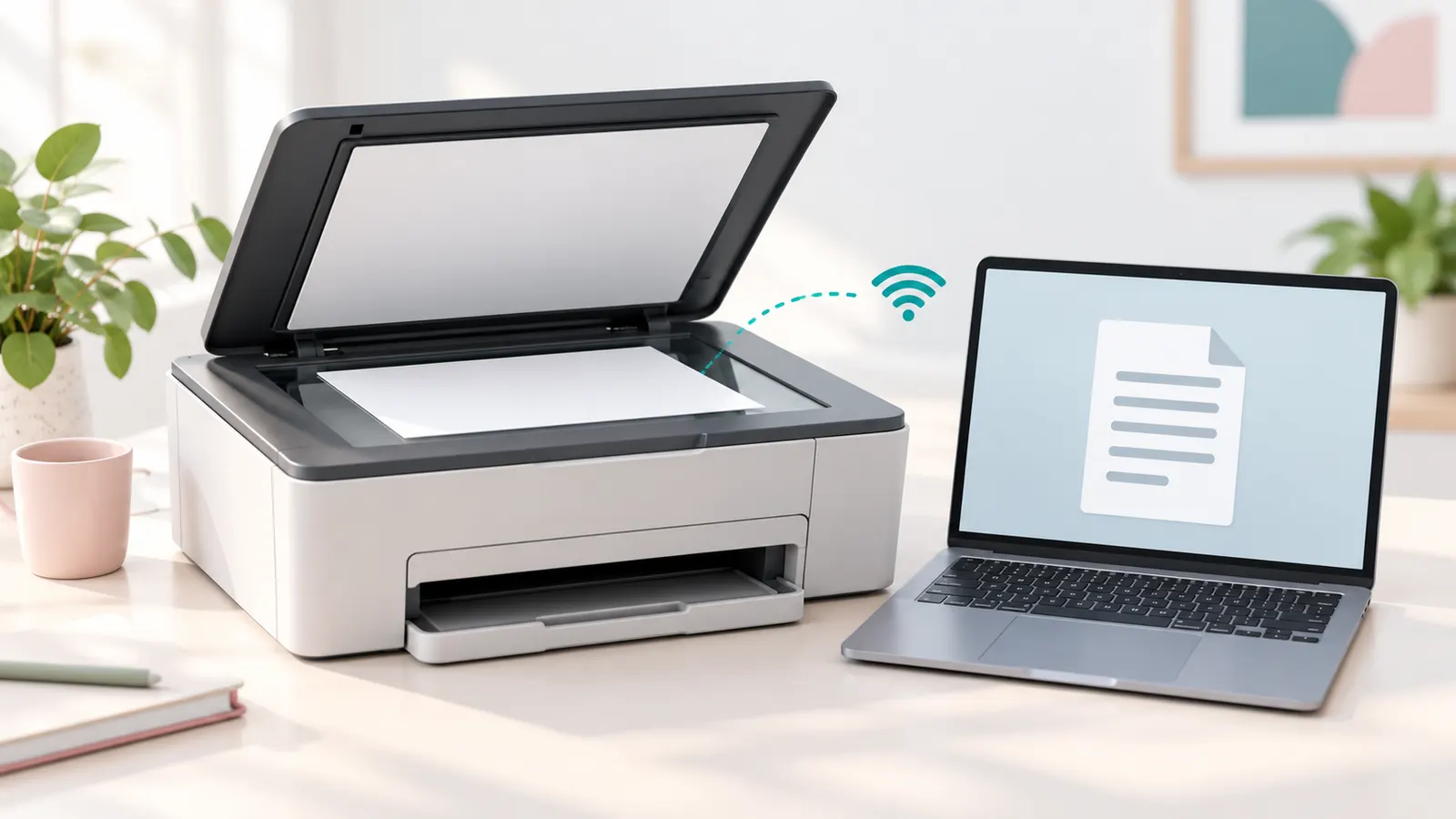
Step 1: Check That the Printer Is Connected
If the printer shows offline, scanning will fail. Check the connection; see how to fix a printer offline error. For a USB printer, try another cable and port.
In this guide
Step 2: Restart Everything
Turn off the printer and unplug it for 30 seconds. Restart the computer and the router. Try scanning again.
Step 3: Use the Right Scan Software
Windows includes the Windows Scan app, and many printers have a maker’s scan app. On a Mac, use Image Capture or the Preview app. If one program fails, try another. See how to scan a document with a printer.
Step 4: Check the Scanner Glass and Feeder
A dirty glass can cause black lines or poor scans. Wipe with a lint-free cloth. Make sure the document is face down on the glass, aligned with the corner mark, or face up in the feeder as the printer requires. A jammed feeder blocks scanning.
Step 5: Update the Driver and Software
Scanning uses a separate driver from printing. Install the full driver and software package from the maker, not only the basic print driver. See how to update a printer driver.
Step 6: Check Firewall and Security Software
Security software can block scanning over the network. Allow the scan program or temporarily test with the firewall disabled, then turn it back on.
Step 7: Scan to a Computer or Email From the Printer
If you use the Scan button on the printer, the computer must be set up as a destination. Run the maker’s setup tool to add it. For network scanning, check the computer name and the shared folder permissions.
Step 8: Remove and Re-Add the Printer
In Windows or macOS, remove the printer and add it again to refresh the scanner driver. See how to set up a wireless printer on a Mac.
If Only Part of the Scanner Works
If the printer prints but will not scan, the scanner may be locked. Some printers have a transport lock under the lid. Check the manual. A damaged scanner cable or sensor may need repair.
Work Out Where the Scan Fails
Scanning problems look similar on the surface but come from different places, so it pays to identify which step fails before changing settings. There are three common stages. First, the computer must find the scanner. Second, the scanner must capture the page. Third, the file must be saved to the right place. A failure at each stage has a different cause.
If the scan app says no scanner was found, the issue is with detection: the connection, the driver or the network. If the app finds the scanner but nothing happens, or the scan head moves and the app shows an error, the problem is usually in the driver or the software that sits between the app and the hardware. If the scan completes but the file is blank, black, cut off or cannot be found, the problem is in the settings, the glass or the destination folder.
A good test is to start the scan from the printer’s own control panel and then from your computer. A scan that works from the panel but not from the computer points to a computer-side problem, such as the driver, a firewall or a missing scan destination. A scan that fails from both points to the scanner itself or a setting on the printer. Also test a different document and a different size or resolution. A very high resolution on a big page can run out of memory and fail, whereas a lower setting may complete.
Write down any error message exactly as shown. Messages that mention communication, timeouts or the scanner being busy suggest connectivity. Messages that mention the file location, permissions or disk space suggest the destination. This small step makes the following checks more targeted and shortens troubleshooting.
Wired Versus Wireless Scanning Problems
Many scanning faults are connection faults in disguise. A printer that prints fine over Wi-Fi can still fail to scan, because scanning often needs a stable two-way link and uses different network services from printing. Large scans send a lot of data, so a weak signal may drop out partway through even though small print jobs go through.
- Wi-Fi: move the printer closer to the router, check that it is on the same network as the computer and avoid guest networks that isolate devices. If the printer’s address changed, the computer may be looking in the wrong place.
- Fixed address: some people give the printer a reserved address in the router settings so that it stays the same after restarts. Check your router manual for the steps.
- Ethernet: a wired network connection is more stable for large scans and is worth trying if wireless keeps dropping.
- USB: try a different cable and a different port, and avoid unpowered hubs. A damaged or very long cable can print small jobs but fail on larger transfers.
If you are connected over Wi-Fi and the scan fails, try temporarily connecting by USB to see if the scan works. If it does, the cause lies with the network path, not the scanner. Also check that the printer is not in a sleep or power-saving state during the scan, since some printers take a moment to wake up and the scan app may time out. A restart of the printer, router and computer in that order often restores the link.
Permissions, Folders and Where Scans Go
Sometimes the scanner works and the file simply does not land where you expect. Scan apps save to a default folder, often a pictures or documents folder, or to a temporary folder from which you must save manually. If a scan seems to have vanished, search for recent files by date and check the app’s settings for the save location.
Operating system privacy settings can also block a scan. Newer versions of Windows and macOS can limit which apps are allowed to access the camera, files or scanners. If a scan app fails with a permission message, open the system privacy settings and check that the app is allowed to use the relevant devices and folders. On a work or school computer, an administrator may have restricted these, in which case you will need to ask them.
When you scan directly from the printer to a shared folder on the network, the printer logs in to the computer. That needs the right computer name or address, a shared folder, and a user account with permission to write to it. A changed computer password, a renamed computer or a new network profile will break this link. Check the destination settings on the printer and re-enter the details if needed. Make sure there is enough free space on the target drive. Also check that file type options such as PDF, JPEG and TIFF are set to something your computer can open. If the scan opens as a huge file, lower the resolution or choose a compressed format.
Getting Better Scans Once It Works
When scanning is working again, a few settings make the results more useful. Resolution is measured in dots per inch. A moderate setting is enough for ordinary text documents and keeps file sizes manageable. Higher settings suit photos, small prints that you want to enlarge, and detailed artwork, but they take longer and make larger files. Choose the setting based on what you will do with the scan rather than using the highest value by default.
Color mode matters as well. Black and white or grayscale is smaller and cleaner for plain text. Full color suits photos and anything with colored marks. Document scanning modes may offer automatic cropping and straightening, which helps if the page was placed slightly crooked. Optical character recognition turns a scanned page into searchable text. Some apps offer it as an option, though accuracy depends on print quality, language and resolution, so check the results.
For multi-page documents, use the document feeder if the printer has one, and flatten and align the pages first. Remove staples and clips, and avoid feeding torn or very thin sheets. For books, photos and delicate items, use the glass. Clean the glass and lid before scanning important items and handle photos by their edges. Name and organize scans as you create them, for example by date and subject, so they are easy to find later. If you scan often, check whether the maker’s app offers shortcuts or presets that save your preferred settings.
When the Scanner Hardware Is the Problem
After eliminating connection, software and settings, hardware faults remain possible. Signs of a hardware fault include a scan head that does not move or makes grinding sounds, an error that appears as soon as the scanner starts, repeated vertical lines that remain after cleaning the glass, dark bands or missing sections, and a lamp that does not light. A scanner lock, usually a small switch or tab, is common on flatbed models and keeps the scan head from moving during shipping. If it is engaged, the scan head cannot travel. Check the manual for its location.
Streaks that appear in the same place on every scan may come from dirt inside the glass, or from a stuck sensor strip, in which case the scanner may need service. Document feeders can also fail separately from the flatbed. If the flatbed works but the feeder does not, check the feeder rollers and separation pad for wear, as described in the manual.
Before paying for service, check the warranty and the age of the printer. If the printer is old, the cost of repair may be similar to a replacement. If you scan frequently, consider whether a dedicated scanner would serve you better than the scanner section of an all-in-one, especially for large batches of documents. When you replace the unit, check the scan features that matter to you, such as a document feeder with two-sided scanning, scan-to-cloud options and the software support for your operating system. Keep the packaging for the first couple of weeks in case you need to return it.


Ready to Buy? Start Here
If this guide helped you decide what to look for, these products are a place to start.


As an Amazon Associate we earn from qualifying purchases. Prices and availability are shown on Amazon.
A Quick Scan Troubleshooting Checklist
Before you dig into drivers and settings, run through a short checklist. Most scanning failures turn out to be something small, and ticking items off in order saves you from changing several things at once and losing track of what helped.
- Confirm the printer is powered on and shows no error light or message on its panel.
- Open the lid and look for a stray sheet, staple or sticky note on the glass.
- Check that the computer and the printer are on the same network, or that the cable is firmly seated at both ends.
- Try one scan from the printer’s own control panel to see whether the hardware responds.
- Try one scan from the maker’s scanning app on the computer.
- Restart the app, then the computer, then the printer, in that order.
- Write down any error message word for word, because the exact wording often points to the cause.
If the panel scan works but the computer scan does not, the scanner itself is fine and your attention belongs on software, permissions or the network path. If neither works, look at the glass, the lid sensor and the maker’s error code list.
Common Mistakes That Waste an Afternoon
Scanning problems have a way of eating time because the fixes feel logical but often miss the real issue. A few habits are worth dropping.
- Reinstalling everything at once. Removing the driver, the app and the printer in one go makes it impossible to tell which step mattered.
- Assuming printing proves the connection is healthy. Printing and scanning often use separate services, so one can work while the other fails.
- Ignoring the lid. Some models will not begin a flatbed scan if the lid sensor thinks it is open, and some feeders refuse to run with the cover ajar.
- Skipping the manual’s error code table. A short code on the display is often a precise clue.
- Using an old shortcut. A desktop shortcut pointing at a removed version of the scan software will fail even when the new one works.
Change one thing, try a scan, and write down the result. That slow rhythm is usually faster than a burst of random fixes.
Following the Maker’s Manual or Calling for Help
Your manual and the maker’s support pages know your exact model, and they should be the first stop for anything specific: how to reach a hidden scan menu, what a numbered error means, or which driver version matches your system software. General advice can only take you so far, and model details change between product generations.
Some situations call for professional help rather than more tinkering. If the printer shows a clear error about the scan unit, if the scan head makes grinding noises or sits at one end of its track, or if the unit is still under warranty, contact the maker’s support line. Opening the housing yourself can void coverage and risks damaging delicate ribbon cables. Likewise, if a work computer blocks your changes, ask whoever manages it, since permissions and security tools may be set centrally.
Reading the Symptoms: A Short Decision Table
The way a scan fails tells you where to look. Use this table as a rough map.
| What you see | Likely area | First thing to try |
|---|---|---|
| Computer says no scanner found | Connection or driver | Check cable or network, then restart the printer |
| Panel scan works, computer scan does not | Software or firewall | Reopen the maker’s app and check network permissions |
| Scan begins then stops partway | Wireless signal or timeout | Move closer to the router or use a cable |
| Image is blank or black | Glass, lid or settings | Clean the glass and check the color mode |
| Feeder scans only one page | Feeder rollers or setting | Reload the stack and check the multi-page option |
Treat the table as a launch point rather than a verdict. Where two rows seem to fit, begin with the simplest fix and move on only when it fails.
One more habit helps: keep a small note near the printer with the model number, the driver version you installed and the date. When a scan problem returns months later, that note shortens the search and gives support staff something concrete to work from.
Split the Problem: Hardware, Connection or Software
A scanner that will not scan is really three possible machines failing: the scanning hardware itself, the path between scanner and computer, or the software that asks for the scan and receives it. Each layer has a test that isolates it, and running those tests in order prevents the classic waste of reinstalling software for a hardware fault.
Test the hardware first with a copy. Place a page on the glass or in the feeder and make a copy using only the printer’s own panel, with the computer uninvolved. A machine that copies perfectly has a working scanner, light source, sensor and feeder; its scanning problem lives downstream. A machine that cannot copy has a scanning problem in the hardware itself, and no driver on any computer will change that verdict.
Test the path second by changing it. If you normally scan over Wi-Fi, try a USB cable; if you normally scan from the computer, try initiating the scan from the printer’s panel to the same computer. A scanner that works over one path and not another has confessed where it hurts, and the fix belongs to the network, the address or the receiving setup on the failing path.
Test the software last by changing the application. Scan from a different program, the operating system’s built-in scanning tool or the maker’s own app. One application failing while others succeed is an application problem, full stop, and it should be troubleshooted in that application’s settings and updates rather than at the printer.
Drivers: The Layer Everyone Forgets Is Separate
Printing and scanning use different driver components, and they fail independently. A machine can print flawlessly while its scanning driver is missing, corrupted or never installed, because a basic print driver is often all the operating system installs automatically when it discovers a printer. Scanning typically needs the maker’s full software package, which includes the scan driver and the utilities that manage it.
If scanning has never worked on a new computer, this is the first suspect. Install the full package for your exact model from the maker’s official support pages, restart, and test from the maker’s own scan utility before testing from third-party applications. The maker’s utility speaks to the driver most directly; if it cannot scan, no other program will, and if it can, the remaining problem belongs to the other programs’ configuration.
Windows users may meet the scanning subsystem under names like WIA and TWAIN, and Mac users under the system’s image capture framework. You do not need to master them, but know that an application can only use the interfaces the installed driver provides, which is why one program sees the scanner and another does not. The full package maximizes the interfaces available, and keeping it updated after operating system upgrades prevents the classic “the update broke my scanner” week.
Scan-to-Computer: The Setup That Fails Silently
Starting a scan from the printer’s panel and having it arrive on the computer is the most convenient workflow and the most fragile, because it requires the printer to find the computer, not the other way round. The printer must know the computer’s address, the computer must be running the maker’s receiving software or service, and the network must allow the conversation. A change in any of the three, a new router, a changed computer name, a firewall tightening, breaks the workflow while leaving computer-initiated scanning untouched.
Rebuild the registration deliberately. Open the maker’s software on the computer, confirm the scan-to-computer feature is enabled, and let it re-register the computer with the printer. Confirm the computer and printer are on the same network, and that the computer is awake; a sleeping computer cannot receive, and the printer’s panel will report the failure in terms that blame itself.
Firewalls and security software deserve a specific check here. The receiving component listens for the printer’s connection, and a firewall that blocks it produces exactly this symptom: scanning from the computer works, scanning to the computer does not. Allow the maker’s software through the firewall using the security program’s own application controls, rather than disabling protection wholesale.
Network Scanning: Addresses, Discovery and Sleep
Network scanners are found by discovery protocols that not every network passes politely. Guest networks, isolation settings and some mesh configurations hide devices from each other, and a scanner that prints over the network yet cannot be found for scanning is often a discovery casualty: printing can be configured by address, while scanning leans on being found.
Give the printer a stable address by reserving it in the router, and prefer adding the scanner by that address in the maker’s software where the option exists. Wake the printer before judging it absent; a deeply sleeping machine may not answer discovery quickly enough for the software’s patience, and what looks like absence is sometimes just a slow hello.
If the household’s scanning broke when the router changed, treat it as a new installation: rejoin, reserve the address, reinstall or re-register the software, and test both directions. Routers change more variables than their owners realize, and scanning, with its two-way conversation, notices changes that one-way printing tolerates.
The Feeder and the Glass: Two Scanners in One
An all-in-one contains two scanning paths, the flatbed glass and the automatic document feeder, and they fail independently. If the glass scans and the feeder does not, the fault is in the feeder: its pickup rollers, its paper sensors or originals that exceed what it can handle. If the feeder scans and the glass does not, suspect the moving scan head’s path under the glass or the shipping lock some models have, forgotten after a move.
Feeder technique matters. Originals should be uniform, undamaged and within the feeder’s stated capacity and weight range, with staples and tape removed. A feeder that jams, skews or refuses usually describes its load rather than itself. Test it with a few sheets of clean, ordinary paper before concluding anything is broken.
Quality complaints belong to this layer too. Streaks down every scan from the feeder, but not from the glass, come from a small strip of glass the feeder passes its pages over, where a single speck of dirt or correction fluid prints as a continuous line. Clean that strip, which the manual identifies, before any other quality remedy. The same speck on the main glass makes a spot, not a streak, which is how you tell the two apart.
When the Scan Works but the File Goes Nowhere
A scan that completes and then cannot be found is a workflow problem with its own checklist. Confirm the destination folder in the scanning software and look there directly, rather than trusting a recent-files list. Check that the destination, especially a network folder or an external drive, was available at scan time; software that cannot reach its folder may fail quietly or save to a fallback location.
Scan-to-email adds mail settings to the chain: an account password changed, a provider that now requires an app-specific password, or a size limit that rejects a high-resolution multi-page file. Test with a single page at modest settings to separate the scanning from the sending, and read the printer’s or app’s exact error, which in email cases is usually informative and usually about the account rather than the scanner.
File format choices can masquerade as failures too. A scan saved in a format your viewing program cannot open looks like a missing scan. Save a test scan in the most ordinary format available, a standard PDF or JPEG, and open it before investigating deeper.
More Questions About Scanning Problems
My printer prints and copies, but the computer says no scanner is found. Why?
Because copying proves the hardware and printing proves one driver, while the computer’s message is about the scan driver or discovery. Install the maker’s full software package for your exact model, restart both devices, and test from the maker’s scan utility. If the network is involved, confirm the printer’s address is stable and that no isolation or guest-network setting hides it.
Scans from the feeder come out skewed. Is the scanner broken?
Usually not. Skewed feeder scans come from guides set wider than the paper, mixed or damaged originals, or worn feeder rollers. Set the guides snugly to the stack, test with clean uniform paper, and clean the feeder rollers as the manual describes. A feeder that skews perfect paper with correct guides may need its rollers replaced, which is a defined, modest repair.
Why did scanning stop after I changed my Wi-Fi password?
The printer lost its network when the password changed, and scanning, which needs the computer and printer to find each other, noticed before printing did if printing was cached or USB-connected. Rejoin the printer to the network with the new password, confirm it prints over the network, then re-register scan-to-computer in the maker’s software.
The scan button on the printer works, but my scanning software does not. Which is broken?
Neither, entirely: the printer-to-computer path works, so the software’s own configuration or driver interface is the gap. Check that the software has the correct device selected, especially if an old printer’s entry remains, update the application, and compare with the operating system’s built-in scanning tool. If the built-in tool scans, the printer’s side of the bargain is fully kept.
Scan Quality Triage: When It Scans but Looks Wrong
A scanner that produces files can still fail its owner on quality, and the patterns diagnose themselves. Lines down the page from the feeder mean dirt on the feeder’s glass strip. Blotches that repeat in the same place on the glass mean dirt or a scratch on the flatbed itself. Scans that are too dark, too pale or oddly tinted usually mean the software’s exposure or document-type setting mismatches the original: a magazine page scanned as a photograph, or a faded receipt scanned with settings meant for glossy prints.
Resolution is the most misunderstood setting. For documents you will read or archive, moderate resolution is plenty and keeps files small and fast. For photographs you intend to enlarge or edit, higher resolution earns its file size. Scanning everything at maximum resolution is the main reason home scanning feels slow, and it buys nothing for a tax form.
Keep one test original, a page with text, a photo and some fine lines, and scan it after any fix. Comparing scans of the same original across your attempts is the only honest way to judge whether cleaning, settings or a driver change actually improved anything.
Keeping Scanning Reliable
Scanning stays reliable with the same habits that keep printing reliable, plus one of its own. Keep the glass clean with a soft, lint-free cloth, and clean the feeder’s rollers and glass strip on the same schedule as the printer’s paper path, because the feeder ingests the dust of every page it scans. Keep the maker’s full software package updated alongside the print driver, especially after operating system upgrades, since scan components are the first casualties of stale software.
Document your working configuration once it works: which application you scan from, the destination folder, the resolution and format defaults you settled on, and how scan-to-computer is registered. Scanning is used intermittently in most homes, which means it is always being rediscovered under time pressure; a short note near the printer turns that rediscovery into a routine.
Finally, test scanning monthly with a single page, the way you test printing. A scanner exercised regularly announces its problems while they are small, a dirty strip, a software update waiting, rather than on the day a contract needs to be signed, scanned and sent within the hour.
Can I scan if my computer is off?
That depends on the destination. Scan-to-computer needs the computer awake and listening. Scan-to-email, scan-to-network-folder and scan-to-USB or memory card, where the model offers them, can work with the computer off because the printer talks to the mail server, the folder or the card directly. If you scan often while the computer sleeps, set one of those destinations up deliberately rather than fighting the computer’s sleep schedule.
Work the layers in order, hardware by copying, path by changing it, software by changing the application, and a dead scanner becomes a located fault within a few tests. Most home cases end in the software layer, with a full driver package installed or a scan-to-computer registration rebuilt, which is good news: the fix is free, and the note you leave behind makes it permanent.
Scanning in a Household With Several Computers
Shared homes multiply scanning’s failure modes, because each computer carries its own driver state, its own registration for scan-to-computer and its own firewall opinions. A printer that scans happily to the study computer and refuses the kitchen laptop is not being inconsistent; it is reporting that one registration is healthy and the other is not. Set up each computer deliberately, one at a time, testing both directions before moving to the next.
Keep the setup uniform where you can: the same maker software version on each machine, the same destination conventions, and the printer on a reserved network address so every computer looks in the same place. When a household member reports that scanning broke, ask the diagnostic question first: does it still work from another computer? That single answer halves the search space before anyone reinstalls anything.
For families, a scan-to-email or scan-to-folder destination that does not depend on any one computer is often the robust household workflow, with computer-based scanning kept for the machines that need its control. The printer panel can hold several destinations; configuring two routes means a failure in one rarely blocks an urgent scan.
Why does my scanner crop or cut off part of the page?
Cropping usually comes from the scan area settings rather than the hardware: an automatic crop that misjudges the page’s edges, a paper size in the software smaller than the original, or an original placed away from the glass’s reference corner. Place the page against the marked corner, set the scan size explicitly to match the original, and disable automatic cropping for a test. Feeder scans crop when guides are set wider than the stack and the software trims to the detected width, so snug guides matter for scanning as much as for printing.
One last habit: after any successful repair, run one scan of your test original and file it with the date. Months later, when quality or reliability is questioned again, that dated scan is your baseline, and comparing against it takes less time than the argument it replaces.
Baselines, working notes and one clean test page: with those three kept, scanning stops being the feature that fails mysteriously and becomes the feature that fails diagnosably, which in practice means it gets fixed in minutes instead of evenings.
Start every scanning investigation with the copy test. It costs one page and thirty seconds, and it decides which third of the machine, hardware, path or software, deserves your evening.
No other single test in this guide buys so much certainty so cheaply.
Copy first, then cables, then software, in that order, every time.
That order respects the machine’s layers and your time equally.

Frequently Asked Questions
Why can I print but not scan?
Scanning uses a separate driver or service. Install the full software package.
Why are my scans streaky?
The glass is dirty or the scanner head needs service.
Do I need the maker’s app?
It helps, but built-in apps can work.
Can I scan from my phone?
Yes with the maker’s app or Apple/Android scan tools.
Why does the scanner work from the printer panel but not from my computer?
That usually means the printer hardware is fine and the computer side is at fault, such as a missing scan driver, a blocked connection or a destination that is not set up. Reinstall the full software package and check the firewall.
Does scanning use the same Wi-Fi connection as printing?
It uses the same network, but often different services and larger amounts of data, so a weak signal may print well and fail to scan. Move closer to the router or try a wired connection.
Where do my scans go?
It depends on the app. Look at the app's save or destination setting, or search your computer for files created at the time of the scan. Many apps use a pictures or documents folder by default.
What resolution should I use for scanning documents?
A moderate resolution is enough for ordinary text and keeps files small. Use a higher setting only for photos or items you plan to enlarge.
Why is my scan black or blank?
Common causes are the page placed face up on the glass, the wrong color mode, or a software fault. Place the page face down, check the settings and try another scan app.
Can a firewall stop my printer from scanning?
Yes, security software can block scanning over the network. Allow the scan app through the firewall or test briefly with it off, then turn it back on.
When is a separate scanner better than an all-in-one?
If you scan many pages, need fast two-sided scanning or want better software, a dedicated scanner can be more convenient. For occasional use, the scanner built into an all-in-one is usually enough.
Bottom Line
Check the connection, restart, use a reliable scan app, clean the glass and install the full driver. If the scanner still fails, remove and add the printer again. See how to scan a document with a printer.
Related Reading
- Types of Printers Explained: Inkjet, Laser, Ink Tank and More
- 7 Best Wireless Printers for Home Use
- Epson ES-C220 vs DS-530X: Compact or High-Volume Scanner?
- How to Calculate Printer Cost Per Page (With Examples)
- How to Check Printer Ink Levels on Windows, Mac and Phone
More Printer Guides
- Best Printers for Home Use
- How to Fix a Printer Offline Error
- How to Connect a Printer to WiFi
- Printer Terms Explained

