Where to buy
Check the latest price, availability and delivery on Amazon. Orders are placed on Amazon. We may earn a commission from qualifying purchases.
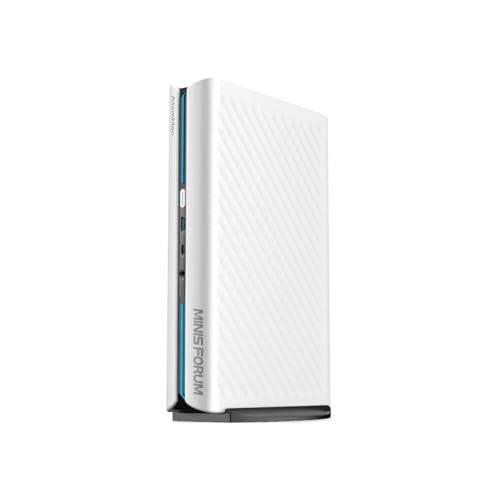
- Best overall: MINISFORUM AtomMan G1 Pro (Barebone) — Ryzen 9 8945HX, Desktop RTX 5060 — Check on Amazon
- MINISFORUM AtomMan G7 Pro (Barebone) — Core i9-14900HX, RTX 5070 Laptop GPU — Check on Amazon
- MINISFORUM AtomMan G7 PT — Ryzen 9 7945HX, Radeon RX 7600M XT — Check on Amazon
- MINISFORUM MS-A2 (Barebone) — Ryzen 9 9955HX, Dual 10G SFP+ — Check on Amazon
See 2 more Amazon options
- MINISFORUM MS-01 (Barebone) — Core i9-13900H, PCIe x16 Slot, Dual 10G SFP+ — Check on Amazon
- GMKtec NucBox K8 Plus (Barebone) — Ryzen 7 8845HS, Radeon 780M, OCuLink — Check on Amazon
Read the full guide ↓
Disclosure: As an Amazon Associate, reviewstook.com earns from qualifying purchases. Links to Amazon on this page are affiliate links; they cost you nothing extra. Listing details such as price and availability change often, so check the current Amazon listing before you buy.
If you have never built a computer, a “barebones” mini PC is the friendliest place in the whole hobby to start — but only if somebody explains the one thing the product pages assume you already know. Here it is, plainly: a barebones price is not the price of a working computer. A barebone kit is a small box that already contains the processor, the graphics (on some models), the cooling, the power supply and the Wi-Fi — and it deliberately leaves out three things you must buy and fit yourself: the memory, the storage drive, and the operating system. Fitting them means opening the box, clicking in two memory sticks and one small drive, closing it again, and installing the software from a USB stick. That is the entire “build.” But the parts are a real extra cost, and this guide counts them for every pick, so the number you budget against is always the finished-machine number.
The second honest fact concerns the budget in this keyword. There is no barebones mini PC kit on Amazon that costs $2,000–$2,500 — not one we could verify, and we looked hard. The most expensive genuine kit we could pin to a real listing is the MINISFORUM AtomMan G7 Pro further down this page — check the current price on Amazon. The one machine that might have filled the gap, a Zotac barebone with a desktop RTX 5060 Ti, has an Amazon listing that sits unavailable (the FAQ below has the detail). So in this guide, $2,500 is treated as the ceiling for your finished computer, kit plus parts. Costed that way, the six verified kits below complete well under that ceiling in their standard forms — and exactly one of them, the flagship G7 Pro loaded with memory and storage, can honestly spend the whole $2,500.
New to This? The Jargon, in Plain English
Listings assume you already build PCs. Since this guide assumes you do not, here is every term you will meet below, translated once, up front.
- Barebone (or barebones) kit. A partly finished computer. The box, processor, cooling, power supply and wireless are included; memory, storage and the operating system are not — you add them.
- RAM (memory). The computer’s short-term working space — where everything you are doing right now sits while you do it. More RAM means more things open at once without slowing down; for these kits, 32GB is the sensible starting point. RAM empties when you switch off — it is not where your files live.
- SO-DIMM. The shape of the memory sticks mini PCs use: the short sticks made for laptops. Every kit here takes them. Full-size desktop sticks (DIMMs) will not fit — the most common ordering mistake beginners make. If the listing does not say SO-DIMM, do not buy it for these machines.
- Dual-channel. When two matching memory sticks work as a pair, the processor talks to both at once and everything — games especially — runs faster. Hence this guide’s refrain, “buy a matched two-stick kit”: two 16GB sticks beat one 32GB stick at the same total size.
- SSD (storage drive). Where your files, games and the operating system live, permanently. In these kits the drive is an M.2 stick — a slim card the size of a stick of gum that screws into a slot inside the machine. Older 2.5-inch drives are a different, chunkier shape; no kit below needs one. “NVMe” and “PCIe” describe how fast the drive talks to the computer; a PCIe 4.0 NVMe drive is the right, ordinary choice for every pick here.
- Operating system (OS), and its licence. The software — usually Windows 11 — that runs the computer. A barebone ships with none installed, and Windows is not free: a retail Windows 11 Home licence is a paid extra. Linux is a free alternative that works beautifully on the workstation kits. Do not finish a high-end build with a cut-price grey-market key; if it dies later, it dies on your main computer.
- CPU (processor). The main brain, measured loosely in “cores” — more cores, more jobs done at once. In every kit here the CPU is soldered to the board: fixed for life, which is why choosing the right kit matters more than choosing the right parts.
- GPU (graphics). The part that draws games. Integrated graphics are built into the processor — fine for screens, video and light games. A discrete GPU is a separate, much stronger chip or card, and it is what makes a machine a gaming machine. One caution: a “laptop GPU” is the smaller, cooler-running version of a desktop card with a similar name, and on most mini PCs the GPU is fixed for life.
- PCIe slot. A socket inside two kits below (the MS-A2 and MS-01) for plugging in an extra card later — most usefully a small graphics card. Empty on day one; useful the day you outgrow the built-in graphics.
- OCuLink. A small port on the GMKtec kit that connects to an external graphics dock — a separate box holding a full desktop graphics card. Serious gaming power, added later.
- BIOS. The machine’s built-in starter software, running underneath Windows. You will meet it once, at first power-on, to check the machine can see your new memory and drive. Makers also release BIOS updates that fix bugs — and one pick below genuinely needs one.
In this guide
Quick Picks
Short on time? Each row names a buyer type and the kit that suits it, with a link to the listing. Check price on Amazon — and budget for the finished machine, not the kit alone.
| Buyer type | Pick | Why it stands out | Link |
|---|---|---|---|
| Best overall | MINISFORUM AtomMan G1 Pro (Barebone) | A real desktop RTX 5060 at full power — check price on Amazon — the strongest gaming start here | Check on Amazon |
| Best if the budget is real | MINISFORUM AtomMan G7 Pro (Barebone) | The strongest verified kit of all — the only one whose finished build can honestly spend $2,500 | Check on Amazon |
| Best AMD gaming value | MINISFORUM AtomMan G7 PT | Proper discrete graphics and a 16-core processor, at the lower end of the discrete-graphics kits here — check price on Amazon | Check on Amazon |
| Best for a home lab | MINISFORUM MS-A2 (Barebone) | Newest processor here, three drive slots, serious networking, a graphics-card slot later — check price on Amazon | Check on Amazon |
| Best quiet workstation value | MINISFORUM MS-01 (Barebone) | The same home-lab recipe with calmer manners — check price on Amazon — cheapest workstation to finish here | Check on Amazon |
| Best first barebone | GMKtec NucBox K8 Plus (Barebone) | The gentlest start: the lowest-priced kit here, the cheapest to finish, upgrade path kept open — check price on Amazon | Check on Amazon |
How These Picks Were Chosen
The first test was the definition. To appear here, a kit had to be genuinely barebone: a real Amazon listing whose configuration ships with no memory, no storage drive and no operating system — or a listing where that barebone version is clearly selectable before you pay. Machines that arrive fully built but borrow the word “barebones” in their titles were left out. The second test was proof: every product code (ASIN) below was checked against the live listing’s title, the maker’s own manual for that exact model, or a price tracker that records the listing — none was copied from a roundup or typed from memory. Where a well-known model could not be tied to an orderable Amazon listing, it is talked about honestly in the open (the Zotac machine in the introduction) rather than linked on a guess.
The third test was the maths, done the same way for every kit so the comparisons are fair. Each one is costed to completion with the same basket: a 32GB memory kit (two 16GB DDR5 SO-DIMM sticks), a 1TB PCIe 4.0 M.2 drive, and a Windows 11 Home licence, or no licence cost on Linux. Completion adds a substantial extra on top of any kit price — check price on Amazon and check current part prices before you budget — which is why every review leads with the finished total, not the sticker. We did not use these machines ourselves; we read the listings, the makers’ manuals and specification pages, and independent review coverage — and where a maker’s own numbers stretch belief, the review says so. One pattern is worth knowing: five of the six verified kits come from one maker, MINISFORUM (including its AtomMan line), with GMKtec the only outsider — simply the brands shipping high-end barebone versions through Amazon US. For a beginner the effect is friendly: you are mostly choosing between generations and graphics inside one catalogue.
The 6 Best Barebones Mini PCs for Beginners Under $2,500
MINISFORUM AtomMan G1 Pro (Barebone) — Ryzen 9 8945HX, Desktop RTX 5060
Who it suits: A beginner whose real goal is gaming (or video/photo creation) and who wants the strongest graphics here without learning anything beyond the standard barebone routine.
Most mini PCs with gaming ambitions use a laptop graphics chip. The G1 Pro does something rarer: inside its upright, roughly 3.8-litre case sits an actual desktop GeForce RTX 5060 graphics card — a low-profile Gigabyte card running at its full 145W — alongside a 16-core Ryzen 9 8945HX processor boosting to 5.4GHz. In plain terms, its graphics are the full-size article rather than a smaller namesake: games run the way they would on a modest desktop PC. Check price on Amazon for the barebone; the fully built 32GB/1TB version on the same listing is a useful yardstick, and finishing the barebone yourself is the more flexible route. You add two DDR5 SO-DIMM sticks (up to 96GB) and up to two M.2 drives (up to 8TB). The power supply is built in — a proper 350W unit, so no laptop-style brick to hide — and connections are generous: 5-gigabit networking, Wi-Fi 7, and five screen outputs (three DisplayPort, two HDMI).
Finished the standard way — the kit, plus a 32GB memory kit, a 1TB drive and Windows — a completed G1 Pro sits well inside this budget. Two quirks are worth knowing before the box arrives. The graphics card is a special fit: the maker’s manual warns that only that specific low-profile card is supported, so treat the graphics as fixed for the machine’s life — this kit lets you choose memory and storage, not a future graphics upgrade. And reviewers found the machine arrives set to an 80W “Gaming Mode,” with much of its performance behind a “Beast Mode” switch in the maker’s utility — a utility whose bundled driver has been flagged by Windows Defender in independent testing (the walkthrough below covers both). One buying tip: the factory 32GB configuration ships with a single memory stick, meaning slower single-channel speed — buying the barebone and a matched two-stick kit is how you quietly do better than the factory.
- The only verified kit with a full-power desktop RTX 5060 graphics card — 145W, 8GB GDDR7.
- Check price on Amazon for the kit — finished in standard form, it sits well inside the budget all-in.
- Power supply built in (no desk brick), 5-gigabit networking, Wi-Fi 7, outputs for four 4K screens.
Honest limitation: The graphics card can never be upgraded — the case, cooling and power are built around that one card — and the performance-mode switch plus a Defender-flagged utility driver are first-week chores.
Choose it if gaming or GPU-powered creative work is the point and you want the strongest graphics for the money of any verified kit. Skip it if you need the fastest wired networking or an empty slot for your own add-in card — that is the MS-A2 and MS-01 further down.

MINISFORUM AtomMan G7 Pro (Barebone) — Core i9-14900HX, RTX 5070 Laptop GPU
Who it suits: A beginner with the full $2,500 genuinely available, who would rather buy the category’s ceiling once than wonder later what the extra money bought.
This is the flagship, and its Amazon listing is admirably blunt — the title literally includes the words “Barebone Version Without Storage/OS,” so there is no ambiguity about what arrives. Inside a metal chassis just 33mm thick sits Intel’s 24-core Core i9-14900HX (boosting to 5.8GHz) and an NVIDIA GeForce RTX 5070 Laptop GPU with 8GB of GDDR7, cooled by six heat pipes and two fans, with a 200W sustained power budget. You add up to 96GB of DDR5-5200 memory and up to 8TB across two M.2 slots, one of them PCIe 5.0-capable. Connections are current-generation: HDMI 2.1 and USB4 video output, Wi-Fi 7, Bluetooth 5.4 and a full-size SD card slot. Notebookcheck covered the barebone at launch; the maker’s store has listed it — and showed it sold out. Check price on Amazon.
The completion maths makes this pick unique. The kit, plus 32GB of memory, a 1TB drive and Windows, finishes near the top of this budget. Spec it the way the budget invites — 64GB of memory and a 2TB drive — and the same machine can honestly spend a $2,500 budget, depending on where memory prices sit the week you order, and on a bad week it can overshoot it. That spread is the memory market at work. Check price on Amazon before you plan the rest. What the extra money buys over the G1 Pro is a stronger processor, a faster, more efficient graphics chip with the latest DLSS 4 upscaling support, and the slimmest case in the guide. What it does not buy is graphics memory: 8GB is 8GB, and in a few years that will be the first limit this machine meets in demanding games. Stock rotates, so you may have to watch for it — and if a marketplace seller asks well above the maker’s own barebone pricing, walk away. At that point the maker’s configured version, with 32GB and 1TB fitted, is the saner buy.
- The strongest verified barebone kit anywhere: 24-core i9-14900HX plus an RTX 5070 Laptop GPU.
- The only pick whose finished build can genuinely reach the $2,500 budget (in 64GB + 2TB form).
- Slimmest case here at 33mm, with USB4, Wi-Fi 7 and an SD slot.
Honest limitation: Stock comes and goes — the maker’s own store showed the barebone sold out — and the graphics chip’s 8GB of memory is a fixed ceiling at this level.
Choose it if you want the category’s ceiling and will finish it properly with 64GB and 2TB. Skip it if it is only available from resellers at a heavy markup over the maker’s own pricing, or if value matters more than the last step of performance — the G1 Pro finishes for noticeably less.

MINISFORUM AtomMan G7 PT — Ryzen 9 7945HX, Radeon RX 7600M XT
Who it suits: A beginner who prefers AMD hardware, or plans to try Linux, and wants real gaming graphics as the lowest-positioned discrete-graphics pick here.
The G7 PT (launched as the HX200G, if you go reading older reviews) pairs a 16-core Ryzen 9 7945HX — run at a serious 85W in its performance mode — with a separate Radeon RX 7600M XT graphics chip carrying 8GB of GDDR6 at up to 120W. It was the first mini PC to earn AMD’s “Advantage” certification, and independent reviews land where the specifications suggest: excellent for high-refresh 1080p gaming, capable at 1440p with sensible settings. Storage is a quiet strength — one slot takes the newest PCIe 5.0 drives, the second PCIe 4.0 — and memory is DDR5 up to 96GB, in a case of about 2.6 litres. The barebone has been offered at promotional pricing below its list position, and a configured 32GB/1TB version is also sold on Amazon — check price on Amazon. One warning matters more than any number: this listing carries several versions under one product page, so if you want the barebone, check the style selector actually says “barebone” before you check out.
At promotional pricing, finished with 32GB of memory, a 1TB drive and Windows, the G7 PT completes well under the budget — genuine discrete-graphics gaming for roughly what the workstation kit below costs to finish, and noticeably less than the G1 Pro. The honest debits are about generations. The processor is last generation’s design and the graphics chip is from AMD’s previous RX 7000 series, so you are buying slightly older silicon at a saving that is real but not huge next to the RTX 5060 kit above; AMD’s upscaling here leans on its FSR technology rather than anything as polished as NVIDIA’s DLSS. The graphics chip is soldered, so upgrading later means memory and storage only. Stock rotates, so check the current price on Amazon on the day you buy. Caught at promotional pricing for the barebone, it is a strong buy; at full list pricing, the G1 Pro makes the stronger argument.
- Separate RX 7600M XT graphics and a 16-core processor — the lowest-positioned discrete-graphics kit here; check price on Amazon.
- A PCIe 5.0 storage slot and up to 96GB of memory, in a compact ~2.6-litre case.
- Finishes well under the budget — real gaming for workstation-kit money.
Honest limitation: Last-generation processor and graphics with the GPU soldered in place, and a price that swings between promotional and full list levels — it is only the right buy at the lower end of that range.
Choose it if you prefer AMD graphics, run Linux, or catch it at promotional pricing. Skip it if the listing sits at full list pricing on the day you buy — the G1 Pro’s newer desktop RTX 5060 is the better spend then.

MINISFORUM MS-A2 (Barebone) — Ryzen 9 9955HX, Dual 10G SFP+
Who it suits: A beginner whose “gaming PC” is really a project machine — home servers, virtual machines, a media library — and who understands its graphics are a placeholder fixable later via its expansion slot.
One warning first: the MS-A2 is a workstation that happens to be small, not a gaming machine. Its processor is the newest in this guide — AMD’s Zen 5 Ryzen 9 9955HX, 16 cores boosting to 5.4GHz — inside a roughly 1.78-litre box with the connections of a small server: two 10-gigabit SFP+ network ports, two ordinary 2.5-gigabit ports, Wi-Fi 6E, and outputs for three screens over HDMI and two USB-C ports. Storage is the deepest here: three M.2 slots with RAID (two drives mirroring each other for safety) supported, and one can take an enterprise U.2 drive via the adapter in the box. Memory is two DDR5 SO-DIMM slots, up to 96GB. Then there is the slot that defines its second life: a full-length PCIe slot — wired for x8 speed, limited to cards drawing 75W or less — into which a low-profile graphics card of the RTX 3050 class turns this workstation into a credible 1080p gaming box. Check price on Amazon for this barebone; the same case is also offered with the slightly lesser 8945HX chip, the version to grab if your projects are lighter.
Finished as a workstation — the kit, 32GB of memory, a 1TB drive, and Windows or free Linux — the MS-A2 lands well under the budget. Allow extra for a low-profile graphics card if you add one; note the 10-gigabit ports do not include the plug-in modules they need. The debits are specific and documented. The built-in Radeon 610M graphics drive monitors beautifully and play almost nothing modern — nobody should buy this expecting to game on day one. There is no USB4 port, an odd gap next to the older MS-01 below. Reviewers measured its fans at around 50 dBA under full load and idle power draw in the mid-20s of watts — rack-equipment manners, not silent-desk manners. One in-depth review also reported a bug in an early BIOS version affecting PCIe passthrough, the very feature home-lab builders use most — so update the BIOS before building anything on top of it. And treat memory error-correction (ECC) as absent, because it is.
- Newest processor here: the Zen 5 Ryzen 9 9955HX, 16 cores, in a mid-positioned barebone — check price on Amazon.
- Two 10-gigabit ports plus two 2.5-gigabit ports, and three drive slots — networking and storage nothing else here matches.
- An expansion slot (x8 speed, 75W cards) for a small graphics card or another add-in card later.
Honest limitation: The built-in graphics are not for gaming, there is no USB4, and it is loud under load and thirsty at idle for a desk machine — a workstation first, always.
Choose it if your budget is really a home-lab or workstation budget, with gaming as a side project via the slot. Skip it if you want to game on day one with nothing extra to buy — every pick above this one has real graphics built in.
MINISFORUM MS-01 (Barebone) — Core i9-13900H, PCIe x16 Slot, Dual 10G SFP+
Who it suits: A beginner who likes the MS-A2’s home-lab recipe but wants the friendlier version — quieter, cheaper to finish, with the USB4 ports the newer machine dropped.
The MS-01 is the machine that defined this little category, and its own manual is the most beginner-friendly document in this guide: it states in plain words that “this barebone version requires the installation of RAM, SSD, and an operating system to function.” Inside is Intel’s Core i9-13900H (14 cores, up to 5.4GHz) with Iris Xe integrated graphics, two DDR5-5200 SO-DIMM slots for up to 96GB of memory, and the same storage generosity as its successor — three M.2 slots, with the enterprise U.2 option and RAID mirroring supported. Networking matches the MS-A2 port for port (two 10-gigabit SFP+, two 2.5-gigabit), then adds back what the newer model dropped: two USB4 ports that also carry a monitor’s picture. The PCIe slot (PCIe 4.0, x8 speed in practice) takes low-profile cards, and the maker has tested RTX 3050 and RTX A2000 class cards in it — that is your gaming path. Check price on Amazon for the barebone; the i5-12600H version is the lower-priced alternative if the big processor is more than your projects need.
Finished — the kit, 32GB of memory, a 1TB drive and Windows — the MS-01 is the cheapest completed workstation here, well under the budget even with a low-profile graphics card added. Its manners are the best of the pair: the maker quotes about 23dB at idle and 41–43dB under full load, figures that belong on a desk rather than in a rack (the maker’s own numbers). The debits are age and ceilings. This is a 2023 platform: the processor trails the MS-A2’s newer chip by a clear margin in heavy all-core work, and the slot is a generation older, still limited to low-profile, slot-powered cards. The integrated Iris Xe graphics run esports titles at modest settings and nothing beyond. As a first home server, media-library brain or quiet workstation, though, the MS-01 at its current pricing is the value pick of the pair — buy it for the ports and the value, not the benchmark charts.
- Two 10-gigabit ports, two 2.5-gigabit ports and two USB4 ports — the most complete connections of any kit here.
- Check price on Amazon for the kit — it is the cheapest workstation completion in the guide.
- Quiet for its class, with an expansion slot for a graphics card later.
Honest limitation: A 2023 platform with integrated graphics only — heavy all-core work trails the newer MS-A2, and gaming means buying a low-profile card for the slot.
Choose it if you want the home-lab formula with USB4 and the lowest finished cost. Skip it if raw processor power is the whole point — that is the MS-A2’s entire argument.
GMKtec NucBox K8 Plus (Barebone) — Ryzen 7 8845HS, Radeon 780M, OCuLink
Who it suits: A beginner starting small on purpose — a first-ever build, a media and retro-gaming box, a light-gaming desk PC — who wants a genuine upgrade path, not a dead end.
If the kits above feel like a lot of money for a first attempt, this is your pick. The listing’s title states the arrangement outright — this configuration ships “Without RAM/SSD/OS” — and, as the lowest-priced kit in this guide — check price on Amazon — it buys a Ryzen 7 8845HS processor (8 cores, up to 5.1GHz) with Radeon 780M integrated graphics, two DDR5 SO-DIMM slots, two M.2 storage slots, two Intel 2.5-gigabit network ports, USB4, HDMI 2.1 and DisplayPort outputs — and the one port that defines the machine: OCuLink. OCuLink connects to an external graphics dock, a separate box holding a full desktop graphics card, at full PCIe 4.0 x4 speed. No USB4-only rival here can match that trick. The 780M alone handles 1080p esports and older big-name games with upscaling help, and the day your budget allows, a dock turns the same computer into a serious gaming rig without replacing it. Value check: a configured 32GB/1TB version is also sold on Amazon — check price on Amazon — while the barebone plus the same class of parts is the cheaper way to finish.
The debits are the honest ones for the lowest-priced kit here. Integrated graphics are integrated graphics: modern big-budget games mean 1080p, reduced settings and upscaling, and no wishful thinking makes the 780M a 1440p card. The dock is the answer, but a dock plus a desktop graphics card is a substantial second purchase, and it belongs in your budget conversation now, not as a surprise later. Processor-heavy work is a step down from everything else here: eight cores are plenty for gaming, streaming and office work, and visibly fewer than the 16-core kits when renders or fleets of virtual machines get heavy. GMKtec’s software polish and support are also a tier below a big manufacturer’s — expect to fetch drivers from the maker’s website. None of that stops the K8 Plus being the right first barebone: it is the pick whose finished build sits lowest in this guide, leaving most of a $2,500 budget for the monitor, the future dock — or the next machine entirely.
- Cheapest verified kit here — check price on Amazon — and the cheapest to finish.
- The OCuLink port gives a true external-graphics upgrade path no rival here matches.
- Dual 2.5-gigabit networking, USB4 and two drive slots — connections well above its tier.
Honest limitation: Integrated 780M graphics cap you at 1080p with compromises until a GPU dock joins the setup, and eight cores are the fewest in this guide.
Choose it if you are starting a build journey and want the upgrade path kept open. Skip it if you want discrete graphics inside the box on day one — that is the G7 PT and G1 Pro above.

Comparison Table
| Product | Type | Best use | Link |
|---|---|---|---|
| MINISFORUM AtomMan G1 Pro (Barebone) | Kit + desktop RTX 5060 | Gaming and creation with a real desktop graphics card | Check on Amazon |
| MINISFORUM AtomMan G7 Pro (Barebone) | Kit + RTX 5070 Laptop GPU | The category ceiling — maximum specification in a slim case | Check on Amazon |
| MINISFORUM AtomMan G7 PT | Kit + RX 7600M XT | All-AMD gaming as the lowest-positioned discrete-graphics kit | Check on Amazon |
| MINISFORUM MS-A2 (Barebone) | Workstation kit, PCIe slot | Home lab, virtualisation, 10-gigabit workstation | Check on Amazon |
| MINISFORUM MS-01 (Barebone) | Workstation kit, PCIe slot | Home lab with USB4 at the lowest completed cost | Check on Amazon |
| GMKtec NucBox K8 Plus (Barebone) | Integrated-graphics kit + OCuLink | Starter builds and a later external-graphics upgrade | Check on Amazon |
How to Choose, If You Are Starting From Zero
- Decide what the finished computer is for, then work backwards. Gaming on day one means one of the three kits with real graphics built in (G1 Pro, G7 Pro, G7 PT). Servers, virtual machines and learning projects mean the MS-A2 or MS-01. A gentle start with room to grow means the K8 Plus.
- Budget the finished machine, never the kit. Allow a substantial extra on top of any kit price for memory, a drive and Windows before comparing anything.
- Buy memory as a matched two-stick kit. Two 16GB SO-DIMM sticks, bought as one kit, run in dual-channel and are faster than a single 32GB stick at the same total. It is the cheapest performance you will ever buy, and it costs nothing extra — the same memory, bought the right way.
- Do not overbuy the drive. A 1TB PCIe 4.0 NVMe drive is the right default for every pick here. Two kits (G7 PT, G7 Pro) can use faster PCIe 5.0 drives, but a Gen5 drive in a Gen4 slot runs at Gen4 speed — do not pay the premium by accident.
- Respect the expansion slot’s fine print. On the MS-A2 and MS-01, the slot takes low-profile cards powered by the slot itself (75W class) — RTX 3050 territory. A full-size gaming card physically does not fit, however optimistic a listing photo looks.
- Price the networking you will actually plug in. The 10-gigabit SFP+ ports on the workstation twins are excellent — and useless without plug-in modules, cables and a 10-gigabit switch. Allow for accessories as an extra cost in any such plan, or accept that the 2.5-gigabit ports are your real network for now.
Your First Build, Step by Step
Here is the whole job, start to finish. Nothing below needs experience — just a small Phillips screwdriver, a table, and about an hour of unhurried time.
Before the kit arrives — the shopping list. Alongside the kit itself, order: one matched memory kit (two 16GB DDR5 SO-DIMM sticks for 32GB total, or two 32GB sticks if you are speccing the G7 Pro to the full budget); one M.2 2280 NVMe drive (1TB PCIe 4.0 is the default choice); and your operating system — a retail Windows 11 Home licence, or a free Linux download if the machine is a home-lab project. You will also need a USB stick (8GB or larger) to carry the installer, and the screen, keyboard and mouse you plan to use. Order the parts with the kit, not after it.
Step 1 — Read the one page that matters. Every kit’s manual shows exactly how its case opens and where the memory and drive slots sit. Read that page before you touch a screw; the machines differ in details.
Step 2 — Fit the drive. Open the case, find the M.2 slot (a short slot with a tiny screw at one end), slide the drive in at a shallow angle, press it flat, and replace the tiny screw — snug, never forced. If your kit has several slots, use the first one the manual labels.
Step 3 — Fit the memory. Each SO-DIMM stick slides into its slot at an angle, then presses down until the clips at both ends click. That click is the whole skill. Fit both sticks from your matched kit. If a stick will not seat, it is probably upside down — the notch in its edge only lines up one way, by design.
Step 4 — Close up and connect. Replace the panel, then connect the screen, keyboard, mouse and power. Leave everything else for later.
Step 5 — First power-on: the two-minute check. As the machine starts, tap the key the manual names (often Delete or F2) to enter the BIOS screen. You are checking two things: that the memory total matches what you fitted, and that your drive appears in the list. If both are there, your build is already a success. If the memory shows half what you fitted, power off and re-seat the sticks until they click.
Step 6 — Install the operating system. Plug in your installer USB stick, restart, and follow the installer’s questions — language, drive, account. Windows will ask for the licence key from your retail package; type it in and let it activate.
Step 7 — Updates, in the right order. Once you reach the desktop: connect to the internet, run the system updates until there are none left, then visit the maker’s support page for your model and install its drivers. Two model-specific notes: MS-A2 buyers should install the latest BIOS update now, because an early BIOS carried a real bug. G1 Pro buyers should open the maker’s utility and switch out of the 80W Gaming Mode into Beast Mode — and not be alarmed if Windows Defender comments on the utility’s driver; that behaviour is documented in independent testing.
Step 8 — The final sanity checks. Confirm Wi-Fi works, the screen runs at its full resolution, and the machine stays quiet and cool while you install your first game or project. Then stop tinkering and use it. You built a computer.
What the Kit Price Leaves Out: The True Total
Because the sticker is only a down payment, here is the rest of the bill in one place. The completion basket — a 32GB two-stick DDR5 SO-DIMM kit, a 1TB PCIe 4.0 drive, and a Windows 11 Home licence — adds a substantial extra to any kit. Running Linux removes the licence cost, which is why the home-lab picks finish so cheaply. The wildcard is big memory: 64GB kits sit at the top of the memory range — that one line can cost more than the entire K8 Plus kit, so check its price the week you order.
Then come the small things that are nobody’s headline: a small Phillips screwdriver and a USB stick for the installer, if you own neither. A screen, keyboard and mouse — no extra cost if you are reusing ones you have, a real budget line if you are not; a barebone is only the computer, not the desk around it. If you choose a workstation twin for its 10-gigabit ports, add the modules and cables those ports need. And if you choose the K8 Plus for its upgrade path, hold the honest scale in mind: the external graphics dock plus a desktop card is a substantial purchase later. None of these extras hides inside any pick’s price in this guide.
Upgrading Later, in Plain Terms
The useful question is not “is it upgradeable?” but “which parts are?” For these six kits the answer has the same shape everywhere — and it is not the shape of a desktop PC.
- Memory: yes, easily. Every kit here has two SO-DIMM slots. You can start with 32GB and move to 64GB or beyond later by swapping both sticks — a five-minute job you already know how to do from day one. The one rule: the processor sets the maximum (96GB on most picks here), and you replace sticks rather than adding to them.
- Storage: yes, easily. Every kit has at least two M.2 slots, and the workstation twins have three plus the enterprise U.2 option. Adding a second drive later is the same tiny-screw job as the first — and the upgrade you are most likely to make.
- Graphics: it depends on the kit, and the answer is fixed at purchase. On the G1 Pro, G7 Pro and G7 PT, the graphics are fitted or soldered for life — no upgrade exists. On the MS-A2 and MS-01, the expansion slot is the upgrade: a low-profile card, added whenever you are ready. On the K8 Plus, the upgrade lives outside the box, via the OCuLink dock. If you think you will want stronger graphics in two years, buy a kit whose answer here is yes.
- Processor: no, never. On all six kits the CPU is soldered to the board — no socket, no swap. This is the deepest difference from a traditional desktop build, and why this guide spends so many words on choosing the kit itself.
- Everything else: mostly no. The case, cooling and power supply are designed as a set. What you can change cheaply is everything around the machine — screen, keyboard, networking gear — which is where leftover budget does its best work anyway.
Common Buying Mistakes
- Thinking the kit price is the computer’s price. It is roughly two-thirds of it. Compare finished totals or compare nothing.
- Believing a $2,500 kit must exist because a search implies one. It does not, verifiably — lists showing several are padding with fully built machines or unavailable listings.
- Ordering desktop memory (DIMMs) or DDR4 for a machine that takes DDR5 SO-DIMMs. Check the manual’s memory line before the parts go in the basket, not after they arrive.
- Buying one 32GB stick “to leave room to upgrade” and running single-channel from day one. Integrated graphics pay for that in every game; buy the matched pair now.
- Forgetting the operating system until the box is open on the table. A barebone with no Windows licence and no installer USB stick cannot be finished that evening — order them with the kit.
- Clicking the wrong version on a shared listing. Barebone and configured versions sit side by side on several of these pages; confirm the style selector and the “without RAM/SSD/OS” wording before paying.
- Paying a heavy marketplace markup on the G7 Pro barebone over the maker’s own pricing because stock rotated. Wait for stock, or buy the configured version.
- Expecting the MS-A2 or MS-01 to play games the day it arrives. Their built-in graphics drive screens, not games; the card for the slot is part of the plan, not an optional extra.
- Skipping the BIOS update on a new workstation kit. Early BIOS versions here have shipped with real bugs, including a reported passthrough fault on the MS-A2 — update before building projects on top.
Final Recommendation
- Most beginners who game: MINISFORUM AtomMan G1 Pro (Barebone).
- The full-budget flagship: MINISFORUM AtomMan G7 Pro (Barebone).
- AMD builds and Linux gaming: MINISFORUM AtomMan G7 PT.
- Home lab and virtualisation: MINISFORUM MS-A2 (Barebone).
- Home lab value with USB4: MINISFORUM MS-01 (Barebone).
- First barebone, careful budget: GMKtec NucBox K8 Plus (Barebone).
Our top two are the G1 Pro, because a full-power desktop RTX 5060 in a kit that finishes well under the budget is the best performance for the money in this category right now, and the G7 Pro, because it is the only machine that honestly answers a $2,500 budget, provided you catch it at or under the maker’s own barebone pricing — check price on Amazon — and finish it with the 64GB and 2TB it deserves. The G7 PT is the value gamer’s pick at promotional pricing; the MS-A2 and MS-01 are workstations that happen to fit this keyword, and superb ones. If a build of any kind feels like a step too far this year, the ready-made equivalents live at Best Mini PC For Beginners Under $2500 and Best Prebuilt Gaming PC For Beginners Under $2500. Builders working to a smaller finished budget should also see Best Barebones Mini PC For Beginners Under $1500 and Best Barebones Mini PC For Beginners Under $1200, and anyone whose desk is the real constraint should start with Best Barebones Mini PC For Small Spaces Under $2500. Whichever kit you choose, check the version selector and the live price before you order — that two-minute habit is the difference between a build and a bill.
Frequently Asked Questions
What does “barebones” actually mean, in one sentence?
You get the computer’s box, processor, cooling, power and wireless — and you add the memory, the storage drive and the operating system yourself. Every pick here works that way, and every pick should be judged on its finished total, not the kit alone — check price on Amazon for the kit.
Is building one genuinely OK for a complete beginner?
Yes — it is the gentlest build that exists. The physical work is two memory sticks, one small drive, a handful of screws and an OS install from a USB stick; the step-by-step section above is the whole process, and an unhurried hour is a realistic first attempt. The friendliest starting points are the K8 Plus and the MS-01; the G1 Pro is the friendliest that also games properly.
Why is there no barebones kit that costs $2,000–$2,500?
Because the category tops out lower than the keyword assumes. The most expensive genuine kit we could verify is the AtomMan G7 Pro, positioned well below that band as a kit — check the current price on Amazon. The one machine that would sit higher — Zotac’s Magnus EN275060TC barebone with a desktop RTX 5060 Ti, offered through a business retailer and in Zotac’s own store — has an Amazon listing that sits unavailable, so it is named here without a link rather than recommended on a guess; its larger sibling sits over budget before parts. Beyond those, the band fills with fully built machines wearing a barebone keyword. Treat $2,500 as a finished-build budget — how every pick here is costed.
How much extra should I budget on top of the kit price?
A substantial extra for a sensible completion: a 32GB DDR5 SO-DIMM kit bought as a matched pair, a 1TB NVMe drive, and Windows 11 Home — or no licence cost on Linux. Check price on Amazon and check current part prices on the day. The wildcard is 64GB of memory, at the top of the current range, so check that price the week you buy.
Can I use memory or a drive I already own?
If what you own is DDR5 SO-DIMM memory and an M.2 NVMe drive, quite possibly — those are the types every kit here takes. Check the manual page for the exact memory speed and maximum, and remember a single stick runs in slower single-channel mode; a matched pair is the better foundation.
Do I have to buy Windows?
Only if you want Windows — these kits ship with no operating system at all. A retail Windows 11 Home licence is a paid extra and is the right choice for a gaming machine; Linux is free, excellent on the workstation kits, and the normal choice for home-lab use. We would not activate a high-value build with a grey-market key.
Which of these is best for streaming?
Any of the kits with discrete graphics: NVIDIA’s NVENC encoder in the G1 Pro and G7 Pro is the streamer default, and the G7 PT’s AV1-capable AMD encoder is a fine alternative. Streamers speccing from scratch may also want Best Barebones Mini PC For Streaming Under $2500.
Can these actually play games at 1440p?
Three of them, once finished: the G1 Pro’s desktop RTX 5060 and the G7 Pro’s RTX 5070 Laptop GPU are 1440p-capable, and the G7 PT’s RX 7600M XT is strong at 1080p and capable at 1440p with sensible settings. The MS-A2 and MS-01 game only after a low-profile card joins their slots, and the K8 Plus’s integrated graphics are a 1080p-with-upscaling answer until an OCuLink dock arrives. For the gaming-first view of this budget, see Best Barebones Mini PC For 1440p Gaming Under $2500.


