Where to buy
Check the latest price, availability and delivery on Amazon. Orders are placed on Amazon. We may earn a commission from qualifying purchases.
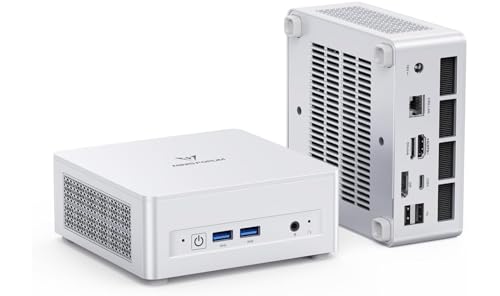
- Best overall barebones: MINISFORUM UM880 Plus Barebone, Ryzen 7 8845HS, No RAM / SSD / OS — Check on Amazon
- GMKtec NucBox K8 Plus, Ryzen 7 8845HS, Without RAM / SSD / OS — Check on Amazon
- MINISFORUM UM870 Slim Barebone, Ryzen 7 8745H, Without RAM / SSD / OS — Check on Amazon
- MINISFORUM UM790 Pro Barebones Version, Ryzen 9 7940HS, Without RAM and SSD — Check on Amazon
- MINISFORUM UM773 Lite Barebones, Ryzen 7 7735HS, No RAM No SSD — Check on Amazon
- ASUS NUC 14 Pro+ Barebone Kit, Intel Core Ultra 5 125H — Check on Amazon
Read the full guide ↓
Disclosure: As an Amazon Associate, reviewstook.com earns from qualifying purchases. Links to Amazon on this page are affiliate links; they cost you nothing extra. Listing details such as price and availability change often, so check the current Amazon listing before you buy.
If this is your first time shopping for a barebones mini PC, please read the next two paragraphs before you look at a single price — this category confuses almost every first-time buyer, and the confusion is expensive. A barebones mini PC is a small computer that arrives unfinished on purpose. Inside the box you get the processor, the main circuit board, the case, the cooling fan and the power supply. What you do not get are the three parts that turn those components into a working computer: the memory (called RAM), the storage drive (called an SSD), and the operating system (Windows, or the free alternative, Linux). Titles in this guide that say “Without RAM / SSD / OS” mean exactly that — no trick, no fine print, and no desktop waiting when you plug the box in.
Here is the honest core of this guide, stated before any recommendation: the price on a barebones listing is not the price of a finished computer. You will spend more money on the missing parts before the machine shows you a desktop, and in late 2026 those parts are unusually expensive. In late 2026 the memory these machines use is unusually expensive, and once a proper memory kit and a 1TB drive are added to our top pick’s bare box, the finished total can end up higher than the finished version of the same machine, with the same memory and storage fitted — check price on Amazon for both routes before you decide. So who should buy one? Three kinds of people: someone who already owns the missing parts (perhaps from a dead laptop), someone who wants a setup no ready-made machine sells (such as a very large amount of memory), and someone who wants to learn how a computer goes together on the gentlest build that exists. If none of those is you, a complete mini PC is likely the smarter purchase, and this guide will point you to those guides honestly.
Why do beginners still love this category? Because finishing one is genuinely easy — two parts click in and one small screw — and because the machines are excellent. Five of the six picks below use modern AMD Ryzen processors with the strongest built-in graphics ever fitted to small computers, good enough for popular online games, older big-name titles at sensible settings, retro-game emulation and fast everyday work. The sixth is an Intel-based ASUS kit for people who value a long warranty over game performance. Below: a plain-English glossary, the quick picks, how we chose them, each machine’s true finished cost, reviews of all six, a comparison table, a first-evening walkthrough, and the mistakes that cost first-timers money.
New to This? A Plain-English Glossary First
Listings in this category are written in shorthand. Here is every term you need.
- Barebones (also written “barebone”): a computer sold without memory, storage or an operating system — a well-built starting point, not a finished PC. “Without RAM / SSD / OS” in a title is the giveaway.
- RAM (memory): the computer’s short-term workspace. Programs live here while they run, and built-in graphics borrow from it too, which is why the amount and arrangement matter so much in this guide. More RAM means more open at once without slowdowns.
- SO-DIMM: the small physical shape of memory used in laptops and mini PCs — a short stick, roughly half the length of desktop memory. All six picks take SO-DIMM memory; desktop memory will not fit, and neither will the previous generation (see DDR4 vs DDR5 below).
- DDR4 vs DDR5: two generations of memory deliberately shaped differently so they cannot be mixed up — a DDR4 stick will not slot into a DDR5 machine, or the reverse. Every pick here is DDR5. If your spare memory is DDR4 (common in laptops from a few years ago), it fits nothing here; older DDR4 kits exist for that situation.
- SSD (storage drive): where your files, games and the operating system live permanently. In these machines it is a slim stick called an M.2 drive — about the size of a stick of gum, held in by one small screw. The older style, a flat 2.5-inch box, is what most people picture, but none of these six machines is built around one: M.2 is faster, smaller, and what their slots accept. “2280” is simply the M.2 stick’s length in millimetres.
- Operating system (OS) and licensing: the software that runs the computer. A barebone includes no license for Windows. Your three options are to buy a Windows license separately, to transfer an eligible license you already own under Microsoft’s rules, or to install Linux, which is free and works very well on every processor in this guide — a real plan for a media box, home server or Steam machine, not a punishment.
- Dual channel: memory works fastest in matched pairs. Two sticks let the processor read from both at once, and because built-in graphics share that memory, a pair of sticks can make games visibly faster than one stick. “Buy the pair” is the single most repeated advice in this guide.
- Integrated graphics: the graphics built into the main chip, rather than a separate graphics card. The Radeon 780M and 680M in the AMD picks are the best you can currently get in a mini PC; Intel’s Arc graphics in the ASUS pick are a step behind for games but fine for everyday work and video.
- OCuLink and eGPU: a small socket, fitted to two picks here, that lets you plug in a full-size desktop graphics card in an external dock later — the one upgrade that can transform these machines for demanding games. A dock and card cost real money, so treat the socket as a future option, not a feature you must use.
In this guide
Quick Picks
Short on time, or comparing several options at once? Each row below names a buyer type and the machine that suits it, with a link to the listing. Remember that every price here is for the bare box — RAM, SSD and OS are extra on all six.
| Buyer type | Pick | Why it stands out | Link |
|---|---|---|---|
| Best overall barebones | MINISFORUM UM880 Plus Barebone, Ryzen 7 8845HS | Strongest built-in graphics here, an eGPU socket for later, room for two drives — check price on Amazon | Check on Amazon |
| Best for expansion and networking | GMKtec NucBox K8 Plus, Ryzen 7 8845HS (No RAM / SSD / OS) | Two wired network ports, two USB4 ports, eGPU socket, easy-open lid | Check on Amazon |
| Best value 780M barebone | MINISFORUM UM870 Slim Barebone, Ryzen 7 8745H | The cheapest current route to the top integrated graphics — check price on Amazon | Check on Amazon |
| Best CPU headroom | MINISFORUM UM790 Pro Barebones, Ryzen 9 7940HS | Fastest processor in the guide, sold by marketplace sellers — check price on Amazon | Check on Amazon |
| Best budget previous-generation pick | MINISFORUM UM773 Lite Barebones, Ryzen 7 7735HS | Earlier-generation budget platform — the cheapest way in; check price on Amazon | Check on Amazon |
| Best warranty and business support | ASUS NUC 14 Pro+ Barebone Kit, Core Ultra 5 125H | Three-year warranty and a case that opens without tools — buy only when it is on sale within this guide’s budget | Check on Amazon |
How These Picks Were Chosen
The first test was honesty about the word “barebones.” A machine only earned a place here if its Amazon listing sells it with no memory, no storage drive and no operating system — either as its own listing or as a clearly labelled barebone version of a model that also comes finished. That sounds obvious, but it removed several famous names. Beelink’s SER8, for example, is a well-liked mini PC whose Amazon listings are all finished machines, so it is not here. Where a model is sold both ways, we linked the barebone listing specifically, with its own product code, because the finished and unfinished versions sit side by side on Amazon at very different prices, and clicking the wrong one is the most common beginner accident in this category.
The second test was about how the memory fits. Every pick uses socketed memory: two slots holding replaceable SO-DIMM sticks you can swap with a screwdriver. Some newer mini PCs have their memory soldered permanently to the board at the factory. Those machines can never really be “barebones,” because the most expensive part is already decided for you, and they can never be upgraded. They were excluded even when their processors were newer. Socketed memory is also why this guide is full of AMD Ryzen 7000/8000 machines, which pair strong graphics with memory you choose yourself.
The third test was price, checked rather than assumed. Each machine needed to fit this guide’s budget on Amazon — check price on Amazon before you buy, because mini PC prices jump around. One pick — the ASUS kit — only dips under the $500 budget when it is on sale, so its review is written as a conditional buy: worth it on sale within budget, not worth it at its usual premium pricing.
Finally, a note on method: we did not use these machines ourselves. We read the manufacturers’ listings, specification pages and manuals, plus independent reviews, and compared processors, graphics, slot counts, ports and warranty terms. Where a listing is vague — and barebones listings often are — the review tells you what is confirmed and what to double-check on the live listing.
The True Cost: Finishing the Computer, Line by Line
Every review below talks about finished cost, not just the box price. This section explains how to work that cost out with live prices on the day you shop. A finished barebones PC needs exactly four additions: memory, a storage drive, an operating system, and about twenty minutes of your time. Your time is free. The other three are not.
Memory is the expensive line in 2026. All six picks use DDR5 SO-DIMM memory. Prices for it have climbed sharply — check price on Amazon for current memory and drive costs before you budget. A proper setup is two sticks (32GB total, in dual channel, so the built-in graphics run at full speed) plus a 1TB M.2 drive. Added to any bare box, that standard basket of parts can push the finished total past the cost of the same machine bought finished. You may spend less: one 16GB stick and a 512GB drive is the minimum sensible build, and parts you already own cost nothing. But never compare a barebone’s box price against a finished PC’s price without adding a basket like this first.
The DDR4 question, answered directly. If you own spare memory from an older laptop, check its generation before you plan around it. DDR4 sticks are shaped so they cannot fit DDR5 slots, so DDR4 spares fit none of the six machines here, and DDR5 spares would fit none of the older DDR4 kits. Neither direction works. If your shelf holds DDR4, your hunting ground is the previous generation of kits, such as the Intel NUC 13 Pro family. If your shelf holds DDR5 SO-DIMMs and an M.2 drive, congratulations: you are the exact person this category currently rewards.
The operating system is the quiet third cost. No pick here includes Windows. There are three honest routes: buy a Windows license separately and count it in the budget; transfer a license you already own, if it is the transferable kind under Microsoft’s terms; or install Linux, which costs nothing and runs beautifully on every processor in this guide. What you cannot do is skip the decision — the machine will greet you with a BIOS screen and wait.
The rule for beginners is simple: a barebone is a bargain when the parts are already yours, and a project when they are not. Confusing one for the other is how money gets wasted.
The 6 Best Barebones Mini PCs for Beginners Under $500
MINISFORUM UM880 Plus Barebone, Ryzen 7 8845HS (No RAM / SSD / OS)
Who it suits: A beginner who already owns DDR5 memory and an M.2 drive, and wants the most complete, longest-lasting platform in this guide as their first build.
The processor is AMD’s Ryzen 7 8845HS: eight cores that boost up to 5.1GHz, paired with Radeon 780M integrated graphics — twelve graphics cores that are the benchmark for gaming without a separate graphics card. Fed with a proper memory pair, this chip plays popular online games smoothly and older big-budget games at 1080p with sensible settings. Around the chip, this box has the fullest set of fittings in the guide: two memory slots that accept up to 96GB, two M.2 slots for storage drives, USB4, wired 2.5-gigabit networking, Wi-Fi 6E, several display outputs, and the OCuLink socket — your future option to plug in a desktop graphics card in an external dock. The listing to buy is the one titled “Barebone Version Without RAM / SSD / OS” — check price on Amazon.
Now the finished cost, in the open. Add a 32GB memory pair and a 1TB drive bought new to this bare box and the total can exceed the finished version, with the same memory and storage fitted — check price on Amazon for both before you order. So the advice is blunt: if you are buying every part brand new, the finished one is often the better deal. The barebone becomes the smart buy the moment the parts are already yours — memory from a laptop you upgraded, a spare drive in a drawer — because then the box is your only purchase. It also wins if you want a setup the finished range does not sell, such as 64GB or 96GB of memory or a 4TB drive. One physical note: like most machines here, it uses an external 120W power brick you will want to tuck behind the desk.
- Radeon 780M graphics — the strongest built-in graphics in this guide, once fed with a memory pair.
- OCuLink socket plus USB4: two future paths to a desktop graphics card.
- Two memory slots (up to 96GB) and two drive slots — nothing permanently fixed.
Honest limitation: At current parts prices, finishing it with brand-new memory and storage can cost more than buying the same machine finished. This pick only saves money with parts you already own, or buys you a configuration the finished range does not sell.
Choose it if your parts shelf already holds DDR5 memory and an M.2 drive, or you want maximum memory and the eGPU option in one box. Skip it if you would be buying memory and storage new at full price — the finished UM880 Plus is the better deal today.

GMKtec NucBox K8 Plus, Ryzen 7 8845HS (Without RAM / SSD / OS)
Who it suits: A beginner who enjoys tinkering, or who might run a home server later, and wants the most connection sockets of any machine here — especially two wired network ports.
Under the lid, this machine is the UM880 Plus’s twin: the same Ryzen 7 8845HS processor, the same Radeon 780M graphics, the same two DDR5-5600 memory slots (up to 96GB) and the same two M.2 drive slots. Where it pulls ahead is connections. The front carries the OCuLink socket for a future graphics dock. The back carries two USB4 ports, HDMI and DisplayPort outputs for up to four screens, and two 2.5-gigabit wired network ports — a feature home-server enthusiasts specifically hunt for, and one no other pick here matches. The barebone listing — titled “Without RAM / SSD / OS,” and it means it — is on Amazon; check price on Amazon.
The finished cost follows the same shape as the pick above: add the standard basket (a 32GB memory pair and a 1TB drive) and the finished machine costs substantially more than the bare box — so compare against finished versions, whose prices for this model swung widely during 2026 as memory costs moved. On this listing, timing genuinely matters, so check price on Amazon before you buy. Two brand-level points. The warranty is one year, where the ASUS kit gives three. And reviewers note the fans get noticeably louder in Performance mode for modest benefit — leave it in balanced mode and it is a polite desk companion.
- Two 2.5-gigabit network ports and two USB4 ports — the best connectivity in this guide.
- OCuLink socket on the front for a desktop graphics dock later.
- Lift-off top panel makes your first build the easiest here.
Honest limitation: A one-year warranty and fans that get audible in Performance mode, from a smaller brand with thinner support than the big names — plus a listing price that swings hard, so check the live price carefully rather than assuming a standing price.
Choose it if two network ports, two USB4 ports or the front eGPU socket solves a problem the UM880 Plus does not. Skip it if you only need one network port — the pick above gives you the same processor in a simpler package.

MINISFORUM UM870 Slim Barebone, Ryzen 7 8745H (Without RAM / SSD / OS)
Who it suits: A value-minded beginner who wants the top-tier built-in graphics for the lowest box price in this guide, and is happy to skip the external-graphics option.
The UM870 Slim is the budget route into a Radeon 780M barebone on Amazon — check price on Amazon, and note its pricing has been among the steadiest of any pick here. Its processor, the Ryzen 7 8745H, needs one sentence of translation: it is the same eight-core design with the same 780M graphics as the 8845HS in the two picks above, running slightly slower (boost to 4.9GHz) and lacking the “Ryzen AI” helper chip. For games, everyday work and emulation, that difference is close to invisible; the helper chip serves a short list of AI-flavoured Windows features that almost no game uses. The rest of the platform is complete: two DDR5 memory slots (up to 96GB), two M.2 drive slots per the manufacturer’s store specification, HDMI, DisplayPort and USB4 outputs, 2.5-gigabit networking, Wi-Fi 6E, and an auto power-on setting home-server beginners love.
The saving buys one real compromise: there is no OCuLink socket, so there is no clean path to an external graphics card later — the 780M is this machine’s graphics story from start to finish, with slower USB4 docks as the only fallback. For most first-time builders, who will never buy a graphics dock, that is exactly the right trade. It also makes this the cheapest of the 780M machines to finish once you add the standard parts basket, and with parts you already own the box is your only purchase. One warning before you order: this model is sold through several nearly identical Amazon listings, and their wording disagrees about whether one drive slot or two is fitted. The maker’s store page specifies two — but if a second drive matters to your plan, confirm the slot count on the live listing before ordering.
- Budget route to a Radeon 780M barebone — check price on Amazon.
- Same eight-core platform and graphics as the pricier picks; the missing AI chip rarely matters.
- Steady pricing by mini PC standards, plus auto power-on for server-style use.
Honest limitation: No OCuLink socket means no clean external-graphics upgrade later. The built-in graphics you start with are the graphics you keep.
Choose it if you want the 780M platform as cheaply as possible and an external GPU is not in your future. Skip it if it might be — that is what the UM880 Plus and K8 Plus sockets are for.

MINISFORUM UM790 Pro Barebones Version, Ryzen 9 7940HS (Without RAM and SSD)
Who it suits: A beginner who wants the fastest processor in this guide and is comfortable buying through a marketplace seller listing rather than a factory storefront — carefully.
The UM790 Pro is the machine that made this class of computer popular. Its Ryzen 9 7940HS processor runs eight cores up to 5.2GHz — the highest speeds in this guide — with the same Radeon 780M graphics as the two 8845HS picks, so games see the same graphics while everyday tasks get a slightly stronger processor. It has two memory slots, two M.2 drive slots, and two HDMI and two USB4 ports — enough for four screens — plus 2.5-gigabit networking and Wi-Fi 6E. Its barebones listing, sold without memory and storage, is on Amazon from marketplace sellers — check price on Amazon. On paper that is the flagship chip at a mid-range tier, and you still need to add the standard parts basket to finish it.
The reasons this pick sits fourth instead of first are about the listing, not the machine. It is sold by third-party marketplace sellers rather than as a factory listing, its price swings widely, and who is selling the box will vary — a good price here is one to catch on a good day, not one to expect. The design is also a generation older than the UM870/UM880 machines, and barebone stock comes and goes. None of that makes it a bad buy when the live price is competitive; all of it makes it a buy to verify slowly: check the seller, check that the listing still says “Barebones Version Without RAM and SSD,” and check price on Amazon against the UM870 Slim — because if this one has drifted up in price, its argument disappears and the newer Slim’s begins.
- Ryzen 9 7940HS — the fastest processor in this guide, with the same 780M graphics as the pricier-brand picks.
- Two USB4 and two HDMI outputs: the best four-screen support here.
- Flagship processor at a mid-range tier, when the marketplace price cooperates — check price on Amazon.
Honest limitation: Pricing comes from third-party marketplace sellers and swings widely — availability and seller quality vary, and the design is a generation older than the UM870 and UM880 machines.
Choose it if the live listing is competitively priced from a seller you are comfortable with, and processor speed matters to you. Skip it if the price has drifted upward — at that point the UM870 Slim gives you the same graphics with less risk.

MINISFORUM UM773 Lite Barebones, Ryzen 7 7735HS (No RAM No SSD)
Who it suits: The beginner on the tightest total budget — especially anyone finishing the machine with one modest memory kit and a smaller drive, and gaming at the level the previous generation handles happily.
Every guide needs a floor, and this is it: a previous-generation barebone that sits in the budget tier — the cheapest box in this guide by a clear margin; check price on Amazon. The processor is the Ryzen 7 7735HS, with eight cores up to 4.75GHz and Radeon 680M graphics. The 680M is a genuine step down from the 780M — older design, fewer graphics cores — roughly the difference between a demanding game running at 1080p on low settings with upscaling help, and not quite running. But “a step down” is not “weak”: online games, indie titles, older games and emulation all run well, and as an everyday desktop, media and home-server machine this processor is not meaningfully slower than the newer chips. The barebones essentials are done properly: two memory slots, an M.2 drive slot, two HDMI outputs, a USB4 port and 2.5-gigabit networking.
Two beginner-specific notes. First, memory speed: this is a DDR5-4800 platform, quietly good news for your wallet — the correct memory is the cheaper memory, and faster DDR5-5600 kits simply slow down to match. It is also the one machine here where starting with a single 16GB stick is a defensible economy, with the second slot waiting for a payday. Second, the DDR4 warning cuts against this pick too: even the budget option cannot use DDR4 spares. If your parts shelf is DDR4, your platform is an older DDR4 kit such as the Intel NUC 13 Pro family, not anything in this guide. Finally, treat this as a buy-it-when-you-see-it listing: an older model sold by third parties, with finite stock that rarely returns at the same price once sold through.
- Lowest box price in the guide — the budget pick; check price on Amazon.
- Radeon 680M still handles online games, older titles and emulation well at 1080p.
- DDR5-4800 platform: the correct memory is the cheaper memory, and 16GB is a sensible start.
Honest limitation: Previous-generation parts with graphics a clear tier below the 780M picks, sold through an ageing third-party listing with finite stock.
Choose it if the finished total matters more than the graphics tier and you are completing it with modest parts. Skip it if you want the 780M — the UM870 Slim sits a tier above and is a generation ahead.

ASUS NUC 14 Pro+ Barebone Kit, Intel Core Ultra 5 125H
Who it suits: A beginner buying for the long term — perhaps for a family member, a classroom or a small office — who wants a real warranty and a proper support network, and does not need AMD’s game performance.
The NUC was Intel’s own mini PC line, now made by ASUS, and this kit comes from a different world than the five gaming-leaning machines above it. The case is anodised aluminium, about five by four inches, and it opens without tools. Inside sits Intel’s Core Ultra 5 125H processor — fourteen cores, Intel Arc integrated graphics, and an AI helper chip — with two DDR5-5600 memory slots, one full-size M.2 drive slot plus a second smaller one, two Thunderbolt 4 ports, Wi-Fi 6E, and a three-year warranty that nothing else in this guide matches. ASUS ships it with no memory, no storage and no operating system, aimed at buyers who prefer to choose those parts under a business-grade support umbrella.
It appears in this guide under one strict condition: price. This premium kit usually sits comfortably over this guide’s $500 budget, and only dips under it when it is on sale. So the rule is simple: buy it only on sale, when a sale brings it within the $500 budget; at its usual premium pricing it does not belong in this guide, and we would point you to the UM880 Plus instead — check price on Amazon. The second condition is graphics: Intel’s Arc integrated graphics are capable for desktop work, video and light gaming, but they are not the Radeon 780M’s equal for games, and with no OCuLink socket, an external graphics card would connect through the slower Thunderbolt route. Finished with the standard parts basket it is also the most expensive completed machine here. What the premium buys is the warranty, the build quality, the support network and years of firmware updates — worth real money to the buyers this kit is for, and very little to the buyers the other five picks are for.
- Three-year warranty and ASUS support — two to three times the cover of the other picks.
- Toolless aluminium case, two Thunderbolt 4 ports, business-grade firmware support.
- Core Ultra 5 125H brings strong everyday performance and an AI helper chip for office and creative apps.
Honest limitation: Usually priced over this guide’s budget — only a sale price within budget earns it a place here — and its integrated graphics trail the Radeon 780M for gaming.
Choose it if it is on sale at or under $500 and warranty and support outrank gaming in your priorities. Skip it if it is sitting at its usual premium price, or if games are the point — every AMD pick above is faster for games and sits in a lower tier.

Comparison Table
| Product | Processor / Graphics | You add | Best use | Link |
|---|---|---|---|---|
| MINISFORUM UM880 Plus Barebone | Ryzen 7 8845HS / Radeon 780M | DDR5 SO-DIMM ×2, M.2 SSD (2 slots), OS | The complete modern platform, with an eGPU socket in reserve | Check on Amazon |
| GMKtec NucBox K8 Plus (No RAM / SSD / OS) | Ryzen 7 8845HS / Radeon 780M | DDR5-5600 SO-DIMM ×2, M.2 SSD (2 slots), OS | Two network ports, two USB4, home server and gaming in one box | Check on Amazon |
| MINISFORUM UM870 Slim Barebone | Ryzen 7 8745H / Radeon 780M | DDR5 SO-DIMM ×2, M.2 SSD, OS | Top integrated graphics at the lowest box price | Check on Amazon |
| MINISFORUM UM790 Pro Barebones | Ryzen 9 7940HS / Radeon 780M | DDR5 SO-DIMM ×2, M.2 SSD (2 slots), OS | Fastest processor here, four-screen port selection | Check on Amazon |
| MINISFORUM UM773 Lite Barebones | Ryzen 7 7735HS / Radeon 680M | DDR5-4800 SO-DIMM ×2, M.2 SSD, OS | Cheapest finished build in the guide | Check on Amazon |
| ASUS NUC 14 Pro+ Barebone Kit | Core Ultra 5 125H / Intel Arc | DDR5-5600 SO-DIMM ×2, M.2 2280 + 2242, OS | Warranty, support and business deployment | Check on Amazon |
How to Choose Your First Barebones Mini PC
- Start with your parts shelf, not the shop. DDR5 SO-DIMM memory and an M.2 drive make any pick in this guide a bargain. DDR4 memory and old 2.5-inch drives fit none of them. If your shelf is empty, price the finished versions of these same machines first — in the current memory market, the finished machine frequently wins.
- Always do the finished-cost maths with live prices. Box + memory kit + drive + operating system, written down, then compared with the finished machine’s live price. Our top pick is the cautionary tale every beginner should carry: its bare box looks affordable until the memory and drive are added, at which point the finished version can work out cheaper.
- Buy memory as a pair. Built-in graphics share the machine’s memory, and a single stick halves the speed that memory can feed them. Two matched sticks working in dual channel is not an upgrade for these machines; it is how they are meant to run. A single-stick start is acceptable only as a deliberate, temporary saving on the UM773 Lite.
- Match the memory generation to the machine. All six picks are DDR5, but not identical DDR5: the UM773 Lite runs the slower DDR5-4800 (cheaper kits are correct for it), while the others use DDR5-5600 or DDR5-4800 depending on model. Faster kits safely slow down to match; slower kits hold faster machines back. DDR4 fits nothing here.
- Decide honestly whether an external graphics card is in your future. If it is, your choice narrows to the UM880 Plus and the K8 Plus, whose OCuLink sockets connect a graphics dock far better than USB-style docks do. If it is not — and for most beginners it is not — do not pay for the socket: the UM870 Slim exists precisely for you.
- Read the listing title character by character. “Without RAM / SSD / OS,” “Barebone Version” and a suspiciously low price on a familiar model name are three ways of saying the same thing. The reverse mistake is just as common: buying the empty version by accident because the names and photos are nearly identical.
- Weigh the warranty like a line in the budget. One year of cover (GMKtec, and typical of the value brands) against three years (ASUS) is a real difference on a machine you cannot easily repair. For your own gaming desk it may not matter; for a machine going to a relative, a classroom or an office, it may decide the purchase.
- Decide the operating system before the box arrives. Linux is free and suits media boxes, home servers, emulation and Steam. Windows needs a license you buy or transfer. Prepare the installer USB stick in advance either way — the evening goes far better when it is already in your hand.
Your First Evening: Assembling It, Step by Step
Finishing a barebones mini PC is the gentlest build in all of computing — no cables to route, no paste to spread. Here is the whole job, in order.
Before the box arrives: order the memory pair and the drive at the same time as the machine, so everything lands together. Prepare a USB stick (8GB or larger) with your operating system installer on it — Windows and Linux websites both offer free tools that build one from any working computer. Find a small Phillips screwdriver — that is the entire toolkit.
Step 1 — open it. Most picks here open with a few screws on the underside; the K8 Plus lifts a top panel and the ASUS kit needs no tools at all. Inside you will see two short memory slots and one or two M.2 drive slots.
Step 2 — fit the memory. Each stick slides into its slot at a shallow angle, then presses down flat until the small clips at both ends click over it. Fit both sticks now — the pair is the specification, not an upgrade.
Step 3 — fit the drive. The M.2 stick slides into its slot at an angle, then lies flat and is held by one small screw. That screw is tiny, specific, and supplied in the box exactly once. Work over the open case so a fumbled screw lands somewhere findable.
Step 4 — close up and connect. Replace the lid, then connect a screen, a keyboard and the power brick. That is the whole hardware build — typically fifteen to twenty-five minutes.
Step 5 — the first switch-on. The machine will show a BIOS setup screen. This is success, not failure. Look for two numbers: the total memory (it should show the full amount of both sticks — if it shows half, one stick is not seated; reseat it) and your drive, listed by name. This one check avoids the classic week of mysterious crashes.
Step 6 — install the operating system. Plug in your installer USB, restart, and follow the on-screen steps to install onto the new drive. Afterwards, let the system fetch its drivers and updates — Windows and Linux both handle these processors automatically.
Step 7 — the first-evening test. Run a game or a heavy program for twenty minutes. Listen to the fans and confirm everything you installed is recognised. A barebone that passes its first evening will almost always serve you for years.
What Else Costs Money: The Beginner’s Total-Cost Checklist
The box, memory, drive and operating system are the build. Around them sits a short list of extras that catch first-timers by surprise — none of them hidden in any pick’s price here. Count the ones that apply to you before ordering.
- The operating system license. If you choose Windows with no license to transfer, a retail license is a real line item. Linux removes this cost entirely and is a legitimate choice for media, server, emulation and Steam use.
- A screen, keyboard and mouse. These machines assume you have them, like any desktop. A television works as a first screen; just do not forget them in the maths if you are starting from nothing.
- A USB stick for the installer. Any 8GB-or-larger stick you already own will do.
- A screwdriver. One small Phillips driver opens five of the six picks (the ASUS kit is toolless); a basic precision set is a small one-time purchase if you own no tools.
- Optional, later: a second drive for a two-slot machine, a larger memory kit, or — for the two OCuLink picks — an external graphics dock and card. These are upgrades you choose with experience, not costs of the first evening.
Upgrades, in Plain Terms
Beginners often ask what can be improved later. The answer is short. Memory: yes. Both slots are replaceable, so a 16GB start can become 32GB, and the top picks accept up to 96GB in total. Storage: yes. Two-slot machines take a second drive whenever you need one; one-slot machines mean swapping the drive for a bigger one. Graphics: only on two picks. The UM880 Plus and K8 Plus can connect a desktop graphics card in an external dock through their OCuLink sockets, which transforms them for demanding games; the other four picks’ built-in graphics are what they are for life. The processor: no. In every pick here it is permanently attached to the board, as in a laptop — which is why this guide spends so much time helping you choose it well first time.
Common Buying Mistakes
- Mistaking the barebone price for the computer’s price. At current parts prices the box is roughly a third to a half of a finished build; the rest is memory, storage and the operating system.
- Buying DDR4 memory for a DDR5 machine — or the other way round. The generations are physically shaped so they cannot fit each other. Check the machine’s memory type before ordering parts.
- Fitting a single memory stick in a machine with built-in graphics, then judging the graphics by the result. One stick can cost the Radeon 780M a large share of its speed; these chips are designed around a pair.
- Assuming Windows is included because a listing calls the processor “Windows-ready.” Barebone means no operating system at all — “Without RAM / SSD / OS” is a complete sentence, not decoration.
- Comparing a barebone against a finished machine on box price alone, without doing the finished-cost maths — the comparison that makes barebones look cheaper than they are while memory prices are high.
- Clicking the wrong listing. Finished and barebone versions of the UM880 Plus, K8 Plus and UM870 Slim are separate Amazon listings with near-identical names and photos; a price that looks miraculous is usually the empty version of the machine.
- Spending big on the drive and small on the memory. For built-in graphics, memory size and pairing move game performance; drive speed beyond a basic M.2 does not. Fund the memory pair first.
- Ignoring the second drive slot until you need it. A one-slot machine makes your first drive a lifetime decision; a two-slot machine forgives a small first drive. Buy the slot count your storage plans need.
- Paying the ASUS kit’s usual premium price inside a $500 budget. At that pricing it is a fine kit in the wrong guide; only the on-sale, within-budget version belongs here.
- Throwing away the tiny M.2 screw, the mounting bracket or the packaging. The screw exists in the box exactly once, and the packaging is your return ticket if a part refuses to work.
Final Recommendation
- Most beginners (parts already owned): MINISFORUM UM880 Plus Barebone.
- Cheapest finished build with top graphics: MINISFORUM UM870 Slim Barebone.
- Home server dreams, two network ports, maximum connections: GMKtec NucBox K8 Plus.
- Fastest processor, if the marketplace price behaves: MINISFORUM UM790 Pro Barebones.
- Tightest total budget: MINISFORUM UM773 Lite Barebones.
- Warranty and support first, on sale only: ASUS NUC 14 Pro+ Barebone Kit.
Our top two are the UM880 Plus — for beginners whose parts shelf turns its bare box into a finished, top-graphics computer with an external-graphics option in reserve — and the UM870 Slim, which delivers the same Radeon 780M graphics in the budget tier and is the cheapest to complete for everyone not planning a graphics dock. Whichever you choose, run this guide’s finished-cost maths against live parts prices before ordering — and if those prices make the finished version of the machine cheaper, buy the finished version with our blessing; the guides at Best Mini PC Under $500 and Best Mini Gaming PC Under $500 cover them, and Best Mini PC For Beginners Under $500 is written for first-timers specifically. Beginners deciding between this route and a small tower should also see Best Compact Gaming PC Under $500, and anyone stretching the box budget should compare Best Barebones Mini PC Under $700 before ordering.
Frequently Asked Questions
What exactly is missing from a barebones mini PC?
Three things: memory (RAM), storage (an SSD) and the operating system. The box contains the processor, the main board, the case, the cooling and the power supply, plus a wireless card on most models here. You add DDR5 SO-DIMM memory, an M.2 SSD and an operating system — Windows with a license you supply, or Linux free — and the computer is complete. A screen, keyboard and mouse are assumed, as with any desktop.
Is a barebones mini PC actually cheaper than a finished one?
Only if you already own the parts, or you need a setup finished machines do not sell. With parts bought new, finishing a barebone such as the UM880 Plus can cost more in total than the same machine bought complete with the same memory and storage, because memory is currently the expensive line — check price on Amazon for both routes. Always run the finished-cost maths with live prices for your setup before assuming the barebone saves money.
Can I use the DDR4 memory from my old laptop?
Not in any machine in this guide. All six are DDR5 platforms, and DDR4 and DDR5 sticks are deliberately shaped differently, so the older stick will not even seat in the slot. DDR4 spares point you towards previous-generation kits, such as the Intel NUC 13 Pro family, which are built for DDR4. Even this guide’s budget pick, the UM773 Lite, is DDR5 — it simply uses the slower, cheaper DDR5-4800 speed.
How much memory should a beginner install?
32GB, as a matched pair of 16GB sticks, is the right default: the pair arrangement (dual channel) is what the Radeon 780M and 680M graphics need to run at full speed, and 32GB covers games, everyday work and having many things open at once. A pair totalling 16GB is the acceptable minimum. A single 16GB stick is a false economy, because one stick halves the memory speed the built-in graphics depend on. The 96GB ceilings on the top picks exist for home-server and virtual-machine enthusiasts, not for beginners.
Can these machines actually play games?
Yes — at the level built-in graphics allow, which is higher than it used to be. The four Radeon 780M machines (UM880 Plus, K8 Plus, UM870 Slim, UM790 Pro) handle popular online games at high frame rates and older big-budget games at 1080p with sensible settings; the 680M UM773 Lite is a step down and leans more on upscaling features. None of them replaces a separate graphics card for today’s most demanding games at high settings — which is why the OCuLink socket on the top two picks matters: it is the upgrade path to a desktop graphics card in an external dock.
- Best Barebones Mini PC Under $400
- Best Barebones Mini PC Under $700
- Best Barebones Mini PC Under $500
- Best Barebones Mini PC For Small Spaces Under $500
- Best Barebones Mini PC For Streaming Under $500
- Best Barebones Mini PC For 1440p Gaming Under $500
- Best Barebones Mini PC For Beginners Under $400
- Best Barebones Mini PC For Beginners Under $700
- Best Mini PC Under $500
- Best Mini Gaming PC Under $500
- Best Compact Gaming PC Under $500
- Best Budget Gaming PC Under $500


