Where to buy
Check the latest price, availability and delivery on Amazon. Orders are placed on Amazon. We may earn a commission from qualifying purchases. One warning before any price below catches your eye: every product on this page is a barebones kit — a small case with a processor inside, and empty slots where the memory and storage should be. Nothing here works until you add those parts and an operating system yourself, so read the completion cost in each review before comparing any price here with a ready-made mini PC.
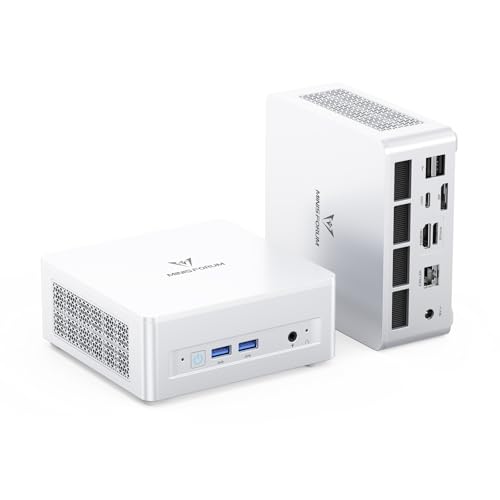
- Best overall barebones kit: MINISFORUM UM880 Plus Barebone, Ryzen 7 8845HS, Radeon 780M — Check on Amazon
- MINISFORUM UM870 Slim Barebone, Ryzen 7 8745H, Radeon 780M — Check on Amazon
- GMKtec NucBox K8 Plus, Ryzen 7 8845HS (Without RAM / SSD / OS) — Check on Amazon
- ASUS NUC 14 Essential Barebone Kit, Intel N150 — Check on Amazon
- ASUS NUC 14 Essential Barebone Kit, Intel Core 3 N355 — Check on Amazon
See 1 more Amazon option
- Intel NUC 11 NUC11PAHi5 Barebone, Core i5-1135G7, 0GB RAM / 0GB SSD — Check on Amazon
Read the full guide ↓
Disclosure: As an Amazon Associate, reviewstook.com earns from qualifying purchases. Links to Amazon on this page are affiliate links; they cost you nothing extra. Listing details such as price and availability change often, so check the current Amazon listing before you buy.
If you have never built a computer, a barebones mini PC sounds like a trap: a product whose own listing warns you it arrives missing the parts that make a computer a computer. So here is the honest version, before anything else. The prices in this guide are not prices for working computers. A barebones kit is a small metal box containing a case, a circuit board, a processor and a fan. The memory slots are empty. The storage bay is empty. There is no Windows, no Linux, nothing — plug it into a screen and it will show you an error message or a blank stare. To finish one you buy three more things — memory, storage and an operating system — and you fit the first two yourself with a screwdriver.
Why would a beginner volunteer for that? Three honest reasons. First, it is genuinely easy: on the kits below, “building” means opening a lid, clicking two small circuit boards into their slots, and closing the lid again. Second, you choose the parts: memory or a spare drive from an old laptop becomes a computer for the price of the empty box alone. Third, you learn how a PC fits together on the simplest machine that exists, with two parts instead of twenty.
And here is the part most guides bury: if you own no spare parts at all, a barebone is usually the expensive way to buy a computer right now. Memory prices have risen sharply, and ready-made mini PCs were priced before those rises fully landed. Memory and storage have to be bought separately, and at current part prices adding them to any kit below can push the finished total past the same machine sold complete — check price on Amazon for the kit and for the parts on the day you order. Every review below flags that completion cost next to the kit. If the finished total is what matters and you own nothing, a complete mini PC is probably your better first computer. If you own parts, or want the learning experience with your eyes open, read on: the six kits below are the ones worth a beginner’s money under $400.
New to This? The Words, in Plain English
Listings for barebones kits are written for people who already know the vocabulary. About ten terms cover everything on this page.
- Barebones / barebone. The kit itself: case, board, processor and cooling, sold with its memory and storage slots empty and no operating system. “Barebone” and “barebones” mean the same thing; sellers use both.
- RAM (memory). The computer’s short-term workspace — the desk, not the filing cabinet. Programs live here while they run, and it empties when the power goes off. More RAM means more things open at once without slowdowns. It is the first part you must add.
- SO-DIMM. The small, laptop-sized shape that RAM sticks come in for mini PCs — a physical shape, not a speed or a brand. A desktop-sized stick (a DIMM) will not fit these machines, ever: this is the most common ordering mistake beginners make, and each review below names the exact type its kit takes.
- DDR4 and DDR5. Two generations of RAM: DDR5 is newer and faster, DDR4 older and cheaper. They are not interchangeable — the slots are physically keyed so the wrong one will not even push in. Each kit below takes exactly one generation, and the review says which.
- Dual channel. When two matching RAM sticks are fitted, the processor talks to both at once, roughly doubling the memory’s data path. Because the graphics share the RAM (see “integrated graphics” below), two sticks are the difference between playable and choppy on the gaming kits.
- SSD (storage). The filing cabinet: where Windows, your games and your files live permanently. All storage today is an SSD — a silent chip with no moving parts. You must add one; a barebone has none.
- M.2 and NVMe. The M.2 is a small stick-shaped SSD, about the size of a stick of gum, that screws flat onto the board. NVMe is the fast language the good ones speak. Every kit below takes at least one M.2 2280 drive — “2280” is just its length in millimetres.
- 2.5-inch bay. Some kits also have a tray for an older-style, larger SSD — the flat kind that filled laptops for years. Slower than M.2 but fine for games and files, and where a spare drive from a dead laptop often fits.
- Operating system (OS) and license. The software everything else runs on — Windows, or a free Linux distribution. A barebone includes neither. Linux costs nothing. Windows needs a license: a permission key, usually bought separately — and a license that came with an old laptop is usually tied to that laptop and will not legally move to your new kit.
- Integrated graphics (iGPU). A graphics processor built into the main processor, sharing the machine’s RAM instead of having its own. It is why these small boxes can play games at all without a graphics card — and why dual-channel RAM matters: the graphics drink from the same pool as everything else.
In this guide
Quick Picks
Short on time? Each row names a beginner situation and the kit that fits it.
| Your situation | Pick | Why it stands out | Link |
|---|---|---|---|
| Best overall barebones kit | MINISFORUM UM880 Plus Barebone, Ryzen 7 8845HS | Strongest built-in graphics here, two memory slots, two storage slots, room to grow | Check on Amazon |
| Best value gaming kit | MINISFORUM UM870 Slim Barebone, Ryzen 7 8745H | The same graphics power in a slimmer box for a little less money | Check on Amazon |
| Best for lots of screens and cables | GMKtec NucBox K8 Plus, Ryzen 7 8845HS | Two network ports and two USB4 ports — but it uses the whole budget by itself | Check on Amazon |
| Cheapest respectable way in | ASUS NUC 14 Essential Barebone Kit, Intel N150 | A big-brand kit at a budget-tier entry point, with a wall-mount bracket in the box | Check on Amazon |
| Best quiet box for a busy desk | ASUS NUC 14 Essential Barebone Kit, Intel Core 3 N355 | Twice the processor cores of its cheaper sibling, same tiny silent case | Check on Amazon |
| Best if you own older spare parts | Intel NUC 11 NUC11PAHi5 Barebone, Core i5-1135G7 | Takes cheaper older memory — but only worth buying when its price dips | Check on Amazon |
How These Picks Were Chosen
The first test was honesty of the listing itself. A kit qualified only if its own title or specification table states, in writing, that the memory slots and storage bay are empty and no operating system is included. That sounds obvious, but Amazon’s search results are full of complete mini PCs wearing the word “barebone” as decoration, and of machines sold as barebone that quietly ship with memory fitted. Where one model is sold both ways — and most of these are — only the barebone version’s listing and price were used, because choosing the wrong version on a shared page is the easiest mistake in this category.
The second test was whether a beginner can actually finish the build. Every pick takes standard, widely sold parts: SO-DIMM sticks that push into slots by hand, and an M.2 drive held by one small screw. Kits whose memory is soldered permanently to the board were excluded — a machine you cannot add memory to is not a barebone in any useful sense. Two memory slots were preferred over one, because two slots allow dual channel (decisive for gaming, as explained above); one-slot kits appear here only where the rest of the package honestly justifies them, with that ceiling stated in the review, not hidden.
The third test was the finished price, checked with real part prices rather than optimism. A barebone is only comparable with a complete machine once the memory and storage it needs are added, and memory is the most jumpy price in computing, so check price on Amazon for the kit and for the parts on the day you order. No Windows license price is quoted anywhere in this guide: think in terms of kit plus memory plus storage, with the operating system handled separately — free if you choose Linux, a separate purchase if you choose Windows.
Finally, the same kit can sit at very different prices in two near-identical listings, so check price on Amazon on the exact listing linked, check the version selector says “barebone,” and only then order.
The 6 Best Barebones Mini PCs for Beginners Under $400
MINISFORUM UM880 Plus Barebone — Ryzen 7 8845HS, Radeon 780M
Who it suits: The beginner who already owns spare parts — memory or a drive from a laptop upgrade — and wants the strongest small machine this budget can start; also the beginner who owns nothing yet but wants the most growing room, and accepts the finished-price warning below.
Inside the box is a Ryzen 7 8845HS processor: eight cores, sixteen threads, boosting up to 5.1GHz, with Radeon 780M integrated graphics — the strongest built-in graphics in any mini PC of this class. Memory goes in two DDR5 SO-DIMM slots, rated up to 96GB total: fit two matching sticks and the graphics get the dual-channel bandwidth they need; fit one and you have cut your game performance roughly in half to save money you will wish you had spent. Storage goes in two M.2 2280 slots, so you can start with one drive and add a second later without replacing anything. The connection panel is the generous one: HDMI, DisplayPort and USB4 for screens, a fast 2.5G Ethernet port, and an OCuLink port — a small connector that can later drive a full desktop graphics card in an external dock, the most serious upgrade path any mini PC offers.
Now the money, in the open. Check price on Amazon for this kit — it sits in the upper part of this budget tier. Priced both ways with generous parts — a 32GB memory kit and a 1TB drive bought new — building it from parts can cost more than the identical UM880 Plus sold complete. With a modest 16GB stick and a 500GB drive bought new, the finished total can likewise pass the complete version. The lesson is not “avoid this kit” — it is “this kit rewards people who already own the parts.” If the memory and drive are in your drawer, this kit gives you the best small-computer platform under $400. If they are not, the complete version is often the cheaper finished computer, and a beginner should price that first.
- The strongest integrated graphics in this guide — esports and older big games at 1080p with sensible settings.
- Two memory slots and two storage slots: nothing you fit today has to be thrown away to grow tomorrow.
- OCuLink and USB4 ports keep a real graphics-card upgrade open for later.
Honest limitation: Completed with brand-new parts at current prices, this machine can cost more finished than the same computer bought ready-made — the gap can be significant with generous parts. It also has no operating system either way: budget for a Windows license, or choose free Linux.
Choose it if you own DDR5 memory and an M.2 drive, or you deliberately want the most expandable first build. Skip it if you are buying every part new and the finished total is what counts — price the complete UM880 Plus first.

MINISFORUM UM870 Slim Barebone — Ryzen 7 8745H, Radeon 780M
Who it suits: The same parts-owning beginner as the pick above, minus the ambition to bolt on an external graphics card later — someone who wants the same gaming heart in a slimmer box and would rather keep the price difference.
The processor here is the Ryzen 7 8745H: again eight cores and sixteen threads, boosting to 4.9GHz, with the same Radeon 780M graphics as its bigger sibling — for games, the two machines are effectively twins. What changes is the box around the chip. Memory is still the right arrangement — two DDR5 SO-DIMM slots, so dual channel is yours — and storage is an M.2 2280 slot, with the listing describing a second PCIe 4.0 slot for expansion. Screens connect over HDMI, DisplayPort and USB4; networking is a single 2.5G Ethernet port where the UM880 Plus adds OCuLink; wireless internet is built in.
The price is the reason this kit exists: check price on Amazon — it is reliably a little cheaper than the UM880 Plus for the same graphics, in the same upper budget tier. The completion warning, though, is the same shape. Fit a new 16GB DDR5 SO-DIMM and a 500GB NVMe drive and a modest finished machine can cost more than a complete equivalent before an operating system. That is the memory market’s fault, not this kit’s. It means the Slim, like its sibling, is a genuine bargain exactly when the parts are already yours, and a questionable one when they are not. One beginner-specific warning, because this model is the worst offender: the UM870 Slim is also sold as a finished computer at much higher prices, sometimes one click away on the same page. Before you pay, confirm the title of what you are ordering says “barebone” and “without RAM/SSD/OS,” exactly as the linked listing does.
- The same Radeon 780M graphics as the top pick, in a slimmer box for less money.
- Two memory slots — dual channel available from day one, and replaceable later.
- HDMI, DisplayPort and USB4 screen outputs, 2.5G Ethernet and built-in Wi-Fi.
Honest limitation: No OCuLink port, so a future graphics-card dock would connect over USB4 and lose some speed — and the completion-cost warning applies in full: with new memory at today’s prices, the finished complete version of this machine is cheaper.
Choose it if you own the parts and want maximum graphics for minimum kit money. Skip it if an external graphics dock is part of your plan — that is the UM880 Plus above — or if you are buying memory new.

GMKtec NucBox K8 Plus — Ryzen 7 8845HS (Without RAM / SSD / OS)
Who it suits: The beginner whose desk is really a small network — lots of screens, lots of wired connections, maybe a home server project — and who is patient enough to buy only when this kit’s price behaves.
The K8 Plus carries the same Ryzen 7 8845HS processor and Radeon 780M graphics as the UM880 Plus, so the gaming story is identical: fit two DDR5 sticks, and esports and older big games run at 1080p with sensible settings. What earns it a place is the connection panel, the most complete under $400: two 2.5G Ethernet ports (two separate wired networks — the reason home-lab builders love this box), two USB4 ports, HDMI 2.1 and DisplayPort, with the maker claiming support for up to four displays. Memory is the correct arrangement — dual DDR5 SO-DIMM slots, socketed, in the same up-to-96GB class as its rivals — and storage is a standard M.2 NVMe slot. Assembly is no harder than the others.
The catch is the number on the listing. Check price on Amazon: this barebone sits at the very top of the under-$400 budget when it dips — the entire budget spent on an empty box. In plain terms: most days this kit costs more than the budget allows, and it only qualifies when its price dips into the budget. At a dip, the completion arithmetic is the sternest here: add a modest new memory stick and drive and the finished machine is the priciest completion in this guide before an operating system. None of that makes it a bad kit — its port layout is genuinely unmatched in this tier — but it makes it a watch-and-wait purchase, not a buy-it-tonight one. Set a price alert, make sure the listing still says “Without RAM/SSD/OS” (the same model sells complete for much more), and buy only when it dips under $400.
- Two wired network ports — the only kit here that can run a small home network or server setup.
- Two USB4 ports plus HDMI 2.1 and DisplayPort; the maker claims up to four displays.
- The same processor, graphics and two-slot memory layout as the guide’s top pick.
Honest limitation: At its everyday price this kit is over budget; it is a dip-only purchase. Its finished cost with new parts is also the highest in this guide relative to what you get, because the empty box alone eats the whole budget.
Choose it if two network ports or a wall of screens is your actual plan and you already own memory and a drive. Skip it if you need one network port like most people — the two MINISFORUM kits give you the same graphics for less money.

ASUS NUC 14 Essential Barebone Kit — Intel N150
Who it suits: The beginner who wants a famous brand and a quiet box — for homework, office work, web, video and light always-on duties — and who understands, before paying, that this is not a gaming machine.
ASUS now runs the NUC line it inherited from Intel, and this is its entry kit: a tiny 0.56-litre box built around the Intel N150, a modest four-core processor meant for everyday tasks rather than games. The kit around it is thoughtfully finished for beginners: three-display support, a fast 2.5G Ethernet port, Wi-Fi 6E and Bluetooth 5.3, and a VESA mounting bracket in the box, so the finished computer can bolt to the back of a monitor and vanish. The barebone terms are exactly as they should be — no memory, no storage, no operating system — and the price is the friendliest in this guide: check price on Amazon — it is the lowest, budget-tier entry point here. Storage goes in an M.2 2280 slot, with a second smaller M.2 2242 slot for a SATA drive.
Two honest problems, and both are permanent. The first is the memory design: this board has one memory slot — a single DDR5-4800 SO-DIMM, maximum 16GB, running in single channel for the life of the machine. There is no second slot to grow into, ever. For documents, browsing, video and light server jobs that ceiling is fine; it is also the main reason this kit is not a gaming pick, because its graphics share that single narrow memory path. The second problem is the completion cost, the most dramatic in this guide: its one required memory stick can cost as much as — or more than — the entire kit, plus a drive still to add, for a finished total that can sit well above a complete N150 mini PC with the same memory and storage already fitted — check price on Amazon for both before you decide. If you own a DDR5 stick and a small drive, this is a budget-tier brand-name bargain. If you do not, the complete boxes are often far cheaper finished.
- The lowest entry price of any respectable kit here — a budget-tier start.
- Fast wired networking, modern Wi-Fi, three-display support and a monitor-mount bracket included.
- A big brand’s support and documentation behind it, in a near-silent, tiny case.
Honest limitation: One memory slot, 16GB maximum, single channel forever — and at current prices the single stick it needs can cost more than the kit itself. This is an everyday-tasks machine: office, media and server work, not games.
Choose it if you have a spare DDR5 stick and drive and want a quiet, branded, always-on box. Skip it if gaming matters to you at all, or if you would be buying the memory new — a complete N150 machine does the same jobs for far less finished money — check price on Amazon.

ASUS NUC 14 Essential Barebone Kit — Intel Core 3 N355
Who it suits: The same light-duty beginner as the kit above, with a heavier everyday workload — dozens of browser tabs, several office programs at once, a busier home server — who wants more cores in the same silent box and accepts the same memory ceiling.
This is the step-up version of the N150 kit, and much of the review is shared, because the box, the terms and the warnings are the same. What changes is the processor: the Core 3 N355 has eight cores and eight threads — double its sibling’s — felt in ordinary life as snappier multitasking while updates, syncs and a dozen tabs compete. Everything else carries over: the same compact case, three-display support, 2.5G Ethernet, Wi-Fi 6E, the included VESA mount, and the same barebone terms. Check price on Amazon: the eight-core version sits in a higher tier than its cheaper sibling, so it costs noticeably more — and on a good dip, barely more at all.
What does not change is the part that matters most: the memory design is identical — one DDR5-4800 SO-DIMM slot, 16GB maximum, single channel, permanently. The extra cores do not widen the memory path, do not raise the ceiling, and do not turn this into a gaming kit. The completion maths is therefore the N150’s maths with a bigger first number: the same new memory stick and drive take the finished total well past the kit price, for a machine whose complete equivalents are often cheaper finished. The decision between the two ASUS kits is simple: if the box will mostly play video and serve files, the cheaper N150 is enough; if it will be a working desktop or a server juggling several jobs, the extra cores earn their premium.
- Eight processor cores in the same tiny, quiet, monitor-mountable case as the cheaper kit.
- The same strong connections: fast wired networking, Wi-Fi 6E, three displays.
- On a dip, the step-up can cost almost nothing extra over its sibling.
Honest limitation: The single-slot, 16GB, single-channel memory ceiling is unchanged, so the cheaper kit’s limits apply in full — you are buying cores, not growing room. At its usual positioning it also sits close in price to the Radeon 780M kits, which are far stronger all-round machines for anything visual.
Choose it if your workload is everyday multitasking in a silent box and you already own the memory stick and drive it needs. Skip it if you are torn between this and a 780M barebone at similar money — for games or anything graphical, the AMD kits are in a different league.
Intel NUC 11 NUC11PAHi5 Barebone — Core i5-1135G7, 0GB / 0GB
Who it suits: The patient beginner with older spare parts in the drawer — specifically DDR4 memory — who likes the classic Intel NUC platform and will wait for this kit’s price to fall into the budget instead of paying what it usually asks.
Some context, because this pick needs it before its warning label makes sense. This is a legacy kit from Intel’s own era of the NUC line, built around the Core i5-1135G7: four cores, eight threads, up to 4.20GHz, with Iris Xe integrated graphics — a clear step above the two ASUS boxes for older and lighter games, though a generation behind the Radeon 780M kits. Its charms are real. Memory goes in two DDR4 SO-DIMM slots, up to 64GB — DDR4 is the older standard, which is precisely the point: it is the memory most likely to be sitting in a drawer, and the cheapest to buy. Storage is an M.2 NVMe slot plus a 2.5-inch SATA bay, so a flat drive rescued from a dead laptop has somewhere to live. The connections include Thunderbolt 3, Wi-Fi 6 and support for four displays. As a finished desk machine for office work, media and light creative tasks, a completed NUC 11 is still genuinely pleasant.
Now the warning, at full size, because it decides whether this pick exists at all: this kit usually costs more than $400. Check price on Amazon: the 0GB listing is usually well above this guide’s budget, in a premium tier for a legacy kit, with DDR4 memory and storage still to add on top. It earns its place for exactly one reason: it does occasionally dip, when old stock clears and sellers compete, and a sub-$400 NUC11PAHi5 is a legitimate buy for a beginner holding DDR4 parts. At anything above $400 it is not a pick in an under-$400 guide — it is a nostalgia purchase. Check that the listing is the true 0GB/0GB barebone version (this ASIN is; the same model name is sold pre-fitted at higher prices), check the seller, and hold your price line.
- Takes the older DDR4 memory — the cheapest kind to complete, and the kind most likely already owned.
- Thunderbolt 3, Wi-Fi 6 and four-display support from a proven, well-documented platform.
- Two kinds of storage bay, so both modern stick drives and older flat laptop drives fit.
Honest limitation: Its normal price is above this guide’s budget, so this is a set-an-alert-and-wait purchase, not a buy-today one. The platform is also a generation old: no USB4, older memory, and graphics well behind the 780M kits.
Choose it if you catch it at $400 or under and you own DDR4 memory and a spare drive. Skip it if the live price is above $400 — at that money the UM870 Slim and UM880 Plus are newer, faster and actually inside the budget.

Comparison Table
| Product | Processor / Graphics | Memory it takes | Best use | Link |
|---|---|---|---|---|
| MINISFORUM UM880 Plus Barebone | Ryzen 7 8845HS / Radeon 780M | 2× DDR5 SO-DIMM, up to 96GB | Strongest first build, graphics-card dock possible later | Check on Amazon |
| MINISFORUM UM870 Slim Barebone | Ryzen 7 8745H / Radeon 780M | 2× DDR5 SO-DIMM | Same gaming power, slimmer and cheaper box | Check on Amazon |
| GMKtec NucBox K8 Plus | Ryzen 7 8845HS / Radeon 780M | 2× DDR5 SO-DIMM, up to 96GB class | Two network ports, many screens — buy on a dip | Check on Amazon |
| ASUS NUC 14 Essential (N150) | Intel N150 / Intel UHD | 1× DDR5-4800 SO-DIMM, max 16GB, single channel | Quiet office, media and server box | Check on Amazon |
| ASUS NUC 14 Essential (Core 3 N355) | Intel Core 3 N355 / Intel UHD | 1× DDR5-4800 SO-DIMM, max 16GB, single channel | Busier everyday desktop and home server | Check on Amazon |
| Intel NUC 11 NUC11PAHi5 Barebone | Core i5-1135G7 / Iris Xe | 2× DDR4 SO-DIMM, up to 64GB | Older-parts build with four displays — on a dip only | Check on Amazon |
How to Choose Your First Barebones Mini PC
- Start with what you already own, not with the listings. Open the drawer first. DDR5 sticks and an M.2 drive point you to the AMD kits or the ASUS boxes; DDR4 sticks point to the NUC 11 and only the NUC 11; an empty drawer points, honestly, to a finished mini PC instead — or to a barebone bought knowingly as a learning project with the full parts bill accepted.
- Do the finished sum before you fall for a kit price. Kit + memory + storage + operating system, priced today, next to the same machine sold complete. At current part prices — check price on Amazon for a 16GB DDR5 stick and a 500GB drive on the day you order — the parts can cost more than the kit. If the finished barebone costs more and you own nothing, it needs a reason beyond price: your parts, your choice of drive, the experience itself.
- For games, two memory slots are non-negotiable. These machines have no graphics card; their built-in graphics borrow the main memory, and two matching sticks (dual channel) can matter more to game smoothness than a whole processor tier. That is why the three AMD kits lead this guide and the one-slot ASUS kits are labelled office machines.
- Match the memory generation to the kit — they do not swap. DDR5 for the AMD and ASUS kits; DDR4 for the NUC 11. The sticks are shaped so the wrong generation will not fit: if it will not push in, stop and check rather than push harder.
- Check the version selector like it matters, because it does. Every model here is also sold finished, under a nearly identical name, sometimes on the same page. The version you order must say barebone / no RAM / no SSD / no OS. If a price looks impossibly good for a finished computer, you are looking at the empty kit.
- Decide the operating system before the box arrives. Nothing here includes one. Linux is free. Windows needs a license you buy or own in transferable form — an old laptop’s license generally stays with that laptop.
- Treat the two over-budget kits as watches, not purchases. The K8 Plus at its everyday price and the NUC 11 almost all the time live above $400 and only visit this budget. Set an alert and hold your line.
Your First Build: The Evening, Step by Step
Here is the whole job, start to finish. Allow an unhurried hour the first time; the difference from the fifteen-minute version is only confidence.
Before the kit arrives, order the rest of the shopping list. You need: the memory your kit takes (SO-DIMM sticks — a matched pair for the two-slot kits, a single stick for the ASUS boxes), an M.2 2280 SSD, a USB stick of 8GB or more for the operating-system installer, and a small Phillips screwdriver. You also need a screen, keyboard and mouse — borrowed is fine for setup night. Sort the Windows license, or the Linux installer on the USB stick, in advance.
Step 1 — open the box. Work on a table, not a carpet, and touch something metal first to discharge static. Mini PC lids typically slide or unclip after removing a few small screws from the underside; put the screws in a cup. Inside you will see the empty memory slots — angled slots with a clip at each end — and the M.2 slot, a short connector with a tiny screw post beside it.
Step 2 — fit the memory. Hold a stick by its edges. Line up the notch in its gold connector with the bump in the slot — it only fits one way. Slide it in at a shallow angle, then press the far edge down until both side clips snap over it; a firm click is success. Repeat for the second stick if your kit has two slots. If a stick will not go in at a shallow angle, do not force it: you may have the wrong generation (DDR4 in a DDR5 slot, or the reverse) — check the packaging against your kit’s review.
Step 3 — fit the storage. Slide the M.2 drive into its connector at the same shallow angle, press it flat, and secure it with the single small screw provided. That screw is tiny and easy to lose; work over the open box so a dropped screw lands inside it. A 2.5-inch bay, where fitted, takes an older flat drive on its tray with the cable provided.
Step 4 — close up and connect. Replace the lid and its screws. Connect power, screen, keyboard and mouse, and plug in the USB stick with your installer.
Step 5 — first switch-on checks. Press power. Three good signs, in order: the fan spins and lights come on; the maker’s logo or a setup screen appears; and the machine boots from your USB stick or shows a boot menu when you tap the key the screen names (often F7, F11, Delete or Esc — it flashes by quickly, so watch for it). No picture at all usually means a memory stick is not fully seated: power off, unplug, reopen, press each stick down again until both clips are home. That one fix resolves most first-build scares.
Step 6 — install the operating system. Follow the installer’s prompts; the defaults are correct for a first build. When you reach a desktop, connect to the internet, run every system update offered, and restart. On the AMD kits especially, also install the maker’s chipset and graphics drivers if Windows has not fetched them itself.
Step 7 — verify what you built. Open the system information screen and confirm the memory total matches what you fitted and the storage size matches your drive. If the memory shows half what you installed, one stick is not seated — repeat step 5’s fix. You are done: the empty box is now a computer, and you know exactly what is inside it, because you put it there.
What the Whole Project Really Costs
The kit price is a down payment, so here is the full picture in one place: every kit below still needs memory and storage bought separately — check price on Amazon for the kit and for those parts. The operating system is separate throughout: nothing for Linux, a license purchase for Windows — and you should be suspicious of any guide that invents a tidy total without showing its live parts prices.
- UM880 Plus: an upper-budget-tier kit; finished with new 16GB/500GB parts it can cost more than the same machine sold finished, and with 32GB/1TB parts the gap grows further.
- UM870 Slim: an upper-budget-tier kit, a little below its sibling; finished with the same modest new parts basket it can likewise pass a complete equivalent.
- K8 Plus: at the top of the budget on dips only, and usually above it; the priciest finished build here — the empty box eats the whole budget first.
- NUC 14 Essential N150: the lowest budget-tier kit; finished with new parts it can cost far more than a complete equivalent — the widest gap in this guide.
- NUC 14 Essential N355: a step-up tier above the N150 kit; finished with new parts it sits well above its kit price.
- NUC 11: usually well over budget before parts, plus older DDR4 parts still to add; at a dip to $400 or under with DDR4 already owned, it becomes the cheapest finished machine here.
Then come the lines beginners forget, none of them inside any price above: a small Phillips screwdriver if you do not own one; the USB stick for the installer; a Windows license if you choose Windows; and a screen, keyboard and mouse if this is your first computer of any kind. None is expensive alone, but a budget covering only the kit and its two parts is still a few small purchases short of a working desk. The pattern behind the numbers is worth understanding: memory prices rose faster than finished computers did, because finished machines are priced on parts contracts signed earlier. In 2026 a barebone is a smart buy for the parts-rich and a trap for the parts-poor — and now you know which one you are.
Upgrades, in Plain Terms
What can you change later on these machines? Four honest answers. Memory: yes, on the two-slot kits — swap both sticks for a bigger matched pair any time; the AMD kits are rated up to 96GB total. On the ASUS kits, the single slot means replacing the one stick with a bigger one up to the 16GB ceiling, and that is the end of the road. Storage: yes — add a second M.2 drive where a second slot exists (UM880 Plus, and the ASUS kits’ smaller second slot), or replace the first drive with a larger one. Graphics: the built-in graphics can never be swapped — it is part of the processor. The one exception is the UM880 Plus, whose OCuLink port can drive a desktop graphics card in an external dock; the dock and card are separate, serious purchases, but the door exists. Processor: no — in every mini PC here it is soldered to the board. When you outgrow the processor, you replace the kit, which is why the memory and storage headroom above is worth choosing carefully now.
Common Beginner Mistakes
- Comparing a barebone’s price with a finished mini PC’s price and calling the barebone cheaper. The comparison only exists after memory, storage and an operating system are added — and at current part prices it usually flips.
- Ordering desktop-sized memory. These kits take SO-DIMM, the small laptop-style sticks. A full-size DIMM cannot fit.
- Mixing up DDR4 and DDR5. The NUC 11 takes DDR4; everything else here takes DDR5. They are shaped not to interchange — if a stick will not seat at a shallow angle, stop and check instead of pushing.
- Fitting one memory stick in a two-slot gaming kit. The built-in graphics share the memory; one stick halves the path they drink from, and games crawl.
- Clicking the wrong version on the product page. Barebone and finished versions of the UM870 Slim, K8 Plus and NUC 11 circulate under near-identical names. Read the version name on your order confirmation.
- Assuming Windows is included, or that an old laptop’s license moves with you. Neither is true by default; decide the operating system before the kit arrives.
- Paying the everyday price for a dip-only kit. The K8 Plus and the NUC 11 spend most of their lives above $400; patience is the discount.
- Panicking at a blank first screen. Nine times out of ten it is a memory stick that did not click fully home. Power off, unplug, press both sticks down until the clips snap, and try again.
Final Recommendation
- Most parts-owning beginners: MINISFORUM UM880 Plus Barebone.
- Same graphics, less money: MINISFORUM UM870 Slim Barebone.
- Networks and many screens: GMKtec NucBox K8 Plus — on a price dip only.
- Cheapest branded start: ASUS NUC 14 Essential, Intel N150.
- Busier quiet desk: ASUS NUC 14 Essential, Intel Core 3 N355.
- DDR4 owners with patience: Intel NUC 11 NUC11PAHi5 Barebone — at $400 or under only.
Our top two are the two MINISFORUM kits, and the choice between them is one question: does a future graphics-card dock matter to you? If yes, the UM880 Plus and its OCuLink port; if no, the UM870 Slim keeps the difference in your pocket. Both give you the same graphics heart, the same two memory slots, and the same simple two-part build. Beginners starting from zero parts should also read Best Barebones Mini PC Under $400, and Best Barebones Mini PC Under $500 before assuming the next price tier fixes the completion-cost problem — it does not; the parts bill follows you up the ladder. Whatever you choose: write the finished sum down before you order, confirm the version says the slots are empty, and check the live price.
Frequently Asked Questions
I have never built anything. Can I actually do this?
Yes — this is the gentlest build in computing. There are no cables to route and no paste to apply: open a lid, push one or two memory sticks into their slots until they click, secure one storage drive with one small screw, close the lid. The walkthrough above covers the whole job, including the one fix (reseating a memory stick) that resolves most first-boot scares.
What exactly is missing from a barebones mini PC?
Three things: memory (RAM), storage (an SSD) and an operating system. The box contains the case, board, processor, cooling, power supply and ports. A screen, keyboard and mouse are separate purchases with any computer, finished or not.
How much does it really cost to finish one?
Budget for a 16GB DDR5 stick and a 500GB drive on top of the kit — check price on Amazon for all three on the day you order — plus an operating system (Linux free; Windows a separate license). That parts basket is a substantial extra for a modest completion, and memory is the most volatile price in computing right now, so re-price before you commit.
Is a barebone cheaper than a finished mini PC for a beginner?
Only if you already own the memory and storage, or catch an unusual parts sale. Priced like-for-like with new parts, the finished machines won both head-to-heads here: a complete UM880 Plus against the same machine built from parts, and a complete N150 box against a completed NUC 14 Essential kit — check price on Amazon for both versions before you decide. A barebone’s real advantages are using parts you own and choosing your own — not the sticker price.
Which kit should a first-timer pick?
If you own DDR5 parts, the UM870 Slim: the simplest strong build here. If you own DDR4 parts and can wait for a price dip, the NUC 11. If you own nothing and mainly want a quiet everyday box, the NUC 14 Essential N150 is a fine, honest start — bought knowing its one-slot memory ceiling in advance. And if you own nothing and want to game, price a finished mini PC first; this guide’s own numbers say it will likely cost less complete.
What memory do I need to buy? Explain it like I am shopping tonight.
Three things must match. Shape: SO-DIMM, the small laptop-style stick — every kit here uses it. Generation: DDR5 for the AMD kits and both ASUS boxes, DDR4 for the NUC 11 — the wrong one physically will not fit. Count: a matched pair for the two-slot kits, so the graphics get dual channel; a single stick (up to 16GB) for the ASUS kits. Sizes: 16GB total is a sensible minimum; 32GB is the comfortable choice for the gaming kits.
Why do some listings call a finished mini PC “barebone”?
Because the word is unregulated and it attracts searches. Some sellers use it for the platform, some attach it to any small PC, and some run one page where “barebone” is simply the cheapest version among finished ones. Defend yourself with the specification table: empty memory slots and an empty storage bay, stated in writing — or it is not the product this guide covers.
Can these little boxes actually play games?
The three AMD kits can: with two memory sticks fitted, expect esports titles and older big games at 1080p with low-to-medium settings, and the newest demanding games to need reduced settings or upscaling. The ASUS kits are everyday machines, not gaming ones, and the NUC 11’s graphics handle older, lighter games only. No kit here replaces a dedicated graphics card — though the UM880 Plus can add one later through an external dock.
- Best Barebones Mini PC Under $400
- Best Barebones Mini PC Under $500
- Best Barebones Mini PC Under $700
- Best Barebones Mini PC For Beginners Under $500
- Best Barebones Mini PC For Small Spaces Under $400
- Best Barebones Mini PC For Streaming Under $400
- Best Barebones Mini PC For 1440p Gaming Under $400
- Best Mini PC Under $400
- Best Mini Gaming PC Under $400


