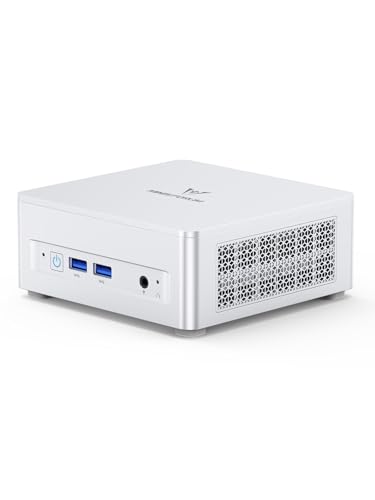
Where to buy
Check the latest price, availability and delivery on Amazon. Orders are placed on Amazon. We may earn a commission from qualifying purchases.
- Best overall workstation under $800: Minisforum UM870 Slim, Ryzen 7 8745H, Radeon 780M, 32GB RAM, 1TB SSD — Check on Amazon
- Beelink SER8, Ryzen 7 8745HS, Radeon 780M, 32GB RAM, 1TB SSD — Check on Amazon
- GMKtec NucBox K8 Plus, Ryzen 7 8845HS, Radeon 780M, 32GB RAM, 1TB SSD, OCuLink — Check on Amazon
- Minisforum UM890 Pro Barebone, Ryzen 9 8945HS, Radeon 780M, no RAM/SSD/OS — Check on Amazon
See 2 more Amazon options
- GMKtec NucBox M6 Ultra, Ryzen 5 7640HS, Radeon 760M, 32GB RAM, 512GB SSD — Check on Amazon
- Apple Mac mini, M4, 16GB unified memory, 256GB SSD — Check on Amazon
Read the full guide ↓
Disclosure: As an Amazon Associate, reviewstook.com earns from qualifying purchases. Links to Amazon on this page are affiliate links; they cost you nothing extra. Listing details such as price and availability change often, so check the current Amazon listing before you buy.
Buying your first proper work computer is harder than buying a gaming PC, because nobody tells you which of the numbers on the box you will actually feel. Here is the short version. At $800, the sensible work PC is a mini PC — a box about the size of a paperback — built around an eight-core Ryzen processor, 32GB of memory (RAM) and a 1TB drive. That combination is enough to write code, edit photos, cut 1080p video, run spreadsheets that make older laptops cry, and keep thirty browser tabs, a chat app and your work software open at the same time without the machine slowing to a crawl. Five of the six machines below follow that recipe. The sixth is Apple’s Mac mini, which follows its own rules, explained honestly where they differ.
Three warnings before the picks, because beginners lose more money to vocabulary than to bad hardware. First, the word “workstation” on a listing certifies nothing at this price: true workstations carry formal certification for professional engineering software and error-correcting memory, and nothing here has either — the section near the end of this guide explains what that does and does not cost you. Second, one pick below is a barebone kit: it arrives with no memory, no storage and no Windows, and is a small building project rather than a computer. It is labelled everywhere it appears. Third, prices in this category swing wildly, so check the current price on Amazon for any pick before you buy and be ready to wait if a listing is sitting well above where it usually sits in this tier. Follow that discipline, not the urge.
Everything after this point is written for a first-time buyer: a jargon translator before the reviews, a numbered walkthrough for your first evening with the machine, and a straight list of the extra things you will need to budget for. If a term appears that you do not know, it is in the glossary.
In this guide
Quick Picks
Short on time, or comparing several options at once? Each row below names a type of worker and the machine that suits them, with a link to the listing.
| Buyer type | Pick | Why it stands out | Link |
|---|---|---|---|
| Best overall | Minisforum UM870 Slim | The full recipe — strong graphics, 32GB memory in slots, three screens — at friendly prices | Check on Amazon |
| Best for quiet rooms | Beelink SER8 | Measured around 32 dBA under load — the quietest full-spec machine here | Check on Amazon |
| Best for growing later | GMKtec NucBox K8 Plus | An OCuLink socket for an external graphics dock later, plus room for a second drive | Check on Amazon |
| Best for builders | Minisforum UM890 Pro Barebone | The strongest chip here — but you supply the memory, drive and Windows yourself | Check on Amazon |
| Best value | GMKtec NucBox M6 Ultra | The same skeleton for less — check price on Amazon — with a smaller, slower drive as the trade | Check on Amazon |
| Best for macOS | Apple Mac mini (M4) | The polished Apple route — with memory and storage fixed forever, stated plainly | Check on Amazon |
How These Picks Were Chosen
We did not use these PCs ourselves. We read the makers’ listings and specification pages, listing records tied to each exact product code, and independent review coverage, then applied beginner-proof filters on top of the usual workstation checks. The first filter is completeness: a pick must be a working computer the evening it arrives, or — in the one barebone case — must state plainly what else you still need to buy to finish it, parts and all, in its own review so the comparison stays honest. The second filter is memory: serious multitasking wants 32GB of RAM, so every Windows pick ships with 32GB fitted, and we note whether it sits in slots you can upgrade later or is soldered down permanently. The third is price honesty: prices in this category wander, so this guide does not print a fixed price for any pick — check the current price on Amazon before you decide, and treat a listing that is sitting unusually high for this tier as a reason to wait or switch picks.
The plain facts about condition, up front: none of the six picks is a renewed or refurbished machine — all six are sold new. One pick is a barebone kit (the UM890 Pro, pick four). One pick has its memory and storage soldered permanently (the Mac mini, pick six); on the five Windows minis, memory sits in standard slots and the drive can be swapped. And an honesty filter ran over everything: no pick is described as certified for professional engineering software, and none is credited with error-correcting memory, because no listing or maker document establishes either at this price.
The Jargon, Translated
- Workstation: marketing word for “a PC meant for serious work.” At this budget it promises nothing formal — what matters is the parts list, not the label.
- Processor (CPU): the chip that does the general thinking. More cores means more jobs at once; eight cores is the comfortable standard here, six is the budget step down.
- Integrated graphics: the picture-making circuitry built into the processor, instead of a separate graphics card. The Radeon 780M in most picks is the strong version of this — fine for photo work, video timelines and light 3D.
- RAM (memory): the machine’s short-term workspace. 32GB lets you keep many programs open at once; 16GB works but fills up sooner.
- Socketed vs soldered: socketed parts sit in slots and can be upgraded or replaced later. Soldered parts are fixed to the board forever. This is the single biggest long-term difference between the Windows minis and the Mac mini.
- SSD (the drive): where your files and programs live permanently. 1TB is the comfortable size here; “PCIe 4.0” drives move big files roughly twice as fast as “PCIe 3.0” ones.
- Barebone: a kit with the processor and box only — no RAM, no SSD, no Windows. Cheaper on the sticker, a building project in practice.
- USB4 / Thunderbolt 4: the fast all-purpose socket. One cable can carry data, a picture to a monitor, and power, which is what makes one-plug docking possible.
- OCuLink: a socket found on two picks that lets you plug in an external graphics dock later — the one way a mini PC can grow a real graphics card.
- HDMI / DisplayPort: the sockets your monitor plugs into. Count them before buying: they decide how many screens the machine can run.
- Ethernet (2.5GbE): the wired internet socket. Wired beats Wi-Fi for stability; 2.5GbE is a faster-than-standard version, handy for moving big files around a home network.
- Operating system: Windows or macOS — the environment everything else runs in. The five Windows picks include Windows 11 Pro; the barebone includes nothing; the Mac runs macOS.
- ISV certification / ECC memory: formal guarantees for regulated professional software and error-detecting memory. Genuinely useful in engineering firms — and absent from every machine in this guide, which is why this guide never claims them.
The 6 Best Workstation PCs Under $800 for Beginners
Minisforum UM870 Slim — Ryzen 7 8745H, Radeon 780M, 32GB RAM, 1TB SSD
Who it suits: The first-time buyer who wants one machine that does everything this budget does — coding, photos, light video, several screens — with nothing important missing.
If you only read one review, read this one, because the UM870 Slim is the recipe the rest of the guide is measured against. Its Ryzen 7 8745H processor has eight cores, which is the number that lets it compile code, export photos and hold a pile of open programs without stuttering. The Radeon 780M integrated graphics handle photo editing, smooth 4K video timelines and light 3D work that used to require a separate graphics card. Around that sit the numbers beginners should learn to check first: 32GB of memory in two slots (upgradeable to 96GB years from now), a fast 1TB drive with a second empty slot beside it, sockets for three monitors, a fast wired internet port, and Windows 11 Pro already installed. The box itself is about 130 × 127 × 50mm — smaller than this page is tall — and includes a bracket to mount it behind a monitor.
Two honest notes. The maker says the cooling stays below 35 decibels in performance mode; treat that as the maker’s own claim rather than a measurement — the independently measured quiet champion here is the SER8 below. And its Wi-Fi chip (a MediaTek module) is fine under Windows but has a history of extra fiddling under Linux, so Linux-curious buyers should plan on the wired port or a little patience. On price: check the current price on Amazon before you buy. This configured machine often sits toward the more accessible end of this tier on deal events, but its listing can also climb above this guide’s budget when stock is short — in plain terms, it makes sense when the current price fits the $800 budget, and if it is sitting above that budget you are paying a shortage premium, so wait.
- The full recipe in one box: eight cores, 780M graphics, 32GB of upgradeable memory, 1TB drive plus an empty second slot.
- Three-monitor support and one-cable USB4 docking for a tidy desk.
- Windows 11 Pro installed and a two-year maker warranty.
Honest limitation: The quiet-running figure is a maker claim, not a measurement, and the Wi-Fi chip can complicate a Linux install.
Choose it if you want the safest all-round first workstation here. Skip it if the listing is sitting above this guide’s budget when you shop — wait for a dip, or take the M6 Ultra below and keep the difference.

Beelink SER8 — Ryzen 7 8745HS, Radeon 780M, 32GB RAM, 1TB SSD
Who it suits: Anyone who works in a quiet room — a shared home office, a bedroom desk, a studio — and runs long jobs that keep a lesser machine’s fan screaming.
Beginners rarely think about noise, and professionals never stop thinking about it, because work jobs run for minutes at a time: an export, a compile, a batch of photos. The SER8’s cooling has been measured by independent reviewers at around 32 dBA under load — about the level of a quiet room — and reviewer roundups keep singling it out as the quietest mini PC of its class. Underneath the silence is the same full recipe as the pick above: an eight-core Ryzen 7 8745HS, Radeon 780M graphics, 32GB of memory in upgradeable slots (to 64GB), a 1TB fast drive with a second slot, three-monitor output and Windows 11 Pro. Nothing about it needs explaining twice, which is itself a beginner virtue.
The catch is purely about price discipline, so here it is with no softening: this listing often sits above this guide’s budget, while a smaller 24GB version sits lower in the tier, and lower positions exist in its history. So check the current price on Amazon before you decide. When the current price fits this guide’s budget it is arguably the most pleasant machine in this guide; when it sits above the budget, the UM870 Slim does the same work for less. When you shop, check two things: the current price on Amazon, and that the listing in your cart is the 32GB/1TB version, not the 24GB variant wearing a similar title.
- Measured around 32 dBA under load — quiet through the longest jobs.
- The full recipe: 780M graphics, 32GB in slots, 1TB drive plus a spare slot.
- Three monitors and USB4 docking, same as the top pick.
Honest limitation: Its listing often sits above this guide’s budget, so this pick only makes sense when the current price fits the budget.
Choose it if quiet matters and you can wait for the price to dip. Skip it if you need a machine this week at any price — the UM870 Slim is the same class of tool without the wait.

GMKtec NucBox K8 Plus — Ryzen 7 8845HS, Radeon 780M, 32GB RAM, 1TB SSD
Who it suits: The beginner whose work might grow — heavier 3D, rendering, or local AI experiments a year from now — and who wants a machine that can grow with it.
Start with the same recipe, slightly faster: an eight-core Ryzen 7 8845HS with the quickest sustained speeds of the complete machines here, Radeon 780M graphics, 32GB of memory in two slots, a 1TB drive with a second slot, and Windows 11 Pro. What makes the K8 Plus different is one small socket called OCuLink. Through it, you can later plug in an external dock holding a full-size graphics card — the only way any complete pick here can grow real graphics power without replacing the whole computer. It also carries two USB4 ports, two fast wired network ports and outputs for up to four monitors, which makes it a plausible little home server in a second career. No other complete pick leaves this many doors open.
Now the part that decides whether you should buy it: its price is the most volatile in this guide. It can sit comfortably in the middle of this tier, but it has also climbed well above this guide’s budget during the recent memory shortage. The machine did not improve during that spike; the market got worse. So the rule is hard and simple: check the current price on Amazon, buy only when it fits this guide’s budget, treat a mid-tier position as the fair place for it, and walk away from a listing wearing a shortage premium. One more cart check, because this trips up beginners constantly: GMKtec also sells a barebone version of this same box, with no memory, drive or Windows, under a lookalike listing. Confirm the words “32GB” and “1TB” are in the configuration you are actually paying for.
- OCuLink socket: the only complete pick that can add a real graphics card later, via an external dock.
- Two USB4 ports, two fast network ports, up to four monitors.
- Fastest processor clocks of the complete machines, memory in slots, second drive slot.
Honest limitation: Pricing swings harder than any other pick here, so the pick is conditional on checking the current price on Amazon and buying only when it fits this guide’s budget.
Choose it if future graphics growth matters more than buying convenience. Skip it if the live listing is wearing its shortage price; patience is part of this pick’s price.

Minisforum UM890 Pro Barebone — Ryzen 9 8945HS, Radeon 780M, No RAM/SSD/OS
Who it suits: The beginner who is deliberately using this purchase to learn — comfortable opening a small box, fitting two parts, and installing an operating system — or who already owns a Windows licence or plans to run Linux.
Read the listing title the way this guide reads it: barebone means the box arrives with a processor, a board and a cooler — and no memory, no drive and no Windows. It will not switch on into anything useful the evening it arrives. Judged on its finished cost it is still one of the strongest machines here: its Ryzen 9 8945HS is the most powerful processor in the guide, its graphics run at the 780M’s full clock, and the chassis offers two memory slots (to 96GB), two fast drive slots, two USB4 ports, two fast network ports and four-monitor output. Check the current price on Amazon for the kit itself. You will still need to add 32GB of memory and a 1TB fast drive, and those parts are a substantial extra cost on top of the kit — allow a meaningful share of this guide’s budget for them — but a finished machine can still fit within this budget, with every part chosen by you.
Now the costs the sticker hides, stated the way a beginner needs them. That finished hardware cost excludes the operating system entirely: buy a Windows licence on top and the total can pass this guide’s budget, while Linux users pay nothing extra and get the best of the deal. Fitting the parts is genuinely simple — two slot-in components — but it is your job, and so is troubleshooting if a part arrives dead. Two smaller print items: the OCuLink graphics-dock socket on this chassis runs through an adapter plate that occupies one of the two drive slots, so fitting an external graphics card later leaves you one drive bay; and reviewers have measured this platform at about 43 decibels in performance mode, the loudest here. Finally, the whole bargain rides on parts prices: if memory prices spike again, the finished total creeps toward the factory-built UM870 Slim, which needs no assembly at all.
- Strongest processor in the guide, finished to 32GB/1TB once you add your own memory and drive.
- You choose the memory and drive — size, speed and brand are yours.
- Two USB4 ports, two fast network ports, four monitors, memory to 96GB.
Honest limitation: The kit price excludes memory, storage and the operating system; finished with a paid Windows licence it can exceed this guide’s budget, and its graphics-dock adapter consumes a drive slot.
Choose it if you run Linux, hold a spare licence, or want the learning project. Skip it if you need a PC that works the evening it arrives — every other pick here does.
GMKtec NucBox M6 Ultra — Ryzen 5 7640HS, Radeon 760M, 32GB RAM, 512GB SSD
Who it suits: The beginner whose work is real but not graphics-heavy — coding, writing, data work, office work with many programs open — and who would rather keep some budget for a good monitor.
Think of the M6 Ultra as the honesty pick: it looks at what most people’s work actually demands and refuses to charge for the rest. Its Ryzen 5 7640HS has six cores instead of eight — a difference you will feel in long exports and heavy compiling, and not in ordinary professional work — and its Radeon 760M graphics sit one rung below the 780M: fine for photo editing and multi-screen productivity, a step behind on 4K video timelines. What it does not cut is the skeleton that matters day to day: the full 32GB of memory in two upgradeable slots, a USB4 socket for one-cable docking, outputs for three 4K monitors, two fast network ports and Windows 11 Pro. Check the current price on Amazon — it sits in the lower part of this tier, which makes it a pick that can leave room in the budget for the desk around the machine.
The trade is storage, and it is worth understanding before you buy rather than after. The fitted drive holds 512GB — half the standard size here — and runs at the older, slower PCIe 3.0 speed. For code, documents and cloud-backed work that barely matters; for local photo and video libraries it fills quickly, and copying large files will not match the faster drives above. The chassis has further drive expansion according to the maker, so the eventual fix is a second drive, not a new computer — priced in the spending section below as machine plus fix, the way all such catches are priced in this guide. A 1TB version of this machine exists under a separate listing; if you find it at a similar position in this tier it is the better buy, and if you find this 512GB version priced like a 1TB model, walk away.
- The full workstation skeleton, positioned in the lower part of this tier — check price on Amazon.
- 32GB of memory in slots, USB4 docking, three 4K screens, two fast network ports.
- Six fast cores cover the majority of real workloads without waste.
Honest limitation: The 512GB PCIe 3.0 drive is half the standard capacity and a generation slower; media-heavy work will want a second drive.
Choose it if your work is thinking-and-typing work rather than graphics work. Skip it if video editing is a daily job or your photo and video libraries live on the machine — that is exactly where the 1TB picks justify their extra cost.

Apple Mac mini (M4) — 16GB Unified Memory, 256GB SSD
Who it suits: The beginner whose work lives in Apple’s world — building iPhone or Mac apps, Apple-first creative tools — or who simply wants the quietest, most polished small computer here and accepts its fixed specification.
The Mac mini plays by different rules, and its review starts with the rule that matters most: its memory and storage are soldered at the factory and can never be upgraded. The 16GB and 256GB in this configuration are what it will have for its entire life — half the memory and a quarter of the storage of every Windows pick in this guide. Meet that fact before checkout, not after. What you get in exchange is real: Apple’s M4 chip (ten processor cores, ten graphics cores) is the quickest-feeling machine here for everyday responsiveness, it runs at a whisper, macOS is a genuinely polished place to work, and it drives up to three displays including very high-resolution 6K panels. Check the current price on Amazon — it sits in the lower-to-middle part of this tier and, in sale events, can become one of the most accessible complete picks in the guide. For anyone learning to build Apple apps, there is no substitute at any price in this article: only a Mac runs the required tools.
The remaining limitations are arithmetic, not mystery. 16GB of memory handles lighter professional loads but leaves little headroom for running virtual machines or huge catalogs, and 256GB of storage fills with professional software faster than beginners expect — the fix later is an external drive, framed as machine plus fix below. There is also no Windows here at all: if your work software is Windows-only, this is not a cheaper workstation, it is a different platform. One buying rule: purchase it from Amazon itself — check the current price on Amazon before you buy. Third-party sellers have been recorded asking well above Amazon’s own price on this very listing, and no Mac mini is worth a markup.
- The quickest everyday feel and quietest manners in the guide.
- The only route to macOS and Apple app development under $800 — check price on Amazon, especially in sale events.
- Three-display support including 6K panels, in a near-silent five-inch square.
Honest limitation: 16GB of memory and 256GB of storage are soldered and unchangeable — half this guide’s standard specification, forever — and Windows software is simply absent.
Choose it if your tools and projects already live in Apple’s world. Skip it if you need 32GB of memory, a terabyte of storage, or any Windows program.

Comparison Table
| Product | Processor / Graphics | Memory / Storage | Best use | Link |
|---|---|---|---|---|
| Minisforum UM870 Slim | Ryzen 7 8745H / Radeon 780M | 32GB in slots (to 96GB) / 1TB + spare slot | The all-round first Windows workstation | Check on Amazon |
| Beelink SER8 | Ryzen 7 8745HS / Radeon 780M | 32GB in slots (to 64GB) / 1TB + spare slot | Long jobs in quiet rooms (~32 dBA measured) | Check on Amazon |
| GMKtec NucBox K8 Plus | Ryzen 7 8845HS / Radeon 780M | 32GB in slots / 1TB + spare slot | Growing later: OCuLink graphics-dock path | Check on Amazon |
| Minisforum UM890 Pro Barebone | Ryzen 9 8945HS / Radeon 780M | None fitted — you add it (slots to 96GB / two drive slots) | Builders: strongest chip, your own parts | Check on Amazon |
| GMKtec NucBox M6 Ultra | Ryzen 5 7640HS / Radeon 760M | 32GB in slots / 512GB, slower generation | Value: the skeleton in the lower part of this tier | Check on Amazon |
| Apple Mac mini (M4) | Apple M4 10-core / 10-core graphics | 16GB soldered / 256GB soldered | macOS work and Apple-platform development | Check on Amazon |
Your First Evening: Setup, Step by Step
For the five complete picks, this takes under an hour. Barebone owners: your step zero is fitting the memory and drive and installing an operating system — a separate project, so do not start it at 9 p.m. before a workday.
- Unbox and check the box against the listing. Machine, power cable and brick, and — on the UM870 Slim and SER8 — the monitor-mount bracket. If anything is missing, photograph it now, before the machine is scratched by use.
- Choose its spot. A mini PC needs air around its vents, not a sealed drawer or cabinet — every pick in this guide cools itself with room air, and a closed cupboard turns a quiet machine into a loud, hot one. Behind the monitor (on the supplied bracket, where included) or beside it are the two natural homes.
- Plug the monitor into the machine’s own video sockets. Use the HDMI or DisplayPort socket on the mini PC itself, or its USB4 socket with a suitable cable. Here is the one trap worth learning on day one: a picture can light up while quietly coming from the wrong place. Plug a monitor through a cheap USB hub or splitter and it may work — softly, at a lower sharpness, with a lag — while the machine’s real video sockets sit unused. Every pick here makes its picture with the graphics built into its processor, and there are no separate card sockets to confuse you with; the same trap returns later only if you add an external graphics dock through OCuLink, at which point the monitor cable must move to the dock’s sockets, or the picture will silently keep coming from the little integrated graphics while the expensive card idles.
- Add keyboard and mouse. Any USB or Bluetooth set works. None of these machines is a laptop — nothing about the screen, keyboard or mouse is built in.
- Connect the internet. An Ethernet cable into the wired socket is the stable choice and makes the big first updates painless; Wi-Fi works fine if the cable run is ugly. Do the cable if you can — work machines earn their keep on boring reliability.
- Power on and follow the setup. Windows 11 Pro (or macOS on the Mac mini) walks you through language, account and privacy choices. Take the defaults you do not understand; nothing in the setup is irreversible.
- Check that what arrived is what you paid for. In Windows: Settings → System → About shows the memory size; File Explorer shows the drive size. Confirm 32GB and roughly 1TB (or 512GB on the M6 Ultra). SER8 buyers, confirm 32GB rather than the 24GB variant; K8 Plus buyers, confirm your box was the complete version, not the barebone twin. Mac buyers, the Apple menu’s About This Mac shows 16GB and 256GB. Two minutes here catches the commonest mix-up in this whole category.
- Let it update. Run Windows Update (or macOS Software Update) and let it finish, restarting as asked. A new machine’s first hour of updates is normal, not a fault.
- Install your work software and set up a backup. Your programs, your files, and one automatic backup destination — an external drive or a cloud service — set up tonight, while you are still thinking about it. Backups arranged after the first scare are arranged too late.
How to Choose a Workstation PC Under $800
- Start from the work, not the label. Coding, photo editing, office multitasking, data work and 1080p or proxy-based 4K video all fit this budget comfortably. Heavy 3D rendering, certified engineering software and color-critical professional video do not — read the honesty section below before spending anything.
- Treat 32GB of memory as the floor, and slots as the future. Every Windows pick here fits 32GB in sockets that can grow to 64GB or 96GB. Soldered memory is a ceiling you accept on day one — that is the real price of the Mac mini’s polish, so accept it knowingly or not at all.
- Count cores for your longest job. Eight cores is the standard and the right default. The M6 Ultra’s six are a fair trade only if your work comes in bursts; the barebone’s stronger chip earns its assembly effort only if long, heavy jobs are your daily bread.
- Read storage twice: how much, then how fast. 1TB is the standard; the M6 Ultra’s 512GB is its declared compromise. A PCIe 4.0 drive also moves big project files roughly twice as fast as the older generation — worth having if you shuffle large media or datasets daily.
- Weigh the noise. A work machine runs under load for hours in the room where you think. The SER8’s measured ~32 dBA is a professional feature worth money; the barebone’s ~43 decibels in performance mode is a real cost. If you record audio or share a quiet room, this line of the specification outranks half a core of speed.
- Check the screen math against your desk. Every pick runs at least three monitors through its documented sockets; the K8 Plus and the barebone reach four. Match the socket types to your monitors’ inputs before ordering, and remember a USB4 dock can gather everything into one cable.
- Complete the barebone sum before admiring it. Kit plus memory plus drive plus an operating system is the price. Check the current price on Amazon for the kit, then add the cost of the memory and drive you choose plus your licence — a bargain for Linux users and licence holders, a mirage for anyone who forgets the last line.
- Buy calmly, not the spike. Prices in this category swung violently during the recent memory shortage. Check the current price on Amazon for each pick before you buy. The machine bought calmly when its price fits this tier is identical to the one bought in a panic, and better value.
What Else You Will Spend
The PC is the middle of a workstation purchase, not the whole of it. Budget for these alongside the machine — deliberately without prices, because they vary too much to print honestly; for the machines above, check the current price on Amazon.
- A monitor, first. None of the six picks includes a screen — the single most-forgotten line in a first workstation budget. Your existing monitor works if it has an HDMI or DisplayPort input; otherwise the monitor is purchase number two, ahead of everything else on this list.
- A keyboard and mouse. Have a set ready, wired or wireless. If you are coming from a laptop, this is new desk furniture, not an accessory.
- The right cables. A second or third monitor needs its own cable, and older monitors may need an adapter to meet the machine’s sockets. Cheap, but only if ordered before the evening you need them.
- The barebone’s completion, if you chose it. Framed as machine plus fix, the way this guide frames every catch: the memory and storage you choose — a substantial extra share of the budget — plus a Windows licence unless you run Linux or already hold one. It is part of that pick’s real price, not an extra.
- Storage fixes, later. The M6 Ultra’s 512GB and the Mac mini’s 256GB both fill; the fix is a second internal drive for the GMKtec or an external drive for the Mac. Again: machine plus fix, known in advance.
- A backup destination. An external drive or a cloud subscription. Unpriced here, non-negotiable in practice — a workstation without a backup is a draft, not a tool.
What “Workstation” Honestly Means at $800
Professional computing has two terms that carry real weight, and this guide will not use either of them loosely. ISV certification means the machine’s maker and a software maker have jointly tested one exact hardware and driver combination for a professional application — engineering and CAD suites above all — and will support it when it breaks. ECC memory detects and corrects small memory errors that ordinary RAM passes through silently; for work that runs for days, that correction matters. No machine in this guide is ISV-certified and none is credited with ECC memory, because no listing or maker document establishes either. If an employer, client or regulator requires them, this whole price tier is the wrong shelf.
What this tier delivers honestly is still a great deal: eight-core processors that sustain their speed through long jobs, 32GB of memory that holds real multitasking and can grow, integrated graphics that genuinely accelerate photo work, video timelines and light 3D, fast storage, and quiet cooling. The workloads that fit: software development, photography and design, 1080p editing and 4K work on proxies, 2D CAD and light 3D, data analysis, and writing with local tools. The workloads that do not: production rendering on the graphics chip, certified engineering seats, heavy simulation and color-critical finishing. Knowing which list you are on is worth more than any single specification in this guide.
The Tower Alternative, Named Plainly
One comparison changes what some readers should buy. If your “work” is actually graphics-first — GPU rendering, heavy 3D, machine-learning experiments — integrated graphics is the wrong tool at any core count, and this budget does reach a separate graphics card in a full-size tower: a CyberPowerPC Gamer Xtreme tower with a desktop RTX 4060 can sit within this budget tier on Amazon in sale events, positioned toward the upper part of the tier. Two beginner notes about that machine, because towers confuse first-time buyers in ways minis do not. Its processor (an Intel model ending in F) contains no graphics of its own at all, so the monitor must plug into the graphics card’s sockets — the motherboard’s video sockets on such a machine are dead ends that give you no picture at all. And that position depends on a sale: check the current price on Amazon, and buy it on sale or not at all. It trades away everything the minis offer — size, silence, low power draw, the second drive slot — for the one thing no pick here has: a real graphics card. If your software’s requirements name a discrete graphics card, believe them and buy the tower on sale; if they name cores, memory and storage, the minis above are the better-shaped tool.
Common Buying Mistakes
- Paying for the word “workstation” instead of the specification. At this price the label guarantees nothing formal; the cores, memory and storage are what you are actually buying.
- Buying a spiked listing. Shortage pricing has pushed picks here well above their usual position in this tier. Check the current price on Amazon in each review, and let a bad price wait instead of chasing it.
- Comparing a barebone kit price against complete machines. The kit is a starting point, not a computer; finish the sum — memory, drive, operating system — before calling it the bargain.
- Accepting soldered memory unknowingly. 16GB that can never grow is a different purchase from 32GB in slots, whatever this month’s benchmark charts say.
- Ignoring noise until the first long export. A machine measured around 32 dBA and one at about 43 decibels are different colleagues; sustained-load volume is a work specification.
- Assuming the listing photo is the configuration. Barebone and complete versions, 24GB and 32GB variants, and 512GB and 1TB variants all circulate under lookalike listings in this category. Confirm the exact configuration in the cart, then confirm it again in Settings on the first evening.
- Plugging the monitor into the wrong thing — a hub, a splitter, or (on a tower with an F-suffix processor) the motherboard — and living with a soft, laggy picture or none at all. Use the machine’s real video sockets.
- Forgetting the desk around the machine. No pick includes a monitor; three monitors need cables; a backup needs somewhere to live. The PC is the middle of the purchase, not the whole of it.
Final Recommendation
- Most beginners: Minisforum UM870 Slim.
- Quiet rooms and long jobs: Beelink SER8 — bought when its current price fits the budget.
- Growing graphics needs later: GMKtec NucBox K8 Plus — bought when its current price sits in the middle of this tier, never at its spike.
- Builders and Linux users: Minisforum UM890 Pro Barebone, completed with your own parts.
- Tight budgets with real work: GMKtec NucBox M6 Ultra.
- Apple-ecosystem work: Apple Mac mini (M4), bought from Amazon itself — check the current price on Amazon.
Our top two for most readers are the UM870 Slim, because it assembles the whole recipe — strong integrated graphics, 32GB of memory in slots, a 1TB drive, three displays — at a friendly position in this tier, and the SER8, because measured quiet under sustained load is the quality you will feel every working day. The K8 Plus is the hedge for anyone whose graphics needs may outgrow integration; the barebone UM890 Pro is the strongest machine here for anyone licensed, willing and a little curious; the M6 Ultra proves the workstation skeleton survives in the lower part of this tier; and the Mac mini remains the only door into macOS, with its fixed specification weighed in the decision. Readers with lighter work should also see Best Workstation PC Under $500, and those already outgrowing this tier should step up to Best Workstation PC Under $1200. Whichever you choose, confirm the configuration in the cart, check the current price on Amazon, verify the machine again in Settings on your first evening — and remember what this tier honestly is: not a certified workstation, but a serious professional tool that happens to fit in one hand.
Frequently Asked Questions
I have never owned a desktop. Is a mini PC a sensible first workstation?
Yes — arguably the most sensible kind. There is nothing to build, nothing to upgrade on day one, and the whole machine is one box, one power cable and your monitor. The complete picks in this guide work the evening they arrive by following the walkthrough above. The only pick that asks anything of you is the barebone, and it is labelled as a project everywhere it appears.
What do renewed, barebone and soldered actually mean for me?
Renewed means a used machine checked and resold — none of the six picks here is renewed; all are sold new. Barebone means a kit missing its memory, drive and operating system — one pick here, the UM890 Pro. Soldered means a part is fixed permanently and can never be upgraded — on the Mac mini, both its memory and its storage. Socketed parts, by contrast, sit in slots: the five Windows minis let you grow their memory and swap their drives years later.
Can integrated graphics like the Radeon 780M do real creative work?
Yes, within honest limits. The 780M accelerates photo editing, interface and timeline work, CAD navigation and light 3D, and handles 4K timelines in proxy workflows comfortably. It is not a production rendering engine: long GPU renders, heavy 3D scenes and CUDA-specific pipelines belong on a separate graphics card — which at this budget means the tower route discussed above, not a mini.
Can I add a graphics card to one of these later?
Not inside any of them — mini PCs have no internal card slot, and this guide promises no such swap for any pick, because none documents the power supply and case a swap would require. The one genuine growth path is external: the K8 Plus and the barebone UM890 Pro carry an OCuLink socket for an external graphics dock. On the UM890 Pro that dock’s adapter uses one of its two drive slots; on both, the monitor cable must move to the dock’s sockets when you fit it.
How much RAM does a beginner workstation actually need?
32GB is this tier’s correct standard: it holds your work software, a browser full of documentation and a chat client at once without slowing down. 16GB — the Mac mini’s fixed amount — is workable for lighter loads but leaves no headroom, and on a soldered machine there is no later fix. If you expect virtual machines or very large datasets, favor the picks whose slots reach 96GB.
Why do prices for the same machine vary so much?
The recent memory and SSD shortage repriced this whole category repeatedly, and marketplace sellers add their own spread on top. The K8 Plus alone can swing from the middle of this tier to well above this guide’s budget. That is why each review above tells you to check the current price on Amazon rather than trusting a single day’s price. Treat any price far above a pick’s usual position in this tier as a reason to wait or switch picks, not as a new normal.
Should I buy the Mac mini instead of a Windows mini?
If your software lives in Apple’s ecosystem — the tools for building iPhone and Mac apps above all — yes; nothing else here substitutes. Otherwise weigh the trade honestly: the Mac mini offers the quickest everyday feel and the quietest manners in this guide, against half the memory and a quarter of the storage of the Windows picks, fixed forever. For platform-neutral work, the Windows machines give a beginner more workstation for this budget.
- Best Workstation PC Under $800
- Best Workstation PC Under $500
- Best Workstation PC Under $700
- Best Workstation PC Under $1200
- Best Workstation PC For Beginners Under $500
- Best Workstation PC For Beginners Under $700
- Best Workstation PC For Small Spaces Under $800
- Best Workstation PC For Streaming Under $800
- Best Workstation PC For 1440p Gaming Under $800
- Best Mini PC Under $800
- Best Home Office PC Under $800


