Where to buy
Check the latest price, availability and delivery on Amazon. Orders are placed on Amazon. We may earn a commission from qualifying purchases.
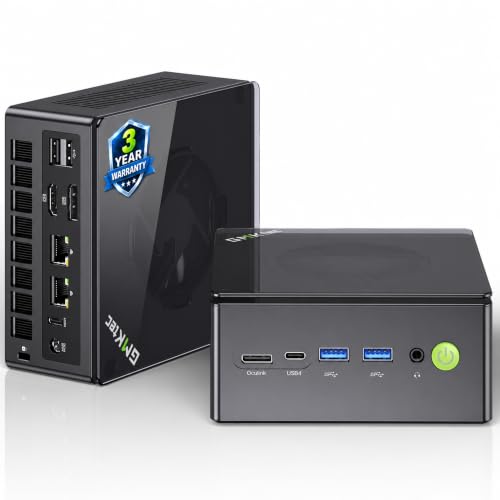
- Best overall workstation under $700: GMKtec NucBox K8 Plus, Ryzen 7 8845HS, 32GB DDR5, 1TB SSD — Check on Amazon
- Beelink SER8, Ryzen 7 8745HS, 32GB DDR5, 1TB SSD — Check on Amazon
- Minisforum UM890 Pro Barebone, Ryzen 9 8945HS, No RAM/SSD/OS — Check on Amazon
- Apple Mac mini, M4 Chip, 16GB Unified Memory, 256GB SSD — Check on Amazon
See 2 more Amazon options
- Minisforum UM880 Plus Barebone, Ryzen 7 8845HS, No RAM/SSD/OS — Check on Amazon
- Dell OptiPlex 5060 SFF, Core i7-8700, 32GB DDR4, 1TB SSD (Renewed) — Check on Amazon
Read the full guide ↓
Disclosure: As an Amazon Associate, reviewstook.com earns from qualifying purchases. Links to Amazon on this page are affiliate links; they cost you nothing extra. Listing details such as price and availability change often, so check the current Amazon listing before you buy.
Buying your first work computer is harder than buying your tenth. The listings are written in a dialect — cores, sockets, NVMe, OCuLink, ECC — that assumes you already know which numbers matter. This guide is the translation. It covers six machines chosen for people starting work that asks more of a PC than email and documents: learning to code, editing photos, cutting video at 1080p or with 4K proxies, 2D CAD and light 3D, wrangling data, or running a small home server. Every technical term is explained in plain language before it judges anything, and for every pick you should check the current price on Amazon before you buy, because listing prices change often.
Two of the six picks are complete Windows mini PCs that work out of the box. Two are barebone kits — a case, a motherboard and a processor — great value if you already own the missing parts, a trap if you do not: at today’s prices the parts can cost more than a finished machine. One pick is renewed: a professionally refurbished business desktop, backed by a renewer’s guarantee rather than a factory warranty. None of the six is a certified professional workstation; the section below explains why that label cannot be bought at this price anywhere. If you read only two reviews: the GMKtec NucBox K8 Plus if its current Amazon price fits this budget that week, and the Beelink SER8 if your desk needs quiet.
In this guide
Quick Picks
Short on time? Each row below names a beginner situation and the machine that suits it.
| Buyer type | Pick | Why it stands out | Link |
|---|---|---|---|
| Best first workstation for most beginners | GMKtec NucBox K8 Plus (8845HS, 32GB, 1TB) | Complete and ready to work, with memory, storage and graphics all able to grow later | Check on Amazon |
| Best if your room must stay quiet | Beelink SER8 (8745HS, 32GB, 1TB) | Measured about 34.6 dB(A) under full load — library-quiet while working hard | Check on Amazon |
| Best project for a beginner who owns parts | Minisforum UM890 Pro Barebone (8945HS) | The strongest chip and connections here — a kit you complete yourself | Check on Amazon |
| Best for Mac creative software | Apple Mac mini (M4, 16GB, 256GB) | Smooth Apple-codec video work — check price on Amazon — but nothing inside can be upgraded | Check on Amazon |
| Cheapest route in — if the parts are yours | Minisforum UM880 Plus Barebone (8845HS) | A budget-tier kit; a bargain only when the memory and SSD come off your shelf | Check on Amazon |
| Best low-budget complete desktop | Dell OptiPlex 5060 SFF (i7-8700, 32GB, Renewed) | A full desktop at a budget-tier price — check price on Amazon — with room inside to tinker | Check on Amazon |
How These Picks Were Chosen
The budget was treated as the price of a working computer, not the price of a box plus a shopping list. Every complete machine below is a real Amazon listing in this budget tier. Where a price moves — and prices in this category are moving during the late-2026 memory and storage shortage — the review tells you to check the current price on Amazon and to buy only when that live price fits the budget. We did not fix that market by pretending it away: each pick earned its place because it belongs in this tier when bought at the right moment, and each review explains its buying rule in qualitative terms.
We did not use these PCs ourselves. We read the manufacturers’ listings, specification sheets and manuals, and compared the things that decide whether a machine can earn its keep: processor cores, how much memory it carries and whether its memory sits in upgradeable sockets or is fixed forever, storage size and second-drive options, how many monitors the actual ports can drive, wired networking speed, and expansion ports. Where a professional feature matters and the listing does not verify it — memory error correction, called ECC, is the standing example — we say the feature is unverified rather than repeating marketing language. Because this guide is for beginners, we added one filter: every machine had to be honestly describable. If a pick needs parts before it is a computer, its review makes that extra spend clear; if it cannot be upgraded later, its review says so in the first paragraph, not the last.
Three checks shaped the final six. The memory check: 32GB is the comfortable standard for serious multitasking at this tier, so a machine that reaches it only as a sealed ceiling had to argue its case. The display check: outputs were counted from verified port lists, never from a headline claim. And the exit check: the reviews mark which of these six can grow and which are finished products the day they arrive.
The Jargon, Translated: 13 Terms Before You Spend Anything
Every term below appears in the reviews that follow. Read this section once and the rest of the guide — and every listing on Amazon — gets easier.
- Workstation. A computer built and sold for professional work — design, engineering, video, data. Listings use the word loosely; here it means “strong enough for entry-level professional work.” Certification is the last term below.
- CPU (processor) and cores. The chip that does the thinking, divided into cores — independent workers. More cores, more jobs at once: compiling code while a video exports while twenty tabs sit open. Every pick here has six to ten.
- Integrated graphics vs a graphics card. Integrated graphics are a small graphics processor built into the CPU, sharing system memory. A graphics card (a discrete GPU) is a separate, far stronger component with its own memory for heavy 3D and rendering.
- RAM (memory). The short-term workspace: everything open right now lives here. Too little, and the computer slows to a crawl swapping data to storage. 32GB is comfortable for professional multitasking; 16GB is the floor you will feel first.
- Socketed vs soldered memory. Socketed memory sits in slots (laptop-style SO-DIMM slots in small PCs) and can be replaced with more; soldered or “unified” memory is fixed at the factory forever. This decides whether a machine can grow with you.
- SSD and NVMe. Long-term storage for files and projects. An SSD is the fast modern kind, with no spinning disk; NVMe is its fastest common connection. Sizes here run from 256GB (fills fast) to 1TB (comfortable).
- Barebone kit. A partly built computer: case, motherboard and processor only. Memory, storage and the operating system are missing and must be bought and fitted before it can do anything. Kits are labeled as kits throughout this guide.
- Renewed. A used machine professionally cleaned, tested and refurbished, resold with the renewer’s guarantee — here, the Amazon Renewed Guarantee — instead of a manufacturer’s warranty. Cheaper, usually excellent value, and worth inspecting carefully on arrival.
- Operating system (OS). The software the machine runs on: Windows 11 Pro on five picks here, macOS on the Apple pick. Barebone kits include none, so their owners budget for Windows separately.
- OCuLink. A cable connection on some mini PCs carrying the same fast internal link a desktop uses for its graphics card, so a dock holding a full desktop card can be plugged in later — the strongest upgrade path a mini can offer. Catches: dock, power supply and card are all separate purchases, and it is not hot-pluggable, so connect it with the machine off.
- USB4. The fastest USB connection here: data, docks, monitors — and, on one pick, the route to an external graphics dock. Slower than OCuLink for that job.
- Ethernet and 2.5GbE. Wired networking. Gigabit moves files at about 1 gigabit per second; 2.5GbE is 2.5× faster — noticeable when projects live on a network drive. Two ports (“dual”) let a machine talk to storage and the office network at once.
- ECC memory and ISV certification. The two features that make a workstation “certified.” ECC memory catches and fixes tiny data errors before they corrupt a long calculation or render. ISV certification means professional software makers (SolidWorks, AutoCAD and their peers) have tested that exact hardware and will support you. No machine at this price has either — including every pick here.
What “Workstation” Honestly Means at $700
Start with the sentence that protects your money: nothing in this guide is a certified workstation, and neither is anything else at this price. A certified machine pairs a professional graphics card — one whose drivers are tested and signed off by the vendors of programs like SolidWorks, AutoCAD, CATIA and Siemens NX — with error-correcting memory on a platform built for it, sold with workstation warranties and support lines. That package starts far above $700. If an employer or a client contract requires certified hardware, this budget cannot buy it, and no headline should pretend otherwise.
What $700 does buy is real, and it deserves its own honest name: a strong starter work machine. The Radeon 780M integrated graphics in the Ryzen picks below is not a display adapter pretending to work. It speeds up Lightroom and Photoshop tools, handles playback and effects in Premiere Pro and DaVinci Resolve, and scrubs a 4K timeline workably once you generate proxies — the smaller, lighter footage copies editors cut with. The eight-core processors compile code, run containers and virtual machines, and chew through photo exports without drama. The workload list that fits is genuinely professional: software development, photography, 1080p and 4K-proxy video editing, 2D CAD and light 3D modeling, office and data work, and home-server duties.
The workloads that do not fit are named just as plainly. Heavy 3D rendering wants a real graphics card with plenty of its own memory. Large CAD assemblies and certified CAD workflows want the certified card described above. Professional color grading wants a calibrated pipeline and more graphics memory than integrated graphics can borrow; long, mission-critical calculations want ECC memory. If your work is on that list, the honest move is to save toward the machines in Best Workstation PC Under $1200 rather than asking a $700 mini to be something it is not. If your work is on the first list, this is your tier.
The 6 Best Workstation PCs Under $700 for Beginners
GMKtec NucBox K8 Plus — Ryzen 7 8845HS, 32GB DDR5, 1TB SSD (Complete)
Who it suits: A beginner who wants one finished machine that can grow for years — memory, storage and even graphics can all be added later, so your first year of learning cannot strand it.
The K8 Plus is the top pick because it refuses to seal anything shut. Its Ryzen 7 8845HS has eight cores running to 5.1GHz, with Radeon 780M integrated graphics that genuinely accelerate photo and video editors. Around that chip, GMKtec built the most open small machine in this guide: 32GB of memory in two sockets, upgradable to 96GB; two internal drive slots, one holding the fitted 1TB SSD and one waiting empty; two USB4 ports; and a native OCuLink port — the fast link for an external desktop graphics card. Add dual 2.5GbE wired networking, display connections verified for up to four monitors over HDMI 2.1 and DisplayPort 2.1, Wi-Fi 6, and Windows 11 Pro installed, and the result works the evening you unbox it, yet can run triple the memory with a desktop card docked beside it a year later.
The price needs discipline. During the late-2026 memory shortage this listing’s price has moved sharply, so check the price on Amazon before you buy and apply the rule printed rather than implied: buy only when the live price fits this budget, and if the listing is showing a shortage spike, wait rather than overpay. One honest quirk: the OCuLink port is not hot-pluggable, so a graphics dock connects while the machine is off — a small ritual, for the fastest graphics link in the class.
- Memory in sockets to 96GB and a spare drive slot — growth is built in, not promised.
- Native OCuLink plus two USB4 ports: two routes to docks and an external graphics card.
- Dual 2.5GbE networking, four-monitor output and Windows 11 Pro in a box of roughly one litre.
Honest limitation: Its price is the most volatile here, so it is only the best pick on days when the live Amazon price actually fits this budget; and like every pick here, it offers no ISV certification and no verified ECC support.
Choose it if you want a complete machine whose memory, storage and graphics can all grow. Skip it if the listing is at its shortage spike, or you need certified professional graphics today.

Beelink SER8 — Ryzen 7 8745HS, 32GB DDR5, 1TB SSD
Who it suits: A beginner who works in a quiet room — bedroom desk, shared flat, a home office used for calls — and wants full work power that does not sound like it.
The SER8’s headline claim is a measurement. In Notebookcheck’s instrumented review, it averaged about 34.6 dB(A) under the heaviest sustained load the reviewers could apply — roughly library-quiet while doing the hardest thing you can ask of it. Under the silence is a complete specification: a Ryzen 7 8745HS with eight cores to 4.9GHz and the same Radeon 780M graphics as the top pick, 32GB of memory in sockets to 64GB, a 1TB SSD with a second internal slot, outputs for three 4K monitors across HDMI, DisplayPort and USB4, a 2.5GbE wired port, Wi-Fi 6 and Windows 11 Pro, in a case about 135 × 135 × 44.7 mm weighing roughly three-quarters of a kilo. For photo editing, development and proxy-based timelines it matches the K8 Plus day to day — at a volume you can take a client call over.
Two honest boundaries define the choice. The SER8 has no OCuLink port, so a later desktop graphics card arrives via a USB4 dock: workable, but a step down in speed from the native link on the GMKtec and Minisforum picks — if a graphics card is firmly in your future, that difference is the decision. The second boundary is price, and it is strict: this configuration moves in and out of this budget tier, so check the price on Amazon and buy it only on a dip when the live price fits this budget, or do not buy it that week. Owner reports of Wi-Fi dropouts appear in reviewer coverage; the wired port is the answer.
- Measured about 34.6 dB(A) under full load — the quiet pick, verified by instruments, not adjectives.
- Full specification: 32GB of socketed memory to 64GB, a second drive slot, three 4K outputs.
- Small, cool and call-friendly: built for shared and quiet workspaces.
Honest limitation: No OCuLink, so its external-graphics route is USB4-class rather than the fastest here; and its price has spent stretches well above $700 in the shortage, making it a buy-on-a-dip machine.
Choose it if silence is a working requirement and your growth stops at memory and storage. Skip it if a desktop graphics card is part of the plan, or the listing is above the line.

Minisforum UM890 Pro Barebone — Ryzen 9 8945HS, No RAM/SSD/OS
Who it suits: A beginner who already owns memory and storage — from a retired laptop or previous build — and wants the strongest platform here as a first project, eyes open about what “barebone” means.
Read this pick’s name twice, because it is a kit: no memory, no storage drive, no operating system. Nothing about it works until you fit those parts yourself. What the kit price buys is the best-connected chassis in this guide. The Ryzen 9 8945HS is the strongest processor here — eight cores to 5.2GHz with Radeon 780M graphics — surrounded by two memory sockets to 96GB, two drive slots, a native OCuLink port, two USB4 ports, dual 2.5GbE networking, and ports verified for four displays. Completed with 32GB and a terabyte of storage, it matches the top pick in daily work with a faster chip and the same expansion story. As a learning project it is excellent, and fitting the parts takes twenty minutes.
As a bare kit, this machine sits in the budget tier as a box — check the price on Amazon for the current listing. But finishing it with newly bought parts is expensive, because memory and SSDs are exactly the components spiking in the late-2026 market. Minisforum’s own complete version, with 32GB and 1TB fitted, sits in a higher tier, and completing the kit with new parts can land in that same territory. So the rule is simple: this kit is a superb buy if the memory and drive come off your shelf, out of a retired machine, or from a deal you caught — and a poor one if you would be buying every component at shortage prices to fill it.
- Strongest chip in the guide (8945HS) on the most connected board: native OCuLink, dual USB4, dual 2.5GbE.
- Memory to 96GB and two drive slots — a homelab or editing platform.
- Budget-tier kit pricing, leaving real budget for parts you choose — check price on Amazon.
Honest limitation: It is not a computer until you add memory, storage and an operating system, and at late-2026 parts prices the finished machine costs complete-machine money — the kit discount is real only if you already own the parts.
Choose it if you have DDR5 memory and a spare NVMe drive waiting, or you want to pick the memory and storage yourself as a first project. Skip it if you need to unbox and work the same day, or would be buying every part new at spike prices.
Apple Mac mini — M4 Chip, 16GB Unified Memory, 256GB SSD
Who it suits: A beginner whose tools live in Apple’s world — Final Cut, Logic, the Adobe suite — or who wants the quietest, simplest desk machine here and can accept its one big condition.
The Mac mini plays by different rules, and for the right beginner the rules are better. Its M4 chip pairs a 10-core processor with a 10-core graphics unit and dedicated media engines that make Apple-codec footage play back and export with an ease the integrated graphics in this guide cannot match. Check the price on Amazon before you buy — on a good day it can be among the more affordable complete machines here after the renewed Dell. It runs cool and near-silent, setup is the gentlest of the six, and if your software is Apple’s or happily cross-platform — Adobe’s suite, DaVinci Resolve, VS Code and the developer toolchain all run natively — it is a genuinely professional tool at a consumer price.
The condition is structural, stated before you buy, not after: the 16GB of memory and 256GB of storage are fixed at purchase — not upgradeable later, not expandable inside, ever. Both figures are this guide’s floor, not its standard (every Windows pick starts at 32GB or can be fitted up to it), and 256GB fills quickly under photo and video work, pushing you toward an external drive as a permanent arrangement. It also runs macOS only: Windows-only CAD, engineering or enterprise software does not run on it natively, full stop. And the price discipline matters here too: third-party offers on this listing can run well above the machine’s usual tier, so check the price on Amazon, buy ideally when it is sold and shipped by Amazon or Apple, and treat any inflated third-party offer as a different, worse deal.
- M4 media engines make Apple-codec video work the smoothest in this guide.
- Real value when bought from a reputable seller at a fair live price — check price on Amazon.
- Cool, quiet and power-sipping, with the simplest first-evening setup of the six.
Honest limitation: Memory and storage are sealed at 16GB and 256GB — the lowest ceiling in the guide — and it runs macOS only, which excludes Windows-only professional software outright.
Choose it if your tools are Apple’s or cross-platform and 16GB will fit your workload for life. Skip it if you need Windows software, 32GB, or storage that can grow inside.

Minisforum UM880 Plus Barebone — Ryzen 7 8845HS, No RAM/SSD/OS
Who it suits: A parts owner on the tightest budget — anyone with laptop-style DDR5 memory and an NVMe drive already in hand who wants the top pick’s processor at the lowest entry price in the guide.
The UM880 Plus carries the same processor as our top pick — the Ryzen 7 8845HS with Radeon 780M graphics — in a budget-tier kit — check the price on Amazon for the current listing. The platform is properly workstation-shaped: two memory sockets up to 96GB, two M.2 2280 PCIe 4.0 drive slots, a USB4 port, 2.5GbE networking and Wi-Fi 6E. It also offers OCuLink expansion through an adapter board — a real, documented route to an external graphics card, but not the native port found on the K8 Plus and UM890 Pro. Completed with parts you already own, this is the cheapest route in the guide to a 32GB, 96GB-capable 780M workstation: the upgrader’s pick, full stop.
And now the warning this guide exists, in part, to print. Worked examples of this exact kit completed with a new 32GB memory kit and a new 1TB NVMe drive at shortage-era prices have come out costing more in total than the complete version of the same machine, because memory and storage were retailing at elevated prices in the shortage. The structural lesson is not tied to any one week: a barebone kit is a discount only when the expensive parts are already yours. If they are not, the complete K8 Plus — same chip, memory and storage fitted, one warranty covering the whole machine — is the rational buy.
- Lowest entry point in the guide: a budget-tier kit — check price on Amazon.
- Same 8845HS/780M platform as the top pick, with memory to 96GB and two drive slots.
- USB4, 2.5GbE and Wi-Fi 6E — connectivity is not where the kit saves its money.
Honest limitation: Completed with new parts at shortage prices, it can cost more than the complete version — and its OCuLink arrives via an adapter board, not a native port.
Choose it if the memory and SSD are already on your shelf and you want the 8845HS platform at kit money. Skip it if you would buy the parts new — buy complete instead.

Dell OptiPlex 5060 SFF — Core i7-8700, 32GB DDR4, 1TB SSD (Renewed)
Who it suits: A beginner on the tightest budget who values a real, serviceable desktop — standard parts, real slots, room to tinker and learn — over mini-PC modernity.
The OptiPlex is the contrarian pick: a renewed business desktop from Dell’s corporate line, refurbished by a Microsoft Authorized Refurbisher and positioned in the budget tier — check the price on Amazon — complete, with 32GB of DDR4 memory, a 1TB SSD fitted and Windows 11 Pro installed. What the money buys that no mini here can offer is a chassis: internal expansion slots, ten USB ports including USB-C, and standard, replaceable everything. Its six-core i7-8700 was chosen deliberately over cheaper 6th- and 7th-generation renewed stock, because the 8700 sits on Microsoft’s official Windows 11 supported-processor list and the older chips do not. Dell’s own specification gives it two DisplayPort outputs as standard, with a third video port that was a factory option, so plan on two monitors and treat a third as a bonus if your unit has the port. For office, data and development work, it is an enormous amount of honest machine for a budget-tier price.
Its limitations are its age showing in two specific places. Graphics are Intel UHD 630 integrated — a display adapter, not an accelerator: it drives monitors perfectly well and does none of the GPU-accelerated photo, video or 3D work the 780M picks exist for. The expansion slot offers a partial answer later — a low-profile, slot-powered graphics card is the classic OptiPlex upgrade — but price it as a separate second purchase: as shipped, this is a CPU-and-memory workstation only. And it is a renewed machine: the backing is the Amazon Renewed Guarantee, not a Dell factory warranty, and individual units vary as renewed units do. Buy it as the market’s best value in a serviceable desktop, check your exact unit thoroughly inside its return window, and it will earn its desk space for years.
- Budget-tier complete desktop — 32GB and 1TB fitted, Windows 11 Pro installed; check price on Amazon.
- A real desktop chassis: expansion slots, ten USB ports, everything standard and replaceable.
- The i7-8700 is on Microsoft’s Windows 11 supported list — unlike the cheaper, older renewed stock.
Honest limitation: UHD 630 graphics do no GPU-accelerated creative work, and renewed backing is the Amazon Renewed Guarantee rather than a Dell warranty — the unit you receive needs checking inside its return window.
Choose it if your work is processor, memory and monitors rather than graphics, or you want a machine to open up and learn on. Skip it if your workload needs graphics acceleration today — that is the 780M picks’ job.

Comparison Table
| Product | Type | Best use | Link |
|---|---|---|---|
| GMKtec NucBox K8 Plus (8845HS, 32GB, 1TB) | Complete mini PC | Expandable all-round workstation; graphics-card future | Check on Amazon |
| Beelink SER8 (8745HS, 32GB, 1TB) | Complete mini PC | Quiet desks, calls, shared and small studios | Check on Amazon |
| Minisforum UM890 Pro Barebone (8945HS) | Barebone kit | Builders and homelab beginners wanting the strongest platform | Check on Amazon |
| Apple Mac mini (M4, 16GB, 256GB) | Complete mini PC | Apple-tool creative work; Final Cut and Logic | Check on Amazon |
| Minisforum UM880 Plus Barebone (8845HS) | Barebone kit | Parts owners building an 8845HS workstation cheaply | Check on Amazon |
| Dell OptiPlex 5060 SFF (i7-8700, 32GB, Renewed) | Renewed desktop | Serviceable desktop value on a tight budget | Check on Amazon |
How to Choose a Workstation PC Under $700
- Start from the workload, not the word “workstation.” Coding, photo editing, 1080p and 4K-proxy video, 2D and light 3D CAD, data work: this tier serves you. Certified CAD, heavy 3D rendering, pro color work, error-critical computing: it does not, and no listing language changes that.
- Complete or kit — decide before you fall in love with a price. A barebone price excludes memory, storage and the operating system. Add all three at today’s prices before comparing a kit with a complete machine; in the current memory market that sum regularly erases the kit’s advantage, unless the parts are already yours.
- Treat 32GB as the floor and sockets as the future. A beginner’s multitasking — editor or IDE, browser full of documentation, chat, mail, a container — eats 16GB without trying. Prefer machines that ship 32GB in sockets (K8 Plus to 96GB, SER8 to 64GB) over sealed ceilings, and treat any 16GB machine as a finished product.
- Decide whether a stronger graphics card is in your future. If rendering or GPU-heavy work is coming, the expansion port is the purchase: native OCuLink (K8 Plus, UM890 Pro) beats adapter-board OCuLink (UM880 Plus), which beats USB4-only (SER8). If it is not coming, spend on silence or storage instead.
- Count display outputs from the port list. Work desks grow monitors. The verified sets here run from the Dell’s two standard DisplayPorts to the four-display sets on the K8 Plus and UM890 Pro — check your monitor count against the actual ports, including whether a third Dell port was a factory option on your unit.
- Wire it. A work machine moving large files to a network drive or home server wants 2.5GbE, and the dual-port picks (K8 Plus, UM890 Pro) can talk to storage and the office network at once. Wi-Fi is a convenience here, never the plan.
- Buy the live price, not the sticker. Prices here swing with the memory shortage. Check the price on Amazon for every pick and buy only when the live price fits this budget; that discipline beats any single specification difference between these machines.
- Match the guarantee to the risk you can carry. New minis carry maker warranties on the whole machine; the renewed Dell carries the Amazon Renewed Guarantee instead. Neither is wrong — but a machine your income or course depends on deserves a support story you have actually read.
Your First Evening: Setup, Step by Step
For the four complete machines this takes under an hour; kit owners should allow an extra half hour. Renewed-Dell owners: treat step 8 as mandatory.
- Unbox slowly and check what you received against the listing: machine, power supply, promised cables. Kit buyers: confirm the box really is memory, storage and OS short — that is correct, not a defect — and have your parts ready. Dell buyers: note the ports on the back of your unit; the third video port was a factory option, and yours may or may not have it.
- Kit owners only: fit the parts, then install the operating system. Unplugged, open the base, seat the memory until both clips click, and screw the NVMe drive into an M.2 slot. Then install Windows from a USB stick prepared on another computer, or your chosen Linux. Complete-machine owners skip this step.
- Give it air. Place the machine on a hard surface with clear space around its vents — desk, behind the monitor, or a shelf. Never inside a closed cabinet: small machines still breathe, and a sealed cupboard makes a quiet PC hot and slow.
- Connect the monitor to the computer’s own display outputs — the HDMI or DisplayPort sockets on the machine itself, which on the minis and the Mac mini are the graphics outputs. Here is the trap this step prevents: the day a separate graphics card enters the picture — fitted inside the Dell, or docked to a mini — the monitor cable must move to that card’s sockets. Leave it in the original outputs and you still get a picture, everything apparently fine — silently running on the weak integrated graphics while the card idles. That is the silent slow-picture trap, and the fix is always the same: the cable follows the strongest graphics. Tonight, with every pick as shipped, the machine’s own sockets are right.
- Plug in keyboard, mouse and — this week at least — an Ethernet cable. Even if you plan to live on Wi-Fi, do the first evening wired: the first downloads are large, and a cable makes them fast and uninterruptible.
- Power on and walk through the operating system setup — Windows 11 Pro on five picks, macOS on the Mac mini. Create your account and let setup finish completely before installing anything; interrupting a first-boot update is the one genuinely bad move available tonight.
- Run every update, then restart and run them again. Fresh machines — renewed ones especially — usually have months of system and driver updates queued; two rounds is normal.
- Verify you received the machine you paid for. In Windows: Settings, System, About — confirm the memory and processor match the listing, and check the drive size in File Explorer; on the Mac mini, use About This Mac. This matters most for the renewed Dell — check memory, storage health, every port and fan noise tonight, while the return window is open — and for the SER8, whose listing family includes other configurations. Anything that differs is a return conversation, far easier on day one than day thirty.
- Install your work software and copy one real project across. Open it, work in it for ten minutes, save. A machine that has done one real job on the first evening is set up; one that has only run updates is merely switched on.
What Else You Will Spend
None of the six prices includes a screen, so if you do not already own one, a monitor is the first extra spend — budget for it, remembering that several picks can drive two, three or four displays when your desk grows. A keyboard and mouse are the second small spend; plan on a basic set unless a listing promises otherwise. After that, each pick carries one honest catch, priced as the machine plus its fix — never hidden inside the pick’s price:
- The two barebone kits (UM890 Pro, UM880 Plus): memory, an SSD and an operating system — not a small extra, since at late-2026 prices it can exceed the kit itself. As the UM880 Plus review explains, a kit completed with new parts can cost more in total than the complete version. If the parts are not already yours, the “fix” is to buy a complete machine instead.
- The Mac mini: external storage. Its 256GB internal drive is the guide’s smallest and cannot be changed, so expect an external SSD to become a permanent part of the desk. The 16GB memory ceiling has no fix at any price — it is a reason to choose a different pick, not an upgrade to schedule.
- The renewed Dell: optionally, a low-profile graphics card later — a separate second purchase that turns it from a CPU-and-memory machine into a light creative one. Until then it needs nothing but checking over in its return window, which costs only attention.
- The K8 Plus and SER8: nothing required. Their catches are prices, not parts — the K8 Plus must be caught when its live price fits this budget rather than at a shortage spike, and the SER8 must be bought on a dip. Patience is the fix, and it is free.
- Everyone, eventually: the external graphics chain, if your work grows into it — a dock (the reference OCuLink model is a separate purchase from Minisforum), a power supply for it, and the desktop card itself. That chain adds up to a substantial second purchase, which is why it is a planned second act, not an accessory.
The Expansion Story, Priced Honestly: OCuLink, USB4 and the Second Act
The most seductive sentence in small-PC marketing is some version of “add a desktop graphics card later.” Unusually, it is true — with an invoice attached, and this section is the invoice. The fast route is OCuLink, which carries an internal-grade graphics connection out of the mini to an external dock; the K8 Plus and UM890 Pro offer it natively, the UM880 Plus through an adapter board. The dock itself — Minisforum’s DEG1 is the reference example, a separate prose-only purchase from Minisforum — arrives as an open frame: power supply not included, graphics card not included. Add both and the full chain adds up to a substantial second purchase on top of the mini PC it attaches to. USB4 docks — the SER8’s route — trade some speed for tidiness. Two facts from the makers’ documentation belong in the plan: OCuLink is not hot-pluggable, so the dock connects with the machine off; and once a card is docked, the monitor cable plugs into the card, not the mini — the walkthrough’s golden rule.
None of that makes expansion a trick; it makes it a staged purchase — the machine that earns or learns today, the graphics card when the workload that needs it actually arrives. If graphics-heavy work is your workload now — rendering, heavy effects, serious 3D — a discrete card belongs inside the first purchase, and the step up to Best Workstation PC Under $800 or the gaming tower described below deserves your money instead. If graphics work is a plausible next year, the native-OCuLink picks are the only machines here whose second act is already wired. Buy the port if the future is likely; pocket the savings if it is not.
If the Workload Is Actually Gaming
A frank detour: none of these six is the best $700 gaming purchase, because integrated graphics — however good, and the 780M is good — cannot match a separate graphics card at the same money. A gaming tower built around a Ryzen 5 5600 and an RTX 3060 12GB, available in this general mid-range tier, outplays every machine here while still doing office work easily. These workstations are the reverse proposition: work first, light gaming second. If your needs are honestly split, compare Best Gaming PC Under $700 before deciding which side of the line your desk sits on.
Common Buying Mistakes
- Believing the word “workstation” on a listing implies ISV certification or ECC memory. At $700 it implies neither — certification is a hardware program, and no pick here is part of it.
- Comparing a barebone kit’s price against complete machines. The kit excludes the two most expensive components in a shortage market; the finished sums are printed here because listings will not print them.
- Buying 16GB of sealed memory for professional multitasking. It cannot be fixed later on a fixed-memory machine, and the workload that outgrows it arrives fast.
- Counting monitors from a headline instead of a port list. Display claims collapse into actual HDMI, DisplayPort and USB4 outputs — and, on renewed desktops, into which ports were standard and which were factory options.
- Paying the shortage spike. Listing prices here swing sharply within the same season; buying at the spike because the project starts this week is the costliest mistake in the guide.
- Planning an external graphics card around the port and forgetting the chain. Dock, power supply and card together commonly exceed the mini’s own price — a staged plan, not an accessory.
- Plugging the monitor into the computer’s original outputs after fitting a graphics card, and running on integrated graphics without knowing. A picture appears either way; the slow one is the trap. The cable follows the strongest graphics.
- Running a work machine on Wi-Fi because the listing advertised fast wireless. Large-file work belongs on the wired port; that is what it is for.
- Assuming a renewed desktop carries the manufacturer’s warranty. It carries the renewer’s backing — here, the Amazon Renewed Guarantee — and the unit needs verifying inside its return window.
- Sealing a mini PC inside a closed cabinet because it looks tidy. Small machines still breathe; a closed cupboard makes a quiet workstation hot and slow.
Final Recommendation
- Most beginners: GMKtec NucBox K8 Plus — bought at or under $700.
- Quiet desks and call-heavy work: Beelink SER8.
- Builders and homelab-adjacent beginners with parts on hand: Minisforum UM890 Pro Barebone.
- Apple-tool creatives: Apple Mac mini M4 — check price on Amazon and buy from a reputable seller.
- Parts owners on the tightest budget: Minisforum UM880 Plus Barebone.
- Serviceable desktop value: Dell OptiPlex 5060 SFF (Renewed).
Our top two at this budget are the K8 Plus and the SER8, and the choice between them is a single question: is a desktop graphics card in this machine’s future? If yes, the K8 Plus — for its native OCuLink port, its 96GB memory ceiling and its dual 2.5GbE — because it is the only complete machine here that can become a graphics workstation without being replaced. If no, the SER8 does the same daily work at a measured whisper and asks only that you buy it on a dip. Beginners with parts on the shelf should take the UM890 Pro’s stronger platform, or the UM880 Plus if budget binds; Mac-tool creatives should take the Mac mini at list or below, sealed ceiling accepted with open eyes; and anyone equipping a first desk for processor-and-memory work on a tight budget should take the renewed OptiPlex and spend the savings on a monitor. Workers speccing lighter can step down to Best Workstation PC Under $500, and those whose workloads are already outgrowing this tier should step up to Best Workstation PC Under $800. Whichever you choose: count the ports, price the finished machine, check the live price on Amazon, and buy only when it fits the line.
Frequently Asked Questions
I am a complete beginner. Which of these should I actually buy?
For most beginners, the GMKtec NucBox K8 Plus, bought at or under $700: it arrives complete, it is fast at every beginner workload in this guide, and its memory, storage and graphics can all grow later, so your first year of learning cannot strand it. If your room must stay quiet, buy the Beelink SER8 on a dip instead. Buy a barebone kit only if you already own the memory and drive it needs.
What is a barebone kit, in plain terms — and is it a good first PC?
It is a computer with the three finishing pieces missing: no memory, no storage drive, no operating system. Two picks here — the UM890 Pro and UM880 Plus — are kits, labeled as such everywhere. Fitting the parts is easy and instructive — but at late-2026 prices, buying them new can make the finished kit cost more in total than a complete machine, as the UM880 Plus example in this guide shows. A kit is a good first PC only when the parts are already yours.
Is a renewed PC a risky first purchase?
It is a calculable one. The Dell here was refurbished by a Microsoft Authorized Refurbisher and is backed by the Amazon Renewed Guarantee rather than a Dell warranty; its i7-8700 was chosen because it is on Microsoft’s Windows 11 supported list. The discipline is in the walkthrough: verify memory, storage, ports and noise inside the return window. Done that way, it is among the best value purchases a beginner can make.
Can I add a real graphics card to one of these mini PCs later?
To three of them, yes — that is what the OCuLink and USB4 ports are for. Budget the whole chain, not the port: an OCuLink dock is a separate purchase, the power supply is separate, and the desktop card itself is the expensive part, so the finished setup adds up to a substantial second purchase. It is a sound staged plan when graphics work is likely — and when the card arrives, plug the monitor into the card, not the mini, or you will run on integrated graphics without knowing it.
Is a $700 PC a real workstation?
It is a real professional machine and not a certified workstation — both halves matter. Nothing at this price carries ISV-certified graphics or verified ECC memory, so vendor-supported CAD and error-critical computing are out. But development, photography, 1080p and 4K-proxy editing, 2D and light 3D CAD, and data work are genuinely well served by the machines in this guide. Buy one for the second list and it will not disappoint you. Beginners weighing the other tiers can compare Best Workstation PC For Beginners Under $800 and Best Workstation PC For Beginners Under $1200.
- Best Workstation PC Under $700
- Best Workstation PC Under $500
- Best Workstation PC Under $800
- Best Workstation PC For Beginners Under $700
- Best Workstation PC For Small Spaces Under $700
- Best Workstation PC For Streaming Under $700
- Best Workstation PC For 1440p Gaming Under $700
- Best Home Office PC Under $700
- Best Mini PC Under $700


