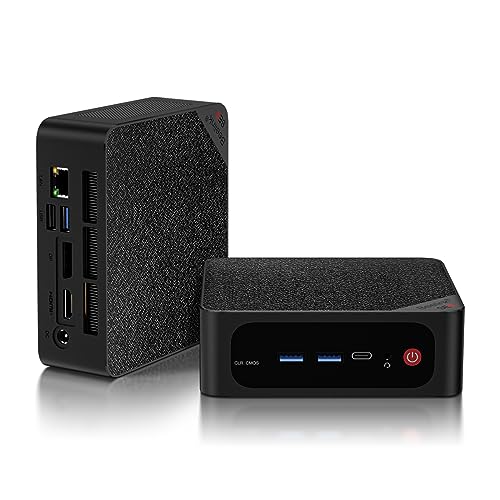
Where to buy
Check the latest price, availability and delivery on Amazon. Orders are placed on Amazon. We may earn a commission from qualifying purchases.
- Best overall workstation under $500: Beelink SER5 MAX, Ryzen 7 5800H, 32GB RAM, 1TB NVMe — Check on Amazon
- GMKtec NucBox K6, Ryzen 7 7840HS, 32GB DDR5, 1TB PCIe 4.0 SSD — Check on Amazon
- GMKtec M5 Plus, Ryzen 7 5825U, 32GB RAM, 1TB NVMe, Dual 2.5GbE — Check on Amazon
- BOSGAME P4, Ryzen 7 5700U, 32GB RAM, 1TB SSD, Triple 4K — Check on Amazon
See 2 more Amazon options
- KAMRUI E3B, Ryzen 5 7430U, 32GB RAM, 512GB SSD — Check on Amazon
- HP EliteDesk 800 G5 Mini, Core i5-9500T, 16GB RAM, 256GB NVMe (Renewed) — Check on Amazon
Read the full guide ↓
Disclosure: As an Amazon Associate, reviewstook.com earns from qualifying purchases. Links to Amazon on this page are affiliate links; they cost you nothing extra. Listing details such as price and availability change often, so check the current Amazon listing before you buy.
If this is your first workstation, start with the honest version of what $500 buys. It does not buy a certified professional workstation — the kind with a graphics chip a CAD company has tested and approved, or special error-checking memory. Nothing in this guide has either of those, and if a job or a client contract demands certified hardware, this is the wrong shelf entirely. What $500 does buy, chosen well, is a small, quiet box with a strong processor, a genuinely useful amount of memory and fast storage that handles real work all day: writing and compiling code, running practice servers in virtual machines, big spreadsheets and datasets, photo libraries, video editing at 1080p (and 4K through a helper technique explained below), plus 2D drafting and light 3D modelling. For most people starting out, that is the whole job.
This guide is written for beginners, so it does three extra things. First, every technical term is explained in plain language in the glossary after the quick picks — no second tab needed. Second, there is a step-by-step walkthrough of your first evening with the machine, from opening the box to checking you received exactly what you paid for. Third, it is blunt about extra costs: none of these machines includes a monitor, keyboard or mouse, and one needs a small upgrade the day it arrives. Those costs are listed separately, never folded quietly into what the machine itself costs.
One number matters more than any other here: 32. That is gigabytes of RAM — the computer’s short-term memory, where everything you are actively working on lives. Sixteen gigabytes is fine for email and browsing; it runs out quickly once real work starts. Thirty-two is where a beginner’s workstation stops struggling: a practice server gets its share, your programs keep theirs, and nothing grinds to a halt. Five of the six machines below arrive with 32GB already fitted. The sixth is a renewed business machine with 16GB and an easy, inexpensive path to 32GB — counted that way in this guide, as machine plus fix, so you can compare honestly. A final word on prices: prices change often, so this guide does not print a fixed price for any machine — check the current price on Amazon before you order.
In this guide
Quick Picks
Short on time, or comparing several options at once? Each row below names a type of work and the machine that suits it, with a link to the listing.
| Buyer type | Pick | Why it stands out | Link |
|---|---|---|---|
| Best overall workstation | Beelink SER5 MAX, Ryzen 7 5800H, 32GB/1TB | Eight cores, memory you can raise to 64GB later, a spare drive bay and three 4K outputs | Check on Amazon |
| Best performance | GMKtec NucBox K6, Ryzen 7 7840HS, 32GB DDR5/1TB | The fastest processor and graphics in this guide, when its sale price appears | Check on Amazon |
| Best value and expandability | GMKtec M5 Plus, Ryzen 7 5825U, 32GB/1TB | 32GB and 1TB toward the lower end of this tier — check price on Amazon — with two fast network ports for later server duties | Check on Amazon |
| Best fitted storage | BOSGAME P4, Ryzen 7 5700U, 32GB/1TB | A full terabyte and 32GB toward the lower end of this tier — check price on Amazon | Check on Amazon |
| Best budget 32GB machine | KAMRUI E3B, Ryzen 5 7430U, 32GB/512GB | 32GB you can raise to 64GB and two drive slots toward the lower end of this tier — check price on Amazon | Check on Amazon |
| Best renewed business mini | HP EliteDesk 800 G5 Mini, i5-9500T, 16GB/256GB (Renewed) | Business-grade build and three DisplayPorts at the low end of this tier — check price on Amazon — plus a memory upgrade | Check on Amazon |
How These Picks Were Chosen
Every machine below is a real Amazon listing that sells at, or regularly returns to, $500 or less in the United States, and each one arrives complete with Windows installed — no parts to assemble, no licence to buy separately. One pick, the GMKtec NucBox K6, only qualifies at its recurring sale price; its usual price sits above this budget, and the guide says so wherever it appears. Anything that reached $500 by shipping with too little memory, an old-fashioned spinning hard drive, or a processor too old for Microsoft’s official Windows 11 support list was left out, however good the rest of it looked.
We did not use these machines ourselves. We read the makers’ listings, specification pages and model databases, and compared the things that decide whether work feels fast or frustrating: how many processor cores each machine has, whether its memory can be upgraded later or is fixed forever, how many monitors its physical sockets can run at once, how much storage is fitted and whether more can be added, and whether the networking suits a machine that might later double as a small home server. Where a listing does not establish something that matters — one pick below does not document how its memory is built — the review says so plainly instead of guessing, and tells you how to check while returning it is still free.
Three tests were applied to every candidate. The memory test: 32GB fitted, or an upgrade path a beginner can actually follow. The growing-room test: a second drive slot, a spare bay, or memory that can rise to 64GB, because year two’s work is heavier than today’s. The monitor test: three separate screen outputs, counted from the physical sockets, because a socket that copies the same picture twice is not a second workspace. One machine below ships with 16GB and stays in the guide only because its memory upgrade is a ten-minute job with inexpensive parts — and it is labelled as a machine-plus-fix purchase everywhere it appears.
A Beginner’s Glossary: The Words in This Guide, in Plain Language
- Workstation. A computer bought for doing work rather than playing games — built around a strong processor, lots of memory and fast storage. A “certified” workstation adds manufacturer-guaranteed compatibility with specific professional programs; nothing under $500 is certified.
- CPU (processor) and cores. The chip that does the thinking, divided into cores — separate workers inside one chip. More cores means more jobs done at the same time: eight cores can compile code while a video exports; four would queue those jobs.
- Threads. Each core here can juggle two tasks at once, so an eight-core chip is described as having sixteen threads. Think of threads as hands and cores as workers.
- RAM (memory). The desk space of the computer: everything open right now sits in RAM. Too little, and the machine constantly shuffles work to the slower storage drive, which feels like freezing. This guide treats 32GB as the working standard.
- Socketed vs soldered memory. Socketed memory sits in slots and can be swapped or added to with a screwdriver — that is how a 32GB machine becomes a 64GB machine later. Soldered memory is fixed at the factory and can never be changed. Always know which you are buying.
- SSD and NVMe. Where your files live permanently. An SSD is a fast chip-based drive with no moving parts; NVMe is the fastest common kind. Size is measured in gigabytes (GB) or terabytes (TB) — 1TB is roughly 1,000GB.
- Integrated graphics. A small graphics processor built into the main chip, instead of a separate graphics card. Fine for screens, photos, video timelines and light 3D; not built for heavy 3D rendering or serious gaming. None of these machines has a separate graphics card, and none can accept one later — the honest trade of this size and price.
- Virtual machine (VM). A pretend computer that runs inside your real one, so you can practise with a second operating system or a test server safely. VMs eat memory — one more reason for 32GB.
- ISV certification and ECC memory. ISV certification means a software maker has tested and approved specific hardware for its professional programs. ECC is memory that catches its own errors, used where a single wrong number is unacceptable. Both belong to true workstations costing several times this budget; neither appears here.
- DisplayPort, HDMI and USB-C video. The three socket types that carry a picture to a monitor. Count the sockets to count your screens: three video sockets means three separate desktops. A cheap splitter on one socket only copies the same picture twice.
- VESA mount. A standard pattern of screw holes that lets a small PC bolt onto the back of a monitor, so the computer disappears from the desk entirely.
- Renewed. Amazon’s word for a used, tested and cleaned business machine sold with a short guarantee — here, a minimum 90-day programme guarantee rather than the original maker’s warranty. Renewed machines are cheaper and vary more from unit to unit.
- Barebone. A half-finished computer sold without memory, storage or Windows, which the buyer must complete. None of the six picks is a barebone — every one arrives finished, with Windows installed.
The 6 Best Workstation PCs Under $500 for Beginners
Beelink SER5 MAX, Ryzen 7 5800H, 32GB RAM, 1TB NVMe
Who it suits: A first-time buyer who wants one machine that does a bit of everything — code, a practice server or two, three monitors — with room to grow later.
If you only read one review, read this one: the SER5 MAX is the most complete beginner’s workstation in the guide, because it gets every beginner-relevant detail right at once. Its Ryzen 7 5800H processor has eight cores and sixteen threads, the level where compiling code, running a virtual machine and keeping your browser open all stop interfering with each other. The 32GB of memory sits in two slots (the technical word is SO-DIMM) and can be raised to 64GB later with a screwdriver — nothing is soldered down. Storage is a 1TB NVMe drive, with an empty 2.5-inch bay inside for a second, cheaper drive when projects outgrow the fast one. Three monitors run at once through its HDMI, DisplayPort and USB-C video sockets, each at sharp 4K resolution, Windows 11 Pro is already installed, and a VESA mount is included so the box can bolt behind a screen and vanish from your desk. It is new, complete, and nothing about it requires a second purchase to start working.
Two honest notes. The fitted storage drive is a type that slows down during very long file copies — copying a hundred gigabytes in one go will feel it — though everyday work will not. And the machine’s two fans are audible when it works hard for a long stretch. For the current cost, check the current price on Amazon — the exact figure depends on the configuration selected. One warning matters more than either note: Beelink sells a different machine under this exact same name, built on a Ryzen 7 6800U chip with memory soldered permanently at a smaller size. The listing linked here is the 5800H version with slotted DDR4 memory. Before you pay, check the listing says 5800H — the name alone does not guarantee it, and this is the single easiest mistake in the whole guide.
- Eight cores and sixteen threads, with slotted memory that grows to 64GB.
- 1TB fast drive plus an empty bay for a second drive later.
- Three separate 4K monitor outputs and Windows 11 Pro already installed.
Honest limitation: The fitted drive slows on very long copies, the fans are audible under sustained load, and a same-name soldered variant exists — verify the 5800H configuration at checkout.
Choose it if you want the balanced first workstation with no weak point. Skip it if your work is heavy 3D rendering — no machine at this price, this one included, has the certified professional graphics that work requires.

GMKtec NucBox K6, Ryzen 7 7840HS, 32GB DDR5, 1TB PCIe 4.0 SSD
Who it suits: Beginners whose work leans on graphics as well as processing — first video edits, heavier code builds — and who can wait for a sale before buying.
The K6 is the strongest machine here. Its Ryzen 7 7840HS is a generation newer than the other processors in this guide, again with eight cores and sixteen threads, and its built-in Radeon 780M graphics are the best in this roundup by a clear margin — the part that makes editing 1080p video feel smooth and working with 4K footage practical using proxy files, the lightweight stand-in copies an editor swaps back at export. Around that chip sits a specification with no beginner traps: 32GB of faster DDR5 memory in two slots, expandable to 64GB; a 1TB fast drive with a second empty slot beside it; three 4K monitor outputs including a modern USB4 socket; two high-speed network ports; and Windows 11 Pro installed.
Now the catch, stated plainly: the K6’s usual price sits over this budget. It belongs here only because its 32GB/1TB version repeatedly returns to this tier in Amazon sales; when that sale pricing is live — check the current price on Amazon — it is the best workstation under $500, full stop. At its usual price, buy it as a higher-budget machine or not at all. Smaller notes: its fan is audible under load with no setting to soften it, though the maker provides Quiet and Performance power modes and Quiet is the sensible default at a desk. One verified buyer found the fitted drive’s health data showed previous use; the first-evening walkthrough includes the two-minute drive-health check that catches this on any machine here, while returning it is still painless.
- Newest processor here and the strongest built-in graphics — the editing pick.
- Faster DDR5 memory to 64GB, a second drive slot, and a USB4 socket.
- Two fast network ports make it the best future home-server machine in the guide.
Honest limitation: It only fits this budget at its recurring sale price; at its usual price it belongs to a higher tier, and its fan is audible under load.
Choose it if your work mixes processing and graphics and you can buy on the sale cycle. Skip it if you need the machine this week at whatever price it happens to be sitting at.

GMKtec M5 Plus, Ryzen 7 5825U, 32GB RAM, 1TB NVMe, Dual 2.5GbE
Who it suits: Budget-serious beginners whose work is processing, memory and files — code, virtual machines, big spreadsheets — rather than graphics.
The M5 Plus is where the money in this guide goes furthest. It sits toward the lower end of this tier — check the current price on Amazon — and at that position it includes the two things that cost the most to add later. The first is 32GB of memory in two slots, expandable to 64GB. The second is a 1TB drive in a two-slot layout that can grow to 4TB in total. Its Ryzen 7 5825U processor has eight cores and sixteen threads, so compiles, two or three virtual machines and a spreadsheet large enough to stall lesser machines all run properly. Two fast network ports, three 4K monitor outputs, Wi-Fi 6E and Windows 11 Pro complete a specification that reads like it belongs in a higher tier.
What you give up is graphics generation, and a beginner should understand the trade before making it. The M5 Plus’s built-in graphics are Vega-generation — a clear step below the SER5 MAX above and well below the K6 — which you will feel in video timelines and 3D viewports, and which no later upgrade can fix, because the graphics are part of the processor. What you keep is the entire working skeleton: cores, memory ceiling, storage ceiling, networking. That makes this the natural practice-lab machine: 32GB today runs a small test server, a Linux virtual machine and your normal programs together, 64GB tomorrow stretches its life, and the twin network ports are exactly what a first home server wants.
- 32GB slotted to 64GB and 1TB across two drive slots — the growing-room pick.
- Two fast network ports and three 4K outputs toward the lower end of this tier.
- Eight cores for code, virtual machines and data work, with unusually complete capacity for its position in the tier.
Honest limitation: Its built-in graphics are the weakest of the AMD picks here — fine for screens and light work, the wrong choice for editing or 3D.
Choose it if your workload is processor, memory and storage, and the budget is firm. Skip it if graphics carry your daily work, or you would rather have the newest platform than the most capacity.

BOSGAME P4, Ryzen 7 5700U, 32GB RAM, 1TB SSD, Triple 4K
Who it suits: Beginners who need memory and storage above all — media libraries, project archives, document-heavy work — toward the lower end of this tier for that combination.
The P4’s offer is simple. A Ryzen 7 5700U processor with eight cores and sixteen threads, 32GB of memory and a full 1TB of storage, positioned toward the lower end of this tier — check the current price on Amazon. Nothing else here pairs that much fitted memory with that much fitted storage at that position in the tier. For a beginner the shape is right: the terabyte holds project files, a photo library and a couple of virtual machine copies without juggling external drives; the eight cores handle code builds and batch photo exports; and the socket set is a working set — three 4K monitor outputs across HDMI, DisplayPort and USB-C, two fast network ports, Wi-Fi 6E and Windows 11 Pro. If your work is documents, datasets and files rather than graphics, this covers the bases and leaves money for the monitor none of these machines includes.
The reservations are about unknowns, and a beginner deserves them spelled out. BOSGAME is a smaller brand than Beelink or GMKtec, with thinner documentation and support — the intangible traded for its position in this tier. More importantly, the sources we verified do not establish whether this machine’s memory is slotted or soldered, and this guide will not guess. If growing to 64GB later is part of your plan, that question decides whether the plan exists: check the listing’s specification table before ordering, and check again inside Windows when the machine arrives, treating the answer as a condition of keeping it. The listing family has also appeared in 5700U and 5825U versions under near-identical titles; the configuration tied to this listing is the 5700U with 32GB and 1TB, so confirm exactly that in the cart. None of this disqualifies the machine — it defines the homework, and for a machine positioned this way in the tier the homework is worth doing.
- 32GB and a terabyte together toward the lower end of this tier — the fitted-storage leader.
- Eight cores, three 4K outputs and two fast network ports — a complete work socket set.
- Windows 11 Pro fitted, in a tier position where rivals often ship 16GB machines.
Honest limitation: Smaller-brand support depth, and its memory construction is not documented in the sources we verified — confirm slotted or soldered before relying on an upgrade path.
Choose it if fitted capacity for its position in the tier is the priority and you are comfortable verifying details on arrival. Skip it if a guaranteed path to 64GB, or a big brand’s support channel, is a requirement.

KAMRUI E3B, Ryzen 5 7430U, 32GB RAM, 512GB SSD
Who it suits: Beginners who want the 32GB workstation specification toward the lower end of this tier for a new machine — students, junior developers, home analysts — and can live with half a terabyte.
The E3B makes one trade and makes it openly: half the storage of the machines above, in exchange for a position toward the lower end of this tier among the new 32GB machines in this guide — check the current price on Amazon. Everything structural survives the trade. The 32GB is two 16GB sticks in slots, with a documented ceiling of 64GB. Storage sits in two drive slots — one fast NVMe slot and a second, slower SATA-only slot — so adding space later is a real plan rather than a wish. The Ryzen 5 7430U processor has six cores and twelve threads: two cores fewer than the picks above, and entirely adequate for learning to code, office-plus workloads, data analysis and light editing. The monitor set is a proper triple — HDMI, DisplayPort and USB-C, each running a 4K screen — Windows 11 Pro is confirmed in the listing’s own product information, and a VESA plate is in the box.
Treat it as the tier’s front door rather than a challenger to its top machines. Six cores finish big jobs more slowly than eight. Five hundred and twelve gigabytes fills faster than a terabyte once virtual machines and media pile up, and because the second slot is the slower SATA kind, the expansion drive will never match the main one. Reviewers have also noted the fan becomes audible under sustained heavy load — the usual tax of small, inexpensive cooling. But the skeleton is the workstation skeleton: slotted memory with headroom, a spare drive slot, three real monitor outputs and a supported operating system. For a first workstation or coursework machine, it delivers the specification that matters while leaving more of the overall desk budget for a good monitor — which, at this budget, is often the smarter place to spend.
- Slotted 32GB with a 64GB ceiling toward the lower end of this tier.
- Two drive slots and a triple 4K output set — real expansion, real displays.
- Windows 11 Pro, confirmed in the listing’s own product information.
Honest limitation: Six cores rather than eight, 512GB of storage, and a second drive slot that takes only the slower SATA kind; the fan is audible under sustained load.
Choose it if the budget is firm and 32GB is the whole point. Skip it if you know your storage passes a terabyte in the first year — the BOSGAME above sits in a similar position in the tier with the space already fitted.
HP EliteDesk 800 G5 Mini, Core i5-9500T, 16GB RAM, 256GB NVMe (Renewed)
Who it suits: Practical beginners furnishing a working desk cheaply — and anyone who values business-grade build, spare parts and documentation over newness.
First, the plain statement this pick owes you: this is the only renewed machine in the guide — a used business desktop, tested and cleaned, sold under Amazon Renewed with that programme’s minimum 90-day guarantee rather than HP’s own warranty. It is also the only pick that arrives with 16GB instead of 32GB, so everywhere in this guide it is counted as what it really is: machine plus fix. The fix is genuinely easy — its DDR4 memory is slotted, so reaching the guide’s 32GB standard is one inexpensive stick and ten minutes — but it is a fix, and it is not part of what the machine itself costs. Its position at the low end of this tier makes the case anyway — check the current price on Amazon, since renewed listings vary: even allowing for the memory stick, machine plus fix is an unusually inexpensive route to a 32GB, three-monitor workstation.
What you get for learning the renewed routine is fleet hardware: the kind of desktop companies bought by the thousand, with manuals, spare parts and documentation that no-name minis never have. The Core i5-9500T has six cores and sits on Microsoft’s official Windows 11 supported list — the line that separates a renewed bargain from a renewed dead end. Storage is a 256GB NVMe drive, the port set is the most business-like here — six USB-A sockets, a USB-C, and three DisplayPort monitor outputs — and the machine is small enough to mount behind a screen. The rules of renewed buying all apply. The internal configuration varies between units; analyses of this model note some machines arriving with the advertised Wi-Fi missing or supplied by a USB adaptor. The listing’s own material disagrees with itself about the Windows edition, its title saying Windows 11 Pro where a features block says Windows 10 Professional. And review outlets have reported malware detections on pre-installed software for this model family, which is why the walkthrough below makes a clean Windows reinstall from Microsoft’s own files a non-negotiable first step for this pick. Bought with eyes open, it is the budget route with the longest service life in the guide.
- Six-core processor on the Windows 11 supported list, with slotted DDR4 for an inexpensive 32GB upgrade.
- Three DisplayPort outputs and a full business socket set.
- Its low-end position in this tier makes it the least expensive route into this guide — as machine plus fix.
Honest limitation: It ships renewed with 16GB and 256GB, units vary in configuration, cover is the Renewed programme’s 90-day floor rather than a manufacturer warranty, and a clean Windows reinstall is part of the purchase.
Choose it if value and serviceability lead and you are comfortable with the renewed routine in the walkthrough. Skip it if you want a manufacturer’s warranty, or 32GB fitted on day one without opening the case.

Comparison Table
| Product | Processor | Memory | Storage | Best use | Link |
|---|---|---|---|---|---|
| Beelink SER5 MAX (5800H) | Ryzen 7 5800H, 8 cores | 32GB DDR4, slotted to 64GB | 1TB NVMe + 2.5-inch bay | The balanced all-round workstation | Check on Amazon |
| GMKtec NucBox K6 | Ryzen 7 7840HS, 8 cores | 32GB DDR5, slotted to 64GB | 1TB PCIe 4.0 + second M.2 | Heaviest CPU and graphics work, on sale | Check on Amazon |
| GMKtec M5 Plus | Ryzen 7 5825U, 8 cores | 32GB DDR4, slotted to 64GB | 1TB NVMe, dual slot | VMs, home lab and value | Check on Amazon |
| BOSGAME P4 | Ryzen 7 5700U, 8 cores | 32GB, construction unverified | 1TB SSD | Most fitted capacity for its tier position | Check on Amazon |
| KAMRUI E3B | Ryzen 5 7430U, 6 cores | 32GB DDR4, slotted to 64GB | 512GB + second M.2 (SATA) | New 32GB machine at the low end of the tier | Check on Amazon |
| HP EliteDesk 800 G5 Mini (Renewed) | Core i5-9500T, 6 cores | 16GB DDR4, slotted | 256GB NVMe | Renewed value and serviceability | Check on Amazon |
Your First Evening: From Box to Working Desk
Every pick arrives complete — no barebone kits, nothing to assemble — so the first evening is about connecting things in the right order and verifying what arrived. Allow an unhurried hour.
- Unbox and compare against the listing. Before anything is plugged in, check the box contents against the Amazon listing you ordered from: the machine, its power supply, and any listed extras such as a VESA mount or cable. If you bought the SER5 MAX, confirm the machine and listing both say Ryzen 7 5800H; if you bought the KAMRUI E3B, confirm you have the 32GB version and not its 16GB sibling, which is a different listing entirely.
- Renewed buyers only: plan the clean reinstall now. If your machine is the renewed EliteDesk, do not sign in with your real accounts on the software it arrives with. Review outlets have reported malware detections on pre-installed images for this model family, and its own listing cannot decide which Windows edition it ships. The safe routine is in step 7.
- Place the machine where air can move. These are small boxes with small fans. Set yours on the desk with its vents unobstructed, or bolt it behind the monitor with the included VESA mount where one is provided. Never seal it inside a closed cabinet — heat is the one enemy every pick here shares.
- Connect the monitor to the machine’s own video sockets. Use the HDMI, DisplayPort or USB-C video sockets on the PC itself — on these mini machines the graphics live inside the main processor, so the sockets on the box are the right ones, and there is no separate graphics card to hunt for. The beginner trap is the opposite of a broken picture: hang the screen off a cheap USB docking hub or a splitter instead, and you may still get a picture — a softer, laggier one, refreshed too slowly and short of the resolution you paid for — while the machine’s real outputs sit unused. A picture appearing is not proof you connected things well. One screen per video socket, with a real video cable, is the rule.
- Add keyboard, mouse and network. Plug in your keyboard and mouse (none is included with any pick here), and run a network cable to your router if the desk allows it; Wi-Fi works, but a cable is faster and steadier for the large downloads of setup night.
- Power on and complete Windows setup. Windows 11 Pro is pre-installed on every pick. Work through the first-run screens, connect your account, and let Windows Update run until it stops offering restarts — on setup night this can take a while, and it is normal.
- Renewed buyers: reinstall Windows cleanly. Download Microsoft’s own Windows installation tool on another machine or the same one, create the installer, and perform a clean install before any real work or personal account touches the EliteDesk. It takes about half an hour and removes the refurbisher’s software — and its question marks — entirely.
- Verify you received what you paid for. Open Settings, then System, then About, and read the processor, installed RAM and Windows edition against the listing. Then open the drive’s health tool (every maker provides one, or use a free SMART reader) and check the storage drive reports healthy with sensible usage hours — one verified K6 buyer found prior use recorded on a supposedly new drive, and this two-minute check is how you catch that inside the return window. Finally, test each video socket once with your monitor and confirm every output works.
- EliteDesk buyers: fit the memory fix. If you bought the renewed HP, its 32GB upgrade is the one planned fix in this guide: power off, open the case (HP publishes the manual), seat the additional DDR4 stick in the empty slot, close up, and confirm 32GB in the About screen from step 8. Ten minutes, no expertise required.
What Else You Will Spend
No pick in this guide includes a monitor, a keyboard or a mouse, and pretending otherwise is how a machine that fits the budget on its own becomes a much larger desk bill once the screen and peripherals are added. Budget for the desk in this order. First, a monitor — the screen is where workstation productivity actually lives, and two modest screens beat one fancy one for most work here; every pick drives up to three. Second, a keyboard and mouse you can type on all day. Third, the planned fixes, counted as machine plus fix and never hidden inside what a pick itself costs: the renewed EliteDesk needs its extra memory stick to reach 32GB and starts with a small 256GB drive; the KAMRUI E3B’s 512GB drive makes a second drive a likely year-one purchase; and the GMKtec K6’s catch is not a part but timing — it only joins this budget during its recurring sales, so the “fix” is patience. Nothing else is required: Windows is installed, and no pick here needs a graphics card, because none can take one.
How to Choose a Workstation PC Under $500
- Start with the workload, not the processor. Code, virtual machines and data work eat cores and memory; video timelines eat graphics and storage speed; drafting eats single-core pace. Decide your heaviest weekly task first, then buy for that.
- Make 32GB the floor, and check how it is fitted. Two slotted sticks with a 64GB ceiling is a workstation that grows; soldered memory is a ceiling you will meet. Memory became markedly more expensive through late 2026, so memory already inside the box is worth more than it used to be.
- Count cores for parallel work. Eight cores and sixteen threads is the sweet spot here for virtual machines, containers and build jobs. Six cores is a fair budget trade; four is an office PC in workstation clothing.
- Verify displays from the socket list, not the headline. Three independent monitors means three physical video connections, each driving its own desktop. A splitter mirrors; it does not extend.
- Plan storage in two tiers. A fast drive for the system, projects and virtual machines; a second slot or bay for bulk and backups. A single small drive is the first wall a workstation hits, usually around month three.
- Consider the network ports if this machine will have a second career. Two fast network ports turn a retired desktop into a credible home server or practice lab. One standard port is fine for a pure desk machine; know which you are buying.
- Check the current price, and respect the sale cycle. Prices here move substantially over time, so check the current price on Amazon for any pick before you order. On sale, the K6 belongs in this guide; at its usual price the identical box belongs in a different guide. Decide your walk-away point within the $500 budget before you shop.
- For renewed, check the processor against Microsoft’s Windows 11 list. Intel’s 8th generation is roughly the floor. Listings cheerfully ship Windows 11 on unsupported processors; the system installs and the support does not follow.
What $500 of Workstation Actually Runs
Honesty about fit matters most exactly where the word “workstation” promises the most, so here is the map for a beginner deciding what to attempt. Software development fits fully: compiling, testing, containers and two or three virtual machines are exactly what eight cores and 32GB do well. Data work fits: large spreadsheets, local databases and analysis notebooks run comfortably, with memory the resource to watch. Video editing fits with one condition — 1080p timelines are comfortable on all six machines, and 4K is practical through proxy files, especially on the K6’s stronger graphics; a native 4K timeline stacked with effects is beyond built-in graphics at any patience level. Photography fits: large raw libraries and batch exports are processor-and-storage work, and both are present. Drafting and modelling fit at the 2D and light-3D level — drawings, small assemblies, student and hobbyist work — with the standing caveat that professional CAD packages certify specific professional graphics chips, and a built-in Radeon or Intel graphics block is not one of them.
What does not fit deserves the same clarity. Rendering finished 3D frames wants a separate, powerful graphics card with its own large memory, and no upgrade path inside these minis provides one — the graphics cannot be swapped in any pick here. Large CAD assemblies and simulation hit the same wall. Professional colour work needs a calibrated display pipeline that starts with the monitor budget, not this one. Local AI beyond experimenting wants graphics memory these machines do not have. And nothing here carries error-correcting memory, so work where a silent data error is a contractual or safety problem belongs on true workstation hardware. None of that diminishes the tier; it defines it. Prosumer horsepower, honestly bounded, is what $500 buys — and for the first paragraph’s workloads, it is genuinely enough to learn on and to earn with.
Common Buying Mistakes
- Buying 16GB because the processor looked faster. For workstation workloads, memory runs out first; a slower chip with 32GB outworks a faster chip shuffling work to disk.
- Assuming a professional graphics chip or error-correcting memory exists at this price. Neither does. If the work requires either, the budget — not the guide — has to change.
- Counting mirrored outputs as monitors. One socket and a splitter gives you the same desktop twice. Count physical video connections before you count screens.
- Paying the K6’s everyday price and calling it an under-$500 buy. At its usual price it is a fine higher-tier machine; this guide’s claim rests on its recurring sale pricing bringing it inside this budget — check the current price on Amazon before counting it as an under-$500 buy.
- Confusing the two SER5 MAX machines. Beelink sells a soldered-memory 6800U build under the same name as the slotted 5800H pick — check the processor and memory type on the listing, not the badge.
- Buying renewed stock on an unsupported processor. Machines built on sixth and seventh generation Intel chips arrive with Windows 11 installed yet appear nowhere on Microsoft’s supported list; the 8th-generation floor exists for a reason.
- Skipping the clean reinstall on a renewed machine. Refurbisher software varies and has drawn malware reports on this model family; half an hour with Microsoft’s own installation files is part of the purchase routine.
- Filling the only drive in month one. Projects, virtual machines and media grow toward whatever space exists; a second slot or bay is not a luxury specification.
- Forgetting the desk around the box. No pick here includes a monitor, keyboard or mouse — a workstation budget that forgets them is not finished.
Final Recommendation
- Most workstation buyers: Beelink SER5 MAX (Ryzen 7 5800H, 32GB/1TB).
- Heaviest CPU and graphics work: GMKtec NucBox K6 — at its sale price.
- Virtual machines, home lab, strict budgets: GMKtec M5 Plus.
- Maximum fitted storage for its tier position: BOSGAME P4.
- Lowest tier position for the 32GB specification: KAMRUI E3B.
- Renewed value and serviceability: HP EliteDesk 800 G5 Mini (Renewed) — counted as machine plus its memory fix.
Our top two for beginners at this budget are the Beelink SER5 MAX in its 5800H configuration, for the most complete balance of cores, slotted memory, storage and displays with no setup surprises, and the GMKtec NucBox K6, for buyers whose work touches graphics and who can time the purchase to its sale. Together they answer the two forms this search takes: the all-rounder that does everything competently from day one, and the quicker machine that pays you back for waiting. If the budget is the binding constraint, the M5 Plus and the E3B deliver the same 32GB skeleton toward the lower end of this tier — check the current price on Amazon for each — and the renewed EliteDesk remains the connoisseur’s route — fleet hardware, three DisplayPorts and one memory stick away from the full specification. Buyers who mainly need an office machine rather than a workstation should also see Best Home Office PC Under $500, those furnishing a smaller desk can start with Best Workstation PC For Small Spaces Under $500, and anyone whose budget stretches further will find the same approach at Best Workstation PC Under $700. Follow the first-evening walkthrough, check the drive health in the first week, and check the live price before you order — at $500, that homework is the difference between a workstation and a regret.
Frequently Asked Questions
Is a $500 PC really a workstation?
In capability, yes; in certification, no. These machines have the cores, memory and storage to do development, data, editing and light drafting work all day, but none carries a certified professional graphics chip or error-correcting memory, and none comes with a maker’s guarantee that a specific professional program is supported. If the work is your own — learning, freelancing, a small business — that trade is usually right. If a client or employer specifies certified hardware, that choice is not yours to make.
Why does this guide insist on 32GB of RAM?
Because memory is the resource real work exhausts first. A browser, an office suite and a chat program can hold 10GB before you open anything serious; add a virtual machine, a code build or a large dataset and 16GB is shuffling work to the slow drive while the processor waits. Thirty-two gigabytes is where a machine stops rationing. Five of the six picks here fit it at the factory; the sixth, the renewed EliteDesk, reaches it with one inexpensive slotted stick — which is why this guide always counts that pick as machine plus fix.
Do I need to build or assemble anything?
No. None of the six picks is a barebone kit — every one arrives complete, with memory, storage and Windows 11 Pro installed, and the first-evening walkthrough above is the whole setup: connect the monitor to the machine’s own video sockets, plug in a keyboard and mouse, run Windows Update, and verify the configuration. The only opening of a case anywhere in this guide is the EliteDesk’s optional-but-recommended memory upgrade, and it is a ten-minute, one-screwdriver job.
Can these machines run three monitors?
Yes — every pick was required to. Each has three physical video outputs (combinations of HDMI, DisplayPort and USB-C video) documented from its socket set, and the AMD machines are documented for three 4K displays at 60Hz; the renewed EliteDesk uses three DisplayPort outputs instead. What none of them does is drive three monitors from one socket without extra hardware — splitters mirror rather than extend.
Which pick is best for video editing?
The GMKtec NucBox K6, when its sale price is live: its Radeon 780M is the strongest built-in graphics here, which is what timeline smoothness and effect previews draw on, and its fast storage keeps media responsive. Work at 1080p directly and at 4K through proxy files. If the K6 is not on sale, the SER5 MAX is the sensible editing buy under $500 — with the note that its fitted drive slows on very long media copies.
Is the renewed HP a safe buy?
It is a managed risk, and it is presented as one — machine plus its memory fix, under a 90-day programme guarantee rather than a manufacturer’s warranty. The processor is on Microsoft’s Windows 11 supported list, and the hardware is fleet-grade with documentation and parts behind it. The routine that makes it safe is in the walkthrough: verify the configuration on arrival, expect variation between units, and reinstall Windows cleanly from Microsoft’s own files before real work, because refurbisher software for this model family has drawn malware reports.
What should I step up to if $500 is not enough?
More of the same, one tier up: the machines in Best Workstation PC Under $700 and Best Workstation PC Under $800 add newer platforms and stronger graphics, and Best Workstation PC Under $1200 is where separate graphics cards start to enter the conversation. Certified professional work is the honest exception: its next step is not a larger mini at all, but a true workstation line at a true workstation price. Buyers at the other end of the budget can also see Best Workstation PC Under $400 and its beginner companion, Best Workstation PC For Beginners Under $400.
Can one of these replace my streaming or gaming PC?
Only partly — and that is precisely why the guides are kept separate. The built-in graphics here will play lighter and older games respectably, and the K6’s 780M is the strongest of them, but none of these is a gaming machine first. If streaming is the real job, Best Workstation PC For Streaming Under $500 comes at this budget from that side, and the broader small-PC picture is in Best Mini PC Under $500.


