Where to buy
Every machine below is sold on Amazon, and that is where you order. Prices move around a lot at this end of the market, so check price on Amazon for the current listing before you buy. We may earn a commission from qualifying purchases.
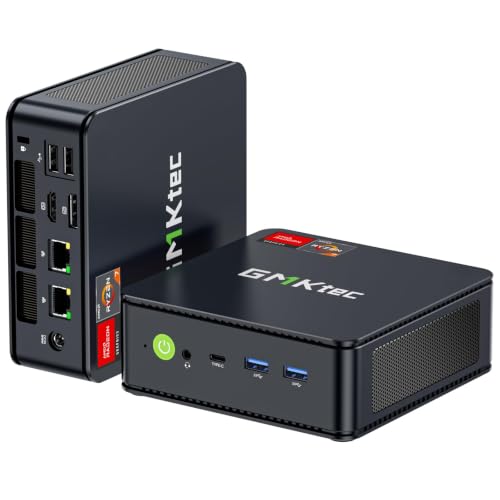
- Best first workstation for most beginners: GMKtec M5 Plus Mini PC, Ryzen 7 5825U, 32GB RAM, 1TB SSD — Check on Amazon
- Beelink SER5 MAX Mini PC, Ryzen 7 5800H, 16GB RAM, 500GB SSD — Check on Amazon
- KAMRUI E3B Mini PC, Ryzen 5 7430U, 32GB RAM, 512GB SSD — Check on Amazon
- Dell OptiPlex 7060 SFF Desktop, Core i5-8500, 16GB RAM, 512GB SSD (Renewed) — Check on Amazon
See 2 more Amazon options
- BOSGAME P4 Mini PC, Ryzen 7 5700U, 32GB RAM, 1TB SSD — Check on Amazon
- MeLE Quieter4C Mini PC, Intel N150, 8GB RAM, 256GB SSD, Fanless — Check on Amazon
Read the full guide ↓
Disclosure: As an Amazon Associate, reviewstook.com earns from qualifying purchases. Links to Amazon on this page are affiliate links; they cost you nothing extra. Listing details such as price and availability change often, so check the current Amazon listing before you buy.
Buying your first work computer is harder than buying your first gaming computer, because the word on the box — “workstation” — promises more than any $400 machine can deliver, and nobody at the store will tell you where the promise stops. So this guide starts with the truth in plain language. A genuine professional workstation, the kind an engineering firm issues, has a Xeon or Threadripper Pro processor, special error-correcting memory, and a graphics card certified by the makers of professional software. None of that exists under $400, from any seller, on any day. What does exist is genuinely useful: small, strong computers with eight processor cores, memory that can grow as your work grows, and enough screen outputs for a proper desk. They write and compile code, edit photos, cut 1080p video, run enormous spreadsheets, handle light CAD, and keep a dozen programs open at once. If that is your work, this budget serves you well. If your work needs certified professional hardware, this guide will tell you so honestly rather than sell you short.
Because this version of the guide is written for beginners, it works differently from a spec sheet. A plain-language glossary below the quick picks translates every technical term before it is used against you. Each review states plainly whether the machine is new, renewed, or something you must finish building yourself — and whether its memory can ever be upgraded or is fixed forever. Further down is a numbered walkthrough of your first evening with the machine, from opening the box to checking you received exactly what you paid for, plus a section on the extra things to budget for, because no computer on this page arrives with a screen. Nothing here requires experience — only reading before you click.
In this guide
Quick Picks
In a hurry? Find the row that sounds like you. The full reviews below explain each choice in beginner-friendly detail.
| Buyer type | Pick | Why it stands out | Link |
|---|---|---|---|
| Best first workstation overall | GMKtec M5 Plus, Ryzen 7 5825U, 32GB, 1TB | The most complete machine here: nothing important needs upgrading on day one | Check on Amazon |
| Best for long, heavy jobs | Beelink SER5 MAX, Ryzen 7 5800H, 16GB, 500GB | The strongest processor for compiles and batch work — but plan a memory upgrade | Check on Amazon |
| Best value for beginners | KAMRUI E3B, Ryzen 5 7430U, 32GB, 512GB | Full-size memory with strong budget value — check price on Amazon | Check on Amazon |
| Best if you want to tinker later | Dell OptiPlex 7060 SFF (Renewed), i5-8500, 16GB, 512GB | The only pick with room inside for a graphics card one day | Check on Amazon |
| Best for big files and home servers | BOSGAME P4, Ryzen 7 5700U, 32GB, 1TB | A terabyte of storage plus two fast network ports | Check on Amazon |
| Best for a silent room | MeLE Quieter4C, Intel N150, 8GB, 256GB | No fan, no noise, ever — for light work only | Check on Amazon |
The Jargon, Translated
Every term below appears in the reviews. Read this once and the rest of the page — and most computer listings — will make sense.
- Processor (CPU) and cores. The processor is the part that does the thinking. It is divided into cores, which you can picture as separate workers: more cores means more jobs finished at the same time. Threads are a way each worker juggles two tasks at once, so an “8-core, 16-thread” chip handles busy offices and long jobs well.
- RAM (memory). The computer’s short-term workspace — everything open right now lives here. More RAM means more programs, browser tabs and files open together without slowdowns. It is measured in gigabytes (GB); 32GB is the comfortable amount for serious work at this price.
- Socketed vs soldered memory. Socketed memory sits in slots and can be swapped for bigger sticks later — this is how a computer grows. Soldered memory is fused to the board in the factory and can never, ever be changed. This single distinction decides how long a cheap computer stays useful.
- Storage (SSD). Where your files live permanently. An SSD is the fast modern kind of storage; “NVMe” is the fastest common type of SSD connection. 512GB is workable, 1TB is comfortable, and a spare slot means you can add more later.
- Integrated graphics. Picture-making circuitry built into the processor instead of living on a separate card. It handles screens, photos, video and light 3D work well. Every machine in this guide uses it, because a separate graphics card alone would eat most of a $400 budget.
- Graphics card and PCIe slot. A graphics card is a separate, more powerful picture-maker that plugs into a slot inside the computer called PCIe. Only one pick here — the Dell desktop — has such a slot, which is why it is the only pick that could ever accept a card later.
- Power supply (PSU) and watts. The part that feeds electricity to everything else, rated in watts (W). Its size limits what you can add later: the Dell’s 200W supply can only power small, low-power graphics cards. On processors, a higher wattage figure (like the Beelink’s 54W) means the chip may keep working hard for long stretches instead of slowing down to save energy.
- Renewed. A polite word for used. A renewed machine was owned before, then tested, cleaned and resold. It costs less and usually carries a shorter guarantee — the Dell here is the only renewed pick, and its Amazon Renewed guarantee runs to a 90-day program minimum rather than a manufacturer’s typical year.
- Barebone. A half-finished computer sold without memory, storage or Windows, which you must buy and fit yourself. Beginners should know the word mainly to avoid it: none of the six picks here is a barebone — all six arrive complete and ready to switch on.
- Display outputs. The sockets your monitors plug into — HDMI, DisplayPort and USB-C are the three you will meet here. Count sockets, not advertising: a machine can only run as many screens as it has outputs. Most picks here have three; the Dell guarantees two.
- Windows 11 Pro. The business edition of Windows, fitted to all six picks. Compared with the Home edition it adds drive encryption (BitLocker), the ability to control the machine remotely (Remote Desktop hosting) and workplace management features. You may never use them, but they are part of what you are paying for.
- VESA mount. A standard pattern of screw holes that lets a small computer bolt onto the back of a monitor and disappear from your desk. Two picks here include or support one.
How These Picks Were Chosen
The first filter was completeness. Every pick is a whole, working computer at or regularly within $400 in the United States: memory fitted, storage fitted, Windows installed. Barebone kits were excluded no matter how attractive their processors looked, because a first workstation should not begin as a construction project. Where a price wanders — and prices at this end of the market wander weekly — check the live listing on Amazon rather than relying on any fixed number.
We did not use these machines ourselves. We read the manufacturers’ listings, specification documents and platform records, and compared the things that decide whether a computer can earn its keep: how many cores the processor has and how much power it may sustain, how much memory is fitted and whether that memory is socketed or soldered, how much storage there is and whether more can be added, and how many screens the machine can physically plug into. On screens we counted sockets rather than trusting headlines — a three-monitor claim only counts where three display outputs are documented.
Three plain statements about the set, because beginners deserve them up front. Renewed: exactly one pick, the Dell desktop, is renewed (used); the other five are new. Barebone: none of the six — every pick arrives ready to use. Soldered: exactly one pick, the little MeLE, has memory soldered down at 8GB that can never grow; the other five all allow memory upgrades, most to 64GB.
The 6 Best Workstation PCs Under $400 for Beginners
GMKtec M5 Plus Mini PC — Ryzen 7 5825U, 32GB RAM, 1TB SSD
Who it suits: The beginner who wants to unbox one machine and simply get to work — writing, coding, analysing, editing photos — without a single upgrade standing between them and their first project.
Think of this as the finished article. Its Ryzen 7 5825U processor has eight cores and sixteen threads, the joint-most in this guide, which in plain terms means it stays calm when you pile jobs on top of each other. It arrives with 32GB of memory already fitted as two sticks in sockets, and that detail is the kindest thing a first computer can do for you: 32GB is enough for a development environment, a browser full of research tabs, a spreadsheet suite and a chat program all open at once, and because the memory is socketed rather than soldered, the ceiling above it is 64GB — if your work outgrows the machine in three years, the fix is a pair of bigger sticks, not a new computer. Storage is equally settled: a 1TB solid-state drive fitted, with a second slot documented for more later.
The desk experience is complete, too. Three separate display outputs — HDMI, DisplayPort and USB-C — each drive a 4K screen, so the classic work layout of document in the middle and reference material either side needs no adapters or compromises. Two unusually fast 2.5-gigabit network ports mean files move to a network drive or a second machine at two and a half times ordinary wired speed. Windows 11 Pro is installed, with its encryption and remote-access features ready if you ever need them. The one honest ceiling is graphics: the picture comes from circuitry built into the processor, perfectly capable for photo editing, 1080p video timelines, multiple screens of documents and gentle 3D work, and not — and never able to become — a heavy 3D or certified CAD card. On price, check price on Amazon — the most complete machine in the guide is also a strong budget-tier option for what it includes.
- Nothing important to upgrade on day one: 32GB of memory and 1TB of storage already fitted.
- Memory sits in sockets and can grow to 64GB; a second storage slot waits for later.
- Three 4K screen outputs and two fast network ports — a proper desk setup out of the box.
Honest limitation: The graphics are built into the processor and no card can ever be added — heavy 3D work and certified professional software are beyond this machine for good.
Choose it if you want the strongest, simplest start and your work is documents, code, photos, video editing and light 3D. Skip it if you already know a separate graphics card is in your future — only the Dell below keeps that possibility alive, and only a little way.

Beelink SER5 MAX Mini PC — Ryzen 7 5800H, 16GB RAM, 500GB SSD
Who it suits: The beginner whose work involves waiting for the computer — compiling code, processing batches of data, exporting projects — and who is happy to do one simple upgrade later in exchange for the strongest engine now.
Beginners often ask why two processors with the same number of cores can feel different, and this machine is the answer. Its Ryzen 7 5800H also has eight cores and sixteen threads, but it is allowed to draw 54 watts of power — roughly triple the allowance of the efficiency-tuned chips elsewhere in this guide. Processors behave like runners: most can sprint, but a long job is a distance race, and the chip permitted to keep breathing hard is the one still at full speed in minute ten. For work that holds every core busy for minutes at a time — builds, exports, test runs, data jobs — this is the strongest sustained performer here.
Now the trade, stated plainly. This machine arrives with 16GB of memory and a 500GB drive — half what the M5 Plus fits on both counts. The good news is that the case is made to be opened: memory can grow to 64GB and the drive can be swapped for up to 2TB, so treat the specification as a starting line rather than a finish. Check price on Amazon for the current listing, and keep the planned upgrade in mind — a second memory stick or a larger drive is what completes it later. Three display outputs (HDMI, DisplayPort, USB-C) run a three-screen desk, Windows 11 Pro is fitted, and the box itself, under five inches square, can hide behind a monitor. Its graphics are the same built-in kind as the leader’s: fine for 2D work and light 3D, never a rendering card.
- Eight cores allowed a 54W power budget — the best staying power here for long, heavy jobs.
- Built to be opened: memory grows to 64GB, storage to 2TB, when you are ready.
- Three screen outputs and Windows 11 Pro in a box small enough to hide behind a monitor.
Honest limitation: It starts with 16GB of memory and 500GB of storage, so an upgrade is a matter of when, not if — keep that future cost in mind (see the spending section below).
Choose it if your bottleneck is long processor-bound jobs and opening a case with a screwdriver does not scare you. Skip it if you want everything fitted from day one — that is the M5 Plus above.

KAMRUI E3B Mini PC — Ryzen 5 7430U, 32GB RAM, 512GB SSD
Who it suits: The beginner on the tightest budget who refuses to compromise on the one specification beginners feel most: enough memory for everything to stay open at once.
Here is the friendliest value story in this guide. The E3B is a budget-tier pick — check price on Amazon — and it fits 32GB of memory — the same amount as the guide’s overall leader — arranged as two sticks working together in what is called dual channel, which also helps its built-in graphics run properly. If your working pattern is the common one — documents, code, browsers, video calls, everything open together — memory is the specification you notice every hour, and this machine gives you the full amount with strong budget value. Its Ryzen 5 7430U processor has six cores and twelve threads: two fewer workers than the eight-core picks, a gap you would feel in long all-core jobs and not at all in ordinary office, coding and light editing work.
The beginner-friendly details continue underneath. There are two storage slots (one fast NVMe type, one SATA-only type), so a second drive for projects or backups can be added later, and memory can grow to 64GB. The listing’s own specification table documents three display outputs — HDMI 2.0, DisplayPort 1.4 and USB-C — each good for a 4K screen at 60Hz, and confirms Windows 11 Pro. A VESA mount and an HDMI cable are included in the box, so the machine can bolt to the back of a monitor and vanish from your desk. Two cautions, both easy to handle. A 16GB version of this same machine exists under a separate listing, so check that the 32GB version is the one in your cart before you pay — and check again when it arrives, using the walkthrough below. And reviewers have noted its fan becomes audible when the machine works hard for a long stretch; if your room must stay silent, the last pick in this guide exists for you.
- The full 32GB of memory with strong budget value — check price on Amazon, with no day-one compromise.
- Two storage slots and a 64GB memory ceiling leave both kinds of growing room.
- Three documented 4K outputs, Windows 11 Pro, and a monitor mount and cable in the box.
Honest limitation: Six cores instead of eight, and a fan you can hear under sustained hard work — long heavy jobs and silent rooms are both better served by other picks here.
Choose it if your budget is firm and your work is the everyday professional mix. Skip it if your days are long compiles and renders — the eight-core picks earn their extra cost there.
Dell OptiPlex 7060 SFF Desktop (Renewed) — Core i5-8500, 16GB RAM, 512GB SSD
Who it suits: The beginner who likes the idea of a machine they can open, understand and improve — and the only buyer here whose work might one day need a graphics card.
First, the word in brackets, because beginners deserve it explained rather than whispered. Renewed means this computer has had a previous life in an office, and has since been tested, cleaned and resold. In exchange for that history you get two things no other pick offers. The first is value: as a renewed machine it is positioned as a budget-tier entry in this guide — check price on Amazon. The second is the shape. This is a proper business desktop, a small-form-factor case built for office IT departments to open and service, and inside Dell’s own specification documents something none of the mini PCs have: expansion slots, including a PCIe x16 slot — the only route in this entire guide to adding a graphics card later.
Hold that promise to its honest size, though. The power supply inside is 200 watts and the case is under four inches wide, so the only cards that fit are small, low-profile models that sip power. That is a genuine upgrade path for light design work or extra screens — not a path to a rendering machine, and no editing of this guide should let it sound like one. As it stands, the machine is a solid office workstation: a six-core Core i5-8500 whose generation matters for a beginner-friendly reason — it is exactly the generation Microsoft begins its Windows 11 support list with, so this renewed unit runs Windows 11 Pro legitimately, while cheaper renewed stock from older generations cannot. It carries 16GB of memory and a 512GB drive, both easy to service in that openable case. Screens need one careful sentence: two DisplayPort outputs are standard and guaranteed, while a third video port was only ever a factory option, so count on two monitors and check the exact unit if you need three. A keyboard and mouse are included — the only pick that includes them. And the safety net is the trade you are making: cover is the Amazon Renewed guarantee, a 90-day program minimum, not a manufacturer’s warranty. Cheapest way in, the only room to grow a graphics card, in exchange for used hardware and a shorter guarantee — for many beginners, a good deal.
- The only pick with an expansion slot — a small, low-power graphics card later is a real option.
- A business case designed to be opened and serviced, with standard parts inside.
- Budget-tier renewed value — check price on Amazon — with keyboard and mouse included and legitimate Windows 11 Pro.
Honest limitation: Only two monitors are guaranteed, the 200W power supply limits any future card to low-profile, low-power models, and the cover is a 90-day renewed guarantee rather than a factory warranty.
Choose it if you value being able to open, service and modestly upgrade your machine, or a small graphics card is plausibly in your future. Skip it if you want a brand-new machine with a full warranty and 32GB already fitted — the new minis above are your picks.
BOSGAME P4 Mini PC — Ryzen 7 5700U, 32GB RAM, 1TB SSD
Who it suits: The beginner whose work means big files — photo and video libraries, project archives — or who likes the idea of one small box that also runs the household’s shared storage and experiments.
On the headline numbers this machine matches the leader: an eight-core, sixteen-thread Ryzen 7 5700U processor, 32GB of memory and a full 1TB of storage. What earns it a separate place is the pair of 2.5-gigabit network ports on the back. For most beginners one network port is invisible plumbing, but if your work lives on a network drive, or you want this machine to double as an always-on home server — holding backups, running small services, hosting your experiments — that second fast port is the difference between a desk computer and a little hub for everything else. The processor is tuned for efficiency rather than maximum sustained power, so in a long all-core sprint it gives a little ground to the Beelink’s 54W chip; in return it works quietly and coolly, which suits a machine that may never be switched off.
Three 4K screens are supported across HDMI, DisplayPort and USB-C, Windows 11 Pro is named in the listing, and Wi-Fi 6E and Bluetooth 5.2 cover the wireless side. Check price on Amazon — on paper, it is a strong budget-tier route in this guide to eight cores, 32GB and a terabyte together. One habit to build, and the first-evening walkthrough below turns it into a two-minute routine: this listing family has also been sold with a different processor (a 5825U) under a nearly identical title, so confirm the configuration on the live listing before you order and confirm it again on the machine when it arrives. That single check is the only asterisk on the strongest storage-and-networking value here.
- Eight cores, 32GB of memory and 1TB of storage together with strong budget value — check price on Amazon.
- Two fast network ports — the pick for network drives, home labs and always-on duties.
- Triple 4K output and Windows 11 Pro, in a cool, quiet, efficiency-tuned box.
Honest limitation: Its efficiency-tuned processor trails the 54W Beelink in long all-core jobs, and its listing family has carried a different processor under a similar title — verify what you actually received.
Choose it if storage space and fast networking define your work, or the machine will double as a home server. Skip it if sustained processor speed matters above everything — that is the Beelink’s job.

MeLE Quieter4C Mini PC — Intel N150, 8GB RAM, 256GB SSD, Fanless
Who it suits: The beginner whose first requirement is not speed but silence — a bedroom office, a consultation room, a reception desk, anywhere a whirring fan would be a genuine problem — and whose work is light.
Let us be as plain about this machine as its name is about its purpose. It is by a wide margin the least powerful computer in this guide. Its Intel N150 processor has four efficiency cores, its 8GB of memory is soldered to the board and can never be increased, and its storage is 256GB. Heavy multitasking, big projects, serious editing: not this machine, and no honest guide should dress it up as such. What it does, nothing else here can do at all. It has no fan — it is cooled passively, by design, per the manufacturer and confirmed across independent reviews — so it makes no noise, ever, while drawing power only in the low teens of watts. In the right room, silence is not a compromise feature. It is the entire reason to buy.
Within that light-duty brief it is surprisingly capable at running a desk. Its platform documents three 4K display outputs across two HDMI sockets and USB-C, so a three-screen arrangement of documents, dashboards, inboxes and web applications — the classic always-on desk pattern, which asks almost nothing of a processor — is entirely realistic. Windows 11 Pro is fitted, Wi-Fi 6 and a wired network port cover connections, and the chassis, barely five inches by three, mounts behind a monitor and disappears. Check price on Amazon for the current listing. Buy it as what it is: a silent appliance for light professional duties that will sit there for years without making a sound. And understand the catch before you buy, because there is no fix for it later — if your workload grows, the answer is a different machine, not an upgrade to this one. There is no upgrade to this one.
- No fan and no noise, ever, at a trickle of power — the only pick for silence-sensitive rooms.
- Three 4K outputs and Windows 11 Pro for a multi-screen desk of light applications.
- Tiny enough to mount behind a monitor and forget.
Honest limitation: Four efficiency cores, 8GB of memory soldered forever, 256GB of storage — a light-duty appliance, not a machine for heavy work, and it can never be upgraded into one.
Choose it if the room must stay silent and your days are documents, dashboards, inboxes and web tools. Skip it if you compile, edit, render or juggle heavy programs — every other pick here is several times stronger.

Comparison Table
| Product | Processor | Memory | Best use | Link |
|---|---|---|---|---|
| GMKtec M5 Plus | Ryzen 7 5825U, 8 cores | 32GB, socketed, grows to 64GB | The complete first workstation, ready on day one | Check on Amazon |
| Beelink SER5 MAX | Ryzen 7 5800H, 8 cores, 54W | 16GB, grows to 64GB | Long heavy jobs: compiles and batch work | Check on Amazon |
| KAMRUI E3B | Ryzen 5 7430U, 6 cores | 32GB, grows to 64GB | Full memory headroom with strong budget value | Check on Amazon |
| Dell OptiPlex 7060 SFF (Renewed) | Core i5-8500, 6 cores | 16GB, serviceable case | Opening, servicing, a small graphics card later | Check on Amazon |
| BOSGAME P4 | Ryzen 7 5700U, 8 cores | 32GB, 1TB fitted | Big storage, fast networking, home server duties | Check on Amazon |
| MeLE Quieter4C | Intel N150, 4 cores | 8GB, soldered — fixed forever | Silence and always-on light duties only | Check on Amazon |
Your First Evening: Setting Up, Step by Step
Whichever pick you chose, your first evening follows the same path. Allow about an hour, keep the box until step 7 is done, and do not throw away any cable until the machine is running.
- Unbox and compare against the listing. Lay everything out and check it against what you ordered: the machine, its power adapter, and any extras the listing promised (the KAMRUI includes a monitor mount and an HDMI cable; the Dell includes a keyboard and mouse). If something is missing, photograph it now, before anything is plugged in.
- Choose its home. Every machine here except the fanless MeLE breathes through vents, so give it open air on all sides — not a closed cupboard. The mini PCs are small enough to sit behind your monitor, and the KAMRUI and MeLE can bolt onto the monitor’s back with their VESA mounts.
- Plug the monitor into the machine’s own display sockets. This step is worth understanding rather than just following. Every pick here makes its picture with graphics built into the processor, and the HDMI, DisplayPort and USB-C sockets on the machine itself are where that picture comes out — any of them is the right socket. No pick arrives with a separate graphics card, so there is no wrong set of sockets to choose today. Learn the trap now, though, because it catches thousands of people later: if you ever add a graphics card — only possible in the Dell — you must move the monitor cable to the new card’s own sockets. Leave it in the old socket and the screen will still light up and look perfectly normal, while quietly continuing to use the weak built-in graphics instead of the card you just paid for. Nothing warns you. That silent slow picture is the most common setup mistake in home computing, and now you will never make it.
- Add keyboard and mouse. The Dell’s are in the box. For the five mini PCs, connect your own — wired ones simply work, and wireless ones pair through Windows settings once you are in. Nothing else is required to begin.
- Connect to the internet and plug in power. A wired network cable is the most reliable route for setup day; Wi-Fi can be chosen during the Windows welcome screens instead. Use the adapter that came in the box — mini PC adapters are not interchangeable ornaments.
- Switch on and walk through Windows setup. The first start takes longer than every later one, and the machine may restart itself — that is normal, not a fault. Follow the prompts: region, keyboard, your Microsoft account (or the offline option where offered), and a PIN you will actually remember. All six picks run Windows 11 Pro, so the screens are the business edition’s, but the path is the same friendly one.
- Verify you received exactly what you paid for. This two-minute check protects the whole purchase, because listing families at this price ship in variants. Open Settings, then System, then About, and read three numbers: the processor name, the installed memory, and — under Storage — the drive size. Compare them with your order. KAMRUI buyers: confirm 32GB, not the 16GB sibling version. BOSGAME buyers: confirm the processor is the 5700U you ordered. If anything disagrees, you are inside the return window and the seller conversation is easy. Do it tonight, not next month.
- Let it update, then restart once more. Open Windows Update and let it finish everything it offers, including the optional driver updates. A new or renewed machine can be months behind, and many “my new computer is misbehaving” stories are simply updates that had not landed yet.
- Add your second screen and set up a backup. If you bought a second monitor, plug it into another display socket and arrange the screens in Display settings so the mouse crosses between them the way they sit on your desk. Then point Windows’ backup or a simple external drive at your work folders. The renewed Dell especially deserves this habit: its guarantee is 90 days, and a backup is the difference between an inconvenience and a disaster.
What Else You Will Spend
The $400 ceiling covers the computer. It does not cover the desk around it, and beginners are most often caught out here — so here is the honest remainder, in the order you will meet it. No prices are invented for these items; the point is knowing they exist before the machine arrives.
- A monitor comes first. Not one of the six picks includes a screen. If you do not already own one, it is your largest additional cost, and a work desk eventually wants two — every pick except the Dell runs three, and the Dell guarantees two. Buy one good screen now rather than two poor ones.
- A keyboard and mouse, for five of the six. Only the renewed Dell includes them. The mini PCs assume you have your own, so if this is your first computer, add a set to the order or the machine will sit there glowing at you, unusable.
- Cables for extra screens. One HDMI cable is in the KAMRUI’s box; beyond that, each additional monitor generally needs its own cable, and may need an adapter. Check the sockets on the monitor you own against the outputs in the reviews before ordering.
- The SER5 MAX’s planned upgrade. Price this pick as the machine plus its fix: it arrives with 16GB of memory and a 500GB drive on purpose, and part of your budget planning should be earmarked for the second memory stick or larger drive that completes it. That second purchase is part of the plan, not a surprise.
- The Dell’s small-print costs. Price it as the machine plus a little caution: a third monitor may require checking (and possibly an adapter), because only two outputs are guaranteed, and its 90-day guarantee makes the backup drive in step 9 part of the purchase rather than an optional extra.
- The MeLE’s unfixable catch. Price it as the machine plus nothing — because there is nothing to add. Its 8GB of memory is soldered and its 256GB is the whole estate; no later purchase turns it into a bigger computer. That is acceptable only because its job is light and silent, and it is why this guide repeats the point rather than letting you discover it.
- Software and subscriptions. Windows itself is included and activated on all six picks. Your work software — office suites, editors, design tools — is not, and any subscriptions you rely on continue as before. Budget them separately from the hardware.
How to Choose a Workstation PC Under $400
- Start with memory, not the processor. For most beginners’ real work — documents, browsers, code editors, calls, everything open together — 32GB of memory is the difference between smooth and sluggish, and it matters more than two extra cores. Four picks here fit it or grow to 64GB; treat any machine whose memory cannot grow with suspicion.
- Match cores to your longest job. If your work includes tasks that run for minutes with the computer working flat out — compiling, exporting, processing — the eight-core picks, especially the 54W Beelink, are built for you. If nothing you do ever takes more than a few seconds, six cores is plenty and the money is better spent on memory.
- Count screen sockets, not screen promises. Decide how many monitors your desk will have, then count physical outputs in the listing. Five picks document three; the Dell guarantees two. No adapter can invent an output the machine does not have.
- Decide now whether a graphics card is in your future. If it might be, the Dell’s slot is the only door, and it opens only partway — small, low-power cards under a 200W supply. Every mini here keeps the graphics it was born with, forever.
- Treat storage as a work tool. Project folders, photo libraries and virtual machines grow fast. A fitted 1TB, or a documented spare slot for a second drive, is worth more to a working beginner than a slightly faster processor.
- Understand the renewed trade before you take it. The Dell is a budget-tier renewed option and opens widest, and its cover is a 90-day guarantee rather than a manufacturer’s warranty. If this computer will hold the work your income depends on, either accept that trade with backups in place or pay for a new machine.
- Do not pay for the word “workstation”. At this price it guarantees nothing — no error-correcting memory, no certified graphics, no professional processor class. Judge any listing, including these, by the specifications you can verify on it.
Common Buying Mistakes
- Assuming “workstation” on a listing means professional features. At $400 it does not — there is no ECC memory or certified graphics card at this price, and any listing implying otherwise should be checked line by line.
- Buying a machine whose memory is soldered small. 8GB that can never grow turns a three-year computer into an eighteen-month one. Only buy soldered memory when the job itself is tiny and silent, like the MeLE’s.
- Plugging the monitor into the wrong sockets after an upgrade. Fit a graphics card later (Dell owners, this is you) and leave the cable in the old socket, and the picture will look fine while silently using the weak built-in graphics. Move the cable to the card.
- Skipping the arrival check. Listing families at this price ship in variants — half the memory or a different processor under a near-identical title. Two minutes in Settings on the first evening is the whole defence.
- Judging by the processor’s name alone. Chips with similar names behave very differently through a long job depending on the power they are allowed to use — the 54W Beelink and the efficiency-tuned picks are the standing example.
- Buying renewed for critical work with no backup. A 90-day guarantee is a floor, not a service contract. Back up from day one and the trade is a bargain; skip the backup and it is a gamble.
Final Recommendation
- Most beginners: GMKtec M5 Plus — the complete machine, nothing to fix.
- Long, heavy jobs: Beelink SER5 MAX — plus its planned memory upgrade.
- Tightest budget: KAMRUI E3B — full memory with strong budget value.
- Room to tinker, a card someday: Dell OptiPlex 7060 SFF (Renewed).
- Big files and home-server ambitions: BOSGAME P4.
- Silence above everything: MeLE Quieter4C.
If you only read one paragraph of this guide, make it this one. The GMKtec M5 Plus is the right first workstation for most people: eight cores, 32GB of memory that can grow to 64GB, a terabyte of storage, three screen outputs and fast networking — check price on Amazon — a machine you can simply work on. The Beelink SER5 MAX is the pick for the beginner whose work is measured in long jobs: the strongest sustained processor here, bought knowing its memory upgrade is part of the plan. The KAMRUI E3B proves strong budget value is possible — full-size memory in a budget-tier pick, with the live price to check on Amazon — and the renewed Dell is the one for the beginner who wants to learn their machine from the inside, with the only graphics-card door in the guide, held to its honest small size. The BOSGAME P4 serves the file-heavy and the home-server curious, and the MeLE serves silence itself, within limits stated at full size. If your ambitions or budget grow, the next steps up are Best Workstation PC Under $500, and beginners planning a second machine for the household should also see Best Home Office PC Under $400. Whichever you choose: count the sockets, check the memory ceiling, verify the machine on its first evening, and check the live price before you order.
Frequently Asked Questions
I am a complete beginner. Which one should I just buy?
The GMKtec M5 Plus. It is the only pick that asks nothing of you: the full 32GB of memory and 1TB of storage are already fitted, it runs three screens, and its memory can still grow to 64GB years from now if your work does. Buy it, follow the first-evening walkthrough above, and get on with your work.
Is a $400 “workstation” a real workstation?
Not in the professional-certification sense, and this guide will not pretend otherwise. A true workstation has error-correcting ECC memory, a graphics card certified by professional software makers, and a Xeon or Threadripper-class processor — none of which exists at this price from any seller. What you can buy is a genuinely capable work computer: up to eight cores, 32GB of upgradeable memory, a terabyte of storage and three monitor outputs. For professional work that does not require certified hardware, that is a real and honest machine.
What does “renewed” actually mean for the Dell?
It means the computer worked a previous life in an office, was then tested, cleaned and resold through the Amazon Renewed program. You pay less for a renewed, budget-tier machine — check price on Amazon — and in exchange your protection is the program’s guarantee, a 90-day minimum, instead of a manufacturer’s warranty. The machine itself is a business desktop built to be serviced, which is partly why it survives to be renewed at all. Back up your work from day one and the trade is sound.
Can I add a graphics card to any of these later?
To one of them, partway. The renewed Dell has a PCIe expansion slot, but its 200W power supply and narrow case limit it to small, low-profile, low-power cards — a modest upgrade, not a transformation. The five mini PCs can never accept a card; the graphics they ship with are the graphics they keep. And if you do fit a card in the Dell, remember the walkthrough’s warning: move the monitor cable to the card’s own sockets, or the screen will silently keep using the built-in graphics.
How many monitors can I connect?
Three to five of the six picks — the minis each document three display outputs, and the reviews name the sockets. The renewed Dell is the exception: two DisplayPort outputs are standard, and a third existed only as a factory option, so it is a guaranteed two-monitor machine; check the exact unit if three screens are essential to you.


