Where to buy
Check the latest price, availability and delivery on Amazon. Orders are placed on Amazon. We may earn a commission from qualifying purchases.
- Best overall mini PC under $1500: Minisforum MS-A2 Mini Workstation, Ryzen 9 HX, PCIe x16 Slot, Dual 10G SFP+ — Check on Amazon
- AtomMan G7 Ti Mini PC, Core i9-14900HX, RTX 4070 Laptop GPU, 32GB DDR5, 1TB SSD — Check on Amazon
- AtomMan G7 Pt Mini PC, Ryzen 9 7945HX, RX 7600M XT, 32GB DDR5, 1TB SSD — Check on Amazon
- Minisforum MS-01 Mini Workstation, Core i9-13900H, Dual 10GbE SFP+, PCIe Slot — Check on Amazon
See 2 more Amazon options
- Beelink SER9 Pro AI Mini PC, Ryzen AI 9 HX 370, Radeon 890M, 32GB, 1TB SSD — Check on Amazon
- Apple Mac mini M4 Pro, 24GB Unified Memory, 512GB SSD — Check on Amazon
Read the full guide ↓
Disclosure: As an Amazon Associate, reviewstook.com earns from qualifying purchases. Links to Amazon on this page are affiliate links; they cost you nothing extra. Listing details such as price and availability change often, so check the current Amazon listing before you buy.
If this is your first mini PC, start with the honest part, because it will save you real money: at $1,500 you are shopping at the top of the mini PC world, and the top of this world is not built for everyday computing. A mini PC is simply a complete desktop computer shrunk into a box small enough to hold in one hand or hide behind a monitor. For email, documents, web work, video calls, streaming and photo libraries, a good mini PC at $500–$800 already does everything well — and one of the six machines below, the Beelink SER9 Pro, is in this guide precisely because it is the sensible place for most beginners to stop. So why does a $1,500 tier exist at all? Because three kinds of buyer genuinely outgrow the cheaper machines. People building a home server or lab, who need server-grade networking and room to add parts. Creators whose video edits, renders and exports are timed in money, who need a real graphics chip or a very fast processor. And heavy multitaskers running several monitors and whole extra computers simulated inside the first one. The six picks below serve those three buyers — and this guide is written so a first-time buyer can follow every claim, with a plain-English glossary first and a step-by-step first-evening setup walkthrough later.
One more beginner warning before the picks, because it catches more first-time buyers than any other: the graphics names in this category lie by omission. When a mini PC says “RTX 4070,” it means the laptop version of that chip — a smaller, slower part than the desktop card with the same name — and the same is true of the AMD graphics below. Both laptop chips here are genuinely good — just not the desktop cards — and this guide names them correctly every time so you know exactly what your money buys.
Words Worth Knowing Before You Spend Anything
Thirteen terms explain nearly everything in the six listings below. Read these and the rest of the guide — and every Amazon product page in this category — gets much easier.
- Processor (CPU) and cores. The chip that does the computer’s thinking. Cores are parallel work lanes: more cores means more heavy jobs finished at once. The chips below run from 12 to 24 cores — desktop-class power.
- Integrated graphics. A small graphics circuit built into the processor. It draws your desktop, plays video and handles light games. Three picks below rely on it — and one of them, AMD’s Radeon 890M, is strong enough for real 1080p gaming.
- Discrete GPU. A separate, dedicated graphics chip with its own memory. Faster for games and creative work — and in a mini PC it is always the laptop version of the chip, fixed in place forever.
- RAM (memory). The computer’s short-term workspace. 32GB is generous for almost everyone; what matters long-term is whether you can add more later.
- Soldered vs socketed. Socketed memory sits in slots (called SO-DIMM slots) and can be swapped or added to with a screwdriver. Soldered memory is fused to the board at the factory — the amount fitted on day one is the amount you retire with. In this guide: the SER9 Pro’s memory is soldered, the Mac mini’s memory and storage are fixed, and the other four machines use socketed memory.
- SSD (storage). Where your files and programs live permanently. All six picks include a 1TB SSD except the Mac mini, whose 512GB drive is its known tight spot.
- Barebone. A kit with no memory, no storage and no operating system — a starting point, not a computer. None of the six picks below is a barebone as linked; every one arrives ready to use. Barebone versions of the MS-A2, G7 Ti and G7 Pt do exist on the same listing pages, and clicking one by accident is the classic beginner trap in this category.
- Renewed. A refurbished, previously owned machine sold with a guarantee. None of the six picks is renewed — all are sold new.
- PCIe slot. An expansion slot inside the machine for adding a card later — a faster network card, a storage controller, a small graphics card. Only the two Minisforum workstations below have one, and theirs accept short, low-power cards only.
- 10-gigabit networking and SFP+. Network ports ten times faster than ordinary home Ethernet. SFP+ ports take plug-in modules and special cables rather than a normal network cable — wonderful for a home lab, pointless for a normal desk.
- USB4 and Thunderbolt. The fast all-purpose ports on these machines. One cable can carry a monitor picture, data and power at once. The Mac mini’s Thunderbolt 5 is the newest, fastest version here.
- Virtual machines. Whole extra computers simulated in software inside your real one. Homelab owners run several at once — which is why they care about core counts and memory ceilings that ordinary users never will.
- Refresh rate. How many times per second your monitor redraws, measured in hertz (Hz). A 144Hz monitor still shows 60Hz until you switch it in Windows settings — the walkthrough below covers that step, because almost every new owner misses it.
In this guide
Quick Picks
Short on time, or comparing several options at once? Each row below names a buyer type and the machine that suits it, with a link to the listing.
| Buyer type | Pick | Why it stands out | Link |
|---|---|---|---|
| Best overall / workstation | Minisforum MS-A2 | 16-core processor, a real expansion slot, dual 10-gigabit networking and room for 96GB of memory in a 1.78-litre box | Check on Amazon |
| Best with a discrete GPU | AtomMan G7 Ti | 24-core Intel chip plus the RTX 4070 Laptop GPU — the strongest graphics in this guide | Check on Amazon |
| Best value discrete GPU | AtomMan G7 Pt | 16-core AMD chip with a mobile RX 7600M XT graphics chip — check price on Amazon | Check on Amazon |
| Best for a home server | Minisforum MS-01 | Dual 10-gigabit ports, remote management, an expansion slot and three storage positions | Check on Amazon |
| Best small premium / spend less | Beelink SER9 Pro | The strongest integrated graphics here in a tiny, quiet 0.82-litre box — check price on Amazon | Check on Amazon |
| Best for Mac creators | Apple Mac mini M4 Pro | Apple’s M4 Pro chip, Thunderbolt 5 and hardware video engines — a macOS machine, labeled as one | Check on Amazon |
How These Picks Were Chosen
The budget was applied to a finished, working computer: every pick is a configured machine — memory, storage and operating system included — intended to sit at or under the $1,500 budget in the United States; check price on Amazon for the current listing before you buy, because prices in this category swing — and during the recent memory and storage shortage they have swung hard. Two picks need particular care on that check because their listings have appeared above this budget as often as below it: the SER9 Pro, and the Mac mini. Only buy either while its live listing sits inside this guide’s $1,500 budget.
We did not use these machines ourselves. We read the maker listings and specification pages plus the independent reviews that publish measurements, and compared processor class, graphics class, memory ceilings, storage positions, expansion slots, networking and display outputs. Three filters shaped the list. First, at $1,500 a mini PC must offer something an $800 machine cannot — an expansion slot, 10-gigabit networking, a discrete GPU, a 96GB memory ceiling — or, like the SER9 Pro, be the honest place to stop below the ceiling. Second, the naming filter: two picks carry laptop graphics chips, and this guide calls them laptop GPUs every time, because the laptop RTX 4070 is a different, slower part than the desktop card of the same name. Third, the audience filter: five picks are Windows machines from the mini PC specialists Minisforum (including its AtomMan brand) and Beelink, and the sixth is Apple’s Mac mini — included because anyone cross-shopping small, powerful desktops at this price will meet it, and labeled as a macOS machine wherever it appears.
The 6 Best Mini PCs Under $1,500 for Beginners
Minisforum MS-A2 Mini Workstation — Ryzen 9 HX, PCIe x16 Slot, Dual 10G SFP+
Who it suits: Beginners whose “first PC project” is actually a home lab — virtual machines, a media server, a fast home network — and anyone who wants the most expandable mini PC under $1,500.
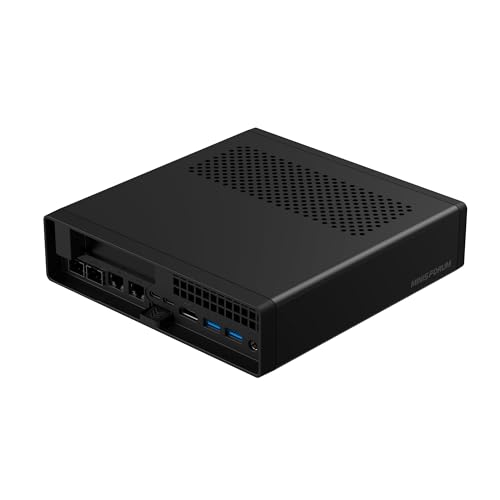
Think of the MS-A2 as a small server that happens to run Windows. Inside its 1.78-litre case is a 16-core, 32-thread AMD Ryzen 9 HX processor running to 5.4GHz — desktop-class silicon, not the low-power chips in cheaper minis. Around it sits the connectivity of a machine three times its size: a physical PCIe x16 expansion slot (wired for x8 bandwidth, enough for a fast network card, a storage controller or a compact low-power graphics card), two 10-gigabit SFP+ ports on an Intel X710 controller, two ordinary 2.5-gigabit Ethernet ports, HDMI plus two USB-C display outputs, three storage positions spanning two M.2 sizes and U.2, and two memory slots that accept up to 96GB. Configured with 32GB of memory and a 1TB SSD, it is the guide’s best overall pick — check price on Amazon before you buy. A barebone version without memory, storage or an operating system also exists — but do that maths honestly before choosing it: completing the kit only wins if DDR5 and an SSD are already sitting in your drawer.
What it is not is a graphics machine. Its integrated Radeon 610M is a basic display adapter — fine for desktops and dashboards across several monitors, not for games or graphics-heavy creative work unless you add a small card to the slot, and the slot’s limited airflow keeps that to low-power cards. Independent testing also found it audible under sustained load and comparatively thirsty at idle for a mini PC, which matters if it will run around the clock in a living space. For a beginner, the honest summary is: this is the pick for learning servers, networks and virtual machines, with headroom you will not outgrow — and overkill for everything else.
- 16-core processor and a 96GB memory ceiling — virtual machines and heavy multitasking without strain.
- A real expansion slot plus dual 10-gigabit and dual 2.5-gigabit networking: no cheaper mini matches it.
- Three storage positions and three display outputs, including two USB-C.
Honest limitation: Basic integrated graphics, a fan you will hear under load, and high idle power draw for the class — a CPU and networking machine, not a graphics machine.
Choose it if your project is a homelab, a server or heavy multitasking. Skip it if you want graphics performance out of the box — that is the AtomMan pair below — or a silent box for a bedroom desk.

AtomMan G7 Ti Mini PC — Core i9-14900HX, RTX 4070 Laptop GPU, 32GB, 1TB
Who it suits: Beginners who create or game and want the strongest graphics available in a mini PC under $1,500 — video editors, 3D hobbyists and players who refuse a tower on principle.
Start with the name, because it decides whether this machine delights or disappoints you: its graphics chip is the GeForce RTX 4070 Laptop GPU — the mobile part, with 8GB of its own memory, running at up to 140 watts in this chassis. It is a genuinely fast mobile GPU, the strongest graphics silicon in this guide, and it brings Nvidia’s CUDA cores (which much creative software is built on), NVENC video encoding and DLSS upscaling to a box a fraction of a tower’s size. It is not the desktop RTX 4070. Behind it sits Intel’s Core i9-14900HX — 24 cores, 32 threads, boosting to 5.8GHz — plus 32GB of DDR5-5600 memory in two slots (upgradeable to 96GB), a 1TB SSD with a second SSD slot in reserve, HDMI 2.1 and USB4 display outputs, Wi-Fi 7 and Bluetooth 5.4. The configured 32GB/1TB version is the one to buy — check price on Amazon — while a barebone version with no memory, storage or operating system also exists.
That leads to the review’s second honest point: the barebone is poor value unless your parts drawer already holds DDR5 memory and an NVMe drive, because buying both to complete it erases any saving the kit appears to offer. Buy the configured machine. The remaining caveats are heat and noise — a 140-watt graphics chip and a 24-core processor in a mini chassis means fans you will hear under full load — and the structural rule of every mini on this page: when the graphics chip ages, there is no replacing it. What you are buying is the most graphics power that fits this form factor at this budget, with an unusually strong processor behind it.
- The RTX 4070 Laptop GPU runs at up to 140W here — CUDA, NVENC and DLSS, and the strongest graphics in the guide.
- 24-core Core i9-14900HX, memory upgradeable to 96GB, and a second SSD slot ready.
- HDMI 2.1 and USB4 outputs, Wi-Fi 7 — current-generation connections throughout.
Honest limitation: The GPU is the laptop part, not the desktop RTX 4070, and it can never be upgraded; the barebone version saves too little to make sense without parts already owned.
Choose it if GPU-powered creation or high-settings gaming in a mini is the whole point. Skip it if you mainly need processor and networking power (the MS-A2 above), or if fan noise under load in a quiet room is a deal-breaker.

AtomMan G7 Pt Mini PC — Ryzen 9 7945HX, RX 7600M XT, 32GB, 1TB
Who it suits: Beginners who want a discrete graphics chip and a flagship-class processor — AMD fans, Linux users, and gamers who play at 1080p and 1440p rather than 4K.
The G7 Pt takes its sibling’s formula and rebalances it toward value. The processor is AMD’s Ryzen 9 7945HX: 16 cores, 32 threads, boosting to 5.4GHz — in multi-threaded work it trades blows with the Intel flagship in the G7 Ti. The graphics are AMD’s Radeon RX 7600M XT, and the naming rule applies again: this is the mobile version of the 7600 XT, with 8GB of GDDR6 memory, run at 120 watts here. Expect it to game strongly at 1080p and capably at 1440p with sensible settings and upscaling — all of it without Nvidia’s CUDA ecosystem, which for creators is the true dividing line between this machine and the G7 Ti. Memory is 32GB of DDR5-5200 across two slots with a 96GB ceiling, storage is a 1TB NVMe drive on a platform with PCIe 5.0 support, and the machine draws from a 300W external power supply — a brick you will need to find a home for. The configured 32GB/1TB version is the one beginners should buy — check price on Amazon — and a barebone version also exists for buyers who already own parts.
This is the value pick of the discrete-graphics minis: positioned below the G7 Ti in the range, in exchange for a mobile GPU one class down and no CUDA. The barebone maths deserves the same warning as its sibling’s — completing the kit can genuinely make sense if you catch memory and storage on sale or already own them, but price the full completion, Windows licence included, before assuming it wins. Thermals follow the family pattern: 120 watts of graphics plus a 16-core processor in a small chassis means audible cooling under load. And its upgrade story is the mini PC story in miniature: memory and storage can grow; the graphics never can.
- 16-core Ryzen 9 7945HX paired with a discrete RX 7600M XT mobile GPU at 120W.
- Its value-tier positioning makes it the most accessible discrete-graphics route here — check price on Amazon.
- Memory expandable to 96GB and a PCIe 5.0-class storage platform.
Honest limitation: The RX 7600M XT is the 8GB mobile part, not the 16GB desktop card, and there is no CUDA — Nvidia-dependent creative software belongs on the G7 Ti.
Choose it if you want discrete-graphics gaming and serious processor power in a value-tier package. Skip it if your creative tools need CUDA or NVENC, or if you know you will always wonder about the stronger GPU one step up.

Minisforum MS-01 Mini Workstation — Core i9-13900H, Dual 10GbE SFP+, PCIe Slot
Who it suits: Beginners building a first home server who want 10-gigabit networking, remote management and an expansion slot in the most server-minded box in this guide.
The MS-01 is the machine that taught this category its current shape. Its networking is the headline: two 10-gigabit SFP+ ports on an Intel X710 controller, plus two 2.5-gigabit ports — one of them an Intel i226-LM with vPro remote management, which lets you control the machine over the network even when its operating system has crashed — a feature no other pick here offers, and invaluable when the machine lives in a closet. Inside, the Core i9-13900H provides 14 cores and 20 threads to 5.4GHz, memory runs in two DDR5 slots to an official ceiling of 64GB, storage spans three M.2 slots with a U.2 adapter included in the box, and there is a physical PCIe x16 slot — wired for x8 bandwidth and limited to half-height, single-slot cards, which suits network cards, storage controllers and low-profile graphics cards. Displays run from two USB4 ports and HDMI — up to three in total. The 32GB/1TB configuration is the one to look for — check price on Amazon and confirm it sits inside this guide’s budget before you buy.
Three qualifications keep the picture honest. The processor is a generation older than the MS-A2’s and a class below it in heavy multi-threaded work. The integrated Iris Xe graphics are for desktops and dashboards, not games. And the expansion slot, while real, is fussy — independent plug-testing found some cards that never initialize, so check your intended card against owner reports before building plans around it. Cooling is working hardware rather than silent hardware, measured around 42–45 dB(A) under full processor load. None of that dethrones it for its actual job: if your mini PC is really a small server — virtual machines, a firewall, a storage brain — the MS-01’s combination of remote management, serious networking and expansion remains the most homelab-complete package here, leaving you to plan separately for the drives and network modules you will buy next.
- Dual 10-gigabit SFP+ (Intel X710), dual 2.5-gigabit and vPro remote management — the homelab checklist, complete.
- Expansion slot (x8 electrical, half-height) and three M.2 positions plus a U.2 adapter.
- A genuinely expandable machine in a lower tier than the flagship workstations — check price on Amazon.
Honest limitation: The processor is a generation old, Iris Xe graphics are basic, the slot fits only half-height single-slot cards and has documented compatibility quirks, and it is audible under full load.
Choose it if yours is a home server first and a desktop second. Skip it if you need maximum processor throughput (MS-A2) or any real graphics (the AtomMan pair).

Beelink SER9 Pro AI Mini PC — Ryzen AI 9 HX 370, Radeon 890M, 32GB, 1TB
Who it suits: Beginners who want the premium end of the ordinary mini PC — the fastest integrated graphics, a near-silent small box, modern ports — and who should honestly stop here instead of spending the full $1,500.
The SER9 Pro is this guide’s control pick: the machine that shows what the sensible part of this budget buys. Its Ryzen AI 9 HX 370 brings 12 cores and 24 threads (to 5.1GHz) together with AMD’s Radeon 890M — the strongest integrated graphics on this page — delivering genuine 1080p gaming at sensible settings, fast photo work and smooth multi-monitor desktops, all without a discrete GPU’s heat or noise. The case is the smallest here at roughly 135 × 135 × 45mm, about 0.82 litres; it runs quietly under load by this class’s standards; and the connections are current: USB4, 2.5-gigabit Ethernet, Wi-Fi 6 and Bluetooth 5.2, with Windows 11 Pro installed. For the 32GB/1TB configuration, check price on Amazon before you buy — during the memory shortage its listing has moved around, so treat any listing that pushes against this guide’s budget as the shortage talking and wait for a better day.
The limitations are structural, and a beginner should hear them plainly. The 32GB of LPDDR5X memory is soldered — fast, but frozen at 32GB forever, with no path to 64GB or 96GB. There is no OCuLink port, so the external-graphics escape hatch some rivals offer is absent. Storage expansion is limited, and sources disagree on whether the chassis holds one M.2 slot or two — so check the live listing’s specification table before planning around a second drive. Finally, a naming warning that has already caught buyers: a cheaper “SER9 Pro” variant built on AMD’s lesser H 255 processor circulates in marketplace tables. The listing linked here is the HX 370 machine, and the processor line is the spec to verify in your cart. None of these caveats change the verdict for its audience: if your work is a heavy desktop, light creation and integrated-graphics gaming, this is the most machine you need.
- Its Radeon 890M is the strongest integrated graphics here — genuine 1080p gaming, no discrete GPU needed.
- Smallest and among the quietest here: about 0.82 litres, USB4, 2.5-gigabit Ethernet, Windows 11 Pro.
- Premium integrated-graphics performance in a compact, quiet box — check price on Amazon.
Honest limitation: The 32GB of memory is soldered permanently, there is no OCuLink and no expansion slot, and a weaker H 255 namesake shares the badge — confirm the HX 370 in the listing before you pay.
Choose it if you want the best small, quiet integrated-graphics mini — and no server features. Skip it if you will ever need more than 32GB of memory, 10-gigabit networking, or a discrete GPU.
Apple Mac mini M4 Pro — 24GB Unified Memory, 512GB SSD
Who it suits: Beginners already living in Apple’s world — iPhone owners, Final Cut or Logic users, aspiring Mac developers — who want a silent, tiny workstation and are happy to learn macOS instead of Windows.
In this guide the Mac mini M4 Pro is the outsider — and for the audience it serves, arguably the strongest machine here. The M4 Pro chip in this configuration (model MCX44LL/A) pairs a 12-core CPU with a 16-core GPU and very fast unified memory — one pool of memory shared by processor and graphics alike — and it brings hardware the Windows minis cannot match: dedicated ProRes and AV1 media engines that make video timelines feel effortless, three Thunderbolt 5 ports alongside HDMI at the back, two USB-C ports and a headphone jack at the front, and Apple’s published support for up to three displays. It is effectively silent in ordinary work and sips power. Price is the moving part, so check price on Amazon before you buy. This guide’s rule is strict: this 24GB/512GB configuration earns its place here only while the live listing sits at or under the $1,500 budget. Above that line it remains a fine machine — in the wrong guide.
The limitations are Apple’s terms, and none of them is negotiable. Nothing inside it can be upgraded — memory, storage, nothing, ever — so the configuration in your cart is the machine you will eventually retire. For a creator, 512GB of internal storage is tight; plan a fast external Thunderbolt SSD as a deliberate second purchase instead of a month-three surprise. And it runs macOS only: Windows software means virtualization where that is supported at all, and most Windows games simply are not available — a work machine that happens to play a small games library, never the reverse. Beginners who need Windows programs, CUDA or any internal expansion should choose from the five Windows machines above. Beginners inside Apple’s ecosystem, at the right live price, get the quietest and most media-capable mini in this guide.
- M4 Pro with hardware ProRes and AV1 engines — video work is this machine’s home turf.
- HDMI plus three Thunderbolt 5 ports, with Apple’s published support for up to three displays.
- Near-silent and power-sipping, with 24GB of unified memory serving processor and graphics alike.
Honest limitation: Nothing inside can ever be upgraded, 512GB of storage is tight, and it runs macOS only — plus its Amazon price appears above this budget as often as below it, so buy strictly at or under $1,500.
Choose it if your tools and workflow live in macOS and the live price fits the budget. Skip it if Windows, CUDA, games or any internal upgrade path is something you need.

Comparison Table
| Product | Processor / Graphics | Best use | Link |
|---|---|---|---|
| Minisforum MS-A2 | Ryzen 9 HX 16-core / Radeon 610M + PCIe x16 slot | Homelab and workstation work needing a slot and dual 10G networking | Check on Amazon |
| AtomMan G7 Ti | Core i9-14900HX / RTX 4070 Laptop GPU 8GB | The guide’s strongest graphics, for creation and gaming minus the tower | Check on Amazon |
| AtomMan G7 Pt | Ryzen 9 7945HX / RX 7600M XT mobile GPU 8GB | Discrete graphics in a value tier: flagship CPU, capable 1080p and 1440p play | Check on Amazon |
| Minisforum MS-01 | Core i9-13900H / Iris Xe + PCIe slot | Home server and network lab with vPro remote management | Check on Amazon |
| Beelink SER9 Pro | Ryzen AI 9 HX 370 / Radeon 890M | Tiny, quiet and premium, with the best integrated graphics here | Check on Amazon |
| Apple Mac mini M4 Pro | M4 Pro 12-core / 16-core GPU, unified memory | Creators and professionals who work in macOS | Check on Amazon |
How to Choose a Mini PC Under $1,500
- Start by admitting which buyer you are. This tier serves three: homelab builders (networking, slots, virtual machines), creators (a GPU or media engines, a fast processor), and multi-monitor multitaskers (memory ceiling, display outputs). A fourth kind of buyer — the general user — should choose a $500–$800 machine and a nicer monitor instead. Our beginner guides at Best Mini PC For Beginners Under $800 and Best Mini PC For Beginners Under $1200 cover those tiers in the same plain terms.
- Buy the expansion you will actually use. An expansion slot and 10-gigabit ports are worth a great deal to a homelab and nothing to a desktop user. Budget for the accessories too: SFP+ modules, cables and a 10-gigabit switch are a second budget hiding behind the first.
- Read graphics names like a lawyer. In a mini PC, “RTX 4070” means the Laptop GPU and “RX 7600 XT” means the 8GB mobile part. Both are good hardware, judged at laptop performance levels — with laptop upgrade prospects, meaning none.
- Look at the memory ceiling, not just the memory fitted. 32GB today is fine for most people; the question is whether the machine can reach 64GB or 96GB when your workload grows. Socketed machines can; soldered machines — the SER9 Pro and the Mac mini — are finished at purchase.
- Do the full barebone maths, or skip the barebone. Add kit, memory, storage and an operating system licence together, at today’s prices. In a memory shortage the configured machine frequently wins; the MS-A2 and G7 Ti barebones both need parts you already own to make sense.
- Count displays from the physical port list, never from marketing. Every multi-monitor claim in this guide traces to physical outputs: the MS-A2’s HDMI plus two USB-C, the MS-01’s two USB4 plus HDMI, the Mac mini’s three Thunderbolt 5 plus HDMI, with Apple’s published support for up to three displays. A listing promising four monitors from two ports is one to walk away from.
- Plan for noise and heat as specifications. Sixteen cores and a 140-watt graphics chip in under two litres means fans, and fans mean sound: independent measurements run from near-silent (SER9 Pro, Mac mini) to a plainly audible 42–45 dB(A) under full load (MS-01). Pick the machine that suits the room it will live in.
- Verify the exact configuration in the cart. Model names get reused across processors and memory sizes in this category — an H 255 machine wears the SER9 Pro name, and MS-A2 listings span two processor generations. Treat the listing title’s processor line as the contract, and read it before paying.
Your First Evening: Setup, Step by Step
Every pick in this guide arrives as a complete, working computer — none is a barebone as linked — so your first evening is unbox, connect, update and verify. Work through these steps in order; the whole sequence takes under an hour, most of it waiting on downloads.
- Choose the spot first. A mini PC still needs air: set it on an open surface with a few centimetres of clearance on every side, never sealed inside a cabinet or buried under papers — the case and its vents are how the machine breathes. The SER9 Pro and Mac mini are small enough to sit beside the monitor; the workstation and graphics machines deserve open desk or shelf space. If your pick has an external power brick (the G7 Pt’s is a 300W unit), give the brick the same open-air treatment, on the floor or a shelf, not in a closed drawer.
- Power. Connect the power supply to the machine and the wall, then press the power button. On the Windows machines you will land in the standard Windows 11 first-run setup: language, region, Microsoft account, privacy choices. Take your time; almost all of it can be changed later. The Mac mini runs Apple’s equivalent setup for macOS instead.
- Connect the monitor — and relax about ports. On a full-size tower with a graphics card, beginners are warned to plug the monitor into the card’s ports, never the motherboard’s, because the wrong sockets can be dead or slow. Mini PCs remove that trap: there is one small set of display outputs on the box, wired to the machine’s graphics — integrated or discrete — by design. Plug in your HDMI or USB-C display cable, and the picture you get is the machine working as intended. There are no dead display sockets to avoid on any of these six.
- Peripherals and wired internet. Plug in keyboard and mouse (or pair them over Bluetooth once you reach the desktop), then — even if you plan to live on Wi-Fi — connect an Ethernet cable to your router for setup evening. A wired connection makes the update step below dramatically faster and more reliable, and on the two workstation picks it also lets you confirm both network ports work. You can unplug it afterwards.
- Run every update, then the graphics driver. On Windows: Settings → Windows Update → Check for updates, install everything, restart, and repeat until it reports you are up to date. Then update the graphics driver from the chip maker — Nvidia’s app for the G7 Ti, AMD’s software for the G7 Pt and SER9 Pro, Intel’s for the MS-01, and Windows Update itself handles the MS-A2’s basic AMD driver. On the Mac, System Settings → General → Software Update does the whole job in one place. Do not judge any machine’s speed or noise until this step is finished.
- Set your monitor’s real refresh rate. If you bought a 120Hz, 144Hz or faster monitor, it will still be running at 60Hz out of the box. On Windows: Settings → System → Display → Advanced display → choose the highest refresh rate listed. On macOS: System Settings → Displays → Refresh Rate. This single forgotten setting is the most common reason a new setup “feels no different” from the old one.
- Verify you received the configuration you paid for. This step matters more in this category than in any other, because model names are reused across different insides. On Windows, open Task Manager → Performance and read the processor name and memory total; on the Mac, Apple menu → About This Mac. Check them against your order: the SER9 Pro must say HX 370, not H 255; the MS-A2’s processor generation should match the listing you bought; the G7 Ti and G7 Pt should show 32GB of memory and a 1TB drive; the Mac mini should read M4 Pro with 24GB. If anything differs, you are inside the return window — act now, not in a month.
- Install your game store or your main tools. Gamers: install Steam (or your store of choice), sign in, and let your library download over the wired connection from step 4. Creators: install your editor and run one real project before the return window closes. Homelab builders: this is the moment to install your virtualization software and confirm the 10-gigabit ports negotiate at full speed. The point is the same for everyone — exercise the machine at its real job while returning it is still free.
What Else You Will Spend
The machine’s price is not the project’s price. The honest extras, in the order a beginner actually meets them — each catch considered as the machine plus its fix, and none of it folded into any pick above:
- A monitor, first. None of these machines includes a display, and a $1,500 mini PC feeding an ancient dim monitor is money upside down. Caught between a stronger machine and a better screen? Choose the screen — the SER9 Pro plus a good monitor beats any workstation pick plus a bad one, for almost everyone.
- Keyboard, mouse and cables. None of the six picks’ listings documents bundled peripherals or their prices, so this guide quotes none — just know a basic set is a separate purchase if you do not already own one, and that a second display cable is the classic forgotten extra for multi-monitor plans.
- Storage headroom for the Mac mini. Its 512GB internal drive is the tightest in this guide and can never be enlarged. Treat a fast external Thunderbolt SSD as part of the purchase — machine plus drive — rather than a surprise in month three.
- The 10-gigabit ecosystem, if you go that way. The MS-A2’s and MS-01’s fast ports need SFP+ modules or DAC cables and, to talk to anything else at full speed, a 10-gigabit switch. That is a real second spend hiding behind the headline feature; the ports also work at ordinary speeds with an ordinary cable while you save up.
- Parts, if you chose a barebone anyway. The MS-A2 and G7 Ti barebones are not computers until memory, storage and an operating system licence join them — completing them usually costs more than the configured machine. The configured machine is the honest comparison; the kit never is.
Upgrades, in Plain Terms
Beginners are often sold mini PCs on future upgrades, so here is the whole truth in one place. No pick in this guide is promised a graphics-card swap. The two AtomMan machines’ laptop GPUs are fixed in place, the SER9 Pro and Mac mini have no graphics card at all, and the two workstations’ PCIe slots are half-height, single-slot, x8-bandwidth spaces with limited airflow — documented homes for network cards, storage controllers and small low-power cards, not for the kind of graphics upgrade a tower owner means. No pick here pairs a named power supply with a standard tower case, because no pick here is a tower.
What genuinely can grow: memory and storage on the four socketed Windows machines. The MS-A2, G7 Ti and G7 Pt accept up to 96GB across their two SO-DIMM slots, the MS-01 up to an official 64GB, and the G7 Ti, MS-A2 and MS-01 all have spare storage positions for a second or third drive. What can never grow: the SER9 Pro’s soldered 32GB and the Mac mini’s fixed 24GB and 512GB — with those two, the configuration in your cart is the machine’s whole future, which is why both reviews insist you buy them sized for the life you plan, not the month you are in.
Common Buying Mistakes
- Spending $1,500 on a general-purpose desktop. Ordinary work runs identically on the $800 tier — and on one pick in this very guide — so the surplus is better spent on a monitor, a chair and money left over.
- Reading “RTX 4070” or “RX 7600 XT” as the desktop cards. In a mini PC both names mean laptop GPUs — capable parts, but a class down, with 8GB of memory and no upgrade path.
- Comparing a barebone kit price against configured machines. Until the completion maths says otherwise, a kit with no memory, storage or operating system is not a cheaper computer — and during a shortage it usually is not.
- Clicking the barebone style on a listing page by accident. Several listings here sell configured and barebone versions side by side; the cheaper tile is the kit. Check the cart before paying, and check the box contents on arrival.
- Buying 10-gigabit networking and forgetting the ecosystem: SFP+ modules, cables and a 10-gigabit switch are a real second spend before the fast ports carry a single packet.
- Trusting a model name over the configuration line — the H 255 “SER9 Pro”, the MS-A2’s two processor generations, the Mac mini’s several memory tiers. The product is the listing’s processor and memory figures; the badge is decoration.
- Assuming an expansion slot accepts any card. These slots are x8 electrical, half-height and single-slot, with limited airflow — and some cards never initialize in the MS-01 at all. Research your exact card first.
- Buying a sealed machine one size too small. A soldered-memory or fixed-storage mistake cannot be corrected later; on the SER9 Pro and the Mac mini, the configuration decision is permanent.
- Skipping the first-evening checks: leaving the monitor at 60Hz, postponing updates for a week, or never confirming the delivered processor matches the order while returns are still free.
- Ignoring idle power and noise on a 24/7 machine. A homelab box runs 8,760 hours a year, which turns the MS-A2’s higher idle draw and the MS-01’s fan note into operating costs, not trivia.
Final Recommendation
- Most beginners who truly need this tier: Minisforum MS-A2.
- Creators and gamers needing a GPU: AtomMan G7 Ti.
- Discrete graphics in a value tier: AtomMan G7 Pt.
- Home server and networking lab: Minisforum MS-01.
- Everyone else — stop here, honestly: Beelink SER9 Pro.
- Professionals in the Mac ecosystem: Apple Mac mini M4 Pro, at or under $1,500 only.
If you finish this guide less sure you need to spend $1,500 than when you started, it has done its job — most beginners should land on the Beelink SER9 Pro, or drop to the tiers in Best Mini PC For Beginners Under $1200 and Best Mini PC For Beginners Under $800, and put the savings into a monitor. For the beginners who do belong at this tier, the top two are the Minisforum MS-A2 — nothing else here combines 16 cores, an expansion slot, dual 10-gigabit networking and a 96GB ceiling, which makes it the machine a growing homelab will not outgrow — and the AtomMan G7 Ti, for buyers whose work or play is graphics-bound and who accept, eyes open, that its RTX 4070 is the laptop part. The G7 Pt sits below the Ti in the range for gaming-first buyers; the MS-01 remains the homelab default where remote management and value matter more than raw cores; Mac users have their own answer at the right live price. Readers who want to build from a kit instead can start with Best Barebones Mini PC Under $1500, and those whose work is office-first should compare Best Home Office PC Under $1500.
Frequently Asked Questions
I am a complete beginner. Do I actually need a $1,500 mini PC?
Probably not, and this guide would rather tell you now than after checkout. Everyday computing — browsing, documents, calls, streaming, photos — stopped being demanding years ago, and the $500–$800 tiers handle it completely. Spend $1,500 only for a named reason: a home server with fast networking, creative work that earns money from a graphics chip, or several virtual machines at once. Otherwise the SER9 Pro — check price on Amazon and buy only while it sits comfortably inside this guide’s budget — is the premium version of what you actually need.
What is the difference between a configured mini PC and a barebone?
A configured machine arrives complete — memory, storage and operating system fitted — and works the evening it lands. A barebone is a kit missing all three, and its lower price is not a saving until you have priced the parts and a Windows licence on top. All six picks here are linked as configured machines, but barebone versions sit on some of the same listing pages, which is why the walkthrough’s verification step exists.
Are these mini PCs’ graphics the same as desktop cards?
No. The G7 Ti carries the RTX 4070 Laptop GPU; the G7 Pt carries the mobile RX 7600M XT. Both are mobile parts with 8GB of memory, tuned for a 120–140W power envelope inside a small chassis — strong at 1080p, capable at 1440p, but slower than the desktop cards sharing their names, and neither can be upgraded later.
Can I upgrade one of these later?
Memory and storage, on four of them: the MS-A2, G7 Ti and G7 Pt grow to 96GB of memory, the MS-01 to an official 64GB, and several picks have spare drive positions. Graphics, never — no pick in this guide takes a graphics-card swap. And the SER9 Pro and Mac mini cannot be upgraded at all: their memory (and the Mac’s storage) is fixed at purchase, so buy those two sized for the whole of their working life.
Can these mini PCs really drive three monitors?
Three, on the picks that claim it — every claim here is counted from physical ports, not marketing. The MS-A2’s outputs are HDMI plus two USB-C; the MS-01’s are HDMI plus two USB4; and the Mac mini M4 Pro’s three-display support is Apple’s own published specification. Gamers shopping for a small machine for a multi-monitor desk may also want Best Mini Gaming PC Under $1500.
How loud are these machines?
It depends on the class. In ordinary work the SER9 Pro and Mac mini are near-silent. The workstation and graphics machines are cooling serious wattage in small boxes: the MS-01 has been measured around 42–45 dB(A) at full processor load, and the MS-A2 is reported audible under sustained load. Weight the sealed picks for a bedroom or quiet studio; for a closet homelab, the noise is the point of the closet.
Can a mini PC at this price replace a workstation tower?
For processor, memory and networking work, the MS-A2 and MS-01 genuinely can — that is the surprise of this tier. For graphics, no: the laptop GPUs here are a class below desktop cards, the expansion slots take only small low-power cards, and nothing in a mini can be rebuilt the way a tower can. For tower-class graphics in a small footprint, compare Best Compact Gaming PC Under $1500 and Best Workstation PC Under $1500 first.


