Where to buy
Check the latest price, availability and delivery on Amazon. Orders are placed on Amazon. We may earn a commission from qualifying purchases.
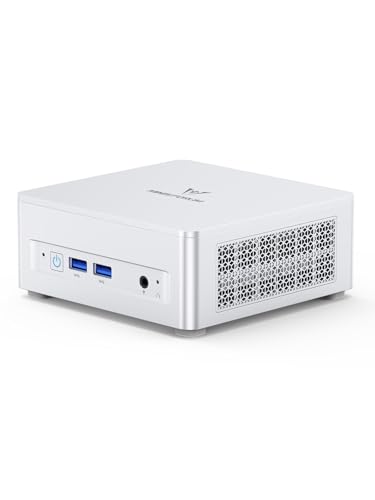
- Best overall: Minisforum UM870 Slim, Ryzen 7 8745H, 32GB RAM, 1TB SSD — Check on Amazon
- Beelink SER8, Ryzen 7 8745HS, 32GB RAM, 1TB SSD — Check on Amazon
- GMKtec NucBox K8 Plus, Ryzen 7 8845HS, 32GB RAM, 1TB SSD, OCuLink — Check on Amazon
- GMKtec NucBox M6 Ultra, Ryzen 5 7640HS, 32GB RAM, 512GB SSD — Check on Amazon
See 2 more Amazon options
- Minisforum UM890 Pro Barebone, Ryzen 9 8945HS (no RAM, SSD or OS) — Check on Amazon
- Apple Mac mini, M4 chip, 16GB memory, 256GB SSD — Check on Amazon
Read the full guide ↓
Disclosure: As an Amazon Associate, reviewstook.com earns from qualifying purchases. Links to Amazon on this page are affiliate links; they cost you nothing extra. Listing details such as price and availability change often, so check the current Amazon listing before you buy.
If this is your first computer purchase in a while — or your first ever that is not a laptop — a mini PC can look like a trick. A box smaller than a paperback claims to do everything a big tower does, the listings throw around chip names and memory types you have never had to think about. This guide is written for you: it explains every technical word before relying on it, walks you through your first evening step by step, and tells you plainly what each pick can and cannot do.
First, the honest picture of what $800 buys in a mini PC right now. The standard specification at this level — the one most of this guide is built around — is a fast Ryzen 7 processor with strong built-in graphics, 32GB of memory in slots you can upgrade later, a 1TB drive with a second empty slot beside it, and enough screen connections for a proper desk. Now the two things it is not. It is not a gaming powerhouse: every Windows pick here uses integrated graphics, built into the processor, which are genuinely good for everyday work, photos, video and light games — but no mini PC in this budget on Amazon has a separate graphics card; the one well-known mini that does sits well above this budget, and even its card is a laptop part, as the reviews explain. And pricing in this class is not calm: memory and storage costs jumped hard in late 2026, dragging this class upward, so check the current price on Amazon for any pick before you buy — the same box can sit comfortably within this budget one week and above it the next.
In this guide
Quick Picks
Short on time, or comparing several options at once? Each row below names a buyer type and the machine that suits it, with a link to the listing.
| Buyer type | Pick | Why it stands out | Link |
|---|---|---|---|
| Best overall | Minisforum UM870 Slim, Ryzen 7 8745H, 32GB/1TB | The standard spec of this price class in a 0.82-litre box, with room to grow | Check on Amazon |
| Best for a quiet desk | Beelink SER8, Ryzen 7 8745HS, 32GB/1TB | Cooling designed to stay near-silent while it works | Check on Amazon |
| Best for future expansion | GMKtec NucBox K8 Plus, Ryzen 7 8845HS, 32GB/1TB | A special port that can connect a full-size graphics card later | Check on Amazon |
| Best value under the budget | GMKtec NucBox M6 Ultra, Ryzen 5 7640HS, 32GB/512GB | Most of this guide’s specification, positioned lower in this budget band — check price on Amazon | Check on Amazon |
| Best for confident builders | Minisforum UM890 Pro Barebone, Ryzen 9 8945HS | The strongest processor here — but it arrives as a kit, not a computer | Check on Amazon |
| Best non-Windows option | Apple Mac mini, M4, 16GB/256GB | The best-built mini of all — if its fixed memory and storage are enough | Check on Amazon |
How These Picks Were Chosen
The budget was applied as the total cost of a working computer on your desk. Five of the six picks are complete machines — memory, storage and Windows included, ready to switch on. The sixth is a barebone kit with none of those things, included only because its review and comparison-table row account for the finished machine, parts included, instead of presenting the kit alone as if it were a working computer.
We did not use these machines ourselves. We read the makers’ listings and specification pages, listing records for each exact model, and independent review coverage, and compared what decides whether a first computer ages well: whether the memory sits in upgradeable slots or is fixed forever, how much storage room there is and whether a second drive can be added, which screen connections are physically present, and how the cooling behaves in a quiet room. Listings that hide their memory type, ship unnamed drives, or advertise a graphics name without naming the chip behind it were dropped — as were near-identical listings from brands with no findable support page, because a warranty you can actually claim is part of the specification.
One choice shaped the whole list: memory that can be upgraded. The late-2026 shortage made fixed memory a double trap — you pay shortage prices for it today, and you can never change your mind tomorrow. Every Windows pick below keeps its memory in standard slots. The single fixed-memory machine is the Mac mini, included openly with that limitation stated in its review, because its build quality and software make it the right answer for one specific buyer anyway. Prices in this class move often, so this guide does not print a fixed price for any pick: check the current price on Amazon before you buy.
Words Worth Knowing Before You Buy
Mini PC listings are written in a dialect nobody speaks at home. Here are the thirteen terms that actually decide whether a machine suits you, in plain English.
- Mini PC. A complete desktop computer shrunk into a box typically under a litre in volume — the same parts as a tower, minus the room for a big graphics card. You supply the screen, keyboard and mouse.
- Integrated graphics. The picture-making part built into the processor itself. Every pick here uses it. The modern kind — the Radeon 780M class in most picks — handles office work, video, photo editing and light gaming well. It is not a separate card and cannot be removed.
- Graphics card (discrete GPU). A separate, powerful picture-making component, the thing serious gaming PCs are built around. No pick here has one, and none exists in a mini PC at this price on Amazon; the well-known exception, Minisforum’s AtomMan G7 Pt, sits well above this budget — and its card is a laptop version with less memory than the desktop part its name resembles. If a listing under $800 implies desktop graphics without naming a chip, close the tab.
- RAM (memory). The computer’s short-term workspace: more RAM means more programs and tabs open at once without slowing down. 32GB is the comfortable standard at this price; 16GB is workable today and tight tomorrow.
- Slotted vs soldered memory. Slotted memory sits in little sockets (called SO-DIMM slots) and can be swapped or increased later with a screwdriver. Soldered memory is fixed to the board at the factory — the amount you buy is final. Status in this guide: all five Windows picks are slotted; only the Mac mini is soldered.
- SSD (storage). Where your files and programs live permanently, measured in gigabytes (GB) and terabytes (TB — roughly 1,000GB). The fast modern kind is called NVMe. 1TB is this guide’s standard; 512GB fills sooner than new buyers expect. A spare empty slot means a second drive can be added later instead of replacing the first.
- Barebone. A kit, not a computer: box, board and processor only — no RAM, no SSD, no Windows — and it cannot be switched on until you buy and fit those parts. Status in this guide: exactly one pick, the Minisforum UM890 Pro, is a barebone, and its review accounts for the finished machine, not the kit alone.
- Renewed / refurbished. A used machine cleaned, tested and resold, usually cheaper, with a shorter guarantee. Status in this guide: none of the six picks is renewed — all six are sold new.
- USB4 and Thunderbolt. The fastest all-purpose socket on modern minis: one cable can carry a screen signal, fast external drives and a docking station’s worth of connections. Thunderbolt is Apple’s name for the same class of port on the Mac mini.
- OCuLink and external GPUs (eGPU). OCuLink is a socket carrying a direct connection to a full-size graphics card in an external dock — the one genuine way to give a mini PC desktop graphics later. Two picks here have the route (the K8 Plus directly; the UM890 Pro via an adapter that uses one of its storage slots). The dock and card are a substantial second purchase when the day comes.
- Display outputs (HDMI and DisplayPort). The sockets your monitor plugs into. Count them if you want two screens: most picks here drive two or three displays. One warning that does not apply here: on big tower PCs with a graphics card, plugging the monitor into the wrong socket can silently bypass the card. These minis have no separate card — every display socket is driven by the same integrated graphics, so any of them gives you the full picture performance.
- Refresh rate (Hz). How many times per second your monitor redraws. Many monitors sold as 100Hz or 144Hz arrive set to 60Hz, and the computer will not change it for you — the setup walkthrough below shows where to set it.
- Operating system and licences. Windows 11 is the software the computer runs on; five picks include Windows 11 Pro. The barebone includes no system at all — a Windows licence is an extra cost unless you own a spare key or plan to run the free Linux instead. The Mac mini runs Apple’s macOS, a different system entirely, not a version of Windows.
The 6 Best Mini PCs Under $800 for Beginners
Minisforum UM870 Slim (Ryzen 7 8745H, 32GB RAM, 1TB SSD)
Who it suits: The first-time buyer who wants the standard specification of this price class, complete in the box, from a machine that asks nothing of them beyond plugging it in.
Start here, because this is what $800 is supposed to buy. The Ryzen 7 8745H processor brings eight modern cores and Radeon 780M integrated graphics — the strongest built-in graphics class in mainstream mini PCs — and Minisforum fits the memory the way this guide insists on: 32GB in two slots, expandable to 96GB, beside a 1TB fast drive with a second empty slot waiting. The connections match a real desk: a USB4 socket for a dock or fast external drive, HDMI and DisplayPort sockets for up to three screens, a fast 2.5GbE network port, and a mounting bracket in the box so the 0.82-litre machine can hide behind your monitor. Windows 11 Pro is included, and the maker claims below 35 decibels in performance mode.
The one skill this pick asks of you is timing. Its list positioning sits above this guide’s budget on paper, yet promotions have brought it well within the band. So the rule is simple enough to hold us to: check the current price on Amazon — when it sits within this guide’s budget, this is the easiest recommendation in the guide; when the listing sits above that budget, wait, because its pricing history says it comes back down. One caveat for the small group planning to run Linux: the wireless module inside is a MediaTek part with a documented history of driver friction there, so plan on the wired network port or a USB adapter. Everyone else can treat this as the reference point — the machine each pick below is compared with.
- The full standard spec: strong 780M graphics, 32GB in slots, 1TB plus a spare drive slot.
- USB4, two kinds of screen socket, up to three displays, and a monitor-mount bracket included.
- Nothing is sealed shut — memory and storage can both grow with the machine’s owner.
Honest limitation: Its list positioning sits above the budget and its pricing swings widely, so this is a buy-in-the-right-week pick — check price on Amazon before ordering; the wireless chip is a known friction point for Linux users.
Choose it if you want the default answer at this price and can time the purchase to a sane week. Skip it if the listing sits above this guide’s budget on the day you need a machine — the Beelink below is the same class with a quieter fan.

Beelink SER8 (Ryzen 7 8745HS, 32GB RAM, 1TB SSD)
Who it suits: Beginners whose computer will live on the desk, in the bedroom or beside the TV — anyone who will hear the machine all day and wants not to.
Most mini PCs are loud in a maddening way: a small fan spinning fast under a small load, rising and falling all day. Reviewers keep naming the SER8 as the exception — the one that simply does not do it. Its vapor-chamber cooling spreads heat across the whole chassis instead of blasting it through one small heatsink, and the result is a mini PC that stays near-silent through sustained work. Around that cooling sits the same standard specification as the pick above: a Ryzen 7 8745HS with 780M graphics, 32GB of memory in slots (expandable to 64GB), a 1TB drive with a second slot free, USB4, screen sockets for up to three displays, fast wired networking and Windows 11 Pro.
Price is where this pick needs its warning, and the warning is stronger than the one above. This machine spends much of its life hovering just above this guide’s ceiling and dips within it on sale, with sold-out spells where remaining sellers ask far more, and an occasional 24GB configuration appearing alongside the 32GB one. Check the current price on Amazon before you buy: when it sits within this guide’s budget, it is arguably the most pleasant machine here to own; buy it spiked above the budget and you have paid workstation money for integrated graphics. The other limitation is connection modesty: a single USB-C-class port, so a dock consumes your one fast socket — plan the desk around that. Here, patience is genuinely worthwhile.
- The quiet one: cooling with a near-silent reputation under sustained load.
- The full standard spec — 780M graphics, slotted 32GB, 1TB plus a free second slot.
- USB4 and three-display support; sips power as an always-on media or server box.
Honest limitation: Its pricing hovers just above this guide’s budget as often as within it, and the single USB-C-class port makes docking a one-plug affair.
Choose it if quiet is the feature you care about most and your purchase can wait for a sale week. Skip it if you need the machine this week at whatever price the listing demands, or if heavy multi-monitor docking matters more than quiet.

GMKtec NucBox K8 Plus (Ryzen 7 8845HS, 32GB RAM, 1TB SSD)
Who it suits: The beginner thinking two purchases ahead — happy with built-in graphics today, but wanting a genuine route to a full-size graphics card later without replacing the computer.
The mini PC bargain, accepted by every other pick here, is that the graphics you buy are the graphics you keep for the machine’s whole life. The K8 Plus refuses that bargain, and the reason is one socket. OCuLink carries a direct connection out of the box, so an external graphics dock can turn this mini into a real gaming or graphics-work machine later. Around that socket, GMKtec builds the most connected machine here: a Ryzen 7 8845HS with 780M graphics, 32GB of memory in two slots, a 1TB drive with a second slot, two USB4 ports, screen sockets for up to four displays, and two fast network ports — a small workstation’s specification in a box about five inches square.
Now the discipline, because this pick lives or dies on it. When its pricing sits in its usual position within this budget band, the configured 32GB/1TB version is the best value in this entire guide — check the current price on Amazon before you buy. But the same listing has also been pulled well above this budget by the memory shortage — and at that point it stops being an under-$800 computer altogether. The rule, printed so you can hold us to it: buy it only when the current price sits within this guide’s budget; above that, walk away and wait. One more honesty item: the dock and desktop card are a substantial second purchase, and mini-plus-dock usually totals near what a small desktop would have cost anyway. Buy the K8 Plus because the two-stage plan itself appeals — small and quiet now, real graphics later — rather than as a sneaky discount on a gaming PC, which the maths does not support.
- The OCuLink socket: the only real graphics upgrade path in this guide.
- Two USB4 ports, two fast network ports, two drive slots — workstation-grade connections.
- Positioned as the value pick of the tier when its pricing sits normally within the band.
Honest limitation: Its pricing is the most volatile here — it has been pulled well above this budget during the shortage — and the graphics future it promises is a substantial extra purchase when you claim it.
Choose it if you will genuinely use the expansion one day and you buy it while its current price sits within this guide’s budget. Skip it if the listing is spiked, or if you know you will never attach a dock — the UM870 Slim above is the same class with less to go wrong.

GMKtec NucBox M6 Ultra (Ryzen 5 7640HS, 32GB RAM, 512GB SSD)
Who it suits: The value hunter who read the picks above, agreed with the logic, and would like most of it while spending well under the budget ceiling — accepting a step down in graphics and storage rather than in memory or connections.
The M6 Ultra is the proof that the smart money at this level is not always at the ceiling. It is positioned comfortably lower in this budget band — check the current price on Amazon — and what it offers is more current than that positioning suggests. The Ryzen 5 7640HS is a six-core modern processor paired with Radeon 760M graphics: one rung below the 780M above, still comfortably in the class that handles office work, media, photo editing and light gaming without complaint. Crucially, GMKtec did not economise where economising is permanent: the 32GB of memory sits in two slots, USB4 is present, the screen sockets drive up to three 4K displays, and there are two fast network ports. Windows 11 Pro is included.
What you give up is easy to list, and nearly all of it concerns storage. The fitted drive is 512GB and of the slower PCIe 3.0 generation rather than the 1TB drives above — half the room, a step slower — though further drive slots inside include faster ones, so the eventual fix is a drive swap, not a new computer; budget it as the machine plus a later drive, never as included today. The graphics step down is real too: demanding games will feel the 760M where the 780M machines would not, so this is the wrong pick if light gaming is quietly the main event. The stated warranty is one year, the shortest here. But judge the whole: slotted 32GB, USB4, triple displays and a modern processor, positioned well under the top of this budget band, make it the strongest value-to-substance ratio in this guide, and the pick we would hand anyone asking whether they really need to spend up to the full budget. Most people, honestly, do not.
- Lower in the band — much of this tier’s substance without spending up to its ceiling.
- Memory in slots and a USB4 socket: the two choices that cannot be fixed later were made the right way.
- Three 4K display support and two fast network ports.
Honest limitation: The fitted 512GB drive is the slower generation, the 760M graphics are a rung below the 780M picks, and the stated warranty is one year.
Choose it if your days are documents, browsing, media and light creative work, and keeping the difference in your pocket sounds better than a graphics rung you will not use. Skip it if gaming or graphics-heavy work is a real part of the plan — that is what the 780M picks above are for.

Minisforum UM890 Pro Barebone (Ryzen 9 8945HS, No RAM, SSD or OS)
Who it suits: Beginners with a technical streak — or a technical friend — who already own spare memory and a drive, or who want the strongest processor in this guide and prefer to choose those parts themselves.
Read the name carefully: barebone. This listing is a case, a board and a Ryzen 9 8945HS — the fastest processor in this guide, with the 780M graphics at their highest clock — and nothing else. No memory, no drive, no Windows; it cannot be switched on as delivered. It earns its place because, completed honestly, it still fits the budget and buys things no complete machine at this price offers: room for up to 96GB of memory, two fast drive slots, two USB4 ports, two fast network ports, four-display output, and an OCuLink route to an external graphics card. The ready-built version of this same machine sits well above this budget — the kit route, done right, can bring the finished machine within it.
Here is the done-right way to think about it. The kit on its own sits lower in this budget band — check the current price on Amazon — but completing it with 32GB of memory and a 1TB drive adds a substantial parts cost on top, and memory is the volatile ingredient. Completed carefully, the finished hardware can still fit within this guide’s budget. Two honest additions. An operating system is not included in that picture: add a Windows licence if you need one and hold no spare key, or nothing at all if the machine is destined for the free Linux system, a common plan for this pick. And the OCuLink connection arrives via an included adapter plate that occupies one of the two drive slots while in use — the expansion and the second drive are a choice, not a combination. Finally: if you would be buying every part new at shortage-era prices, check the complete UM870 Slim above first, because the building-versus-buying gap has narrowed to almost nothing this year.
- The strongest processor here, with the 780M at full clock and a 96GB memory ceiling.
- Completed with new parts, the finished machine can sit within this budget — well below the ready-built version’s positioning.
- Two USB4 ports, two network ports, four-display output and an external-graphics route.
Honest limitation: It is a kit, not a computer — memory, drive and operating system are on you — and its graphics adapter consumes one of the two drive slots while fitted.
Choose it if you have parts on hand or specific plans, especially for home-lab duty. Skip it if you want to unbox a working PC, or if you would be buying every part new without first checking the complete machines.
Apple Mac mini (M4, 16GB Memory, 256GB SSD)
Who it suits: Beginners inside Apple’s world — iPhone on the desk, Mac software in the workflow — who value build quality, silence and simplicity over room to grow.
Any honest version of this guide has to deal with the Mac in the room. The Mac mini with the M4 chip is the best-made mini computer at any price: milled aluminium, effectively silent, barely sipping power, and a chip whose everyday speed embarrasses everything else here while its built-in graphics handle photo and video work that would make the 780M machines pause. It drives up to three displays, its three Thunderbolt sockets are the fastest connections in the guide, and its list positioning, lower in this budget band, undercuts every Windows pick. If your software lives on Apple’s macOS system, the comparison honestly ends here.
Nothing about its limits is concealed — they are built into the design, and Apple states them in the very configuration you are asked to choose. The 16GB of memory and the 256GB of storage are soldered — fixed at purchase, forever. Sixteen gigabytes is adequate today and a ceiling tomorrow: no slot, no upgrade, no second chance. And 256GB fills fast enough that an external drive becomes permanent furniture; count that as the machine plus a drive when you budget. Apple’s own larger configurations exist, but they leave this budget in a hurry. Pricing needs the same discipline as the Windows picks: check the current price on Amazon, because Amazon’s own sales can bring it lower in the band, yet third-party sellers have asked well above list during shortages. Buy it sold by Amazon itself at or near list, or on sale below it — never above list, because Apple sells it at list every day. Choose this machine as a finished appliance for a workload you already know, and it is superb. Choose it as a platform to grow into, and the slotted Windows picks above are the honest answer.
- The best-built, quietest mini here, with the fastest everyday speed in the guide.
- Three Thunderbolt ports and three-display support; its list positioning undercuts the field.
- Superb for Mac workflows, media work and as a low-power always-on machine.
Honest limitation: 16GB of memory and 256GB of storage are fixed at purchase with no upgrade path, ever — and third-party sellers sometimes ask above list price.
Choose it if Apple’s world is already yours and 16GB honestly covers the work you do now and expect to do. Skip it if your software is Windows-only, if upgrading parts later matters to you, or if you need generous storage built in from the start.

Comparison Table
| Product | Chip / Graphics | Memory & storage | Best use | Link |
|---|---|---|---|---|
| Minisforum UM870 Slim | Ryzen 7 8745H / Radeon 780M | 32GB slotted (to 96GB), 1TB, 2 drive slots | The default first buy at this price | Check on Amazon |
| Beelink SER8 | Ryzen 7 8745HS / Radeon 780M | 32GB slotted (to 64GB), 1TB, 2 drive slots | Quiet desks, bedrooms, media rooms | Check on Amazon |
| GMKtec NucBox K8 Plus | Ryzen 7 8845HS / Radeon 780M | 32GB slotted, 1TB, 2 drive slots, OCuLink | Future graphics plans and home labs | Check on Amazon |
| GMKtec NucBox M6 Ultra | Ryzen 5 7640HS / Radeon 760M | 32GB slotted, 512GB fitted | Most of the tier, positioned lower in the band | Check on Amazon |
| Minisforum UM890 Pro Barebone | Ryzen 9 8945HS / Radeon 780M | None fitted — completed within budget with 32GB/1TB | Builders with parts or specific plans | Check on Amazon |
| Apple Mac mini (M4) | Apple M4 / integrated | 16GB soldered, 256GB soldered | Mac buyers who value build over headroom | Check on Amazon |
Your First Evening: Setup, Step by Step
This walkthrough is written for the five Windows picks. The Mac mini follows Apple’s own on-screen setup instead — none of the steps below apply to it. The barebone pick adds one job before step 1: fit the memory and drive you bought, following the manual in its box, and have a Windows installer ready on a USB stick, because it ships with no system at all. For everyone else, allow about an hour, most of it waiting for downloads.
- Choose the spot before you open the box. A mini PC needs air around it, not a sealed cupboard: a desk surface, an open-sided shelf, or — on the UM870 Slim — the included bracket behind your monitor, the tidiest option of all. Keep vents unobstructed and the box away from direct sun and radiator heat.
- Connect the power. Plug the supplied adapter into the machine first, then into the wall. Use the adapter in the box, not a random laptop charger from a drawer: a borrowed charger is the most common cause of a brand-new mini that will not start.
- Connect the monitor — any display socket is the right one. Use the HDMI or DisplayPort cable that came with your monitor. Here is the reassurance this set earns: on a big tower PC with a separate graphics card, plugging into the wrong socket can silently bypass the card and cripple game performance, and guides warn about it endlessly. These minis have no separate card — every display socket is driven by the same integrated graphics — so whichever you choose gives you the full picture. There is no wrong port to find.
- Add keyboard, mouse and — this matters — a network cable. Wireless accessories work, but for the first evening plug in what you can. More important is the internet: run an Ethernet cable from the mini to your router if one can possibly reach. The first hour of a new PC is a blizzard of downloads, and a cable makes it faster and steadier, with no wireless-password fumble at the worst moment. You can go wireless afterwards, though the cable can stay.
- Switch on and let Windows Update finish — all of it. Follow the on-screen setup, then open Settings, find Windows Update, and let it work. Restart when it asks, then check again — new machines typically need two or three rounds before it reports you are up to date. Do not judge the machine’s speed during this hour; it is busy building itself.
- Update the graphics driver. Windows Update brings a working driver, but the current one comes from AMD’s own website (the free AMD Software package), since all five Windows picks run Radeon graphics. Install it, restart once more, and you have the version games and video software expect.
- Set your monitor’s real refresh rate. If your monitor was advertised as 100Hz or 144Hz, it is almost certainly still running at 60Hz, because Windows defaults there. Go to Settings, then System, then Display, then Advanced display, and choose the highest rate listed. The smoothness difference is immediate — and skipping this step is how beginners never see what they paid for.
- Verify you received the machine you ordered. Listings in this category come in families — same name, different insides — so spend two minutes confirming yours. In Windows, open Settings, then System, then About, and check the processor name and memory figure against your order: the UM870 Slim should read as the configured 32GB/1TB version (near-identical kit listings exist), the SER8 as 32GB rather than 24GB, the K8 Plus as the complete 32GB/1TB machine, and the M6 Ultra as 32GB with its 512GB drive. On the barebone, this step is confirming the parts you fitted are recognised. If anything reads differently, you are inside the return window and it costs nothing to fix now.
- Install a game store — or your real software — last. Only now, on a fully updated machine, install Steam or whichever store you use, sign in, and let one game download while you tidy the cables. Installing software before the updates finish is how first evenings turn into troubleshooting evenings.
What Else You Will Spend
The computer is not the whole purchase, and honest budgeting means naming the rest before the box arrives. The biggest item comes first: a monitor. A mini PC includes no screen, and if you do not already own one, it belongs in your total from the start — the machine’s price never includes it. The same applies to a keyboard and mouse if you have none. Budget for them as their own line, chosen separately.
After that, the extra costs are pick-specific catches, and the honest way to hold them is as “the machine, plus the fix” — never folded into the pick’s price as if they were included:
- Minisforum UM890 Pro Barebone: the machine, plus the memory and storage parts needed to complete it, plus a Windows licence unless you hold a spare key or choose free Linux. The largest catch in the guide, stated wherever the pick appears.
- Apple Mac mini: the machine, plus an external drive sooner than you expect, because 256GB fills quickly and the internal storage can never be enlarged.
- GMKtec NucBox M6 Ultra: the machine, plus a larger or faster drive later, when the fitted 512GB runs out — the spare faster slots inside mean the fix is a swap, not a new computer.
- GMKtec NucBox K8 Plus: the machine now; the graphics dock and desktop card are a substantial second purchase only if you claim the upgrade path. A plan, not a hidden fee — the mini is complete without it.
- UM870 Slim and SER8: no catch to account for in this guide. Both arrive complete with headroom fitted; anything added later is a choice, not a repair.
How to Choose a Mini PC Under $800
- Look at the memory before the processor badge. Every serious chip at this price is quick enough for desktop work, so speed is not the decision. The decision is whether the memory can grow: slotted memory can be raised from 32GB when your needs do, while fixed memory locks today’s choice in permanently.
- Expect 32GB and 1TB, and be suspicious of less. That pairing is what this price is for. A machine at the top of this budget with 16GB of memory or a 512GB drive is charging this tier’s money for last tier’s insides, whatever badge it wears. The M6 Ultra is the single deliberate exception in this guide — and it sits much lower in the band for the compromise, not near the ceiling.
- Count screen sockets, not screen promises. Plan for the desk you will actually have: two monitors is common now, three not unusual. On the listing, count physical outputs — HDMI, DisplayPort, USB4 carrying a picture — and note that a USB4 socket driving a display cannot simultaneously drive your dock.
- Be honest about whether you will ever expand. The OCuLink and USB4 routes out of integrated graphics only earn their keep if a dock or external drive is a real plan. If not, they are decoration — and if a graphics card is something you want this year rather than someday, a small tower is the better buy outright.
- Check the current price, never trust the sticker. Pricing in this class moved sharply during late 2026, so check the current price on Amazon for any pick and hold it against this guide’s budget. Set a price alert and give it a week; waiting for a listing to settle within the budget will usually matter more than any feature gap between the top machines.
- Cost a barebone the way you will actually pay for it. Add memory, storage and an operating system to the kit, then compare the finished total with complete machines checked the same day. Kits reward people who already own parts; in a shortage, the saving can shrink to nearly nothing.
- Check the wired network speed. The faster 2.5GbE connection is standard at this level and matters if the machine will feed a home server, network storage or big local transfers. A slower gigabit-only port in a machine at this budget is a quiet corner cut — the Mac mini is the one pick here with exactly that cut, worth knowing if network storage is your life.
- Buy support you can actually reach. Favour listings sold or backed by the maker, and read the warranty line before ordering: among these picks it runs from one year on the M6 Ultra to two on the UM870 Slim, and the no-name listings this guide excluded effectively offer none.
Upgrades, in Plain Terms
Beginners often ask the tower-PC question — “can I put a graphics card in it later?” — so here is the plain answer for this entire guide: no pick here can take an internal graphics card, and none is promised one. A graphics swap needs a standard case with room for the card and a named power supply strong enough to feed it; a mini PC has neither, by design. Any listing implying you can simply slot a card into a box this size is misleading you. What these machines can actually do later is this:
- More memory: the five Windows picks all carry memory in slots — up to 96GB on the UM870 Slim and UM890 Pro, 64GB on the SER8 — a screwdriver job when the day comes. The Mac mini can never be upgraded; what it ships with is final.
- More storage: the UM870 Slim, SER8, K8 Plus and UM890 Pro all have a second drive slot waiting empty — the cheapest, most likely upgrade any owner makes. The M6 Ultra’s extra slots let you swap its slower fitted drive for a faster one. The Mac mini’s storage is fixed; its growth is an external drive.
- Graphics, externally only: the K8 Plus can connect a full-size card in an external dock through its OCuLink socket, and the UM890 Pro can do the same via its adapter plate (at the cost of one drive slot while fitted). Treat both as a planned, substantial second purchase for dock and card together — a genuine path, not a free future.
- Everything else is a dock: USB4 (Thunderbolt on the Mac) lets one cable add screens, drives and ports as your desk grows. That, plus memory and storage, is the complete and honest upgrade story of a mini PC.
Common Buying Mistakes
- Judging a kit against finished computers on price alone. The barebone’s sticker covers a board and a processor; the working machine costs that plus memory, a drive and usually a system licence on top.
- Mistaking a laptop graphics chip for its desktop namesake. The famous discrete mini’s card is the mobile version with 8GB — a different, weaker product than the desktop part sharing most of its name.
- Buying in a panic week. Pricing here moved sharply inside a single month in late 2026; hold any pick against this guide’s budget, and when a listing sits above that budget the right move is to wait, not to pay.
- Saving money on fixed memory. A soldered 16GB machine cannot be rescued later at any price, so the small saving today quietly shortens the computer’s useful life by years.
- Expecting the budget to buy a graphics card. At $800 the extra money buys memory, storage, connections and quiet — the graphics jump lives at higher prices and in bigger boxes.
- Overlooking whether a second drive can be added. Files only grow; an empty slot turns that future problem into a cheap ten-minute job instead of a full data migration.
- Discovering the barebone has no Windows after it arrives. Five picks here include the system and the sixth includes none of it — settle which you are buying before the box is on your doorstep.
- Leaving a fast monitor at its default setting. Many high-refresh screens run at 60Hz until you tell Windows otherwise, so the smoothness you paid for never appears; step 7 of the walkthrough takes a minute.
Final Recommendation
- Most beginners: Minisforum UM870 Slim — the standard spec of this tier, bought within this guide’s budget.
- Quiet desks and shared rooms: Beelink SER8.
- Future graphics plans, home labs: GMKtec NucBox K8 Plus, strictly when its current price sits within this budget — check price on Amazon.
- Value first: GMKtec NucBox M6 Ultra, positioned lower in this band — check the current price on Amazon.
- Confident builders: Minisforum UM890 Pro Barebone, completed honestly within this budget, plus a system.
- Apple households: Mac mini M4 — at list price or below, never above.
If you are new to all of this, the short version is: buy the UM870 Slim when its price behaves, or the SER8 when silence matters more, and follow the first-evening walkthrough in order. Between them they cover the two shapes this search usually takes — the all-rounder and the quiet companion — with nothing sealed and nothing hidden in the small print. If your workload is light, the M6 Ultra keeps most of the substance and much of your money; if your needs are smaller still, Best Mini PC For Beginners Under $500 and Best Mini PC For Beginners Under $700 apply this same beginner lens at lower prices, and Best Mini PC Under $1200 is the honest step up for a genuinely heavy workload. Desk space tighter than money? See Best Mini PC For Small Spaces Under $800. Before ordering, check the current price on Amazon, hold it against this guide’s budget and confirm the listing’s configuration matches the one reviewed here.
Frequently Asked Questions
I have never owned a desktop. Is a mini PC a sensible first computer?
Yes — arguably the most sensible kind. There is nothing to build and nothing to open: plug in power, a screen, a keyboard and a network cable, let the updates finish, set the screen’s refresh rate, and you are done. The five Windows picks arrive complete with Windows installed. The one exception is the barebone pick, a kit for people who enjoy fitting parts; if that does not describe you, it is not your pick.
What does $800 buy that $500 does not?
Three concrete things: the stronger 780M graphics class instead of the generation below, 32GB of memory and 1TB of storage fitted as standard rather than as upgrades, and the connections — USB4, sometimes OCuLink, faster networking — that let the machine dock, expand and serve. It does not buy a separate graphics card anywhere in this tier; that step starts in a higher budget band, in larger machines. If your workload is documents, calls and browsing, Best Mini PC For Beginners Under $400 may honestly be all you need.
Can these machines play games?
Light ones, honestly framed. The 780M picks handle esports titles, older big games and indie libraries comfortably at 1080p with sensible settings, and emulate older consoles well. Current big-budget games at high settings are beyond built-in graphics in any mini PC — that workload wants a separate graphics card, meaning a dock, a desktop or a laptop. Gaming-first beginners should also read Best Mini Gaming PC For Beginners Under $800.
What if I plug the monitor into the wrong socket?
Nothing bad. Tower PCs with a separate graphics card have two sets of sockets, and the wrong set bypasses the card — which is why tower guides warn about it constantly. These minis have no card: every display socket is driven by the same integrated graphics, so any socket gives you the full picture.
Is the barebone a good way to save money?
Sometimes, and the finished total decides. A barebone wins when you already own memory and a drive, or when parts are cheap. In the late-2026 shortage, completing the UM890 Pro here with new parts can still fit within this guide’s budget before an operating system — a real saving against its ready-built version, which sits well above the budget, but close enough to complete machines that you should check both on the same day. Comparing a kit’s sticker with a finished computer’s price is the category’s oldest trick — never do it.
Why does this guide care so much about slotted memory?
Because memory is the one decision that cannot be taken back. Processors age gracefully and storage can be swapped or supplemented, but fixed memory sets your ceiling on the day you buy — during a shortage, at shortage prices. Every Windows pick here uses slots for exactly that reason; the one fixed-memory machine, the Mac mini, is included because its other qualities justify the trade for a specific buyer.
- Best Mini PC Under $800
- Best Mini PC Under $500
- Best Mini PC Under $700
- Best Mini PC Under $1200
- Best Mini PC For Beginners Under $400
- Best Mini PC For Beginners Under $500
- Best Mini PC For Beginners Under $700
- Best Mini PC For Streaming Under $800
- Best Barebones Mini PC Under $800
- Best Home Office PC Under $800
- Best Fanless Mini PC Under $800
- Best Mini PC For Small Spaces Under $800
- Best Mini PC For 1440p Gaming Under $800


