Where to buy
Check the latest price, availability and delivery on Amazon. Orders are placed on Amazon. We may earn a commission from qualifying purchases.
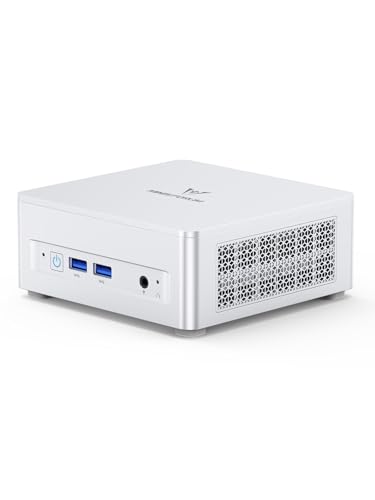
- Best overall for a first home office: Minisforum UM870 Slim, Ryzen 7 8745H, 32GB RAM, 1TB SSD — Check on Amazon
- Beelink SER8, Ryzen 7 8745HS, 32GB RAM, 1TB SSD — Check on Amazon
- GMKtec NucBox K8 Plus, Ryzen 7 8845HS, 32GB RAM, 1TB SSD — Check on Amazon
- GMKtec NucBox M6 Ultra, Ryzen 5 7640HS, 32GB RAM, 512GB SSD — Check on Amazon
See 2 more Amazon options
- Apple Mac mini, M4 Chip, 16GB Memory, 256GB SSD — Check on Amazon
- Acer Aspire C27 All-in-One, 27 Inch, Ryzen 5 7430U, 16GB RAM, 512GB SSD — Check on Amazon
Read the full guide ↓
Disclosure: As an Amazon Associate, reviewstook.com earns from qualifying purchases. Links to Amazon on this page are affiliate links; they cost you nothing extra. Listing details such as price and availability change often, so check the current Amazon listing before you buy.
Buying your first home office computer is confusing in a specific way: listings are written in a dialect of numbers and abbreviations that assumes you already know what they mean. And the most useful thing nobody tells a beginner is this: $800 is more than a home office PC actually needs to cost. If your work is documents, email, web browsing, spreadsheets and video calls, a good $400 or $500 machine does all of it without breaking a sweat. So why spend more? For honest reasons: you want two or three monitors instead of one, you keep dozens of tabs and several programs alive all day, you edit photos or trim the odd video between meetings, or you want to buy one computer and not think about it again for five years. That is what this budget buys — not a faster way to open a document, but a quieter, roomier, longer-lasting machine.
Everything below is written for someone doing this for the first time. There is a plain-English glossary before the reviews, so the words on the box stop being a test, and a numbered walkthrough for your first evening, from where the box goes to the settings most people never find. And because prices here swing wildly — memory and SSD costs rose sharply in late 2026, and one listing can move a lot in weeks — check the current price on Amazon before you buy any pick in this guide. Some picks are only good value when their listing sits inside this budget; above it, simply wait. For most beginners we would start with the Minisforum UM870 Slim — check price on Amazon — or the GMKtec M6 Ultra if you would rather keep more of the budget for a monitor. Below: the quick picks, the glossary, detailed reviews of all six machines, a step-by-step setup guide, what else you will spend, and the mistakes first-time buyers make at this budget.
In this guide
Quick Picks
Short on time, or comparing several options at once? Each row below names a beginner situation and the machine that suits it, with a link to the listing.
| Buyer type | Pick | Why it stands out | Link |
|---|---|---|---|
| Best overall for a first home office | Minisforum UM870 Slim, Ryzen 7 8745H | Quiet, tiny, three monitors, and memory and storage you can upgrade years from now | Check on Amazon |
| Best if fan noise would drive you mad | Beelink SER8, Ryzen 7 8745HS | The near-silent premium pick — check price on Amazon and buy only when it sits inside this budget | Check on Amazon |
| Best if you love plugging things in | GMKtec NucBox K8 Plus, Ryzen 7 8845HS | More ports than anything else here, one able to add a graphics card later — check price on Amazon and avoid its spikes | Check on Amazon |
| Best value for beginners | GMKtec NucBox M6 Ultra, Ryzen 5 7640HS | The important features of this tier — 32GB of memory, USB4, three screens — check price on Amazon | Check on Amazon |
| Best for iPhone and Mac households | Apple Mac mini, M4 Chip | Silent and effortless for browser and Apple-app work — check price on Amazon | Check on Amazon |
| Best if you own no monitor at all | Acer Aspire C27 All-in-One, 27 Inch | Screen, webcam, speakers and PC in one box — the whole desk in a single purchase | Check on Amazon |
How These Picks Were Chosen
The budget was applied the way a careful first-time buyer should apply it: every machine below is a real Amazon listing that sells at, or regularly dips within, $800 in the United States. Because prices here are unusually unstable, two picks are included on an explicit check-the-live-price basis — they regularly dip below $800 — and their reviews tell you to check the live price on Amazon and to walk away when a listing spikes above the budget. Anything whose honest price lives permanently above $800 was left out, however good it is. Check the current Amazon listing for the price before you buy.
We did not use these machines ourselves. We read makers’ listings and specification pages and compared cores, memory, storage, display outputs, networking and warranty terms, favoring manufacturers that publish their numbers in full. Three filters mattered most. The first is displays: a modern desk runs two monitors, often three, so every pick drives at least two external screens from its own ports; where a maker claims three or four, the review names the sockets rather than repeating the headline. The second is noise: a PC in a room you live in has to be quiet at working distance, so cooling design and maker noise figures weighed heavily. The third is longevity: upgradeable memory, a spare storage slot and a real warranty counted for more than a small speed lead — an office PC is bought to be forgotten about.
One more route was researched seriously and appears below as its own section rather than as linked picks: renewed business desktops — off-lease office minis refurbishers resell with Windows 11 Pro for a fraction of these prices. They are a legitimate answer for pure office work, judged in that section on warranty and remaining life — the two things that decide whether they are a bargain.
The Words on the Box, in Plain English
Listings compress a whole computer into a string of abbreviations. Here are the terms that decide whether a home office PC is any good, translated once so the reviews below make sense.
- Processor (CPU) and cores. The chip that does the thinking. “8 cores / 16 threads” means eight heavy jobs at once — far more than office software needs, and exactly the headroom that keeps a PC feeling quick in year four.
- RAM (memory). The computer’s short-term workspace, measured in gigabytes (GB). More RAM means more tabs, documents and programs open at once. At this budget 32GB is the comfortable standard; 16GB works but ages faster.
- SSD (storage). Where files and programs live permanently, in GB (1TB = roughly 1,000GB). An SSD is why PCs start in seconds: 1TB is comfortable, 512GB fine if files live in the cloud, 256GB cramped.
- Integrated graphics. Picture-making built into the processor, not on a separate card. Every pick here uses it, and the top picks’ Radeon 780M is the strongest kind — fine for many monitors and light photo or video work.
- Socketed vs soldered. Socketed parts sit in slots and can be swapped later with a screwdriver; soldered parts are attached permanently at the factory. Here, the four Windows minis have socketed memory; the Mac mini’s memory and storage are soldered forever.
- Barebone. A half-finished PC sold without memory, storage or Windows — you supply and install the rest. None of the six picks here is one; all arrive complete. Beware near-identical cheaper listings for the same model that quietly are.
- Renewed (refurbished). A used machine a refurbisher has cleaned, tested and resold, usually with Windows reinstalled. None of the six picks is one — all are new — but renewed business desktops get their own section below as the budget alternative.
- USB4 / Thunderbolt 4. The fastest small oval port (USB-C shape): one cable can carry a monitor picture, keyboard, mouse, files and power — the trick behind one-cable docking.
- HDMI and DisplayPort. The two standard monitor cables. Counting these ports — plus USB4, which can also feed a screen — tells you how many monitors a PC can run: at least two for every pick here, three for several.
- Refresh rate (Hz). How often per second a screen redraws. Office work looks identical at 60Hz, but scrolling feels smoother higher up — and Windows often leaves a fast monitor at 60Hz until you change it (the walkthrough covers this).
- VESA mount. Four screw holes in a standard pattern on a monitor’s back. A mini PC with a bracket in the box (the UM870 Slim has one) bolts on there and vanishes behind the screen.
- OCuLink and eGPU. A rare port that lets a small PC connect to a desktop graphics card in an external box (an “eGPU”) — the only way machines this small can gain real graphics power. Only the K8 Plus here has one.
One plain statement before the reviews, because listings blur it: none of the six picks is renewed, none is a barebone, and only the Mac mini has soldered, unchangeable memory and storage. The four Windows minis can all be opened and upgraded later; the Acer sits in between, with socketed memory but far less room to grow.
The 6 Best Home Office PCs Under $800 for Beginners
Minisforum UM870 Slim (Ryzen 7 8745H, 32GB RAM, 1TB SSD)
Who it suits: Beginners who want to buy the full version of this idea once — a tiny, quiet box that runs three monitors and can be upgraded years from now instead of replaced.
Start with the size, because it surprises everyone: a complete, powerful office PC in a box measuring 130 × 127 × 50mm — a paperback’s footprint — with a VESA bracket in the box, so it can bolt behind a monitor and disappear. Inside is a Ryzen 7 8745H (eight cores, up to 4.9GHz) with Radeon 780M integrated graphics, the strongest in this guide. It arrives with 32GB of DDR5 memory in two ordinary slots — socketed, not soldered, upgradeable to 96GB — and a 1TB SSD with a second empty slot beside it. The port that matters most is the rear USB4 socket: one cable to a USB-C monitor or small dock carries your screens, keyboard, mouse and power. Add HDMI and DisplayPort and it drives three monitors at once. Wired internet runs at 2.5-gigabit speed, wireless is Wi-Fi 6E, Windows 11 Pro is installed, and the warranty is two years — longer than most here.
What you will notice day to day is the quiet: a phase-change thermal layer, three copper heat pipes and one large, slow fan, rated below 35dB in performance mode by Minisforum and described by reviewers as near-silent in normal use. It can sit on the desk through a day of calls. The debits are details: the case is plastic where rivals use metal, the only USB-C port is on the back, two rear USB ports are the older, slower USB 2.0 kind, and the fitted Wi-Fi card is a MediaTek part with poor Linux driver support — Windows users will never notice; Linux beginners should plan on an Intel card later. Pricing needs honesty too: this model’s listing price moves a lot, between promotions and third-party sellers, so check price on Amazon before you buy and wait for a dip inside this guide’s budget if the current ask sits above it. Bought inside the budget, this is the best-balanced first home office PC in the guide.
- Eight cores, 780M graphics, 32GB — the tier’s full spec in the smallest box here.
- Memory and storage both upgrade later (two slots each) — it grows instead of being replaced.
- Three monitors, near-silent cooling, two-year warranty.
Honest limitation: A plastic case, a single rear USB-C port, and a headline price that can sit above the budget — this is a buy-on-a-dip machine, and Linux users will want to replace its Wi-Fi card.
Choose it if you want one small, quiet machine for a three-monitor desk today that can still be upgraded in five years. Skip it if the listing sits near its highs when you shop — at that money, the Beelink below on a dip is smarter.

Beelink SER8 (Ryzen 7 8745HS, 32GB RAM, 1TB SSD)
Who it suits: Beginners whose desk is in a bedroom, studio flat or shared room — anyone a whirring fan would annoy every day.
Most of the SER8’s premium buys silence. Its vapor-chamber-style cooling spreads heat so the fan rarely works hard, earning it a reputation as one of the quietest mini PCs in its class under sustained load. The specification otherwise matches the Minisforum above almost point for point: a Ryzen 7 8745HS (eight cores, up to 4.9GHz) with Radeon 780M graphics, 32GB of memory in two slots upgradeable to 64GB, a 1TB SSD with a second slot free, and three monitor connections — HDMI 2.1, DisplayPort 1.4 and USB4. Networking is 2.5-gigabit wired and Wi-Fi 6; Windows 11 Pro is installed. Light photo editing is comfortable on the 780M, and the calm cooling keeps a long export civilized.
Two honest notes decide whether this is your pick; both are about money, not machinery. First, price behavior: this model often sits above this guide’s budget on Amazon, although it does dip inside it, and a lower-memory version sits in a lower tier. So the rule is strict: check price on Amazon and buy only when the listing sits inside this budget. Wait for the dip and it is arguably the nicest home office machine here; pay a spiked ask unchecked and you have simply overpaid. Second, its advantages over the UM870 Slim are refinement — quieter cooling, nicer build, cleaner port layout — not speed. For documents, browsing and calls the two feel identical, so the choice is temperament, not performance charts.
- Calmest under sustained load of anything here — for desks that share a room with your life.
- The top pick’s full specification: eight cores, 32GB of upgradeable memory, 1TB plus a spare storage slot.
- Three monitors over HDMI, DisplayPort and USB4; Windows 11 Pro installed.
Honest limitation: It often sits just over this guide’s budget line, so buying it well means waiting for a sale — check price on Amazon — and what the extra money buys is quiet and finish, not extra speed.
Choose it if silence and build quality are worth shopping patiently for. Skip it if you must buy today at whatever the listing says, or fan noise genuinely does not bother you — the Minisforum does the same work for less.

GMKtec NucBox K8 Plus (Ryzen 7 8845HS, 32GB RAM, 1TB SSD)
Who it suits: The beginner who is also the household tinkerer — many monitors and gadgets to plug in, a home network to play with, maybe a graphics card one day.
Where the UM870 Slim aims for balance, the K8 Plus aims for everything at once. Its Ryzen 7 8845HS is the strongest processor in this guide (eight cores, up to 5.1GHz, Radeon 780M graphics), and its ports are in a different league: two USB4 ports, an OCuLink port — the glossary one, which can connect a desktop graphics card in an external box later — two 2.5-gigabit wired network ports, plus HDMI 2.1 and DisplayPort, enough between them for a four-monitor desk. The second network port lets it double as a small home server after hours. Memory is 32GB in two slots (the listing claims expansion to 128GB), storage a 1TB SSD with a second slot free, Windows 11 Pro installed. For office work the ports are the whole argument: docks, drives, extra screens, a possible future graphics card — no adapter tangle.
The catch is the wildest pricing in this guide, stated plainly: this listing is known for sharp spikes well above this guide’s budget, even though it also spends time squarely inside it, which is not an under-$800 computer by any honest reading when it spikes. It earns its place because its in-budget periods, not its spikes, belong to this tier. The rule is non-negotiable: check price on Amazon, buy only when it sits inside the budget, and walk away from a spiked listing. At the right price it is the most expandable home office PC here; at the wrong one, an expensive lesson in checking the live price before you pay.
- OCuLink plus two USB4 ports: the only pick that can add a real graphics card later, externally.
- Two network ports; display outputs for four monitors.
- Strongest processor here, 32GB socketed memory, free second storage slot.
Honest limitation: Its price swings harder than any other pick. This pick is a price as much as a product: excellent when it sits inside the budget, not an under-$800 PC at all when it spikes above it.
Choose it if you will genuinely use the ports — several screens, a home network, an external graphics card someday. Skip it if the listing is at a spike, or your desk is a normal two-monitor setup the cheaper picks serve identically.

GMKtec NucBox M6 Ultra (Ryzen 5 7640HS, 32GB RAM, 512GB SSD)
Who it suits: Beginners who want the features that define this tier — 32GB of memory, USB4, three screens — without spending the whole $800.
The M6 Ultra reads like a deliberate answer to the question “which parts of the expensive specification actually matter?” It keeps them: 32GB of memory in two standard slots, a USB4 port for one-cable docking, three 4K monitor outputs across USB4, HDMI 2.0 and DisplayPort, two 2.5-gigabit network ports, and Windows 11 Pro. Its Ryzen 5 7640HS has six cores instead of the Ryzen 7 machines’ eight — a difference documents, browsing and calls will never show you; only long rendering jobs would reveal it. Check its price on Amazon: as this tier’s value pick, the M6 Ultra plus a monitor can make a complete workstation, with room in the budget left for a second screen.
The savings show up in two places. The fitted SSD is a 512GB drive of the older, slower PCIe 3.0 kind — half the room of the 1TB drives above — although further storage slots, including a faster PCIe 4.0 one, make adding a bigger drive later a ten-minute job. And the Radeon 760M graphics are a step below the 780M in the Ryzen 7 picks: fine for three office displays and light photo work, wrong for regular video editing. One more detail: the Amazon listing’s warranty is one year — the shortest here — against the UM870 Slim’s two. Weighed as an office machine, not a spec-sheet contest, it proves the tier’s headline features do not require the tier’s headline price.
- 32GB of upgradeable memory and USB4 — the tier’s essentials for less; check price on Amazon.
- Three 4K outputs, two network ports.
- Spare storage slots make its one small compromise an easy future upgrade.
Honest limitation: The bundled 512GB SSD is the older, slower kind, the graphics sit a class below the Ryzen 7 picks, and the listing’s warranty is one year — the shortest here.
Choose it if you want 32GB of memory, USB4 and three screens, and would rather spend the savings on monitors. Skip it if you regularly edit video or want the strongest integrated graphics — that is what the Ryzen 7 picks above charge extra for.

Apple Mac mini (M4 Chip, 16GB Memory, 256GB SSD)
Who it suits: Beginners already in Apple’s world — iPhone in pocket, work in a browser and Apple’s apps — who want the quietest, simplest computer here and never intend to open it.
Nothing else in this guide works quite like the Mac mini, and it earns its place regardless. Apple’s M4 chip (ten processor cores, ten graphics cores) delivers desktop-class performance from a five-inch-square box that is effectively silent and sips electricity, and macOS is a genuinely low-maintenance place for a beginner to work: no driver hunting, no fan noise on calls, and resale value years from now that no Windows mini will match. Display support, from Apple’s own specifications: up to three external monitors — two at up to 6K over Thunderbolt plus a third at up to 5K over Thunderbolt or 4K over HDMI — through three rear Thunderbolt 4 ports and an HDMI port, with two USB-C ports and a headphone socket in front. Networking is Gigabit wired, Wi-Fi 6E and Bluetooth 5.3. Check price on Amazon before you buy: Amazon has repeatedly sold it for less in sales, but third-party sellers on the same listing sometimes ask far more, so only buy when Amazon’s own offer sits sensibly inside this premium tier, never at a marked-up third-party ask.
Its limitations are not the kind a setting can fix — they are built in, permanent, and the exact opposite of the Windows picks’ strengths. Nothing inside can ever be upgraded: the 16GB of memory and 256GB of storage are soldered in place, and they are what you will still have in year five. That 256GB fills quickly once a photo library and a few years of files arrive, so plan on an external drive from day one — a cost covered in the spending section below. It also runs macOS and nothing else: if your employer or your clients rely on Windows-only software, no amount of build quality rescues it as a choice, and we will not pretend otherwise. But for the browser-based, Apple-ecosystem beginner, it is the machine here least likely to be thought about between purchase and replacement — the highest praise an office PC can earn.
- Runs in near-total silence, sips power, and holds its value for years.
- Three-monitor support over Thunderbolt and HDMI, verified from Apple’s own specifications.
- A premium-tier Apple pick that regularly appears in sales — check price on Amazon and never pay a marked-up third-party ask.
Honest limitation: Memory and storage are fixed forever at 16GB and 256GB — the smallest specification in this guide — and it runs macOS only, which rules it out for Windows-dependent work.
Choose it if your work lives in a browser or Apple’s own apps and the idea of never opening the case sounds like a feature. Skip it if you need Windows software, expect to upgrade memory or storage later, or keep large files on the machine itself.

Acer Aspire C27 All-in-One (27 Inch, Ryzen 5 7430U, 16GB RAM, 512GB SSD)
Who it suits: Beginners starting from an empty desk — no monitor, no webcam, no speakers — who want the entire workstation to arrive in one box.
Every other pick here is a box that still needs a monitor, webcam and speakers before it becomes a workstation. The Aspire C27 already is one. Its 27-inch Full HD screen uses an IPS panel (the kind with good viewing angles) at a smooth 120Hz behind slim bezels, and built into the same unit are a Ryzen 5 7430U, 16GB of memory, a 512GB SSD, Wi-Fi 6E, a 2-megapixel webcam with a physical privacy shutter, speakers and Windows 11 Home; a wired keyboard and mouse are included, so the box is genuinely the whole purchase. Check price on Amazon before you buy, as this all-in-one regularly moves within this budget tier. For a spare-room desk or a kitchen-counter workstation, that completeness is the argument — no cables, no monitor arm, no webcam perched on a screen.
The trade is performance for the money — understand it before buying, not after. The 7430U is a six-core laptop-class processor, a clear tier below the eight-core Ryzen 7 machines above; 16GB of memory and 512GB of storage are likewise a tier below the minis’ 32GB and 1TB standard; and its integrated graphics are for office work, media and light photo editing — not regular video work. An all-in-one also ties the screen’s life to the computer’s: when the PC side ages out, a perfectly good 27-inch display goes with it, and internal upgrades are far more limited than in any mini here. Bought inside this budget, for the clean desk it creates, it keeps its promises exactly. Buy it expecting mini-PC performance because the tier looks similar, and it will disappoint — the minis above are where performance lives.
- One box holds the lot: a 27-inch 120Hz screen, a webcam with a privacy shutter, speakers, and the keyboard and mouse.
- A whole workstation in one box for what a bare mini PC can cost — check price on Amazon.
- Wi-Fi 6E and a modern SSD keep the basics current.
Honest limitation: A laptop-class processor, 16GB of memory and graphics a tier below the minis — and when the computer ages out, the screen goes with it.
Choose it if you need a screen anyway and would trade raw performance for a desk with exactly one object on it. Skip it if you already own good monitors, edit video regularly, or plan to upgrade parts over the machine’s life.

Comparison Table
| Product | Processor / Graphics | Best use | Link |
|---|---|---|---|
| Minisforum UM870 Slim | Ryzen 7 8745H / Radeon 780M, 32GB, 1TB | Quiet all-rounder with room to grow | Check on Amazon |
| Beelink SER8 | Ryzen 7 8745HS / Radeon 780M, 32GB, 1TB | Near-silent premium desk, bought on a dip | Check on Amazon |
| GMKtec NucBox K8 Plus | Ryzen 7 8845HS / Radeon 780M, 32GB, 1TB | Ports, networks and future expansion | Check on Amazon |
| GMKtec NucBox M6 Ultra | Ryzen 5 7640HS / Radeon 760M, 32GB, 512GB | The tier’s essentials for less | Check on Amazon |
| Apple Mac mini | Apple M4, 16GB, 256GB | Silent macOS desk for Apple households | Check on Amazon |
| Acer Aspire C27 All-in-One | Ryzen 5 7430U, 16GB, 512GB, 27″ screen | One-box desk with nothing else to buy | Check on Amazon |
Your First Evening: Setup, Step by Step
None of the six picks needs tools or more than about an hour. Work through these steps in order and the machine will be set up the way experienced owners set it up — most “new PC” disappointments are just steps 7, 8 and 9 never being done.
- Choose the spot before you unbox. A mini PC needs a few centimetres of open air around its vents — desk, shelf, or bolted behind a monitor with the VESA bracket (the UM870 Slim includes one). Never seal one inside a closed cabinet; small PCs breathe through their cases. The Acer goes where a monitor would go.
- Connect the peripherals while everything is off. Keyboard and mouse into any USB ports (the Acer’s come in its box; the minis and Mac mini need yours — see the spending section). If you have a wired internet cable, plug it in now: wired beats Wi-Fi for call stability, and the first updates download far faster.
- Connect the monitor — and relax about the famous “wrong socket” trap. On gaming PCs with a separate graphics card, beginners are warned to plug the screen into the card’s sockets, not the motherboard’s, or the card sits idle. That trap does not exist here: none of these six machines has a separate graphics card, so every video socket on the box — HDMI, DisplayPort, or a USB4/Thunderbolt port with the right cable — is correct. Prefer DisplayPort or USB4 for a high-resolution or high-refresh monitor; HDMI otherwise. The Acer skips this step; its screen is built in.
- Power on and do the first-run setup slowly. Follow the Windows (or macOS) welcome screens: language, Wi-Fi if you skipped the cable, your Microsoft or Apple account. Decline trial offers and bundled extras — software can be added later.
- Run every update, then run them again. In Windows: Settings → Windows Update → Check for updates; install, restart, repeat until it says you are up to date — usually two or three rounds. Then update the built-in apps from the Microsoft Store. On the Mac: System Settings → General → Software Update. Boring as it is, this step makes a new PC stable.
- Check the graphics driver. Windows Update delivers a working driver for the Radeon graphics in the Windows picks — genuinely all an office machine needs. If you later edit video or play light games, AMD’s own driver package (from AMD’s website) is fresher: optional, not required, and never install “driver updater” tools from anywhere else.
- Set your monitor’s real refresh rate. Windows frequently leaves a fast monitor at 60Hz. Go to Settings → System → Display → Advanced display and choose the highest rate your monitor offers. Acer C27 owners: your built-in screen is a 120Hz panel, and this setting is the difference between paying for that smoothness and seeing it.
- Verify you received the machine you ordered. This step protects beginners, because this category is full of near-identical listings. In Windows, open Settings → System → About and check the processor name, memory total (32GB on the four Windows minis, 16GB on the Acer) and storage size against your order. Mac owners: Apple menu → About This Mac should read M4 Mac mini, 16GB, 256GB. Two specific checks: UM870 Slim buyers, confirm you received the configured 32GB/1TB Windows version — Minisforum sells a barebone version of this chassis under similar listings, with nothing inside at all. K8 Plus buyers, confirm the box’s model name matches the complete 32GB/1TB configuration. If anything disagrees with the listing, you are inside the return window — use it.
- Install your work software, and a game store only if you want one. Browser, office suite, video-call apps — then let your files sync before judging speed. If you fancy light games after hours, Steam is free and the Radeon 780M picks run older, lighter titles happily; keep expectations there — these are office machines with integrated graphics, not gaming PCs, whatever a headline implies.
- Turn on backup before you need it. In Windows, enable File History or OneDrive folder backup; on the Mac, Time Machine to any external drive. Ten minutes now is the cheapest insurance in this guide.
How to Choose a Home Office PC Under $800
- Start with the honesty test. If your work is documents, email, browsing and calls, you do not need this tier — begin with Best Home Office PC For Beginners Under $500 or the machines in Best Home Office PC Under $500, and spend the difference on monitors and a chair. Spend $800 only when you can name what it buys you: more screens, heavier multitasking, creative side work, or years of extra life.
- Count your monitors, then count ports. Two screens is the working minimum on a modern desk, and three is fast becoming the norm. Every pick here drives at least two from named sockets; the UM870 Slim, SER8, K8 Plus and M6 Ultra drive three or four. Trust the socket count on the listing, not a “supports quad display” headline.
- Treat 32GB of memory as this tier’s dividing line. Dozens of tabs, big spreadsheets and a video call at once is where 16GB machines start to feel their age. At $800, 32GB should be fitted on day one — and prefer socketed memory (all four Windows minis) over soldered, so the machine can grow.
- Read the storage line twice. 1TB is the comfortable standard; 512GB works if files live in the cloud; 256GB (the Mac mini) means an external drive immediately. A spare storage slot turns a future shortage into a ten-minute upgrade.
- Buy the noise level, not just the specification. The SER8 and UM870 Slim are designed and reviewed as near-silent; if a listing says nothing about noise, assume you will hear it on calls.
- Check the live price and keep to the budget. Prices here swing widely as memory costs move. Check price on Amazon for the UM870 Slim, the SER8, the K8 Plus and the Mac mini, and buy only when the listing sits inside this guide’s budget. Decide your limit before you shop; let spikes pass.
- Check the warranty like a specification. Terms here range from one year (the M6 Ultra’s listing) to two (the UM870 Slim) to Apple’s support system. On a machine bought to be forgotten for five years, the warranty is the maker’s own estimate of its reliability.
What Else You Will Spend
- A monitor comes first. Five of the six picks are screenless boxes. One good monitor is the minimum; two is the setup this tier exists for, and the second screen will change your day more than any specification here. Only the Acer needs nothing — its screen is the product.
- Keyboard, mouse and webcam. The Acer includes a wired keyboard and mouse; the minis and the Mac mini do not include a set you should count on, and none of the minis has a webcam or speakers. If yours are worn out, replace them with the machine, not after a week of squinting at calls.
- The Mac mini’s storage fix. Its 256GB is the one specification here that runs out on a schedule. Plan an external SSD from day one; there is no internal fix, ever — the storage is soldered.
- The M6 Ultra’s storage fix, later. Its 512GB drive is smaller and slower than the 1TB drives above. Not urgent — the case has spare slots, including a faster one — but when it fills, the fix is a second drive fitted in minutes.
- A Wi-Fi card, Linux users only. The UM870 Slim’s MediaTek Wi-Fi card has poor Linux driver support. Windows beginners can ignore this; Linux beginners should budget for an Intel replacement card.
- Small things that are not in any box. A surge-protected power strip, one spare HDMI or DisplayPort cable in the length your desk needs, and an Ethernet cable long enough to reach the router. None is expensive; all are annoying to lack on setup night.
Upgrades, in Plain Terms
Beginners often ask the wrong upgrade question — “can I add a graphics card later?” — so here is the plain answer: no pick here can take an internal graphics card, and we promise that upgrade for none of them. These are mini PCs and an all-in-one, not towers with a spare power supply and a standard case; anyone who tells you otherwise is guessing. What each pick can actually do:
- Memory and storage — the upgrades that matter for office work — are genuinely open on the four Windows minis. The UM870 Slim’s memory grows to 96GB, with a second storage slot; the SER8 goes to 64GB, second slot free; the K8 Plus’s listing claims memory expansion to 128GB, again with a spare slot; the M6 Ultra takes more of both. These are screwdriver jobs a beginner can learn in an afternoon, and they are why these machines can serve five to eight years.
- The K8 Plus has the guide’s only graphics route: outside the box. Its OCuLink port can connect a desktop graphics card in an external dock — a real, documented path, but the dock and card are two further purchases, and it only makes sense if your work grows into video or 3D. Buy the K8 Plus for its ports today, not for this promise.
- The Mac mini has no upgrades at all. Memory and storage are soldered, and the machine you buy is the machine you keep. Its compensation is resale value — selling it and buying the next one is the Apple upgrade path.
- The Acer all-in-one is the most limited Windows pick. Its memory sits in a standard slot, but access and options are restricted, and screen and computer age together. Buy it for the desk it is, not the desk it could become.
Renewed Business Desktops: The Cheaper Route, Honestly Judged
Every machine above has a shadow competitor in a much lower budget tier: the renewed business desktop. When companies retire fleets of one-litre office PCs, refurbishers clean, test and resell them with Windows 11 Pro installed. Lenovo’s ThinkCentre M75q Gen 2 is typical — a six-core Ryzen machine we found in renewed Amazon listings across the budget end of this market, in configurations from 16GB/256GB up to 32GB/1TB, fitted by the refurbisher; HP’s EliteDesk and Dell’s OptiPlex minis follow the same pattern. For pure office work, a budget-tier renewed business mini does the documents-and-browsers job about as well as anything in this guide. We link no single listing, deliberately: renewed configurations sell under many near-identical refurbisher listings, and none could be pinned reliably enough to recommend.
Two questions decide whether a renewed machine is a bargain. The first is warranty: a new mini PC carries a maker’s warranty of one to two years; a renewed machine’s protection is whatever the refurbisher states — some are Microsoft Authorized Refurbishers with proper support and a written term, others are effectively sold as seen. Buy renewed only where warranty and returns are written down. The second is longevity: a business mini from a few years ago has a proven, serviceable design with socketed parts, but its processor is a generation or three behind, its realistic remaining life is three to five years rather than five to eight, and its graphics serve office displays only. Our judgment: renewed wins for a second desk, a spare, a tight budget, or pure office work with a good refurbisher behind it. New wins when this is your only computer, when you want the 780M’s headroom, and when the five-to-eight-year horizon is the point of spending $800.
Common Buying Mistakes
- Spending $800 on a pure office workload. Documents and browsers do not use this tier’s hardware; the cheaper guides are the honest answer for most desks.
- Paying a spike price. Listings here swing widely; buying a K8 Plus at a spiked price because a guide listed it “under $800” — without checking the live price on Amazon first — is the easiest way to waste money here.
- Ordering the barebone twin by accident. Several of these models are also sold as barebones with no memory, storage or Windows; the price looks like a bargain because half the computer is missing. Check the configuration line before you pay.
- Believing a display headline instead of counting sockets. “Quad display” should resolve into named ports on the listing; if it does not, assume two screens.
- Buying soldered memory without noticing. At this budget, socketed memory that can grow is widely available; the Mac mini’s fixed 16GB is a deliberate trade for silence and simplicity — make it deliberately, not by accident.
- Forgetting the desk around the box. A mini PC budgeted without a monitor, webcam or speakers is not a cheaper all-in-one — it is half a purchase.
- Choosing the Mac mini for Windows work. It runs no Windows software natively; check your employer’s and clients’ applications before the silence seduces you.
- Skipping the arrival check. Five minutes in Settings confirms the processor, memory and storage match your order (step 8 of the walkthrough). Lookalike listings are common here, and the return window is short.
- Ignoring the warranty line. A one-year term against a rival’s two tells you how the maker rates its own machine; on a renewed listing, no stated warranty at all says it louder still.
Final Recommendation
- Most beginners: Minisforum UM870 Slim — check price on Amazon.
- Silence above everything: Beelink SER8 — only on a dip inside this budget.
- Ports, networks and future expansion: GMKtec NucBox K8 Plus, bought inside this budget, never at a spike.
- The essentials, for less: GMKtec NucBox M6 Ultra — check price on Amazon.
- Apple households: Apple Mac mini M4 — check price on Amazon and never pay a marked-up third-party ask.
- An empty desk, one box: Acer Aspire C27 All-in-One.
Our top two for a first home office at this budget are the Minisforum UM870 Slim — quiet, tiny, three-monitor support, upgradeable memory and storage, a two-year warranty — and the Beelink SER8, for buyers who hear fans and will wait for its price to dip to where it belongs. If the budget is firm and today is the day, the GMKtec M6 Ultra gives you this tier’s defining features for less — check price on Amazon — and can still leave room in the budget for the monitor; if your desk needs a screen anyway, the Acer C27 covers the whole workstation in one purchase. Beginners on a tighter budget should start with Best Home Office PC For Beginners Under $400; those whose office is a corner of another room should see Best Home Office PC For Small Spaces Under $800. Set your budget limit before you shop, check the live listing price on Amazon, and run the first-evening walkthrough above.
Frequently Asked Questions
I have never bought a PC like this. Which one is simply the safest choice?
The Minisforum UM870 Slim — check its price on Amazon first. It sets no beginner traps: Windows installed, generous upgradeable memory and storage, three monitors, quiet enough to live on the desk, and the longest warranty here at two years. The M6 Ultra is safer only in the budget sense — cheaper, with room left for a monitor.
Do I really need an $800 PC for a home office?
For documents, email, browsing and video calls: no — a good $400–$500 machine handles that workload in full, which is why this guide says so up front instead of burying it. The $800 tier earns its money with three monitors, heavy all-day multitasking, photo or video work on the side, or a five-to-eight-year machine with upgrade room. If none of that is your desk, buy the cheaper machine and a better monitor.
Can these PCs run three monitors?
Yes — most of them, using only the sockets on the box. Three displays each come from the UM870 Slim (HDMI 2.1, DisplayPort 1.4, USB4), the SER8 (the same trio of ports) and the M6 Ultra (USB4, HDMI 2.0, DisplayPort); the K8 Plus goes to four with its two USB4 ports; and the Mac mini supports three per Apple’s own specifications. The Acer C27 needs no such count: the display is the machine.
Will I hear these machines while I work?
The SER8 and the UM870 Slim — the two picks people buy for quiet — are both designed and reviewed as near-silent in office use (Minisforum rates the UM870 Slim below 35dB in its performance mode), and the Mac mini is effectively inaudible from your chair. Under sustained heavy load any small machine’s fan becomes audible; the well-cooled picks stay civilized while doing it.
Can I upgrade these machines later?
The four Windows mini PCs, yes: memory sits in standard slots and each has spare storage room, so they grow with you. The K8 Plus can additionally connect an external graphics dock through its OCuLink port — the only graphics upgrade path here, and an external one. The Mac mini cannot be upgraded in any way — 16GB of memory and 256GB of storage are what it keeps for life. The Acer all-in-one allows the least of any Windows pick here, and its display cannot outlive the computer behind it.
Why does this guide tell me to check the price on Amazon instead of just giving prices?
Because prices in this category move too much for a printed number to stay honest for long. Memory and storage costs have climbed steeply, and a single listing can move widely within weeks — the K8 Plus, for instance, is known for sharp spikes well above this budget as well as periods inside it. A single hard price would be stale before you finished reading. Check the live listing on Amazon, and buy only when the price sits inside this guide’s budget.


