Where to buy
Check the latest price, availability and delivery on Amazon. Orders are placed on Amazon. We may earn a commission from qualifying purchases.
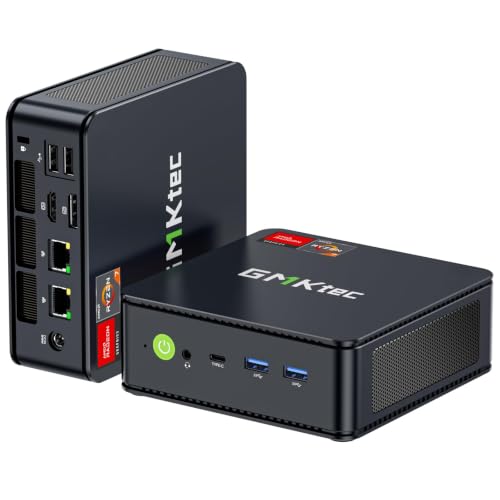
- Best overall for a first home office PC: GMKtec M5 Plus Mini PC, Ryzen 7 5825U, 32GB RAM, 1TB SSD — Check on Amazon
- Beelink SER5 MAX Mini PC, Ryzen 7 5800H, 16GB RAM, 500GB SSD — Check on Amazon
- KAMRUI E3B Mini PC, Ryzen 5 7430U, 32GB RAM, 512GB SSD — Check on Amazon
- Dell OptiPlex 7060 SFF Desktop, Core i5-8500, 16GB RAM, 512GB SSD (Renewed) — Check on Amazon
- MeLE Quieter4C Fanless Mini PC, Intel N150, 8GB RAM, 256GB SSD — Check on Amazon
See 1 more Amazon option
- BOSGAME P4 Mini PC, Ryzen 7 5700U, 32GB RAM, 1TB SSD — Check on Amazon
Read the full guide ↓
Disclosure: As an Amazon Associate, reviewstook.com earns from qualifying purchases. Links to Amazon on this page are affiliate links; they cost you nothing extra. Listing details such as price and availability change often, so check the current Amazon listing before you buy.
Buying your first PC for working from home is simpler than the listings make it look, and this budget tier is a better fit for it than you might expect. Here is the honest version up front. The work most people do at home — email, documents, spreadsheets, a browser full of tabs, video calls — does not need an expensive machine. It needs enough memory to keep all of that open at once, enough screen outputs for two monitors, and a box quiet enough to forget about. Five of the six PCs in this guide ship with 16GB of memory or more, three of them carry 32GB, and every one can run at least two screens. That is a comfortable work setup, not a cut-down one.
The limits are just as real, and a beginner deserves them stated plainly. None of these six machines is a gaming PC: they all use the graphics built into the processor rather than a separate graphics card, so they suit older and casual games in the evening, not modern demanding titles. None of them is a workstation for heavy video editing, engineering software or large AI tools either. One of the six is not new — it is a renewed business desktop, professionally refurbished and covered by Amazon Renewed’s 90-day guarantee instead of a manufacturer’s warranty — and one has its memory permanently fixed at 8GB. Both are good buys for the right person, and both are flagged wherever they appear. This guide assumes no prior knowledge: the next sections explain how the picks were chosen, translate the jargon into plain English, review each machine in full, then walk you through your first evening with it, step by step.
In this guide
Quick Picks
Short on time, or comparing several options at once? Each row below names a worker type and the machine that suits it, with a link to the listing.
| Buyer type | Pick | Why it stands out | Link |
|---|---|---|---|
| Best overall for a first office PC | GMKtec M5 Plus, Ryzen 7 5825U, 32GB, 1TB | 32GB of memory and 1TB of storage with three screen outputs — nothing ordinary left to want | Check on Amazon |
| Best processing power | Beelink SER5 MAX, Ryzen 7 5800H, 16GB, 500GB | The strongest processor in this guide, for heavy spreadsheets and data tools | Check on Amazon |
| Best budget 32GB | KAMRUI E3B, Ryzen 5 7430U, 32GB, 512GB | 32GB of memory in a budget-tier pick, with a spare slot for a second drive | Check on Amazon |
| Best real desktop (renewed) | Dell OptiPlex 7060 SFF, Core i5-8500, 16GB, 512GB | A proper business desktop with keyboard and mouse in the box — check price on Amazon | Check on Amazon |
| Best silent pick for calls | MeLE Quieter4C, Intel N150, 8GB, 256GB | No fan at all — nothing for your microphone to hear, and it hides behind a monitor | Check on Amazon |
| Best for storage and networking | BOSGAME P4, Ryzen 7 5700U, 32GB, 1TB | 1TB fitted and two fast network ports — a work PC that can also store the household’s files | Check on Amazon |
How These Picks Were Chosen
The budget for this guide was treated as a ceiling, not a goal. Every machine below is a real Amazon listing in the United States that fits this tier. Mini PC prices move weekly with coupons and Prime deals, so check price on Amazon for the current figure rather than relying on a number that may already have changed. The renewed Dell’s pricing moves with refurbisher stock instead.
We did not use these machines ourselves. We read the makers’ listings and specification pages and compared the things office work actually depends on: how much memory is fitted and whether more can be added later, how much storage there is and whether a second drive fits, how many monitors the machine can drive from its own ports (counted only where the maker states a port carries a picture — a USB-C socket does not always do that), which edition of Windows is installed, how it connects to your network, and what the warranty really is. One deliberate rule shaped the list: a machine that reached the budget by cutting memory to 8GB was excluded unless it earned its place another way — in this guide, only the fanless pick does, and it earns it with silence. For a beginner, one more filter mattered: every pick here arrives complete, with Windows already installed. None of them is a barebone kit expecting you to supply parts and an operating system.
The Jargon, in Plain English
Thirteen terms explain almost everything on a PC listing. Read these once and the rest of this guide — and any product page — gets much easier.
- RAM (memory). The machine’s short-term workspace. Everything you have open — browser tabs, documents, the call app — lives here. More RAM means more can stay open without the PC slowing down. For office work this is the single most important number on the page: 16GB is comfortable, 32GB is generous, 8GB is tight.
- SSD (storage). Where your files and programs live permanently, measured in gigabytes (GB) or terabytes (TB, roughly 1,000GB). An SSD is the fast modern kind of drive; every pick here has one. 500GB is plenty for documents and cloud-based work; 1TB suits photo and file collections.
- Processor (CPU). The chip that does the thinking, named here by its maker and model — Ryzen 5, Ryzen 7, Core i5, N150. Its “cores” are parallel workers: six or eight cores juggle a workday easily, while the N150’s four efficiency cores are built for light tasks and low power.
- Integrated graphics. Picture-making built into the processor itself. Every pick in this guide uses it. It is genuinely good at driving office monitors and playing video, and it is the reason these machines are light-gaming devices at best.
- Graphics card. A separate, powerful picture-making component found in gaming PCs. Plainly: none of the six picks has one, and none of the mini PCs has a slot to add one. If serious gaming is on your list, this is the wrong guide — see the gaming links at the end.
- Socketed vs soldered. Socketed memory sits in slots and can be removed and upgraded years later. Soldered memory is fixed to the board forever. Plainly: the GMKtec, Beelink, KAMRUI and Dell use socketed memory; the MeLE’s 8GB is soldered and can never grow; the BOSGAME’s 32GB is judged as shipped, since its listing does not document an upgrade path.
- Renewed. Professionally refurbished second-life hardware, tested and sold with a guarantee shorter than a new machine’s warranty. Plainly: only one pick here is renewed — the Dell, covered by Amazon Renewed’s 90-day guarantee rather than a manufacturer’s year or so.
- Barebone. A half-finished PC sold without memory, storage or Windows, expecting you to complete it. Plainly: none of the six picks is a barebone. All six arrive complete with Windows 11 Pro installed — you plug in, sign in, and work.
- Windows 11 Pro. The edition of Windows fitted to all six picks. Pro adds drive encryption (BitLocker) and the ability to connect into this PC from another computer (Remote Desktop hosting) over the Home edition — useful for work, and here it costs nothing extra.
- Display outputs (HDMI, DisplayPort, USB-C). The sockets your monitors plug into. HDMI is the familiar TV-style plug; DisplayPort is the other common monitor plug; USB-C is the small oval socket, which carries a picture only on ports the maker designs for it. Count these to know how many screens a PC can run.
- Refresh rate. How many times per second a monitor redraws, measured in hertz (Hz). It is a monitor setting, not a PC specification: Windows sometimes starts a screen below its best rate, and the setup walkthrough below shows you where to set it properly.
- VESA mount. A standard pattern of screw holes that lets a small PC attach to the back of a monitor, out of sight. The KAMRUI includes the mounting plate in its box and the MeLE includes VESA hardware; the others sit on or under the desk.
- Ethernet and Wi-Fi. Ethernet is the wired network cable — steadier for video calls and large file transfers. Wi-Fi is the wireless version, fitted to every pick here. Where a listing says 2.5GbE, that is a faster-than-standard wired port, useful mainly if the PC also stores files for the household.
The 6 Best Home Office PCs Under $400 for Beginners
GMKtec M5 Plus Mini PC — Ryzen 7 5825U, 32GB RAM, 1TB SSD
Who it suits: The beginner whose workday is a browser with dozens of tabs, two or three monitors, and calls running alongside — and who wants to buy once and stop thinking about the computer.
Start with the two numbers that decide how an office PC feels. The first is 32GB of memory, fitted as two socketed sticks that can be replaced with 64GB years from now if a job ever demands it. That headroom is what lets a research session’s worth of tabs, an email program, a chat app, two spreadsheets and a PDF editor all stay open without the machine pausing to shuffle things on and off the drive. The second is a 1TB SSD in one of two drive slots, so extra storage later means adding a drive, not replacing one. The processor is an eight-core Ryzen 7 5825U, comfortably more than documents and calls require. Three monitors connect at once — the maker lists HDMI, DisplayPort and USB-C outputs, each driving a 4K screen — so a growing desk needs no dock. Wired networking is unusually strong (two fast 2.5GbE ports), Wi-Fi 6E and Bluetooth 5.2 are built in, and Windows 11 Pro is installed and ready.
On price, check price on Amazon before you order — pricing at this tier moves often with coupons and Prime deals. The beginner’s move is to check the live listing for this budget-tier pick rather than assuming a fixed figure. The cautions are about the class, not this machine. The processor is a laptop chip: strong for office work, the wrong tool for sustained rendering or heavy data crunching. GMKtec is a value brand whose support runs through the seller rather than a local service network, so do your first-week checks while Amazon’s return window is open — the walkthrough below is built for exactly that. And there is a small cooling fan inside: quiet under office loads, though not silent like the fanless pick further down.
- 32GB of upgradeable memory and 1TB of storage — the two headroom specs, settled in one purchase.
- Three 4K screen outputs (HDMI, DisplayPort, USB-C) run a three-monitor desk with no dock.
- Two fast wired network ports, Wi-Fi 6E and Windows 11 Pro complete the checklist.
Honest limitation: A laptop-class processor and seller-led support — the performance ceiling and the warranty experience both sit a step below business-line hardware.
Choose it if your day is measured in open tabs and monitors and you want the fullest specification in this tier. Skip it if your work is sustained heavy computing, or a local warranty network matters more to you than specification.

Beelink SER5 MAX Mini PC — Ryzen 7 5800H, 16GB RAM, 500GB SSD
Who it suits: The beginner whose bottleneck is thinking speed rather than tab count — large spreadsheets that recalculate, light photo editing, data tools, learning to code — and who prefers a maker with a long track record in small PCs.
The Ryzen 7 5800H in this box is the strongest processor in the guide: eight cores, and Beelink runs it at a 54W power setting — a desktop-style allowance rather than the restricted setting of a thin laptop — so it holds its speed through long tasks instead of slowing as it warms up. The rest of the specification is a starting point by design: 16GB of memory that can be raised to 64GB, and a 500GB SSD that can be swapped for up to 2TB, both with ordinary laptop parts. Three screens connect over HDMI, DisplayPort and USB-C. Wi-Fi 6 and Bluetooth 5.2 are fitted, Windows 11 Pro is installed, and the machine itself is roughly five inches square and under two inches tall — small enough to mount behind a monitor and give the desk back. Check price on Amazon for the current figure — in this tier it is the performance bargain of the group.
The trade against the GMKtec above should be understood before you choose, because it is the main decision in this guide. The Beelink gives you the faster processor and the established name; it asks you to accept half the memory and half the storage on day one. If your day is a dozen tabs and one heavy spreadsheet, you will feel the processor and never miss the memory. If your day is forty tabs held open all week, you will feel the missing memory first — and while adding more is a simple job with standard parts, it is a second purchase the GMKtec never asks for. The same logic applies to the 500GB drive: ample for documents and cloud-synced files, tight if your photo and video libraries live on the machine. Decide which worker you are, and this is either the sharpest pick here or the second-best one.
- The strongest processor in the guide, run at a full 54W setting for sustained speed.
- Three screen outputs in a box about five inches square that can hide behind a monitor.
- Memory and storage both upgradeable (to 64GB and 2TB), so the specification can grow with the job.
Honest limitation: It ships with 16GB of memory and 500GB of storage — tab-heavy workers will want the memory upgrade the GMKtec already includes.
Choose it if your applications load the processor — recalculating models, light editing, compiling — and 16GB covers your tab habit. Skip it if you know your browser sessions eat memory; start with a 32GB pick instead.

KAMRUI E3B Mini PC — Ryzen 5 7430U, 32GB RAM, 512GB SSD
Who it suits: The budget-first beginner who has absorbed the memory lesson and wants 32GB on a tight budget — a first desk, a family office, or several desks equipped at once.
The proposition is the top pick’s memory headroom at a budget-tier position — check price on Amazon. The Ryzen 5 7430U is a six-core processor, and around it sit 32GB of memory in two socketed sticks (replaceable with 64GB later) and a 512GB SSD. Storage has a genuine second act: there are two drive slots, though read the listing’s own fine print before planning around it — one takes fast NVMe drives, the second is SATA-only, so a future drive should be bought to match. Screen output is triple and verified from the maker’s specification table on the listing: HDMI 2.0, DisplayPort 1.4 and a USB-C port, each able to drive a 4K screen at 60Hz. Wi-Fi 6, Bluetooth 5.2 and a wired network port are fitted, Windows 11 Pro is installed, and two beginner-friendly extras are in the box: a VESA plate for mounting the PC behind a monitor, and an HDMI cable. Check the live listing for the current price before ordering.
Two honest notes before you order. First, the configuration: a 16GB version of this machine exists under a separate listing, and the pick here is specifically the 32GB one — check the configuration line in your cart before paying, and check the machine itself on arrival using the verification step in the walkthrough below. Second, the name: the 7430U sounds newer than the silicon is — it is a refreshed design from an earlier generation rather than a current one. For office work that distinction barely matters, but a beginner comparing spec sheets should know the number flatters it. The machine is fan-cooled, and reviewers have noted the fan becomes audible under sustained heavy load; in ordinary office use it stays unobtrusive. Support runs through the seller, as with the other value brands here.
- 32GB of dual-channel memory in a budget-tier pick — a keen route to real headroom, so check price on Amazon.
- Two drive slots and a 64GB memory ceiling give it a genuine upgrade path.
- Three 4K outputs, plus a VESA mount and an HDMI cable included in the box.
Honest limitation: The processor is an older design under a new-sounding name, and the second drive slot accepts SATA drives only — check the cart configuration and plan upgrades accordingly.
Choose it if you want 32GB and three displays for the least money, at one desk or several. Skip it if you need the strongest processor or a completely silent desk — the Beelink and the MeLE cover those needs.
Dell OptiPlex 7060 SFF Desktop — Core i5-8500, 16GB RAM, 512GB SSD (Renewed)
Who it suits: The beginner who would rather have a real, repairable desktop from a business range — and a keyboard and mouse in the box — than the smallest possible new machine.
This is the guide’s renewed pick, so it is judged by renewed rules. The OptiPlex 7060 is Dell’s business small-form-factor desktop: a six-core Core i5-8500, 16GB of memory, a 512GB SSD and Windows 11 Pro, with Wi-Fi and Bluetooth fitted and a keyboard and mouse included per the listing — the only pick here that arrives as a complete desk setup. Two facts separate it from the cheap renewed stock to avoid. Its processor is an 8th-generation chip, and that generation is the floor of Microsoft’s supported-processor list for Windows 11, so the operating system is installed legitimately and updates normally — unlike the older 6th- and 7th-generation renewed machines often sold with Windows 11 running outside the supported list. And the platform is a standard business desktop: the cover opens without tools, the memory and drive are ordinary desktop parts, and Dell’s public documentation plus a worldwide supply of spares mean a failure years from now is a small parts order, not a replacement PC. Screen output is two monitors as standard from its pair of DisplayPort sockets; the platform’s specification lists a third video port as a factory option that varies by unit, so if you need three screens, check the back panel of the exact machine on the live listing rather than assuming.
Value is both the argument and the risk. Renewed pricing follows refurbisher stock, so expect movement and check price on Amazon for the current figure on the exact unit. What the money does not buy is a manufacturer’s warranty: your protection is Amazon Renewed’s 90-day guarantee, and the machine is a 2018 platform with a modest fan and Intel’s integrated UHD 630 graphics — fine for office screens and calls, not a gaming part. Bought with open eyes, it is the most serviceable and best-documented computer in this guide.
- A genuine business desktop: tool-less access, standard parts, and Dell documentation and spares everywhere.
- Its processor sits on Microsoft’s Windows 11 supported list — no off-list operating system compromises.
- A keyboard and mouse are in the box, and it is a budget-tier renewed option — check price on Amazon.
Honest limitation: Renewed means the safety net is Amazon Renewed’s 90-day guarantee rather than a manufacturer’s year, the platform dates from 2018, and that third video port was a factory option — verify the exact unit.
Choose it if you value repairability, documentation and a complete in-box setup over newness. Skip it if a full manufacturer warranty is a must-have, or a guaranteed third monitor matters.
MeLE Quieter4C Fanless Mini PC — Intel N150, 8GB RAM, 256GB SSD
Who it suits: The beginner whose working day is back-to-back calls — support, sales, teaching, therapy, recording — and who needs the desk itself to make no sound whatsoever.
What this machine sells is silence, and it is engineered rather than advertised: there is no fan anywhere in the design, so there is no fan noise for a microphone to pick up, no bearing to wear out, and no moving part to fail. The chassis is a slab about 5.2 by 3.2 by 0.7 inches that mounts behind a monitor with the included VESA hardware and simply disappears. Inside are an Intel N150 — a four-core efficiency processor — 8GB of memory and a 256GB SSD. The ports are better than the size suggests: two HDMI outputs and a USB-C display output drive three 4K screens between them, with a wired network port, Wi-Fi 6, Bluetooth 5.2 and Windows 11 Pro all fitted. For the workload it targets — email, documents, web apps, a call client, a second screen of notes — it is genuinely sufficient, and it uses very little power doing it, roughly what a couple of LED bulbs draw. Check price on Amazon for the current figure — it sits toward the upper end of this tier for its silence, so compare the live listing before you buy.
The limitation is permanent, and the glossary above exists largely because of this pick: the 8GB of memory is soldered — fixed to the board — and 8GB is the ceiling for the life of the machine. A tidy worker running documents, mail and calls may never feel it. A researcher who holds forty tabs open will, and there is no upgrade, no fix and no workaround; that buyer should take the KAMRUI or the GMKtec and accept a quiet fan instead. The processor is likewise an efficiency chip: fine for office applications, the wrong choice for heavy spreadsheets or local media work. This is a specialist pick. If your problem is noise — a microphone that hears your current PC, a shared room, a sleeping baby next door — it solves that problem completely, and nothing else in this guide can make the same claim.
- No fan and no moving parts at all — nothing for a microphone to hear and nothing mechanical to fail.
- Three 4K outputs from two HDMI ports and USB-C, in a slab that hides behind a monitor.
- Windows 11 Pro and fast solid-state storage — no corners cut on software or drive.
Honest limitation: 8GB of soldered memory is a permanent ceiling, and the processor is an efficiency chip — heavy multitaskers should buy a 32GB pick instead.
Choose it if quiet matters more than anything and your days are documents, mail and calls. Skip it if your browser habit runs to dozens of tabs — the memory cannot grow.

BOSGAME P4 Mini PC — Ryzen 7 5700U, 32GB RAM, 1TB SSD
Who it suits: The beginner whose work PC will also be the household’s computer — photo library, shared files, backups — and who wants the storage and networking to cover both jobs.
On the specification sheet this matches the top pick’s headline numbers: 32GB of memory and a 1TB SSD behind an eight-core Ryzen 7 5700U. What sets it apart is the networking line: two fast 2.5GbE wired ports alongside Wi-Fi 6E and Bluetooth 5.2. For a single desk, the second fast port is a spare. For a home where the office PC also holds shared files, backups or a media library for other devices, it turns a computer into a small household server, and nothing else in this tier in the guide offers that. Three 4K screens connect over HDMI, DisplayPort and USB-C, Windows 11 Pro is installed — its Remote Desktop feature pairs naturally with the server role, letting you reach the machine from another room — check price on Amazon for the current figure.
The caution here is about the listing rather than the machine. This product family has also been sold with a different processor — a 5825U variant — under near-identical titles, so the beginner’s discipline is twofold: confirm the configuration line on the live listing (processor, 32GB, 1TB) matches what you meant to buy before ordering, then confirm it again on the machine itself when it arrives, using the verification step in the walkthrough below, while the return window is open. BOSGAME is a value brand with seller-led support, and the 5700U, while a capable eight-core chip, sits a step behind the GMKtec’s and Beelink’s processors in sustained work. One more honesty note: its listing does not document a memory or storage upgrade path, so judge the 32GB and 1TB as the finished specification rather than a starting point. Buy it for the combination — memory, storage and dual fast networking in one budget-tier box — and it earns its place.
- 32GB of memory and 1TB of storage matched with two fast wired ports — a work PC and home server in one.
- Three 4K outputs and Wi-Fi 6E cover the desk side completely.
- A budget-tier position for this combination of memory, storage and networking — check price on Amazon.
Honest limitation: A near-identically titled variant in the same family carries a different processor — check the configuration on the listing, and check it again when the box arrives.
Choose it if the same box will hold the household’s files and media as well as your work. Skip it if you want the purchase with the least configuration-checking — the GMKtec is the tidier buy.

Comparison Table
| Product | Memory & storage | Displays | Best use | Link |
|---|---|---|---|---|
| GMKtec M5 Plus, Ryzen 7 5825U | 32GB (to 64GB), 1TB, 2 drive slots | 3 × 4K (HDMI, DP, USB-C) | The fullest office specification in this tier | Check on Amazon |
| Beelink SER5 MAX, Ryzen 7 5800H | 16GB (to 64GB), 500GB (to 2TB) | 3 × 4K (HDMI, DP, USB-C) | Processor-heavy office work | Check on Amazon |
| KAMRUI E3B, Ryzen 5 7430U | 32GB (to 64GB), 512GB, 2 drive slots | 3 × 4K (HDMI, DP, USB-C) | 32GB headroom on the tightest budget | Check on Amazon |
| Dell OptiPlex 7060 SFF (Renewed), i5-8500 | 16GB, 512GB, standard desktop parts | 2 × DisplayPort (3rd was an option) | Repairable business desktop, keyboard and mouse included | Check on Amazon |
| MeLE Quieter4C, Intel N150 | 8GB soldered, 256GB | 3 × 4K (2 × HDMI, USB-C) | Silent, call-friendly desk | Check on Amazon |
| BOSGAME P4, Ryzen 7 5700U | 32GB, 1TB | 3 × 4K (HDMI, DP, USB-C) | Office PC plus home file and media server | Check on Amazon |
Your First Evening: Setup, Step by Step
Every pick in this guide arrives with Windows 11 Pro installed, so setup is an hour of plugging in and checking, not a project. Work through these steps in order on the first evening, while the return window is wide open.
- Unbox and place the machine. Keep the box and packaging until step 8 is done. The mini PCs can sit on the desk or mount behind a monitor — the KAMRUI’s VESA plate and the MeLE’s mounting hardware are in their boxes; the Beelink measures roughly 5 by 4.4 by 1.65 inches, the MeLE about 5.2 by 3.2 by 0.7 inches. The Dell needs a real shelf: its case is about 11.4 by 3.7 by 11.5 inches. Whichever you bought, leave the vents breathing room — a fan-cooled mini PC exhales through them, and the fanless MeLE sheds its heat through its case, so neither belongs inside a closed cabinet.
- Connect the power. Plug in the power adapter, then the machine. A first boot can sit on a logo screen for several minutes while Windows finishes preparing itself; that pause is normal, not a fault.
- Plug the monitor into the PC’s display outputs. Here this guide’s set spares you the classic beginner trap. On a gaming PC, plugging the screen into the wrong socket can bypass a separate graphics card entirely — but none of these six machines has a separate graphics card, and every processor in this guide has graphics built in, so every display socket on the box is a live, correct one. There is no wrong port to choose and no black-screen penalty for picking one. Just use the outputs your pick documents: HDMI, DisplayPort or the video-capable USB-C on the mini PCs (the KAMRUI’s are HDMI 2.0, DisplayPort 1.4 and USB-C), and on the Dell, its pair of standard DisplayPort sockets — remembering that a third video port was a factory option, so a given unit may or may not have one.
- Add peripherals and, if you can, a network cable. Connect your keyboard and mouse — included in the box only with the Dell; the five new mini PCs expect you to supply your own. If the router is within cable reach, plug in an Ethernet cable now: a wired connection is the steadier choice for video calls and big downloads. Otherwise join your Wi-Fi during setup; every pick has it built in.
- Finish Windows setup, then run Windows Update — repeatedly. Sign in, connect the machine to your Microsoft account if you use one, then open Settings → Windows Update and install everything offered, restart, and check again. A new or renewed machine typically needs two or three rounds, including driver updates delivered through the optional-updates section. Let it finish all of them before you judge the machine’s speed.
- Set each monitor to its real refresh rate. Windows does not always start a screen at its best setting. Open Settings → System → Display → Advanced display, select each monitor in turn, confirm the resolution is the screen’s native one, and choose the highest refresh rate offered. This is a monitor setting, not something to buy — it simply makes sure you get the smoothness the screen you own already supports.
- Verify the delivered configuration against what you ordered. Open Settings → System → About and read the processor name and installed memory; open Task Manager’s Performance tab to see the storage. Compare all three against your order. This step exists because of this guide’s own warnings: the KAMRUI must say 32GB, not the 16GB of its sibling listing; the BOSGAME must name the 5700U, not the 5825U sold under a near-identical title; the Dell’s memory, drive and rear ports should match its listing line. If anything differs, you are inside the return window and the fix is a return, not an argument.
- Install your work tools — and, optionally, a game store. Add your browser, office suite and call apps first. If the machine will double for evening entertainment, install a store such as Steam last, with honest expectations set by the glossary: the graphics in every pick here are integrated, so older and casual games at modest settings are the realistic menu, not modern blockbusters.
What Else You Will Spend
The PC itself is not the whole desk, and a beginner budget deserves the rest of the list. None of the following is included with a pick above — peripherals are separate purchases, chosen to suit your own desk.
- A monitor comes first. No pick here includes a screen. One monitor is the minimum; two is the home-office standard every pick here can drive, and five of the six can run three. Buy the monitor before any other accessory — it is the thing you look at all day.
- Keyboard and mouse, for five of the six. Only the renewed Dell includes them. The KAMRUI partly softens its list by including an HDMI cable and its VESA mount; the other new picks are the PC and its power adapter, full stop.
- The Beelink’s memory catch. The SER5 MAX ships with 16GB. If your tab habit outgrows it, the fix is a memory upgrade — the machine accepts up to 64GB of standard laptop memory — bought separately, later, only if needed. Budget the idea, not a panic purchase on day one.
- The Dell’s third-screen question. If you need three monitors from the renewed Dell, the cost is not an accessory — it is the discipline of confirming the exact unit has the optional third video port before you rely on it. Two screens are guaranteed; the third is a verification, not a purchase.
- The MeLE’s catch has no fix at all. Its 8GB is soldered. There is no later purchase that raises it, which is why the honest advice is to choose a 32GB pick now if your workload needs one, rather than to plan an upgrade that does not exist.
Upgrades, in Plain Terms
One promise first, because beginners are often sold the opposite: no graphics-card upgrade is promised for any pick in this guide. None of the six has a graphics card to swap, the mini PCs have no slot to add one, and no pick’s listing in this guide’s research documents a named power supply rated for one — the Dell included, whatever its other virtues. A seller or a forum post claiming otherwise is going beyond the evidence. If a graphics card is in your future, the honest route is a different class of machine from the start.
What can genuinely grow is memory and storage, and only where the maker documents it. The GMKtec’s memory can rise from 32GB to 64GB and a second drive can join its 1TB. The Beelink’s memory can rise to 64GB and its drive can be replaced with up to 2TB. The KAMRUI’s memory can rise to 64GB, and its second drive slot accepts a SATA drive. The Dell takes standard desktop memory and storage parts — the easiest upgrades here, through a cover that opens without tools. The BOSGAME’s listing documents no upgrade path, so its 32GB and 1TB are the specification to judge. And the MeLE, plainly, accepts no upgrades at all: its memory is soldered, and what you buy is what it will always be.
How to Choose a Home Office PC Under $400
- Buy memory before processor speed. Office slowness is rarely the chip; it is the moment your open applications exceed the memory and the machine starts shuffling data to the drive. 16GB is the comfortable floor, 32GB is the buy-once answer, and 8GB is only acceptable in the fanless specialist where silence is the entire point.
- Count screen outputs, then check what they are. Two monitors is the home-office standard. Verify the actual ports on the listing — and remember a USB-C socket only counts where the maker states it carries a picture, as the makers of the mini PCs here do.
- Check whether the memory can grow. Socketed memory in slots (the GMKtec, Beelink, KAMRUI and Dell here) means a cheap upgrade in year three. Soldered memory (the MeLE) can never be changed after purchase.
- Decide your warranty philosophy before you shop. A new mini PC carries a maker’s warranty, typically a year, handled through the seller. The renewed Dell carries Amazon Renewed’s 90-day guarantee but offers standard parts and total repairability in exchange. Neither is wrong; buying one while expecting the other is the mistake.
- Match the processor to your real workload. Every chip in this guide, the fanless N150 included, handles documents, mail, web apps and calls without strain. Big recalculating spreadsheets, light photo work and development tools justify the Beelink. Sustained rendering, CAD and heavy video work justify none of them — that is a different budget, honestly stated.
- Check the live price. Prices at this tier move weekly with coupons and Prime pricing. Check price on Amazon before you order, and if a listing looks high today, waiting for its next pricing cycle usually beats buying a worse machine.
Common Buying Mistakes
- Buying 8GB of memory for a tab-heavy job because the processor name sounded fast. What decides your afternoon is memory headroom; processor speed only decides how fast a spreadsheet recalculates. Fund the memory first.
- Assuming every USB-C socket carries video. Some are data-only. This guide counted USB-C as a screen output only where the maker’s own listing or specifications say it carries a picture.
- Treating the PC itself as the cost of the whole desk. Monitor, keyboard and mouse are separate on every new pick here — the renewed Dell, with keyboard and mouse in the box, is the exception.
- Buying renewed stock on a pre-2018 processor to save a little more. Renewed machines on 6th- and 7th-generation chips run Windows 11 off Microsoft’s supported list; 8th generation is the floor where renewed becomes a reasonable bet.
- Skipping the arrival check. Several families here sell lookalike configurations — a 16GB sibling of the KAMRUI, a different-processor variant of the BOSGAME, refurbisher-fitted options on the Dell. The configuration in the cart is the product, and step 7 of the walkthrough exists to confirm the machine matches it.
- Expecting workstation or gaming performance from an office budget. Heavy video editing, CAD, large local AI models and modern games are beyond every machine here. They are the honest reasons to move up a tier, not reasons to be disappointed in a budget-tier office PC.
Final Recommendation
- Most first-time buyers: GMKtec M5 Plus — 32GB, 1TB and three screen outputs remove every ordinary office bottleneck in one purchase.
- Processor-led workloads: Beelink SER5 MAX — the strongest chip here, with room to add memory when the job grows.
- Tightest budgets: KAMRUI E3B — 32GB at a budget-tier position is the value line of the guide, provided you check the cart configuration and check price on Amazon.
- Repairability and a complete box: Dell OptiPlex 7060 (Renewed) — standard parts, public documentation, keyboard and mouse included.
- Silence for calls: MeLE Quieter4C — fanless, provided your workload fits its permanent 8GB ceiling.
- Office plus home server: BOSGAME P4 — two fast wired ports make it two machines in one.
For a beginner equipping a first work desk, the shortlist is two machines. The GMKtec M5 Plus settles the specification question in a single purchase — enough memory, enough storage, enough screens — while the Beelink SER5 MAX is the pick when your applications lean on the processor and you are comfortable adding memory later. Around them, the KAMRUI is the budget-tier alternative to both, the Dell outlasts both on repairability, the MeLE outsits both in silence, and the BOSGAME outconnects both as a household server. If your desk is a tight corner rather than a room, the same budget viewed for small spaces is covered in Best Home Office PC For Small Spaces Under $400, and workers whose job is outgrowing this tier can step up with Best Home Office PC Under $500. Count your monitors, count your tabs, decide whether a warranty or a screwdriver is your preferred safety net, and check the live price before you order.
Frequently Asked Questions
Do I need to install Windows or add parts before these PCs work?
No. None of the six picks is a barebone kit. Every one arrives complete — memory, storage and Windows 11 Pro already installed — so the first evening is the plug-in-and-check routine in the walkthrough above, not an assembly project. If a listing you find elsewhere says “barebone” or “no RAM/SSD/OS”, it is a different kind of product from anything recommended here.
Is 16GB of memory enough, or do I need 32GB?
16GB is enough for a disciplined workload: email, documents, a call app and a moderate set of tabs. 32GB is the right answer for research-heavy work — dozens of tabs held open across days — or for keeping several heavy applications open at once. That is why three of the six picks ship with 32GB. The fanless pick’s 8GB is the deliberate exception, bought for silence, and it cannot be upgraded later.
Can these PCs really run two or three monitors?
Yes — driving at least two displays from its own ports was a condition of entry for this guide, and five of the six picks manage three at 4K. The exception to handle carefully is the renewed Dell: its platform guarantees a pair of DisplayPort outputs, while the third video port was fitted only as a factory option, so it varies from unit to unit and three-screen buyers should confirm the exact machine on the live listing. Remember that USB-C only counts where the maker states it carries video, as it does on the mini PCs here.
Is a renewed business desktop a safe first PC?
It is a calculated buy, and for many beginners a good one. You get business-grade hardware, standard replaceable parts and public documentation at a budget-tier position, in exchange for Amazon Renewed’s 90-day guarantee instead of a manufacturer’s year. The safety rules are to choose a platform whose processor is on Microsoft’s Windows 11 supported list — 8th-generation Intel or newer — and to run the arrival checks in the walkthrough while returns are easy.
Can a home office PC under $400 handle any gaming?
Only light gaming — nothing in this guide claims more. The Ryzen mini PCs’ integrated graphics are fine for older and casual titles at modest settings, and the Dell’s integrated Intel graphics sit a step below that; none of these machines has a graphics card, and modern demanding games are not their job. If gaming genuinely matters alongside work, read the honesty notes in Best Home Office PC For 1440p Gaming Under $400 before expecting much from the same budget.
How long should a $400 home office PC last?
Four to six years of office duty is a fair expectation for the new picks with socketed memory, because a memory or storage upgrade in year three resets the clock. The renewed Dell’s parts ecosystem can run longer still, with the caveat that its platform is already several years old. The fanless MeLE has the fewest parts that can wear out and the least room to grow — its working life is set by its 8GB of memory meeting your workload, which for calls and documents can be many years.


