Where to buy
Check the latest price, availability and delivery on Amazon. Orders are placed on Amazon. We may earn a commission from qualifying purchases.
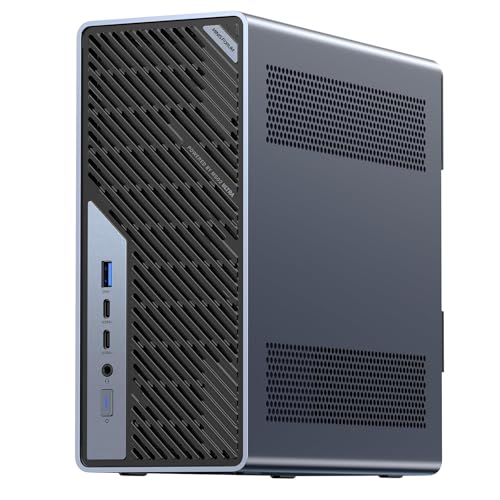
- Best overall workstation for beginners: Minisforum MS-02 Ultra, Core Ultra 9 285HX, ECC to 256GB, PCIe 5.0 x16, Dual 25GbE — Check on Amazon
- Lenovo Legion Tower 7i Gen 10, Core Ultra 9 285K, RTX 5080, 32GB, 2TB — Check on Amazon
- GMKtec EVO-X2, Ryzen AI Max+ 395, 64GB Unified Memory, Radeon 8060S — Check on Amazon
- Alienware Aurora ACT1250, Core Ultra 9 285, RTX 5080, 32GB, 1TB — Check on Amazon
- iBUYPOWER Y40 PRO, Ryzen 9 7900X, RTX 5070 Ti, 32GB, 2TB — Check on Amazon
See 1 more Amazon option
- Minisforum MS-A2, Ryzen 9 HX 16-Core, PCIe x16 Slot, Dual 10G SFP+, RAM to 96GB — Check on Amazon
Read the full guide ↓
Disclosure: As an Amazon Associate, reviewstook.com earns from qualifying purchases. Links to Amazon on this page are affiliate links; they cost you nothing extra. Listing details such as price and availability change often, so check the current Amazon listing before you buy.
Buying your first workstation is confusing in a specific way: the listings are written for people who already know the vocabulary. Cores, ECC, SFP+, unified memory, deal-dependent picks — this guide translates all of it into plain language, then walks you through your first evening with the machine, cable by cable. Nothing here assumes you have built a PC, opened a PC, or bought anything more technical than a laptop before.
First, the honest shape of this budget. Three thousand dollars is real workstation money, but it buys three different kinds of machine, and beginners get hurt by not knowing which kind they are looking at. Two of the six picks below are genuine workstation platforms — built for memory capacity, error-checking memory, expansion slots and very fast networking. One is a small AI machine whose memory works in a way no normal PC’s does. And three are gaming towers that do professional work very well but are not certified workstations; we call them render nodes throughout, because that is the honest name for what they are. Every pick is graded on that basis, out loud, so you never pay workstation money for a gaming badge by accident.
Two reality checks before anything else. There is no RTX 5090 computer anywhere near this budget — complete 5090 machines sit well above it — so any listing hinting at that level of performance at this budget is dressing up a lesser card. And the two RTX 5080 towers below are in this guide as deal-dependent picks only: they often sit above this budget, so check the current price on Amazon and only consider them when the live price fits within the budget. A third landmark sits just over the fence: mini PCs with 128GB of unified memory have been repriced by the component shortage to above this budget, so they are something to measure against, not something this budget honestly buys.
If you want one sentence to start from: most beginners should start with the Minisforum MS-02 Ultra, the one machine here designed as a workstation from the motherboard out — unless your work is rendering or video, in which case start with the towers. The glossary, the six reviews, a first-evening setup walkthrough and a plain list of what else you will need to buy are all below.
In this guide
Quick Picks
Short on time, or comparing several options at once? Each row below names a situation and the machine that suits it, with a link to the listing.
| Your situation | Pick | Why it stands out | Link |
|---|---|---|---|
| Best overall for beginners | Minisforum MS-02 Ultra | The one true workstation platform here, with room to grow for years — check price on Amazon | Check on Amazon |
| You render, edit video or compile big projects | Lenovo Legion Tower 7i Gen 10 | 24-core CPU plus the strongest graphics card in the guide, from a major brand | Check on Amazon |
| You want to run AI models on your own desk | GMKtec EVO-X2 64GB | 64GB of memory the graphics chip can mostly use — no tower here can do that | Check on Amazon |
| You can wait for a deal | Alienware Aurora ACT1250 | RTX 5080 and the strongest power supply here — check price on Amazon | Check on Amazon |
| You want a complete tower and money left over | iBUYPOWER Y40 PRO | Balanced production tower — check price on Amazon | Check on Amazon |
| You like the idea of adding parts later | Minisforum MS-A2 | A real expansion slot and 10-gigabit networking in a box the size of a book | Check on Amazon |
How These Picks Were Chosen
The budget was treated as a ceiling for a complete, working computer. Every pick is a real Amazon listing selected to fit within the $3,000 budget in the United States — check the current price on Amazon before you buy, because prices change. Where a machine only qualifies when its current price drops into the budget, the review says so in plain words. The RTX 5080 towers live in this guide on that deal-dependent basis, and we would rather repeat that than let you discover it at checkout.
We did not use these machines ourselves. We read maker listings, specification pages and independent review coverage, and judged each machine the way a professional would — but explained the way a beginner needs. That means four questions, in order. Will it stay fast for hours, not minutes? That is about core counts plus the cooling and power supply behind them. Can its memory grow, and is any of it the error-correcting kind? What can be added later — an expansion slot, more storage, faster networking? And if something breaks mid-project, whose problem is it? Where a listing contradicts itself — one below does, twice — the review reports the contradiction instead of tidying it up in the seller’s favour.
Two rules shaped the final list. The first is about a word: none of these six machines carries ISV certification, the formal driver testing that firms running professional CAD software pay for. That certification lives in three named product lines — Lenovo ThinkStation, HP Z and Dell Precision — and if a client contract or employer requires it, those lines are where you should shop; they are named here without links because we could not verify in-budget listings for them to the standard every pick below met. The second rule is about condition, and it matters to beginners: none of the six picks is renewed or refurbished — all six are sold new. One pick’s family also sells a barebone version (a box with no memory, storage or Windows fitted), and one pick’s memory is soldered in place forever. Both facts are flagged in plain language wherever they apply.
The Jargon, Translated
Thirteen terms explain nearly every sentence in the six reviews below. Read these once and the rest of the guide — and most listings — will make sense.
- Core / thread. A core is one worker inside the processor; a thread is one job a worker can hold. More cores means more heavy jobs finished at once — rendering, compiling and running virtual machines all eat cores. Every pick here has 12 to 24.
- Graphics card (GPU) and VRAM. The GPU draws your screens and accelerates rendering, video and AI work. VRAM is its private memory: a scene or model that does not fit in VRAM does not run, however fast the card is. The towers carry 16GB cards; the minis share system memory instead.
- Integrated graphics. A small graphics chip built into the processor. Fine for screens, office work and light creative tasks; not a rendering engine. Two picks ship with only this — and say so.
- RAM (memory). The machine’s working desk space, measured in gigabytes. 32GB is a good professional desk; what matters long-term is the ceiling — the most the machine can ever hold — which ranges here from a fixed 32GB to 256GB.
- SO-DIMM slots vs soldered memory. Memory in slots can be added or swapped later with a screwdriver. Soldered memory is attached permanently at the factory: the amount in the listing is the amount the machine dies with. One pick here is soldered; the rest use slots.
- ECC memory. Error-correcting memory quietly fixes the rare memory glitches that can corrupt a long calculation or an overnight render. It needs the whole platform — chip, board and memory — to support it. Exactly one pick here does.
- SSD / NVMe storage. Where your files live. All six picks use fast NVMe drives; the differences are capacity (1TB vs 2TB) and how many extra drive positions sit empty for later.
- PCIe expansion slot. A socket inside the machine that accepts add-in cards — a graphics card, a capture card, more networking. Read the fine print: a slot can be full-length but wired for half speed, or limited to short, low-profile cards. Two picks have real slots; the reviews state their limits.
- GbE, SFP+ and network speed. How fast the wired network port is. 2.5GbE is quick; 10GbE and 25GbE are professional speeds for working from a storage server. SFP+ ports are sockets that need a small plug-in module or a special cable before anything connects — budget a few minutes and a cable, not just the machine.
- PSU (power supply) and wattage. The box that feeds everything electricity. Its wattage caps what graphics card the machine can ever run. Where a listing does not publish it, this guide never guesses — it tells you to confirm it, because a future upgrade plan built on an unknown power supply is a plan built on sand.
- Barebone. A computer sold without memory, storage or Windows — a starting kit, not a PC. One pick’s family sells a barebone style alongside the complete one; the link in this guide is the complete, configured listing, and the review tells you how to make sure that is what lands in your cart.
- Renewed / refurbished. A used machine cleaned, tested and resold with a short guarantee. None of the six picks in this guide is renewed — all are sold new — but the word fills this price range, so check for it on any listing you compare against these.
- ISV certification. Formal testing of a machine and its drivers for professional software such as SolidWorks or AutoCAD, backed by the vendors. None of the six picks has it; the certified lines are named in this guide so you know where that road starts.
The 6 Best Workstation PCs Under $3,000 for Beginners
Minisforum MS-02 Ultra — Core Ultra 9 285HX, ECC to 256GB, PCIe 5.0 x16, Dual 25GbE
Who it suits: A beginner whose work is limited by memory, virtual machines or file transfers rather than by graphics — developers running many containers, homelab and small-studio server duties, and anyone who wants the one machine in this guide that can grow for years.
Start with what makes this machine different, because it is not the headline speed. Inside the roughly 4.8-litre box sits a 24-core Core Ultra 9 285HX, and around it the fittings professionals actually mean by “workstation”: four memory slots that accept up to 256GB, including ECC error-correcting memory — the only platform in this guide that supports it. There are four positions for NVMe storage drives, a full PCIe 5.0 expansion slot sized for a low-profile, dual-slot card, and networking nothing else here approaches: two 25-gigabit SFP+ ports, plus 10-gigabit and 2.5-gigabit Ethernet, with Wi-Fi 7 behind them. The power supply is internal, so there is no brick to hide, and it runs Windows 11 Pro. Check the current price on Amazon. The most upgradeable machine in this guide is also positioned at the accessible end of this tier, because it does not include a gaming graphics card.
For a first-time buyer, the translation is this: the 32GB of memory fitted as standard is a starting point, not the finished machine. When a project outgrows it, you open the case and add memory — up to that 256GB ceiling, with the ECC kind available if your work runs overnight and must be right. The empty expansion slot is a second future: a modest low-profile graphics or capture card can go in later, within the limits of the internal 350W power supply.
The condition notes, plainly: this pick is sold new, it is not a barebone — it arrives complete with memory, storage and Windows — and its memory is in slots, not soldered. Nothing about it needs a warning label except its graphics, below.
- The only ECC platform here: four memory slots, up to 256GB.
- Two 25GbE SFP+ ports plus 10GbE and 2.5GbE — server-class networking.
- A real PCIe 5.0 slot and four storage positions in a shoebox-sized case.
Honest limitation: As delivered, its graphics are the processor’s built-in kind — fine for screens and light work, not a rendering engine — and the slot plus 350W supply cap any future card at efficient low-profile models. The fitted 32GB should be counted as machine now, memory upgrade later, never as the finished specification.
Choose it if your work is memory-, virtual-machine- or network-bound and you want a platform that grows. Skip it if your living is GPU rendering — the towers below arrive with the card already fitted.

Lenovo Legion Tower 7i Gen 10 — Core Ultra 9 285K, RTX 5080, 32GB, 2TB
Who it suits: A beginner who wants the most complete single tower — heavy rendering, video and compiling from a major brand — and is happy to buy only when the current price fits the budget.
The specification, translated: a genuine 24-core processor (Intel’s own specification, up to 5.6GHz boost) paired with an RTX 5080 graphics card carrying 16GB of its own memory — the strongest card in this guide, and the one that decides how big a render scene or AI model can be. A 360mm liquid cooler keeps that processor fast through long jobs, an 850W power supply feeds it all, and you get a roomy 2TB drive, Wi-Fi 6E, 2.5-gigabit Ethernet, Thunderbolt 4, and a keyboard and mouse in the box, running Windows 11 Home. Check the current price on Amazon, and compare it with Lenovo’s own store for comparable configurations — this pick makes sense as a deal within the budget, and matching the exact configuration at checkout is part of the purchase.
Two beginner-specific notes. First, the graphics-card rule that this whole guide repeats: the monitor cable goes into the graphics card’s sockets, on the horizontal strip lower down the back of the tower — never into the motherboard sockets near the top. This processor has a small built-in graphics chip, so the wrong socket still shows a picture; it is simply a slow picture drawn by the weak chip while your 5080 sits idle. That trap catches more first-time tower owners than any other, and it costs nothing to avoid. Second, the upgrade promise, made carefully: the Legion’s documented 850W power supply and standard tower case are exactly the two facts a future graphics-card swap needs, so this is the one pick where a later card upgrade is a reasonable plan. Memory is the exception — see the limitation.
Condition notes, plainly: sold new and complete, with nothing soldered that matters to you — but the memory ceiling is a fixed fact of this model, not a configuration choice.
- 24-core processor plus RTX 5080 16GB — the guide’s strongest pairing.
- 850W power supply and standard case: the one pick with an honest future card swap.
- Major-brand support network; keyboard, mouse and 2TB storage included.
Honest limitation: The listing itself states a 32GB memory maximum. On a machine this powerful that is the compromise: large video timelines, many virtual machines and simulation work will hit the ceiling, and there is no ECC option at any price. Buy it for speed, not for growth.
Choose it if your projects fit in 32GB and throughput is the job. Skip it if your memory needs grow every year — the MS-02 Ultra is the growth path.

GMKtec EVO-X2 — Ryzen AI Max+ 395, 64GB Unified Memory, Radeon 8060S
Who it suits: A beginner whose goal is running AI models locally — chatbots, coding assistants, image tools — or any work where the question is how much memory the graphics side can reach, not how fast the processor is.
Every other machine in this guide splits memory into two piles: system memory for the processor, and a graphics card’s private VRAM. The EVO-X2 has one pile. Its Ryzen AI Max+ 395 (16 cores) shares 64GB of very fast memory with its built-in Radeon 8060S graphics, and AMD’s guidance allows the graphics side to address up to about 48GB of that pool. In plain terms: a large AI model that needs 40GB of memory cannot fit on the 16GB cards in the towers at all — and fits here. Add a 1TB drive, USB4, Wi-Fi 7 and support for four displays, and it is a small, quiet AI workstation — check price on Amazon. (A sibling configuration with 2TB of storage exists; this link is the 64GB/1TB machine, and the 128GB versions of this chip class sit above this budget entirely.)
The condition note for this pick is the most important one in the guide, so here it is plainly: the memory is soldered. The 64GB in the listing is the 64GB this machine will have on the day it is retired. There is no slot to add more, no expansion socket for a graphics card, and no ECC. It is sold new and arrives complete — nothing about it is barebone or renewed — but it is a finished appliance, bought for exactly what it is today.
Setup holds no trap here: with no separate graphics card, every display socket on the box is a right answer. The one real decision happens before purchase — is 64GB the right size for the models you plan to run, knowing it can never change?
- 64GB of unified memory, up to ~48GB reachable by the graphics — unique here.
- 16-core processor with a genuinely capable built-in graphics chip.
- Positioned in the middle of this budget tier — check price on Amazon.
Honest limitation: Soldered memory, no ECC, no expansion slot, no path to a separate graphics card — a fixed-capability machine by design.
Choose it if local AI and large in-memory workloads are the job today. Skip it if your work needs NVIDIA’s CUDA software ecosystem — that belongs on the towers.

Alienware Aurora ACT1250 — Core Ultra 9 285, RTX 5080, 32GB, 1TB (Deal Only)
Who it suits: A beginner doing GPU rendering or 3D work who wants the strongest card in the guide behind the strongest power supply — and who can buy when a deal appears rather than on a fixed date.
The hardware is serious: a 24-core Core Ultra 9 285 (that is Intel’s specification for the chip), an RTX 5080 with 16GB of memory, 32GB of system memory, a 1TB drive, liquid cooling, and a 1000W Platinum-rated power supply — the most electrical headroom in this guide — in a clear-panel case from the largest PC maker in the business. Check the current price on Amazon, and compare it with Dell-direct pricing for a comparable configuration. When its current price fits within this budget, it is a rational purchase. When it sits above this budget, the Legion above is the better buy. That deal-dependence is not fine print; it is the whole recommendation.
Two pieces of homework come with this pick, and both are beginner-shaped. First, the listing contradicts itself: Amazon’s product information describes this processor as a 20-core part where Intel specifies 24, and describes the liquid cooling as both fitted and optional. Trust Intel’s specification for the chip, and confirm the cooling configuration with the seller before you order — a thirty-second message that prevents a very annoying delivery day. Second, the monitor rule from the Legion’s review applies here identically: cable into the graphics card’s sockets, not the motherboard’s, or you will spend your first evening wondering why such a powerful machine feels slow. The picture will appear either way; only one way uses the card you paid for.
On upgrades, this guide makes no swap promise for the Aurora, and the reason is documented rather than cautious: Alienware builds on Dell’s own motherboard and case standards, so a future graphics-card change can become a Dell-shaped puzzle even with that big power supply. Condition notes: sold new, complete, memory in a standard desktop configuration — the constraint is the proprietary platform, not the parts list.
- RTX 5080 16GB behind a 1000W Platinum power supply — most headroom here.
- Deal-dependent pick — check the current price on Amazon.
- The biggest brand’s warranty and support route behind it.
Honest limitation: Deal-dependent pricing, a proprietary platform with no ECC path, and a self-contradicting listing — verify the core count story and the cooling with the seller before ordering.
Choose it if its current price fits within the budget and GPU rendering is the work. Skip it if its current price sits above the budget, or you want standard parts and a promised upgrade path.

iBUYPOWER Y40 PRO — Ryzen 9 7900X, RTX 5070 Ti, 32GB, 2TB
Who it suits: A beginner who makes things for a living — video editing, 3D work, produced streaming — and wants a complete, balanced tower now, with money left over for the monitor and backup drive the job also needs.
Read the specification as a checklist and it keeps ticking boxes: a 12-core Ryzen 9 7900X, which is the multi-core shape editing, encoding and compiling actually use; an RTX 5070 Ti graphics card with 16GB of memory, one tier below the 5080s but in the same memory class — and memory size is usually what binds first; 32GB of system memory fitted as two proper sticks; a 2TB drive, the size at which project files stop being a juggling act; keyboard and mouse in the box; Windows 11 Home; and a 1-year manufacturer warranty. On value, check the current price on Amazon: it is positioned below the 5080 towers in this tier while giving up less working performance than that gap suggests.
Two diligence items, both easy. The name Y40 PRO covers more than one machine: a different configuration built around a 7800X3D processor exists under a separate listing. This review — and this link — is only the 7900X machine, model Y40BA9N57T01; check that model number on the listing and again on the box at delivery. And the upgrade question gets an honest non-answer: the power supply’s wattage is not published in the verified listing material, so this guide promises no future graphics-card swap for the Y40 PRO. Confirm the wattage on the live listing first; a swap plan can only be built once that number exists. The monitor rule applies here too — card sockets, not motherboard sockets, because the 7900X’s small built-in graphics will happily show you a slow picture from the wrong port.
Condition notes, plainly: sold new, complete, nothing soldered, no barebone version hiding behind this listing — the only trap is the namesake configuration, covered above.
- 12-core processor plus 16GB RTX 5070 Ti — a balanced production specification.
- 32GB in two sticks, 2TB storage, keyboard and mouse included.
- Positioned below the 5080 towers in this tier — check price on Amazon.
Honest limitation: The power supply wattage is unpublished in the verified material — confirm it on the live listing before buying, and build no upgrade plans until you have. Gaming platform, so no ECC and no ISV certification.
Choose it if you want the complete tower and a furnished desk for the same $3,000. Skip it if your renders are long enough that the 5080’s extra tier is worth choosing for the hours it saves.

Minisforum MS-A2 — Ryzen 9 HX 16-Core, PCIe x16 Slot, Dual 10G SFP+, RAM to 96GB
Who it suits: A beginner who likes the idea of a small machine they can open up later — homelab projects, fast home networking, small-studio storage duties — and who is willing to do one careful check at checkout.
The MS-A2 packs a 16-core Zen 5 processor (the family runs to 5.4GHz), two memory slots accepting up to 96GB, three storage positions, and a genuine PCIe expansion slot into a 1.78-litre box — smaller than a hardback book. Networking is two 10-gigabit SFP+ ports plus two 2.5-gigabit ports, and displays run from HDMI and two USB-C outputs. The family spans more than one style, and this is where the careful check comes in: a barebone version of this machine — no memory, no storage, no Windows — is sold alongside complete 32GB/1TB configurations. The link in this guide is the family’s configured listing — check price on Amazon. Before you pay, confirm the style selector on the live page says the configured 32GB/1TB version; if you ever find yourself looking at the barebone style, understand that it still needs memory, a drive and Windows as separate parts, and is never a finished PC on its own.
As a first workstation it teaches the platform lesson in a compact form: the slot accepts a low-profile graphics or capture card later (it is wired at x8 speed, and independent reviews note limited airflow around it, so modest cards only), memory grows to 96GB in ordinary slots, and 10-gigabit networking talks directly to proper storage. Those same reviews add the texture a spec sheet hides — this machine is audible under sustained load and idles relatively thirsty — which matters if it will live on your desk rather than in a cupboard.
Condition notes, plainly: sold new; memory is slotted, not soldered; graphics as shipped are a basic built-in chip, so any graphics ambition goes through the slot and its limits; and there is no ECC here — that is the MS-02 Ultra’s step-up feature. No graphics-card swap is promised for the MS-A2 either: a slot exists, but between the x8 wiring, the airflow and the low-profile envelope, adding a card is a bounded project to plan, not a promise to bank on.
- A real PCIe slot and dual 10G SFP+ networking in 1.78 litres.
- Memory to 96GB in two slots; three storage positions.
- Configured version positioned at the accessible end of this tier — check price on Amazon.
Honest limitation: Basic built-in graphics as shipped, audible under load per independent reviews, no ECC — and the barebone-versus-configured styles in this listing family must be confirmed before you pay.
Choose it if expansion and networking in a tiny box are the point. Skip it if you need ECC, or a proper graphics card already fitted on day one.

Comparison Table
| Machine | Processor | Graphics | Memory: fitted → ceiling | Beginner headline | Link |
|---|---|---|---|---|---|
| Minisforum MS-02 Ultra | Core Ultra 9 285HX, 24-core | Built-in (slot for a low-profile card) | 32GB → 256GB, ECC supported | The grow-into-it platform; internal power supply | Check on Amazon |
| Lenovo Legion Tower 7i Gen 10 | Core Ultra 9 285K, 24-core | RTX 5080 16GB | 32GB → 32GB (listing maximum) | Fastest tower; 850W supply makes a later card swap a fair plan | Check on Amazon |
| GMKtec EVO-X2 64GB | Ryzen AI Max+ 395, 16-core | Radeon 8060S built-in, shares memory | 64GB soldered → 64GB, forever | The local-AI machine; buy it for what it is today | Check on Amazon |
| Alienware Aurora ACT1250 | Core Ultra 9 285, 24-core | RTX 5080 16GB | 32GB fitted | Deal-only render node; proprietary platform, 1000W PSU | Check on Amazon |
| iBUYPOWER Y40 PRO | Ryzen 9 7900X, 12-core | RTX 5070 Ti 16GB | 32GB fitted (two sticks) | Balanced value tower; power supply wattage unpublished | Check on Amazon |
| Minisforum MS-A2 | Ryzen 9 HX, 16-core | Radeon 610M built-in (slot for a card) | 32GB → 96GB | Tiny slotted platform; confirm configured vs barebone style | Check on Amazon |
Your First Evening: Setup, Step by Step
Every pick in this guide arrives with Windows installed and ready — none of them asks you to build anything. This walkthrough assumes the box has just arrived.
- Check the delivery against the listing before you plug anything in. Match the model number on the box to the one in the review: Y40BA9N57T01 for the Y40 PRO (not its 7800X3D namesake), DACT1250-9575BLK-PUS for the Aurora. MS-A2 buyers: confirm you received the configured 32GB/1TB machine, not the barebone style. Aurora buyers: confirm the liquid cooling you were told to verify with the seller is what arrived. Photograph anything that looks wrong before you power on — that photo is your evidence if a return is needed.
- Place it where air can move. Towers stand on the floor or desk with their vents unobstructed; the mini PCs need a hand’s width of breathing room around them, and the MS-A2 runs audible under load, so a shelf or cupboard with the door open beats a spot beside your chair. Never seal any of them inside closed furniture.
- Connect the monitor — this is the step that matters most. On the three towers, plug the display cable into the graphics card’s sockets: the horizontal row of ports lower down the back panel. Do not use the motherboard’s sockets near the top. Every processor in the towers has a small built-in graphics chip, so the wrong socket still gives you a picture — a slow one, drawn by the weak chip while the RTX card idles. There is no warning and no error message; the only symptom is a fast machine that feels sluggish. On the three mini PCs there is no separate card, so any display socket on the box is correct.
- Add keyboard, mouse and power. The Legion and Y40 PRO include a keyboard and mouse; for the other four, use what you have or what you budgeted below. The MS-02 Ultra’s power supply is internal — one cable, wall to machine. Everything gets plugged in before the first power press, not after.
- Connect the internet with a cable for the first session. Wired is faster and removes Wi-Fi passwords from setup night. One exception to know about: the fastest ports on the MS-02 Ultra and MS-A2 are SFP+ sockets, which need a plug-in module or a DAC cable before they connect to anything — use their ordinary Ethernet ports on night one and treat the fast ports as a later project.
- Power on and complete the Windows setup. Follow the on-screen steps; create your account; let it finish rather than skipping restarts. This takes a while on any machine and is not a sign of a problem.
- Verify you received the configuration you paid for. Open Settings → System → About and read the memory line: 32GB on the towers, MS-02 Ultra and MS-A2; 64GB on the EVO-X2. Check the storage size matches too (1TB or 2TB as ordered). If either number disagrees with the listing, stop and contact the seller while the return window is wide open.
- Run Windows Update, then update the graphics driver. Windows first, restart, then — on the towers — the current NVIDIA driver. Then open your display settings and set the monitor to its full refresh rate; Windows often defaults to a lower one, and this is the second silent slow-picture trap after the cable.
- Install your main work software and set up a backup habit. One external drive or cloud folder, copying your work automatically, set up tonight — a workstation without a backup is a story you tell later with regret in it.
What Else You Will Spend
No pick in this guide includes a monitor, so that is the first and largest extra: every machine here deserves a good screen, and it is bought separately, at whatever size and quality your work needs — we deliberately attach no price to it, because the right monitor for editing is not the right monitor for code. A keyboard and mouse are included with the Legion and the Y40 PRO; for the other four, check the listing’s box contents and budget accordingly. The SFP+ networking on the two Minisforum platforms wants a module or DAC cable per connection when you come to use it.
Then come the catches, and the rule of this guide is that a catch is always counted as machine + fix, never folded into the pick to make it look simpler. The MS-02 Ultra’s fix is future memory: it arrives with a sensible 32GB, and the day a project outgrows it you buy more SO-DIMM memory — ECC if the work justifies it — as a separate, later purchase. The MS-A2’s catch is a checkout mistake, not a component: land on the barebone style by accident and the “fix” is memory, a drive and a Windows licence on top. The Legion’s 32GB ceiling has no fix at any price — that is a reason to choose a different pick, not a line item. The EVO-X2 likewise has nothing to add: soldered memory means the what-else list ends at the monitor. And the Aurora’s catch is timing rather than money: it is only a pick when its current price fits the budget, so the discipline of waiting is part of choosing it.
How to Choose a Workstation PC Under $3,000
- Start from your slowest hour, not a benchmark. Memory-bound work (virtual machines, big datasets, huge timelines) points at the MS-02 Ultra or the EVO-X2. Graphics-bound work (rendering, AI image and video tools) points at the 5080 and 5070 Ti towers. Expansion- and network-bound work points at the two Minisforum platforms. One honest sentence about your work is worth more than any review score.
- Buy the memory ceiling, not the memory fitted. In this guide the ceilings start at a fixed 32GB on the Legion — its own listing states it — pass a soldered 64GB on the EVO-X2 and 96GB on the MS-A2, and top out at 256GB with ECC on the MS-02 Ultra. Fitted amounts can be changed on slotted machines; ceilings and solder cannot.
- Decide whether ECC is your problem. If your work runs long, unattended and expensively — overnight renders that must be right, simulations, financial models — ECC is a genuine reason to choose the MS-02 Ultra, the only platform here that supports it. If your work is interactive, you will never feel its absence.
- Grade the towers as render nodes and the platforms as platforms. The Legion, Aurora and Y40 PRO are excellent machines judged on throughput. The MS-02 Ultra and MS-A2 win on memory, slots and networking. Neither grading is a consolation prize; they are different purchases.
- Respect the deal structure. Both 5080 towers qualify only when their current prices fit within the budget — check the current price on Amazon for the Legion and the Aurora, and compare with the makers’ own stores. If the live price sits above the budget, the correct move is the Y40 PRO or patience.
- Budget the whole desk. Monitor, backup, warranty and software are part of a workstation. The Y40 PRO, positioned lower in the tier, leaves more of the budget for them; the 5080 towers leave less.
- If certification is required, stop here. Client contracts and employer IT policies that demand ISV-certified machines are answered by the ThinkStation, HP Z and Dell Precision lines — named in this guide precisely so you can start there instead.
Common Buying Mistakes
- Plugging the monitor into the motherboard and concluding the new tower is slow. Every tower processor here has built-in graphics, so the wrong port fails silently. Card sockets, always.
- Buying the Aurora or Legion when their current prices sit above the budget. Both are recommendations only when the live price fits the budget; above it the value argument inverts.
- Reading the Legion’s “32GB” as a starting amount. Its own listing states 32GB as the maximum. Believe listings when they confess.
- Assuming the word “workstation” means ECC. Exactly one platform here supports it; the rest do not, whatever the category page implies.
- Ordering the MS-A2’s barebone style thinking it is a complete PC. It is a kit: memory, storage and Windows are separate purchases.
- Hunting 5090 performance at $3,000. Complete 5090 systems sit well above this budget; a listing that blurs that is selling a 5080 or less under a bigger headline.
- Expecting a 128GB unified-memory mini within $3,000. That class now sits above this budget; the 64GB EVO-X2 is what this budget honestly buys.
- Skipping the delivery check. Model numbers, memory size in Settings, the Aurora’s cooling configuration — ten minutes on night one is what makes a wrong shipment a return instead of a regret.
Final Recommendation
- Most beginners: Minisforum MS-02 Ultra — the only true workstation platform here, check price on Amazon, with years of memory growth ahead of it.
- Rendering and video throughput: Lenovo Legion Tower 7i Gen 10, bought only when its current price fits the budget — check price on Amazon.
- Local AI: GMKtec EVO-X2 64GB — memory capacity the discrete cards cannot match at this budget.
- GPU rendering on a deal: Alienware Aurora ACT1250 only when its current price fits the budget — check price on Amazon.
- A complete tower plus a furnished desk: iBUYPOWER Y40 PRO — confirm the model number, and the PSU wattage if upgrades matter to you.
- Small, slotted and network-fast: Minisforum MS-A2 in its configured style.
Our top two for a first workstation at this budget are the MS-02 Ultra, for everyone whose work is bounded by memory, expansion or networking, and the Legion Tower 7i, for everyone whose work is bounded by render and compile speed. Together they cover the two honest shapes of this search: one platform built to be grown into, one tower that is fast the day it lands. If local AI is the goal, the EVO-X2’s unified memory is the third answer; if the budget must also furnish the desk, the Y40 PRO is the pick that leaves the money to do it. Buyers whose real ceiling is lower should also see Best Workstation PC Under $2500 and Best Workstation PC Under $1500, and anyone whose “workstation” will honestly spend its evenings gaming should start with Best Gaming PC Under $3000 instead. Check the live price and the exact configuration before ordering — at $3,000, ten minutes of homework is the difference between a workstation and a costly misunderstanding.
Frequently Asked Questions
I have never bought a workstation. Which one should I just get?
For most beginners, the Minisforum MS-02 Ultra: it is the only true workstation platform in the guide, it sits well within the budget in tier terms — check the current price on Amazon — and its memory can grow from 32GB to 256GB as your work does. The exception is rendering and video work, where the Legion Tower 7i’s RTX 5080 does in an evening what integrated graphics cannot do at all — buy that one instead, only when its current price fits the budget.
What does “workstation” actually mean, in plain English?
Four things: lots of memory, with error-correcting ECC memory on the platforms that support it; expansion slots and fast networking so the machine can join professional equipment; performance that holds up for hours under cooling built for it; and a support and driver story — up to formal ISV certification on the ThinkStation, HP Z and Dell Precision lines. A gaming tower can manage the third and none of the rest, which is why this guide grades its three towers as render nodes.
Is any machine in this guide refurbished or second-hand?
No. All six picks are sold new. One warning travels with that answer: the Minisforum MS-A2’s listing family also includes a barebone style — a new but incomplete kit with no memory, storage or Windows. This guide links the configured 32GB/1TB listing; confirm the style on the live page before paying.
Will the screen work if I plug the monitor into the wrong socket?
Yes — and that is precisely the trap. Every tower processor in this guide has a small built-in graphics chip, so the motherboard sockets produce a picture. It is a slow picture, drawn by the weak chip while the RTX card you paid for does nothing. Plug the cable into the graphics card’s sockets, the horizontal row lower on the back panel. The mini PCs have no separate card, so every socket on them is correct.
Can I upgrade the graphics card later?
On the Legion Tower 7i, yes — its documented 850W power supply and standard tower case are the two things a swap needs, and it is the one unconditional promise in this guide. The Alienware Aurora has the wattage but a proprietary Dell platform, so no promise is made. The Y40 PRO’s power supply wattage is unpublished, so no promise can be made until you confirm it on the live listing. The two Minisforum minis have slots bounded to modest low-profile cards, and the EVO-X2 has no slot at all.
Do I need ECC memory?
Only if your work is long, unattended and expensive to repeat: overnight simulations, renders that must be exactly right, financial or scientific computation. ECC quietly corrects the rare memory errors that otherwise surface as a corrupted result days later. Interactive work — editing, design, development — gains nothing you can feel. In this guide the MS-02 Ultra is the only ECC platform.
Is there an RTX 5090 workstation under $3,000?
No. Complete RTX 5090 systems sit well above this budget. Treat any listing within this budget gesturing at 5090 performance as a 5080 or 5070 Ti machine under a bigger headline. At this budget the realistic ceiling is a 5080 bought on a deal or a 5070 Ti bought any day — both with 16GB of graphics memory.
- Best Workstation PC Under $2500
- Best Workstation PC For Streaming Under $3000
- Best Workstation PC For Small Spaces Under $3000
- Best Workstation PC For 1440p Gaming Under $3000
- Best Mini PC Under $3000
- Best Home Office PC Under $3000
- Best Prebuilt Gaming PC Under $3000
- Best High End Gaming PC Under $2000


