Where to buy
Check the latest price, availability and delivery on Amazon. Orders are placed on Amazon. We may earn a commission from qualifying purchases.
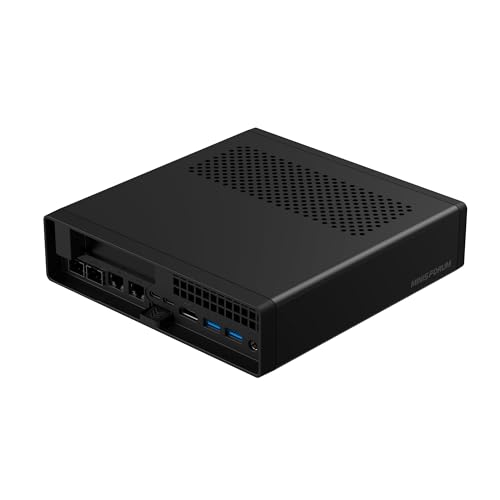
- Best 1440p upgrade platform: Minisforum MS-A2 Mini Workstation, Ryzen 9 HX, PCIe x16 Slot, Dual 10G SFP+ — Check on Amazon
- Skytech Omega Gaming PC, Ryzen 7 7700X, RTX 4070 Super 12GB, 32GB DDR5 — Check on Amazon
- Minisforum MS-01 Mini Workstation, Core i9-13900H, Dual 10GbE SFP+, PCIe Slot — Check on Amazon
- AtomMan G7 Ti Mini PC, Core i9-14900HX, RTX 4070 Laptop GPU, 32GB DDR5 — Check on Amazon
See 2 more Amazon options
- Thermaltake LCGS View i4770, Core i7-14700KF, RTX 4070 12GB, Liquid Cooled — Check on Amazon
- Apple Mac mini M4 Pro, 24GB Unified Memory, 512GB SSD — Check on Amazon
Read the full guide ↓
Disclosure: As an Amazon Associate, reviewstook.com earns from qualifying purchases. Links to Amazon on this page are affiliate links; they cost you nothing extra. Listing details such as price and availability change often, so check the current Amazon listing before you buy.
Plenty of professionals buy one machine to do two jobs: earn its keep at a desk all day, then drive a 1440p gaming monitor in the evening. That sounds like a simple brief, and it hides the single most common misunderstanding in this category. A PC that can put a picture on a 2560×1440 screen is not necessarily a PC that can render a game at 2560×1440. Every machine in this guide can do the first — display outputs are cheap, and even modest integrated graphics will light up a 1440p panel for desktop work. Only some of them can do the second, because rendering a modern game at 1440p means computing roughly 3.69 million pixels per frame, about 78 percent more than the 2.07 million of 1080p, and that workload belongs entirely to the graphics hardware. So this guide grades each of the six workstation-class machines below on one question first — does it genuinely render games at 1440p, does it render lower and upscale, or does it merely display the resolution — and only then on the workstation virtues it was chosen for: cores, memory ceilings, expansion slots and networking.
The verdicts, stated up front so nobody buys the wrong box: the two desktop towers render 1440p natively and outright. The compact mini with a laptop RTX 4070 renders lighter titles natively and leans on upscaling for heavier ones. The Mac mini displays 1440p beautifully and upscales in the games that offer it. And the two mini workstations — superb professional platforms both — ship with integrated graphics that make them display-only gaming machines until a card goes into their expansion slots. The workstation honesty note also stands: none of these six is ISV-certified, none carries certified professional drivers, and if your employer or software vendor requires that certification, this entire tier is the wrong shelf regardless of how well it games. What $1,500 does buy is prosumer hardware that reaches a long way in both directions — sixteen- and twenty-four-core CPUs, a desktop RTX 4070 Super, genuine PCIe slots, 10-gigabit networking — and, on the right picks, honest native 1440p after hours.
In this guide
Quick Picks
Short on time, or comparing several options at once? Each row below names a buyer and the machine that suits them, with the 1440p verdict stated in plain terms and a link to the listing.
| Buyer type | Pick | 1440p verdict | Link |
|---|---|---|---|
| Best native 1440p and rendering | Skytech Omega, Ryzen 7 7700X / RTX 4070 Super | Native 1440p — desktop 12GB card, DLSS for headroom | Check on Amazon |
| Best sustained native 1440p tower | Thermaltake LCGS View i4770 | Native 1440p — desktop RTX 4070 12GB, liquid cooling | Check on Amazon |
| Best compact 1440p machine | AtomMan G7 Ti Mini PC | Native in lighter titles; upscaled in heavier ones | Check on Amazon |
| Best upgrade platform | Minisforum MS-A2 Mini Workstation | Display only as shipped — the PCIe slot is the route | Check on Amazon |
| Best for network-heavy work | Minisforum MS-01 Mini Workstation | Display only — integrated graphics, half-height slot | Check on Amazon |
| Best for Mac creators | Apple Mac mini M4 Pro, 24GB / 512GB | Display first; upscaled where a title offers it | Check on Amazon |
How These Picks Were Chosen
The budget was applied as a ceiling for the whole machine: every pick below is a real Amazon listing in this under-$1,500 tier in the United States, so check the current price on Amazon before you buy, because live prices move often. Be aware that this tier is deal-dependent in a way cheaper guides are not. Some of these machines sit within this budget only when they are discounted, so each affected review flags that condition in plain terms — if the live price sits outside the tier when you check, the pick does not belong in this guide at that moment.
We did not use these machines ourselves. We read the maker listings, specification pages and independent review coverage, and graded on two axes. The gaming axis is a rendering audit: for each pick we asked what actually computes the frames — a desktop graphics card with its own memory, a laptop GPU in a mini chassis, or integrated graphics sharing system memory — and assigned one of three verdicts. Native means the hardware renders games at 2560×1440 itself. Upscaled means the honest route is rendering at a lower internal resolution and reconstructing the 1440p image, with whatever upscaler the hardware genuinely supports. Display only means the machine drives a 1440p monitor for work but cannot render modern games at that resolution in any form worth paying for. Upscaling credit follows the silicon, never the marketing: DLSS is claimed only for the three RTX machines, because DLSS requires NVIDIA Tensor cores, and the integrated and Apple picks are denied it explicitly wherever the question arises. The workstation axis is the one this budget is really bought on: sustained-load behavior rather than burst clocks, the memory ceiling above the fitted RAM, expansion you can actually use (slot wiring reported as documented — physical length versus electrical lanes, never rounded up), and networking speed for NAS-centred work. Where a specification could not be verified from a listing or maker source — a display-port count on a tower whose fitted GPU brand varies by batch, for instance — the copy says so instead of guessing.
One filter sat on top of both axes: honesty about labels. Gaming hardware was not excluded — two picks are gaming towers, graded openly — but no pick borrows credibility it has not earned. A laptop GPU is named a laptop GPU every time it appears. Integrated graphics are not allowed to inherit a product family’s gaming reputation. And no machine here is described as ISV-certified, because none of them is.
Rendering at 1440p vs Displaying 1440p
This distinction decides whether this guide helps you or misleads you, so it gets its own section. Displaying 1440p is a solved problem: a scan-out engine pushes a finished desktop image to the panel, and integrated graphics from either CPU maker — and Apple’s silicon — do it without effort, often on several monitors at once. Rendering 1440p is a different job entirely. The graphics hardware shades, textures and lights every one of those 3.69 million pixels for every frame, and the step from 1080p’s 2.07 million is not a third more work, as the resolution numbers might suggest, but roughly 78 percent more. That is why a machine can feel instant in every professional application you own and still collapse the moment a demanding game asks it to render at the panel’s native resolution.
Upscaling is the legitimate middle path, and it works by separating the two numbers. The game renders at a lower internal resolution; a reconstruction algorithm — trained or temporal — rebuilds a 1440p image from it. Where this guide credits DLSS on the RTX machines, it uses NVIDIA’s published figures and attaches the internal resolution to every claim: at 1440p output, DLSS Quality renders internally at about 1707×960, Balanced at about 1485×836, and Performance at about 1280×720. Those are honest, useful modes — Quality in particular is the sensible default on a 4070-class card — but a guide that prints “1440p” without saying which of those numbers produced it is hiding the mechanism. For the Radeon integrated pick, FSR is credited generically as the available route, with no internal-resolution figures attached, because none are documented for this hardware in our sources. For the Mac, upscaling exists only where an individual title offers it, and no upscaler is named on Apple’s behalf. One more wall matters and no upscaler moves it: video memory. Textures and geometry live in VRAM, and when a scene needs more than the card holds, the failure is not slowness but a hard stop — which is why the 12GB desktop cards and the 8GB laptop card receive different verdicts below despite sharing a product name.
The 6 Best Workstation PCs for 1440p Gaming Under $1,500
Skytech Omega Gaming PC — Ryzen 7 7700X, RTX 4070 Super 12GB, 32GB DDR5
Who it suits: The professional whose evening workload is the demanding one — native 1440p gaming, GPU rendering, CUDA work — and who wants one tower that treats both jobs as first-class.
This is the guide’s outright 1440p pick, and the reason is a single line of specification: a desktop GeForce RTX 4070 Super with 12GB of GDDR6X memory. That card renders modern games at 2560×1440 natively — no reconstruction required — and carries enough video memory that texture-heavy titles are not negotiating with a wall. Where extra headroom is wanted for higher refresh rates, DLSS is genuinely available on this hardware and honestly described: at 1440p output, Quality mode renders internally around 1707×960, Balanced around 1485×836 and Performance around 1280×720, and the same card’s DLSS Quality at 4K output corresponds to a 2560×1440 internal render, which is why this machine remains credible if a 4K panel arrives later. The workstation half of the brief is equally real: a Ryzen 7 7700X (8 cores, 16 threads), 32GB of DDR5, a 1TB Gen4 NVMe SSD, and a published 750W Gold power supply — a figure Skytech actually prints, so the upgrade ceiling is a known number rather than a guess. The full-size case is itself part of the argument: room for storage and memory, standard replaceable parts, and cooling volume a mini cannot match across a long render or a long session.
Price is the first caveat. Check the current price on Amazon before you buy: this tower belongs in this under-$1,500 guide only when its live price sits within the budget, so treat it as a conditional pick and walk away when it sits outside the tier. Skytech’s listings also reserve that the fitted GPU brand may vary by batch, which means the exact card and its display outputs should be confirmed on the live listing and again on delivery day if a multi-monitor desk matters to you; deliberately, no port count is claimed for this pick. It ships with Windows 11 Home rather than Pro, which some professional environments will want to upgrade, and it presents unapologetically as a gaming machine — RGB memory, showcase case. None of that touches its throughput, which is what it is graded on.
- Desktop RTX 4070 Super 12GB — native 1440p rendering and the guide’s strongest CUDA GPU.
- Published 750W Gold PSU: the upgrade ceiling is documented, not guessed.
- Standard tower serviceability: the memory, storage and graphics card are all replaceable parts.
Honest limitation: Deal-dependent pricing — it often sits outside this tier, so check price on Amazon — and the fitted GPU brand may vary, so confirm the card and its outputs on the live listing.
Choose it if native 1440p gaming and GPU rendering are the point of the purchase. Skip it if your days are network- or virtualization-heavy, or the machine must disappear on a desk.

Thermaltake LCGS View i4770 — Core i7-14700KF, RTX 4070 12GB, Liquid Cooled
Who it suits: Professionals whose work and play both run for hours — long renders, big compiles, long 1440p sessions — and who can time the purchase to a sale.
The Thermaltake earns the second native verdict. Its graphics card is the desktop RTX 4070 with 12GB of memory — a genuine native-1440p renderer in its own right, a step behind the Super in the Skytech but comfortably on the right side of the line this guide draws — and DLSS is available on it with the same published arithmetic: Quality at 1440p output renders about 1707×960 internally, Balanced about 1485×836, Performance about 1280×720, so the upscaled modes are headroom, not a necessity. Around the card sits the sustained-load specification: a Core i7-14700KF with 20 cores (8 performance, 12 efficiency) for work that scales across all of them, 32GB of DDR5-5600, a 1TB NVMe SSD, and liquid cooling whose purpose is unglamorous and decisive — holding clock speeds through the long middle of a render or a gaming session instead of shining in the first four minutes. One wiring fact follows from the processor choice and is worth knowing before a monitor is plugged in: the 14700KF is an F-suffix chip with no integrated graphics, so displays run from the graphics card’s outputs and only from there — the card is not an upgrade path on this machine, it is the display system.
Its problem is price, and this review will not soften it. This model often sits above this guide’s entire budget, and it belongs here only when it is discounted into the under-$1,500 tier. That makes it the strictest deal-only pick in the guide: when it sits within the budget, it is arguably the best sustained-load value on this page; when it does not, it is a machine for a higher-budget guide and should be bought, if at all, from there. No power-supply wattage is claimed for this pick, because none is published in the verified sources. Check the current price on Amazon, and if it sits outside the tier, wait for the sale rotation or consider the Skytech instead.
- Desktop RTX 4070 12GB — native 1440p rendering with DLSS headroom.
- 20-core i7-14700KF — the strongest sustained multi-core CPU here alongside the G7 Ti’s.
- Liquid cooling and full-tower volume for loads that run for hours.
Honest limitation: This machine often sits over budget; it earns its place here only when discounted into this tier — check price on Amazon before you buy.
Choose it if your workloads run long and you can buy on the sale cycle. Skip it if the purchase cannot wait for the sale rotation.

AtomMan G7 Ti Mini PC — Core i9-14900HX, RTX 4070 Laptop GPU, 32GB DDR5
Who it suits: Creators who need real 1440p capability in the smallest possible footprint — a crowded desk, a location bag — and understand exactly which RTX 4070 they are getting.
The G7 Ti is the compact 1440p pick, and its verdict is deliberately split. The graphics hardware is an RTX 4070 Laptop GPU running at up to 140W — a strong implementation of the laptop part — paired with a Core i9-14900HX (24 cores, 32 threads), 32GB of DDR5-5600 across two SO-DIMM slots upgradeable to 96GB, a 1TB SSD with a second SSD slot, and outputs documented on the listing as HDMI 2.1 and USB4. In lighter and older titles, and in competitive games at sensible settings, that GPU renders 1440p natively. In heavier modern titles, the honest route is upscaling: DLSS is genuinely supported on this silicon, and at 1440p output its Quality mode’s internal render of about 1707×960 is a workload this card handles well, with Balanced (about 1485×836) and Performance (about 1280×720) below it for the heaviest scenes. For the configured 32GB/1TB version, check price on Amazon — it sits in the upper part of this tier.
The naming discipline matters more in this review than any other, so here it is without softening: the RTX 4070 in this machine is the laptop part, with 8GB of memory — a clear, material step below the 12GB desktop cards in the two towers above. Games whose texture and geometry load fits in 8GB play well at 1440p; workloads that do not fit hit a wall that no upscaling mode moves, because upscaling reduces render resolution, not memory demand. Treat the G7 Ti as a strong 8GB machine and it will not disappoint; treat it as a desktop 4070 that happens to be small and it will. The barebone version costs less than the configured version, but that saving only makes sense if you already own suitable DDR5 and an SSD, since buying the memory and storage separately can easily erase the difference.
- Core i9-14900HX with 24 cores — more than any other pick in this guide.
- RTX 4070 Laptop GPU at up to 140W: native 1440p in lighter titles, DLSS for the rest.
- Socketed memory to 96GB and a second SSD slot, in a book-sized box.
Honest limitation: The GPU is the 8GB laptop part, not a 12GB desktop card — VRAM-bound games and scenes hit that wall first.
Choose it if desk space is scarce and your gaming fits in 8GB. Skip it if you play the heaviest current titles at maximum settings — buy a tower.

Minisforum MS-A2 Mini Workstation — Ryzen 9 HX, PCIe x16 Slot, Dual 10G SFP+
Who it suits: Professionals and homelab builders who want the strongest workstation platform here and accept that 1440p gaming arrives with a card they fit themselves.
Graded purely as a workstation, this is the most expandable machine in the guide, shrunk to about 1.78 litres. The documented configuration pairs a 16-core, 32-thread Ryzen 9 HX processor (up to 5.4GHz) with 32GB of DDR5 and a 1TB SSD, and the platform around it is the argument: a physical PCIe x16 slot wired for x8 bandwidth, as Minisforum documents it — a real slot, not a decorative one — two 10-gigabit SFP+ ports on an Intel X710 controller plus dual 2.5-gigabit Ethernet, three storage positions across M.2 and U.2, two DDR5 SO-DIMM slots that take memory to 96GB, and display outputs documented on the listing as HDMI plus two USB-C. Check the current price on Amazon for this configuration. It also exists as a family barebone that sits lower in the tier — worth it only when the memory and SSD it needs are already sitting in a drawer, given what parts cost right now.
The 1440p verdict, however, is the bluntest in this guide: as shipped, this is a display-only gaming machine. Its graphics are integrated Radeon 610M — entirely adequate for driving 1440p monitors, light CAD viewing and desktop work, and not a 1440p game renderer in any sense worth paying for; DLSS does not exist on this hardware, and while FSR is the available upscaling route on Radeon graphics generally, no integrated part of this class turns that into native-class 1440p play. What the MS-A2 sells instead is the route: the PCIe slot accepts a low-profile graphics card, and with one fitted the machine’s gaming story changes completely — subject to two documented limits, the slot’s x8 wiring and its limited surrounding airflow, which argue for a modest-power card rather than anything ambitious. Independent review coverage also found this machine audible under sustained load and relatively thirsty at idle. Buy it as a platform whose second job you will equip, and it is the best long-term purchase here; buy it expecting to game at 1440p out of the box, and it is the wrong one.
- Physical PCIe x16 slot (x8 electrical) — the only real GPU route among the minis.
- Two 10G SFP+ ports and two 2.5G ports: a NAS stops being the bottleneck.
- Socketed DDR5 to 96GB and three storage positions.
Honest limitation: Integrated graphics as shipped — 1440p gaming waits on a low-profile card you add — and it is audible under full sustained load.
Choose it if expansion and networking matter most and a card purchase is planned. Skip it if you want to game at 1440p the day it arrives — that is the G7 Ti or a tower.

Minisforum MS-01 Mini Workstation — Core i9-13900H, Dual 10GbE SFP+, PCIe Slot
Who it suits: Network-heavy professionals — homelab administrators, developers running local infrastructure, studios whose files live on a fast NAS — whose gaming is light or happens elsewhere.
If the MS-A2 is the expansion pick, the MS-01 is the network pick, and its port list reads like a small server’s: two 10-gigabit SFP+ ports on an Intel X710 controller, two 2.5-gigabit ports (one an Intel i226-LM with vPro remote management), two USB4 ports and an HDMI output — three displays from verified outputs. Inside, a Core i9-13900H (14 cores, 20 threads, up to 5.4GHz) drives three M.2 storage slots with a U.2 option via the included adapter, memory is socketed DDR5 with an official ceiling of 64GB, and there is a PCIe x16 slot wired for x8 with its physical limits stated plainly: half-height, single-slot cards only. Check the current price on Amazon — this configuration sits in the upper part of this tier.
On gaming, the verdict matches the MS-A2’s with a tighter upgrade path. The Iris Xe integrated graphics drive 1440p panels for work without complaint and render only the lightest, oldest titles at low settings; DLSS is not available on this hardware, and no upscaling route turns Iris Xe into a 1440p gaming GPU. The slot could in principle accept a low-profile card, but the half-height, single-slot constraint narrows the field severely — and ServeTheHome’s extensive testing of this platform found that some PCIe cards never initialize in it, the well-known plug-fest result, so any specific card should be checked against owner reports before the machine is bought around it. At full CPU load the MS-01 also measures around 42 to 45 dB(A): ordinary in an office, audible in a quiet studio. None of this diminishes what it is for; it simply is not for 1440p gaming, and this guide would rather say so than let the workstation specification imply otherwise.
- Two 10GbE SFP+ ports on an Intel X710, plus two 2.5GbE ports, one carrying vPro.
- Storage-heavy builds fit: three M.2 slots and a U.2 option.
- Three verified display outputs for a multi-monitor desk.
Honest limitation: Display-only for gaming as shipped; the slot takes half-height single-slot cards only, some cards are documented not to initialize, and the official memory ceiling is 64GB.
Choose it if moving data is the workstation’s actual job — NAS service, virtualization, network infrastructure. Skip it if 1440p gaming is a requirement rather than an afterthought.

Apple Mac mini M4 Pro — 24GB Unified Memory, 512GB SSD (MCX44LL/A)
Who it suits: Mac-based creators — video editors in Final Cut or Resolve, audio producers, Apple-ecosystem developers — who game inside the macOS catalogue and want the strongest small Mac under the ceiling.
The Mac mini M4 Pro enters this guide on its professional merits: a 12-core CPU (8 performance, 4 efficiency) and 16-core GPU on Apple’s silicon, 24GB of unified memory at 273GB/s of bandwidth, hardware acceleration for ProRes and AV1, three Thunderbolt 5 ports plus HDMI at the rear and two USB-C ports at the front, and Apple’s published support for up to three displays. Its 1440p verdict needs careful wording, because the two halves of the distinction land differently here. On display, it is flawless: driving one or more 1440p panels is effortless, and its media engines do timeline work the x86 machines here handle less elegantly. On rendering, the M4 Pro’s GPU is a genuinely capable integrated-class part that plays the macOS gaming catalogue — a smaller, separate catalogue from Windows gaming — at 1440p with per-title upscaling where the game offers it, and at reduced settings or resolutions where it does not. There is no DLSS on this hardware and none is claimed; no upscaler is named on Apple’s behalf in this guide, because our sources document none for it. That is why this pick carries a strict rule: check the current price on Amazon, because it belongs in this under-$1,500 guide only when its live price sits within the budget — when it sits outside the tier, waiting is the right call, not stretching.
The limitations are structural and permanent. Memory and storage are part of the chip package — 24GB and 512GB are what this machine will have on its last day of work — and 512GB is tight for video work, making an external SSD a planned second purchase rather than an accessory. This configuration carries Gigabit Ethernet, with no 10-gigabit claim made. It runs macOS only: no CUDA, no Windows-only engineering software or game library, no PCIe slot. Judged inside its ecosystem it is excellent, quiet and power-efficient; judged as a general 1440p gaming platform it is the most closed machine in this guide, and the verdict above should be read with that boundary in mind.
- Dedicated ProRes and AV1 hardware engines, built for media timelines.
- Up to three displays and Thunderbolt 5, per Apple’s published specification.
- Quiet, tiny and power-efficient under sustained creative loads.
Honest limitation: Memory and storage can never be upgraded, 512GB is tight, the gaming catalogue is macOS-only, and its live price often sits outside this tier, so check price on Amazon before you buy.
Choose it if your professional software and your games both live on macOS. Skip it if you need CUDA, the Windows game library, internal expansion or more memory later.

Comparison Table
| Product | Graphics | 1440p verdict | Best use | Link |
|---|---|---|---|---|
| Skytech Omega, 7700X / RTX 4070 Super | Desktop RTX 4070 Super 12GB | Native | Native 1440p gaming and CUDA rendering — check price on Amazon | Check on Amazon |
| Thermaltake LCGS View i4770 | Desktop RTX 4070 12GB | Native | Sustained 20-core loads and native 1440p, when discounted into this tier | Check on Amazon |
| AtomMan G7 Ti Mini PC | RTX 4070 Laptop GPU 8GB | Native in lighter titles; upscaled in heavier ones | 1440p capability and 24-core CPU work in the smallest box | Check on Amazon |
| Minisforum MS-A2 Mini Workstation | Radeon 610M integrated (slot empty) | Display only as shipped | Expansion platform: add a card; dual 10G networking today | Check on Amazon |
| Minisforum MS-01 Mini Workstation | Intel Iris Xe integrated | Display only | NAS workflows, virtualization, vPro management | Check on Amazon |
| Apple Mac mini M4 Pro, 24GB / 512GB | Apple 16-core GPU | Display first; upscaled where a title offers it | ProRes/media creation inside the Apple ecosystem | Check on Amazon |
How to Choose a Workstation PC for 1440p Gaming Under $1,500
- Decide which job is primary. If 1440p gaming is the point and work is the day job, the towers and the G7 Ti are the shortlist. If the workstation platform is the point and gaming is occasional, the minis earn their place — but buy them knowing their verdicts are display-only until a card is fitted. A machine bought for the wrong primary job disappoints at both.
- Read the verdict, not the resolution support. Every listing in this category will tell you a machine “supports” high resolutions, because its outputs do. That sentence describes the monitor, not the game. Ask instead what renders the frames — desktop card, laptop GPU or integrated graphics — and let the answer sort the list.
- Name the GPU precisely. Three different products answer to “RTX 4070” in this guide — a desktop Super with 12GB, a desktop card with 12GB, and a laptop part with 8GB. Memory decides which games and scenes fit at all, and no upscaling mode changes that number. Buy the gigabytes and the form factor, never the badge.
- Use upscaling honestly. On the RTX machines, DLSS Quality at 1440p output — an internal render around 1707×960 — is the sensible default for heavier titles, and it is a feature, not a fudge. But plan purchases on the native verdict: a card that needs Performance mode (about 1280×720 internally) to reach your target today has no headroom left for next year’s games.
- Pair the monitor with the rendering, not the port. A 1440p high-refresh panel makes sense behind the two towers and the G7 Ti. Behind a display-only mini it is a fine work monitor and a wasted gaming specification until the slot is filled — and since no per-port refresh ceiling is documented for any pick here, confirm the exact output specification on the live listing before planning around a specific refresh rate.
- Check slot wiring before planning an upgrade. Each mini workstation advertises a PCIe x16 slot; each is wired for x8 bandwidth in practice. The MS-01 additionally limits cards to half-height, single-slot designs, and the MS-A2’s tight slot airflow favors modest-power parts. That is plenty for capture cards, NICs and low-profile GPUs — and a hard stop for full-size cards. Plan the card you will actually fit.
- Buy the memory ceiling, not the fitted configuration. The Windows picks all ship with 32GB and the Mac with 24GB; what separates them is where the road ends — 96GB in the MS-A2 and G7 Ti, 64GB in the MS-01, ordinary DIMM slots in both towers, and a dead end in the Mac, whose memory is part of the chip. Workloads grow into memory over a machine’s life, so the ceiling is the specification to compare.
- Price 10-gigabit networking honestly. If your projects live on a NAS, dual 10G SFP+ ports (MS-A2, MS-01) are the difference between editing off the server and copying files locally all day — and SFP+ needs transceivers and cabling, which are second purchases. If everything lives on the machine’s own SSDs, though, those ports will sit idle — know which professional you are before paying for them.
- Settle the certification question first. Firm and client work sometimes contractually requires drivers certified for a specific CAD application. No machine in this guide carries that certification, and if your work requires it, the purchase is a certified line — HP Z, Dell Precision, Lenovo ThinkStation — at a higher budget, full stop. For editing, Blender or Resolve rendering, development and data work, certified drivers add little and this hardware adds a great deal.
- Check the live price before you buy. Several of these picks — the Skytech, the Mac mini and above all the Thermaltake — belong in this guide only when their live price sits within the under-$1,500 tier. Prices at this tier swing widely; the professional habit is to check the current price on Amazon before the listing sets your budget for you. Readers whose budget stretches further should see Best Workstation PC Under $2500; those whose gaming matters more than the workstation label should compare Best 1440p Gaming PC Under $1500.
Common Buying Mistakes
- Reading “supports 8K” or “supports 1440p” on a listing as a gaming claim. Output resolution is a display specification; the two integrated minis in this guide prove how far apart the two ideas are.
- Buying a workstation platform for its CPU cores and discovering the graphics are integrated. Sixteen cores do not render games; the GPU line of the specification is the one that decides this guide’s verdicts.
- Reading “RTX 4070” as one product. The laptop 8GB part and the desktop 12GB parts share a name and little else; VRAM-bound games fail on the wrong one.
- Crediting DLSS to hardware that cannot run it. DLSS needs NVIDIA Tensor cores — the Radeon, Intel and Apple picks in this guide do not have them, whatever a marketplace headline implies.
- Planning a full-size GPU upgrade into a mini’s slot without checking the physical limits — half-height and single-slot on the MS-01, x8 wiring on both minis, limited slot airflow on the MS-A2.
- Assuming that a card which physically fits the slot will also work in it. On the MS-01, reviewer and owner testing has documented cards that never initialize at all; verify your exact card against those reports before buying the machine around it.
- Paying whatever the listing asks because the machine appears in this guide. Each deal-dependent pick above belongs here only when its live price sits within this tier; a Thermaltake or a Mac mini bought while priced outside the tier is not the pick this guide recommended.
- Buying a 1440p high-refresh monitor for a display-only machine and blaming the PC. The panel was never the bottleneck; the rendering hardware was, and the monitor will only earn its specification once a card is fitted.
- Forgetting the second purchase. The MS-A2’s graphics card, the Mac’s external SSD, the minis’ SFP+ transceivers and cabling — several picks here are platforms whose full working cost includes one planned addition.
Final Recommendation
- Native 1440p and rendering: Skytech Omega — check price on Amazon and confirm it sits within this tier.
- Sustained loads, native 1440p: Thermaltake LCGS View i4770, at its sale price.
- Smallest desk, real 1440p: AtomMan G7 Ti Mini PC.
- Platform to grow: Minisforum MS-A2 Mini Workstation, plus a planned card.
- NAS and network-heavy work: Minisforum MS-01 Mini Workstation.
- Creators on macOS: Apple Mac mini M4 Pro — check price on Amazon and buy only when it sits within this tier.
Our top two at this budget are the Skytech Omega, because its desktop RTX 4070 Super settles the 1440p question outright — native rendering, 12GB of memory, DLSS as headroom rather than necessity — and the Minisforum MS-A2, because no other pick here can change jobs the way its slot, ports and memory ceiling allow, gaming included once a card is fitted. Between them they frame the real decision: render natively today, or buy the platform and equip it. The G7 Ti is the answer when the desk cannot take a tower and gaming cannot wait; the Thermaltake matches the Skytech’s native verdict for buyers who can wait for its sale; the MS-01 is the right spend when the network is the workstation; and the Mac mini M4 Pro remains the professional default inside its ecosystem, bought when its live price sits within this tier. Buyers weighing the workstation specification without the gaming angle should also see Best Workstation PC Under $1500, and those new to speccing a work machine can start with Best Workstation PC For Beginners Under $1500. Check the current price on Amazon for each pick, confirm the exact configuration on the listing, and buy the rendering hardware your monitor actually requires — not the output resolution the headline advertises.
Frequently Asked Questions
Can a workstation PC under $1,500 really game at 1440p?
Some of these can, and this guide labels which. The two towers render 1440p natively on desktop 12GB RTX cards; the G7 Ti renders lighter titles natively and upscales in heavier ones; the Mac mini upscales where a macOS title offers it. The two mini workstations, for all their professional strengths, ship with integrated graphics and are display-only gaming machines until a card goes into their slots. The category is not the answer — the graphics hardware is.
Is DLSS Quality at 1440p actually rendering at 1440p?
No, and on the picks where DLSS is credited this guide says what it is doing: Quality mode at 1440p output renders internally at about 1707×960 and reconstructs the 2560×1440 image, Balanced renders about 1485×836, and Performance about 1280×720. The result is often hard to distinguish from native in motion, which is why the modes are worth using — but a buyer comparing machines deserves the internal number, not just the output one. DLSS is claimed only for the three RTX machines here, because it requires NVIDIA Tensor cores.
Why do the two mini workstations score so well as workstations and so poorly for gaming?
Because the two jobs buy different hardware. Their professional value is cores, memory ceilings, PCIe slots and 10-gigabit networking — specifications they genuinely lead on. Gaming at 1440p is bought with one specification, the GPU, and as shipped both machines carry integrated graphics chosen for display duty. The MS-A2’s slot is the honest remedy; the MS-01’s half-height slot narrows it. Neither machine is mis-sold — provided the buyer reads the graphics line before the core count.
Is the G7 Ti’s laptop RTX 4070 enough for 1440p?
For a large share of titles, yes — at up to 140W it is a strong implementation of the part, rendering lighter games natively at 1440p and handling heavier ones through DLSS Quality. The boundary is its 8GB of memory: games whose texture load exceeds it will force settings down regardless of upscaling, because upscaling reduces render resolution, not memory demand. If your library is the heaviest current releases at maximum settings, the 12GB desktop cards in the towers are the correct purchase.
Which of these should I pair with a 1440p high-refresh monitor?
The Skytech and Thermaltake first — both render natively and have DLSS headroom for higher refresh rates — and the G7 Ti for lighter and competitive titles. The Mac mini drives such a panel happily for work and casual play. For the two integrated minis, buy the monitor for your desk if you like, but understand its gaming specification stays unused until a card is fitted. No per-port refresh ceiling is documented for any pick in our sources, so confirm the exact output specification on the live listing before planning around a specific rate.
Should I buy a mini workstation or a tower for work and gaming?
Buy the tower if gaming at 1440p is a requirement from day one, if the GPU might be upgraded later, or if sustained loads run for hours daily — volume is cooling, and cooling is sustained speed. Buy a mini if desk space is genuinely scarce, if expansion means network and capture cards rather than full-size GPUs, or if the machine doubles as a homelab node — and among the minis, only the G7 Ti games at 1440p out of the box. The broader workstation comparison is laid out in Best Workstation PC Under $1500, with the smaller-format angle covered in Best Workstation PC For Small Spaces Under $1500 and the streaming angle in Best Workstation PC For Streaming Under $1500.


