Where to buy
Check the latest price, availability and delivery on Amazon. Orders are placed on Amazon. We may earn a commission from qualifying purchases.
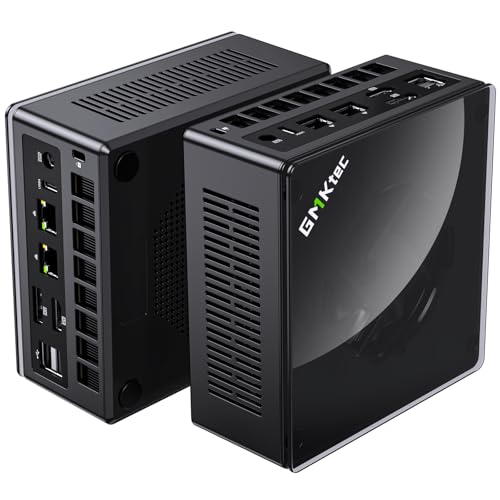
- Best first barebone for most beginners: GMKtec NucBox K8 Plus Barebone, Ryzen 7 8845HS (No RAM/SSD/OS) — Check on Amazon
- Minisforum UM890 Pro Barebone, Ryzen 9 8945HS — Check on Amazon
- Minisforum UM880 Plus Barebone, Ryzen 7 8845HS — Check on Amazon
- Minisforum UM870 Slim Barebone, Ryzen 7 8745H — Check on Amazon
- Minisforum UM790 Pro Barebones, Ryzen 9 7940HS — Check on Amazon
See 1 more Amazon option
- Minisforum MS-A1 Barebone, AM5 Socket (No CPU/RAM/SSD/OS) — Check on Amazon
Read the full guide ↓
Disclosure: As an Amazon Associate, reviewstook.com earns from qualifying purchases. Links to Amazon on this page are affiliate links; they cost you nothing extra. Listing details such as price and availability change often, so check the current Amazon listing before you buy.
A barebones mini PC can look like a trick. The boxes in this guide are budget-tier kits, they are advertised next to the word “gaming,” and yet every single one of them arrives unable to do anything at all — no memory, no storage, no Windows, in one case not even a processor. This guide exists to explain exactly what is going on, in plain language, before you spend anything. A barebone is a computer kit: the case, the main circuit board, the cooling and (usually) the processor are already assembled for you, and you add the three parts the maker left out. It is the shallow end of PC building — the job takes minutes and a small screwdriver, not a weekend and a workbench — but it is still building.
Here is the picture, up front. The price on the listing is the price of the kit, not the price of a working computer. To turn any pick below into a machine that turns on, you also need memory, a storage drive and an operating system, and right now memory is unusually expensive, so a single laptop memory stick can add a substantial cost on its own. If you already own the missing parts — memory and a drive pulled from a dead laptop, say — a barebone under $700 is the best-value route to a genuinely capable little gaming PC. If you own nothing and must buy every part new, the same kit can end up costing more finished than the maker’s ready-built version of the same machine. Neither fact is hidden here — one review below shows it happening in practice — and which one applies to you is the first thing to work out.
Every kit in this guide is built around AMD’s Radeon 780M, the strongest graphics ever built into a processor of this class. There is no separate graphics card; the graphics live inside the processor and borrow memory from the system, which is why the memory you buy matters so much. In plain terms, a finished 780M machine plays modern games at 1080p — the resolution of a standard HD monitor — at medium settings, runs lighter and esports games much faster, and can stretch further with a smart upscaling feature called FSR, explained below. It is not a machine for the highest resolutions or the shiniest lighting effects. Below: the six kits worth a beginner’s attention, a jargon translator, a step-by-step first-evening walkthrough, an honest adding-up of the total cost, and the mistakes first-timers make in this category.
In this guide
Quick Picks
Short on time, or comparing several options at once? Each row below names a buyer type and the kit that suits it, with a link to the listing.
| Buyer type | Pick | Why it stands out | Link |
|---|---|---|---|
| Best first barebone for most beginners | GMKtec NucBox K8 Plus Barebone | Strong all-rounder with a real graphics-card upgrade path later | Check on Amazon |
| Best build quality and cooling | Minisforum UM890 Pro Barebone | Fastest processor here, best cooling, two network ports | Check on Amazon |
| Best value if you own parts | Minisforum UM880 Plus Barebone | The modern platform at the lowest kit price in this guide — check price on Amazon | Check on Amazon |
| Simplest, cheapest way in | Minisforum UM870 Slim Barebone | Slim, quiet starter kit — check price on Amazon, nothing extra to pay for | Check on Amazon |
| Best for parts you already own | Minisforum UM790 Pro Barebones | Former flagship — a bargain at a favourable price, poor value when its price drifts higher | Check on Amazon |
| Best for confident DIY builders | Minisforum MS-A1 Barebone | You choose (and buy) the processor yourself — the advanced option | Check on Amazon |
How These Picks Were Chosen
We did not assemble these kits ourselves. We read the manufacturers’ listings and specification pages for each one, followed their listings over time, and cross-checked the details against maker documentation and reviews. Three tests decided what made the list. First, the graphics test: a beginner’s first gaming machine should actually game, so every pick had to carry the Radeon 780M — the integrated graphics that make 1080p gaming a realistic promise rather than a hope. Five picks have it built into a soldered processor; the sixth lets you install a desktop processor that contains it.
Second, the memory test. Because the 780M has no memory of its own and borrows from the system, a kit only qualified if it has two memory slots, so you can fit a matched pair of sticks and let the memory run at full speed — a single stick quietly halves the flow of data to the graphics. Every pick here has two slots. Third, the honesty test: each kit had to survive having its true finished cost printed next to it — kit plus memory plus storage plus an operating system, compared with the ready-built version of the same machine where one exists. Kits whose listings disguised what they were, or that turned out to be complete PCs borrowing the barebones keyword, were excluded.
Prices change often, so check price on Amazon on the day you shop. Where a pick only makes sense when its price is favourable, the review says so and gives you the rule to apply. One pick, the MS-A1, deliberately has no finished-build total attached to it anywhere in this guide, so we state the direction of its cost — the most expensive route here when everything is bought new — rather than invent a figure.
New to This? The Words on the Box, in Plain English
Barebones listings are written for people who already build PCs. Here is every term you need for this guide, translated once, so the reviews below read like English.
- Barebones (or “barebone”): a partly-built computer. You get the case, the main board, the power supply, the cooling and — in five of these six kits — the processor, already assembled. You add memory, storage and an operating system.
- Processor (CPU): the chip that does the computer’s thinking. In these kits it is soldered to the board at the factory, except in the MS-A1, where the socket is empty and the processor is one more thing you buy and install.
- Integrated graphics (iGPU): graphics built into the processor instead of living on a separate card. The Radeon 780M is the integrated graphics in every pick here. Because it has no memory of its own, it borrows some of your system memory.
- SO-DIMM: the small size of memory stick used in laptops and mini PCs. Desktop computers use a longer stick called a DIMM, and the two do not fit each other’s slots. Every kit here takes SO-DIMMs. Memory also comes in generations — these kits need the current one, DDR5 — and a DDR4 stick will not physically fit a DDR5 slot. The listing title for your parts must say both “SO-DIMM” and “DDR5.”
- Dual-channel: what happens when memory is installed as a matched pair of sticks. The computer can talk to both at once, doubling the data flow — and since the graphics borrow that same flow, a matched pair makes games visibly faster than one stick. Two 16GB sticks beat one 32GB stick in these machines, every time.
- M.2 NVMe SSD: the storage drive these kits take — a small stick, about the size of a stick of gum, that screws into a slot labelled M.2. “NVMe” and “PCIe 4.0” describe how fast it talks to the computer; the number 2280 is just its length. This is different from the older 2.5-inch drives that look like small slabs: the M.2 stick is the one to buy first.
- Operating system (OS) and its license: Windows, or a free alternative such as Linux. No kit here includes one. Windows is a licensed product: a license bought at retail can generally move with you between machines, while the cheap license bundled with a ready-built PC usually cannot. Linux costs nothing and runs Steam and most games well, which makes it the zero-cost way to finish a build.
- BIOS: the simple built-in setup screen the computer shows before any operating system loads. On your first evening you will visit it once, to check the machine can see your memory and storage.
- OCuLink: a special socket, found on three of these kits. Its party trick is letting you plug in an external dock holding a full desktop graphics card — the one genuine way to upgrade these machines past their built-in graphics later. It is not hot-pluggable: you connect the dock while the power is off.
- FSR: a free feature built into many games that renders the picture at a lower resolution and cleverly stretches it up, trading a little sharpness for a lot of speed. On a 1080p screen it is how a 780M machine stays smooth in demanding games. You switch it on inside each game’s settings.
The 6 Best Barebones Mini PCs Under $700 for Beginners
GMKtec NucBox K8 Plus Barebone (Ryzen 7 8845HS, No RAM/SSD/OS)
Who it suits: A first-time builder who wants one kit that does everything well now and leaves the most doors open later — including the only straightforward route to a big graphics upgrade down the road.
The processor is AMD’s Ryzen 7 8845HS: eight cores (think of cores as workers — eight can simply do more at once than four), and it carries the Radeon 780M graphics and a small AI accelerator you can safely ignore for gaming. What makes the K8 Plus the top pick is everything fitted around that chip. There are two memory slots and two M.2 storage slots, so you can start with one drive and add a second later instead of replacing the first. There is a proper OCuLink socket — the external graphics dock connection from the glossary — fitted as a real port. There are two USB4 ports, connections for up to four monitors, and two wired network ports where most mini PCs have one. If a beginner asked which kit is hardest to outgrow, it is this one.
Now the money, stated the way this guide states it everywhere. Check price on Amazon for the kit — the kit alone sits comfortably under the $700 line. Finishing it means a matched pair of DDR5-5600 memory sticks, an M.2 drive, and an operating system, and at current parts prices those additions can add up significantly. That puts a finished K8 Plus in the same territory as GMKtec’s own ready-built version of this machine with 32GB of memory and a 1TB drive fitted. So the honest advice is conditional: buy this barebone if you already own suitable memory and storage, if you want more memory or a faster drive than the factory fits, or if building it your way is part of the point. If none of those is true, price the ready-built version on the same day before you order.
- The only pick with a proper OCuLink port plus two of everything a beginner might grow into: memory slots, drive slots, network ports.
- Four-monitor support and fast USB4 ports — generous connections for a small box.
- Strong all-rounder: the same processor and graphics as kits costing more.
Honest limitation: With every part bought new at today’s memory prices, the finished machine can cost as much as — or more than — the ready-built version of itself. Its value depends on parts you own or prices you catch.
Choose it if you want the best first barebone and like the idea of an external graphics dock one day. Skip it if you are buying everything new and the ready-built version is on sale — do that comparison first, in writing.

Minisforum UM890 Pro Barebone (Ryzen 9 8945HS, No RAM/SSD/OS)
Who it suits: A beginner who wants the best-made box in the guide — the fastest processor, the most serious cooling — and is furnishing it with parts already owned or honestly budgeted for.
The UM890 Pro is Minisforum’s flagship design from the previous generation, sold here as a shell: the metal case, the cooling system, and a Ryzen 9 8945HS processor. Do not let the “9” intimidate or overly impress you — for games it renders through the same Radeon 780M graphics as the Ryzen 7 kits, so frame rates are essentially the same; what the premium buys is build quality, cooling that stays composed under long loads, and connections. You get two wired network ports, two USB4 ports, outputs for four displays, four ordinary USB ports, and an OCuLink socket for an external graphics dock later. Memory (two slots, up to 96GB) and M.2 storage are yours to add.
The price needs a beginner’s caution, because it points in two directions at once. Check price on Amazon for the kit — it sits well under $700 as a premium-tier kit in this guide. Meanwhile the ready-built UM890 Pro with memory and storage fitted has recently been priced at a premium on Amazon, pushed up by the same memory shortage. That gap is the argument for the barebone: the expensive part of the ready-built box is the memory inside it, and if your memory is already paid for — moved over from another machine — you are converting a competitively priced shell into a flagship. If you are buying memory and storage new, you hand most of the saving straight back, plus an operating system on top. Which half describes you decides whether this is a clever buy or an expensive way to own the same computer as the cheaper kits.
- Fastest processor in the guide and the best cooling — built for long sessions, not short bursts.
- Two network ports, two USB4 ports, four display outputs and an OCuLink socket.
- The established flagship of the best-known mini PC maker, with deep documentation and owner community.
Honest limitation: It is the most expensive kit here, and the extra money over the UM880 Plus below buys build and connections, not faster games — the graphics are identical.
Choose it if you value build quality and cooling, or genuinely need two network ports. Skip it if gaming is the whole job — the cheaper kits play the same games the same way.
Minisforum UM880 Plus Barebone (Ryzen 7 8845HS, No RAM/SSD/OS)
Who it suits: A beginner with parts already on hand — memory and a drive from a retired laptop or an earlier project — who wants the modern platform at the lowest kit price in the guide.
This kit carries the same Ryzen 7 8845HS processor and Radeon 780M graphics as the K8 Plus at the top of the guide, in a compact metal case, with two memory slots (up to 96GB), two M.2 storage slots, fast USB4, a wired network port and modern Wi-Fi. Check price on Amazon for current pricing — it is the cheapest way here into this processor class, positioned as a budget option among similar kits. One design detail deserves plain words: it does offer the OCuLink graphics-dock connection, but through an internal adapter board rather than a tidy socket on the case like the K8 Plus’s. Fitting it is a small project inside the box, and it can trade against internal expansion space. Just know it is an “open the case again” job, not a “plug in a cable” job, before you plan around it.
This kit also produced the single most useful lesson in the whole barebones category, and every beginner should understand it. In a survey that priced Amazon listings directly, this barebone plus a new 32GB memory kit and a new 1TB drive came to more in total than the ready-built UM880 Plus, same processor, same memory, same storage. Doing it yourself cost more. That is not a reason to avoid this kit; it is the reason this guide keeps asking what is in your parts drawer. With memory and a drive already owned, this platform — check price on Amazon — is the best value in the guide, full stop. With both bought new during a memory shortage, the factory’s bulk-bought memory beats your retail memory and the ready-built box wins.
- The full modern platform — same processor and graphics as the top pick — at the lowest kit price here.
- Two memory slots and two drive slots: room to grow without replacing parts.
- OCuLink available later, via its adapter board, for an external graphics dock.
Honest limitation: The documented case where building it yourself costs more than buying it ready-built — if your parts are bought new. This kit’s bargain is real only for parts owners.
Choose it if your memory and drive are already paid for. Skip it if they are not, and the ready-built version is anywhere near its usual prices on the day you shop.

Minisforum UM870 Slim Barebone (Ryzen 7 8745H, No RAM/SSD/OS)
Who it suits: A beginner who wants the simplest, cheapest credible start — a slim, quiet box for 1080p gaming and everyday computing — and is happy for the graphics it starts with to be the graphics it keeps.
The Ryzen 7 8745H keeps the parts that matter — eight cores and the full Radeon 780M graphics — and leaves out the AI accelerator, which games do not use. In return this is the least expensive kit in the guide from a major maker — a budget-tier starter kit, so check price on Amazon. The slim case still gives you modern connections — HDMI, DisplayPort and USB4 video outputs, a wired network port, four USB ports, fast Wi-Fi — plus a thoughtful extra: it can switch itself on automatically when power returns, which suits a box tucked behind a monitor or doubling as a small always-on home server between gaming sessions.
What the lower price gives up should be equally plain, because it cannot be fixed later. There is no OCuLink socket: the built-in graphics are this machine’s ceiling for life, and the only external-graphics route is a slower, pricier USB4 dock. There is one network port instead of two, and the slim case has less cooling and expansion room than the flagship UM890 Pro. For the beginner whose plan is honestly “fit memory and a drive, play at 1080p for years,” none of that matters, and this is the kit to buy. As ever, run the finished total before ordering: ready-built versions of this same machine exist, and on a good day for them they can close much of the barebone’s advantage.
- Full-strength 780M graphics at the lowest kit price from a major brand.
- Slim, quiet case with modern outputs and an auto-power-on feature.
- The least intimidating starting point in the guide — no features you are paying to ignore.
Honest limitation: No OCuLink and one network port. The graphics you start with are the graphics you keep, and the processor drops the AI accelerator some buyers may want for other work.
Choose it if the plan is simple: integrated graphics, small footprint, lowest sensible price. Skip it if an external graphics dock or a second network connection is anywhere in your future plans.

Minisforum UM790 Pro Barebones (Ryzen 9 7940HS, No RAM/SSD/OS)
Who it suits: A beginner with parts ready to fit who can be patient about price — because this excellent kit is a bargain on the right week and a poor buy on the wrong one, and the difference is larger than with any other pick.
The UM790 Pro is the machine that started this whole class of mini PC: the first built on AMD’s Ryzen 7040 processors, with a Ryzen 9 7940HS and Radeon 780M graphics running at the highest speed in this guide. The rest of the platform has aged gracefully — two memory slots (up to 64GB), two M.2 drive slots that can even mirror each other for safety, two HDMI ports and two USB4 ports for up to four screens, fast Wi-Fi and a wired network port, all in a slim metal case with a wall/behind-monitor mounting bracket included in the box. For a beginner it has one unglamorous advantage: years on sale mean its manuals and owner discussions cover every question you might search at midnight.
The caution is entirely about price, and it is the strongest one in this guide. This listing can be a genuine bargain when its price is favourable — check price on Amazon. But its price is volatile and often sits much higher, because the price of a two-year-old flagship drifts with stock levels. Buying it well and buying it badly can mean a very different outlay for the identical box. So the rule for this pick is strict: at a favourable price, with your parts ready, it is a discount flagship and an easy recommendation. When its price has drifted higher, the newer UM880 Plus and UM890 Pro kits — which add the OCuLink socket this model lacks — are simply better purchases. Check its live price against those two listings before committing.
- The fastest-clocked 780M graphics in the guide, on a proven, thoroughly documented platform.
- Two drive slots, four display outputs, and a mounting bracket in the box.
- At a favourable price, flagship hardware for mid-range money.
Honest limitation: No OCuLink, and the most volatile price in the guide — its price varies widely, so timing is effectively part of the product.
Choose it if you catch it at a favourable price and your memory and drive are ready to fit. Skip it if the live price has drifted higher — at that point the newer kits give you more.

Minisforum MS-A1 Barebone (AM5 Socket, No CPU/RAM/SSD/OS)
Who it suits: Confident builders — and this guide is honest that, for a true beginner, this pick is mostly a lesson in reading listings carefully. It is included because it is a real option in this category, and because understanding why it is different protects you from the category’s most expensive misunderstanding.
Every other kit in this guide is a computer missing its memory and storage. The MS-A1 is a platform missing almost everything. What you get is a mini workstation case containing a motherboard with an empty AM5 processor socket, plus two memory slots (up to 96GB), an unmatched four M.2 drive slots, two wired network ports, fast Wi-Fi, and connections for multiple monitors. Its headline kit price is the lowest in the guide and the least meaningful: a finished MS-A1 costs far more than the shell alone. You must also buy a processor, and the right one is AMD’s Ryzen 7 8700G, a desktop chip carrying the same Radeon 780M graphics as every other pick — with the one genuine advantage that it sits in a socket, so it can be replaced with a faster one later, the only processor upgrade path in this guide. The case does cap how much power the processor may draw, at around 100 watts. Add memory, a drive and an operating system to the processor’s price, and a build with all-new parts lands well above this guide’s $700 ceiling.
So why include it at all? Because for one particular owner the arithmetic flips. A builder who already owns a suitable desktop processor, or memory left over from a desktop upgrade, or who genuinely wants four drive slots and a swappable processor in a tiny box — a small home server that also games, say — gets a platform nothing else here can imitate, at a shell price — check price on Amazon — below every soldered kit in positioning. Those are real virtues — just not beginner virtues, and not budget virtues. If this is your first build, the five kits above will have you playing games on your first evening; this one asks you to choose, buy and install the computer’s brain first — a wonderful second project, and a risky first one.
- The only pick with a replaceable processor — a platform that can be upgraded for years.
- Four M.2 drive slots and two network ports: storage and networking beyond any rival here.
- The lowest kit price in the guide, for builders whose expensive parts are already owned.
Honest limitation: It includes no processor at all. A finished build with new parts realistically exceeds $700 — often by a lot — so as a first or budget gaming PC it fails its own test.
Choose it if you already own suitable desktop parts, or specifically want a processor-swappable platform as a hobby. Skip it if you are starting from zero — every kit above it finishes cheaper and simpler.

Comparison Table
| Product | Processor / Graphics | Best use | Link |
|---|---|---|---|
| GMKtec NucBox K8 Plus Barebone | Ryzen 7 8845HS / Radeon 780M, OCuLink port | Best first barebone; the graphics-dock upgrade path | Check on Amazon |
| Minisforum UM890 Pro Barebone | Ryzen 9 8945HS / Radeon 780M, OCuLink port | Best build and cooling, two network ports | Check on Amazon |
| Minisforum UM880 Plus Barebone | Ryzen 7 8845HS / Radeon 780M, OCuLink via adapter board | Lowest-cost modern kit for parts owners | Check on Amazon |
| Minisforum UM870 Slim Barebone | Ryzen 7 8745H / Radeon 780M, no OCuLink | Cheapest slim starter kit, integrated graphics for life | Check on Amazon |
| Minisforum UM790 Pro Barebones | Ryzen 9 7940HS / Radeon 780M at its fastest clock | Discount flagship — only at a favourable price | Check on Amazon |
| Minisforum MS-A1 Barebone | AM5 socket, no processor included / 4× M.2 slots | Processor-swappable DIY platform for parts owners | Check on Amazon |
Your First Evening: From Sealed Box to First Boot
For the five kits with a processor already fitted, the hands-on part genuinely takes most people under half an hour. The MS-A1 adds a processor installation and is the one pick where a beginner might ask a more experienced friend to supervise — or choose a different kit.
- Step 1 — Buy the companions in the same order. A matched pair of DDR5 SO-DIMM memory sticks (two 16GB sticks making 32GB is the reference build for every kit here), one M.2 2280 NVMe drive (1TB is the comfortable size), and a USB flash drive of 8GB or more to hold the operating system installer. Add a small Phillips-head screwdriver if you do not own one.
- Step 2 — Make the installer before the kit arrives. On any working computer, download the free Windows installer tool (or a Linux installer) onto that USB stick — the step beginners forget, best done before the kit is open on the table.
- Step 3 — Unbox and read one page. Check the contents against the box list, then find the page of the manual that shows the case opening and the two slots; that one page is the only documentation you need tonight.
- Step 4 — Prepare yourself, not just the desk. Work on a clear table, and touch something metal — a radiator, a tap — before handling parts, to discharge static electricity. Keep the tiny screws in a cup or on a magnet so none go missing.
- Step 5 — Fit the drive. Open the case as the manual shows. The M.2 drive slides into its slot at a shallow angle and is held by one small screw. If your kit has two slots, use the one the manual marks first.
- Step 6 — Fit the memory. Each stick also enters at an angle — roughly 30 degrees — then presses down until the clips at both ends click into its notches. That click is the whole secret. The single most common cause of a “dead” first build is a memory stick that looks fitted but never clicked; if anything goes wrong later, reseating the memory is always the first thing to check.
- Step 7 — Close up and connect. Replace the cover, then connect the power adapter, a monitor, a keyboard and a mouse.
- Step 8 — First switch-on, and the BIOS check. The machine will start into its setup screen (if it goes straight past it, restart and tap the Delete or F2 key — the manual names the right one). You are checking two things only: that the memory total matches what you fitted, and that your drive appears in the list. If both are there, you have built a computer; everything after this is software.
- Step 9 — Install the operating system. Plug in the USB installer, restart, and follow the on-screen steps. Then let the system update itself fully, and install the graphics and chipset drivers the maker provides; current drivers matter for game performance.
- Step 10 — The sanity checks. In the finished system, confirm the memory shows its full total (32GB, if that is what you fitted) and the drive shows its full size. Open a lighter game first, confirm it runs smoothly, then try a demanding one with FSR switched on in its settings.
What It Really Costs to Finish One
Now the section that decides whether a barebone is right for you at all. A survey that priced Amazon’s mini PC listings directly worked the clearest example in this category: the Minisforum UM880 Plus barebone, plus a new 32GB memory kit and a new 1TB drive, came to more finished than the ready-built version of the same machine — same processor, same memory, same storage. Building it yourself cost more, and the same survey showed memory pricing is where the money went: not into the mini PC, but into the memory market around it. This is why this guide never calls a budget kit a finished gaming PC at the kit price. It is a platform. The sentence just has a second half.
For the buyer this category actually serves, the same arithmetic reverses completely. If the memory kit and the drive are already yours — rescued from a dead laptop, left from an upgrade — the UM880 Plus build costs only the kit price all-in — check price on Amazon — for hardware that ready-built buyers are currently paying a premium to get. The K8 Plus and UM890 Pro tell the same story. No ready-built mini PC under $700 currently matches that, because the memory is precisely the part the market has made expensive, and the parts owner skips paying for it twice. Barebones do not make computers cheaper. They let you refuse to re-buy the parts that got expensive.
Three further costs belong in a beginner’s budget, and none of them appears in any kit’s price. First, the operating system: free if you choose Linux, a real line item if you buy a Windows license at retail — and note that a license from an old ready-built PC usually cannot legally move. Second, the things a barebone assumes you have: a monitor, a keyboard and a mouse. They are never inside a pick’s price. Third, small tools: a screwdriver is the only one you truly need. All of these are reasons the finished total — written down, on the day you order, next to the ready-built price — is the only number that should decide your purchase.
Upgrading Later, in Plain Terms
- Memory: yes, easily. Both slots are yours. You can start with a matched pair of smaller sticks and replace them with a bigger pair later — up to 96GB in most of these kits, 64GB in the UM790 Pro. Replace them as a pair, and remember the graphics share this memory, so more and faster memory is the one upgrade that also helps games a little.
- Storage: yes, easily. Kits with two M.2 slots (K8 Plus, UM880 Plus, UM790 Pro, and the MS-A1 with four) let you add a second drive without disturbing the first. With a single-slot kit, upgrading means swapping the drive for a bigger one and moving your system across — doable, but a small project.
- Graphics: only through the dock socket, and only on three kits. The K8 Plus and UM890 Pro have a proper OCuLink port; the UM880 Plus offers it through its internal adapter board. An external dock plus a desktop graphics card is a serious second purchase beyond this guide’s budget, but it is a genuine transformation when it comes. The UM870 Slim and UM790 Pro have no OCuLink: their built-in graphics are final, and no accessory changes that.
- Processor: no — with one exception. On five of these kits the processor is soldered at the factory and can never be changed; the machine you buy is the machine you keep. The MS-A1 is the exception: its socketed processor can be swapped for a faster compatible one later, within the case’s roughly 100-watt power cap.
- Everything else: the Wi-Fi card inside most mini PCs is a small replaceable module — but the honest summary is that memory, storage and (on the right kits) an external graphics dock are the upgrades that matter, and all three were decided the day you chose the kit.
How to Choose a Barebones Mini PC Under $700
- Write the finished total down first. Kit + a matched pair of memory sticks + a drive + an operating system. Then write the ready-built price of the same machine next to it, the same day. Whichever total is lower for the specification you actually want is the right buy.
- Take honest stock of your parts drawer. A barebone is a bargain in exact proportion to the parts you already own. Working DDR5 laptop memory and a spare M.2 drive turn a budget kit into a flagship-class machine; needing to buy both at current prices reverses the answer. If your drawer is empty, read Best Mini PC For Beginners Under $700 before committing — a ready-built machine may simply be your correct first PC.
- Buy memory as a matched pair, and check the two magic words. Your parts listing must say “SO-DIMM” (the small size) and “DDR5” (the current generation). Desktop sticks and older DDR4 sticks do not fit these kits at all. Two 16GB sticks are the reference purchase; one 32GB stick of the same total is a slower gaming machine.
- Decide about the graphics dock now. OCuLink cannot be added to a kit that lacks it — the UM880 Plus’s adapter board is part of that model’s design, not an accessory for others. If an external graphics card is even a maybe in your future, your shortlist is the K8 Plus, the UM890 Pro or the UM880 Plus, and the dock and card are a separate, later budget.
- Let the second job break ties. These boxes rarely only game. Two network ports (K8 Plus, UM890 Pro, MS-A1) suit a home server or network experiments; four drive slots (MS-A1) suit a storage box; the UM870 Slim’s auto power-on suits an always-on machine behind a TV. The gaming hardware is nearly identical across the guide, so let the second job decide.
- Do not pay for the processor badge. The Ryzen 9 kits render games on the same Radeon 780M graphics as the Ryzen 7 kits. The badge buys a little processor speed for work tasks, not a different gaming experience.
- Buy at a favourable kit price. These listings swing hard with stock — the UM790 Pro in particular varies widely. If the kit you want is sitting well above its more favourable levels, waiting a week, or choosing the rival kit that is better priced today, is strategy, not indecision.
- Check the budget edges honestly. If your parts drawer is full and the whole project should cost less, the kits in Best Barebones Mini PC For Beginners Under $500 are the same idea one tier down. If your drawer is empty and the finished totals keep landing higher than expected, Best Barebones Mini PC Under $800 is where many from-scratch builds honestly end up.
Common Beginner Mistakes
- Reading the kit price as the computer price. The most expensive mistake in this category, and the reason the finished total appears in nearly every review above.
- Buying one memory stick to “upgrade later.” On a machine whose graphics borrow system memory, a single stick is not a temporary compromise — it is a slower graphics chip for as long as it lasts.
- Ordering the wrong memory entirely. Desktop-size sticks and last-generation DDR4 do not fit these kits. If the parts listing does not say SO-DIMM and DDR5, it is the wrong part, however good the deal looks.
- Leaving the operating system until the box is on the desk. “No OS” in a title means exactly that: sourcing Windows or Linux, and the installer USB, is your job — ideally done before the kit arrives.
- Panicking at a silent first boot. Nine times out of ten it is a memory stick that never clicked into its clips. Power off, reseat both sticks firmly, try again — before concluding anything is broken.
- Assuming the dock socket can be added later. It cannot. The UM870 Slim and UM790 Pro will never have OCuLink.
- Buying the MS-A1 as a cheap first PC. It is a cheap platform. The processor that turns it into a computer is a separate, substantial purchase.
- Paying a high price for the UM790 Pro because the headline still says “under $700.” Its price varies widely for the identical box. Timing is part of this purchase.
- Skipping the ready-built comparison. In a memory shortage, manufacturers sometimes sell memory cheaper inside a finished box than shops sell it in a packet. Check both listings, every time, on the day you order.
Final Recommendation
- Best first barebone for most beginners: GMKtec NucBox K8 Plus Barebone.
- Best build and cooling: Minisforum UM890 Pro Barebone.
- Lowest-cost modern platform, for parts owners: Minisforum UM880 Plus Barebone.
- Simplest, cheapest way in: Minisforum UM870 Slim Barebone.
- Discount flagship, bought at a favourable price only: Minisforum UM790 Pro Barebones.
- Confident DIY platform: Minisforum MS-A1 Barebone.
Our top two picks for a beginner are the K8 Plus and the UM880 Plus. The K8 Plus is the kit that is hardest to outgrow: a proper dock socket for a future graphics card, two of every slot, and the strongest all-round connection set here. The UM880 Plus puts the same processor platform at the lowest kit price in the guide — the standout buy in this entire category if your memory and drive are already paid for. If the plan is simply the smallest, quietest start for the least money, the UM870 Slim is the quiet achiever; if build quality and cooling matter most, the UM890 Pro earns its premium in construction rather than frame rates; the UM790 Pro is the connoisseur’s pick at a favourable price only; and the MS-A1 is a platform for builders whose projects outgrow soldered chips — a second build, not a first. If your total budget is tighter and your parts drawer is full, start with Best Barebones Mini PC Under $500; if it is empty and the finished sums keep climbing, step up to Best Barebones Mini PC Under $800 and compare against ready-built machines before you commit to anything.
Frequently Asked Questions
What exactly is a barebones mini PC, in simple terms?
It is a computer kit: the case, main board, power supply, cooling and (in most cases) the processor are already assembled, and you add the three things left out — memory, a storage drive and an operating system. It will not switch on, let alone play games, until all three are fitted. One pick in this guide, the MS-A1, also leaves out the processor itself.
What else do I need to buy, besides the kit?
A matched pair of DDR5 SO-DIMM memory sticks (two 16GB sticks are the reference), one M.2 2280 NVMe storage drive, an operating system — free if you choose Linux, a purchased license if you want Windows — and a USB stick to install it from. You will also need a monitor, keyboard and mouse, which no kit includes, and a small Phillips screwdriver. MS-A1 buyers add a processor to that list.
Is it actually hard to put together? I have never built a PC.
For the five kits with a fitted processor, honestly, no. The physical work is: open the case, click in two memory sticks, screw in one drive, close the case. Most first-timers finish in under half an hour. The one genuinely intermediate job in the guide is fitting a processor in the MS-A1, which is why that pick is aimed at confident builders.
Is a barebone cheaper than buying the same mini PC ready-built?
Only if you already own the parts. In a pricing survey, a UM880 Plus barebone plus a new 32GB memory kit and 1TB drive totaled more than the ready-built version with the same specification. With the memory and drive already on your shelf, the same build costs just the kit price — check price on Amazon — and nothing ready-built comes close. The answer lives entirely in your parts drawer.
How much memory should I install, and why does the pairing matter?
Install two matched DDR5-5600 SO-DIMM sticks — 32GB as a pair of 16GB sticks is the reference build. The pairing matters more here than on most computers because the graphics are built into the processor and borrow system memory: two sticks let the memory run in dual-channel at full flow, and a single stick measurably slows the graphics you bought the machine for.
Can these machines actually play games?
Yes, at 1080p — the resolution of a standard HD monitor. The Radeon 780M is the strongest graphics of its kind: lighter and esports games run at high frame rates, and demanding modern games are playable at medium settings, helped by the FSR upscaling feature built into many games. It is not a machine for higher resolutions or heavy ray tracing, and no kit here changes that on its own; the three with the OCuLink socket change it later, by accepting an external desktop graphics card in a dock.
Do I have to buy Windows?
You have to have an operating system; which one is your choice. No kit here includes Windows. Linux is free and runs Steam and most of a games library well, making it the zero-cost finish. If you want Windows, budget for a license, or confirm that one you already own is the retail kind that can move to a new machine — licenses bundled with ready-built PCs usually cannot.
Why does the cheapest kit, the MS-A1, end up the most expensive?
Because it includes less than any other pick here: no processor at all. Its low shell price buys a socket, four drive slots and a workstation case — a platform, not a nearly-finished PC. Paired with a Ryzen 7 8700G it matches the other picks’ graphics and adds the only replaceable processor in the guide, but with all parts bought new the finished build is the most expensive route here. Its value is for builders who already own desktop-era parts.
- Best Barebones Mini PC Under $700
- Best Barebones Mini PC Under $500
- Best Barebones Mini PC Under $800
- Best Barebones Mini PC For Beginners Under $400
- Best Barebones Mini PC For Beginners Under $500
- Best Barebones Mini PC For 1440p Gaming Under $700
- Best Barebones Mini PC For Small Spaces Under $700
- Best Barebones Mini PC For Streaming Under $700
- Best Mini PC Under $700
- Best Mini Gaming PC Under $700


