Disclosure: As an Amazon Associate, reviewstook.com earns from qualifying purchases. Links on this page are affiliate links; they cost you nothing extra. Prices and availability change often, so check the current Amazon listing before you buy.
If you have ever opened your mouse software, seen a row of numbers running from 125 Hz up to 8000 Hz, and wondered whats the best mouse polling rate for the games you actually play, this page gives you a straight answer and then the reasoning underneath it. The short version is simple: 1000 Hz remains the sensible default for almost everyone, 4000 Hz is a genuine but narrow improvement for players on high-refresh monitors who compete in fast shooters, and 8000 Hz is a specialist setting whose benefits are real on paper yet easy to cancel out with the wrong monitor, the wrong cable habits, or a CPU that is already busy. Polling rate is a configuration choice on a mouse you already own, which is why this guide carries no product picks at all. Instead it explains what the setting does, how to match it to your display and your games, how to test whether a higher rate is helping or quietly hurting, and how to avoid the traps that make an 8000 Hz mouse feel worse than a well-set 1000 Hz one.
Key takeaways
- Polling rate is how often your mouse reports its position to the PC each second, and the interval between reports shrinks from eight milliseconds at 125 Hz to an eighth of a millisecond at 8000 Hz.
- For most players, 1000 Hz paired with a 144 Hz or 240 Hz monitor is the point where extra polling stops producing changes you can reliably feel.
- Higher polling only pays off when the rest of the chain keeps up: a fast monitor, a game engine that samples input cleanly, and enough CPU headroom to absorb thousands of extra interrupts per second.
- Wireless mice pay for high polling with battery life, so the best wireless setting is often one step below the maximum the hardware advertises.
- The correct way to choose is a blind test on your own desk, changing one variable at a time and judging tracking feel across several real matches rather than one aim-trainer session.
- Stutter at high polling is usually a system problem, not a mouse problem, and it is fixed by ports, receivers, and background load long before it is fixed by new hardware.
In this guide
Whats The Best Mouse Polling Rate for most players?
Start with the answer most readers need. If you play a mixture of games on a 144 Hz or 165 Hz monitor, set 1000 Hz and stop thinking about it. That setting reports your hand position one thousand times per second, which means the freshest report is never more than a millisecond old, and your display is redrawing far less often than your mouse is reporting. The bottleneck in that setup is the screen, not the sensor pipeline, so pushing the mouse to 4000 Hz mostly generates data your monitor cannot show you any sooner in a way that changes outcomes.
If you compete seriously in tactical shooters or fast arena games on a 240 Hz or 360 Hz display, 4000 Hz earns a trial. The step from 1000 Hz to 4000 Hz cuts the average reporting delay by roughly three quarters of a millisecond and, more noticeably, smooths the micro-steps in fast flicks because each frame of the game receives several fresh position updates instead of one. Players who track moving targets at close range tend to describe this as the crosshair feeling glued rather than dragged, and that description matches the maths: more samples per frame means the rendered path of your aim follows your hand’s true curve more closely.
8000 Hz sits one tier further out. Its theoretical gain over 4000 Hz is half the gain that 4000 Hz offered over 1000 Hz, because each doubling of rate halves an already tiny interval. Meanwhile its costs do not shrink: an 8000 Hz mouse interrupts the CPU eight times as often as a 1000 Hz one, drains a wireless battery dramatically faster, and exposes every weakness in a game’s input handling. Treat 8000 Hz as an experiment worth running if your hardware supports it natively, not as a default worth assuming. The best polling rate is the highest one your whole system can sustain without side effects, and for a large share of gaming PCs that honest answer lands on 1000 Hz or 4000 Hz.
What does polling rate actually measure?
A mouse sensor watches the surface beneath it and tracks movement continuously, but your computer does not receive that movement as a smooth stream. Instead, the mouse packages its position and button state into reports and sends them at a fixed rhythm. That rhythm is the polling rate, expressed in hertz. At 125 Hz, a report leaves the mouse every eight milliseconds. At 500 Hz the gap is two milliseconds, at 1000 Hz it is one millisecond, at 4000 Hz it is a quarter of a millisecond, and at 8000 Hz it is 0.125 milliseconds. When people ask about whats the best mouse polling rate, they are really asking how small that gap needs to be before the remaining delay stops mattering.
Two consequences flow from the size of the gap. The first is latency: a click or a direction change that happens just after a report was sent must wait almost a full interval before the PC hears about it, so the average wait is half the interval. The second is smoothness: during a fast swipe, the game reconstructs your path from the reports it receives, and widely spaced reports produce a path made of longer straight segments. Neither consequence is huge on its own. A millisecond of input delay is far smaller than the delay added by your monitor’s processing, your network connection in an online match, or your own reaction time. But polling delay is one of the few delays you can reduce for free in software, which is why it attracts so much attention.
It also helps to separate polling rate from its neighbours in the settings panel. DPI, sometimes labelled CPI, controls how far the cursor travels for each inch of hand movement; it is a sensitivity scaling, not a timing. The sensor’s frame rate and motion-sync features govern how the sensor itself samples the surface, which is a different stage of the pipeline. Debounce and click latency settings govern buttons rather than motion. Confusing these is common, and players sometimes raise DPI expecting a responsiveness change that only polling can produce, or raise polling expecting a sensitivity change that never arrives. Keep the concepts apart and each setting becomes easier to tune on its own terms. For a companion explanation of how these pieces fit together, see how polling rate works under the hood.
How does polling rate interact with your monitor?
The monitor is the silent partner in every polling discussion. Your mouse can report eight thousand times per second, but you only ever see the state of the game when the display refreshes. On a 60 Hz screen, a new image appears every 16.7 milliseconds, so dozens of mouse reports arrive between frames and the game simply uses the freshest ones when it renders. Raising polling on a 60 Hz setup improves the freshness of the data behind each frame by a fraction of the frame time, which is why players on office monitors almost never feel a difference above 1000 Hz. The money and attention in that setup belong to the display first.
At 144 Hz the frame time drops to about 6.9 milliseconds, and at 240 Hz it is roughly 4.2 milliseconds. Now a 1000 Hz mouse delivers around four to seven reports per frame, and the difference between one-millisecond-old data and quarter-millisecond-old data becomes a slightly larger share of what you see. At 360 Hz and above, frame times approach 2.8 milliseconds, the audience for 4000 Hz and 8000 Hz genuinely appears, and high polling starts to show its clearest benefit in the smoothness of slow tracking adjustments, where each frame’s crosshair movement is small enough that report spacing can make it look steppy.
Variable refresh rate technology adds one more consideration that players rarely discuss. When a monitor syncs its refresh to the game’s frame output, frame times stop being uniform, and the relationship between report timing and frame timing becomes less predictable from moment to moment. In practice this changes little about the recommendation — the same tiers apply — but it does mean that players using adaptive sync should judge polling changes by how tracking feels across a whole session, including the scenes where frame rate falls and refresh falls with it, rather than by the locked, high-frame-rate conditions of a practice range. Judged that way, a rate that only shines when the frame rate is pinned at its ceiling is a rate whose real-world value is smaller than its benchmark value.
There is a second, subtler interaction. Some games sample input once per rendered frame, while others maintain a separate input thread or use raw input buffers that collect every report. Engines in the second group benefit more from high polling because no reports are collapsed together before the simulation sees them. Engines in the first group still benefit, but less, because the freshest report at frame time is what counts and older reports within the same frame are discarded. You cannot change which group your favourite game belongs to, but you can recognise that the same mouse setting will feel transformative in one title and invisible in another, and both experiences are honest.
What does high polling cost your CPU and battery?
Every mouse report is a small interruption the operating system must service. At 1000 Hz that workload is trivial for any modern processor. At 8000 Hz the mouse generates eight thousand interrupts per second, each one waking driver code, updating buffers, and competing with the game thread for attention. On a strong desktop CPU running a well-optimised title, the cost is a small percentage of one core and goes unnoticed. On an older processor, a laptop running hot, or a game that is already CPU-limited in busy scenes, the extra interrupts can shave frame rate or introduce inconsistent frame pacing, which feels far worse than the sub-millisecond latency the setting was meant to save. This is the central trade of high polling: it spends frame consistency to buy input freshness, and the exchange rate depends entirely on your machine.
Wireless mice pay a second price. Transmitting reports more often keeps the radio busier and shortens the time the mouse can spend in low-power states, so battery life at 4000 Hz or 8000 Hz wireless can fall to a fraction of the endurance the same mouse delivers at 1000 Hz. Manufacturers handle this differently: some mice ship with a separate high-polling receiver, some enable the highest rates only over a cable, and some expose the trade plainly in software with estimated hours per charge at each setting. The practical rule is to match the polling rate to the session. A ranked evening justifies the drain; a week of desktop work and casual play does not, and switching back down between sessions is a habit worth building.
There is also a hidden cost in stability. High-polling wireless links are more sensitive to interference and distance, because a missed or delayed packet represents a larger share of the expected stream’s rhythm. A receiver placed behind a metal PC case, at the end of a long unshielded extension, or next to a busy USB 3 hub can turn a theoretically superior setting into visible jitter. The fixes are boring and effective: bring the receiver close to the pad on the short extension cable most gaming mice include, plug it into a rear motherboard port rather than a front-panel header, and keep other high-bandwidth wireless dongles a little distance away.
Which polling rate suits which kind of player?
Recommendations land better when they are organised by player rather than by number. Consider the casual player first: someone who mixes story games, strategy titles, and the occasional shooter on a 60 Hz to 165 Hz monitor. For this player, 1000 Hz is not a compromise but the correct setting, because the genres involved rarely reward sub-millisecond input freshness and the PC is often mid-range. Leaving the default also preserves wireless battery for the long sessions these games encourage.
The competitive shooter regular is the natural home of 4000 Hz. This player owns a 240 Hz or faster monitor, plays titles where tracking and counter-strafing decide rounds, and has a desktop CPU with headroom. For them the jump from 1000 Hz is worth testing carefully, and most who test it keep it. The same player on wireless should confirm their mouse sustains the rate through its high-polling receiver rather than assuming the box’s headline number applies to every connection mode.
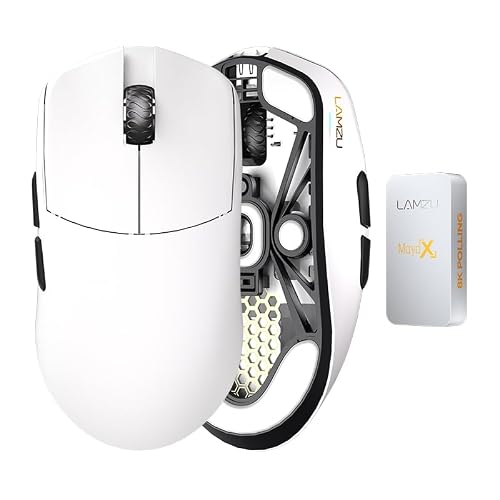
The professional and the aspiring professional form the third group, and their answer is genuinely individual. At 360 Hz or 540 Hz refresh rates, with tuned PCs and wired or dedicated-receiver setups, some of these players settle on 8000 Hz and some deliberately return to 4000 Hz because their game of choice handles it more consistently. Their example is often misread by everyone else. A professional’s setting is the output of their whole chain of hardware and their title’s engine, not a universal prescription, and copying it onto a 144 Hz laptop reproduces none of the conditions that made it right for them. If you are shopping for hardware that can even offer these rates, the roundup at mice built for 8K polling shows what the current field looks like, and the model-specific guide at the Endgame Gear XM2 8K in detail covers one of the best-known wired examples.
Finally, consider the player whose PC struggles. If your frame rate dips in team fights, if your processor is several generations old, or if you game on a thin laptop, high polling can be a net negative and 1000 Hz, or even 500 Hz in extreme cases, may produce the most consistent experience. Consistency beats freshness when the two conflict, because your aim adapts to a stable delay far better than to a delay that fluctuates. There is no shame in the lower number when it is the one your system can honour every frame.
How do you test polling rates honestly on your own setup?
Most polling comparisons fail because they are not really comparisons. A player changes the setting, plays one good match, and credits the number; or plays one bad match and blames it. A better routine takes an evening and a little discipline. Begin by fixing everything else: one game, one sensitivity, one DPI, one mousepad, and a warmed-up hand. Then play a set of matches at 1000 Hz and note two things only, how tracking felt during long strafes and how stable the frame rate felt during busy scenes. Switch to 4000 Hz without changing anything else and repeat the same number of matches on the same maps if you can. Only then, if your hardware offers it, try 8000 Hz for a third set.
Two refinements make the test trustworthy. First, include an aim trainer or a deathmatch mode with constant motion, because polling differences live in continuous tracking more than in single flicks, and a quiet tactical match may not generate enough mouse movement to reveal them. Second, watch your frame-rate graph, not just your aim. If the higher polling rate coincides with new frame-time spikes, the setting is costing you more than it returns regardless of how the first few duels felt. Several mouse software suites and free polling testers can also verify that your mouse is actually delivering the rate you selected; a browser-based checker that graphs report intervals will quickly expose a mouse that claims 4000 Hz but delivers it only in bursts, or a wireless link that collapses to lower rates when the battery fades.
Expect the honest result to be subtle. Players who go looking for a transformation usually conclude either that everything feels identical or that everything feels magical, and both conclusions say more about expectation than about hardware. The realistic outcome of a good test is a mild preference backed by stable frame times, and that is enough. Settings are worth an evening of testing precisely because the gains are small; small gains, confirmed, are what separate a tuned setup from a superstitious one. The wired and wireless Endgame Gear models discussed at the wireless XM2w 4K and its polling behaviour make a useful case study in how connection type changes the answer.
How should you set polling rate in practice, step by step?
On most gaming mice the setting lives in the manufacturer’s software, under a heading labelled polling rate, report rate, or USB polling. Install the software once, set the rate, and note that many mice store the value on board, so the software does not need to run afterwards. Some driverless mice change polling through button combinations described in their manuals, cycling through fixed steps with an indicator light. A smaller number of mice expose the setting only over a wired connection even if the chosen rate then applies wirelessly through a paired high-speed receiver, so if the option appears greyed out, connect the cable and look again before concluding your model cannot do it.
Windows itself adds a wrinkle worth knowing. The operating system historically handled very high polling unevenly, and some older titles misbehave when fed reports faster than they were designed to consume, producing erratic camera movement or menu cursors that race. If a specific older game behaves strangely at 4000 Hz or 8000 Hz while modern titles feel fine, the answer is a per-game compromise rather than a global retreat: many software suites allow per-profile settings that switch automatically when the game launches. Use that feature instead of abandoning the higher rate everywhere.
After setting the rate, verify the basics once. Confirm the receiver or cable connection matches the mode the rate requires. Confirm the mouse firmware is current, because high-polling stability is an area manufacturers actively patch. Then play. Resist re-testing weekly; input settings reward being forgotten, and a rate you stop noticing while your results hold steady is a rate that is working. Revisit the question when you change monitor, mouse, or main game, because those are the three changes that genuinely move the answer. Readers who want the underlying selection process for the mouse itself will find it at choosing a gaming mouse that fits your hand.
What mistakes do players make with polling rate?
The commonest mistake is maximising the number because it is there. A headline rate is a capability, not an instruction, and mice are marketed on maximums the way cars are marketed on top speeds. The second mistake is testing on the desktop. Moving a cursor across a desktop at 8000 Hz tells you almost nothing, because the desktop compositor refreshes at your monitor’s rate and the movements involved are nothing like tracking a strafing opponent. Judge in game or do not judge at all.
Third, players often change polling and sensitivity together, then cannot say which change altered their aim. Fourth, wireless players blame the mouse for jitter that belongs to receiver placement, a fix that costs nothing. Fifth, some players chase polling while leaving far larger delays untouched: a monitor running at 60 Hz, a game rendering with heavy buffering, or a Bluetooth connection on a mouse that also offers a proper gaming receiver. Polling is one link in a chain, and optimising the strongest link while the weakest stays weak produces benchmark numbers instead of better matches. Finally, beware of forum absolutes. Any claim that one rate is mandatory for a rank, or that a lower rate makes improvement impossible, is confusing a marginal hardware preference with the far larger factors of practice, positioning, and game knowledge.
So what should you actually set tonight?
Pulling the threads together: leave or set 1000 Hz if you are on a 144 Hz or slower display, if you play mostly non-shooter genres, or if your PC is modest. Trial 4000 Hz if you compete in shooters on a 240 Hz or faster monitor with a healthy CPU, and keep it if a fair test shows smoother tracking with stable frame times. Reserve 8000 Hz for high-refresh setups that sustain it without stutter, accept its battery cost on wireless models, and do not be surprised if your own blind test sends you back to 4000 Hz with no regrets. The best polling rate was never a single number; it is the highest rate your monitor can display, your processor can service, and your mouse can deliver consistently, and finding it takes one careful evening rather than a new purchase.
How did polling rates climb from 125 Hz to 8000 Hz?
Understanding where the numbers came from explains why the default sat at 1000 Hz for so long. Early USB mice reported at 125 Hz because that was the standard polling interval of the USB specification for low-speed devices, and for office work an eight-millisecond rhythm was plenty. Gaming mice broke through that ceiling in the mid-2000s by requesting faster intervals, and 500 Hz and then 1000 Hz became the competitive standard for well over a decade. One millisecond was a natural resting point: it matched the timing granularity much of the surrounding software ecosystem was built around, it cost almost nothing in CPU terms, and it sat comfortably below the frame time of every monitor then in use.
The push beyond 1000 Hz waited for two things. First, monitors had to get faster; there was little point reporting every eighth of a millisecond while displays refreshed every sixteen. The arrival of affordable 240 Hz panels, and then 360 Hz and 540 Hz esports displays, created an audience that could actually render the extra freshness. Second, sensor and microcontroller design had to mature so that a mouse could sustain thousands of clean reports per second without jitter, and wireless radios had to learn to do the same without collapsing battery life. The current generation of flagship sensors and dedicated high-speed receivers is the product of that work. The lesson in the history is that polling rate has always advanced as one part of a system, dragged forward by displays and held back by everything else, never as an isolated spec that improves a setup on its own.
What is motion sync, and does it change the polling answer?
Many modern mice offer a feature called motion sync, which aligns the sensor’s internal sampling with the rhythm of the reports sent to the PC. Without it, a sensor sample can land just after a report was dispatched, adding a small and variable delay before that movement reaches the computer. With it, samples are timed so the freshest possible data rides each report, at the cost of a tiny fixed delay of roughly one report interval. At 1000 Hz that trade is worth making for most players, because consistency of delay matters more than its absolute size and one millisecond is the interval being spent. At 4000 Hz and 8000 Hz the interval is so small that the same logic holds even more comfortably.
The reason this matters for the polling question is that a mouse with motion sync enabled at 1000 Hz can feel more consistent than a mouse at a higher rate with sloppy sample alignment. Raw rate is not the whole of input quality. When you compare mice, or compare settings on your own mouse, remember that report timing, sensor behaviour at different DPI steps, and firmware maturity all shape the result alongside the headline hertz figure. This is also why two mice both set to 4000 Hz can feel subtly different in tracking: the rate is shared, but everything wrapped around the rate is not.
How does polling rate play out genre by genre?
Tactical shooters reward polling stability in a specific way. Rounds are decided by crosshair placement and short, precise adjustments, and the mouse spends much of its time nearly still, punctuated by fast checks of angles. High polling helps the checks feel immediate and helps micro-corrections land where intended, but the genre’s deliberate pace means 1000 Hz already serves most players fully. Tracking-heavy arena shooters and hero shooters with high-mobility characters sit at the other extreme: the crosshair is in near-constant motion against targets that strafe, jump, and change direction, so the smoothness dividend of 4000 Hz shows up more often per minute of play.
Battle royale titles fall between the two, with long quiet stretches and sudden close-range fights where tracking matters intensely; players of these games often settle on the highest rate their system sustains, because the cost is only paid during the fights that decide placements. MOBA and real-time strategy players move the mouse constantly but at lower precision stakes per movement, and most feel nothing beyond 1000 Hz. Rhythm games and osu-style play are a niche where high polling has a devoted following, because cursor motion is the entire game and smoothness is directly visible. Single-player action games, driving titles played on a mouse-and-keyboard setup, and anything turn-based can be left at default settings without a second thought. Matching the setting to the genre you play most, rather than to the genre with the loudest forum culture, keeps the choice grounded.
What should you check when high polling stutters?
Treat stutter as a diagnostic exercise with a fixed order of suspects. First, lower the rate by one step and play the same scene; if the stutter vanishes, your system was telling you its limit and the wisest move is to accept the lower rate while you investigate. Second, examine the connection: a wired mouse should plug directly into a rear motherboard port, and a wireless receiver should sit close to the mousepad on its extension adapter, away from USB 3 storage devices and their cables, which are known sources of radio interference in the same frequency neighbourhood. Third, look at background load, because streaming software, browser tabs with video, and RGB ecosystems all compete for the same processor that must service mouse interrupts.
Fourth, update the mouse firmware and the motherboard chipset drivers, since both have historically carried fixes for high-rate USB behaviour. Fifth, test in a second game; an engine-specific problem will follow the title, while a system problem follows you everywhere. Only after those five steps should you suspect the mouse itself, and even then a factory reset of its onboard profiles is worth trying before any talk of replacement. Players who work through this list almost always find the culprit in the first three steps, which is reassuring: the expensive explanation is rarely the true one. If your pad and skates are worn, by the way, no polling setting will rescue tracking feel, and the guides at replacement mouse skates explained and gaming mouse pads compared cover the physical side of the same problem.
Where does polling sit in your total latency budget?
It helps to see polling as one line item in a longer bill. When you move your hand, the delay before you see the result includes the sensor’s own processing, the wait for the next report, the operating system’s handling, the game’s simulation tick, the rendering queue, and the display’s scan-out and pixel response. In an online match, network travel time to the server dwarfs every local item on that list, yet players still feel local delays more keenly because local delay affects the feedback loop between hand and eye, the loop your brain uses to steer. That is why shaving the mouse’s contribution is worthwhile even though it is small: it is the first link in the feedback chain, and the chain’s responsiveness is judged by the eye at its end.
A realistic budget for a tuned esports setup shows polling at 1000 Hz contributing an average of half a millisecond of wait, and at 8000 Hz contributing almost none. The same setup’s monitor contributes several milliseconds, and its rendering pipeline several more. Nobody sensible concludes from this that polling is pointless; rather, the conclusion is ordering. Fix the large items first — refresh rate, frame rate, connection quality — then let polling polish what remains. Players who reverse the order end up with an 8000 Hz mouse feeding a 60 Hz screen, which is the input equivalent of fitting racing tyres to a car with a slipping clutch. The chain metaphor also explains why reviewers and professionals talk about setups rather than settings: each link either honours the others or wastes them.
Does polling rate matter outside gaming?
For general desktop use, the honest answer is that 1000 Hz is already beyond what the work can reveal, and the standard 125 Hz of an office mouse only becomes noticeable when you drag windows quickly across a high-refresh screen and watch the motion step rather than glide. Designers and video editors who scrub timelines on 120 Hz or faster displays sometimes prefer a gaming mouse at 500 Hz or 1000 Hz for exactly that smoothness, and competitive polling rates add nothing further for them. There is, however, one non-gaming cost worth repeating: on a laptop, a high-polling mouse is a small but real battery and CPU consideration during travel, and dropping to a modest rate for a working day on battery is a reasonable, reversible choice.
Accessibility deserves a mention too. Players who use mouth-operated, head-tracking, or other adaptive pointing devices sometimes find that report timing interacts with their assistive software in ways stock advice does not anticipate, and for them the right polling rate is the one their particular chain handles most predictably, established by the same change-one-thing testing routine described earlier. The general principle survives every special case: consistency first, headline numbers second.
What comes next for mouse polling?
The frontier has largely moved from raising the rate to sustaining it cleanly. Wireless 8000 Hz without a bulky receiver, firmware that holds a steady interval under interference, and operating-system scheduling that treats high-rate input devices gracefully are the active battlegrounds, and each matters more than a hypothetical 16000 Hz headline would. There is also growing interest in how games consume input: engines that sample on a fixed high-frequency thread, decoupled from frame rendering, extract more value from every rate tier, and as those engines spread, the practical benefit of 4000 Hz on mid-range systems should grow without any change in hardware. Expect the conversation to shift from how fast a mouse can report to how honestly the whole path — sensor, radio, port, operating system, engine, display — preserves that speed. When it does, the advice on this page will still hold in shape: choose the highest rate your complete system sustains without side effects, verify it by testing rather than by faith, and let your monitor and your games, not a box’s largest printed number, make the decision.
Three desks, three different right answers
Abstract advice becomes clearer against concrete setups. Imagine a first desk: a five-year-old desktop with a mid-range processor, a 144 Hz monitor bought on sale, and a wireless mouse used for everything from spreadsheets to weekend shooters. For this desk the analysis is short. The processor has no spare appetite for eight thousand interrupts a second during a firefight, the display cannot show freshness finer than its frame time in any case, and the mouse’s battery is a weekly convenience worth protecting. The right setting is 1000 Hz, full stop, and the owner’s upgrade path, when money allows, runs through the monitor and processor long before it runs through polling.
A second desk belongs to a dedicated ranked player: a current desktop processor with cores to spare, a 360 Hz esports monitor, a flagship wireless mouse with its high-speed receiver on an extension cable at the edge of the pad, and a wired connection kept coiled nearby for tournament days. This desk can honestly evaluate 8000 Hz, and its owner should, because every other link in the chain was built to honour it. Even here the answer is earned by testing: if the player’s main title shows frame-time spikes at the top rate, 4000 Hz becomes the considered choice rather than a defeat, and on wireless the player may still reserve the maximum for wired sessions where battery and radio variables disappear.
The third desk is a gaming laptop that travels: capable silicon in a thin chassis, a fast built-in screen, thermals that throttle under sustained load, and a player who competes in the evenings and works on battery by day. Here the right answer changes with context, which is exactly what per-profile software settings exist for. A plugged-in profile at 4000 Hz for the evening’s matches, a travel profile at 1000 Hz or lower for the working day, and no guilt about either. The through-line across all three desks is that polling advice divorced from the machine, the monitor, and the player’s week is noise. The number is the last thing to choose, after the system it must live inside is understood.
How do DPI and sensitivity change the polling picture?
One interaction surprises many players: the visibility of polling smoothness depends partly on how much cursor movement each report carries. At low DPI with a low in-game sensitivity, each individual report moves the crosshair by a tiny amount, so even widely spaced reports produce a fine-grained path. At high DPI, each report carries more movement, and the steps between reports grow, which is one reason some high-DPI players report clearer benefits from high polling during slow, precise tracking. This does not mean anyone should raise DPI to justify a polling rate; sensitivity remains a personal fit governed by arm space, role, and habit. It simply explains why two players on identical rates can honestly report different experiences, and why copying a professional’s full configuration — rate, DPI, sensitivity, and all — still fails to copy the professional’s hand.
There is a practical corollary for testing. If you evaluate polling rates, keep your DPI and sensitivity frozen, because drifting sensitivity between test sessions muddies exactly the fine-grained tracking differences you are trying to detect. And if you later change DPI substantially, allow that your polling preference might shift a little with it, and revisit the test briefly rather than treating the earlier verdict as permanent law.
Which polling myths should you retire?
The loudest myth claims that anything below 8000 Hz is now unplayable, a position that would surprise the many top-level players who won events for years at 1000 Hz and the current competitors who still choose 4000 Hz or lower for stability in their particular title. Skill ladders are climbed on decision-making, utility usage, communication, and thousands of hours of aim training; the polling tier is a garnish on that meal, not the meal. A second myth holds that higher polling always adds input lag because of processor load. The load is real but conditional, and on a healthy system the measured effect on frame times is negligible, which is why blanket statements in either direction mislead.
A third myth treats the number printed on a mouse’s box as the number delivered at your desk. Connection mode, receiver model, firmware version, and even battery state can all cap the real rate below the advertised ceiling, and only a quick verification test tells you what your unit is actually doing tonight. A fourth myth says wired is automatically superior in every respect that matters; modern high-polling wireless receivers have closed the practical gap for most players, and the choice between them now turns on battery habits and desk tidiness more than on raw performance. Retiring these four myths leaves a calmer picture: polling rate is a modest, real, and highly conditional optimisation, worth an evening of honest testing and then worth forgetting about while you play.
A five-minute checklist before you change anything
Before touching the setting, run through the conditions that decide whether a change can possibly help. Note your monitor’s refresh rate and confirm the game is actually running at it, since a display left at a lower mode in the operating system silently caps everything downstream. Check how your mouse is connected and whether a higher rate needs the cable or the upgraded receiver. Glance at your processor’s behaviour in your busiest game scene; if cores are already saturated, polling experiments wait until that is addressed. Confirm your firmware is current and your receiver placement is sane. Write down your current rate, DPI, and sensitivity somewhere outside the mouse software, so any experiment can be undone exactly. With those five facts in hand, a polling change becomes a controlled experiment with a predictable range of outcomes, instead of a hopeful twist of a dial whose supporting conditions were never examined. That small discipline, more than any particular number, is what separates a tuned input setup from a pile of settings accumulated by imitation.
Frequently asked questions
Is 8000 Hz polling noticeably better than 1000 Hz?
On a high-refresh monitor in a fast shooter, the improvement shows up as slightly smoother tracking rather than a dramatic change, and many players cannot identify it reliably in blind comparisons. On a 60 Hz or 144 Hz display it is effectively invisible. The honest summary is that the difference is measurable with instruments, occasionally perceptible to experienced players on suitable hardware, and never the main factor deciding who wins a duel.
Does a higher polling rate increase input lag anywhere else?
It reduces the mouse’s own reporting delay, but it can indirectly harm responsiveness if the extra CPU interrupts cause frame-rate dips in a CPU-limited game. That is why the recommendation is always conditional on your system sustaining the rate. A stable 1000 Hz with clean frame pacing will feel more responsive than an 8000 Hz setting that makes busy scenes stutter.
Should wireless players use the maximum polling rate?
Only for the sessions that justify it. High polling shortens wireless battery life substantially and demands a well-placed receiver to stay stable. Many competitive players run 4000 Hz wireless for ranked play and drop to 1000 Hz for everything else, which is a sensible rhythm. Check whether your model’s headline rate needs its dedicated high-polling receiver, because the standard dongle may cap the rate lower.
Does polling rate matter for non-shooter games?
Barely. Strategy games, RPGs, simulation titles, and turn-based games are decided at timescales where a millisecond of reporting delay has no effect, and even fast action games with lock-on combat gain little. If you play a mix, set the rate for the most demanding title you take seriously and let the others inherit it; there is no harm in a shooter-ready setting elsewhere, only battery cost on wireless mice.
Why does my mouse feel worse after I raised the polling rate?
Usually one of three causes: the CPU is struggling with the interrupt load and frame pacing has suffered, the wireless receiver is too far away or poorly placed for the higher rate, or the game itself handles very high report rates poorly. Work through them in that order, and do not hesitate to step back down a tier. A lower rate that feels clean is the right rate for your setup as it stands.
What polling rate should a laptop gamer choose?
Start at 1000 Hz and treat anything higher as a plugged-in experiment. Laptop processors share their thermal budget with the graphics hardware in a thin chassis, so the interrupt cost of very high polling lands on a system with less headroom than a desktop, and the penalty, when it appears, shows up as frame pacing trouble during exactly the long sessions where the machine runs hottest. If your laptop has a 240 Hz screen and you compete, trial 4000 Hz while plugged in and monitor frame times across a full evening rather than a single match. On battery, step back down; the same setting that costs a desktop nothing measurable can shorten a laptop’s unplugged gaming time and add fan noise for a benefit your eyes will rarely catch. Per-profile settings in your mouse software make this two-mode habit painless, switching automatically with the application or connection state rather than relying on memory.
Is polling rate the same as DPI?
No. DPI scales how much movement each inch of hand travel produces, while polling rate sets how often position reports reach the PC. They are tuned independently: choose DPI from your preferred sensitivity and in-game multiplier, and choose polling from your monitor, processor, and connection type. Changing one never substitutes for changing the other, despite how often the two are mentioned in the same breath.
Related reading: wired speed in the XM2 8K review guide · how sensitivity and grip shape mouse choice · the Fnatic and Lamzu Maya 8K collaboration