Disclosure: As an Amazon Associate, reviewstook.com earns from qualifying purchases. Links to Amazon on this page are affiliate links; they cost you nothing extra.
The right mouse fits your hand and playstyle more than raw specs.
Last updated: October 31, 2026.
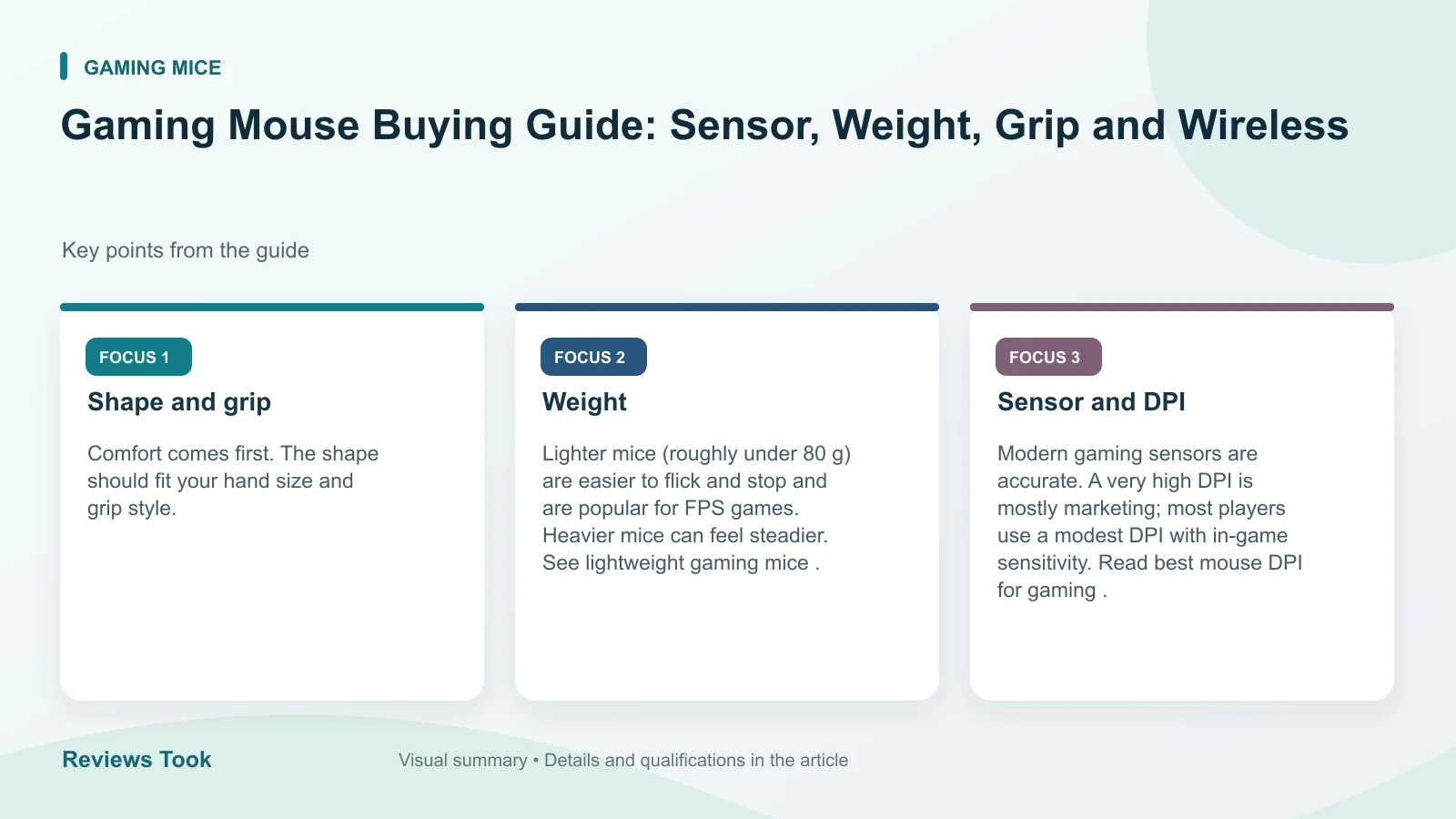
Grip Type
Palm, claw and fingertip grips suit different shapes. See best gaming mice.
In this guide
Size and Weight
Measure your hand length and pick a matching shape. See lightweight mice.
DPI and Sensor
Higher DPI is not better aim. Most players use 400 to 1600 DPI.
Wireless and Buttons
See wireless mice and MMO mice.
Measuring your hand and testing fit
Fit is the most important part of choosing a mouse, and you can check it at home. Measure your hand from the base of your palm, where it meets the wrist, to the tip of your middle finger. Measure the width across the widest part of your palm too. Compare these numbers with the length and width in the product listing, and note that makers describe sizes differently.
A mouse that is too small makes your fingers cramp and forces a tight claw posture. A mouse that is too large makes it hard to reach buttons and to lift the mouse during fast moves. The ideal is a mouse that supports your hand without strain, with fingers resting naturally on the buttons.
Consider the shape too. Symmetrical mice suit both hands and many grips. Ergonomic shapes with a right-hand curve often suit palm grips and long sessions, but left-handed users need to look for left-handed models.
- Short sessions and quick flicks: a compact, lightweight shape.
- Long sessions: a comfortable shape with good support.
If you can, try a friend’s mouse or visit a store. Check the return policy before buying, because feel is personal.
Switches, scroll wheel and side buttons
Buttons are used thousands of times, so they affect comfort and durability. The switch type determines how a click feels and sounds. Optical switches use light to register clicks and are marketed for fast response, while mechanical switches use physical contacts. Both can be good, and the listing may state the rated lifespan, which is a maker’s figure rather than a guarantee.
Test how a click feels if you can. Some people prefer a light, crisp click for rapid fire, while others prefer a firmer click to avoid accidental presses. Also consider noise if you share a space.
The scroll wheel matters for weapon swapping and everyday use. Notched wheels give clear steps, while smooth wheels spin freely. Check whether the wheel can tilt or click and whether that suits your needs.
Side buttons are placed differently on each model. Make sure they are reachable without changing your grip, and that they are not so easy to hit that you press them by accident. If you play games with many commands, extra programmable buttons can help, but too many can be confusing.
Software lets you remap buttons and create profiles, so check what the maker offers and whether settings can be stored in the mouse itself.
Cables, feet and surfaces
Small details change how a mouse feels. For wired mice, the cable should be flexible and light so it does not drag. Some use soft braided cables, while others use rubber coatings. A cable bungee can hold the cable in place if it snags.
The feet, also called skates, determine how smoothly the mouse glides. Smooth feet reduce friction and are common in lightweight designs. Check whether replacement feet are sold or included, since feet wear down over time and can affect tracking and glide.
Your mouse pad matters as much as the mouse. Cloth pads offer control through friction, while hard pads let the mouse glide with less effort. Size also matters. Players who use low sensitivity need a large pad for wide arm movements. Keep the surface clean, because dust and oils affect glide and sensor tracking.
- Control focus: cloth surface with more friction.
- Speed focus: smoother surface with less friction.
Avoid glossy or reflective desk surfaces, which can cause tracking issues. If you notice jitter, test on a different surface before blaming the mouse.
Polling rate and sensitivity settings
Polling rate is how often the mouse reports its position to the computer. A higher rate can feel smoother and reduce the delay between movement and screen response, but it also uses more processing and can drain a wireless mouse battery faster. Many players find a moderate setting works fine, so check what the listing supports and test the options.
Sensitivity is more personal than any spec. DPI sets how far the cursor moves per inch of hand movement, and the in-game sensitivity setting scales it further. Use the same overall sensitivity across games to build muscle memory. Lower settings give precision and larger arm movements, while higher settings favor wrist movement and quick turns.
Avoid chasing high numbers. A mouse with a very high maximum DPI is not automatically better. Look for a sensor that tracks consistently without smoothing or jitter, and read independent reviews for the specific model.
Features like angle snapping and acceleration can change how movement feels. Many competitive players turn off acceleration, but it is a matter of preference. Check the software or game settings and keep them consistent so you can compare changes fairly.
Durability and replacement signs
A good mouse can last for years, but wear shows eventually. The most common problem is double clicking, where a single press registers twice. It can come from worn switches or dirt. Try cleaning around the button and updating the software first. If the problem persists, check the warranty.
Other signs include a scroll wheel that skips, a sensor that jumps, cable fraying near the connector, battery that no longer holds a charge, and feet worn flat. Some of these can be repaired by replacing feet or the cable, while others mean it is time for a new mouse.
Keep your mouse clean. Wipe the shell with a lightly damp cloth, and clean the sensor lens gently. Do not use harsh chemicals that could damage coatings.
Before buying, ask about the warranty length, how easy it is to claim, and whether replacement parts are available. Think about whether the mouse works with your computer’s ports and operating system, and whether its software is optional or required.
Finally, avoid switching grip and mouse at the same time. Give a new mouse a few days before deciding, since your hand needs time to adjust.
Mouse Weight, Shape and Balance Explained
Specs lists show weight in grams, but balance and shape change how a mouse feels more than the number alone. A light mouse with a rear-heavy balance can feel different from an equally light one with the weight in the middle. Many makers do not describe balance at all, so use reviews and your own hand measurements as clues instead.
Lighter mice are often described as easier to flick and lift. Heavier mice can feel more stable and deliberate. Neither is better in general. If you play games that need quick, wide swipes, a lighter shape may reduce fatigue. If you prefer small, controlled aim adjustments, a slightly heavier mouse may feel steadier. Treat any listed weight as a maker’s figure that can vary a little between units and with the cable.
Shape comes in a few common families. Ergonomic designs have a curved body that supports the palm and often favors one hand. Symmetrical designs have an even profile that works for either hand and for multiple grips. Low-profile shapes suit fingertip and claw grips, while taller shapes suit palm grips. Hump position matters too, since a hump toward the rear supports the palm and a hump toward the middle suits claw grips.
When you read a product page, note the length, width and height, then compare them with your hand measurements. A rough rule many people use is to pick a mouse a little shorter than the length of your hand for claw and fingertip grips, and closer to the full palm length for palm grips. Use that as a starting guess, not a rule.
| Grip | Hand position | Shape that often suits |
|---|---|---|
| Palm | Whole hand rests on the body | Longer body with a rear hump |
| Claw | Palm back, fingers arched | Medium body with a high mid or rear hump |
| Fingertip | Only fingertips touch | Short, light, low-profile body |
Choosing by Game Type and Daily Use
What you play and how you work should guide the shortlist. Different tasks reward different traits, and a good mouse for one may feel mediocre for another.
Fast shooters and precision games
Games with quick aiming benefit from a stable sensor, comfortable low-friction feet and a shape that lets you make small and large movements with the same grip. Many players in this group lean toward lighter, simpler shapes with few buttons, since extra buttons add weight and can be pressed by accident.
MMO, strategy and many-key games
These games use lots of commands. A mouse with a grid of side buttons can map abilities to your thumb. Check that the buttons are easy to find by feel, because an unclear layout leads to errors under pressure. Software for remapping should be easy to use and, ideally, store profiles on the mouse.
Office, creative and mixed use
For a mix of work and play, a reliable mouse with a comfortable shape and a few useful buttons is enough. A free-spinning scroll wheel helps with long documents and web pages, and a button for switching sensitivity helps when you move between detailed work and fast navigation.

Small desks and travel
If desk space is tight or you play on the go, a compact wireless mouse with a good battery is practical. Check whether the receiver stores inside the mouse or in a place you will not lose it.
Setting Up a New Mouse for Comfort
A new mouse works best when you set it up deliberately instead of accepting every default. Plug it in, update the maker’s software if it is trustworthy and needed, and then make changes one at a time so you can tell what helped.
- Set a base sensitivity in your operating system and in your main game, and keep other settings steady for a few days.
- Turn off any pointer acceleration in the system unless you like it, so movement stays consistent.
- Assign only the buttons you need. Too many bindings make accidental presses more likely.
- Adjust the lift-off distance if the maker’s software offers it, so the cursor stops moving when you lift the mouse to reposition.
- Save a profile, and if the mouse has onboard memory, store it there for use on other computers.
Posture matters as much as settings. Keep your forearm supported, your wrist roughly straight and your elbow near your side. If you feel tingling or pain, take a break and consider a different shape or a vertical style. Persistent symptoms are a reason to talk with a health professional.
Give yourself a few days of regular use before judging a mouse. Muscle memory needs time to adjust, and early impressions can mislead. Keep notes on what feels right or wrong, such as a button that is too stiff or a side that digs into your palm.
Cleaning, Troubleshooting and Warranty Basics
Most mouse problems have simple causes. Jumping cursors, drifting or sudden stops often come from a dirty sensor window, a worn pad surface or a low battery. Clean the sensor window gently with a dry or very lightly dampened soft cloth, with the mouse unplugged or switched off, and avoid harsh solvents.
If the cursor lags on a wireless model, check the battery, move the receiver closer using a short extension if the maker provides one, and keep it away from other wireless devices that may interfere. For a wired mouse, inspect the cable near the plug for bends or fraying, since that is a frequent wear point.
Double clicking when you press once can come from worn switches, and some makers address this under warranty. Check the warranty period and the maker’s steps before opening the mouse, because opening it may void coverage. Keep your receipt or order record, and register the product if the maker asks you to.
When you replace a mouse, record what you liked and disliked about the old one. That list is more useful than any spec sheet when you decide on the next model. Also check the return window on any purchase, since comfort can only be judged after real use.
Comparing Two Finalists Side by Side
When you have narrowed the list to two mice, a short comparison keeps the choice grounded. Instead of reading dozens of reviews, make a simple table of the points that matter to you and fill it in from the listings and your own hand measurements.
- Shape and size: compare length, width and height against your hand, and note grip style.
- Weight: record the maker’s figure, and remember that a cable can change how a wired mouse feels.
- Connection: wired, wireless receiver or Bluetooth, and the battery type or charging method.
- Buttons: how many, where they sit and whether you can remap them.
- Software: whether you need it, and whether settings can be stored on the mouse.
- Return window and warranty: how long you have to try it, and who handles repairs.
Read a handful of reviews that describe long use instead of first impressions, and pay attention to complaints that repeat, such as a side button that wobbles or a coating that wears. A single complaint may be bad luck, while a pattern deserves weight. Treat rating averages with caution, because people rate for many reasons.
If the choice still feels close, pick the one that has the better return policy and the more forgiving shape for your hand. You can always swap if it does not feel right in the first week. Test it in the games and tasks you actually do, not just in a quick click test.
Ready to Buy? Start Here
If this guide helped you decide what to look for, these products are a place to start.

As an Amazon Associate we earn from qualifying purchases. Prices and availability are shown on Amazon.
Putting the Advice Together: A Complete Choosing Workflow
The earlier sections of this guide treat each decision on its own: grip, size, weight, sensor, connection, and buttons. Real buying is messier, because those decisions interact. A mouse that looks perfect in a specification list can feel wrong in the third hour of a session, and a mouse that seems plain on paper can become invisible in your hand, which is exactly what a good tool should do. This section joins the pieces into one workflow you can follow in order, so that by the time you spend anything you have tested the things that are hard to change later and stayed relaxed about the things that are easy to adjust.
Step one: describe your real week, not your ideal setup
Begin with an honest description of how the mouse will actually be used. Write down the games or tasks that fill most of your hours, the length of a typical session, and the space your hand truly has to move in. A player who spends weekdays in spreadsheets and evenings in a tactical shooter needs a different balance from a player who only plays strategy titles, even if both describe themselves as gamers. Note also where you play or work. A shared desk, a small tray table, and a wide dedicated desk each reward different sizes and weights, and a wireless choice that feels freeing in one space can feel unnecessary in another.
This short description becomes your filter for every later claim. When a product page praises a feature, ask whether your week uses it. Extra buttons matter if your games or applications genuinely put them within reach of your workflow. A very light shell matters if you lift and re-centre often. A tall ergonomic shape matters if your palm rests fully and your wrist complains by evening. Features that do not touch your week are not benefits; they are distractions that can push you toward a shape that fits someone else.
Step two: measure, then test the measurement
Measuring your hand, as described earlier in this guide, gives you a starting range rather than a verdict. Use the length and width figures to remove mice that are clearly far too large or far too small, then treat everything inside the range as a candidate for feel. Hands with the same measurements differ in finger length, palm fullness, and how they relax, which is why two people with matching numbers often choose different mice. If you can, hold candidates the way you actually play: not in a careful display pose, but in your normal grip, at your normal desk height, moving through the motions of a real session.
Pay attention to three quiet signals during that test. First, whether your fingers reach the main clicks without stretching or bunching. Second, whether the side of the mouse supports your ring finger and little finger without forcing them to drag or squeeze. Third, whether the mouse stays stable when you lift it slightly, because lifting is where a poor shape match announces itself. A mouse that passes those three checks at a comfortable size will usually serve you better than a famous model that fails one of them, whatever its sensor reputation.
Step three: choose weight by movement style
Weight debates online often sound as if lighter is a rule. It is a preference with consequences, and your movement style decides which side suits you. Players who move mostly from the arm, at lower sensitivity, lift and sweep constantly; for them a lighter mouse reduces fatigue and makes re-centring feel effortless. Players who move from the wrist and fingers, at higher sensitivity, make tiny corrections all session; for them a little more body can add steadiness and stop small movements from feeling nervous. Neither style is better. Problems start when a player copies the weight of a professional whose style, desk, and sensitivity are completely different from their own.
Balance matters as much as the headline figure. A mouse that carries its weight toward the rear can feel sluggish to tip forward even when it is light overall, while a well balanced heavier mouse can feel calm and predictable. When you test, make slow tracking movements, quick turns, and small stops in turn. Judge the whole pattern rather than the first flick, because the first flick flatters almost every new mouse for about a minute.
Step four: set the sensor questions aside until shape is settled
Modern gaming sensors from established makers are, for ordinary play, far more alike than marketing suggests. Once a mouse is from a reputable line and its sensor is positioned sensibly, tracking quality rarely decides satisfaction. Shape, buttons, and comfort decide it every day. That is why this workflow puts the sensor late. Check that the mouse offers the sensitivity range you use, that adjustments are easy, and that the surface you own is supported. Then stop comparing specification sheets and return to the hand.
There are exceptions worth respecting. Players who use very low sensitivity and huge swipes should confirm the sensor handles fast movement cleanly. Players who use a glass or unusual surface should confirm compatibility before buying, in the same way the mouse skates guide treats surface pairing as a first-order question. And anyone who has suffered a genuinely faulty sensor before is forgiven for checking owner discussions about that specific model. Outside those cases, sensor anxiety mostly delays a decision that your palm could make in ten minutes.
Step five: buttons, wheel, and the sounds of a long evening
Button feel is easy to overlook in a shop and impossible to ignore at home. Press each main click slowly and quickly. A click that is too light can fire when you rest your fingers; a click that is too heavy turns a long session into quiet exercise. Move to the wheel next. Strategy and creative work reward clear, definite steps, while some players prefer a freer roll for browsing. Neither is wrong, but a wheel that rattles or skips will annoy you daily. Side buttons deserve the same test in your real grip, not an extended thumb pose you would never hold in play. If reaching a button makes the mouse shift in your hand, you will either stop using that button or accept worse aim every time you press it.
Sound belongs in this step too. Clicks and wheel noise carry in small homes and shared offices. If you play late or work on calls, consider how the mouse sounds in a quiet room, and whether the people around you will hear every action. Comfort is not only about the hand that holds the mouse; it is also about the room the mouse lives in.
Step six: decide the connection by habit, not fashion
Wireless freedom is real, and so are charging habits, dongle placement, and the small anxiety of a battery warning at the wrong moment. Choose wireless if cable drag genuinely bothers you, if your desk layout makes a cable awkward, or if the same mouse travels between rooms or machines. Choose wired if you dislike maintenance, keep one fixed desk, and prefer a tool that is always ready. Many players solve the question with a bungee or better cable routing and discover the drag they blamed on the wire was really a desk layout problem. Be honest about which problem you actually have before paying to solve a different one.
Comparing Two Finalists Without Regret
Most buyers end with two candidates and a fear of choosing wrong. A fair head-to-head test resolves it. Use each mouse for full sessions on separate days, with the same game or task, the same pad, and sensitivity set so that a comfortable swipe turns your view by a similar amount in each. Write three lines after each day: what felt effortless, what felt like work, and what you noticed about your hand that evening. The winner is usually obvious in those notes, and it is often the mouse you stopped thinking about sooner.
Finally, give a new mouse a fair settling period before judging your purchase a success or a failure. Hands adapt, small calluses of habit form, and the strange becomes normal over roughly a week of ordinary use. Change sensitivity in small steps during that week if you must, but avoid rebuilding your whole setup around day-one impressions. The goal of this guide is not to find a mythical perfect mouse. It is to choose a mouse whose shape, weight, buttons, and connection fit your real week so well that you can forget it, and spend your attention where it belongs: on the game, the work, and the people at the other end of both.
Choosing by Genre and by Desk: A Closer Look
Genre advice is often given as a slogan, yet the useful version is more specific. In a tactical shooter, most engagements reward patience: you hold an angle, make one considered movement, and stop exactly where you intended. That pattern favours a shape you can brace comfortably, a weight that does not drift while you wait, and buttons that never fire by accident when your hand tenses. In a fast arena or battle royale title, the pattern reverses. You turn constantly, loot quickly, and redirect in mid-motion, so a mouse that starts and changes direction without effort earns its keep, and a grip that stays secure when your palm warms up matters more than any headline feature.
Strategy and management games ask for endurance rather than speed. Sessions are long, movements are moderate, and the scroll wheel and side buttons do heavy work. Here a slightly larger, calmer mouse often wins, because the cost of a strained finger in hour three outweighs a small speed advantage in minute three. Simulation and flight players should think about the buttons they can reach without looking, and about a shape that stays comfortable while the other hand is busy elsewhere. Creative professionals who game in the evening should weigh their working tools honestly: precise small movements, a dependable wheel, and a shape that suits long, quiet concentration are worth more than a shell designed purely for flicking.
Small desks, laptop setups, and shared spaces
Desk reality eliminates more mice than preference does. On a small desk or a laptop tray, a large mouse may force your hand into the edge of the pad or the wall of the setup, and a long cable can snag on everything you own. Measure the space your hand can actually travel before you fall in love with a low-sensitivity, big-mouse combination that your furniture cannot support. Laptop users who move between rooms should also weigh how the mouse travels: a shape that is comfortable at a proper desk can feel tall and awkward on a low coffee table, and a wireless mouse that pairs easily and wakes quickly will be used far more than a technically better one that fights you at every move.
Shared spaces add a social filter. In a family home or a shared flat, a mouse with loud clicks, bright lighting that cannot be softened, or a charging cable permanently crossing a common table creates friction that no specification sheet mentions. Choosing a quieter, simpler mouse is sometimes the choice that keeps the peace, and a peaceful setup gets used more, which is the only performance measure that finally matters.
Left-handed players and other underserved hands
Left-handed players face a shorter list, and this guide will not pretend otherwise. The practical approach is to decide early whether a true left-handed shape or a genuinely symmetrical, ambidextrous shape serves you better, and then to test side-button placement with unusual care, because buttons designed for a right thumb can sit awkwardly under a left ring finger. Players with larger or smaller hands than average face a milder version of the same problem: the popular middle of the market is not built for them. In both cases, patience and returns policies are part of the buying strategy. Order from a seller whose terms you have read, keep packaging until the settling week is over, and do not let a crowd favourite talk you out of what your own hand reports.
The First Month With a New Mouse
How you treat the first month decides whether a good purchase becomes a good habit. Keep the pad clean, because a fresh mouse on a dirty surface teaches your hand the wrong lessons. Resist changing grip, sensitivity, and buttons all at once; settle the shape first, then tune settings in small steps, then map extra buttons only when a real need appears in play or work. Clean the sensor area and the feet gently when glide changes, and check whether the surface, not the mouse, has changed. By the end of the month you should be able to describe your mouse in one plain sentence, such as steady and forgettable, which is the highest praise a tool can earn. If instead you still think about it every session, your notes from that month will point to the exact quality your next choice must fix, and the purchase will still have taught you something worth its cost.
Accessibility and Comfort Over Years, Not Weeks
Most mouse advice is written for a young, pain-free hand in its first year of gaming. A wiser guide also speaks to the hand in its tenth year, and to hands that arrive with limitations. If your wrist, fingers, or shoulder already complain, treat comfort features as the headline rather than the footnote. A shape that keeps the wrist in a neutral, unhurried position, clicks that do not demand force, and a weight that your arm can move all day without thinking are not luxuries; they are what keep you playing and working at all. Players with reduced grip strength should test click force and side-button placement with special care, because a button that an average hand finds merely firm can be genuinely unusable to another. Players who switch hands, or who may need to, should value symmetrical shapes and simple software that does not punish flexibility.
There is also a pacing lesson that belongs in any honest buying guide. No mouse, however well chosen, cancels the effect of posture, desk height, session length, and rest. Choose the mouse that fits, then give it a workstation worthy of it: a chair and desk that let your forearm rest level, a pad large enough that you never perch on its edge, and breaks that your future self will thank you for. It is unfashionable advice beside a new purchase, but the players who stay comfortable for decades are the ones who treated the mouse as one part of a system that includes their own body.
Buying for a child, a partner, or a household
Household purchases follow different rules from solo ones. A mouse for a younger player should privilege durability, a size their growing hand can actually close around, and controls simple enough that an adult is not summoned for every setting. Overspending here is a common and kind-hearted error; children outgrow shapes faster than they wear out sensors. A mouse for a partner who games casually deserves the same respect you would give your own: ask about their grip, their desk, and the sounds they can tolerate, rather than handing down the mouse you personally rejected. And a shared household mouse, the one attached to the family computer, should be the peacemaker of the range: medium in size, calm in sound, simple in software, and tough enough for several hands, several tempers, and the occasional unexplained disappearance of its charging cable. Chosen that way, it will be the least argued-about object in the house, which for a shared tool is the highest available praise.
Software, Profiles, and Keeping a Good Mouse Good
A modern gaming mouse often arrives with software that can remap buttons, store sensitivity steps, and save profiles for different games or users. Used sparingly, that software is a genuine convenience: one profile for work, one for your main game, and a laptop profile that travels in the mouse’s own memory rather than depending on a program being installed. Used eagerly, it becomes a second hobby that eats the time the mouse was bought to serve. The wise pattern is to configure once, deliberately, during the settling week described earlier in this guide, export or note the settings somewhere safe, and then close the application and forget it for months. If a button has no job in your real week, leave it doing its ordinary job; an unmapped button is not a wasted feature, it is a control that will never confuse you in a tense moment.
Maintenance is the other half of keeping a good mouse good. Feet wear, as the companion guide to mouse skates explains in detail, and a mouse that once glided cleanly can begin to scratch long before anything electronic fails. Keep the pad clean, lift dust from the sensor area gently, and treat a change in glide as a maintenance signal rather than a shopping signal. Clicks and wheels also age honestly: a mouse that has served daily for years and develops an unreliable click has not betrayed you, it has finished a long shift. Knowing that helps you replace it calmly, using everything it taught you about your grip, your size, and your habits, which is why the best second mouse purchase is usually the easiest one a player ever makes.
Keep the box and receipt of a new mouse until the settling month is over, and keep your short session notes with them. Together they form the complete record of the purchase: what you paid for, in the commercial sense, is the mouse, but what you actually bought is knowledge of your own hand, and that knowledge is the part that must never be thrown away with the packaging.
Frequently Asked Questions
What matters most?
Shape and weight.
Is higher DPI better?
No.
Wireless good?
Yes.
How do I measure my hand for a mouse?
Measure from the base of your palm to your middle fingertip, and across the widest part of your palm. Compare those numbers with the length and width in the listing, remembering that makers measure differently.
What is polling rate?
It is how often the mouse reports its position to the computer. Higher rates can feel smoother but may use more battery on wireless models. Test the options your mouse supports.
Should I turn off mouse acceleration?
Many competitive players do, because it makes movement more predictable. It is a preference, so try it and see which feels better.
Why does my mouse double click?
It can come from worn switches or dirt around the button. Clean the area, update the software and check your warranty if it continues.
Does the mouse pad really matter?
Yes. The surface changes glide and control, and a dirty or glossy surface can cause tracking problems. Choose a size that fits your sensitivity and arm movement.
Are extra programmable buttons useful?
They help in games and tasks with many commands, but only if you can reach them comfortably. Too many buttons can lead to accidental presses.
How long should it take to get used to a new mouse?
Give it several days of regular use before deciding. Changing shape, weight and sensitivity at once can feel strange at first.
What size gaming mouse should I get for a small hand?
Look for a shorter, narrower mouse, often described as compact or small. Compare the listed length and width with your measured hand size, and prefer lighter shapes if your fingers tire easily. Check the return policy, since fit is personal and photos can mislead.
Is a lighter gaming mouse always better?
No. Lighter mice can feel quicker to move, but some players prefer the stability of a heavier body. Balance and shape matter as much as the weight number. Choose what feels comfortable over long sessions, not only what has the lowest figure.
Do I need special software for a gaming mouse?
Not always. Most mice work immediately for basic use. Software helps with button remapping, sensitivity steps and lighting. If you only need basic clicking and scrolling, you may not need to install anything beyond the operating system drivers.
Can I use a gaming mouse for office work?
Yes. A comfortable shape and reliable sensor suit office tasks well. You may want to turn off flashy lighting and map side buttons to useful shortcuts like back and forward in a browser.
How often should I replace my gaming mouse?
There is no fixed schedule. Replace it when buttons double click, the scroll wheel skips, the cable frays or comfort drops. Clean it regularly and check the warranty first, since many problems are covered for a limited period.
Bottom Line
Pick shape and weight first, then wireless and extras.
More Gaming Gear Guides
- Best Gaming Mice
- Best Wireless Gaming Mice
- Best Lightweight Gaming Mice
- Best Gaming Mice Under 30 dollars
- Best Gaming Mice Under 50 dollars
- Best Razer Gaming Mice
- Best Logitech Gaming Mice
- Best MMO Gaming Mice
- Best White Gaming Mice
- Best Ergonomic and Vertical Mice
- All gaming gear guides
Related Guides
- 6 Best Gaming Mice for FPS: Logitech, Razer, Attack Shark (2026)
- 6 Best Gaming Mice: Logitech, Razer and Corsair Picks (2026)
- 7 Best Wireless Gaming Mice: G305, Basilisk V3 Pro, M75 (2026)
- 6 Best Lightweight Gaming Mice: 39g to 58g Picks (2026)
- 6 Best Gaming Mice Under 30 dollars: Cheap Wired and Wireless (2026)