Disclosure: As an Amazon Associate, reviewstook.com earns from qualifying purchases. Links to Amazon on this page are affiliate links; they cost you nothing extra.
Quick answer: Both are budget wireless color all-in-ones with automatic two-sided printing. The XP-4250 uses individual ink cartridges, has a 2.4-inch display and Wi-Fi Direct; the TS4320 uses a two-cartridge hybrid ink system and dual-band Wi-Fi.
This comparison is built from the product listings and manufacturer information on Amazon, not our own testing. Confirm details on the product pages before you buy.
By the Reviewstook Editorial Team. Last updated: October 31, 2026.

At a Glance
| Feature | Epson Expression Home XP-4250 | Canon PIXMA TS4320 |
|---|---|---|
| Type | Color inkjet all-in-one | Color inkjet all-in-one |
| Ink system | Individual cartridges | 2-cartridge hybrid ink |
| Auto two-sided printing | Yes | Yes |
| Display | 2.4-inch color display | Not highlighted |
| Wi-Fi | Wi-Fi with Wi-Fi Direct | Dual-band 2.4/5 GHz |
| Printhead | Permanent printhead | Not stated |
| Borderless | Not stated | Up to 8.5×11 with or without borders |
In this guide
Key Differences
Ink system
Separate cartridges let you replace only the color that runs out. The TS4320 uses two cartridges, which is simpler.
Wi-Fi
The XP-4250 adds Wi-Fi Direct. The TS4320 adds dual-band Wi-Fi.
Printhead
Epson says the XP-4250 has a permanent printhead designed to last the life of the printer.
Which Should You Choose?
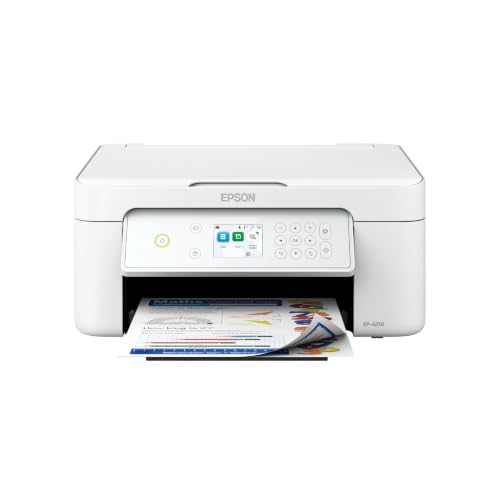
Choose the Epson Expression Home XP-4250 if
you want separate cartridges, a color display and Wi-Fi Direct.

Choose the Canon PIXMA TS4320 if
you want a simple two-cartridge setup and dual-band Wi-Fi.

What the Differences Mean
A spec table shows what differs. This section explains why each difference matters.
Ink and running costs
Ink or toner is where the money goes. Compare the cost per page, the starter cartridge size and whether third-party ink is accepted. Here, Epson Expression Home XP-4250 lists “Individual cartridges” while Canon PIXMA TS4320 lists “2-cartridge hybrid ink”.
Connection
How a printer connects affects setup and reliability. Wi-Fi is convenient for sharing, USB is the most dependable, and Ethernet suits offices. Check the Wi-Fi band and AirPrint or Mopria support. Here, Epson Expression Home XP-4250 lists “Wi-Fi with Wi-Fi Direct” while Canon PIXMA TS4320 lists “Dual-band 2.4/5 GHz”.
Which Is Right for Which Buyer
- If you print rarely, a low-cost model with cheap or long-life ink or toner avoids waste from dried ink.
- If you print a lot, prioritize a low cost per page, such as an ink tank or laser model.
- If you need to scan or copy documents, check for a document feeder.
- If you print photos, check the number of inks and paper support.
Before You Buy: A Five-Point Check
- Confirm the exact model on the product page; similar names often hide different features.
- Check the cost of replacement ink or toner.
- Check the Wi-Fi band and mobile printing support.
- Check the size of the printer against your space.
- Check the return window and warranty.
This comparison is based on the Amazon listings and manufacturer information, not our own testing. Treat it as a way to narrow the choice, then confirm the details that matter to you.
Individual Cartridges Versus a Hybrid Two-Cartridge Setup
The listings describe the Epson as using individual cartridges and the Canon as using a two-cartridge hybrid system. In a system with a separate cartridge for each color, you replace only the one that runs out. That can reduce waste if your printing leans heavily on a certain color, for example a lot of black text with a bit of color. In a two-cartridge system, the color cartridge holds several inks together, so one color running out usually means replacing the whole cartridge.
Neither is automatically cheaper. The cost depends on the price of each cartridge, the page yield the maker states and your own printing habits. Some separate-ink printers have several small cartridges that cost more in total, while some two-cartridge printers offer larger-capacity cartridges that spread the cost. Compare the prices of the cartridges you will actually need, including higher-capacity versions, and divide by the stated yield to get a rough cost per page.
Also think about convenience. A two-cartridge printer means fewer items to track and a simpler stock of spares. Separate cartridges mean more items but more control. If you print only occasionally, the bigger risk is ink drying out before you use it, so favor whichever system has cartridges you can buy easily. Check that you buy the exact cartridge numbers listed for your model, as similar printers often use different ones.
Wi-Fi Direct Versus Dual-Band Wi-Fi
The two printers take different approaches to wireless. The Epson listing mentions Wi-Fi with Wi-Fi Direct, and the Canon listing mentions dual-band 2.4 and 5 GHz Wi-Fi. They solve different problems.
Wi-Fi Direct lets a phone, tablet or laptop connect straight to the printer without going through your router. It is useful in places where there is no shared network, such as a small workshop, a holiday home or when a guest wants to print and you do not want to share your Wi-Fi password. The device usually has to leave its normal network to join the printer, so it can interrupt internet access while printing.
Dual-band support means the printer can join either the 2.4 GHz or the 5 GHz band of a router. The 2.4 GHz band reaches farther and passes through walls better, while 5 GHz is often faster and less crowded. A printer that can use both gives you flexibility if your router separates the bands or if one is congested.
- If you have a standard home network and print from a computer, either works.
- If you often print from guest devices without joining the network, Wi-Fi Direct is helpful.
- If your network is busy or the router puts bands on separate names, dual-band can ease setup.
Check the product pages for the exact wireless features and for any limits on the bands the printer can use.
Display and Everyday Operation
The Epson listing mentions a 2.4-inch color display, while the Canon listing here does not highlight one. A display affects how comfortable the printer is to set up and use at the machine itself. A color screen makes it easier to read menu items, check ink levels, see error messages and enter network details. If the printer has only a small text display or a few lights and buttons, you may rely more on the computer or phone app for status and settings.
Think about how you use a printer. If you mostly send jobs from a computer, you may only touch the printer to load paper and replace ink, and the display matters less. If you often copy at the machine, or if several people share the printer, a clearer display can reduce guesswork.
During setup, expect to install cartridges, load paper, connect to your network and run an alignment or test print. Keep your network details nearby. Install the maker’s software or app on the devices that will print, and confirm that your operating system is supported. Place the printer where there is room to open the scanner lid and extend the paper tray, and where you can reach the ink compartment. A stable, level surface reduces noise and paper problems.
Two-Sided Printing, Borderless Prints and Paper
Both listings mention automatic two-sided printing, so on that point the two machines are alike. Duplex printing saves paper on multi-page documents and makes neat double-sided handouts, though it takes longer than printing on one side. Use paper that suits double-sided printing, since thin sheets can show print through. Check whether the feature applies to copies as well as prints.
The Canon listing mentions borderless printing up to letter size, while the Epson listing here does not state borderless support. Borderless printing lets the picture extend to the edges of the paper, which matters for photos, cards and certificates. If you plan to print photos at home, check the product pages for the exact paper sizes and borderless options each printer supports. Neither of these budget inkjets is a dedicated photo printer, so keep your expectations in line with the class.
Paper choice affects results. Use plain paper for documents, and select the paper type in the print settings to match what you load. For photos, use photo paper and let prints dry before stacking them. Keep paper in a dry place, since humidity causes curling and jams. Do not overfill the tray, and make sure the guides sit snugly against the sheets. Check the manual for supported paper weights and the right way to load envelopes or cards.
Long-Term Care and the Permanent Printhead Idea
The Epson listing says it has a permanent printhead designed to last the life of the printer. The practical meaning is that the print head is built into the printer rather than into each cartridge, so replacing cartridges replaces only the ink supply. That can lower the cost of each replacement, but it also means that the print head is not renewed when you change cartridges, so keeping it healthy matters. The listing for the Canon does not state its print head arrangement, so check the product page.
For either machine, regular use is the best protection against clogs. Print a short test page with all colors every week or two, especially if the printer is used rarely, and turn it off with its own power button so the head returns to its parked position. Keep the printer away from dust, direct sun and heat. If prints show streaks or missing colors, run the cleaning cycle once as the manual describes and print a nozzle check. Repeated cleaning cycles use ink and may not fix a deeper problem.
Signs that it is time to look at a replacement include persistent clogs that do not clear, frequent paper jams, scanner faults, leaks and ink costs that have outgrown the value of the machine. Check the warranty and support options on each product page, and keep the packaging while you test the printer in case you need to return it.
Where You Will Put the Printer
A printer lives in a real room with real shelves, so begin with the space. Measure the shelf or desk, and remember to allow room above for the lid and in front for the paper tray and output slot. Compact inkjets look small in photos, but the tray extensions and the open scanner lid add noticeable height and depth.
Also think about how you reach the device. If it sits in a cabinet, check that the paper tray and cartridge door can open fully. If it sits on a desk, think about how cables and the power adapter will route behind it.
- Measure width, depth and open height, not only the closed size.
- Leave space behind for cables and ventilation.
- Check that the control panel is within easy sight and reach.
- Keep the printer away from damp areas and direct sunlight.
Matching the Printer to Your Household Habits
Both models are aimed at light home use, so the real question is how you print. A household that prints a few pages a week for school and forms differs from one that prints photos and craft projects. Thinking about your pattern helps you weigh features sensibly.
| Habit | What to weigh |
|---|---|
| Occasional documents | Ease of setup and how ink behaves when the printer sits idle |
| Homework and forms | Scanning and copying convenience |
| Photo prints | Paper support and borderless options |
| Several users | Wireless connection and app support |
| Small business paperwork | Two-sided printing and reliability |
Be honest about how much you print. A device bought for an imagined heavy workload may be more than you need, while one that is too basic can frustrate a busy household.
A Short Setup Guide for First-Time Owners
Getting a printer working should not take long if you follow the maker’s steps in order. Unpack the device, remove all tape and protective film, and read the setup sheet before powering it on.
- Place the printer on a flat, stable surface near an outlet.
- Install the ink cartridges as the setup sheet shows, and wait for the initial ink charging to finish.
- Load plain paper into the tray and adjust the guides.
- Download the maker’s software or app from the official site named in the manual.
- Connect to your wireless network and print a test page.
The first ink charge uses some ink, so the initial cartridges may not last as long as later ones. This is normal for inkjet printers, and the manual explains what to expect.
Paper and Media Choices
Paper has a larger effect on results than many people expect. Plain copy paper is fine for documents, but photos look better on photo paper made for inkjet printers. Check which sizes and weights your printer supports before buying specialty paper.
Everyday documents
Standard office paper is the practical choice. Store it flat and dry so it feeds smoothly.
Photos and crafts
Photo paper comes in glossy and matte finishes. Match the paper type setting in the print dialog to what you load.
Envelopes and labels
Not every inkjet handles these well. Read the manual before loading unusual media, and feed one sheet at a time if the maker advises it.
Keeping Print Quality Steady
Inkjets work best when used regularly. If a printer sits idle for long periods, nozzles can clog and produce streaks. Printing a short page every week or two can help, and the printer software usually includes cleaning and alignment routines. Use them as the manual describes instead of running them constantly, since each cycle uses ink.
Turn the printer off with the power button rather than pulling the plug, so that it can cap the printhead properly. Keep spare cartridges sealed in their packaging until needed, and store them according to the maker’s advice. If problems persist, contact the maker’s support instead of attempting repairs yourself.
Terms You Will See on Both Spec Sheets
Spec sheets for budget inkjets repeat the same handful of terms, and a plain glossary makes comparison smoother.
- Resolution: the number of dots per inch the printer can place. Higher numbers suggest finer detail on paper that suits it.
- Printhead: the part that sprays ink. Some designs keep it inside the printer and others place it in the cartridge.
- Duplex: automatic two-sided printing. Some models only offer manual two-sided printing.
- Borderless: printing to the very edge of the paper, usually for photos.
- Flatbed: the glass surface under the lid used for scanning and copying.
- Wi-Fi Direct: a way for a phone to connect to the printer without a home network.
Check the specification page for each model to see which of these features it includes, and compare only what matters to you.
Running Costs Without the Guesswork
Every inkjet has a cost beyond the purchase, and it comes from ink. The best way to compare is to look at the stated page yield of each cartridge and the number of cartridges involved. Different makers measure yield by standard methods, so use the figures as a rough guide.
Your own habits matter more than the label. Frequent short print jobs and long idle periods use extra ink for cleaning cycles. Printing in draft mode for everyday documents can stretch ink supplies. Think about the type of cartridges, since single-color cartridges let you replace only what runs out, while combined cartridges are simpler but may waste ink.
A Week of Ordinary Printing: How the Choice Shows Up Day to Day
Specifications tell you what Epson Expression Home XP-4250 and Canon PIXMA TS4320 can do on their best day. What decides whether you stay happy with either one is a much more ordinary question: how it behaves across a normal week of mixed jobs, interruptions and small annoyances. Walking through a realistic week is a useful way to test the decision before you commit, because the differences that matter most rarely appear in a single test page.
Monday usually starts with documents. School forms, invoices, shipping paperwork, a contract that needs a signature and a scan to send back. Jobs like these reward a printer that wakes quickly, feeds paper without drama and produces text that stays sharp when the page is photocopied again later. With either machine, the habit that helps most is unglamorous: keep the paper tray loaded with the stock you use most, keep a small stack of envelopes or labels separate rather than mixed into the tray, and let the printer finish its alignment and registration routines after setup instead of skipping them in a hurry. Rushed setup is the single most common cause of crooked scans and offset margins that owners then blame on the hardware.
Midweek is when households discover their real color habits. A worksheet with colored diagrams, a presentation printed for rehearsal, photos for a school project, a recipe with pictures. Color jobs expose how a printer handles coverage: heavy color blocks use far more ink or toner than a page of text, and they dry or fuse more slowly, so grabbing pages the instant they land can smudge or offset the image. Build in a few seconds of patience on dense color work and check the driver setting matches the paper actually loaded. Choosing a photo or matte setting while plain paper sits in the tray is a quiet way to waste supplies and get dull results from a perfectly capable machine, whichever of these two you own.
By Friday the pattern that separates the two models becomes practical rather than theoretical. If your week was mostly text with occasional color, running cost and standby behavior dominate: a machine that sips power while idle and does not demand attention between jobs fades into the background, which is exactly what most people want. If your week involved multi-page handouts, copying a stapled packet, or scanning a stack of receipts, feeder capacity, scan workflow and how the software names and files documents matter more than any headline speed figure. Neither Epson Expression Home XP-4250 nor Canon PIXMA TS4320 can change the shape of your week; the right choice is simply the one whose strengths line up with the jobs you actually repeated.
A small experiment worth running in the first week
During the first week, keep a simple tally on a sticky note: how many pages were plain text, how many had meaningful color, how many were copies or scans, and how many times you wished for a feature the printer does not have, such as a feeder, a bigger tray or a wired connection. That tally is more valuable than any review, because it tells you whether you bought the right category of machine. If the wish list stays empty, you chose well and can stop second-guessing. If one wish appears again and again, you have learned something precise about your next purchase, and you have learned it while the return window may still be open.
The same tally settles arguments between two close models better than specifications can. Two printers can look identical on paper and still suit different homes, because homes differ in the ratio of text to color, in how often anyone scans, and in whether printing happens in steady daily use or in occasional bursts separated by quiet weeks. Bursty use is harder on some technologies than steady use, a point the care section below takes up in detail.
Troubleshooting the Problems Owners Actually Meet
Most problems with a modern budget inkjet are not failures. They are mismatches between a setting, a supply or a habit and what the machine was asked to do. Working through the common ones in a sensible order saves a great deal of frustration, and the order matters: check the simple physical causes first, then the software causes, and only then suspect the hardware.
Faded, streaky or off-color output
Start with the paper path and the supply levels the machine itself reports, not the levels you assume are left. A partly empty supply can produce output that looks like a mechanical fault. Next, run the built-in maintenance or cleaning utility once, print the diagnostic page the utility offers, and look at which color or which area of the page is affected. A problem confined to one color points to a supply or a single channel; a problem repeated at the same position down every page points to something on the paper path, such as a dirty roller or a piece of debris. Repeating defects at regular intervals are a classic clue, because the spacing often matches the circumference of a roller or drum inside the machine.
Resist the urge to run cleaning cycles back to back. Each cycle consumes supplies, and several in a row can flood or overheat components that then need rest before output recovers. One cycle, a diagnostic page, a pause, and a fresh look will tell you more than five cycles in a row. If output improves but does not fully recover, check that the paper type setting matches the loaded stock and that the stack is not damp, overfilled or fanned poorly. Paper that has sat in a humid room feeds badly and accepts ink or toner unevenly, and it imitates several more serious faults.
Paper jams and misfeeds
Turn the machine off, open the access points the manual identifies, and remove paper by pulling in the direction of normal travel where possible, using both hands so the sheet does not tear. A torn fragment left inside will cause the next jam and the next. Once clear, inspect the stack you are about to reload: mixed sizes, curled edges and a tray filled past its marker all cause repeat misfeeds. Fan the stack, align it against the guides, and set the guides snug rather than tight. Guides squeezed too firmly bow the stack; guides left loose let sheets skew, which the machine may report as a jam even when nothing is stuck.
Connection dropouts
Wireless printing problems with either Epson Expression Home XP-4250 or Canon PIXMA TS4320 usually trace back to the network rather than the printer. A printer that worked at setup and later vanishes from the list of available devices has often been given a new address by the router, or the router has steered it to a band it handles poorly. Restarting the router and the printer in that order resolves a surprising share of cases. If dropouts persist, placing the printer where it has a clear signal path, rather than inside a closed cabinet or behind a metal filing cabinet, is a more durable fix than repeatedly reinstalling drivers. Where the option exists, reserving a fixed address for the printer in the router settings prevents the disappearing-printer problem from returning every few weeks.
Finally, keep the manual and the maker’s support pages as the authority for anything involving opening covers beyond the normal access points, replacing internal parts, or messages that mention service. The steps above cover the everyday layer of problems that owners can safely solve. A fault that survives new supplies, correct settings, a clean paper path and a stable network connection is a support conversation, and describing the steps you have already tried will get you to a useful answer much faster.
A Simple Care Routine That Prevents Most Problems
Printers rarely fail suddenly. They drift: output gets a little lighter, feeds get a little less reliable, scans pick up a line that was not there before. A light, regular care routine for your budget inkjet catches that drift early, when the fix is a wipe, a setting or a fresh supply rather than a repair. The routine below is deliberately modest, because a routine you actually follow beats an elaborate one you abandon.
Weekly: two minutes
Wipe the exterior and the scanner glass with a soft, dry or barely damp cloth. Scanner glass deserves special attention: a single fingerprint or speck of correction fluid on the glass becomes a line down every scan and copy, always in the same place, and owners often chase it as an ink or toner problem. If your machine has a document feeder, wipe the narrow glass strip the feeder reads from as well, since that strip is where feeder lines come from. Check the paper in the tray: remove curled or damp sheets, top up before the stack runs so low that the last sheets feed at an angle, and glance at the supply levels the machine reports so a low ink cartridges never ambushes an urgent job.
Monthly: ten minutes
Print one page that exercises the whole machine: a document with text, a block of each color if it is a color machine, and a gray area. Look at it properly rather than glancing. Even coverage, clean edges and no repeating marks mean the machine is healthy. Run the alignment or calibration utility the maker provides if text looks fuzzy or colors outline the shapes they should fill. Open the paper path and look for dust and paper fragments, especially after any jam. Check for firmware and driver updates from the maker’s site, and read what an update changes before applying it; updates that mention feed reliability, network stability or scan quality are usually worth having, while nothing about an update should be applied in the middle of a deadline if the machine is working well.
Quarterly: a short review
Step back and look at the supplies picture. Are you replacing ink cartridges far sooner than the yield figures in the listing suggested? Yield figures assume a standard page with modest coverage, so heavy color, dense graphics and frequent cleaning cycles all shorten real life. That is not a defect, but it is information: it may change which supply size is economical to buy, or whether your next machine should be a different category altogether. Also review where scans are being filed and whether the naming pattern still makes sense, clear the backlog of test pages and failed prints from the output area, and confirm the printer still appears correctly on every computer and phone that uses it. Ten quiet minutes a quarter is what keeps a shared household or office printer from becoming a source of recurring small crises.
One habit underlies all of this: change one thing at a time. When output disappoints, owners often swap paper, change settings, run cleaning and replace a supply in the same afternoon, and then cannot tell what fixed the problem or whether it is fixed at all. Methodical care feels slower and is faster, because the lesson from each fix carries into the next year of ownership instead of being lost.
Worked Examples: Three Buyers, Three Different Answers
Abstract advice only goes so far, so consider three households choosing between Epson Expression Home XP-4250 and Canon PIXMA TS4320. Each reaches a defensible answer, and the answers differ, which is precisely the point: the better printer depends on the pattern of work it will be given.
The homework-and-forms household
Two school-age children, two working parents, a steady flow of worksheets, permission slips, return labels and the occasional color project. Volume is moderate but relentless, and almost all of it is time-sensitive: a form printed badly at night is a problem the next morning. For this household the deciding factors are reliability on plain paper, painless two-sided printing for handouts, and supplies that do not run out midweek. Either machine can do the work, so the choice turns on running-cost structure and on which control layout the parents find clearer when they are tired and in a hurry. The household should also weigh how each machine behaves after a quiet school holiday, because two idle weeks followed by a burst of printing is exactly the rhythm of family life.
The home office that clients see
A freelancer or small practice whose printed output reaches clients: proposals, invoices, signed agreements returned by scan. Here the scanner and the software around it matter as much as the print engine. Clean scans, sensible file naming, dependable copying of multi-page packets and a machine that looks and sounds composed on a desk all carry weight. Color needs are modest but visible, since a chart or a letterhead that prints muddy undermines the professional impression the documents are meant to create. This buyer should read the sections above on scanning and networking closely, and should think about what happens on the busiest day of the month rather than the average day, because a machine that copes with the average and fails at the peak fails when it matters most.
The occasional printer who hates waste
Some households print rarely: tickets, a tax return, a form, a few pages a month. Their enemy is not cost per page in the abstract but waste and decay between jobs: supplies that dry, clog or expire, machines that need coaxing back to life after every quiet month. For this buyer, the technology’s behavior during idle periods outweighs almost everything else, and the honest question is which of the two machines tolerates neglect better and recovers more gracefully when asked. This buyer should also consider whether printing at a library, a copy shop or an office would serve better than owning at all. Recommending against a purchase is sometimes the correct conclusion of a comparison, and a household that prints a handful of pages a month is the case where that conclusion deserves a fair hearing.
Notice what none of these buyers did: none chose by a single headline number. Speed, yield and capacity figures describe a machine under test conditions. The buyers above chose by matching the machine to a rhythm of work, and that is the method this whole comparison has been building toward. If you recognize your household in one of the three, you already know which considerations should weigh most in your decision, and the earlier sections give you the detail to act on them.
More Questions Worth Settling Before You Buy
How do running costs differ between individual cartridges and a two-cartridge system?
With individual cartridges you replace only the color that runs out, which suits households whose printing leans heavily on one or two colors. With a two-cartridge system the color cartridge is replaced as a unit when any one color is exhausted, which can waste the remaining colors, but the cartridges themselves are typically simpler and the system has fewer parts to manage. Which structure wins depends on your color mix: a household printing mostly black text with occasional color often finds the two-cartridge machine’s black cartridge does the heavy lifting cheaply, while a household printing varied color documents usually wastes less with individual cartridges.
What is Wi-Fi Direct useful for on a budget printer?
It lets a phone, tablet or laptop print without joining the home network, which is handy for guests, for a printer in a room with weak network coverage, or for a student in housing where the shared network is awkward to join. It is not a replacement for a proper network connection in a busy household, because only one device connects at a time and the printer leaves the network while it serves a direct guest. Think of it as a useful fallback and a guest feature, and judge the printer mainly on its ordinary network behavior.
How can I make a budget inkjet feel less slow?
Most perceived slowness is queueing and preparation rather than printing itself. Keep the printer on a stable network connection, print from the maker’s current app or driver rather than a generic one, and choose draft or standard quality for everyday documents instead of the highest setting, which can multiply the time a page takes for no visible benefit on text. Batch small jobs together instead of sending them one at a time across an evening, and let the first page of a job finish before judging: the first page includes warm-up and data transfer that later pages do not.
Frequently Asked Questions
Which is cheaper to run?
Compare cartridge prices and yields.
Do both print photos?
Both are budget home inkjets; the TS4320 lists borderless up to letter size.
Do either have a feeder?
Neither listing mentions one.
Which one costs less to run?
Compare the replacement ink or toner price and page yield on each product page.
Can either print from my phone?
Most current printers support AirPrint, Mopria or an app. Check each product page.
What if I choose the wrong one?
Check the return window on Amazon and keep the packaging while you test it.
What is Wi-Fi Direct used for?
It lets a device connect straight to the printer without joining your router's network. It is handy for guests or places without a shared network.
Does dual-band Wi-Fi make printing faster?
It lets the printer use the 2.4 GHz or 5 GHz band, which can help if one band is crowded. Print speed itself depends mainly on the printer, not the band.
Are separate ink cartridges always cheaper?
Not always. Replacing only the empty color can reduce waste, but total cost depends on cartridge prices, yields and how you print.
What does a permanent printhead mean?
It means the print head is part of the printer rather than part of each cartridge. Regular use and cleaning help keep it healthy.
Can I print photos on these printers?
Both are budget home inkjets that can print photos at a basic level. The Canon listing mentions borderless up to letter size, so check each product page for supported sizes.
How do I stop the ink from drying out?
Print a short color page every week or two and turn the printer off with its power button. This keeps the nozzles active.
Do I need to use the maker's own cartridges?
Follow the maker's guidance and the cartridge numbers on the product page. Other cartridges may not match the printer or may affect results.
Bottom Line
Choose the XP-4250 for separate inks and Wi-Fi Direct, the TS4320 for simplicity. See best printers under $100.
Related Reading
- Types of Printers Explained: Inkjet, Laser, Ink Tank and More
- 7 Best Wireless Printers for Home Use
- Epson Expression Home XP-4250 Review: Is It Worth It?
- Canon PIXMA TS4320 vs TS3720: Which Basic Canon?
- Epson EcoTank ET-2800 vs Canon PIXMA G3270
More Printer Guides
- Best Printers for Home Use
- Best All-in-One Printers
- How to Calculate Printer Cost Per Page
- Printer Terms Explained

