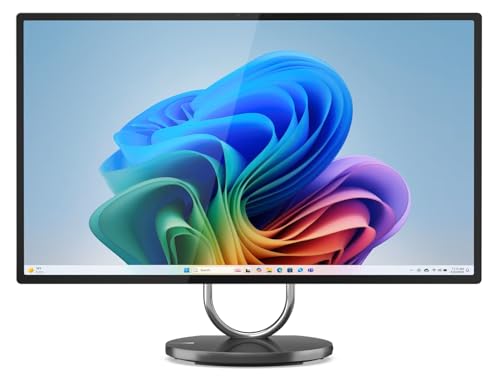
Where to buy
Check the latest price, availability and delivery on Amazon. Orders are placed on Amazon. We may earn a commission from qualifying purchases.
- Best for 1440p ambitions under $2,500: Lenovo Yoga AIO 32i, Core Ultra 7 258V, RTX 4050, 32GB, 1TB — Check on Amazon
- HP OmniStudio X 32, Core Ultra 7 258V, 32GB, 1TB — Check on Amazon
- Apple iMac 24-inch, M4, 24GB Unified Memory, 512GB SSD — Check on Amazon
- Dell 27 All-in-One, Core 7 150U, MX570A, 64GB, 4TB SSD — Check on Amazon
See 2 more Amazon options
- Lenovo Yoga AIO 27, Core Ultra 7 255H, 16GB, 1TB — Check on Amazon
- HP OmniStudio X 32, Core Ultra 7 258V, 32GB, 1TB, Windows 11 Pro — Check on Amazon
Read the full guide ↓
Disclosure: As an Amazon Associate, reviewstook.com earns from qualifying purchases. Links to Amazon on this page are affiliate links; they cost you nothing extra. Listing details such as price and availability change often, so check the current Amazon listing before you buy.
Let us start with the sentence this entire guide hangs on: no all-in-one PC under $2,500 plays modern games at native 1440p. Not one. The six machines below wear flagship panels — 4K at 31.5 inches, 4.5K at 24 inches, a genuine QHD screen at 27 inches — but a display’s resolution and a game’s rendering resolution are two different numbers, and in this category they almost never meet. Five of the six picks render games on integrated graphics, which means the game itself is drawn at 720p or 1080p and then stretched or upscaled to fill a much sharper screen. The sixth, Lenovo’s Yoga AIO 32i, carries the group’s only discrete GPU — a laptop RTX 4050 — and even it is honestly a 1080p gaming chip that uses DLSS upscaling to reach higher output resolutions, not a native 1440p or 4K gaming card. If your goal is native 1440p gameplay, the machine you want is a tower, and this guide will point you to the right ones rather than dress an all-in-one up as something it is not.
So why does this guide exist? Because “1440p gaming” means several different things in real households, and some of them an all-in-one genuinely delivers. There is the sharp 1440p-class desktop: crisp text, roomy multitasking, video that looks superb. There is upscaled gaming, where smart rendering techniques produce a picture on a high-resolution panel that looks far better than the raw render resolution suggests — DLSS Quality mode outputting to a 4K screen, for example, actually renders internally at roughly 2560×1440, which is 1440p-class rendering wearing a 4K coat. And there is the all-in-one as a 1440p display for something else: two picks here have an HDMI input, so a console or a separate gaming PC can feed their panels directly. Graded on what each machine actually renders, outputs and displays — rather than on the resolution printed on the box — the six picks below separate into a clear order, and that grading is what this guide is for.
One more piece of ground truth before the picks. The flagship all-in-one band on Amazon is thin and ends earlier than the budget suggests. Verified manufacturer configurations sit at the top of this band; beyond them, listings mostly become reseller “upgraded” bundles of the same machines with inflated memory and storage at inflated prices. Every pick below is a real listing that sits within this budget, two of them land far under the ceiling, and one carries no hard price claim at all because no reliable price could be verified for it — check its live price on Amazon, and the review will tell you the buying rule instead. What follows: quick picks, an explanation of how the picks were chosen and graded for this angle, a plain-English section on render resolution versus display resolution, six detailed reviews, a comparison table, a buying checklist, the mistakes specific to shopping this angle, and an FAQ.
In this guide
Quick Picks
Short on time, or comparing several options at once? Each row below names a buyer type and the product that suits it, with a link to the listing.
| Buyer type | Pick | Why it stands out | Link |
|---|---|---|---|
| Closest to real 1440p gaming | Lenovo Yoga AIO 32i, Ultra 7 258V, RTX 4050 | The only discrete GPU here; DLSS upscaling on a 31.5-inch 4K panel | Check on Amazon |
| Best 4K screen for upscaled play | HP OmniStudio X 32, Ultra 7 258V, 32GB | 550-nit 4K IPS panel, HDR 600, HDMI input for a console or PC | Check on Amazon |
| Best for Apple households | Apple iMac 24-inch, M4, 24GB, 512GB | 4.5K Retina display, strong M4 GPU, macOS game catalog is the limit | Check on Amazon |
| Best for memory and storage | Dell 27 All-in-One, 64GB, 4TB SSD | Capacity first; its Full HD panel cannot even show 1440p — marketplace listing | Check on Amazon |
| The only native 1440p panel | Lenovo Yoga AIO 27, Ultra 7 255H | 27-inch QHD 120Hz screen and HDMI input at a mid-range price for this class — check price on Amazon | Check on Amazon |
| Best for Windows 11 Pro buyers | HP OmniStudio X 32, Windows 11 Pro | HP’s 4K flagship in its Pro-OS listing; same integrated-graphics story | Check on Amazon |
How These Picks Were Chosen
The six machines are the verified flagship all-in-one set for this budget: real Amazon.com listings, each within this guide’s budget in the United States, checked against manufacturer specification pages rather than listing headlines alone. Prices at this tier move — several listings are sold by third parties — so check the live price on Amazon for every pick before you buy. One listing, the Windows 11 Pro version of HP’s OmniStudio X 32, carries no hard price claim anywhere in this guide, because no reliable price could be verified for that specific listing; the rule there is to buy only when the live price is at or under $2,500 and close to the Home listing of the same machine.
For this 1440p-gaming angle, each pick was then graded on three separate questions that marketing copy deliberately blurs. First: what resolution does the machine actually render games at, given its graphics hardware? Integrated Intel and AMD graphics render modern games at 720p to 1080p; a laptop RTX 4050 renders at 1080p natively and reaches higher outputs only through upscaling. Second: what does the panel display? A 4K screen shows a 1080p render stretched across four times the pixels unless an upscaler intervenes, while the one QHD panel here matches the 1440p target exactly. Third: what can the machine output or accept? Two picks document an HDMI input, which lets an external console or gaming PC use the panel as a monitor — a real route to genuine 1440p pictures, with the rendering done elsewhere. Display-output capabilities are stated only where the underlying research documents them; where a pick’s outputs are not documented, this guide says nothing rather than guessing.
The usual flagship filters applied underneath. Memory is soldered or on-package in nearly every design at this tier, so the capacity bought is the capacity kept for life, and 32GB is treated as the flagship standard. Seller identity matters: two picks are manufacturer-channel listings, others are marketplace or reseller listings, including one configuration a reseller upgraded beyond the manufacturer’s own maximum specification, and each review names that where it applies. We did not use these machines ourselves; the grading rests on manufacturer listings, specification pages and Amazon listing data, read with the resolution honesty described above.
Render Resolution vs Display Resolution: The Distinction This Guide Runs On
A game’s render resolution is the size of the image the graphics hardware actually draws, frame by frame. A display’s resolution is the number of physical pixels in the panel. When the two match, the picture is native and maximally sharp. When the render is smaller — a game drawn at 1920×1080 shown on a 3840×2160 screen — something has to invent the missing pixels. Plain scaling just stretches the image, which is why a 1080p game on a 4K monitor can look soft despite the expensive panel. Modern upscaling is smarter: NVIDIA’s DLSS and its competitors render at a reduced internal resolution and reconstruct a higher-resolution output using motion data and machine learning, landing much closer to native sharpness than a dumb stretch.
The numbers matter, so here they are precisely. DLSS in Quality mode, outputting to a 1440p screen, renders internally at roughly 1707×960. DLSS Quality outputting to a 4K screen renders internally at roughly 2560×1440 — which is why the RTX 4050 pick below can honestly be described as doing 1440p-class rendering when it drives its own 4K panel in Quality mode, while still not being native 1440p gaming and certainly not native 4K gaming. DLSS Performance mode at 4K output renders internally at roughly 1920×1080: the output says 4K, the workload is 1080p. Keep those three figures in mind and no listing headline can mislead you — a “4K gaming” claim built on Performance-mode upscaling is a 1080p render in a costume.
Two corollaries follow for this category. First, DLSS belongs to NVIDIA hardware only: the integrated Intel Arc graphics in the HP and smaller Lenovo picks cannot use it, and this guide credits no pick with an upscaling technology its hardware does not have — for the integrated machines, expect games to render at 720p or 1080p and be scaled to the panel, with whatever in-game resolution scaling the title itself offers. Second, a high-resolution panel is never wasted on a machine that renders lower: the desktop, text, photo work and video all use every pixel, all day. The panel is a display purchase and a rendering purchase at once, and this guide scores both halves separately for every pick.
The 6 Best All-in-One PCs for 1440p Gaming Under $2,500, Graded Honestly
Lenovo Yoga AIO 32i, Core Ultra 7 258V, RTX 4050, 32GB, 1TB
Who it suits: The buyer who wants an all-in-one first and the most gaming one can honestly contain — plus creators who will use the GPU for photo, video and 3D work every day.
Everything about this machine’s gaming story flows from a single component no other pick has: an NVIDIA GeForce RTX 4050 laptop GPU with 6GB of GDDR6 memory. Grade it precisely. Natively, this is a 1080p graphics card: modern games render at 1920×1080 on it, and that is the honest headline. What DLSS adds is the upscale path — on this machine’s own 31.5-inch 4K panel, DLSS Quality mode renders internally at roughly 2560×1440 and reconstructs a 4K output, so the GPU is doing 1440p-class rendering work and the panel shows a picture far sharper than a plain 1080p stretch. DLSS Performance mode at 4K output drops the internal render to roughly 1920×1080, the lighter path for demanding titles. Esports and older games ask much less of the hardware and run at higher native resolutions comfortably. What this machine is not, at any setting: a native 1440p gaming PC, and not a native 4K one. The 4050’s 6GB of VRAM and laptop power envelope see to that, and any review that lets the 4K screen imply 4K gaming is selling you the panel and billing you for the rendering.
The rest of the specification supports the role. Intel’s Core Ultra 7 258V drives the system, 32GB of LPDDR5X memory sits on the processor package, and a 1TB PCIe Gen4 SSD holds the library. The panel is a 31.5-inch 4K UHD IPS display — the sharp desktop, the video, the photo work all use every pixel even when games render below it. Around that: a 5MP IR webcam for Windows Hello, a 15W wireless charging pad built into the base, Wi-Fi 7, Thunderbolt 4, the wireless keyboard and mouse in the box, and Windows 11 Pro installed. This is a premium-tier listing — check the live price on Amazon before you buy, and compare it with Lenovo’s own US store, which also sells this configuration. Two disciplines from the base research carry over: the memory is on-package and can never be upgraded, the standard warranty on this listing family is a one-year mail-in term, and buyer feedback on the listing is still thin, so judge it on Lenovo’s specification sheet rather than on review volume.
- The only discrete GPU in this guide — an RTX 4050 that renders at 1080p natively and reaches 1440p-class internal rendering through DLSS Quality on its 4K panel.
- 31.5-inch 4K UHD IPS display, 32GB of memory and a 1TB Gen4 SSD — the full flagship specification around the GPU.
- Wireless charging in the base, 5MP IR webcam, Thunderbolt 4 and Windows 11 Pro included.
Honest limitation: The GPU is a laptop 4050 — 1080p native rendering with upscaling above that, never native 1440p or 4K gaming — and the 32GB of memory is fixed for life because it lives on the processor package.
Choose it if you want the one all-in-one here whose gaming claims survive scrutiny, and your play is modern titles at 1080p with DLSS doing the polish on a big 4K screen. Skip it if native 1440p gaming is the actual goal — that money buys a tower that does it properly, as the routing sections below explain.

HP OmniStudio X 32, Core Ultra 7 258V, 32GB, 1TB
Who it suits: Home-office and media-first buyers who want the best big screen in the guide for upscaled, light gaming — and a panel that can moonlight as a monitor for a real gaming device.
Grade the gaming first, because the screen will try to seduce you out of it. The OmniStudio X 32 runs Intel’s Arc 140V integrated graphics behind its Core Ultra 7 258V, and integrated graphics render modern games at 720p to 1080p, full stop. There is no DLSS here — that is NVIDIA technology — so what reaches the 31.5-inch 4K panel is a lower-resolution render scaled up to fill it: entirely playable for esports, older titles and lighter games, visibly softer than native in demanding ones. Nobody should buy this machine to game on its own silicon, and this guide ranks it second for the screen, not the rendering.
The screen, though, is genuinely the best display in this guide: 31.5 inches of 4K IPS rated at 550 nits — brighter than everything else here, iMac included — with HDR 600 support and 95% DCI-P3 color coverage, on a height-adjustable stand, which almost no all-in-one bothers to offer. For the desktop, documents, photos and video, every one of those pixels and nits works all day. And the panel has a second career built in: an HDMI input lets it serve as a monitor for a laptop or a console, which is a legitimate route to real 1440p and 4K pictures in this guide — the rendering happens in the external device, the HP supplies the display, and when the PC inside eventually ages, the screen’s usefulness does not end with it. Inside the machine: 32GB of memory, a 1TB SSD, Wi-Fi 7, and a 5MP IR camera with HP’s Poly Camera Pro tuning. This is a premium-tier listing — check the live price on Amazon before you buy. The seller caveat is part of the product: this configuration’s listing has been third-party only at recent checks, so the “sold by” name is a reseller rather than HP or Amazon — check the seller’s history, the return window and who honors the warranty before paying flagship money.
- 550-nit 4K IPS panel with HDR 600 and 95% DCI-P3 — the brightest, most color-complete screen here, on a height-adjustable stand.
- HDMI input lets the panel display a console or gaming PC — the honest path to real high-resolution gaming pictures on this pick.
- An Ultra 7 258V with 32GB of memory and a 1TB SSD, plus Wi-Fi 7 and a 5MP IR camera.
Honest limitation: Integrated Arc graphics only — games render at 720p to 1080p and are scaled to the 4K panel, with no DLSS available — the memory is not upgradeable, and the Amazon listing is third-party sold, so the warranty path runs through the seller.
Choose it if the screen is the purchase, your gaming is light or arrives via a console you can plug into it, and your daily work is documents, media and photos. Skip it if you intend to game on the machine itself beyond the light end — the Lenovo above is the only pick that even begins that conversation.

Apple iMac 24-inch, M4, 24GB Unified Memory, 512GB SSD
Who it suits: Apple households and iPhone owners whose gaming lives inside Apple’s catalog or the cloud, and who value silence and simplicity over screen size.
The iMac’s graphics hardware is not the weak point — the M4 chip in this configuration, in its full 10-core CPU and 10-core GPU form, is a strong integrated GPU, and games that exist for macOS run well on it. Render grading still applies: titles render internally at or below 1080p-class resolutions in demanding cases and are scaled to the panel, because the panel is a 24-inch 4.5K Retina display at 4480×2520 — a resolution no integrated GPU games at natively. The binding constraint is the catalog, not the silicon. Apple’s native game library keeps growing but remains a subset of the Windows world, supplemented by cloud streaming services; if the specific games you play are not on macOS, the M4’s power is theoretical. There is also no HDMI input trick available here — unlike the HP flagships and the smaller Lenovo, this screen cannot serve as a monitor for a console or PC, so the iMac’s gaming universe is exactly what runs on the iMac.
As an appliance, it remains the most resolved product in this guide. It is the only pick sold on Amazon by its own manufacturer at a stable list price — this 24GB memory, 512GB storage configuration, Apple model MD2U4LL/A in Pink with the same hardware sold in other colors — and Apple retailers sometimes discount it, so check the live price before you buy. The display runs 500 nits with P3 wide color and is sharper per inch than the bigger panels; the 12MP Center Stage camera is the best webcam here by a wide margin; the Magic Keyboard carries Touch ID; and the machine is silent in normal use and wakes instantly. The trade-offs are equally concrete: 24 inches is the smallest screen in the guide, 512GB is half the flagship storage and neither it nor the memory can ever be changed, ports are Thunderbolt/USB 4 only, and the stand tilts without adjusting for height. Buy it as the best-integrated desktop in the guide, with its gaming ceiling set by a catalog rather than by hardware.
- The sharpest screen per inch here: 4.5K Retina at 500 nits with P3 color, plus a 12MP Center Stage camera no rival in this guide matches.
- M4 speed and 24GB of unified memory in a silent one-cable design, with a Touch ID Magic Keyboard in the box.
- Apple sells it on Amazon itself, and Apple retailers sometimes discount the configuration — check the live price before you buy.
Honest limitation: Gaming is bounded by the macOS catalog and by integrated-class rendering scaled to a 4.5K panel; the smallest screen here, 512GB of fixed storage, zero upgradeability, and no HDMI input for external devices.
Choose it if your games live on macOS or in the cloud and your household runs on Apple devices. Skip it if your library is Windows-only, or if you want the option of feeding the screen from a console later.

Dell 27 All-in-One, Core 7 150U, MX570A, 64GB, 4TB SSD
Who it suits: Capacity-first buyers — heavy multitaskers, virtual-machine users, media archivists — who game lightly and have read this section’s first paragraph twice.
Here is the resolution truth for this pick, stated before anything else: its 27-inch panel is Full HD, 1920×1080. It cannot display 1440p at all — not upscaled, not downscaled, not in any mode — because the physical pixels are not there. If the 1440p in this guide’s title describes the picture you want to look at, this Dell is the one pick that structurally cannot provide it, and its presence here is for buyers whose real priority is the specification that follows. Games on its NVIDIA GeForce MX570A — an entry-level graphics chip — render at 1080p or below, which at least matches the panel one-to-one: a native 1080p picture, modest but honest, with no scaling softness. The Core 7 150U behind it is an efficiency-class laptop processor, chosen for quiet running rather than speed.
The capacity is the argument, and it is a real one: 64GB of DDR5 memory, double the flagship standard, and a 4TB SSD, four times the storage of the 32-inch flagships — room for virtual machines, enormous working sets and a media archive that lives on the machine instead of on external drives. The panel is a 100Hz touchscreen, the webcam is 5MP, connectivity includes Wi-Fi 6E, Windows 11 Pro is installed, and a wireless keyboard and mouse are in the box. This is a premium-tier marketplace listing — check the live price on Amazon before you buy. Now the caveat that is inseparable from the capacity: this is a marketplace listing in a reseller-upgraded configuration. Dell’s factory specification for this model line tops out at 32GB of memory, so a reseller opened the machine and fitted the larger parts, becoming your effective warranty counterparty for them. That channel is common and legitimate, but at this tier it means vetting the seller’s history and warranty terms with the same care you would give the specification sheet.
- 64GB of DDR5 memory paired with a 4TB SSD — twice the memory and four times the storage of this guide’s flagship standard.
- A 27-inch 100Hz touch panel, 5MP webcam, MX570A graphics and Windows 11 Pro round out the specification.
- A premium-tier marketplace configuration — check the live price on Amazon, and weigh it against the seller’s warranty terms before you buy.
Honest limitation: A Full HD panel that cannot show 1440p in any form, an entry-level GPU and efficiency-class CPU, in a reseller-upgraded marketplace configuration whose seller and warranty you must vet yourself.
Choose it if memory and storage are your bottleneck, your gaming is light and content at a native 1080p picture, and you are comfortable buying an upgraded configuration from a rated seller. Skip it if the 1440p picture itself is what you came for — three picks above it have sharper panels, and a tower has the rendering to match.

Lenovo Yoga AIO 27, Core Ultra 7 255H, 16GB, 1TB
Who it suits: The buyer who wants the one genuine 1440p panel in this guide, the best stand, and a strong processor — and would rather spend well under the ceiling than chase the 32-inch class.
This is the only pick whose display resolution is exactly the resolution in the guide’s title: a 27-inch QHD IPS panel at 2560×1440, running at 120Hz, rated at 400 nits with 99% sRGB coverage. As a display, it is the real thing — a native 1440p desktop with a high refresh rate, on a stand that tilts, swivels, lifts and pivots into portrait. The rendering grade is the familiar one: Intel’s integrated Arc graphics behind the Core Ultra 7 255H draw modern games at 720p to 1080p, which the panel then scales up to its 1440p grid — a good-looking result for esports and older titles, a soft one in demanding games, and never native 1440p rendering from the machine itself. The second route is the interesting one: this pick documents an HDMI input, so a console or a separate gaming PC can feed the panel directly, and then the picture on screen genuinely is a 1440p signal rendered by hardware built for it, at the panel’s high refresh rate. No other combination in this guide offers a native-1440p, high-refresh display at anything like this price.
The processor deserves its own sentence: the Core Ultra 7 255H is a performance-class laptop chip, in raw CPU terms arguably the strongest in this guide, which makes the machine quick at everything that is not GPU-bound. Around it sit 16GB of LPDDR5X memory and a 1TB SSD. The memory is the deliberate compromise and it is permanent — the LPDDR5X is soldered, 16GB is below the flagship standard this guide applies elsewhere, and a heavy multitasker will eventually feel the ceiling. Pricing is the value story: this is a mid-range listing for the class — check the live price on Amazon, since it varies by seller and week — and it delivers most of the flagship experience, the exact-1440p screen included, for well under the budget ceiling. Windows 11 Pro is installed on the Amazon listing.
- The only native 1440p panel here: 27-inch QHD IPS at 120Hz, on a stand that tilts, swivels, lifts and pivots to portrait.
- HDMI input lets a console or gaming PC drive that panel with a true 1440p signal — the cheapest real-1440p picture in this guide.
- Core Ultra 7 255H performance-class processor with a 1TB SSD, at a mid-range price for the class — check the price on Amazon.
Honest limitation: The machine’s own gaming renders at 720p to 1080p on integrated graphics and is scaled to the panel; the native 1440p picture arrives only via the HDMI input from an external device — and 16GB of soldered memory is a permanent, below-flagship ceiling.
Choose it if you want a true 1440p high-refresh desktop now, light gaming from the machine itself, and the option to plug a console or gaming PC into the same screen later. Skip it if you know your workload needs 32GB of memory, or if the gaming must happen on this machine’s own hardware.

HP OmniStudio X 32, Core Ultra 7 258V, 32GB, 1TB, Windows 11 Pro
Who it suits: Business buyers and remote workers whose employer requires Windows 11 Pro, and who want it on the best big screen in this guide.
The hardware is identical to the second pick in this guide — the same OmniStudio X 32, the same 31.5-inch 4K IPS panel at 550 nits with HDR 600 and 95% DCI-P3, the same Core Ultra 7 258V, 32GB of memory, 1TB SSD, Intel Arc 140V integrated graphics, Wi-Fi 7, height-adjustable stand and HDMI input — in the Amazon listing that ships with Windows 11 Pro instead of Home. The gaming grade therefore transfers without change: the machine renders games at 720p to 1080p on integrated graphics and scales them to its 4K panel, there is no DLSS on Intel hardware, and the HDMI input remains the honest route to high-resolution pictures, letting a console or a work laptop use the screen directly. Nothing about the Pro edition adds a single frame; what it adds is an operating system that business environments require.
That requirement is not a technicality. Windows 11 Pro is what allows a machine to join a workplace domain or Entra ID, encrypt its drive with BitLocker under company policy, host Remote Desktop sessions and be managed by an employer’s IT tools. For a machine bought for work — or bought by an employer — the Home edition is frequently not an option at all, and upgrading afterward costs money and an afternoon. If that is your situation, this listing is not a duplicate of the pick above it; it is the version of the flagship you are actually allowed to buy. Two disciplines govern the purchase. First, price: no reliable price could be verified for this specific Pro listing, so check its live price on Amazon — buy it only when that live price sits at or under $2,500 and within a sensible margin of the Home listing, because the hardware is identical and the operating system is the only difference; if the Pro listing runs far above the Home listing on the day you shop, buy the Home machine and budget for Microsoft’s own Pro upgrade instead. Second, the seller: availability for this listing also runs through third-party sellers at times, as it does for the Home configuration, so confirm the sold-by name, warranty terms and return window on the live page.
- The same 550-nit 4K flagship, shipped with Windows 11 Pro for BitLocker, Remote Desktop and managed workplaces.
- Identical hardware to the Home listing: Ultra 7 258V, 32GB, 1TB, Arc 140V, height-adjustable stand, HDMI input.
- The HDMI input gives the 31.5-inch screen a second life as a display for a laptop or console.
Honest limitation: You are paying for an operating-system edition, not more hardware or more gaming — and with no verified price pinned for this listing, its value depends entirely on the live price on the day you buy.
Choose it if your work mandates Windows 11 Pro and you want it on the best big Windows screen in this guide. Skip it if Home covers your needs — the second pick here is the same machine for personal use.

Comparison Table
| Product | Display | What it renders in games | Memory / Storage | Link |
|---|---|---|---|---|
| Lenovo Yoga AIO 32i | 31.5-inch 4K UHD IPS | 1080p native on RTX 4050; DLSS Quality renders ~2560×1440 internally to its 4K panel | 32GB / 1TB | Check on Amazon |
| HP OmniStudio X 32 (Home) | 31.5-inch 4K IPS, 550 nits | 720p–1080p on Arc 140V, scaled to the panel; HDMI input for external devices | 32GB / 1TB | Check on Amazon |
| Apple iMac 24-inch M4 | 24-inch 4.5K Retina, 500 nits | Integrated-class rendering scaled to 4.5K; catalog limited by macOS | 24GB / 512GB | Check on Amazon |
| Dell 27 All-in-One (upgraded) | 27-inch FHD touch, 100Hz | 1080p or below on MX570A — native to its panel, which cannot show 1440p | 64GB / 4TB | Check on Amazon |
| Lenovo Yoga AIO 27 | 27-inch QHD IPS, 120Hz | 720p–1080p on integrated Arc, scaled to 1440p; true 1440p signal via HDMI input | 16GB / 1TB | Check on Amazon |
| HP OmniStudio X 32 (Pro) | 31.5-inch 4K IPS, 550 nits | 720p–1080p on Arc 140V, scaled to the panel; HDMI input for external devices | 32GB / 1TB | Check on Amazon |
How to Choose an All-in-One for 1440p Gaming Under $2,500
- Decide which “1440p” you actually mean. A 1440p desktop, upscaled gaming on a sharp panel, a native 1440p display fed by another device, and native 1440p rendering are four different purchases. The first three exist in this guide; the fourth does not exist in this category at any price, and choosing honestly starts there.
- Read the graphics line before the screen line. The panel tells you what the machine can show; the GPU tells you what it can draw. In this guide that means one laptop RTX 4050 and five flavors of integrated graphics. If a listing leads with resolution and whispers the graphics, it is selling the display as if it were the rendering.
- Learn the upscaling arithmetic. DLSS Quality at 4K output renders at roughly 2560×1440 internally; DLSS Performance at 4K renders at roughly 1920×1080. The first is 1440p-class work and looks it; the second is a 1080p workload with a 4K label. And remember DLSS is NVIDIA-only — no Intel or Apple pick can use it.
- Value the HDMI input if you game at all. The HP flagships and the Yoga AIO 27 can display an external console or PC, which turns the all-in-one into the monitor half of a real gaming setup and extends the screen’s life after the internal computer ages. The Yoga 32i and the iMac cannot do this.
- Treat 32GB of memory as the flagship standard. Nearly every design here solders its memory or builds it into the processor package, which makes the capacity a lifetime decision. 32GB is the buy-once number; 24GB in the iMac is workable; 16GB in the Yoga 27 is the value compromise, taken knowingly.
- Check who is selling it — every time. At this tier, listings split between manufacturer-sold (Apple), Amazon-sold, and third-party or reseller-upgraded configurations (the Dell; the HP listings at times). A reseller upgrade can be fair value, but the seller’s history and warranty terms become part of the product.
- Price the whole desk, not the box. Every pick bundles its display, webcam and wireless keyboard and mouse. Compared honestly against a tower plus a 1440p monitor plus peripherals, the all-in-one’s premium narrows — it just never buys rendering power, so do not let the comparison smuggle any in.
- Do not pay for capacity theater. Above this budget, listings inflate into reseller bundles — 64GB and 8TB versions of mainstream machines at prices far beyond this guide’s ceiling. Extra memory and SSD space are inexpensive parts; they do not turn a midrange all-in-one into a flagship, and they certainly do not turn it into a gaming PC.
- Match the operating system to the job. Windows 11 Pro is a requirement, not a luxury, in many workplaces. If your employer has any say in the machine, check before buying the Home version of anything — and never pay a large premium for a Pro listing when the Home machine plus Microsoft’s upgrade costs less.
- Keep the box and the receipt. Flagship all-in-ones ship as one large, fragile unit. Keep the packaging until the panel proves perfect — dead pixels and backlight flaws are what the first week’s return window is for, and reboxing a 31.5-inch screen without its foam is a project.
The Real Routes to Native 1440p Gaming
If the honest grading above has convinced you that rendering is the point, here is where the rendering actually lives at this budget. A gaming tower at $2,500 carries a desktop-class graphics card with the power envelope and VRAM to draw modern games at 2560×1440 natively, with DLSS or its rivals available as headroom rather than as a lifeline. That is the machine Best 1440p Gaming PC Under $2500 exists to find, and Best Gaming PC Under $2500 covers the wider field at the same money, while Best Prebuilt Gaming PC Under $2500 narrows it to ready-built systems. Pair any of them with a 1440p monitor and the picture is native end to end — the thing no all-in-one in this guide can claim.
There is also a hybrid route worth naming, because two picks here enable it: buy the all-in-one for the desk and the display, and let something else do the rendering. The Yoga AIO 27’s QHD 120Hz panel with HDMI input, or either OmniStudio X 32’s 4K screen with the same feature, can serve a console today and a gaming PC tomorrow. That path makes sense when the all-in-one’s real job is work and the gaming is a evenings-and-weekends tenant. What never makes sense is the reverse assumption — that a sharp panel upgrades the computer behind it. If gaming is the primary purpose and the all-in-one shape is not, the tower guides above are the honest destination, and the base flagship roundup, Best All In One PC Under $2500, covers these same six machines graded as all-in-ones rather than as gaming machines.
Common Buying Mistakes
- Reading a 4K or 4.5K panel as 4K gaming. The screen’s resolution is what the machine can show, not what it can render; in this guide, games render at 720p to 1080p on five picks and at 1080p with upscaling on the sixth.
- Believing an upscaled output resolution is a native one. DLSS Performance at 4K output is a 1920×1080 internal render; marketing that calls it 4K gaming is counting output pixels and hiding render pixels.
- Assuming DLSS is everywhere. It is NVIDIA-only technology. The Intel Arc integrated graphics in the HP and Yoga 27 picks cannot use it, and neither can Apple’s M4.
- Buying the Dell for this guide’s title. Its panel is Full HD — the one pick that cannot display 1440p in any form. It is a capacity purchase, and a good one for the right buyer, but resolution is not among its virtues.
- Handing flagship money to a reseller for a capacity upgrade without checking who the seller is or who stands behind the upgraded parts.
- Saving money with 16GB of soldered memory on a machine you plan to keep for six years. The discount is real, but so is the ceiling — and there is no way to raise it afterward.
- Forgetting the iMac’s storage math: 512GB fills quickly with game installs and media libraries, and there is no internal upgrade path — budget for external or cloud storage from day one.
- Treating a thin base of buyer feedback as a verdict. Several flagship listings are new enough that feedback volume is still small; judge them on manufacturer specifications and seller quality instead.
Final Recommendation
- Closest to real 1440p gaming: Lenovo Yoga AIO 32i — the only discrete GPU, rendering at 1080p natively and at 1440p-class internal resolutions through DLSS Quality on its 4K panel.
- Best screen for upscaled play and external devices: HP OmniStudio X 32 (Home).
- The only native 1440p panel, and the value pick: Lenovo Yoga AIO 27.
- Apple households: Apple iMac 24-inch M4, 24GB, 512GB.
- Maximum memory and storage, resolution aside: Dell 27 All-in-One, 64GB, 4TB — from a vetted seller.
- Windows 11 Pro mandated by work: HP OmniStudio X 32 (Pro).
Our top two for this angle are the Yoga AIO 32i, because it is the only machine here whose GPU can do 1440p-class rendering work — internally at roughly 2560×1440 under DLSS Quality on its way to a 4K picture — and the Yoga AIO 27, because it is the only native 1440p display in the guide and the only one that can show a true 1440p signal, via its HDMI input, at 120Hz. The OmniStudio X 32 twins bring the best panel and the same HDMI-input route for buyers who do not need a GPU at all. Shoppers whose budgets sit lower should see Best All In One PC Under $1500 before stretching, and those who have decided rendering is the priority should go straight to Best 1440p Gaming PC Under $2500. If the flagship is destined for a compact room, Best All In One PC For Small Spaces Under $2500 grades the same class of machine by footprint, and if it will double as a broadcast desk, Best All In One PC For Streaming Under $2500 is the companion guide. Before you order, read the sold-by line and the live price as carefully as the specification sheet — at this tier they are part of what you are buying.
Frequently Asked Questions
Can any all-in-one under $2,500 play games at native 1440p?
No. Native 1440p rendering of modern games takes a desktop-class graphics card, and no all-in-one at this price contains one. The closest machine here, the Yoga AIO 32i, renders at 1080p natively and reaches 1440p-class internal rendering — roughly 2560×1440 — through DLSS Quality upscaling to its 4K panel. Everything else renders at 720p to 1080p on integrated graphics. For native 1440p, buy a tower: Best Gaming PC Under $2500 is the honest route.
If the games render at 1080p, why buy a 4K or 1440p panel at all?
Because the panel works at full resolution for everything except the game’s internal render: the desktop, text, spreadsheets, photo editing and video all use every pixel, all day, for the machine’s whole life. Upscaling also closes much of the visible gap in games themselves — a DLSS Quality picture on a 4K screen looks far sharper than a plain 1080p feed stretched to the same panel. The mistake is not buying the sharp screen; it is believing the sharp screen changes what the GPU renders.
What does DLSS Quality actually render at?
It depends on the output resolution. At a 1440p output, DLSS Quality renders internally at roughly 1707×960. At a 4K output — the Yoga AIO 32i’s situation on its own panel — DLSS Quality renders internally at roughly 2560×1440, which is genuinely 1440p-class work. DLSS Performance at 4K output renders at roughly 1920×1080. And DLSS exists only on NVIDIA hardware, which in this guide means only the Lenovo 32i.
Which pick shows a true 1440p picture?
Two different answers, both honest. The Yoga AIO 27 has the only native 1440p panel — 2560×1440 at 120Hz — so its desktop is true 1440p, and its HDMI input lets a console or gaming PC feed it a true 1440p signal. The Yoga AIO 32i renders at 1440p-class internal resolution under DLSS Quality but displays on a 4K panel, so its output is 4K, not 1440p. No pick renders modern games natively at 1440p on its own hardware.
Can I use one of these all-in-ones as a monitor for a console or gaming PC?
Three of the six, yes: both HP OmniStudio X 32 listings and the Lenovo Yoga AIO 27 document an HDMI input, so an external device can drive their panels directly — the all-in-one becomes the display, the external hardware does the rendering. The Yoga AIO 32i and the iMac cannot do this; when their internal computers age out, the whole unit retires, though the iMac’s resale value softens that considerably.
Is a $2,500 all-in-one worth it over a $1,500 one for this angle?
For display and memory, yes; for rendering, barely. The extra money buys the 31.5-inch 4K panels, 32GB of memory as standard, better webcams and stands — and, in the Yoga 32i alone, the only discrete GPU in the guide. It does not buy a higher render resolution anywhere else: the integrated graphics at the top of this budget render the same 720p to 1080p as integrated graphics at half the price. Buy the tier for the screen and the memory, or save the money; our under-$1,500 guide exists precisely because the mid-tier is strong, and first-time buyers may also want Best All In One PC For Beginners Under $2500.
Can I upgrade the memory or storage later?
For memory, plan on never: the Lenovo and Apple picks solder it or build it into the package, and the HP flagships are effectively fixed as well. Storage can sometimes be serviced in Windows all-in-ones, but it is rarely a user-friendly job, and opening a reseller-sealed machine can complicate its warranty. Buy the memory and storage you will need in year five — which is why this guide weights 32GB and 1TB as the flagship baseline — and note that one pick, the Yoga AIO 27, locks you into 16GB permanently in exchange for its price.


