Where to buy
Check the latest price, availability and delivery on Amazon. Orders are placed on Amazon. We may earn a commission from qualifying purchases.
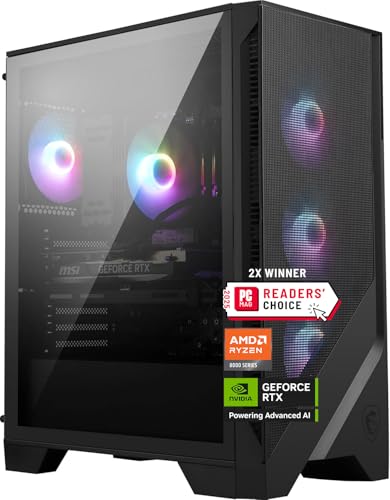
- Best overall: MSI Codex Z2 Gaming Desktop, Ryzen 7 8700F, RTX 5070, 32GB DDR5, 2TB SSD — Check on Amazon
- Skytech Omega Gaming PC, Ryzen 7 7800X3D, RTX 4070 Super, 32GB DDR5, 1TB NVMe — Check on Amazon
- iBUYPOWER Slate 8 MESH Gaming PC, Intel Core i7-14700F, RTX 4070 Super, 2TB NVMe — Check on Amazon
- Thermaltake LCGS View i4770 Gaming Desktop, Intel Core i7-14700KF, RTX 4070, 32GB DDR5 — Check on Amazon
See 2 more Amazon options
- Skytech Omega Gaming PC, Ryzen 7 7700X, RTX 4070 Super, 32GB DDR5, 1TB NVMe, White — Check on Amazon
- ASUS ROG Strix G15DS Gaming Desktop, Ryzen 7 7700X, RTX 4070, 16GB DDR5, 1TB SSD — Check on Amazon
Read the full guide ↓
Disclosure: As an Amazon Associate, reviewstook.com earns from qualifying purchases. Links to Amazon on this page are affiliate links; they cost you nothing extra. Listing details such as price and availability change often, so check the current Amazon listing before you buy.
Buying your first gaming PC is confusing for one main reason: the listings are written in a private language. They throw strings of letters and numbers at you — RTX 4070 Super, DDR5-5600, 3D V-Cache, NVMe — and expect you to know which of them decide whether a game looks smooth or stutters. This guide is written for people who do not know that language yet. Every technical term is explained in plain English the first time it appears, every recommendation says who it is for and who should skip it, and nothing here assumes you have ever opened a computer case.
First, the plain-language version of what your money buys. “1440p” is a screen resolution — the number of tiny dots, called pixels, that make up the picture. A 1440p screen is 2,560 pixels wide and 1,440 tall, roughly 3.7 million pixels in total — about 78 percent more than a standard 1080p screen. More pixels means a sharper picture, and more work for the computer behind every frame. The good news, and the reason this guide exists, is that $1,500 is genuinely enough for 1440p done properly. Cheaper tiers make you bargain — turn this setting down, accept that stutter. At $1,500, the machines below play fast competitive games (called esports titles) at full 1440p resolution and high speed, and the big story-driven games (often called AAA games) either at full resolution or with a smart helper feature, explained below, that costs almost nothing in visual quality. This is the first budget where 1440p stops being an aspiration and becomes the normal way you play.
Now the one warning that matters more than any specification in this guide: gaming PC prices move. A lot. Several machines below spend much of the year well above this budget, and only come down to fit it during sales and clearance events. Every pick here is a real Amazon listing that belongs in this tier when its current listing fits the budget. But the recommendation only counts when the price on the listing in front of you, on the day you buy, is at or under $1,500 — check the current price on Amazon before you decide. If it has floated back up above the budget, wait for the next sale, or look at the tier below in Best 1440p Gaming PC Under $1200 — do not pay an above-budget price for a $1,500 recommendation.
New to This? The Ideas That Explain Everything
You only need a handful of concepts to understand every pick below. Here they are, in the order you will meet them.
The graphics card (GPU). This is the part that draws the game — every landscape, character and explosion, dozens of times per second. It is the single most important part in a gaming PC, and where most of your money should go. The cards in this guide, from NVIDIA’s RTX 50 and RTX 40 families, are the ones designed for 1440p.
VRAM. The graphics card has its own private memory, called VRAM, where it keeps the textures — the surface details of the game world — it is currently drawing. Run out of VRAM and the game stutters or forces you to turn texture quality down. Every card in this guide has 12GB of VRAM, which is the comfortable amount for 1440p today and for the next few years.
Native versus upscaled, and DLSS. A game can be drawn in two ways. “Native” means the graphics card draws every one of the screen’s 3.7 million pixels itself — the sharpest result, and the hardest work. “Upscaled” means the card draws a smaller, easier picture and smart software stretches it to fill the screen. NVIDIA’s version is called DLSS, and its “Quality” mode is the one to know: the game is drawn at a lower internal resolution and rebuilt so cleverly that, at 1440p, most players cannot tell it apart from native — while the frame rate climbs substantially. Upscaling is not cheating and not a flaw in these machines; it is a standard tool every modern graphics card is built to use. Some cards also do “frame generation,” creating extra in-between frames to make motion smoother still.
Frames per second and refresh rate. “Frames per second” (fps) is how many still pictures the computer draws each second to make a game move — more means smoother motion. Your monitor has a matching limit called its refresh rate, measured in hertz (Hz): a 60Hz monitor can show at most 60 new pictures per second, a 165Hz monitor up to 165. The two numbers only help you together. A powerful PC feeding a slow 60Hz monitor is wasted power; a fast monitor fed by a weak PC shows the same low frame rate in finer detail.
The supporting cast. The processor (CPU) is the computer’s general brain: it runs the game’s logic and keeps the graphics card fed. Memory (RAM) is the short-term workspace — 16GB is the workable minimum today, 32GB the comfortable amount, and two picks below ship with 16GB, which their reviews discuss honestly. Storage is where games live: an SSD is the fast modern drive (NVMe is the fastest type), and modern games are huge — one big title can take 100GB or more, so a 1TB drive holds roughly eight to ten. The power supply (PSU) feeds electricity to everything; its wattage matters mainly later, when you might upgrade the graphics card. Finally, ray tracing is a lighting technique that makes reflections and shadows strikingly realistic — and costs a lot of drawing power, which is why cheaper machines switch it off and these can leave it on.
In this guide
Quick Picks
Short on time, or comparing several options at once? Each row below names a buyer type and the machine that suits it, with a link to the listing.
| Buyer type | Pick | Why it stands out | Link |
|---|---|---|---|
| Best overall | MSI Codex Z2, Ryzen 7 8700F, RTX 5070 | Newest-generation graphics card, 32GB memory and 2TB storage — nothing to add later | Check on Amazon |
| Best for fast competitive games | Skytech Omega, Ryzen 7 7800X3D, RTX 4070 Super | A specialist gaming processor that feeds a fast monitor best | Check on Amazon |
| Best if you also work or stream | iBUYPOWER Slate 8 MESH, i7-14700F, RTX 4070 Super | Double storage and a twenty-core processor for editing, streaming and multitasking | Check on Amazon |
| Best Intel all-rounder | Thermaltake LCGS View i4770, i7-14700KF, RTX 4070 | Strong Intel processor and the fastest memory in this guide, from a cooling specialist | Check on Amazon |
| Best value | Skytech Omega, Ryzen 7 7700X, RTX 4070 Super, White | Positioned at the value end of this tier — a lower-cost route to this guide’s defining specification; check price on Amazon | Check on Amazon |
| Best big-brand support | ASUS ROG Strix G15DS, Ryzen 7 7700X, RTX 4070 | The biggest name here, with a clever carry-anywhere case design | Check on Amazon |
How These Picks Were Chosen
Every pick is a real Amazon listing, sold in the United States, that belongs in this tier when its current listing fits the $1,500 budget. Because prices at this level swing a lot, the reviews do not treat any past price as permanent — check the current price on Amazon for every pick before you decide, and treat a pick as a recommendation only while its live price fits the budget.
We did not use these machines ourselves. We read the manufacturers’ listings, specification pages and price histories, and compared the parts in the order they matter: the graphics card first, then the processor, then memory and storage, then the details that decide whether a machine is easy to live with and upgrade. The graphics-card bar was set deliberately high — at $1,500 a 1440p machine should carry an RTX 5070, an RTX 4070 Super or, where the rest of the machine makes up for it, an RTX 4070 — because the card is what you will still be glad about in three years. Memory was judged just as firmly: 32GB is the right amount at this price, and the two machines that ship with 16GB are here for specific strengths, with the shortfall named plainly and a simple upgrade path explained later.
The 6 Best 1440p Gaming PCs Under $1,500 for Beginners
MSI Codex Z2 Gaming Desktop, Ryzen 7 8700F, RTX 5070, 32GB DDR5, 2TB SSD
Who it suits: Beginners who want the machine that needs nothing added — newest graphics card, full memory, double storage, all in the box from day one.
Start with the part that matters most: the Codex Z2 is the only machine here built around the RTX 5070, NVIDIA’s current-generation graphics card, with 12GB of the newest, fastest type of graphics memory (GDDR7) and the latest DLSS upscaling software, DLSS 4. In plain terms, this card will stay capable the longest — at 1440p it plays current games at their highest settings, keeps ray-traced lighting on, and can use frame generation to add smoothness when a demanding game needs help. Around it, MSI has done everything right: a Ryzen 7 8700F processor (eight cores — think of them as eight workers handling the game’s background tasks) that will not hold the card back, 32GB of memory, and a 2TB SSD holding roughly twice as many big games as the 1TB picks. Four fans keep it cool and Windows 11 is installed and waiting. If upgrading later makes you nervous, this pick postpones that day the furthest.
Two honest notes, both about buying rather than the machine. First, its price wanders more than any other listing here, with long stretches far above this budget. That is normal for a current-generation machine, and it is why this pick comes with an instruction instead of just praise: check the current price on Amazon, buy it when the live listing fits the $1,500 budget, and walk away without regret when it does not — the price will come back down. Second, MSI’s listing does not state the power supply’s wattage. That changes nothing about using the PC today, but it is the one number you would want years from now for a graphics-card upgrade, so check the live listing’s specification table if that future matters to you. Neither point dents what this is: when its current price fits the budget, the most complete first gaming PC in this guide.
- RTX 5070 graphics card with DLSS 4 — the newest generation here, and the longest-lived.
- 32GB of memory and a 2TB drive as standard — the two things beginners most often have to upgrade on lesser machines, already done.
- Made by MSI, a major manufacturer, with its own case, cooling and support behind it.
Honest limitation: The price is volatile and often sits well above $1,500 — this is a buy-it-when-it-drops machine, and its power supply wattage is not published in the listing.
Choose it if you want the fullest specification and the longest useful life, and you can time the purchase to a sale. Skip it if you need to buy today and the listing is showing above $1,500 — check the current price on Amazon for the picks further down, which may fit the budget today.

Skytech Omega Gaming PC, Ryzen 7 7800X3D, RTX 4070 Super, 32GB DDR5, 1TB NVMe
Who it suits: Beginners whose gaming is mostly fast, competitive online games — shooters, battle royales, racing and sports titles — played on a fast monitor.
Most of this guide’s machines pair a strong graphics card with a strong all-purpose processor. This one is a specialist. Its processor, the Ryzen 7 7800X3D, has a party trick explained in its name: “3D V-Cache” is an extra layer of very fast memory stacked directly on the processor, which turns out to be exactly what games love — the game’s world data stays within instant reach instead of being fetched from slower memory. On release it was the fastest gaming processor of its generation, and remains the benchmark other gaming chips are measured against. In games where the graphics card is not the bottleneck — fast competitive titles, big strategy games, simulations — the frame rate is set by how quickly the processor can feed the card, and this one feeds it faster than anything else here. If you own or plan to buy a 165Hz or 240Hz monitor (the kind that can display 165 or 240 pictures per second), this is the machine that actually fills it.
The rest of the machine is properly finished: an RTX 4070 Super with 12GB of VRAM, DLSS 3 upscaling and frame generation, 32GB of memory, a 1TB fast SSD, Windows 11, and a published power supply specification: 750 watts with a Gold efficiency rating. It sits right at the ceiling of this tier, so the wait-for-the-price rule applies in full — check the current price on Amazon before you buy. The 7800X3D earns its premium in one pattern of play — competitive and simulation games at high refresh rates, for years. If that sounds like your evenings, this is the strongest gaming-first machine here.
- Ryzen 7 7800X3D — the defining gaming processor of its generation, here at this budget.
- RTX 4070 Super: highest settings at 1440p, with DLSS upscaling and frame generation in reserve.
- 750W Gold power supply, openly specified — future upgrades are a known quantity, not a guess.
Honest limitation: It qualifies for this guide right at the $1,500 ceiling, storage is 1TB rather than 2TB, and its specialist processor buys little in slow-paced, graphics-led games.
Choose it if fast competitive games on a high-refresh monitor are your main event. Skip it if your gaming is single-player and story-led — the other Omega below gives you the same graphics card and is positioned as the value option in this tier.

iBUYPOWER Slate 8 MESH Gaming PC, Intel Core i7-14700F, RTX 4070 Super, 2TB NVMe
Who it suits: Beginners who will use the PC for more than games — streaming their play online, editing video, school or office work — and anyone who hates deleting games to make room.
This is the workhorse of the guide: check price on Amazon before you decide, and treat it as a pick when its current listing fits the budget. Its processor, the Core i7-14700F, has twenty cores of two kinds: eight strong “performance” cores that run your game, and twelve smaller “efficiency” cores that quietly handle everything else — stream encoding, voice chat, browser tabs, recording software. For a player who just games, that split is a luxury; for a player who streams or edits, it is the difference between one machine doing everything at once and everything fighting for the same resources. The graphics card is the same RTX 4070 Super as the two Skytech machines, so gaming quality is identical company. Storage is the headline: a 2TB SSD in a mesh-fronted case (mesh lets air flow freely, keeping things cool and quiet), with a gaming keyboard and mouse in the box — one less thing for a first-time buyer to shop for.
The honest limitation is in its own specification, and it is the mirror image of its strength: memory is 16GB, not 32GB, supplied as two 8GB sticks. Sixteen gigabytes is fine for gaming alone today, but add streaming software, a browser and voice chat over a modern game and it can feel tight — and with both slots filled, upgrading later means replacing the pair rather than adding to it. Read fairly, iBUYPOWER spent the money on double storage and twenty cores instead of double memory, and for a work-leaning buyer that can be the right trade: a 32GB memory kit is a simple, ten-minute upgrade later (explained near the end of this guide). Just make the trade with your eyes open — if you plan to stream from day one, budget for the memory kit soon.
- 2TB SSD — double the storage of most picks, so your library fits without juggling.
- Twenty-core Intel processor: the multitasking and streaming strength of this guide.
- Keyboard and mouse in the box, and a mesh case for cool, quiet running.
Honest limitation: 16GB of memory in two 8GB sticks, where this budget should ideally give you 32GB — plan a simple memory upgrade if you stream or multitask heavily.
Choose it if the PC splits its life between games and work, and its current listing fits the budget — check price on Amazon. Skip it if you are a pure gamer who will never use the extra cores or storage — the 32GB machines serve you better straight out of the box.

Thermaltake LCGS View i4770 Gaming Desktop, Intel Core i7-14700KF, RTX 4070, 32GB DDR5
Who it suits: Beginners who want an Intel machine with nothing skimped in the supporting details — and who are patient enough to buy it on a good day.
Thermaltake spent decades making cases and cooling systems before it built whole PCs, and that heritage shows in this machine’s priorities. The processor is Intel’s Core i7-14700KF — twenty cores like the iBUYPOWER’s chip, in its “unlocked” form (keen owners can squeeze extra speed from it by overclocking; most beginners never will, and you do not need to). What matters is that this is the full-strength version of the silicon, the strongest combined work-and-play processor in this guide. The memory is this machine’s quiet brag: the “5600” in DDR5-5600 is a speed rating — how fast the memory passes data back and forth — and it is the fastest published by any pick here. Faster memory will not transform a game alone, but it is the kind of detail cheap machines cut and this one did not. The graphics card is the RTX 4070 — one step below the Super cards elsewhere in this guide, a difference the FAQ below explains: at 1440p it still plays the great majority of current games at their highest settings, with DLSS Quality upscaling providing headroom in the heaviest titles and ray tracing usable at sensible levels. Storage is a 1TB SSD, and Windows 11 is installed.
Now the caveat, and it is a big one: this listing’s price is among the most variable in the guide. Translated: this is a machine that fits this budget only on its good days, and sits well above it the rest of the time. The recommendation carries the strictest version of this guide’s price rule: check the current price on Amazon, and buy only when it fits the $1,500 budget — above the budget, the iBUYPOWER and the MSI both make more sense. Need an Intel machine this week? Check the iBUYPOWER’s current price first. Able to wait for the drop? This is the patient Intel buyer’s reward.
- Unlocked twenty-core Intel processor — the strongest work-and-play CPU in this guide.
- 32GB of DDR5 memory at 5600 speed: the fastest memory specification here.
- Built by a case-and-cooling specialist — the part of a PC beginners worry about (heat and noise) is this brand’s home ground.
Honest limitation: The graphics card is the plain RTX 4070 rather than the Super version, and its price often sits far above this budget — it only belongs here when the current price on Amazon fits the $1,500 budget.
Choose it if you prefer Intel, like the sound of the fastest memory and a cooling-led brand, and can wait for a price drop. Skip it if the current price on Amazon sits well above the budget — at that level it belongs to a different guide entirely.

Skytech Omega Gaming PC, Ryzen 7 7700X, RTX 4070 Super, 32GB DDR5, 1TB NVMe, White
Who it suits: Beginners who want this guide’s full, correct specification — the premium graphics card, the full memory, the named power supply — for the least money, and would rather spend the savings on a good monitor.
If the 7800X3D Omega above is the specialist, this is its sensible sibling, and for most first-time buyers it is the smartest money in the guide. You get the same white Omega case and the same RTX 4070 Super — the card that defines this tier, with 12GB of VRAM, DLSS 3 upscaling and frame generation. You get the same 32GB of memory, the same 1TB fast SSD and the same openly specified 750W Gold power supply. The single substitution is the processor: a Ryzen 7 7700X instead of the 7800X3D. Here is what that means in practice: the 7700X is a fast eight-core gaming processor by any honest measure, and in most games at 1440p — especially single-player games, where the graphics card does the deciding — the frame-rate gap to its famous sibling is small, because the card is the limit, not the processor. And it is positioned at the value end of this tier — the positioning that leaves the most room in a fixed overall setup budget for the high-refresh monitor this PC deserves, as the starter-kit section below will show.
The honest limitations are modest. Storage is 1TB, so a growing library will eventually mean adding a second drive — a simple job, explained in plain terms in the upgrade section below. The white case is a taste decision: striking on a desk, and quicker to show dust than black. And like every Skytech listing here, the price moves and can sit above this budget — check the current price on Amazon on the day you buy. Judge the live price against the ceiling as this guide keeps insisting: when it fits the $1,500 budget this is a strong buy, and as the tier’s value option it is the best-value pick in the guide.
- Positioned at the value end of this tier — check the current price on Amazon.
- Same RTX 4070 Super, 32GB memory and 750W Gold power supply as the specialist version.
- Leaves more of a fixed overall budget for a proper 1440p high-refresh monitor than its specialist sibling.
Honest limitation: 1TB of storage, a white case that will not suit every desk or dust tolerance, and a price that can sit above this budget — check it on the day.
Choose it if you want the tier’s defining specification for the least money — the default recommendation for most beginners. Skip it if your gaming is competitive or simulation titles at very high refresh rates; that specific gap is exactly what the 7800X3D version exists for.
ASUS ROG Strix G15DS Gaming Desktop, Ryzen 7 7700X, RTX 4070, 16GB DDR5, 1TB SSD
Who it suits: Beginners who feel safer with the biggest name in the business behind their first PC — and students or anyone who will regularly carry the machine between home, dorm and friends’ houses.
ASUS is the largest manufacturer in this guide, and the ROG Strix G15DS shows what a big engineering team does differently. The core specification is solid: the same Ryzen 7 7700X processor as the value pick above, an ASUS-made RTX 4070 with 12GB of VRAM, a 1TB SSD and Windows 11. Around those parts sit thoughtful touches no smaller maker here matches: a case that separates the hot components into their own airflow zones, so the machine runs cooler and quieter; a built-in carry handle rated by ASUS for loads up to 20 kilograms — a gimmick until the first time you move a gaming PC, when it becomes the feature you tell people about; even a hook for your headphones. Behind the badge sits the largest support and warranty network of any pick here. It sits toward the top end of this tier and has been offered through marketplace sellers rather than Amazon itself, which earns one piece of beginner advice: check the current price on Amazon, check who the seller is and read the warranty terms on the live listing before you order, because at this level that line of the page matters.
The limitation is the mirror image of the iBUYPOWER’s: where that machine traded memory for storage, this one simply ships the least memory headroom in the guide — 16GB, and at the slowest speed published here, 4800. For gaming alone today that still works. The problem is trajectory: games and the apps around them get heavier yearly, every other serious pick here ships 32GB, and a beginner keeping this machine four or five years should treat a memory upgrade as a planned cost, not a possibility — happily, it is the easiest upgrade there is, and the section below walks through it. Weighed fairly, you are paying this budget for design, cooling, portability and support, and accepting the weakest memory specification as the price of the badge. If those are the things you value, it is a rational trade and a likeable machine. If you are counting capability most strictly, the value pick above exists precisely for you.
- ASUS design and support: clever split-airflow case, glass panel and synchronised lighting.
- Built-in carry handle and headphone hook — genuinely useful for students and shared houses.
- The biggest brand name here, with the resale strength that tends to follow it.
Honest limitation: 16GB of memory at the slowest speed in this guide, and it has been sold through marketplace sellers rather than Amazon itself — verify the seller and warranty on the live listing, and check the current price on Amazon.
Choose it if brand support, cooling design and portability matter more to you than specification-per-dollar, and you are happy to add memory later. Skip it if you want 32GB in the box at this price — four other picks in this guide include it.

Comparison Table
| Product | Graphics card | Processor | Memory / Storage | Best use | Link |
|---|---|---|---|---|---|
| MSI Codex Z2 | RTX 5070 12GB GDDR7 | Ryzen 7 8700F | 32GB DDR5 / 2TB SSD | Newest card, fullest specification | Check on Amazon |
| Skytech Omega (7800X3D) | RTX 4070 Super 12GB | Ryzen 7 7800X3D | 32GB DDR5 / 1TB SSD | Fast competitive games, high-refresh monitors | Check on Amazon |
| iBUYPOWER Slate 8 MESH | RTX 4070 Super 12GB | Intel Core i7-14700F | 16GB DDR5 / 2TB SSD | Storage, streaming and everyday work | Check on Amazon |
| Thermaltake LCGS View i4770 | RTX 4070 12GB | Intel Core i7-14700KF | 32GB DDR5-5600 / 1TB SSD | Intel all-rounder, fastest memory | Check on Amazon |
| Skytech Omega (7700X) | RTX 4070 Super 12GB | Ryzen 7 7700X | 32GB DDR5 / 1TB SSD | Best value version of the full specification | Check on Amazon |
| ASUS ROG Strix G15DS | RTX 4070 12GB | Ryzen 7 7700X | 16GB DDR5-4800 / 1TB SSD | Brand support, design and portability | Check on Amazon |
Your First Evening: Setting Up, Step by Step
Every machine in this guide arrives with Windows 11 already installed, so your first evening is measured in minutes, not hours. Here is the whole job, in order, including the two classic beginner traps.
- Unbox and look it over. Keep the box and all packaging until the return window closes — if anything is wrong, you will want them. Check the case for dents and the glass panel (if your pick has one) for cracks before plugging anything in.
- Remove the packing inside the case. This is trap number one. Prebuilt PCs often ship with a foam pad or air pillow stuffed inside the case to protect the parts in transit. If you can see foam through the side panel, open the panel (usually two thumb screws and a slide) and take it out before first power-on — running with the packing inside blocks the airflow the machine needs to stay cool.
- Give it room to breathe. Put the PC where air can reach the vents — not sealed inside a cabinet. A hand’s width of clear space around the sides and back is a good rule, and keep it off thick carpet if the case draws air from underneath.
- Plug the monitor into the graphics card, not the motherboard. This is trap number two. The back of the PC has two sets of display sockets: a vertical set on the motherboard panel, and a horizontal set lower down on the graphics card itself. Always use the graphics card’s sockets. Plug into the motherboard and the PC uses its weakest built-in graphics (or shows nothing at all), and you will conclude your new machine is slow when it is simply cabled wrong.
- Connect the rest. Power cable into the PC and the wall, keyboard and mouse into any USB sockets, speakers or headset, and an Ethernet cable to your router if you can manage one — wired is faster and steadier than Wi-Fi for online games, though every pick here has Wi-Fi if you cannot.
- First switch-on. Windows will walk you through choosing a language, connecting to your network and signing in with a Microsoft account. It may restart a few times for updates. Let it finish; make a cup of tea.
- Set your monitor to its full speed. Out of the box, Windows often runs a fast monitor at a slow 60Hz. Go to Settings, then System, then Display, then Advanced display, and choose the highest refresh rate your monitor offers. This thirty-second step is the difference between the high-refresh experience you paid for and never seeing it.
- Update the graphics driver. The graphics card’s “driver” is the software that lets it talk to games; new versions bring fixes and performance for new releases. Download NVIDIA’s app from NVIDIA’s website, let it install the latest driver, and let it check monthly from then on.
- Install a game store and try a game. Steam is the biggest store and the usual starting point; the Epic Games Store and the Xbox app are the other common ones. Download one game, set its display options to 2560×1440, turn DLSS to Quality mode if offered, and play. That is the whole setup — everything after this is just playing.
- Register the warranty. Ten minutes on the manufacturer’s website with your serial number (on a sticker on the case) means that if anything fails in year two, you are already in their system.
The Starter Kit: What Else You Need, Budgeted Separately
This guide is about the PC itself. A first-time buyer needs a few other things before they can play, and honest budgeting means naming them — none of those extra costs are inside any pick’s budget.
The monitor comes first — before anything else on this list. These PCs exist to produce a 1440p picture at high speed, and an old 1080p or 60Hz monitor physically cannot show you what you have bought. The right partner is a 27-inch 1440p monitor with a refresh rate of 165Hz or so — check the current price wherever you buy it, and budget for it separately. If your total budget is fixed, this is why the value pick above matters: its value positioning leaves more room for a proper monitor, and a PC positioned lower in the tier behind the right screen beats a flagship PC behind the wrong one.
Keyboard and mouse. Two picks — the iBUYPOWER and the ASUS — include a basic gaming keyboard and mouse, which is enough to start. If yours does not, or when you outgrow the bundled set, a good combination is a modest next purchase — check current prices when you shop for one. Sound. A gaming headset with a microphone covers game audio and voice chat in one purchase; desktop speakers are the alternative if you play alone. The small stuff. A surge protector is inexpensive insurance for a $1,500 machine, and an Ethernet cable is a small extra if your desk is near the router. Add it up and a realistic starter kit, monitor included, is a meaningful extra on top of the PC — budget for it from the start rather than discovering it at checkout.
How to Choose Your First 1440p Gaming PC
- Start with the graphics card. It decides your gaming experience more than anything else. At this budget, look for an RTX 5070 or RTX 4070 Super; an RTX 4070 is fine when the rest of the machine makes up for it. A $1,500 machine with a much weaker card is a cheaper machine in an expensive coat.
- Check the price on the day, not the price in the guide. Every pick here belongs in this tier when its live listing fits the budget, and several spend much of the year above it. If the current price on Amazon is well above $1,500, you are no longer looking at this guide’s recommendation — wait for the drop, or step down to Best 1440p Gaming PC Under $1200.
- Count the memory. 32GB is the comfortable amount at this price. 16GB works for gaming alone, but if a pick ships 16GB it should be a deliberate trade — for double storage or brand support — with the upgrade simple and cheap when you want it.
- Count storage in games, not gigabytes. A 1TB drive holds roughly eight to ten big modern games once Windows takes its share. If you like keeping a big library installed, the 2TB picks save you a near-term decision.
- Match the processor to your games. Story-driven, single-player gaming is decided by the graphics card — any strong processor here will do. Fast competitive games at high refresh rates reward the specialist 7800X3D. Streaming and video editing reward more cores, which is the Intel machines’ strength.
- Look for a named power supply. A listing that states wattage and efficiency — like the 750W Gold units in the Skytech picks — is telling you future upgrades are straightforward. One that hides it is not necessarily bad, but it is a question mark you accept.
- Check who is selling it. The same model can be sold by Amazon, by the manufacturer or by a marketplace seller, with different delivery and warranty handling. The ASUS pick here has been seen through marketplace sellers — read that line of the listing before you pay.
Your First Upgrade, in Plain Terms
Sooner or later you will want to change something, and the first upgrades are genuinely beginner jobs — no soldering, no tools beyond a screwdriver, each one a matter of minutes. Here they are in the order most owners meet them. More memory is the classic first upgrade, and it is the planned one for the two 16GB picks in this guide: memory comes as small circuit boards (“sticks”) that click into slots beside the processor. You buy a matched 32GB pair of the same DDR5 type, swap them in with the PC unplugged, and the machine simply sees the extra room. One caution from the iBUYPOWER’s review: if both slots are already filled, the upgrade replaces the old sticks rather than adding to them — so buy a full 32GB kit, not a single extra stick. A second SSD is the upgrade for a full game library: most of these cases have a spare slot or bay, the drive clicks or screws in, and Windows needs a one-time two-click setup to recognise it. A better monitor is not inside the case at all, and for many owners it is the upgrade that feels biggest. And the one to leave for later: the graphics card — not difficult, but the one upgrade where the power supply’s wattage decides whether it is a simple swap, which is why this guide kept pointing at the picks that publish that number. Nothing here is urgent: a well-bought $1,500 machine should need none of it in its first year.
Common Beginner Mistakes
- Paying the drifted price. Several machines in this guide spend much of the year well above this budget. Buying one at an above-budget price because it appeared in an under-$1,500 guide is the most expensive mistake a beginner can make here — check the current price on Amazon, every time.
- Plugging the monitor into the wrong sockets. If your games run terribly on a powerful new PC, check the cable first: it belongs in the graphics card’s horizontal sockets, not the motherboard’s. This one mistake has generated more panic than every hardware fault combined.
- Leaving the monitor at 60Hz. Windows often does this by default. The refresh-rate setting takes thirty seconds to change and is the difference between ordinary and high-refresh gaming.
- Ignoring the memory amount until it hurts. If you choose a 16GB pick, do it knowingly, for its storage or its badge — not as a surprise you discover when a game, a browser and voice chat start fighting over space.
- Skipping the seller check. At $1,500, “sold by” is a line worth ten seconds. Marketplace sellers can be perfectly legitimate, but delivery times and warranty handling differ from Amazon’s own.
- Panicking at fan noise in the first game. New PCs often ship with fan settings tuned for performance, not quiet. Look for a balanced or silent profile in the maker’s software before deciding the machine is too loud.
Final Recommendation
- Most beginners: Skytech Omega, Ryzen 7 7700X, RTX 4070 Super, White — the full specification for the least money, with change left for the monitor.
- Buy once, upgrade last: MSI Codex Z2, Ryzen 7 8700F, RTX 5070.
- Competitive players: Skytech Omega, Ryzen 7 7800X3D, RTX 4070 Super.
- Games plus work or streaming: iBUYPOWER Slate 8 MESH, i7-14700F, RTX 4070 Super, 2TB.
- Patient Intel buyers: Thermaltake LCGS View i4770, i7-14700KF, RTX 4070.
- Brand support and portability first: ASUS ROG Strix G15DS, Ryzen 7 7700X, RTX 4070.
Our top two for a first-time buyer — the Skytech Omega in its 7700X form and the MSI Codex Z2 — answer the two shapes this purchase usually takes. The Omega gives you the specification that defines this tier — the RTX 4070 Super, 32GB of memory, a named 750W Gold power supply — positioned at the value end of the guide, leaving room in a fixed budget for the 1440p high-refresh monitor that completes the setup. The MSI costs more of your patience — its price must be caught on a good day — and rewards it with the newest graphics card, the same full memory and double the storage. If $1,500 is more than the budget allows, the same advice one tier down lives in Best 1440p Gaming PC For Beginners Under $1200; if your desk is small, compare Best 1440p Gaming PC For Small Spaces Under $1500; and if you plan to broadcast your play, see Best 1440p Gaming PC For Streaming Under $1500. Whatever you choose: graphics card first, memory counted, seller checked, monitor budgeted — and the live price at or under $1,500 before any of this guide’s promises apply to the listing in front of you.
Frequently Asked Questions
Is $1,500 really enough for 1440p gaming, or will I be turning settings down?
It is genuinely enough — the sweet spot for a first machine. Fast competitive games run at full 1440p resolution and high frame rates on every pick here. Big story games run at their highest settings either natively or with DLSS in Quality mode — the upscaling mode that, at this resolution, looks close to identical to native while running noticeably faster. The one thing $1,500 does not buy is every ray-tracing effect maxed out in the very heaviest games with no upscaling help; that remains the territory of the tier above, in Best 1440p Gaming PC Under $2500.
I clicked through and the price is much higher than $1,500. Did I find the wrong listing?
Probably the right listing at the wrong moment. Prices on machines at this level move constantly, and several picks here sit above the budget for long stretches — each pick is here because it belongs in this tier when its current listing fits. Check the current price on Amazon, and treat $1,500 as a condition of the recommendation: if the live price is far above it, wait for the next sale rather than overpaying, or look at the tier below.
What is the difference between the RTX 4070 and the RTX 4070 Super?
The Super is a refreshed, somewhat faster version of the same card — think of it as the same model with the volume turned up. Both have 12GB of VRAM and both are proper 1440p cards. Four of the six picks here carry the Super, because those machines also tend to arrive with stronger supporting specifications; the two plain-4070 picks earn their places with faster memory in one case, brand support and design in the other.
Is 16GB of memory a deal-breaker for a beginner?
No — but it should be a knowing choice. For gaming alone, 16GB still works today. The case for 32GB is everything around the game — browser, voice chat, launchers, streaming software — plus the four or five years a machine at this price should serve. Two picks here ship 16GB for specific strengths, both named in their reviews; the saving grace is that memory is the cheapest, easiest upgrade in a PC, explained in plain terms in the upgrade section above.
Do I really need a new monitor?
If your current screen is 1080p or 60Hz, then honestly, yes — eventually, and ideally in the same budget. A 1440p PC can only show a 1440p picture on a 1440p screen, and it can only show high frame rates on a high-refresh screen. The PC will work with your old monitor; you simply will not see much of what you paid for until the screen catches up. A 27-inch 1440p 165Hz monitor is the standard partner for every machine in this guide — check its current price wherever you buy it.
Should a beginner build a PC instead of buying one of these?
Building your own is a rewarding hobby and can edge these machines on hand-picked parts — but it is a hobby, with a learning curve, separate warranties for every part, and no single place to turn if the finished machine will not switch on. A prebuilt at this price gives you Windows installed, one warranty covering the whole machine, and gaming on the first evening. If the building itself sounds fun, build. If the playing is the point, this guide’s route is the rational one for a first machine.
How long will a $1,500 1440p PC stay good?
Realistically four to five years of high-settings 1440p play. In the later years you will lean more on DLSS upscaling and negotiate a setting or two in the newest releases, which is a gentle slope, not a cliff. The picks likeliest to age gracefully have 32GB of memory, generous storage and a published, adequately rated power supply.
- Best 1440p Gaming PC Under $1200
- Best 1440p Gaming PC Under $1500
- Best 1440p Gaming PC Under $2500
- Best 1440p Gaming PC For Beginners Under $1200
- Best 1440p Gaming PC For Streaming Under $1500
- Best 1440p Gaming PC For Small Spaces Under $1500
- Best Gaming PC For Beginners Under $1500
- Best Gaming PC Under $1500
- Best 4K Gaming PC Under $1500
- Best Prebuilt Gaming PC Under $1500


