Where to buy
Check the latest price, availability and delivery on Amazon. Orders are placed on Amazon. We may earn a commission from qualifying purchases.
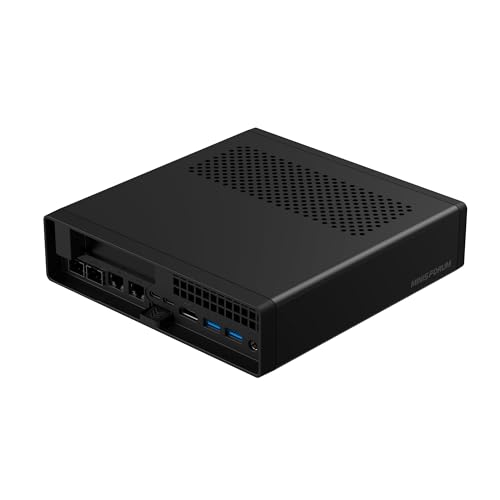
- Best overall workstation platform: Minisforum MS-A2 Mini Workstation, Ryzen 9 HX, PCIe x16 Slot, Dual 10G SFP+ — Check on Amazon
- Skytech Omega Gaming PC, Ryzen 7 7700X, RTX 4070 Super 12GB, 32GB DDR5 — Check on Amazon
- Minisforum MS-01 Mini Workstation, Core i9-13900H, Dual 10GbE SFP+, PCIe Slot — Check on Amazon
- AtomMan G7 Ti Mini PC, Core i9-14900HX, RTX 4070 Laptop GPU, 32GB DDR5 — Check on Amazon
See 2 more Amazon options
- Thermaltake LCGS View i4770, Core i7-14700KF, RTX 4070 12GB, Liquid Cooled — Check on Amazon
- Apple Mac mini M4 Pro, 24GB Unified Memory, 512GB SSD — Check on Amazon
Read the full guide ↓
Disclosure: As an Amazon Associate, reviewstook.com earns from qualifying purchases. Links to Amazon on this page are affiliate links; they cost you nothing extra. Listing details such as price and availability change often, so check the current Amazon listing before you buy.
Buying your first workstation is harder than buying your first ordinary PC, because the listings assume you already speak the language. They throw around core counts, slot wiring, network speeds and three different graphics cards that all answer to the same name, and they rarely stop to explain which of those numbers your work will actually feel. This guide is written for the reader those listings forget: every technical term is translated in plain language below, every machine is judged on the work it does rather than the badge it wears, and a walkthrough further down takes you from a sealed box to a working desk on your first evening, one numbered step at a time.
Here is what $1,500 honestly buys a beginner in late 2026: sixteen- and twenty-four-core processors, 32GB of memory as the normal starting point, room to grow to 64GB or 96GB on most of these machines, very fast networking on two of them, and — in the two towers — desktop graphics cards that do serious rendering work. It does not buy one thing, and you should hear it before you spend anything: none of these machines is ISV-certified. Translated in the glossary below, that means the guaranteed, vendor-tested driver support engineering firms buy with the HP Z, Dell Precision and Lenovo ThinkStation lines, which start above this budget. If your employer or a client requires certified drivers, stop here and shop those lines. If your work is editing, rendering, code, data, virtual machines or general CAD, read on — this is the tier where that work gets properly fast.
In this guide
Quick Picks
Short on time, or comparing several options at once? Each row below names a type of first-time buyer and the machine that suits them, with a link to the listing.
| Buyer type | Pick | Why it stands out | Link |
|---|---|---|---|
| Best overall for a first workstation | Minisforum MS-A2 Mini Workstation | A real expansion slot, very fast networking and memory that grows to 96GB, in a box smaller than a shoebox | Check on Amazon |
| Best if your work is rendering or video | Skytech Omega, Ryzen 7 7700X / RTX 4070 Super | The strongest graphics card here, in a standard tower you can upgrade later | Check on Amazon |
| Best if your files live on a server or NAS | Minisforum MS-01 Mini Workstation | The fastest wired networking in this guide, plus room for lots of storage | Check on Amazon |
| Best when desk space is tiny but the work is heavy | AtomMan G7 Ti Mini PC | 24 processor cores and a real graphics chip in a book-sized box — with one naming catch explained in its review | Check on Amazon |
| Best for long, heavy jobs — if you catch its sale | Thermaltake LCGS View i4770 | 20 cores and liquid cooling for work that runs for hours — check the price on Amazon, as it belongs here only when it is within budget | Check on Amazon |
| Best if your work lives on a Mac | Apple Mac mini M4 Pro, 24GB / 512GB | The easiest first evening of the six, with hardware built for video work — and fixed memory you must size correctly now | Check on Amazon |
How These Picks Were Chosen
The budget was applied as a ceiling for a complete, working machine: every pick below is a real Amazon listing, and you should check the price on Amazon before you buy, because prices in this tier move around a lot. Three of the six picks belong in this guide only when their live price sits at or under the budget ceiling, and each of those reviews says so in plain terms — a workstation bought well over its sensible price is a bad purchase however good the hardware is.
We did not use these machines ourselves. We read the maker listings, specification pages and independent review coverage, and judged on the four things that decide whether a PC still works for you in three years. First, whether it stays fast during long jobs, not just short ones — a render or a big compile holds a machine at full effort for hours, and cooling decides the speed you actually get. Second, the memory ceiling: how much is fitted today matters less than whether you can add more later, so machines with upgrade slots score, and fixed memory is graded as the hard limit it is. Third, expansion: a slot that accepts a real card later is the difference between a machine that can change jobs and one that cannot. Fourth, networking, because two of these machines carry wired connections ten times faster than standard. Where a fact could not be verified from a listing or maker source — the exact display outputs on a tower whose fitted graphics card varies by batch, for instance — the copy says so instead of guessing.
One filter sat on top of all of that, and for a beginner it is the most important one: honesty about the word “workstation.” None of these machines carries ISV certification, none is credited with error-correcting memory (no listing here documents it), and where a pick’s graphics are a basic built-in chip or a laptop part wearing a famous name, the review says exactly that.
The Jargon, Translated
Thirteen terms explain nearly every line of every listing in this guide. Read these once and the reviews below will read like plain English.
- Core (and thread). A core is one worker inside the processor; a thread is one job a worker can hold. More cores means more work done at once — renders, compiles and many open programs all speed up. Sixteen cores is a lot; twenty-four is the most here.
- Graphics card (GPU). The part that draws the screen and, in professional software, does heavy lifting: video effects, 3D rendering, AI work. A separate card is powerful and replaceable in a tower. Some machines have no separate card at all — see the next terms.
- VRAM. The graphics card’s own private memory, in gigabytes. It is a hard wall, not a speed dial: a 3D scene or AI model that fits in VRAM works; one that does not fit fails outright. This is why the exact card matters more than its name.
- Integrated graphics, and the letter F. Many processors include a basic graphics chip built in — fine for screens and light work. Intel processors whose name ends in F (like the i7-14700KF) have no built-in graphics at all: on such a machine the monitor must plug into the separate graphics card, or you get no picture. The walkthrough below covers this.
- RAM (memory). The machine’s working desk space, where open programs and files sit while you use them. 32GB is the comfortable standard at this budget; when RAM fills up, everything slows down at once.
- Socketed vs soldered. Memory in sockets (slots) can be removed and upgraded years later. Soldered memory is attached permanently at the factory — the amount you buy is the amount the machine dies with. One is a door, the other a wall; know which you are buying.
- SSD and NVMe. The storage drive, where your files live when the machine is off; NVMe is the fast modern kind. Capacity (512GB, 1TB) fills with video and project files faster than beginners expect.
- PCIe slot. A socket inside the machine that accepts add-in cards: a graphics card, a capture card for recording video, a faster network card. Listings sometimes call a slot “x16” (its physical length) while it is wired for x8 speed — still plenty for the cards that fit these small machines, and this guide reports both numbers where documented.
- Barebone. A machine sold unfinished: the box and processor arrive, but the memory, storage and usually the operating system do not — you buy and fit those yourself. Barebone prices look much cheaper because they are not yet a computer. Two picks below have barebone versions of the same name; their reviews flag them.
- Renewed. A used machine that has been checked, cleaned and resold, usually with a short guarantee — Amazon Renewed’s floor is 90 days. None of the six picks in this guide is renewed; all are sold new. The term is defined because renewed machines fill this price range and are a different purchase.
- Power supply (PSU). The box inside a tower that feeds electricity to everything else, rated in watts. It decides how powerful a future graphics card the machine can run. A maker that publishes the wattage is telling you the upgrade ceiling; a maker that does not is asking you to guess, and this guide does not guess.
- 10-gigabit Ethernet and SFP+. Standard wired networking moves data at 1 gigabit per second; 10-gigabit moves it ten times faster, which matters if your project files live on a NAS (a storage box on your network). SFP+ is the socket type those fast ports use — it needs a small plug-in module and matching cable, bought separately.
- ISV certification. A promise, tested jointly by the software maker and the computer maker, that a specific machine and driver will run a specific professional program — SolidWorks, AutoCAD, Creo and their peers — and be supported if it breaks. It lives on certified lines such as HP Z, Dell Precision and Lenovo ThinkStation, above this budget. No pick in this guide has it.
The 6 Best Workstation PCs Under $1,500 for Beginners
Minisforum MS-A2 Mini Workstation — Ryzen 9 HX, PCIe x16 Slot, Dual 10G SFP+
Who it suits: The first-time buyer who does not yet know exactly what their work will become — and wants a machine that can change jobs as they find out.
The MS-A2 is the safest first workstation in this guide, because it is the most flexible one. It is a mini PC of about 1.78 litres — small enough to sit behind a monitor — built around a 16-core Ryzen 9 HX processor, with 32GB of memory and a 1TB SSD fitted. What earns it the top spot for a beginner is everything around that specification. The memory sits in two slots and can grow to 96GB. There are three places to fit storage drives. The wired networking is the fastest here: two 10-gigabit SFP+ ports plus two standard 2.5-gigabit ports, for pulling project files off a network storage box at full speed. And there is a real PCIe slot — full-length, wired for x8 speed — waiting for a future capture card, network card or modest graphics card. Check the price on Amazon for the configured version before you buy.
Two warnings belong in this review, and a beginner needs both. First, the graphics as shipped are a basic integrated chip (Radeon 610M): fine for screens, documents, code and looking at CAD models, but heavy graphics work waits until you fit a card in that slot yourself — and the slot area has limited airflow, so the right card later is a small, modest-power one, not a flagship. Review coverage also found this machine audible when all sixteen cores work hard for a long stretch, and relatively thirsty when idle. Second, a barebone version of this same family sits in a lower price tier on Amazon. That lower price is not a discount on this machine — it arrives without the memory and storage fitted, and only makes sense if you already own suitable parts. Check which version is in your cart before you pay.
- A real expansion slot in a mini: capture, network or graphics cards later are genuine options.
- Memory in slots, growing to 96GB; three storage positions.
- The fastest wired networking in this guide, for NAS-based work.
Honest limitation: Basic integrated graphics as shipped — heavy graphics work waits on a card you add — and it is audible under long, full loads.
Choose it if you want one machine that can grow into several different jobs. Skip it if you need strong graphics on day one with nothing more to buy — that is the Skytech below.

Skytech Omega Gaming PC — Ryzen 7 7700X, RTX 4070 Super 12GB, 32GB DDR5
Who it suits: Beginners whose work is video editing, 3D or AI — anyone whose main program leans on the graphics card — and who are comfortable buying a gaming tower to get a professional GPU at this price.
Strip away the gaming presentation and this is the render pick, for one reason: its graphics card. The RTX 4070 Super is a desktop card with 12GB of its own memory — the strongest graphics hardware in this guide, and the card that Blender, DaVinci Resolve, Premiere Pro, Unreal and local AI tools actually run on. Around it sits a sensible specification: an 8-core Ryzen 7 7700X processor, 32GB of memory, a fast 1TB SSD, and room inside a standard tower to add storage and memory over the years. Skytech also publishes the power supply’s rating — 750 watts, Gold efficiency — which almost no maker at this price does. That number matters to a beginner because it sets the ceiling for a future graphics-card upgrade: this is the one pick where a later card swap is a real, plannable upgrade, since the case is standard and the power budget is known. On price, check the price on Amazon before you buy, and the rule is strict: buy it only when the live price is at or under the $1,500 budget ceiling, and walk away above that.
The beginner-specific warnings are three. Skytech’s listings note that the fitted card’s brand may vary by batch, so confirm the exact card — and its screen outputs — on the live listing and again on delivery day if you plan several monitors. It arrives with Windows 11 Home rather than Pro; most beginners will never notice, and workplaces that require Pro can upgrade later. And one first-evening trap belongs to this machine: the monitor cable must go into the graphics card’s row of ports, low on the back of the tower — not the similar-looking ports on the motherboard above them. The processor has a basic built-in graphics chip, so the wrong socket still shows a picture; it just quietly runs on the weak chip while the powerful card sits idle. The walkthrough below repeats this, because it is the most common first-night mistake with any tower.
- Desktop RTX 4070 Super 12GB — the guide’s strongest card for rendering and AI work.
- Published 750W Gold power supply: the upgrade ceiling is a known number, not a guess.
- Standard tower: memory, storage and graphics card can all be replaced later.
Honest limitation: It spends much of the year above the $1,500 budget ceiling, so check the price on Amazon and buy only when it is within budget — and the fitted card’s brand may vary, so verify outputs on delivery.
Choose it if your main program is a graphics program. Skip it if your work is files, networks and virtual machines — the two Minisforum minis do that work better in far less space.

Minisforum MS-01 Mini Workstation — Core i9-13900H, Dual 10GbE SFP+, PCIe Slot
Who it suits: Beginners whose work lives somewhere else on the network — a NAS full of project files, home servers, test systems — and who want the machine that talks to all of it fastest.
The MS-01 is the network specialist, and its connection list reads like a small server’s: two 10-gigabit SFP+ ports, two 2.5-gigabit ports (one supports vPro, remote management), two USB4 ports and an HDMI output — three screens from the outputs documented on the listing. Inside, a 14-core Core i9-13900H processor drives three internal storage slots, with a fourth option via an included adapter, and its 32GB of memory sits in slots with an official ceiling of 64GB. There is a PCIe slot here too, wired for x8 speed like the MS-A2’s — but with a physical limit a beginner must understand: it accepts only short, slim, half-height cards. Capture cards, extra network cards and modest accelerators fit; full-size graphics cards do not, and never will. Check the price on Amazon for this listing before you buy, and buy only when the live price lands inside this budget.
Its caveats are documented ones. In extensive independent testing of this model, some add-in cards never started up in the slot at all — so if your whole plan depends on one specific capture or accelerator card, check that exact card against owner reports before buying the machine around it. At full stretch the MS-01 measures around 42 to 45 decibels: clearly audible in a quiet room, unremarkable in an office, and worth knowing if you record audio nearby. And like the MS-A2, its built-in graphics (Iris Xe) handle screens and light acceleration only — heavy graphics work is not this machine’s job.
- Two 10-gigabit ports plus two 2.5-gigabit ports — the fastest file access here.
- Three storage slots plus an adapter option: built for growing archives.
- Memory in slots to 64GB, and a slot for capture or network cards within its stated size limits.
Honest limitation: The slot takes only short, slim cards, a few cards are documented never to start in it, and the official memory ceiling is 64GB.
Choose it if your workstation’s real job is moving and serving data. Skip it if you want a big graphics card one day, or silent running in a recording room.

AtomMan G7 Ti Mini PC — Core i9-14900HX, RTX 4070 Laptop GPU, 32GB DDR5
Who it suits: Beginners with heavy work and almost no desk — creators who need real graphics power in a book-sized box, and who read the naming warning below before paying.
The G7 Ti pairs the highest core count in this guide — a 24-core Core i9-14900HX — with a dedicated graphics chip, 32GB of memory in slots that grow to 96GB, a 1TB SSD with a second storage slot, and outputs documented on the listing as HDMI 2.1 and USB4. Check the price on Amazon for the configured 32GB/1TB version. For video work, 3D and AI experiments that fit its graphics memory, it is a genuinely capable machine that disappears on a desk, and it is the fastest here at long, many-core jobs like compiling and exporting.
Now the naming lesson, because this machine is where beginners get caught. Its graphics chip is called RTX 4070 — the same name as the desktop cards in the two towers above — but it is the laptop version of that chip, built into the machine, with 8GB of graphics memory instead of 12GB. Graphics memory is a wall: work that fits in 8GB runs well here, and work that needs more does not run at all, on any settings. The laptop chip also cannot be removed or upgraded later — it is part of the machine for life. Judged honestly as a strong 8GB graphics machine, the G7 Ti is excellent value; judged as a desktop 4070 that happens to be small, it will disappoint you, and the fault will be the name, not the hardware. One more trap in the same family: a barebone version sits in a lower price tier than the configured machine. The memory and storage the barebone leaves out cost more to buy separately than the saving it appears to offer — so unless you already own suitable parts, the cheaper-looking listing is the more expensive computer.
- 24 processor cores — the most here — for compiles, exports and multitasking.
- Real dedicated graphics in a book-sized box, with memory slots growing to 96GB.
- A second storage slot, and modern outputs (HDMI 2.1, USB4) on the listing.
Honest limitation: The graphics are the 8GB laptop chip, permanently built in — large 3D scenes and big AI models hit that memory wall first.
Choose it if space is scarce and your graphics work fits in 8GB. Skip it if your scenes are large or still growing — buy a tower whose card can be replaced.

Thermaltake LCGS View i4770 — Core i7-14700KF, RTX 4070 12GB, Liquid Cooled
Who it suits: Beginners whose work runs for hours at a time — long renders, big compiles, queues of exports — and who are patient enough to buy on a sale cycle rather than this week.
The Thermaltake is the endurance tower. Its Core i7-14700KF processor brings 20 cores, its RTX 4070 is the desktop card with the full 12GB of graphics memory, and its 32GB of memory and 1TB SSD are the expected specification at this tier. What sets it apart is the liquid cooling: a workstation earns its money in hour three of a job, when a lesser cooler would have slowed the processor to protect it, and a full-size tower with liquid cooling holds speed through the whole working day. For a beginner whose workload is long rather than bursty, that stamina — not any headline number — is the specification that matters.
This review carries the guide’s two sharpest warnings, and both are simple. The first is about price. This model’s price on Amazon usually sits above this guide’s entire budget, and it appears here for one reason only: on the occasions when its live price falls within budget, it is arguably the best long-job value here. So the rule is absolute: check the price on Amazon first, buy only when it is at or under the $1,500 budget ceiling, and do not buy it from this guide at all when it sits above that line. If it is not within budget, wait for a better price or take the Skytech instead. The second warning is about your first evening. The processor’s name ends in KF, and the F means it has no built-in graphics whatsoever. Plug your monitor into the motherboard’s ports on the back of this tower and the screen stays completely black — not broken, just connected to a chip that does not exist. The cable must go into the graphics card’s ports; the walkthrough flags this again at the step where it happens. One smaller note: Thermaltake does not publish this machine’s power-supply wattage in the verified sources behind this guide, so no upgrade promise is made for its graphics card here — if you plan a swap years from now, read the rating printed on the fitted power supply first.
- 20 cores with liquid cooling — built to hold speed through hours-long jobs.
- Desktop RTX 4070 with the full 12GB of graphics memory.
- Full-tower room: the easiest format here to service and expand.
Honest limitation: Its usual price is over budget — this pick belongs here only when the live price on Amazon is within the $1,500 budget ceiling.
Choose it if your jobs run for hours and you can wait for the sale. Skip it if you cannot wait for the sale cycle.

Apple Mac mini M4 Pro — 24GB Unified Memory, 512GB SSD (MCX44LL/A)
Who it suits: Beginners whose work already lives in Apple’s world — Final Cut or Logic, iPhone and Mac development, design tools — and who want the calmest possible start.
The Mac mini M4 Pro is the easiest first evening in this guide and, inside its own ecosystem, a superb work machine. Its M4 Pro chip combines a 12-core processor and a 16-core graphics unit with 24GB of unified memory — one pool of memory both sides share at very high speed — plus dedicated hardware for the ProRes video format and AV1, which is why timeline work feels so smooth on it. The connections are generous: three Thunderbolt 5 ports and HDMI at the back, two USB-C ports at the front, and Apple’s published support for up to three displays. Check the price on Amazon before you buy, because this pick’s price moves both sides of the budget line, which produces its strict rule: it belongs in a $1,500 guide only at or under $1,500. A live price above that line is a reason to wait, not to stretch.
The beginner warnings here are about permanence. On a Mac, memory and storage are part of the chip package: the 24GB and 512GB it arrives with are what it will have on its last day of work. There is no slot, no upgrade, no later fix — so both numbers must fit not just your current projects but the ones you expect in three years. The 512GB fills quickly with video and development tools, which makes an external SSD a planned second purchase for most buyers, counted into the decision from the start rather than discovered in month two. It also runs macOS only: no Windows-only engineering software, no CUDA (the NVIDIA system several AI and render tools are built on), no internal expansion slot, and standard gigabit networking on this configuration rather than the 10-gigabit ports two rivals here carry. Inside Apple’s ecosystem none of that may matter; outside it, this is the most closed machine in the guide.
- Dedicated video hardware (ProRes, AV1) makes editing feel effortless.
- Thunderbolt 5 and up to three displays, in a quiet, tiny box.
- The simplest setup of the six — every port on the box simply works.
Honest limitation: The 24GB and 512GB are permanent, the storage is tight for video work, and the price spends as much of the year above $1,500 as below it.
Choose it if your programs are Mac programs and 24GB fits your projects. Skip it if you need Windows software, CUDA, internal expansion, or more memory later.

Comparison Table
| Product | Type | Best use | Link |
|---|---|---|---|
| Minisforum MS-A2 Mini Workstation | Mini workstation with an expansion slot | The grow-into-it platform: slot, fast networking, memory to 96GB | Check on Amazon |
| Skytech Omega, 7700X / RTX 4070 Super | Gaming tower, graded as a render station | The strongest graphics card here — check the price on Amazon and buy only within budget | Check on Amazon |
| Minisforum MS-01 Mini Workstation | Mini workstation, network-first | NAS work, servers and virtual machines | Check on Amazon |
| AtomMan G7 Ti Mini PC | Compact mini with a laptop graphics chip | Heavy work in the smallest box, within its 8GB graphics memory | Check on Amazon |
| Thermaltake LCGS View i4770 | Liquid-cooled tower | Hours-long multi-core jobs — check the price on Amazon and buy only within budget | Check on Amazon |
| Apple Mac mini M4 Pro, 24GB / 512GB | macOS mini | Video and creative work inside Apple’s ecosystem | Check on Amazon |
Your First Evening: Setup in Nine Steps
Every pick here arrives as a complete, working computer — none of the six, as linked, is barebone or renewed, and none has soldered memory except the Mac mini, whose fixed 24GB is a purchase decision rather than a setup step. So your first evening is the same shape whichever you bought. Follow the steps in order; the two that catch nearly every beginner are steps 1 and 3.
- Check the delivery against the listing before you plug anything in. Confirm the box and the machine match what you ordered — model name, memory and storage on the label. This matters most for the MS-A2 and the G7 Ti, whose families also sell barebone versions under near-identical names: if the box says barebone, it is missing the parts that make it a computer, and that is a returns conversation, not a setup problem. Skytech buyers: note the exact graphics card fitted, since the brand can vary by batch.
- Give it air. Put the machine where air can move around it — on the desk or a shelf, vents unobstructed, never inside a closed cabinet. The minis pull air through small vents a stack of paper can defeat; the towers need their side and rear fans breathing. A workstation that cannot breathe slows itself down to stay cool, usually mid-job.
- Connect the monitor to the right sockets — this is the step that matters. On the two towers, the back panel has two groups of screen sockets: one on the motherboard (usually higher, near the other plugs) and a horizontal row on the graphics card itself, lower down. Your cable goes into the graphics card’s row, never the motherboard’s. On the Thermaltake this is absolute: its processor (the i7-14700KF) has no built-in graphics at all — that is what the F in its name means — so a cable in the motherboard socket gives you a completely black screen. On the Skytech the mistake is sneakier: its processor does have a basic built-in chip, so the wrong socket still shows a picture, but a soft, slow one drawn by the weak chip while your RTX 4070 Super sits idle. On the four minis and the Mac there is no wrong socket — every screen output on the box is live.
- Add keyboard, mouse and the rest of the desk. Assume your own keyboard and mouse are part of the setup — none of these listings centres on bundled peripherals. Connect them now, along with any external drives, so the operating system meets all its hardware on first start.
- Connect the internet with a cable if you can. Every pick here has a wired Ethernet port. (The fast SFP+ ports on the two Minisforum minis need modules and are a later project; their standard ports are the beginner route.) A cable gives the first evening’s large updates a fast, stable path; Wi-Fi is fine afterwards.
- Power on and do the operating-system setup slowly. Windows 11 on five of the six (the Skytech ships with the Home edition), macOS on the mini. Create your account, choose your region, and let the machine finish its first round of housekeeping before you judge its speed; a new PC is busy in its first hour.
- Verify you received the configuration you paid for. In Windows, open Settings, then System, then About: check the memory figure (32GB on the five Windows picks) and the processor name, and confirm the graphics in the system information — the G7 Ti should name its laptop RTX 4070, the towers their desktop cards. Mac buyers: About This Mac should show 24GB. If anything disagrees with the listing, that is a same-week conversation with the seller, not a problem to live with.
- Run every update, then set your monitor’s refresh rate. Install the full queue of system and driver updates and restart when asked. Then open the display settings and set the refresh rate to the highest figure your monitor offers — many monitors quietly default to a basic setting, and the smoother one is a menu choice away.
- Install your main work program, and start a backup habit tonight. One program, opened once, confirms the machine works for its actual job. Then set up the boring thing that saves careers: automatic backup of your work folder to an external drive or a network location. The habit is cheaper on day one than on any later day.
What Else You Will Spend
The machine is the middle of the purchase, not the whole of it. Budget for these in roughly this order — and note that this guide invents no prices for any of them; check live listings when you shop.
- A monitor, first. None of the six picks includes a screen. If you do not already own one your work deserves, it is the next purchase — and the part of the workstation you will look at all day, so it outranks every other accessory.
- Keyboard and mouse. Assume you are providing your own for any of these machines. Ones you already like are fine; this is comfort spending, not performance spending.
- The Mac mini’s external SSD — a planned fix, counted as part of this pick’s true cost. The mini’s internal 512GB cannot be enlarged, ever, so most video and development buyers should treat an external SSD as part of this pick’s true cost from the start, not an accessory discovered later.
- Network modules, only if you use the fast ports. The two Minisforum minis’ 10-gigabit SFP+ ports need a small plug-in module and matching cable at each end. If your network is standard gigabit or 2.5-gigabit, use their ordinary ports and spend nothing here.
- The MS-A2’s future graphics card, only if your work grows into it. The MS-A2 ships with basic graphics and a slot. If heavy graphics work arrives in year two, a modest low-profile card is this pick’s planned second purchase; if it never arrives, you have spent nothing — which is the point of buying the slot instead of the card.
- Nothing structural for the other picks. The Skytech, Thermaltake and G7 Ti need no completion purchase: their catches are price discipline (check the price on Amazon and buy only when it is within budget) and, on the G7 Ti, accepting the 8GB graphics memory as permanent.
How to Choose Your First Workstation Under $1,500
- Start from your main program, not from the word “workstation.” If that program is a video editor, a 3D package or an AI tool, the graphics card decides your shortlist: the two towers and the G7 Ti. If it is code, data, documents and many open programs, processor cores and memory decide: any pick here. If your files live on a network storage box, the two Minisforum minis are the natural shape. The right first question is never “which PC is best” — it is “what does my program actually use?”
- Buy the memory ceiling, not just the memory. Every Windows pick here ships 32GB, which is the correct starting point. What separates them is the way up: slots reaching 96GB (MS-A2, G7 Ti), 64GB (MS-01), standard slots in the towers — and no way up at all on the Mac. If your projects are growing, the ceiling is the specification you will still care about in three years.
- Name the graphics card precisely — all three parts of it. “RTX 4070” names three different things in this guide: a desktop Super card with 12GB (Skytech), a desktop card with 12GB (Thermaltake), and a laptop chip with 8GB built permanently into a mini (G7 Ti). The memory figure and the form decide what your work can do. Never buy the name alone.
- Understand a slot before you plan around it. Both Minisforum minis offer a PCIe slot wired for x8 speed. The MS-A2’s takes full-length cards of modest power; the MS-01’s takes only short, slim ones. That is real, useful expansion — capture cards, network cards, small accelerators — and it is not a promise that a full-size graphics card will ever fit. Plan the card you would actually buy.
- Decide the certification question before you shop, not after. If a firm, client or support contract requires ISV-certified drivers for your CAD or engineering software, none of these machines qualifies, and the correct purchase is a certified line — HP Z, Dell Precision, Lenovo ThinkStation — at a higher budget. If your software is editing, rendering, code or data, certification buys you little and the hardware in this guide buys you a lot.
- Apply the budget ceiling like a professional. The Skytech belongs at or under $1,500. The Thermaltake belongs here only when its live price on Amazon is within budget — at its usual higher price it is a different, worse purchase. The Mac mini belongs only at or under $1,500. Prices in this tier swing a lot; check the price on Amazon and know your ceiling before the listing tries to set it for you. For the tier where several of these machines normally live, see Best Workstation PC Under $2500.
- Match the box to your desk and your room. A tower is a piece of furniture with fans; a mini disappears behind a monitor. If you record audio, remember the documented figures: a mini measuring 42 to 45 decibels at full load (the MS-01) is a presence in a quiet studio. If your heavy work comes in short bursts, a mini will feel every bit as fast as a tower; if it runs all day, the towers’ cooling is the specification you are buying.
What the Word “Workstation” Still Does Not Promise at $1,500
Two honest boundaries run through this whole guide, and a beginner deserves them in one place. The first is certification. ISV certification — the jointly tested, vendor-supported driver guarantee behind professional CAD and engineering software — lives on the HP Z, Dell Precision and Lenovo ThinkStation lines, with professional graphics cards, at prices that begin where this guide ends. These six machines run the same software in most real-world cases, and for editing, rendering, development and data work they are the normal, sensible purchase. But if a contract or an employer requires the certified badge, no review language should talk you out of buying it there instead.
The second boundary is quieter: no pick in this guide is credited with ECC memory — the error-correcting kind that detects and fixes memory mistakes during very long calculations — because no listing behind this guide documents it, and this guide does not print specifications it cannot source. Business support contracts and validated-component testing are likewise features of the certified lines, and their absence is part of what this budget honestly means. What $1,500 does buy, it buys genuinely: cores, memory headroom, expansion, fast networking and sustained speed. Readers whose work is lighter than all this should keep the difference and start with Best Workstation PC Under $800 instead.
Common Buying Mistakes
- Plugging the monitor into the motherboard’s sockets on a tower. On the Thermaltake that means a black screen (its processor has no built-in graphics); on the Skytech it means a picture drawn by the weak built-in chip while the card you paid for idles. The cable belongs in the graphics card’s row of ports.
- Buying the Thermaltake at its everyday price. Its usual price sits above this budget; the pick belongs here only when the live price on Amazon is within the $1,500 ceiling, and above that line it is a different purchase entirely.
- Stretching for the Mac mini above $1,500. Its price moves to both sides of the line through the year. Wait until the live price is within budget; the machine will be identical.
- Buying a barebone version by accident. The MS-A2’s family and the G7 Ti both sell unfinished versions under near-identical names, looking much cheaper because the memory and storage are not included. Read the style name in the cart, twice.
- Assuming “RTX 4070” is one product. The 8GB laptop chip and the 12GB desktop cards share a name and little else, and graphics-memory-bound work fails on the wrong one.
- Planning a full-size graphics card into a mini’s slot. Check the physical limits — slim and short on the MS-01, modest power on the MS-A2 — and, on the MS-01, that your specific card is documented to start in it at all.
- Buying fixed memory for a growing workload. The Mac’s 24GB is permanent. If your projects double every couple of years, a machine with memory slots is the professional choice, however polished the closed one feels.
- Skipping the delivery-day check. Two minutes in the system settings confirm the memory, storage and graphics card you actually received. It is the cheapest insurance in this entire guide.
Final Recommendation
- Most beginners: Minisforum MS-A2 Mini Workstation.
- Rendering, video and AI work: Skytech Omega, at or under $1,500.
- Files on a NAS, servers, virtual machines: Minisforum MS-01 Mini Workstation.
- Tiny desk, heavy work: AtomMan G7 Ti Mini PC.
- Hours-long jobs, bought patiently: Thermaltake LCGS View i4770, bought only when its live price is within budget.
- Mac-based creators: Apple Mac mini M4 Pro, bought at or under the $1,500 line.
Our top two for a first workstation are the Minisforum MS-A2, because it is the machine least likely to be wrong for you in three years — its slot, networking and 96GB memory ceiling let it become whatever your work turns into — and the Skytech Omega, because if your work is graphics work, its desktop RTX 4070 Super ends the argument, in a standard tower whose published power supply makes future upgrades a plan rather than a hope. Between them they cover the two shapes a first workstation takes: a machine bought to grow, and a machine bought to render. If your desk creates as well as computes, compare the streaming-shaped shortlist in Best Workstation PC For Streaming Under $1500 before you decide. Whichever you choose: check the price on Amazon and confirm it is within the budget ceiling, confirm the exact configuration in the cart, follow the nine steps on your first evening — cable in the graphics card, always — and buy the ceiling your work will need, not just the specification it needs today.
Frequently Asked Questions
Is $1,500 too much for a first workstation?
It is the tier where a work PC stops being a compromise, but it is not compulsory. If your work is documents, browser tools, calls and light creation, the machines in this guide are more than you need and a cheaper tier serves you better. If your work already includes rendering, compiling, virtual machines, large datasets or network storage, this is the first budget where the honest answer to “will it keep up?” is yes for years rather than months.
Do I need ISV certification?
Only if someone requires it of you. Certification is a tested guarantee between the software maker and the computer maker for specific professional programs, living on lines like HP Z, Dell Precision and Lenovo ThinkStation, above this budget. If a firm, client or support contract names it, that requirement decides your purchase before any specification does. For editing, rendering, development, data work and most CAD use, the machines here are the normal working choice.
Which of these can I upgrade later?
Almost all of them, in different ways — and one not at all. The towers take standard parts: the Skytech’s graphics card is a genuine future swap, backed by its published 750W Gold power supply, while the Thermaltake’s card is replaceable the same standard way once you have read the rating on its fitted power supply, since that wattage is not published. The minis grow through slots: memory and storage on the three Minisforum and AtomMan machines, plus add-in cards within the limits their reviews state. The Mac mini is the exception — its memory and storage are fixed at purchase, permanently.
My screen is black after plugging everything in. What did I do wrong?
Almost certainly the monitor cable is in the wrong socket — it is the most common first-evening problem with a tower. The cable belongs in the graphics card’s row of ports, low on the back panel, not in the motherboard’s group of sockets. On the Thermaltake this mistake guarantees a black screen, because its processor (the i7-14700KF) has no built-in graphics to fall back on. Move the cable to the card, restart, and the picture appears. If the cable is already in the card, check the monitor’s own input selection before suspecting the machine.


