Where to buy
Check the latest price, availability and delivery on Amazon. Orders are placed on Amazon. We may earn a commission from qualifying purchases.
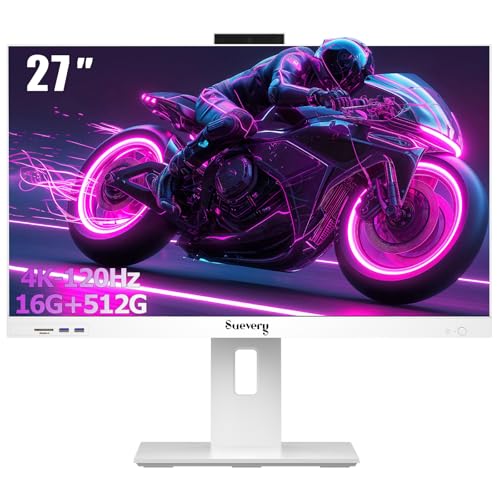
- Best streaming CPU under $700: suevery 27-Inch All-in-One Desktop Computer, Core i5, 16GB RAM, 512GB SSD — Check on Amazon
- Acer Aspire C24-1700-UA91 All-in-One, 23.8-Inch FHD IPS, Core i3-1215U, Quick Sync Encoder — Check on Amazon
- HP 24-Inch All-in-One 24-cr0002, Ryzen 5 7520U, Pop-Up Privacy Camera — Check on Amazon
- HP OmniStudio 24 All-in-One, 16GB DDR5 Configuration, Keyboard & Mouse Included — Check on Amazon
See 2 more Amazon options
- Lenovo A100 All-in-One, 23.8-Inch IPS, 16GB RAM, Windows 11 Pro — Check on Amazon
- Lenovo IdeaCentre 24 All-in-One (V100), 8GB RAM, 512GB NVMe SSD — Check on Amazon
Read the full guide ↓
Disclosure: As an Amazon Associate, reviewstook.com earns from qualifying purchases. Links to Amazon on this page are affiliate links; they cost you nothing extra. Listing details such as price and availability change often, so check the current Amazon listing before you buy.
Streaming is the most honest stress test you can give a cheap computer, because it asks the machine to do three jobs at once: run the thing your audience is watching, encode that picture into a broadcast, and keep chat, alerts and a browser alive in the background. So the first thing to say about streaming from an all-in-one under $700 is the thing this whole guide is built around: not one of these six machines has a discrete graphics card, which means not one of them has an NVENC encoder. The dedicated streaming chip that gaming PCs lean on does not exist at this price in this format. What exists instead is a choice between three lesser encoder paths, and picking the right one for your kind of stream matters more than any other decision in this guide.
Here is the encoder map, derived from the actual processors in these six machines. Four picks carry Intel processors with Intel UHD integrated graphics — the Acer’s Core i3-1215U, the OmniStudio’s N150, and the two Lenovos’ N100 chips — and Intel’s UHD graphics includes Quick Sync, a fixed-function video encoder that costs the processor cores almost nothing. Quick Sync is the workhorse of this guide: it is how a budget all-in-one can broadcast a clean 720p or 1080p picture while its modest CPU handles everything else. The HP runs AMD’s Ryzen 5 7520U with Radeon integrated graphics, so it has no Quick Sync; OBS can use AMD’s hardware encoder, but at Twitch bitrates it is generally the softer picture of the three paths, and many HP streamers will do better treating it as a camera-and-console machine. And the suevery at the top of the list is the odd one out in both directions: its desktop Core i5-12400F is the only processor here strong enough to encode in software with x264 — and because it is an F-suffix chip with no integrated graphics at all, it has no Quick Sync to fall back on, and its listing does not even name the graphics solution that drives its screen. That one detail has to be verified before it can be recommended for game streaming, and its review below explains exactly why.
Given that hardware, here is the realistic workflow this budget supports, stated plainly so nobody buys the wrong dream. These machines stream three kinds of content well: talk and desktop content — just-chatting, podcasts, study streams, screen-share shows — where the picture is a camera and a screen rather than a game; light games — older titles, indie games and esports games at modest settings — encoded with Quick Sync while the game renders at reduced settings; and, best of all, console games through a capture card, where the console does the hard work of rendering the game and the all-in-one only has to encode and broadcast, a job even the cheapest pick here handles comfortably. What they do not stream is a modern demanding game rendered on the same machine at high settings — that workload belongs to a real gaming PC, and readers who want it should start with Best Streaming PC Under $700 instead. Output expectations follow from the hardware: 720p60 for anything fast-moving, 1080p30 for talk and desktop content, sent at Twitch’s practical ceiling of around 6,000 kbps CBR. Below are the quick picks, six reviews graded on encoder reality and simultaneous load, an OBS setup section written for modest hardware, and an honest accounting of the streaming kit this budget does not include.
In this guide
Quick Picks
Short on time, or comparing several options at once? Each row below names a streaming job and the machine that suits it, with a link to the listing.
| Streaming job | Pick | Why it stands out | Link |
|---|---|---|---|
| Best streaming CPU under $700 | suevery 27-Inch All-in-One, Core i5, 16GB RAM | The only chip here that can software-encode with x264; 27-inch screen fits game, OBS and chat; check price on Amazon | Check on Amazon |
| Best factory streaming starter | Acer Aspire C24-1700-UA91 | Quick Sync from its Intel UHD graphics, a proper 512GB SSD and a factory Acer warranty | Check on Amazon |
| Best camera included | HP 24-Inch All-in-One 24-cr0002 | The only documented webcam in this guide — a pop-up privacy camera — on the strongest factory-listing processor | Check on Amazon |
| Best memory for the streaming stack | HP OmniStudio 24, 16GB DDR5 Configuration | 16GB of DDR5 for game, OBS, chat and browser at once; Quick Sync does the encoding | Check on Amazon |
| Best value streaming station | Lenovo A100 All-in-One, 16GB RAM | Quick Sync, 16GB of RAM and a full internal 512GB SSD for recordings — check price on Amazon | Check on Amazon |
| Cheapest way to start | Lenovo IdeaCentre 24 (V100), 8GB RAM | Quick Sync and 512GB of NVMe storage as the lowest-priced pick in this guide — check price on Amazon | Check on Amazon |
How These Picks Were Chosen
The six machines are the same verified all-in-ones this site recommends under $700 for everyday use — every ASIN and specification below comes from the same listing research — but they have been re-graded here against a streamer’s workload instead of an office worker’s. That changes the ranking criteria completely. The first criterion is the encoder path: which hardware encoder, if any, the documented processor and graphics actually provide, because on a machine this modest the encoder decides whether the stream is watchable at all. The second is simultaneous-load headroom: the processor cores and memory left over after the game, OBS, a chat browser, alerts and a music app are all running at once, which is a heavier and more honest test than any single program. The third is the camera and microphone reality: a streamer’s face and voice are the product, so a pick that documents its webcam earns real credit, and a pick whose listing barely mentions one is treated as a machine you will probably add a USB webcam to — a cost counted openly in the section on what this budget does not include.
Two further filters came from how these machines are actually sold. Storage was judged as a recording question, not a headline question: a streamer who records locally while broadcasting — the standard way to make highlight clips and uploads — writes gigabytes an hour, so a full internal 512GB SSD scores very differently from a small internal drive padded out with an external box, and one pick’s 256GB drive is flagged as a genuine streaming constraint rather than a footnote. And the factory-versus-seller distinction matters to streamers for a practical reason: a machine that dies mid-season needs a warranty path you can actually use, so factory listings from Acer and HP were credited for their support networks, while the seller-configured listings were admitted only where their memory advantage is real and their arrangement can be stated plainly.
We did not use these machines ourselves. We read the maker listings and the Amazon listing pages as reproduced in search-indexed crawls, and we graded only what those sources document: processor, graphics, memory, storage arrangement, camera provision and seller. Where a listing does not document something a streamer needs — a webcam on five of these six machines, a graphics solution on one — this guide says the documentation is missing rather than guessing. That discipline is why the reviews below sometimes read less like recommendations and more like instructions: on hardware this modest, the setup decisions in the OBS section will do more for your picture quality than any single purchase in this list.
The 6 Best All-in-One PCs for Streaming Under $700
suevery 27-Inch All-in-One Desktop Computer — Core i5, 16GB RAM, 512GB SSD
Who it suits: Streamers whose show is talk, desktop or console content — or light games — and who want the strongest processor and the biggest screen this budget buys, and who will verify one critical detail on the live listing before ordering.
Every other machine in this guide asks its encoder to do the work because its processor cannot. The suevery is the reverse. Its Intel Core i5-12400F is a desktop-class six-core processor — the same tier of chip found in proper desktop towers, not the laptop silicon behind every other screen here — and that matters to a streamer in a specific way: it is the only pick with enough spare cores to encode the broadcast in software, using OBS’s x264 encoder on a fast preset, while something else is happening on screen. Software encoding on a strong CPU produces a clean picture at Twitch bitrates, and it frees this machine from dependence on a hardware encoder block it does not have. The supporting specification is equally streamer-friendly: 16GB of RAM absorbs the game-plus-OBS-plus-browser stack without closing anything, the 512GB SSD is a proper internal drive with room for local recordings, and the 27-inch Full HD anti-glare screen is the only display here with genuine room for a game window, an OBS preview and a chat column side by side — on the 23.8-inch picks, that layout is a squeeze. Check price on Amazon before ordering, and note that a keyboard and mouse are included in the box.
Now the caveat, and it is the most important paragraph in this review. The 12400F’s F suffix means the chip carries no integrated graphics whatsoever — no Intel UHD, and therefore no Quick Sync. A machine built around it depends entirely on a separate graphics solution, and the listing description verified during research does not name one. Read that again before ordering: if the live listing’s specification table clearly names a graphics solution capable of rendering the light games you play, this is the best streaming all-in-one under $700. If it does not — if the graphics line is vague, absent or describes only basic display output — then this machine should be bought as a talk, desktop and console-capture station, where the software encoder does everything and game rendering happens on a console, and not as a PC-game streaming machine at all. There is a second, smaller caveat: no webcam is documented for this machine, so budget for a USB camera from the kit section below, and suevery is a small Amazon-native brand whose support will not match HP’s or Lenovo’s if the machine fails mid-season.
- Desktop-class Core i5-12400F: the only processor here that can software-encode (x264) while you stream.
- 27-inch screen with room for game, OBS and chat together; 16GB RAM and a proper internal 512GB SSD.
- Check price on Amazon — the strongest core specification in this guide, under the ceiling.
Honest limitation: No integrated graphics means no Quick Sync, and the listing does not name the graphics solution the machine depends on — verify that line on the live listing before buying it for game streaming, and plan on a USB webcam.
Choose it if your stream is talk, desktop or console content, or the live listing confirms a real graphics solution for your light games. Skip it if you want a documented hardware encoder and a factory warranty — that is the Acer below.

Acer Aspire C24-1700-UA91 All-in-One — 23.8-Inch FHD IPS, Core i3-1215U
Who it suits: First-time streamers who want a factory machine with a real hardware encoder — talk shows, study streams, desktop content and console capture — and a brand warranty behind the whole setup.
The Acer is the most straightforward streaming recommendation in this guide, because its encoder story needs no asterisks. Its 12th-generation Intel Core i3-1215U carries Intel UHD graphics, and Intel UHD graphics includes Quick Sync — the fixed-function encoder that turns broadcasting from a processor burden into a nearly free background task. Set OBS to the Quick Sync encoder and this modest chip can send a clean 1080p30 talk stream or a 720p60 light-game stream while its cores handle the browser, the chat and the content itself. That is the correct way to stream on integrated graphics, and the Acer is the cheapest factory route to it. The rest of the specification supports the role honestly: a proper 512GB NVMe SSD with room for recordings, Wi-Fi 6 (though the OBS section below will tell you to plug in a cable anyway), a 23.8-inch FHD IPS panel with a 91% screen-to-body ratio that looks genuinely good on camera as a backdrop, and Acer’s own factory listing — Acer’s warranty, Acer’s support pages, no marketplace seller between you and a repair.
The constraint is memory. Eight gigabytes of DDR4 is the figure that shapes what this machine can stream: a talk show, a console game fed through a capture card, a screen-shared lesson — all comfortable, because the game either is not running locally or is not demanding. A locally rendered game plus OBS plus a browser full of chat and alerts is where 8GB starts to feel tight, and the Acer should be chosen for the first list, not the second. Check price on Amazon before buying: buy it only when the live listing confirms it sits at or under the $700 ceiling of this guide; above that line, the two 16GB machines below are better streaming value. No webcam is documented in the verified listing material, so treat a USB webcam as a planned purchase — the kit section covers it.
- Quick Sync hardware encoding from Intel UHD graphics — the clean way to stream on integrated graphics.
- Factory Acer listing with a proper internal 512GB NVMe SSD and Wi-Fi 6.
- Slim 91% screen-to-body IPS design that looks the part on camera.
Honest limitation: 8GB of RAM caps the simultaneous stack — fine for talk, desktop and console-capture streams, tight for locally rendered games plus OBS plus chat — and you should check price on Amazon and buy it only at or under the $700 ceiling.
Choose it if you want the factory-supported Quick Sync starter machine. Skip it if your stream is a locally played game with a heavy app stack — the 16GB picks below hold up better.

HP 24-Inch All-in-One 24-cr0002 — Ryzen 5 7520U, Pop-Up Privacy Camera
Who it suits: Camera-first streamers — talk shows, podcasts, tutoring and reaction content — who want the one machine in this guide that documents its webcam, from a factory HP listing.
Start with the feature no other pick here can claim. The HP 24-cr0002’s pop-up privacy camera is the only webcam documented in the verified sources for any machine in this guide: it rises from the top of the screen when a call or a stream starts and physically retracts when it ends. For a streamer, that single documented detail removes the first purchase every other pick in this guide quietly requires — a USB webcam — and it does so with a privacy mechanism better than a software switch, in a machine that will sit in a bedroom or a shared room. Behind the camera sits the strongest processor in this guide’s factory listings, AMD’s Ryzen 5 7520U, a quad-core chip with Radeon integrated graphics that runs the everyday streaming stack — OBS, browser, chat, presentation or light content — with more headroom than the Acer’s Core i3. As a talk-and-camera station from a proper manufacturer, this is the most complete package here.
Its encoder, though, is the weakest path of the three in this guide, and a game streamer should understand that before buying. Radeon integrated graphics means no Quick Sync and no NVENC: OBS offers AMD’s hardware encoder, which at Twitch’s bitrates generally produces a softer picture than Intel’s, and the practical alternatives are modest settings, a 720p output, or letting a console render the game while this machine captures and broadcasts it. The second constraint is storage: 256GB is the smallest internal drive in this guide, and a streamer who records locally while broadcasting will feel it within weeks — plan to stream without local recording, offload recordings to an external drive, or choose a 512GB pick. Finally, the pricing honesty this guide owes you: the full specification was verified from HP’s model data and Amazon’s listing, so check price on Amazon before buying. At a live price under $700 it is the camera pick of the guide; above $700, take the Acer.
- Pop-up privacy camera — the only documented webcam in this guide, and it physically retracts off-stream.
- Ryzen 5 7520U: the strongest processor in the factory listings, with headroom for the streaming stack.
- HP factory listing and warranty in a clean 23.8-inch Full HD design.
Honest limitation: No Quick Sync or NVENC — AMD’s encoder is the softest of the three paths at Twitch bitrates — and 256GB of storage fills fast if you record locally; buy only when the live price is under $700.
Choose it if your stream is built around your camera and your voice. Skip it if you mainly stream games rendered on the PC itself — a Quick Sync pick will broadcast them more cleanly.

HP OmniStudio 24 All-in-One — 16GB DDR5 Configuration, Keyboard & Mouse Included
Who it suits: Multitasking streamers — the ones with OBS, two browsers, chat, alerts and a music app all open — who want the most memory in a current HP design, and who understand what a seller-configured listing is.
The OmniStudio’s streaming case rests on one figure: 16GB of DDR5 memory, the joint-best in this guide and in the faster standard. Memory is the resource a streaming stack actually exhausts — OBS compositing scenes, a browser holding chat and dashboard tabs, the content app, the alerts — and 16GB is the difference between a machine that holds that stack all evening and one that starts swapping to disk mid-show. The encoding, meanwhile, is not the processor’s job: this configuration pairs that memory with Intel’s N150, an entry-level quad-core efficiency chip whose cores should never be asked to software-encode a broadcast. The saving grace is its integrated UHD-class graphics, which provides Quick Sync — so the correct setup, spelled out in the OBS section, is to hand the entire encode to Quick Sync and let the modest cores run the stack the memory makes possible. Set up that way, as a talk station or a console-capture station, this is a genuinely capable streaming desk in HP’s current design language, with Wi-Fi 6, Windows 11 and a keyboard and mouse in the box. Check price on Amazon for this 16GB configuration before ordering, and check the 8GB variant of the same listing family separately if you are comparing configurations.
Two debits, both carried over from this machine’s everyday-use review because streamers feel both of them harder. The first is storage arithmetic: the headline capacity is split between a small 128GB internal UFS drive and a 512GB external drive. For a streamer that split has a specific shape — Windows, OBS and your programs live on the 128GB internal drive, which fills faster than new buyers expect, while recordings and archives can live happily on the external drive. It works, but it must be managed from day one, and it is not the same product as an internal 512GB SSD. The second debit is the arrangement itself: this is a seller configuration of HP’s OmniStudio 24, not a factory HP configuration, so support and the listing’s warranty line — not HP’s standard terms — govern the machine. And as with most picks here, no webcam is documented, so the kit section’s USB camera applies. Buy it for the memory and the design, set the encoder to Quick Sync, and it earns its place; buy it expecting processor power and it will not.
- 16GB of DDR5 memory — the streaming stack’s favorite figure, in the faster standard.
- Quick Sync encoding from its integrated UHD-class graphics, so the weak CPU never encodes.
- Current HP OmniStudio design with Wi-Fi 6, Windows 11, keyboard and mouse included — check price on Amazon.
Honest limitation: The N150 is an entry-level chip that must never be asked to software-encode, the storage is a 128GB internal drive plus a 512GB external rather than one internal SSD, and it is a seller configuration with seller-side support.
Choose it if your bottleneck is the app stack around the stream, not the game. Skip it if you want one honest internal drive and factory support — the Lenovo A100 below offers both.

Lenovo A100 All-in-One — 23.8-Inch IPS, 16GB RAM, Windows 11 Pro
Who it suits: Streamers who want the complete modest package in one box — hardware encoding, 16GB of memory and real internal storage for recordings — at a price that leaves room in the budget for a microphone and a camera.
If the OmniStudio is the memory pick with an asterisk, the Lenovo A100 is the balanced one. Its Intel N100 processor carries Intel UHD graphics, which means Quick Sync encoding — the same nearly-free broadcast path as the Acer — and around that encoder the specification is the most streamer-complete in this guide’s lower half: 16GB of RAM for the OBS-plus-browser stack, and a 512GB SSD that is internal, full-size and honestly described, which is exactly what a streamer who records while broadcasting needs. The 23.8-inch IPS Full HD screen keeps colors honest at an angle, Windows 11 Pro costs a home streamer nothing and helps a small-business one, and the listing — sold by WYL Tech — sits in the value tier of this guide, below the ceiling — check price on Amazon. That positioning is not a footnote for a streamer: it leaves more room in the overall budget for the microphone and webcam from the kit section.
The context to hold is what the A100 is in Lenovo’s own catalogue: an entry-level machine whose factory configuration pairs this same N100 with 8GB of memory and a 256GB SSD. The 16GB and 512GB figures here are the seller’s upgrade, performed before shipping — a common and legitimate Amazon practice that nonetheless routes questions about the upgraded parts, and the practical handling of a fault, through the seller rather than Lenovo’s factory support, with the listing’s own warranty line as the governing document. Read it before ordering and keep the invoice. The second limit is the chip itself: the N100 is a four-core efficiency processor, and while Quick Sync means it never has to encode in software, the games it can render locally while streaming are the light ones — esports and older titles at modest settings, or a console through a capture card for anything heavier. No webcam is documented for this listing either, so plan the USB camera.
- Quick Sync encoding plus 16GB of RAM — the encoder and the stack headroom in one listing.
- A proper internal 512GB SSD: real room for local recordings, no split-storage arithmetic.
- Check price on Amazon — a value-tier pick that leaves more of the budget for the streaming kit.
Honest limitation: A seller-upgraded configuration — support for the upgraded specification runs through the seller — and the N100 renders only light games locally while streaming; heavier games need a console and a capture card.
Choose it if you want the complete streaming station at a price that funds the microphone too. Skip it if factory warranty handling matters more than specification — that is the Acer.

Lenovo IdeaCentre 24 All-in-One (V100) — 8GB RAM, 512GB NVMe SSD
Who it suits: New streamers on the tightest budget — students and hobbyists starting a talk, study or console stream — who want a real hardware encoder and honest storage without spending the whole $700.
The IdeaCentre 24 is the cheapest machine in this guide that still does streaming properly, and “properly” has a specific meaning here: its Intel N100 processor carries Intel UHD graphics, so it has Quick Sync, and Quick Sync is the line between a cheap streaming machine and a cheap machine that cannot stream. With the encode handed to the hardware block, this entry-level four-core chip can broadcast a 720p60 console or talk stream — or a light local game at modest settings — while its cores run OBS and a browser. The rest of the specification is honest in the way that matters: a 512GB PCIe NVMe SSD, the same internal capacity as pricier machines in this guide, so local recordings have somewhere to live; a 23.8-inch FHD anti-glare IPS display; Wi-Fi 6 and Bluetooth 5.2. Check price on Amazon — as the lowest-priced pick here, it leaves a new streamer more room for the microphone and webcam that turn a broadcast into a show.
The limit is memory, and at 8GB of DDR4 it is a real one for this workload. A console-capture or talk stream — OBS, one browser, chat — fits. A locally rendered game on top of that stack is where the machine starts to struggle, not because the encoder fails but because everything is competing for the same 8GB. Treat this as a talk-and-console station, or a light-game station with a disciplined app stack, and it performs the role well beyond its price. One documentation note applies to several Lenovo listings on Amazon and matters when you order: the model naming across these seller listings is untidy, with the same V100 hardware appearing under slightly different titles, so confirm the exact RAM and storage figures on the specific variant in your cart. And no webcam is documented here either — the USB camera in the kit section is part of this machine’s real price, as it is for five of the six picks in this guide.
- Quick Sync hardware encoding at the lowest price in this guide — check price on Amazon.
- 512GB PCIe NVMe internal SSD: recording room that cheaper all-in-ones usually cut.
- Wi-Fi 6 and Bluetooth 5.2 alongside the 23.8-inch FHD anti-glare IPS panel.
Honest limitation: 8GB of RAM caps the simultaneous stack at talk, console-capture or light-game streams — and Lenovo’s seller-listing titles are untidy, so verify the exact configuration on the variant you order.
Choose it if you are starting out and would rather spend the savings on a microphone and camera. Skip it if your stream is a locally rendered game plus a heavy app stack — the 16GB A100 above is the step up.
Comparison Table
| Product | Encoder path | Best streaming use | Link |
|---|---|---|---|
| suevery 27-Inch All-in-One, Core i5 | x264 software (no Quick Sync — verify graphics) | Talk, desktop and console streams on the strongest CPU here | Check on Amazon |
| Acer Aspire C24-1700-UA91 | Quick Sync (Intel UHD) | Factory-supported starter for talk and light-game streams | Check on Amazon |
| HP 24-Inch All-in-One 24-cr0002 | AMD hardware encoder (no Quick Sync) | Camera-first talk shows with the only documented webcam | Check on Amazon |
| HP OmniStudio 24, 16GB DDR5 Configuration | Quick Sync (integrated UHD-class) | Tab-heavy multitask streams in a current HP design | Check on Amazon |
| Lenovo A100 All-in-One, 16GB RAM | Quick Sync (Intel UHD) | Complete value station with recording storage | Check on Amazon |
| Lenovo IdeaCentre 24 (V100) | Quick Sync (Intel UHD) | Cheapest proper start: talk and console streams | Check on Amazon |
Set Up OBS Once, Correctly — the Modest-Hardware Edition
On a gaming PC, OBS settings are a matter of taste. On an all-in-one under $700, they are the difference between a watchable broadcast and a slideshow, because there is no spare power to absorb a wrong choice. Work through this list once, in order, before your first stream.
Pick the encoder your hardware actually has. On the four Intel UHD machines — the Acer, the OmniStudio and both Lenovos — set the OBS encoder to Quick Sync H.264. That hands the entire broadcast to a fixed-function block on the graphics silicon and leaves the processor cores for the game and the apps; it is the single most important setting in this guide. On the HP, use AMD’s hardware encoder rather than software encoding, and prefer 720p output, where its softer picture at Twitch bitrates is least visible. On the suevery, and only on the suevery, software encoding is a real option: its desktop Core i5 can run x264 on the veryfast or faster preset. Never select x264 on an N100 or N150 machine — those four efficiency cores cannot render a game and encode in software at the same time, and the result is a stream that drops most of its frames while the game itself stutters.
Set the numbers Twitch actually accepts. Use CBR (constant bitrate) rate control, a bitrate between 4,500 and 6,000 kbps — 6,000 is Twitch’s practical ceiling for most broadcasters, and on this hardware 4,500–5,000 at 720p often looks better than a struggling 6,000 — and a keyframe interval of exactly 2 seconds, which Twitch requires. Match the output to the content: 720p at 60 frames per second for anything with fast motion, 1080p at 30 for talk and desktop content where the picture barely moves and resolution beats frame rate. Do not output 1080p60 from any machine in this guide; the encoders here will trade so much quality to sustain it that the result looks worse than an honest 720p60.
Learn the three lag counters, because each one names its own fix. OBS’s Stats window reports three different kinds of lost frames, and new streamers routinely treat them as one problem. Frames missed due to rendering lag means the graphics side could not compose the scene in time — the fix is to cap the game’s frame rate, close GPU-hungry browser tabs, and drop the output to 720p. Skipped frames due to encoding lag means the encoder is overloaded — the fix is to move to Quick Sync if you are not already on it, choose a faster preset, or reduce the output resolution; on the N-series machines this counter is the tell that you selected x264 by mistake. Dropped frames are the network: the connection could not carry the bitrate — the fix is a lower bitrate and, above all, a cable.
Run an Ethernet cable. This rule has no exceptions at this budget. Every pick here includes Wi-Fi good enough for browsing, and none of it is good enough for a broadcast: Wi-Fi jitter — the small, constant variation in a wireless connection — drops stream frames in bursts that viewers see as stutter, and no OBS setting can compensate. A plain Ethernet cable from the router to the all-in-one is the cheapest quality upgrade available to any streamer in this guide, and it should be bought before any microphone. If the router is in another room, a long flat cable along the skirting board is unglamorous and completely effective.
Protect the encode with small habits. Cap any locally played game’s frame rate so the graphics hardware is not saturated before OBS composites its scene. Run OBS as administrator on Windows so it gets priority for the resources it needs. Keep the app stack honest while live: one browser, the tabs you need, nothing downloading in the background, and Windows updates paused during stream hours. And test the whole chain with a test stream before the first public one — every problem in this section is cheap to fix in rehearsal and embarrassing to fix in front of an audience.
How to Choose a Streaming All-in-One Under $700
- Start from the content, not the computer. Talk and desktop streams run well on every pick here. Console streams run well on every pick here, because the console renders the game. PC games rendered on the same machine are the only demanding case, and they narrow the field to light titles on the Quick Sync picks — or a different kind of computer entirely, starting with Best Gaming PC Under $700.
- Encoder first, always. The ranking that matters is: Quick Sync available and used, then a strong CPU that can software-encode, then everything else. Four picks here have Quick Sync in their Intel UHD graphics; one has a desktop CPU strong enough for x264; one has AMD’s encoder. Know which of those you are buying.
- Count the whole stack, not the game. OBS, a browser with chat and dashboard, an alerts overlay and a music app are the real workload. Sixteen gigabytes of RAM absorbs that stack; 8GB absorbs a disciplined version of it. If your show is app-heavy, memory outranks processor tier in this guide.
- Storage is a recording decision. Broadcasting alone writes nothing. Broadcasting while recording locally — the standard route to clips and uploads — writes gigabytes per session. A full internal 512GB SSD handles it; a 256GB drive needs an offload habit; a small internal drive padded with an external one needs the recordings deliberately pointed at the external disk.
- Treat the camera as a purchase, not a feature, unless it is documented. Exactly one pick in this guide documents its webcam. For the other five, either verify the camera line on the live listing with your own eyes or budget the USB webcam in the kit section — and remember that on most all-in-ones a decent USB camera outperforms the built-in one anyway.
- Know who sells the machine. Two picks are seller configurations: their memory and storage beat the factory figures at the price, and their support runs through the seller under the listing’s warranty line. A machine that fails mid-season tests that line. Factory listings from Acer and HP are the alternative, and the trade is stated in every review.
- Budget the room, not just the PC. The cable, the microphone and the camera in the next section are part of the real cost of streaming from any machine in this guide. A lower-priced pick plus a proper kit is a better stream than a top-of-budget pick plus a built-in microphone.
What $700 Does Not Include
Buying the computer does not buy the broadcast, and new streamers reliably underestimate the gap — so here is the kit, considered separately, never folded into any pick’s listing. A good USB microphone is the first purchase, in the budget-to-mid-range tier: the built-in microphones in all-in-ones are built for calls, and your voice is the one element of a stream the audience never forgives. A 1080p USB webcam, also a budget-to-mid-range purchase, is effectively required for five of the six picks, whose listings do not document a camera — and is a legitimate upgrade even on the HP, whose pop-up camera is documented but ungraded. A simple budget key light does more for a facecam picture than any camera upgrade in this tier, because small sensors in dim rooms are the real enemy. If your stream is a console — the best gaming use of every machine in this guide — a mid-range capture card connects it, and that purchase is what turns an all-in-one into a proper broadcast station. Add the Ethernet cable first of all.
Considered honestly, the realistic streaming kit is a meaningful extra on top of the computer, depending on how much of it you already own. That is why the cheaper picks here matter to a streamer: the IdeaCentre, as the lowest-priced pick, plus the full kit is a complete, working broadcast setup that stays far more manageable than a top-of-budget pick plus the same kit. Choose the machine and the kit as one budget, and this category becomes what it actually is — the cheapest tidy way onto the air.
Common Buying Mistakes
- Expecting an NVENC encoder that does not exist. No all-in-one under $700 has a discrete GPU, so no pick here has the gaming-PC streaming chip. The encoder you actually get — Quick Sync, AMD’s, or a strong CPU — is the first thing to check, not the last.
- Selecting x264 software encoding on an N100 or N150 machine. Four efficiency cores cannot render and encode at once; OBS’s skipped-frames counter will tell you within a minute. Quick Sync exists on those chips precisely so you never have to.
- Streaming over Wi-Fi because the desk looks cleaner. Wireless jitter drops broadcast frames in bursts. The Ethernet cable is the cheapest quality upgrade in this guide — buy it before the microphone.
- Outputting 1080p60 because the platform allows it. On these encoders, 720p60 for motion and 1080p30 for talk both look better than a 1080p60 stream the hardware is strangling.
- Assuming a webcam exists because the bezel has a dot. Five of these six listings do not document their cameras in the verified sources. Verify the line on the live listing, or budget the USB camera — do not discover it on your first stream night.
- Recording locally to a small internal drive. A 256GB SSD, or a 128GB internal drive inside a split-storage headline, fills within weeks of recorded streams. Point recordings at a drive with room, or do not record locally at all.
- Paying over the line for the Acer. Check price on Amazon and buy it only at or under the $700 ceiling; above that, the 16GB machines in this guide are better streaming value.
- Buying the suevery for game streaming without reading its graphics line. Its processor is the strongest here and it has no integrated graphics at all — the listing’s silence about its graphics solution is the one detail that decides what it can stream.
- Judging a seller configuration by factory expectations. The specification can be the best in this guide for the money, but the warranty line in the listing — not the brand’s standard terms — is the document that governs you when it fails.
Final Recommendation
- Most streamers: Lenovo A100 All-in-One — Quick Sync, 16GB of RAM and a full internal 512GB SSD — check price on Amazon — leaving budget for the microphone and camera that finish the setup.
- Strongest processor and screen: suevery 27-Inch All-in-One — after verifying the graphics line on the live listing.
- Factory support: Acer Aspire C24-1700-UA91, bought at or under $700.
- Camera-first shows: HP 24-Inch All-in-One 24-cr0002, when its live price is under $700.
- App-heavy multitasking: HP OmniStudio 24, 16GB DDR5 Configuration, with the encoder set to Quick Sync.
- Tightest budget: Lenovo IdeaCentre 24 (V100) — a proper Quick Sync start as the lowest-priced pick here — check price on Amazon.
Our top two for most new streamers are the Lenovo A100, because it is the only pick that combines the hardware encoder, the memory headroom and the recording storage in one honestly described listing with money left over for the kit — and the suevery 27-inch, for everyone whose show is talk, desktop or console content and who wants the strongest processor and the biggest canvas in the guide, with its one graphics question answered at checkout. If a warranty claim should be a phone call rather than a research project, the Acer is the factory answer; if your face is the show, the HP’s documented pop-up camera earns its place; and if the budget is the point, the IdeaCentre starts a real stream for the least money here. Streamers working to a tighter ceiling should also see Best All In One PC For Streaming Under $500, those who can stretch should compare Best All In One PC For Streaming Under $800, and anyone whose real ambition is a modern game rendered and broadcast from one machine should step up to Best All In One PC For Streaming Under $1200 or leave the format behind entirely. Set the encoder correctly, plug in the cable, and go live.
Frequently Asked Questions
Can you actually stream from an all-in-one PC under $700?
Yes — within the limits this guide states. Talk, desktop and console-capture streams work well on every pick here, and light games work on the Quick Sync machines with the encoder set correctly. What does not work is rendering a modern demanding game on the same machine while broadcasting it; no all-in-one at this price has the discrete graphics that job requires. An all-in-one under $700 is a good broadcast station and a modest game machine, and it streams best when those two roles are not asked of it at the same time.
Which encoder should I use in OBS on these machines?
Quick Sync H.264 on the four Intel UHD machines — the Acer, the OmniStudio and both Lenovos — because it encodes on a dedicated block and leaves the processor free. AMD’s hardware encoder on the HP. Software x264 only on the suevery, whose desktop Core i5 has the cores for it. The rule underneath the list: never software-encode on an N100 or N150, and never assume a machine has NVENC — none of these do. The OBS section above walks through the full setup, including the 2-second keyframe interval Twitch requires.
Should I stream at 720p or 1080p from an all-in-one?
Match it to the motion. Fast-moving content — games, sports talk over highlights — looks better at 720p60, because the frame rate survives and the encoder is not starved. Talk, desktop and slow content looks better at 1080p30, where the picture barely changes between frames and resolution is what the audience notices. Avoid 1080p60 on every machine in this guide; the encoders cannot sustain it at Twitch bitrates without visible damage. Bitrate between 4,500 and 6,000 kbps CBR covers both choices, and your upload connection should have comfortable headroom above the figure you pick.
Do I need a capture card to stream from an all-in-one?
Only for a console. A capture card takes the picture from a PlayStation, Xbox or Switch and hands it to the all-in-one, which then only has to encode and broadcast — the lightest and best-looking gaming workflow available to this entire category, and the reason even the cheapest pick here can front a console stream. For games played on the all-in-one itself, no capture card is involved; OBS captures the screen directly. And a capture card does nothing for PC-game performance — it cannot make the machine render a game it cannot render.
Why is there no webcam listed for most of these machines?
Because the verified listing sources document one for only a single pick — the HP 24-cr0002’s pop-up privacy camera. The other five may well have cameras, but their listings do not document them clearly enough for this guide to promise one, and a streamer should never plan a show around an undocumented component. The practical answer is the USB webcam in the kit section: it is a modest, predictable purchase, and a decent one will outperform most built-in all-in-one cameras regardless.
Is a streaming PC a better buy than a streaming all-in-one at $700?
For game streaming, yes, and it is not close: a tower at this money can carry a discrete GPU with a dedicated encoder and render modern games while broadcasting them — start with Best Streaming PC Under $700 if that is the goal. The all-in-one wins a different contest: one cable, a clean desk, a good screen included, and a machine that is also the household’s everyday computer. Buy the tower for the games, the all-in-one for the desk, and do not ask either to be the other. Readers set on this format with a smaller budget will find the same six-machine logic applied at Best All In One PC For Streaming Under $400.


