Disclosure: As an Amazon Associate, reviewstook.com earns from qualifying purchases. Links to Amazon on this page are affiliate links; they cost you nothing extra.
4K video looks great but needs more data than HD. If your picture drops to a blurry resolution or buffers, the cause is often your home network rather than the TV. Here is how to size your internet connection and fix common problems.
This guide is based on product listings and general TV knowledge rather than our own testing. Specs and features vary by model and year, so confirm the details on the product page.
By the Reviewstook Editorial Team. Last updated: November 1, 2026.
Typical Bandwidth for 4K
Streaming services publish recommended speeds, and they cluster around 15 to 25 megabits per second (Mbps) for a single 4K stream. HD usually needs around 5 to 8 Mbps. Check your streaming service’s help page for its current figure, since services change their recommendations.
Treat those numbers as the minimum for one stream, not the speed you should buy.
Plan for Everyone in the House
Add up simultaneous use. A household with two 4K streams, video calls, game downloads and phones on WiFi can easily need 100 Mbps or more. A simple rule is to take the number of concurrent 4K streams, multiply by 25 Mbps and add headroom for everything else.
WiFi vs Ethernet
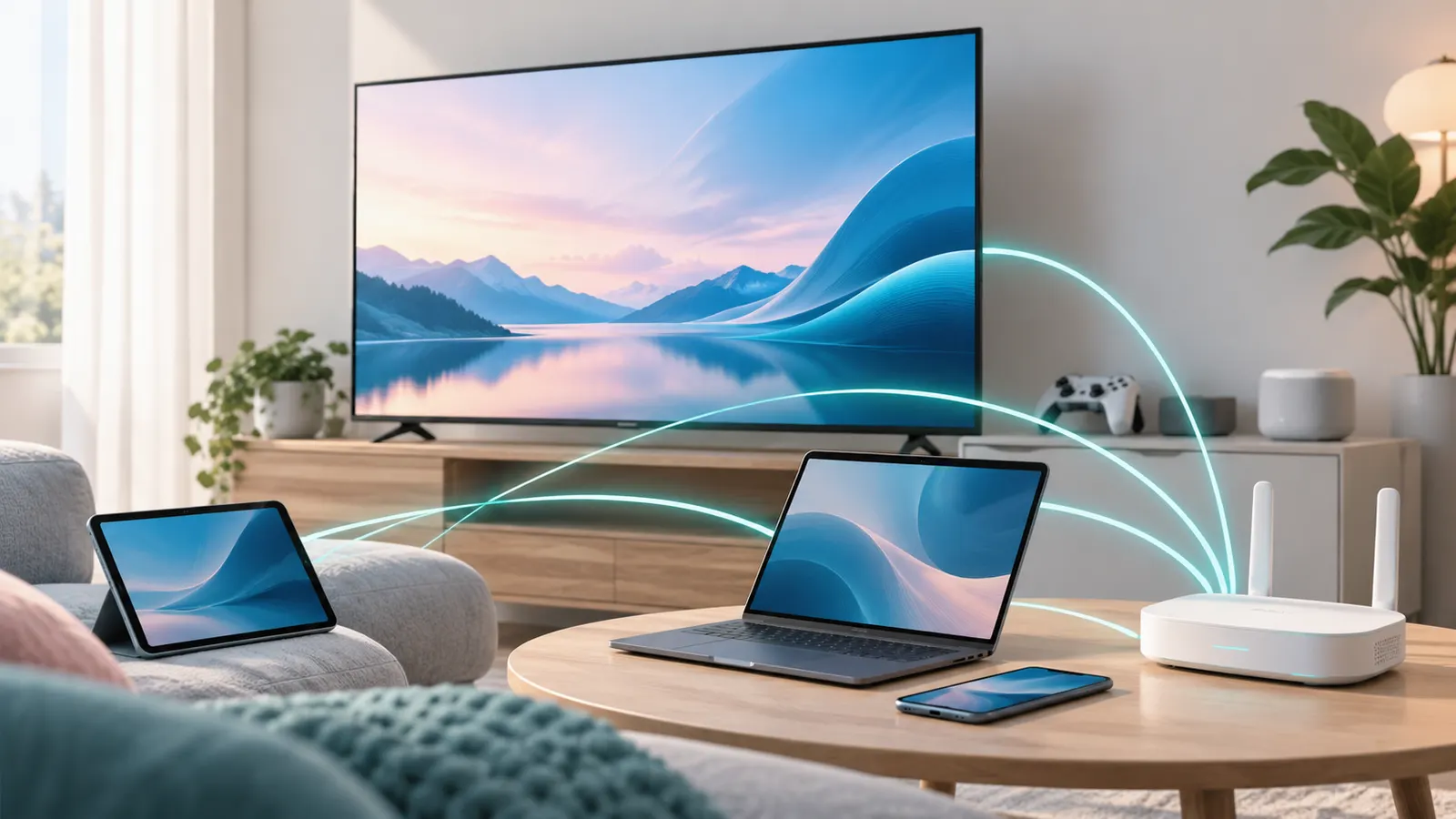
Your plan speed is not what reaches the TV. WiFi signal drops through walls and floors. If the TV supports a wired connection, a network cable is the most reliable fix for buffering. Where a cable cannot be run, a mesh WiFi system or a powerline adapter can help.
Router Tips
- Place the router in a central, open spot, not in a cabinet.
- Use the 5 GHz band for the TV when it is close to the router.
- Update router firmware and restart it now and then.
- Avoid sharing the TV’s WiFi channel with crowded neighbors by switching channels in the router settings.
Fixing Buffering and Low Resolution
- Run a speed test on the TV itself if the platform has one, or on a device in the same room.
- Close other apps and pause large downloads.
- Check that the streaming plan includes 4K; many services reserve it for higher tiers.
- Restart the TV, router and modem.
- Lower the streaming quality in the app as a test to confirm bandwidth is the cause.
Data Caps
4K streaming can use several gigabytes per hour. If your plan has a monthly cap, a few evenings of 4K can add up. Check your provider’s limits and the data-saver options in your streaming apps.
A Simple Home Network Check
- Run a speed test next to the router, then in the room with the TV. A big drop means WiFi is the limit.
- Look at the number of devices connected during the evening.
- Check whether your modem or router is old enough to be a bottleneck.
- Test a wired connection to see if the TV behaves differently.
Write the results down. If the wired test is fine but WiFi is slow, spend on router placement or a mesh system before you pay for a faster plan.
What to Do If Your Plan Is Too Slow
- Ask your provider about the speeds available at your address.
- Compare plans by upload as well as download if you also video call.
- Avoid paying for gigabit if your devices and WiFi cannot use it.
- Consider a router upgrade if it is several years old.
Higher plan speeds do not help if the weak point is a distant WiFi signal. Match the fix to the problem.
Frequently Asked Questions
Is 25 Mbps enough for 4K?
It is enough for one stream on most services, but there is little room for other devices.
Why is my 4K TV showing HD?
Common causes are slow or unstable WiFi, a plan without 4K, or an app set to automatic quality.
Does a better HDMI cable improve streaming?
No. Streaming quality depends on the network and the app. HDMI cables matter for connected devices like consoles.
Should I use WiFi 6?
If your router and TV both support it, it can help in busy homes, but a wired connection is still the most reliable.
Bottom Line
Plan for at least 25 Mbps per 4K stream, add headroom for other devices, and use Ethernet or good WiFi placement. Most buffering is fixed on the home network, not by buying a new TV.