Disclosure: As an Amazon Associate, reviewstook.com earns from qualifying purchases. Links to Amazon on this page are affiliate links; they cost you nothing extra.
The smart platform is the software you use every day, so it affects how the TV feels more than a spec sheet does. This guide compares the main systems, explains what to check for apps, speed, ads and privacy, and covers when a streaming stick is the better choice.
This guide is based on product listings and general TV knowledge rather than our own testing. Specs and features vary by model and year, so confirm the details on the product page.
By the Reviewstook Editorial Team. Last updated: October 31, 2026.
What a Smart TV Platform Does
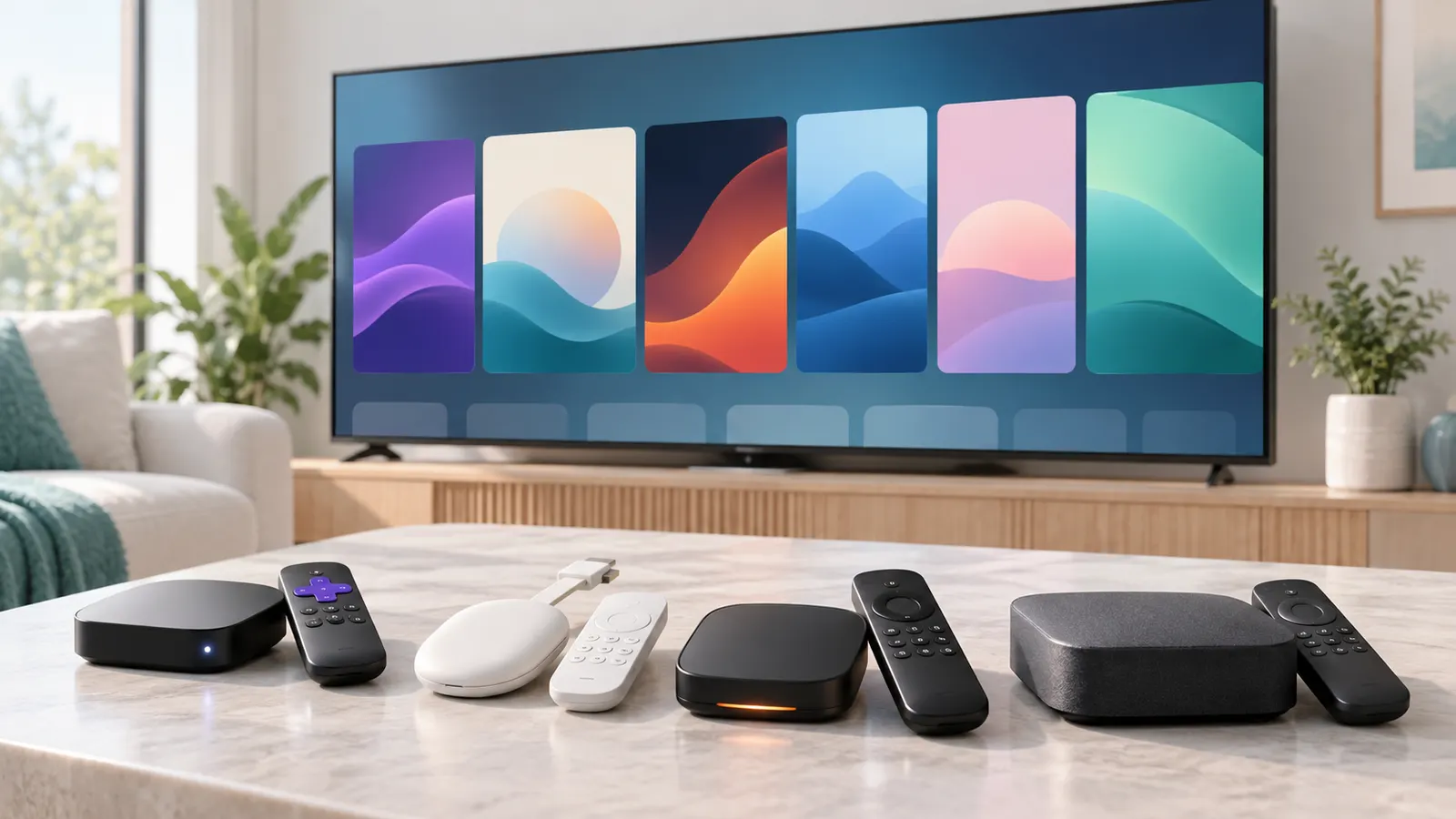
The platform runs your streaming apps, your home screen and your voice control. Two TVs with the same panel can feel very different because one has a faster, simpler interface. Check that your favorite services (Netflix, YouTube, Prime Video, Disney+, Max and others) are available before you buy.
In this guide
Roku TV
Roku is known for a simple, fast home screen and a very wide app selection. It is not tied to a single ecosystem, which suits people who want a neutral, easy interface. You will see sponsored rows and ads on the home screen, as on most platforms. Roku TVs appear on brands such as TCL, Hisense and Westinghouse. See our 32-inch and 40-inch picks that use Roku.
Google TV
Google TV puts recommendations from many apps on one screen and has Chromecast built in, plus Google Assistant voice control. It suits people who use Android phones and Google services, and who want content suggestions across apps. Sony and TCL use it on many models.
Fire TV
Fire TV is built by Amazon, works closely with Alexa and highlights Prime Video content. It suits households that already use Alexa and Amazon services. Some brands, including Panasonic and Amazon-branded sets, use it.
Samsung Tizen, LG webOS and VIDAA
Samsung uses Tizen and LG uses webOS, both on their own TVs. They are polished and fast, with their own voice assistants and game or sports hubs. Hisense uses VIDAA on some models, which is simpler and varies in app support. These platforms only come on the brand TV, so you cannot add them to another TV.
Ads, Privacy and Updates
Smart TVs show ads on the home screen and can collect viewing data, often through a feature called automatic content recognition (ACR). Most TVs let you switch off data collection and personalized ads in the privacy or settings menu. Software update support varies by brand and model, so older TVs can slow down or lose app updates over time.
When to Add a Streaming Stick
If you dislike the built-in system, or if it is slow, you can plug in a streaming stick or box and use that instead. This is a cheap fix and lets you change platform later without replacing the TV. Make sure the TV has a free HDMI port and, for 4K HDR, a port that supports it.
Quick Comparison
| Platform | Strength | Watch out for |
|---|---|---|
| Roku | Simple, many apps | Home screen ads |
| Google TV | Cross-app recommendations, Chromecast | Heavier interface on budget TVs |
| Fire TV | Alexa and Prime Video | Amazon content promoted |
| Tizen / webOS | Polished, fast | Brand-locked |
| VIDAA | Simple, found on budget sets | App support varies |
What to Check Before You Buy
- Your must-have apps are available on that platform.
- The TV has enough processing power and memory to stay fast.
- The brand has a record of software updates.
- You can switch off data collection and personalized ads in settings.
- There is a free HDMI port if you may add a streaming stick later.
How Platform Speed Is Decided
People often blame the platform when a smart TV feels slow, but speed comes from several parts working together: the processor, the amount of memory, the storage space and how heavy the interface is. Two sets running the same platform can behave differently if one has weaker hardware. That is why a platform you liked on a friend’s TV may feel different on a cheaper model.
Budget TVs often use simpler chips, so heavy interfaces and many background apps can cause delay when opening menus or switching apps. Premium sets usually have more headroom, though that varies by brand and model, and a listing rarely gives clear numbers. Do not rely on a vague claim of a fast processor. Look for user comments about menu lag, and check whether the listing describes the platform version.
Another factor is how many apps you plan to install. Each one takes storage and may run in the background. If a TV offers little storage, you may have to remove apps to make room for updates. Check the product page for storage details, or ask the seller if the listing is silent.
Network quality also plays a part. A weak Wi-Fi signal makes apps load slowly and video buffer, which can look like a slow TV. If the TV has an Ethernet port, a wired connection is often more stable, and it removes one variable when you are comparing platforms.
If speed matters to you, try the TV in a shop before you buy. Open a few apps, move between rows and use the search function. A short test often shows more than a spec sheet. If the built-in system disappoints, a streaming stick can bypass it, as covered in our section on streaming sticks above.
Voice Assistants and Smart Home Fit
Voice control is a daily feature on many platforms, and it works best when it matches the assistant you already use. Google TV works with Google Assistant, Fire TV works with Alexa, and brand platforms from Samsung and LG have their own voice tools. Roku also supports voice search through its remote on many models. Support varies by model, so check the listing for the exact assistants your TV supports.
Consider what you want the voice feature to do. Some people only need it to find a show or open an app. Others want to control lights, check the weather or manage a smart speaker. If you already have devices from one ecosystem, choose the platform that works with them, since mixing assistants can lead to missing features.
Privacy matters here too. Voice features may rely on a microphone in the remote or on the TV itself. Many TVs have a physical switch or a settings option to turn the microphone off. Check the manual or the settings menu to see what is available, and decide whether you are comfortable leaving it on.
Also consider how reliable voice search is in practice. It can be helpful when it understands your requests, but it may struggle with accents, background noise or unusual titles. Keep the buttons usable as a backup, and treat voice as a convenience rather than the only way to navigate.
If you live with others who prefer different assistants, a TV with a neutral platform may be less frustrating. A streaming stick with its own voice tools can also fill a gap. Check that the stick’s remote works with your TV’s power and volume controls through HDMI-CEC.
App Coverage and Regional Gaps
Most major services appear on all the main platforms, but gaps happen. Smaller or regional apps, sports services, local news apps and library apps may be present on one platform and missing on another. Also, an app that exists may have fewer features or a different layout depending on the platform. A service may even roll out updates to one system before another.
Before buying, make a short list of the apps you use every week, then check that each one is available on the platform you are considering. The platform’s own app store or website usually lets you search for a service. If you plan to buy an older or discounted model, check that the app is still supported on that version, because some apps drop support for older software.
Brand-locked platforms such as Tizen, webOS and VIDAA sometimes lack niche apps, but this changes over time, so check current availability rather than assuming. If an app is missing, you can often cast from a phone or add a streaming stick. That works as long as the TV has a free HDMI port.
Also think about services that tie into hardware. Some game streaming, fitness and video-calling apps need a camera, a controller or a particular software version. Check the service’s help page for supported devices, and do not assume a TV will run everything a phone can.
Regional differences matter if you live outside the main markets. App stores, voice assistants and content recommendations vary by country, so features described for one region may not appear in another. Confirm availability for your location on the product page or the maker’s support site before you commit.
Setting Up a New Smart TV the Sensible Way
The first setup shapes how the TV feels for years, so take a little time with it. Start by connecting to your network, preferably with a wired connection if you have one nearby. Sign in only to the accounts you use, and read each consent screen before you accept it. Many setup flows ask about data sharing, personalized ads and voice recording, and you can often decline the options you do not want.
Next, update the software. A new TV may ship with an older version, and an update can fix bugs and improve speed. Let the update finish before you start installing apps. Then install only the apps you actually use, since unused apps take space and can show up in recommendations.
Arrange the home screen so your most-used apps are on the first row. Many platforms let you reorder or remove tiles. If the home screen shows sponsored content you do not want, look for a setting that reduces it, though what is possible varies by platform and region.
Check the picture and sound settings too. Pick a picture mode that suits your room and turn off effects that look unnatural. Consider setting a start-up input, so the TV opens where you want it.
Finally, create a backup plan. Write down the model number, the account you used and the support contact for the maker. If you ever need help, having these details ready saves time. Keep the original box for the return window in case the set does not meet your expectations.
Common Platform Mistakes to Avoid
Several mistakes come up again and again when people choose a smart TV, and most are easy to avoid with a little checking.
- Choosing the TV first and the platform second. If you only compare screens, you may end up with an interface you dislike. Compare both together.
- Ignoring software support. A brand that stops updating its TVs can leave you with outdated apps. Look at what the maker says about updates, and keep expectations realistic.
- Assuming ads cannot be reduced. You cannot remove every ad on every platform, but many settings let you limit personalization or hide some rows. Look through the privacy and home screen menus.
- Skipping the privacy screens. During setup it is easy to click through. Slow down and review each choice.
- Forgetting HDMI needs. If you plan to add a streaming stick, a console or a soundbar, check how many HDMI ports the TV has and which ones support the features you want.
- Buying on app logos alone. A service logo on the box does not tell you how well the app runs. Look for user feedback on speed and reliability.
Another common mistake is expecting a platform to stay the same. Interfaces change through updates, sometimes in ways people dislike. If you value stability, a streaming stick lets you replace the box instead of the whole TV.
Finally, do not treat a platform comparison as a ranking. The best choice depends on your apps, your household, your phone and your comfort with ads and data settings. Use this guide to narrow the field, then confirm the details that matter on the current product pages.
When It Is Time to Replace the TV or the Box
Smart platforms age faster than the screens they sit in. A panel can last many years, while the software may feel outdated much sooner. Knowing when to refresh the system, rather than the whole TV, can save money and effort.
Signs of an aging platform include apps that no longer update, services that disappear from the app store, frequent crashes, long start-up times and menus that lag. Also watch for warnings that an app is no longer supported on your device. If these problems appear but the picture and sound are still good, a streaming stick or box is usually the simplest fix.
If the TV has other problems, such as a failing screen, damaged ports or a poor picture you have always disliked, replacing the set may be the better route. When you do, treat the platform as part of the purchase rather than an afterthought. Use the checks above to compare options.
Before replacing anything, try basic steps. Restart the TV, clear app caches if the settings offer it, remove apps you do not use and check for updates. A factory reset can help, but back up your sign-ins first and be prepared to set everything up again. Check the maker’s support page for guidance, since the steps differ by brand.
When you buy a new streaming device, confirm that it works with your TV’s inputs, supports the video quality you want and fits behind the screen or in your cabinet. Check the remote too, since some models need line of sight and others use radio signals. If you are unsure, read the product listing carefully or ask the seller before you order.


Ready to Buy? Start Here
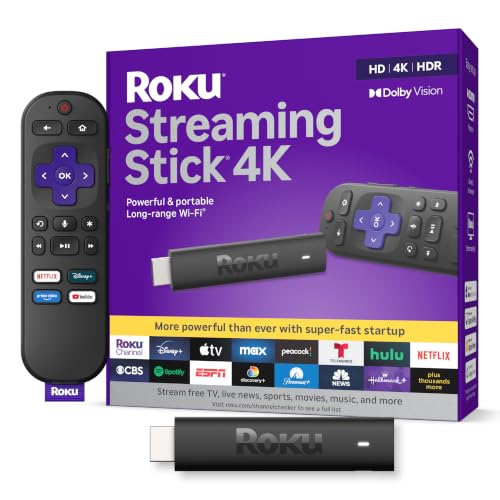
If this guide helped you decide what to look for, these products are a place to start.



As an Amazon Associate we earn from qualifying purchases. Prices and availability are shown on Amazon.
Pick a Platform by Household: A Decision Guide
A smart TV is only as good as the system that runs it. Think about the people who will use the screen, and the apps and devices they rely on.
| Household | What to look at |
|---|---|
| Wants a simple, uncluttered home screen | How many tiles and ads appear on the main page |
| Uses a voice assistant already | Which assistants the platform supports |
| Phones and speakers from one maker | How well casting and sharing work across them |
| Wide range of streaming services | App availability on that system |
| Older relatives using the TV | Remote layout and menu clarity |
Setup and Privacy Checklist for Any Smart TV
Whatever platform you choose, a careful first setup pays off. Take your time on these screens instead of tapping through them.
- Connect to your home network and check for system updates.
- Read the privacy and data options, and decline what you do not want.
- Sign in only to the services you plan to use.
- Set up parental controls if children will watch.
- Remove apps you never open, to keep menus tidy.
- Look at picture modes and sound settings to match your room.
Software support matters too. Ask the maker how long it plans to provide updates, and check whether the platform can be refreshed with a small streaming stick if the built-in one gets slow.
A wired network connection can help if wireless is patchy. Keep the remote batteries fresh, and learn the shortcuts for volume, input and home. Look at the privacy settings every few months, since updates may change them. Ask guests to use their own accounts rather than yours, and sign out of shared screens after use.
Living With a Platform: The Two-Year View
A smart platform is easy to judge in a shop and hard to judge for the years you will actually own the TV. What matters over time is not the home screen’s looks but three slower qualities: whether the apps your household uses are present and kept updated, whether the interface stays responsive as the TV ages, and whether the maker’s update policy keeps security and features current. A platform that feels slightly plain but stays fast and supported will please you more in year three than a flashy one that grows sluggish and loses an app you rely on.
Plan for the platform to be replaceable. Every platform in this guide can be supplemented or replaced by a streaming stick or box later, which reframes the buying decision: the panel, size and ports are permanent, the platform is not. That is why this guide treats platform as a tiebreaker between otherwise equal TVs rather than the first filter, and why a TV with a platform you tolerate on a panel you love is a better buy than the reverse.
Accounts, profiles and households
Modern platforms are built around accounts, and households are not. Set up profiles for each regular viewer where the platform supports them, so recommendations and watch histories stop colliding, and put the children’s profile behind the platform’s parental controls from day one rather than after an awkward recommendation appears. Decide whose account owns purchased films and shows; mixing purchases across several accounts in one household creates a library nobody can fully see, and consolidating on one household account avoids that slow mess.
Privacy and Ads: Settings Worth Ten Minutes
Most platforms offer controls that many owners never open. Look for the advertising and data settings in the privacy menu: options to limit ad personalisation, to turn off automatic content recognition where it is offered, and to review which apps have microphone or location permission. You do not need to reject everything to improve matters; the goal is informed defaults. Voice remotes deserve a specific check, since the microphone lives in a device that sits in your living room, and every platform explains in its settings when it listens.
- Turn off personalised ads if the platform offers the switch; you will still see ads, but they will not be built from your viewing.
- Review app permissions after setup, especially for apps you did not install yourself.
- Use a PIN for purchases on any profile children can reach.
- Check for a guest or restricted mode before visitors use the TV with their own accounts.
- Revisit these settings after major software updates, which occasionally add new options or reset choices.
Keeping an Older Smart TV Fast
When a smart TV slows down, the cause is usually storage and background clutter rather than age itself. Clear the cache where the platform allows it, uninstall apps the household stopped using, and restart the TV fully rather than leaving it in instant-on standby forever; a weekly restart clears more sluggishness than any cleaner app. If the home Wi-Fi is the bottleneck, a wired Ethernet connection, available on most TVs, removes buffering and update failures in one step.
When the platform itself stops receiving the apps you need, that is the moment the streaming stick earns its place. Adding a current stick to an older TV restores app support and speed for a fraction of a new TV’s cost, and the old remote routine barely changes if you let the stick’s remote control the TV’s power and volume through HDMI-CEC. Think of the TV as a screen with a renewable computer attached, and the platform decision at purchase time becomes much less stressful.
Casting and second screens
Households increasingly send video to the TV from a phone rather than using the TV’s own apps. Check which casting system the platform supports and whether it matches the phones in your house, because a mismatch means the quick share-a-video moment turns into a cable hunt. Where the TV and phones disagree, a stick in the matching ecosystem fixes casting and the app problem at the same time, which is why it appears in so many of this guide’s answers.
Choosing Without Overthinking
If your household already uses one ecosystem happily, stay with it; familiarity beats theoretical superiority. If you are starting fresh, choose the platform whose remote and home screen a non-technical member of the household can drive without instruction, because that person is the real usability test. And whatever you choose, write down the account email and keep the purchase apps under one household account. Those two boring decisions prevent nearly every platform complaint this guide hears about, and they cost nothing at setup time when they are easy.
Setup Day on Any Platform: A Calm Routine
Whichever platform you choose, setup day follows the same calm order and repays an unhurried hour. Connect the television, let it find your network, and allow every update it asks for before judging anything, because a platform mid-update is slow, incomplete and unfair to itself. Sign in with the household account you have decided will own the purchases, install only the apps the household actually uses, and arrange the home screen while the choice is fresh, favourites forward, clutter removed, so the television’s first impression on the household is of order rather than of a shop window.
Then do the quiet settings: profiles for the regular viewers, parental controls where children will watch, the privacy and advertising options this guide describes, a PIN on purchases, and the casting check from the household’s phones. Finish by teaching the television’s remote to run the sound and the main source through HDMI-CEC, and test the whole arrangement from the sofa with the lights as they will be in the evening. A platform set up this way disappears into the household’s life, which is the goal; a platform set up in a rush will be re-litigated in fragments for months, one annoyance at a time.
The guest test
The final examination of any platform is the guest: a grandparent, a babysitter, a friend house-sitting for the weekend. If that person can turn the television on, find a channel or an app, watch something and turn it off again without a phone call to you, the platform and its setup have passed. If they cannot, the fault is rarely the guest’s, and the remedies are the ones in this guide: a simpler home screen, a labelled input, the live guide one button away, and a note by the remote with the three instructions that matter. Platforms are social technology, and the guest test is their social examination.
Platforms in Real Households: Three Stories
Consider a household of confident streamers who already run their lives through phones and laptops from one technology ecosystem. For them the platform decision is nearly free: match the TV to the ecosystem and every convenience compounds, casting works without thought, the same account carries purchases and watchlists from phone to screen, and voice control speaks the language the household already uses. Their risk is the opposite one, buying a television whose panel suits them but whose platform fights their ecosystem daily, a friction that no picture quality quite repays because it is paid in small annoyances several times a day.
Consider instead a household where the television is operated mainly by someone who wants the news, the soaps and the catch-up services, and who regards menus with justified suspicion. For that household the platform with the plainest home screen and the simplest remote is not a compromise but the entire product, and a technically richer platform that hides the live guide behind tiles and recommendations will be experienced as a worse television regardless of its panel. The correct buying method here is to put the remote in that person’s hand in the shop and watch them find a channel; thirty seconds of that test outweighs every comparison chart in this guide.
Consider finally the mixed household, several generations, several ecosystems, guests with their own accounts and children with their own profiles. This household should value neutrality and replaceability: a platform that does not punish anyone, HDMI ports enough for a stick or box per faction if it comes to that, and controls that let the television’s owner lock purchases and tidy the home screen. The mixed household is also the one most likely to add a streaming device later, so it should buy the panel and the ports with confidence and treat the built-in platform as the starting point rather than the destiny.
Apps, Accounts and the Library Problem
The slow-growing frustration of smart television is the scattered library. Films bought in one service’s shop play only there, watchlists live inside each app, and a household that has spent years across several services owns a collection it can never see in one place. Platforms that aggregate, showing a film’s availability across your services and keeping one household watchlist, solve a real problem, and their value grows with your library. Before choosing, consider where your existing purchases live; a platform that carries that shop keeps your library intact, while switching platforms can strand purchases on an old device in a way no one warns you about at the till.
Free, advert-supported channels have become a real part of platform value, especially for background viewing, news and classic programmes. Their quality and quantity differ noticeably between platforms, and for households cutting paid subscriptions they can decide whether the television still feels generous or feels empty. Sample them in the shop or through a friend’s set if they matter to you, because they are the part of the platform you cannot add later with a stick from a different ecosystem without changing remotes and habits all over again.
Voice control, honestly assessed
Voice search is the platform feature that genuinely saves time, because typing titles with a remote is miserable in every ecosystem. Its usefulness depends on how well it understands your household’s voices and how completely it searches across your apps rather than steering you to one shop. Test it with an obscure title you actually want, not with the demonstration phrases. And keep the privacy settings in view: the microphone sits in the remote in your hand, the settings explain when it listens, and a household that has read those settings once can use the feature with its eyes open.
When a Platform Ages Out
Every smart platform in this guide will eventually slow, lose an app or stop receiving updates, and the television will still be a good television when it happens. Plan for that day at purchase by confirming the set has enough HDMI ports for the streaming device that will one day take over, and by keeping the panel decision independent of the platform decision, as this guide has argued throughout. When the day comes, the fix costs a fraction of a new TV and an afternoon of setup, and the household that chose its panel well will wonder why anyone replaces a whole television for the sake of its menus.
The final word on platforms is about temperament. Choose the one whose daily behaviour you will not notice: the home screen you can navigate half asleep, the remote that needs no explanation to a guest, the updates that arrive without drama. A platform you stop seeing is a platform doing its job, and that invisibility, not the length of its feature list, is the quality that will still matter in the fifth year of owning the television.
Platforms for Children and for Older Viewers
Two audiences judge platforms more honestly than any reviewer. Children judge by whether they can reach their programmes without an adult’s password, patience or help, and by whether the controls stop them wandering where they should not. Set their profile up properly on day one: their apps forward, purchases behind a PIN, the platform’s age controls actually configured rather than assumed, and a remote routine simple enough for the youngest regular viewer. A platform that serves children well is not the one with the most children’s content but the one whose boundaries a parent can set once and trust.
Older viewers judge by legibility and forgiveness: text large enough to read from the sofa, a home screen that does not rearrange itself after updates, a remote whose buttons can be found by touch, and a live guide that behaves like the guides of the last forty years. Several platforms offer accessibility and simplicity settings that transform them for this audience, larger text, simplified home screens, voice control that removes typing entirely, and they are buried in menus carers should explore on the viewer’s behalf. The right half hour spent there is worth more than any difference between platforms, because it is the difference between a television that gets used and one that gets watched only when family visits.
The platform is a promise about attention
Underneath the features, each platform embodies a bargain: some are funded by advertising and recommendation, and their home screens show it, while others are quieter and ask the hardware’s price to carry more of the cost. Neither bargain is dishonest, but they feel different across years of evenings. Choose the bargain your household can live with, set the controls this guide describes, and remember that a streaming device can renegotiate the bargain later without changing the television. Attention is the currency; spend it knowingly.
The Platform Checklist, On One Card
Distil the platform decision into the card you can carry into the shop. Does it carry every app your household uses weekly, in versions that are still updated. Can the least technical regular viewer reach a channel or an app unaided. Does it match the phones in the house for casting. Are purchases, profiles and parental controls settable in one sitting, under one household account. Can its advertising and data settings be tamed in the privacy menu. Does the set have the spare ports to let a streaming device take over in five years’ time. Six yeses describe a platform that will disappear into your life; the platform with the most features and two noes on that card will not, whatever its demonstration promises.
And when the card is satisfied, stop comparing platforms. The remaining differences are taste, and taste in home screens is a legitimate reason to choose, provided the boring six have been answered first. Buy the television for its panel and its room, with the platform that passed the card, and let the menus become what they should be: the thing you pass through on the way to the programme, unnoticed, every night, for years.
Platforms and the television’s resale or second life
A platform’s last service to its owner comes when the television moves on, to another room, another relative or another home. Sets whose platforms are still supported, whose accounts can be cleanly signed out and reset, and whose remotes still work pass into their second life gracefully, while a set abandoned by its maker becomes a screen in search of a stick, which is a perfectly workable fate if the ports allow it. When you buy, you are choosing not only the platform you will live with but the one you will hand over, and the makers with long, plain support records make that handover a gift rather than an apology. Do the future owner one kindness in the present: keep the box’s paperwork, the remote’s spare and the note of which account owns what, so the television’s second life begins as smoothly as its first.
There is a small, final platform ritual worth adopting whatever you choose: the quarterly tidy. Every few months, remove the apps nobody opened, check for the update that has been waiting, glance at the storage the platform reports and restart the set fully. Ten minutes, four times a year, keeps the home screen honest and the performance young, and it catches the slow drift, a new app here, a permission there, before it becomes the clutter that makes a good platform feel tired. Platforms age in public, in front of the whole household; a little housekeeping keeps the ageing graceful.
Frequently Asked Questions
Which smart TV platform is the best?
There is no single best. Roku is the simplest, Google TV is best for recommendations, and Fire TV suits Alexa homes.
Can I turn off smart features?
Yes. You can skip network setup or turn off data collection and use the TV as a display with a streaming stick.
Do smart TVs get slow over time?
They can, as apps grow. A streaming stick is an easy upgrade.
Can I use a streaming stick on any TV?
Yes, on any TV with a free HDMI input.
Does the platform affect picture quality?
Not directly, since picture quality comes from the panel and processing. The platform can affect how apps handle video and which settings are available, so check each app's performance on the set you choose.
Can I switch platforms on the same TV?
Not on a built-in system, because the platform is tied to the set. You can add a streaming stick or box that runs a different platform and use that as your main source.
Are smart TV ads the same on every platform?
No. Each platform shows promotions differently, and the amount varies by model, region and software version. Check settings for options to limit personalized ads.
Do I need an account to use a smart TV?
Often you need one to download apps or use certain features, though some functions work without signing in. Skipping network setup lets you use the TV as a basic display.
How long do smart TVs get software updates?
It varies by maker and model, and manufacturers do not always state a clear period. Check the support page for the brand, and consider a streaming stick if updates seem limited.
Is a wired connection better than Wi-Fi for a smart TV?
A wired connection is often more stable, especially for high-quality streaming. Wi-Fi works well when the signal is strong, so place your router sensibly and test the speed in the room.
What should I do if an app I need is missing?
Check whether you can cast it from a phone or add a streaming stick that supports it. Also look at the service's help page for the list of supported devices.
Can I use a TV platform without giving up privacy?
You can limit data collection by turning off tracking and personalized ads in the settings. You may also use the TV as a display with an external device, which gives you more control over what is shared.
Bottom Line
Pick the platform that fits how you watch, check app availability, switch off tracking you do not want, and remember a streaming stick can fix a weak built-in system.
Related Reading
Related Guides
- 6 Best 43 Inch Smart TVs: Roku, Google TV and Fire TV (2026)
- How to Connect a Soundbar to a TV: HDMI ARC, eARC, Optical
- How to Wall Mount a TV: VESA, Studs, Mount Types and Height
- TV Antenna Buying Guide: Indoor vs Outdoor, Range and Setup
- Bedroom TV Buying Guide: Size, Mounting, Sound and Sleep Features