Disclosure: As an Amazon Associate, reviewstook.com earns from qualifying purchases. Links to Amazon on this page are affiliate links; they cost you nothing extra.
A good TV for an older relative is not the one with the most features. It is the one that is easy to turn on, easy to read and easy to hear. This guide lists the features that make everyday viewing simpler.
This guide is based on product listings and general TV knowledge rather than our own testing. Specs and features vary by model and year, so confirm the details on the product page.
By the Reviewstook Editorial Team. Last updated: November 1, 2026.
A Remote That Is Simple to Use
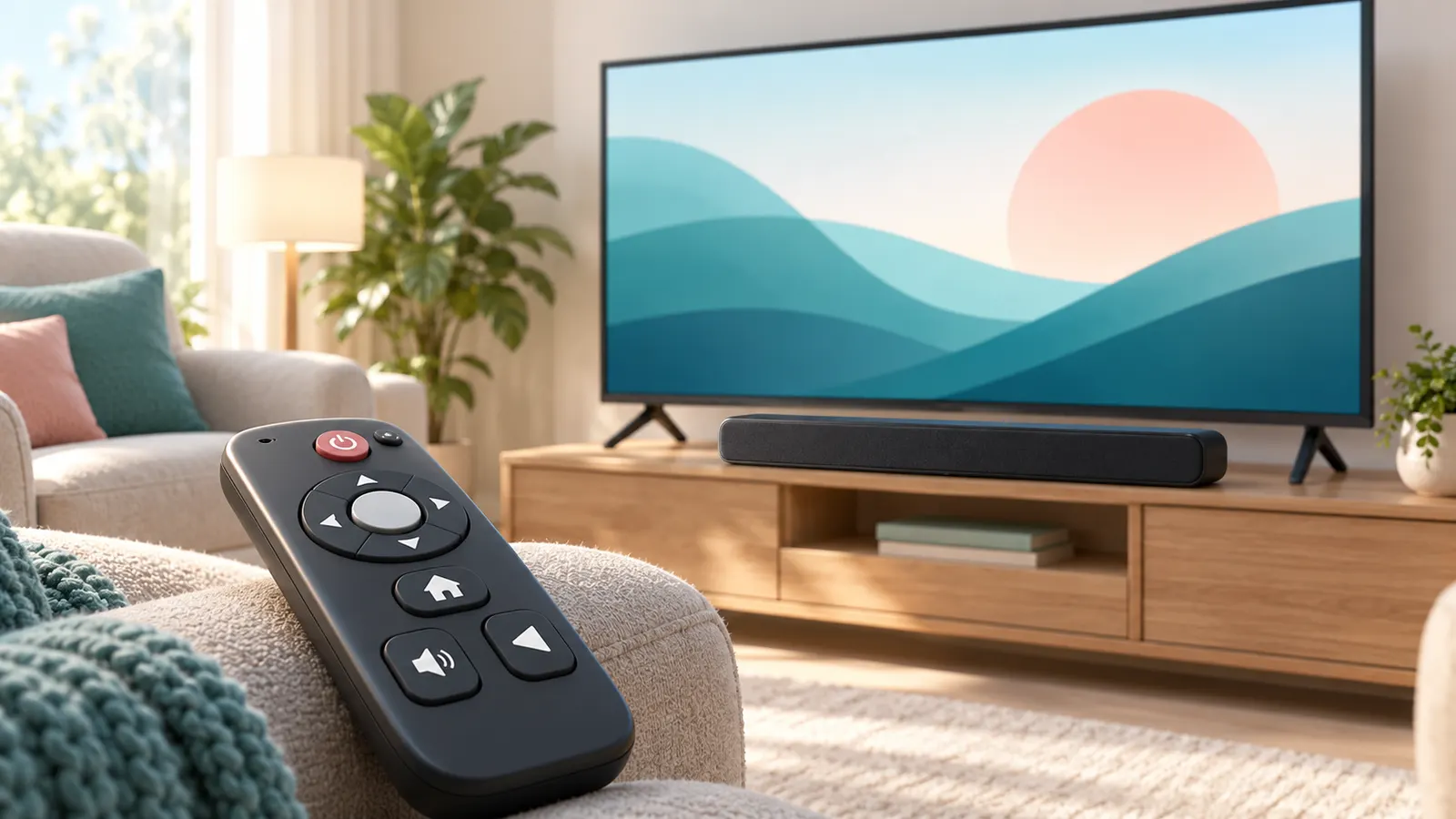
The remote is the part people touch most. Look for large buttons, clear labels and a layout with few keys. Some TVs and streaming boxes offer a simplified remote with just power, volume, channel and a few app shortcuts. Backlit buttons help in dim rooms.
Voice control can be helpful, but only if it works reliably. Test it in the store or confirm the return policy before relying on it.
In this guide
Screen Size and Readability
A larger screen is easier to see, but it also needs the right viewing distance. For many living rooms, 43 to 55 inches is a comfortable range. Text size matters too: pick a TV whose menus can be enlarged or switched to a high-contrast mode.
Clear Sound
Hearing loss is common with age, and TV speakers rarely help. Dialogue enhancement, a soundbar with a voice mode or wireless TV headphones can make a big difference. See our guide to fixing quiet TV dialogue.
Accessibility Features Worth Checking
- Closed captions with adjustable size and color.
- Screen reader or text-to-speech for menus.
- High-contrast and large-text menu modes.
- Audio description tracks.
- Remote with a find-my-remote button or a locator beep.
Easy Setup and Maintenance
Choose a platform with a clean home screen and automatic updates. Setting up the TV for the user, adding the apps they use and placing them on the first row removes most of the daily frustration. Label the HDMI inputs and keep only one remote on the coffee table.
Safety and Placement
- Wall mount or use a stable stand so the set cannot tip over.
- Keep cables tidy to avoid tripping.
- Place the screen at a comfortable eye level to avoid neck strain.
- Avoid glare from windows by angling the TV or using curtains.
Setting Up a TV for Someone Else
- Pin the five apps they use to the first row.
- Turn on captions and set a readable size before you leave.
- Write the input name on a note near the remote, such as “TV” and “DVD”.
- Turn off features that cause confusing pop-ups.
- Show them how to turn the TV on and off, adjust volume and switch inputs.
A short 10-minute walkthrough often matters more than any feature. Leave a one-page cheat sheet in large print.
What to Skip
- Complicated universal remotes with dozens of buttons.
- Extra devices that need separate remotes unless they add something clear.
- Very dim or very reflective screens in bright living rooms.
- Feature lists that only matter for gaming or home theater.
Questions to Ask Before Choosing a Set
Before comparing models, spend a few minutes on the person who will use the TV. What do they watch most: broadcast channels, a handful of streaming apps, or discs and recordings? Do they live alone or share the room? Do they have trouble with sight, hearing, hand strength or memory? The answers decide which features are worth paying for and which are noise.
Some practical questions help narrow the field:
- Who will set it up and fix it? If a family member lives far away, remote-friendly features and automatic updates matter more.
- Is the room bright or dim? A bright room favors a screen that handles glare, while a dim bedroom suits a softer picture.
- Will it be the only screen? A person who watches for many hours a day deserves a more comfortable panel and better sound than someone who watches a news bulletin.
- Is there a return window? Menus and remotes cannot be judged from a listing, so a generous return policy is a real feature.
Write the answers down and keep them next to the product page. If a feature does not connect to one of the answers, it can usually be ignored. This keeps the decision about the person, not the spec sheet.
Simple TV or Smart TV With a Streaming Box
There are three common routes. A basic TV with no apps is the easiest to understand, but it only handles antenna, cable or discs. A smart TV has apps built in, which means one remote and one device. A basic or smart TV plus a separate streaming box adds a second remote but gives a home screen that can be replaced if the built-in one becomes slow or confusing.
A single device is usually kinder to someone who finds technology stressful, because there is only one power button and one set of menus to learn. A separate box can be a better choice when the TV itself is otherwise good, since a box is cheap to swap and the interface can be chosen for clarity. If you go that way, set the box remote to control TV power and volume, so one remote does the daily work and the TV remote goes in a drawer.
Whichever route you take, look at how the home screen behaves when it is left alone. Some platforms fill the first row with promotions that move and change. Others let you pin apps and keep the layout stable. Predictability helps people who rely on muscle memory. Our guide to smart TV platforms covers the main systems, so use it to compare the interfaces rather than guessing from a brand name.
Also think about what happens when the internet goes down. A smart TV with no connection can show confusing error messages, while a basic TV still shows channels. If reliable broadcast viewing matters, keep an antenna or cable input working as a fallback.
Making Menus and Text Easier to Read
Reading comfort is more than screen size. Check the following settings in the manual or the settings menu, since names differ between makers:
- Menu text size: some systems enlarge menu fonts, while others only enlarge captions. Confirm which one the model offers.
- High-contrast or bold text options: these make menus and captions stand out from busy backgrounds.
- Caption styling: adjustable size, color, background and edge style can make captions far easier to follow.
- Picture mode: a standard or movie mode is often kinder on the eyes than a very bright vivid mode, especially in the evening.
- Screen finish: a glossy panel can reflect lamps and windows. Judge it in a room similar to the one it will live in.
Viewing distance changes how much of this matters. A person sitting close to a large screen may find the edges hard to take in, while a person sitting far away may struggle with small text on a small set. When in doubt, measure the distance from the sofa to the TV and compare it with the guidance in a size guide.
Lighting also affects readability. A lamp placed beside or behind the TV can reduce the contrast that the eye has to work against. A soft light behind the screen is often more comfortable than watching in total darkness. Small changes like these cost nothing and often help more than a larger screen.
Hearing Support Beyond the TV Speakers
If the person turns the volume very high and others in the home complain, the real problem is usually clarity, not loudness. Raising the volume makes everything louder, including music and effects, while speech stays hard to pick out. Several options address that directly.
- Dialogue or speech modes: found on many TVs and soundbars. They emphasize the voice range and can be switched on from the sound menu.
- A soundbar with a voice mode: speakers pointed toward the room usually beat small downward-firing TV speakers. Check that it connects in a way the TV supports.
- Wireless TV headphones or a neck speaker: these send sound to one listener at a comfortable level without raising the room volume. Check how long the battery lasts and whether the controls are easy to find by touch.
- Captions on by default: many viewers use captions even with good hearing, and they help when dialogue is quiet.
Comfort and ease of use matter for any added audio device. Headphones with tiny buttons or a charging routine that is easy to forget may end up unused. Ask whether the person can put them on, find the volume control and recharge them without help. If not, a soundbar that stays in place and is controlled by the TV remote is often the better answer.
If the person uses hearing aids, check the manual of the aids and the audio device for compatible connection options, and ask their audiologist before buying. Do not assume that any device will pair.
A Calm Routine for Daily Use
A good TV can still be frustrating if the setup invites mistakes. A few habits keep things steady for people who prefer routine.
- Keep one remote in a fixed spot. A small tray or a marked place on the table reduces searching. Use a locator feature if the remote has one.
- Spare batteries nearby. Write the battery type on a note and keep fresh ones in an easy-to-reach drawer.
- Turn off automatic changes that surprise. Some TVs switch inputs or show prompts when a device is turned on. Disable what you can, and leave updates on automatic if the manual says they are safe.
- Use a simple power routine. If the TV is plugged into a power strip, label the switch so nobody turns it off by accident and then thinks the TV is broken.
- Plan for a bad day. Put a short written guide next to the TV for what to do when the screen is black, the sound is gone or the wrong input is selected.
Involve the person in the choices. Let them hold the remote and try the menus where possible. A feature that looks helpful to a family member may feel awkward to the person who has to use it every day, and their comfort is the real test.
Signs the TV Is No Longer Working for Them
Needs change over time, so revisit the setup now and then. Signs that something should be adjusted or replaced include squinting or moving closer to the screen, turning the volume up louder than before, giving up on menus and only watching one channel, missing buttons because the remote is too small, and getting lost after an update changes the home screen.
Not every sign means buying a new set. Often a new remote, a soundbar, a higher caption size or a clean-up of the home screen solves the issue. If the TV itself is slow, freezes or fails to receive updates, a separate streaming box may bring it back to life more cheaply than a replacement. Replace the set when the picture fails, the screen has damage, or the system can no longer run the apps the person needs.
When you do replace it, repeat the questions at the start of this section, because the person may have different needs than they did when the last TV was bought.
Involve the Person Who Will Use It
The most useful step in choosing a television for an older family member is to include them in the decision. Ask what frustrates them about the current set. It might be small text, hard-to-find buttons, confusing menus or sound that drowns out dialogue. Their answers will guide your choice better than any specification list.
Spend a little time in a shop together if possible, so they can hold remotes and see menus on screen. Comfort with the controls matters as much as picture quality, and a model that looks impressive may still feel intimidating. Respect their preferences, and avoid choosing for them without discussion.
A Simple Checklist Before You Buy
- Measure the viewing distance, then compare it with the screen size so text and faces are easy to see.
- Check that the remote has large, well-spaced buttons and a clear power key.
- Look at whether the set offers a simple home screen with big icons.
- Find out if there are caption and text-size settings in the menus.
- Think about where the set will sit and how the stand or wall mount works.
- Confirm that the sound options include a dialogue boost or a speech mode.
Print or write out the checklist so you can refer to it while comparing models. It is easy to get distracted by features that matter little in daily use.
Setup Choices That Make Everyday Use Easier
| Setting | What it can do |
|---|---|
| Larger on-screen text | Makes menus and captions easier to read |
| Captions on | Shows dialogue as text |
| Dialogue or speech mode | Brings voices forward in the mix |
| Simplified input list | Hides unused inputs to avoid confusion |
| Favorite channels or apps | Puts the usual choices on the first screen |
| Automatic power on and off | Prevents the set from being left running |
Set these up once during installation, then write the key steps on a card and leave it by the remote.
Remotes, Voice Controls and Backup Options
Some people find a simple remote with few buttons easier than a modern one full of shortcuts. Others like voice control because it avoids pressing small keys. Consider keeping a basic backup remote, and a label on the most-used buttons. If you use a universal remote, program it for the main functions only and keep the guide close.
Sound Solutions Beyond the Built-In Speakers
Thin modern televisions often have modest speakers, and speech can be hard to follow. A small soundbar or a dedicated speaker can bring clarity, and some people prefer wireless headphones so the volume suits them without disturbing others. Check what the television supports, and follow the maker’s instructions for connecting any extra device. Ask a family member or a qualified installer to help with setup if wires or wall mounting seem difficult.
Making the Room Work for Viewing
Place the set at a comfortable height, avoid glare from windows and keep walkways clear of cables. Good lighting around the screen reduces eye strain, and a stable stand prevents accidents.
Teaching the Basics Without Pressure
A new television can feel overwhelming, so plan a calm teaching session rather than a quick demonstration. Sit side by side, let your relative hold the remote, and practice a handful of tasks: turning the set on and off, changing channels, adjusting volume, switching to a favorite app and turning on captions. Repeat each step until it feels comfortable, and let them make mistakes without rushing in.
Leave a short, large-print instruction card near the television with the steps written in plain words. Include a phone number for a family member or the maker’s support line. Revisit the setup after a week or two, because questions often appear only after daily use begins. Patience and respect turn a technology change into a pleasant experience.
Ready to Buy? Start Here
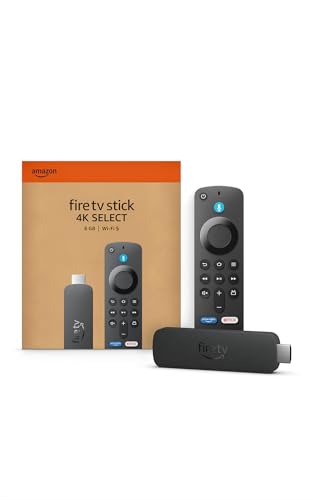
If this guide helped you decide what to look for, these products are a place to start.

As an Amazon Associate we earn from qualifying purchases. Prices and availability are shown on Amazon.
A Setup Visit, Done Properly: The First Hour With a New TV
If you are setting up a television for an older relative, the most valuable thing you bring is not technical knowledge but time and a plan. Allow a full hour, work in a calm order, and resist the temptation to demonstrate every feature the set owns. Begin with the physical basics: the stand or mount secure, cables tidy and out of walkways, the remote’s batteries fresh, and the seating arranged so the screen is at a comfortable height and distance. Then connect the sources the person actually uses, and only those. Every unused input and spare device left in the system is a future wrong button press.
Next, shape the software around the person. Sign in to the streaming apps they watch, and no others. Arrange the home screen so the first row holds their handful of services in a fixed order, and turn off autoplaying previews and promotional rows where the platform allows it, because movement and noise on screen make menus harder to scan. Set the picture to a comfortable, natural mode rather than the vivid store mode sets often ship with, enlarge menu text where the system offers it, switch captions on with a readable size, and set the sound to a speech-friendly mode if there is one.
Finish with teaching, not features. Have the person sit in their usual chair and do the three journeys that make up nearly all viewing: turn the TV on and find their main channel or app, change the volume during a quiet scene, and switch to the second thing they watch, such as a DVD player or a news channel, and back again. Let them make the mistakes while you are there to undo them kindly. Then write the cheat sheet described earlier in this guide, in genuinely large print, and tape it inside a cupboard door near the TV or keep it in the remote’s drawer, one copy in each place if the house is large.
Remotes in Depth: What Actually Makes One Easy
Listings describe remotes with words like simple and ergonomic, which mean little. The qualities that matter in daily life are concrete. Buttons should be distinguishable by touch as well as sight, with different shapes or spacing for the keys used most, because many viewers operate a remote by feel while looking at the screen. The power, volume and channel keys should sit where a thumb lands naturally and should not be surrounded by near-identical small buttons. A remote that is too small gets lost between cushions and is hard for arthritic hands to grip; a slightly larger one with a matte finish is usually kinder.
Backlighting helps in dim rooms but drains batteries faster, so decide based on the room rather than the feature list. Voice control deserves a balanced view: when it works, it bypasses menus entirely, which is a genuine gift to someone who finds navigation stressful. When it mishears, it can strand the viewer on an unfamiliar screen. If you enable it, practise the exact phrases together, such as naming a channel or an app, and make sure the person also knows the button route back to familiar ground. The home or back button is the most important key on any modern remote; teach it as the universal escape: whatever has gone wrong on screen, pressing home returns to the place you recognise.
When the original remote is the problem
If the supplied remote is a forest of tiny keys, alternatives exist. Simplified universal remotes with a handful of large buttons can handle power, volume, channel and input for a TV and one source, which covers many people’s whole viewing life. Learning remotes can copy the essential keys from the original handset. Either way, keep the original remote in a labelled drawer rather than throwing it away, because setup menus and rare functions still need it, and a visiting helper will ask for it first.
Captions, Audio Description and Screen Readers: Switching Them On Properly
Accessibility features only help if they are configured, and each lives in a different place. Captions are usually set in two layers: the TV or platform has a master captions setting, and many streaming apps keep their own caption controls inside playback. Turn captions on at the system level first, then check each app the person uses and set the style there too, choosing a size that can be read from their chair without leaning forward and a background style that survives bright scenes. Sit in the chair yourself and read a line of dialogue at normal speed; if you have to squint, it is too small.
Audio description, where broadcasters and services provide it, adds a narrated track describing action between dialogue, and it can transform programmes for a viewer with serious sight loss. It is switched on in the audio or accessibility settings, and availability varies by programme, so test it on a popular drama rather than assuming it is broken when a particular show lacks it. Screen readers and menu voice guidance go further, speaking menu items aloud as they are highlighted. They take a little getting used to, and the speech rate can usually be adjusted; set it slower than you think necessary at first.
Revisit these settings after any big software update, because updates occasionally reset accessibility choices or move them to a new menu. A two-minute check during a visit is far kinder than leaving someone to conclude the TV has stopped working for them.
Predictability Matters More Than Features When Memory Is Fragile
For a viewer living with memory problems or early dementia, the kindest television is a boring one. The same remote in the same place, the same first screen every time, the same three buttons for the whole of viewing. Avoid changing the setup once it works, and resist well-meant upgrades: a new streaming box with a cleverer interface can quietly end someone’s independent viewing. If a change is unavoidable, introduce it during a visit, practise it together, and update the written cheat sheet the same day.
Practical details help. Label the remote’s essential buttons with large-print stickers if the printed legends are fading. Keep the number of sources to one if possible, so there is no input switching at all. Choose a platform whose home screen stays stable rather than reshuffling itself with promotions. Some families set up a simple routine: the TV is left on the person’s main channel, volume preset at a comfortable level, so that switching on is the only action required. That is not a failure to use the technology; it is the technology fitted to the person, which is the entire point of this guide.
Safety Around the Television, Beyond the Stand
The earlier sections covered tip-over straps and tidy cables; a few more household hazards deserve attention. Trailing cables across a route to the kitchen or bathroom are a fall risk at night, so route them along walls or under rugs designed for the purpose, and add a small night light on the route rather than relying on the TV’s glow. Glare is a safety issue as well as a comfort one: a screen washed out by daylight tempts a viewer to sit closer or lean at awkward angles, so curtains or a slight repositioning of the chair often help more than a brighter set.
Heat and ventilation matter quietly. TVs and boxes pushed into sealed cabinets overheat, misbehave and fail early; leave air space around them, especially if a recording box works hard. Keep the remote’s spare batteries in a known drawer, and write the date on them when bought, so a dead remote at a bad moment does not become a crisis. Finally, if the viewer uses a personal alarm or pendant, make sure the TV setup does not cover its base station or block its speaker with a soundbar placed in front of it.
Helping From a Distance
Many families support an older viewer’s TV from another town. A few habits make that realistic. Choose equipment you know yourself, ideally the same platform you use at home, so you can talk through menus from memory. Photograph every settings screen after setup, and keep the photos; when something breaks, ask the person to describe the screen and compare it with your photographs rather than guessing. Write the cheat sheet in the exact words used on the remote buttons, because instructions like press the little house symbol fail where press the HOME button succeeds.
Agree in advance what counts as a problem worth a visit and what can wait. A lost app sign-in is annoying but survivable until Sunday; a TV that will not switch on before a favourite programme feels like an emergency to the person living with it. Leaving a simple fallback, such as broadcast channels working through an aerial even if the internet and apps fail, gives the viewer something dependable and gives you time to help calmly.
More Questions About Senior-Friendly Television
Is a bigger TV always easier for an older viewer?
Only up to the point where the seating distance suits it. A larger screen makes menus and captions bigger, which genuinely helps, but a very large set viewed from close up forces constant eye and head movement that many people find tiring. Match the size to the room using the distance guidance earlier in this guide, and spend remaining budget on sound clarity and a good remote, which usually improve daily life more than extra inches.
Should I set up streaming apps with my own account?
It is simpler for the viewer if the services are signed in on their own accounts where they have them, so recommendations, watch histories and payment details stay theirs. If you share a family plan or manage the subscriptions, that is fine too, but write down which services are signed in and how, so another family member can restore things after a reset without a detective hunt.
What if my relative refuses captions on principle?
Do not force them. Try a dialogue sound mode and a seating change first, and perhaps suggest captions only for programmes with difficult accents or quiet speech. Many people accept captions for one series and then quietly extend them. The goal is comfortable viewing, not winning an argument about the correct way to watch.
How often should the setup be reviewed?
Once or twice a year, or whenever eyesight, hearing or memory noticeably changes. Needs move: text that was readable last winter may strain this one, and a remote that was manageable can become difficult as hand strength changes. A short review during an ordinary visit, enlarging text a step, raising caption size, simplifying the home screen again, keeps the TV matched to the person rather than to who they were when it was installed.
Choosing Where the TV Will Live: Living Room, Bedroom and Kitchen
The right setup depends on the room’s job. A main living-room set carries shared viewing, visitors and the widest range of programmes, so it earns the largest comfortable screen, the best sound help and the most careful seating arrangement. A bedroom TV is a different creature: viewing happens at an angle from bed, volume must stay low late at night, and a sleep timer is not a luxury but the feature that will be used daily. Look for a set whose timer is easy to reach, whose screen can dim properly for a dark room, and whose stand or mount angles the picture toward the pillows rather than the ceiling.
Kitchen and small-room sets are usually watched standing, at odd angles and in bright light, often with captions doing the real work because the room is noisy. For those, a modest screen with strong brightness, wide viewing angles and excellent captions beats a large cinematic set. Whatever the room, measure the actual viewing distance from the actual chair or bed before choosing a size, and check where daylight falls at the times of day the set will be used. A television that fights the sun every afternoon will feel like a bad purchase even if its specifications are excellent.
Sound Options for Older Ears, Compared Honestly
There are four realistic routes to clearer sound, and they suit different people. The TV’s own dialogue or clear-voice mode costs nothing and should always be tried first; on some sets it is genuinely effective. A soundbar with a dialogue mode and a simple remote is the best general upgrade for shared viewing, because it improves speech for everyone in the room at once and replaces the TV speakers entirely. Wireless headphones give the clearest speech of all and a personal volume, but only for one listener, and they introduce charging and pairing into the routine. A hearing-aid streamer, arranged through the person’s audiologist or device maker, can be the most effective option of all for an aid wearer, because the sound arrives through equipment already tuned to their hearing.
Choose by lifestyle rather than by specification. A couple who watch together every evening needs the room solution. A widow who watches alone late at night may be happiest with headphones and the freedom to set her own level. Someone whose hearing is changing should have the free settings and the soundbar in place now, with the headphone or streamer route kept in mind for later. And in every case, set the chosen option up during a visit and practise it together, because sound equipment that stays in its box helps nobody.
When the Internet or Power Plays Up
Modern televisions assume connections, and an older viewer can be left staring at error messages when the broadband drops or the power flickers. Build resilience into the setup. Keep an aerial or cable connection working as a baseline wherever possible, so ordinary channels survive an internet outage. After a power cut, many sets return to a home screen rather than the last channel; show the viewer the one or two button presses that get them back to live TV, and add those presses to the cheat sheet as the what-to-do-if page.
If the household broadband is unreliable, favour a platform that behaves gracefully offline and does not hide broadcast channels behind menus that demand a connection. Write the router’s location and its restart routine on the cheat sheet too, in plain steps, because a two-minute router restart during a calm phone call with family solves a surprising share of streaming problems, and nobody should have to guess which box is the router while flustered.
Buying Without Regret: Returns, Delivery and Setup Services
For this kind of purchase, the shop matters almost as much as the set. A retailer with a generous return window is effectively lending you the only real test there is: the person’s own chair, room and eyes. Delivery that includes placing the set and taking the packaging away is worth choosing when the buyer cannot lift a large box, and some retailers offer setup services that are genuinely useful provided a family member is present to steer the setup toward simplicity rather than features.
Before the old set leaves the house, photograph its connections and note which services were signed in on it, so accounts and aerial leads transfer cleanly. Keep the new set’s receipt, warranty details and the shop’s returns deadline together in one envelope near the TV. And schedule your own follow-up: a short visit or call a week after installation, when the novelty has worn off and the real irritations, a caption size, a remote button, a menu that confuses, have had time to reveal themselves while changes are still easy.
A Note on Eyesight: Lighting the Room, Not Just the Screen
Television comfort for ageing eyes is as much about the room as the set. A completely dark room makes the screen feel harsher and exaggerates the contrast between bright scenes and the black around them, which many older viewers find tiring. A soft lamp on somewhere in the room, positioned so it does not reflect in the screen, eases that strain noticeably. Bias lighting, a gentle strip of light behind the TV, achieves the same effect and is simple to fit during the setup visit.
On the set itself, avoid the most aggressive picture modes, which push brightness and sharpness in ways that make faces look hard and text shimmer. A standard or cinema-style mode with sensible brightness for the room is kinder over a long evening. If the viewer wears glasses, confirm whether they watch with a distance prescription or reading glasses, because a screen at living-room distance belongs to the distance pair, and a surprising number of complaints about soft menus end at the optician rather than in the settings menu. Note the date of their last eye test on the cheat sheet if the family finds that helpful; vision changes gradually, and the television is often where the change is first noticed.
One Last Principle: Buy for the Person, Not the Specification Sheet
Every recommendation in this guide comes back to the same test. Picture the person in their chair, at their usual hour, wanting to watch their usual programme. The television that serves that moment best, with the fewest steps, the clearest speech and the most forgiving remote, is the right television, even if a different model wins on specifications nobody in that chair will ever use. Keep the receipt, keep the cheat sheet, and keep the setup boring. Boring, for this job, is a compliment.
Frequently Asked Questions
What size TV is best for seniors?
Often 43 to 55 inches, depending on room size and viewing distance. Bigger is helpful for readability as long as the viewing distance is right.
Do seniors need a smart TV?
Not necessarily. A smart TV is useful for streaming, but a simple model plus a basic streaming box can be easier for some people.
Can I make a TV easier to use?
Yes. Enable captions, enlarge text, simplify the home screen and use a simpler remote.
Are voice remotes good for older users?
They can be helpful if they work reliably, but a basic remote with large buttons is still a good backup.
Is a curved or very thin TV better for older viewers?
Neither is a deciding factor. Screen size, glare handling, menu readability and sound quality matter far more. Choose by how comfortable the picture and controls are in the actual room.
Should I buy a TV with a built-in soundbar or add one later?
Built-in speakers on most TVs are small, so a separate soundbar or headphones usually help dialogue more. Check that the TV has a compatible audio output and that the soundbar remote is easy to use.
How do I stop a TV from changing inputs by itself?
Some TVs switch inputs when a connected device wakes up. Look for HDMI control or CEC settings in the menu and turn off the options that trigger automatic switching, following the manual.
Is a remote with a number pad better than a simplified remote?
It depends on how the person watches. If they type channel numbers from memory, keep a number pad. If they mostly use apps and volume, a simplified remote with fewer keys reduces mistakes.
What should I do if the person keeps losing the remote?
Pick a model or box with a find-my-remote feature, or keep a fixed holder on the table. A basic backup remote kept in a drawer also helps when the main one goes missing.
Can voice control replace the remote entirely?
It can help some people, but accents, background noise and slow responses may make it frustrating. Treat voice control as an extra and keep a simple physical remote as the main control.
How can I help someone who is nervous about technology?
Keep changes small and explain one task at a time. Practice turning on, changing volume and switching inputs together, then leave a large-print note. Avoid changing the layout later without telling them.
Bottom Line
Pick a TV for ease of use: simple remote, readable menus, clear dialogue and a stable setup. A little configuration matters more than extra features.
Related Reading
- Fixing Quiet or Muffled TV Dialogue
- What Size TV Should You Buy?
- Smart TV Platforms Compared
- Bedroom TV Buying Guide
- TV Buying Guide
- All TV guides