Disclosure: As an Amazon Associate, reviewstook.com earns from qualifying purchases. Links on this page are affiliate links at no extra cost to you; prices and availability change frequently, so check Amazon for the latest.
How to Choose a Barebones Mini PC: A Step-by-Step Decision Guide
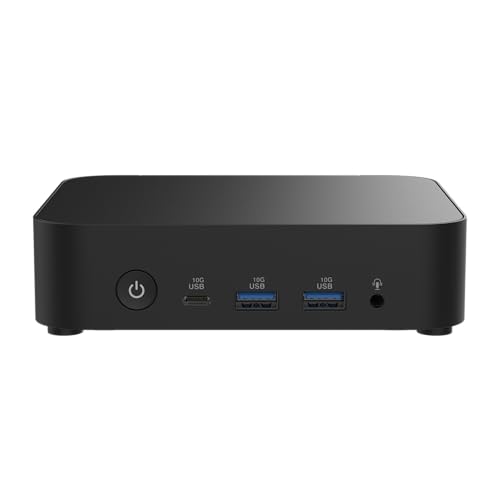
Learning how to choose a barebones mini pc is really learning how to choose three computers at once: the kit in front of you, the parts you will add to it, and the machine it will still be in three years. A barebones kit arrives deliberately unfinished — memory, storage and an operating system are yours to supply, and on some kits the processor is too — so the shoppers who end up happy are the ones who made their decisions in the right order. Job first, family second, processor third, parts last. This guide walks that order step by step, with the exact questions to ask at each stage and the verified kits that answer them well.
Work through the steps in sequence and do not skip ahead to shopping; every later step depends on the answers before it. By the end you will have a shortlist of one or two kits and a complete parts list, which is the correct output of a choosing guide. If you want the broader market context first, our Barebones Mini PC Buying Guide surveys the category, while Barebones Mini PC Pros And Cons argues the honest case for and against the whole barebones idea.
In this guide
Key Takeaways
- Decide the job before the hardware: office, media, home server, gaming and home lab each point to a different kit family.
- Choose between palm-sized NUC-style kits (processor fitted, tiny, quiet) and socketed DeskMeet kits (you fit the CPU, and a graphics card becomes possible).
- Count memory slots before admiring processors — a single-slot kit must be bought at its final memory capacity.
- Total the full build — kit, RAM, SSD, operating system — before comparing anything to a prebuilt PC.
- Networking is a real decision: 2.5G LAN, dual LAN, WiFi 7 and Thunderbolt 4 should match your desk and network, not a spec-sheet contest.
Where to Buy
Every kit below was verified against Amazon’s own product data for this guide. Barebones pricing moves with RAM and SSD bundles and seasonal promotions, so use the links to check the live figure rather than trusting any number quoted elsewhere. This page is published by reviewstook.com, and the kits are sold through Amazon, which handles payment, shipping and returns.
Best First Build: ASUS NUC 14 Essential (N150) — check the latest price on Amazon via the review links below.
Best Proven All-Rounder: Intel NUC 13 Pro NUC13ANHi5 (GEEK+) — check the latest price on Amazon via the review links below.
Best for Home Lab: ASUS ExpertCenter PN54-S1 Barebone Kit — check the latest price on Amazon via the review links below.
Best Gaming Value: ASRock DeskMeet X300 Mini PC Barebone Kit — check the latest price on Amazon via the review links below.
Best Gaming Future: ASRock DeskMeet X600 Mini-PC Kit — check the latest price on Amazon via the review links below.
Best Long-Term Desk PC: ASUS NUC 14 Pro+ Barebone Kit — check the latest price on Amazon via the review links below.
Step 1: What Job Will This Machine Actually Do?
Write the job down in one sentence, and be embarrassingly specific. ‘A quiet box behind the TV that plays films and runs our home media library’ is a decision. ‘A small PC for work’ is not, because work can mean spreadsheets or it can mean compiling code and running virtual machines. The five jobs that cover nearly every barebones purchase are: everyday office and browsing; media playback and home-theatre duty; an always-on home server or home lab; compact gaming; and network appliances such as firewalls. Each maps to a different kit in this guide, and most regret in this category comes from buying for a vague job and discovering the specific one later.
Also name the job the machine might grow into. A media box that later becomes a home server wants wired networking and storage flexibility. An office PC that later hosts a couple of virtual machines wants memory headroom. Growth you can name today is cheap to provide for; growth you discover in year two, on a sealed single-slot kit, is not.
Step 2: Which Family — Palm-Sized Kit or Socketed Desk Kit?
This is the fork in the road, and it is decided by two questions. Do you ever want a discrete graphics card? Do you ever want to change the processor? If either answer is yes, you are shopping for a socketed desk kit — in this guide, the ASRock DeskMeet X300 or X600 — and accepting an 8-litre case and a fuller build. If both answers are honestly no, the NUC-style kits are smaller, quieter, simpler and cheaper to run, and their soldered processors stop being a limitation and start being a convenience.
Desk reality matters too. A NUC-style kit can VESA-mount behind a monitor and vanish; a DeskMeet needs actual desk or shelf space and airflow. Power draw follows the same split: NUC-style kits are natural always-on machines, while a DeskMeet with a gaming card is a machine you switch on to use. Neither is a compromise — they are different tools — but choosing the family before the model prevents the classic error of buying a palm-sized kit and then researching graphics cards for it.
Step 3: How Much Processor Do You Honestly Need?
Within the NUC-style family, think in tiers rather than model numbers. Efficiency processors — the Intel N150 and N250 in the ASUS NUC 14 Essential kits — handle browsing, documents, media, kiosks and light server duties with ease and sip power doing it; they are the right answer for role machines. Mainstream processors — the Core i5-1340P in the NUC 13 Pro kits and the Ryzen 3 210 in the ExpertCenter PN54-S1 — cover serious office work and multitasking. Performance processors — the Core Ultra 5 125H and Core Ultra 7 255H in the NUC 14 Pro+ and NUC 15 Pro — are for heavy multitaskers, creators and anyone buying a five-year desk machine. Overshooting one tier costs money; undershooting costs a replacement machine, so when two tiers both fit the budget, buy the higher one for a desk PC and the lower one for a fixed-role box.
On the DeskMeet side you choose the processor separately, which moves the question to sockets: AM4 for value and availability today, AM5 for current platforms and future upgrades. Match the chip’s power class to the kit’s stated 65W support on the X600, and remember the cooler and the chip are both on your shopping list.
Step 4: How Should You Size Memory and Storage?
Memory first, because slots constrain it. Check the generation — DDR4 and DDR5 are physically incompatible — then the slot count. Two slots forgive a modest start; one slot, as on the NUC 14 Essential kits, demands your final answer today. As working guidance: light duties run contentedly on a modest single stick, general office and multitasking want a comfortable mid-tier fit, and virtual machines, creative work or a long ownership horizon justify fitting generously now, while the machine is open and the part is in your hand.
Storage follows the same logic. A single M.2 bay is fine if you buy capacity honestly — media libraries and game installs grow faster than anyone predicts — while dual-bay designs like the DeskMeet X300 let you separate a system drive from a data drive. Whatever you fit, leave headroom: drives slow down and systems get cranky as they approach completely full, and an always-on server with a brim-full drive is a problem that announces itself at the worst time.
Step 5: Which Ports and Networking Will You Actually Use?
Walk your desk mentally. How many monitors, and at what size? The NUC 13 Pro kits support quad displays; the Essential kits support three; the NUC Pro models use Thunderbolt 4 to drive docks and displays over a single cable. Then walk your network. A wired 2.5G port, standard on the Essential kits, transforms file transfers and server work on a modern home network. Dual LAN — the ExpertCenter PN54-S1’s party trick — is the deciding feature for firewall, router and segmented home-lab builds, and irrelevant to everyone else. WiFi 7, on the PN54-S1 and the NUC 15 Pro, matters if the machine will live on wireless in a crowded household; WiFi 6E is entirely respectable if it will sit near a cable. Choose for the desk and network you have, and let the spec-sheet contests go.
Step 6: What Is the True Total Cost of the Finished Machine?
Now, and only now, add it up: kit, memory, storage, operating system — plus a graphics card and processor if you chose the DeskMeet road. Compare that total, not the kit price, against the prebuilt machines in Best Mini Pcs. The barebones route sometimes wins on price, often wins on control, and occasionally loses to a prebuilt on special offer — and knowing which situation you are in is the entire point of choosing deliberately. The value question in full, including the scenarios where barebones loses, is argued in Is A Barebones Mini PC Worth It.
The Shortlist: Six Kits Matched to the Decisions Above

Best First Build — ASUS NUC 14 Essential (N150)
Strengths
- The natural starter kit: one RAM slot and one storage bay keep the first build simple
- 2.5G LAN and triple-display support are generous for an Essential-tier box
- VESA mount in the box makes tidy desk and signage installs immediate
Trade-offs
- Single RAM slot caps memory upgrades — buy the capacity you will need, once
- N150 performance suits browsing, office apps, media and light servers, not heavy gaming
- Single storage design means no second internal drive later
| Processor | Intel Processor N150 (installed) |
|---|---|
| Memory | Single DDR5-4800 RAM slot |
| Storage | Single storage design |
| Displays | Triple display support |
| Networking | 2.5G LAN, Wi-Fi 6E, Bluetooth 5.3 |
| Mounting | VESA mount included |
Choose the NUC 14 Essential N150 when your Step 1 answer is a fixed role — media, kiosk, light office, small server — and your Step 2 answer values tiny and simple. Its single memory slot is the Step 4 lesson made physical: decide your capacity once, buy it once, and enjoy the simplest build in this guide, finished off with a VESA mount that comes in the box.
Its 2.5G LAN and triple-display support mean the networking step does not force you upmarket for ordinary desks, which is rare at the starter tier. The boundary is processor ambition: heavy multitasking and local gaming belong to other kits, and no later upgrade changes that.
Best for: first builds, media boxes, small servers and tidy office desks with a defined, stable job / Not suited for: jobs likely to grow into heavy multitasking or gaming
Check on Amazon — check the latest price on Amazon before you commit the rest of the parts list.

Best Proven All-Rounder — Intel NUC 13 Pro NUC13ANHi5 (GEEK+)
Strengths
- Proven Arena Canyon NUC 13 Pro design with quad-display support for serious desk setups
- Core i5-1340P is a strong, efficient all-rounder for office and home use
- Thunderbolt 4 keeps docking and fast external storage on the table
Trade-offs
- Previous-generation platform, so no WiFi 7 and an older processor family
- Seller branding differs from the original Intel retail box — verify the exact kit contents on the listing
- Integrated graphics only, as with all the palm-sized kits here
| Processor | Intel Core i5-1340P (installed) |
|---|---|
| Memory | NO RAM included |
| Storage | NO SSD included |
| Operating system | NO OS included |
| Displays | 8K/4K quad display support |
| Networking | WiFi 6E, Bluetooth 5.3, Thunderbolt 4 |
Choose the NUC 13 Pro when you want the proven mainstream answer: a Core i5-1340P that covers serious office work, quad-display support for elaborate desks, and Thunderbolt 4 for docking. It is the kit for buyers whose Step 5 walk around the desk found more monitors than a basic kit can drive.
Being a previous-generation platform is a feature here as much as a compromise — accessories, documentation and operating-system support are all mature. Read the listing’s contents carefully, because these kits are sold under several brands, and confirm the wireless standard matches what you expect before ordering.
Best for: multi-monitor offices, business deployments and buyers who value a documented, mature platform / Not suited for: buyers who specifically want the newest processor generation or WiFi 7
Check on Amazon — check the latest price on Amazon before you commit the rest of the parts list.

Best for Home Lab — ASUS ExpertCenter PN54-S1 Barebone Kit
Strengths
- Dual LAN is rare at this size and ideal for firewalls, home labs and network appliances
- WiFi 7 keeps wireless current even though the processor is an entry model
- Business-grade ExpertCenter line with a three-year warranty
Trade-offs
- Ryzen 3 210 is the slowest processor in this group — fine for appliances, light for heavy multitasking
- Still needs RAM, storage and an operating system before it does anything
- Fewer headline display features than the NUC Pro models above it
| Processor | AMD Ryzen 3 210 (installed) |
|---|---|
| Memory | No RAM included — add your own SO-DIMM |
| Storage | No SSD included — add your own M.2 SSD |
| Operating system | No OS pre-installed |
| Networking | WiFi 7, Dual LAN |
| Design | Toolless chassis, 3-year warranty |
Choose the ExpertCenter PN54-S1 when Step 1’s answer involves your network: a firewall, a router project, a segmented home lab, or any always-on appliance where two wired networks are the point. Dual LAN at this size is genuinely rare, and the toolless chassis plus WiFi 7 round out a business-grade package with a three-year warranty.
The Ryzen 3 210 is the modest part of the specification, so be honest at Step 3: as a network appliance or light office machine it is well matched; as a heavy multitasking desktop you would feel its limits. Buy it for the ports, and it will not disappoint you.
Best for: home-lab builders, firewall and router projects, and always-on network appliances / Not suited for: heavy desktop multitasking or buyers who will never use a second LAN port
Check on Amazon — check the latest price on Amazon before you commit the rest of the parts list.

Best Gaming Value — ASRock DeskMeet X300 Mini PC Barebone Kit
Strengths
- AM4 and DDR4 parts are widely available, which keeps the total build cost under control
- PCIe 3.0 x16 slot still allows a proper discrete graphics card for gaming
- Dual M.2 storage gives room for a fast boot drive plus a larger games drive
Trade-offs
- AM4 is a mature platform with no future CPU generation coming — upgrades top out within the family
- PCIe 3.0 rather than 4.0, a small penalty with some newer graphics cards
- Like the X600, the parts list you must supply yourself is long
| Socket | AMD AM4 — supports Ryzen 5000/4000/3000G CPUs |
|---|---|
| Memory | DDR4-3200MHz |
| Expansion | PCIe 3.0 x16 slot |
| Storage | Dual M.2 slots |
| Front ports | USB 3.2 Gen2 Type-C |
| Power supply | 500W PSU included |
Choose the DeskMeet X300 when Step 2’s fork pointed to a graphics card but the Step 6 total matters. AM4 processors and DDR4 memory are widely available and well understood, the 500W power supply is included, and the PCIe 3.0 x16 slot turns the finished machine into a genuine compact gaming PC.
Accept the platform’s horizon knowingly: AM4’s best chips are known quantities, and there is no next generation coming to the socket. For a value gaming build bought today and enjoyed for years, that is a fair trade — and dual M.2 storage gives the build a tidiness many budget rigs lack.
Best for: value gaming builds and upgraders with AM4 parts already on hand / Not suited for: buyers who want future CPU generations on the same motherboard
Check on Amazon — check the latest price on Amazon before you commit the rest of the parts list.
Best Gaming Future — ASRock DeskMeet X600 Mini-PC Kit
Strengths
- The only style of kit here that takes a real desktop graphics card via its PCIe 4.0 x16 slot
- Socketed AM5 processor means genuine CPU upgrades later, not a soldered dead end
- 500W power supply included, so the GPU plan does not need a separate PSU hunt
Trade-offs
- Largest box in this group at 8 litres — compact, but not palm-sized
- You supply the CPU, cooler considerations, RAM, storage and GPU, so the parts list is the longest here
- WiFi-ready is not the same as WiFi included — check what your build still needs
| Socket | AMD AM5 — bring your own Ryzen 9000/8000/7000 CPU (65W) |
|---|---|
| Memory | DDR5, supports 7200+ OC speeds per listing |
| Expansion | PCIe 4.0 x16 slot for a discrete graphics card |
| Storage | Gen5 M.2 support |
| Power supply | 500W PSU included |
| Chassis | 8-litre case, triple display support, WiFi-ready |
Choose the DeskMeet X600 when the gaming answer at Step 2 comes with a future attached. The AM5 socket takes current Ryzen generations and those still to come within the platform’s life, DDR5 and Gen5 storage keep the rest of the build current, and the PCIe 4.0 x16 slot plus 500W supply support a serious graphics card.
It is the biggest, most involved build in this guide — processor, cooler considerations, card clearances, cable care — and the Step 6 total will reflect the ambition. For a compact gaming PC or a small workstation meant to evolve, it is the only kit here designed for exactly that.
Best for: gamers and workstation builders who want a compact case with real upgrade years ahead / Not suited for: anyone wanting a palm-sized, silent, ten-minute build
Check on Amazon — check the latest price on Amazon before you commit the rest of the parts list.

Best Long-Term Desk PC — ASUS NUC 14 Pro+ Barebone Kit
Strengths
- Balanced Core Ultra 5 125H performance for office, creative and home-server work
- Dual Thunderbolt 4 ports make single-cable desk setups easy
- Toolless access and a three-year warranty lower the risk for first-time builders
Trade-offs
- No RAM, SSD or operating system in the box — the extras are mandatory, not optional
- Integrated graphics limits demanding games and heavy GPU workloads
- WiFi 6E rather than WiFi 7, if you are chasing the newest wireless standard
| Processor | Intel Core Ultra 5 125H (installed) |
|---|---|
| Memory | No RAM included — add your own SO-DIMM |
| Storage | No SSD included — add your own M.2 SSD |
| Operating system | No OS installed |
| Networking | WiFi 6E, 2x Thunderbolt 4 |
| Design | Toolless chassis, 3-year warranty |
Choose the NUC 14 Pro+ when the walk through the steps ends at ‘a proper desk PC, for years, with no drama.’ The Core Ultra 5 125H covers heavy ordinary work, the toolless chassis makes Step-by-step building almost disappointingly easy, dual Thunderbolt 4 simplifies any desk, and the three-year warranty suits a long ownership plan.
It asks you to accept integrated graphics and a previous-step wireless standard — WiFi 6E rather than 7 — in exchange for balance everywhere else. For most readers of a choosing guide, balance is the correct answer, which is why this kit closes the shortlist. Compare its finished cost against the gaming builds in Best Barebones Mini PC Under $700 if your job description is drifting toward play.
Best for: long-term desk PCs for demanding everyday work, with minimal build effort / Not suited for: dedicated gaming or buyers set on WiFi 7
Check on Amazon — check the latest price on Amazon before you commit the rest of the parts list.
How to Set Up Your Chosen Kit on Night One
Step 1: Build on a hard, clear surface with the kit, memory, SSD, a small Phillips screwdriver (the toolless ASUS kits forgive its absence) and your operating-system USB installer, prepared earlier on another machine. Step 2: Open the kit, seat the memory until both clips click, and fit the M.2 SSD under its single screw, snug rather than forced. DeskMeet builders install the processor first, aligning the corner marker and fitting the cooler per its own instructions. Step 3: Close up, connect one monitor and a keyboard, and boot into the setup utility to confirm the memory capacity and the SSD appear correctly — this two-minute check catches nearly every first-build problem while it is still a reseating job. Step 4: Install the operating system, then the kit maker’s current drivers and BIOS update, then your software. Step 5: Only now connect the full desk — docks, extra monitors, network storage — so that if something misbehaves, you know it was the last thing added.
Problem: no display on first boot -> fix: reseat the memory; an unclipped stick is the most common cause by far. Problem: the SSD is invisible to the installer -> fix: reseat it and verify it in the BIOS before blaming the drive. Problem: a DeskMeet build shuts down under load -> fix: check the cooler seating and that the graphics card’s power connectors are fully home. Problem: WiFi missing after installing Windows -> fix: add the wireless driver from the manufacturer’s support page via a wired connection; fresh installs often lack drivers for the newest wireless modules.
Worked Examples: Three Buyers, Three Different Answers
Buyer one: the home-office professional with two monitors and a five-year horizon. Her Step 1 job is documents, video calls, a browser that never closes and light photo sorting. Step 2 is an easy no to graphics cards and processor swaps — she wants the machine to vanish. Step 3 points past the efficiency tier: five years of multitasking argues for a Core Ultra processor. Step 4 says fit memory generously now, because she will never open the machine again willingly. Step 5 finds two monitors today and a dock tomorrow, which makes Thunderbolt 4 valuable. Her answer is the NUC 14 Pro+, or the NUC 15 Pro if the newest wireless matters in her house — and notice that the Essential kits, tempting on price, fail her at Steps 3 and 4 simultaneously.
Buyer two: the teenager’s first gaming PC, on a family budget. Step 1 is gaming, honestly stated. Step 2 therefore ends the NUC conversation immediately: a graphics card is the whole point. Step 3 becomes a socket decision, and Step 6 — the family budget — decides it: AM4 parts and DDR4 memory keep the DeskMeet X300 build attainable, with the X600 as the stretch option if the budget grows before purchase day. Step 4 sizes storage for a games library, not for documents. Same category, opposite conclusion — which is exactly what a choosing process is for.
Buyer three: the home-lab hobbyist. His Step 1 job is an always-on server that will grow services over time. Step 2 values tiny and silent. Step 3 is modest — servers for home duties are rarely processor-bound — but Step 4 argues for memory headroom, because containers and virtual machines eat RAM, and Step 5 is where his decision is really made: wired networking quality. If his plans include a firewall or segmented networks, the dual-LAN ExpertCenter PN54-S1 wins outright; if the box is a media and file server on a fast home network, an Essential kit with 2.5G LAN or a NUC 13 Pro does the job for less fuss. Three buyers, three kits, zero arguments — because each chose in the right order.
The Operating System Decision Nobody Budgets For
Every kit in this guide arrives with no operating system, and the choice deserves its own step because it affects both cost and character. Windows is the default for office compatibility and gaming, and its licence belongs in your Step 6 total unless you already hold one whose terms allow the move. Linux is free, superbly supported on every platform in this guide, and the natural choice for servers, home labs, media boxes and developers — a Linux install also removes the licence line from the budget entirely, which can move a build up a hardware tier. ChromeOS-style and specialist appliance systems exist for kiosk and signage roles built on kits like the NUC 13 Pro. Decide the operating system before you order the SSD, because the decision changes the budget, and occasionally — for a pure server build — changes which kit’s networking you should prioritise.
There is also a timing point: prepare your installer before the parts arrive. Download the operating system image and write it to a USB stick on an existing computer, and fetch the kit maker’s driver pack the same evening. Builders who do this finish in one sitting; builders who start downloads after assembly discover that a machine with no operating system and no wireless driver is a slow place from which to fetch either.
A One-Page Choosing Checklist
Before you order anything, read your answers back in order. One: the job, in one sentence, including the growth you can already name. Two: the family — palm-sized if no graphics card and no processor change will ever be wanted, socketed DeskMeet if either might. Three: the processor tier matched to the job, erring upward for a long-term desk PC and downward for a fixed role. Four: memory generation and slot count confirmed, capacity decided as a final answer on single-slot kits, storage sized with headroom. Five: displays counted, wired networking chosen, wireless standard checked on the exact listing. Six: the four-line total — kit, memory, storage, operating system — compared against a prebuilt, with any processor and graphics card added for DeskMeet builds. Seven: the listing re-read for barebones contents, especially on kits sold under several seller brands. If all seven answers are written down and consistent, you have not just chosen a barebones mini PC — you have specced a finished computer, which is the only purchase this category ever really offers.
Reading a Barebones Listing Like an Engineer
Listings reward a particular reading order. Start with the barebones contents statement — the sentence that says what is not included — because everything else is commentary until that is clear. The verified listings in this guide state it plainly: NO RAM, NO SSD, NO OS on the NUC 13 Pro kits; No CPU, RAM or Storage on the DeskMeet kits; No RAM, No SSD, No OS pre-installed on the ASUS ExpertCenter and NUC Pro models. If a listing you find elsewhere will not state its contents that plainly, treat the ambiguity itself as information and shop elsewhere.
Next, read the memory line three ways: generation, slot count and rated speed. A kit described with a single DDR5-4800 slot is telling you its upgrade story in one breath — one stick, bought once, at that speed class. A dual-channel-capable kit rewards fitting memory in matched pairs for integrated-graphics performance, a detail that matters more on NUC-style kits, where the same memory feeds both the processor and its graphics, than anywhere else in computing. Then the storage line: how many bays, of what type, because a second M.2 bay is the difference between adding a drive later and replacing the drive you have.
Finally, read the networking and display lines as promises to verify against your own desk. Triple display support only helps if the port types match your monitors or your willingness to adapt them. A 2.5G LAN port only helps if your switch or router can speak at that speed — it will still work at standard gigabit speeds if it cannot, but the upgrade logic changes. WiFi-ready on a DeskMeet listing is not WiFi included; it means the provision exists, and your parts list may need to complete it. None of this requires expertise. It requires reading the listing as a contract rather than as an advertisement, which is the entire skill this step is teaching.
Future-Proofing, Honestly: What You Can and Cannot Protect Against
Barebones buyers talk about future-proofing more than most, because the category is literally about choosing foundations. Here is the honest map. Memory and storage are protectable: buy capacity with headroom and the machine will not choke on its own growth. Networking is partially protectable: 2.5G wired and WiFi 7 will not embarrass you for years. The processor, on a NUC-style kit, is not protectable at all — it is a fixed decision, which is why this guide keeps steering long-horizon desk buyers up a tier. On a DeskMeet, the socket is the protection: AM5 has generations ahead of it, AM4 has a known and respectable ceiling.
What no kit protects against is a change of job. A media box that becomes a gaming rig, an office PC that becomes a video-editing station — these are not upgrade events, they are replacement events, on any small platform. The choosing defence is the Step 1 discipline: name the growth you can foresee, and buy for the job plus that growth, not for an imaginary job that would justify a different category of computer entirely. Buyers who do this rarely feel their machine age. Buyers who buy a sealed kit for today’s job while quietly hoping for tomorrow’s different job feel it within the year.
Choosing by Role: The Shortcut Version
If the full process feels heavy for a small purchase, the role shortcuts are reliable. For a media and living-room role, choose the quietest adequate kit — an Essential model — and spend the savings on storage. For a student or family office role, choose the proven mainstream kit, the NUC 13 Pro class, and fit balanced memory and storage. For a professional desk that must last, choose the current NUC Pro tier and fit it generously the first time. For a home lab, let the networking decide: dual LAN for network appliances, 2.5G for everything else, memory sized for the services you will actually run. For gaming, skip the shortcuts and the small kits alike — the DeskMeet decision between value and future, X300 or X600, is the whole choice, and the rest of the budget belongs to the graphics card. Shortcuts work because they encode the steps; if your situation does not match the role neatly, go back to the steps.
One last choosing habit separates satisfied owners from serial returners: decide what you will not compromise before you look at a single listing, and write it as a short refusal list. It might read: no single-slot memory on a five-year desk machine; no kit without wired networking for a server; no platform without a graphics slot for a gaming build; no listing that will not state its barebones contents. A refusal list converts browsing from an exercise in being persuaded into an exercise in elimination, and in a category full of near-identical boxes with genuinely different insides, elimination is the fastest honest route to the right kit. The listings will try to sell you a processor badge. Your list keeps the purchase anchored to the job, the desk and the total — the three things that will still matter when the box is forgotten under a monitor.
Common Mistakes When Choosing
Choosing by kit price instead of finished cost. Choosing a processor tier for the job you wish you had rather than the job you described at Step 1. Ignoring the memory slot count until the upgrade day arrives. Assuming a graphics card can be added to a palm-sized kit. Buying DDR4 for a DDR5 kit. Forgetting the operating system until the build is finished and the budget is spent. And the subtlest mistake: choosing a fixed-role Essential kit for a workload you already suspect will grow, because growth is the one thing a sealed kit cannot accommodate. Every step in this guide exists to intercept one of those errors before it costs money.
Final Recommendation
If your steps ended in uncertainty, default to balance: the NUC 14 Pro+ for a long-term desk PC, the DeskMeet X600 for gaming with a future, the NUC 14 Essential N150 for a defined role on a starter budget, and the ExpertCenter PN54-S1 the moment your plan involves the network itself. Choosing a barebones mini PC well is not about finding the best kit — it is about matching a foundation to a job, a desk and a parts list you have actually totalled. Do that, and the build itself is the easy part. For the finished-machine verdicts on these same kits, continue to Barebones Mini PC Review and Barebones Mini PC Reviews.
Frequently Asked Questions
What exactly is missing from a barebones mini PC?
The processor and the box itself are present in most kits in this guide, but memory, storage and an operating system are not. The DeskMeet kits go further and leave the processor itself to you, because they use socketed desktop CPUs. Before any barebones kit becomes a working computer you should expect to add at least one stick of compatible RAM, one SSD, and either a Windows licence or a free Linux distribution. Budget for those three items from the start and the category holds no nasty surprises.
Is building a barebones mini PC difficult for a beginner?
Honestly, no — the palm-sized kits are among the easiest first builds in all of computing. The typical job is sliding off a cover or undoing a few screws, clicking a RAM stick into its slot until the clips close, seating an M.2 SSD under a single screw, and replacing the cover. There is no cabling, no thermal paste and no power-supply wiring on a NUC-style kit. The DeskMeet kits add a CPU install, which takes more care, but even that is a well-documented ten-minute step.
How much RAM and storage should I add?
For office work, browsing, media and light home-server duties, a single 16GB stick and a 512GB SSD is the sensible floor, and it is what we would fit to the Essential kits. For heavier multitasking, virtual machines, photo work or a machine you plan to keep for many years, 32GB of RAM and a 1TB SSD age far better. Kits with a single memory slot, like the NUC 14 Essential models, force the decision up front, so buy the capacity you will want in year three, not just month one.
Can a barebones mini PC play games?
It depends entirely on which style of kit you mean. The palm-sized NUC-style kits rely on integrated graphics, which handle esports titles, older games, indie games and cloud gaming comfortably, but struggle with demanding modern releases at high settings. The DeskMeet X300 and X600 are different machines altogether: their PCIe x16 slots accept a discrete desktop graphics card, and with one fitted they are legitimate gaming PCs that simply happen to live in an 8-litre case.
Do I need to buy Windows for a barebones kit?
Only if you want Windows. Every kit here arrives with no operating system, so the choice is yours: buy a Windows licence, reuse an eligible licence you already own where its terms allow, or install a free Linux distribution such as Ubuntu, which runs superbly on all of this hardware and is the default choice for home-server and home-lab builds. Factor the licence cost into any comparison against a prebuilt mini PC, because prebuilts usually include it.
What tools do I need for the build?
A small Phillips screwdriver covers almost everything. The current ASUS NUC Pro and ExpertCenter kits use toolless designs, so even that is optional for the RAM and SSD install. A clean, static-aware workspace, the kit manual open on your phone, and fifteen unhurried minutes are the real requirements. Keep the tiny M.2 screw in a dish rather than on the desk — it is the one part everyone loses.
Will a barebones kit work as a home server or media PC?
Very well, and for many buyers that is the real point. Low idle power draw, small size, VESA mounting and — on several kits here — 2.5G or dual LAN make them natural fits for media servers, file storage front-ends, smart-home controllers and always-on download or backup boxes. The dual-LAN ExpertCenter PN54-S1 is the standout for network appliance roles such as firewalls and routers built from PC hardware.