Disclosure: As an Amazon Associate, reviewstook.com earns from qualifying purchases. Links on this page are affiliate links at no extra cost to you; prices and availability change frequently, so check Amazon for the latest.
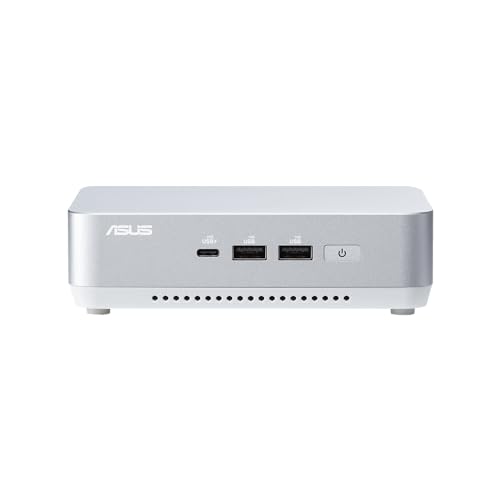
Barebones Mini PC Review: The ASUS NUC 14 Pro+ as a Finished Machine
This barebones mini pc review takes the category’s most balanced current kit — the ASUS NUC 14 Pro+ Barebone Kit, built around Intel’s Core Ultra 5 125H — and treats it the way an owner would: not as a spec sheet, but as a machine you build in an evening, work on every day, and judge over months. A barebones kit invites a particular kind of reviewing, because half the product is the foundation ASUS sells you and the other half is the memory, storage and operating system you bring to it. We will review both halves, including the parts of the experience no listing mentions.
The short verdict: as a foundation for a serious small desk PC, the NUC 14 Pro+ is easy to recommend — toolless to build, quiet in use, generous with displays and docks through dual Thunderbolt 4, and covered by a three-year warranty. Its limits are the category’s limits, worn openly: you supply the rest of the computer, the processor is permanent, and gaming means integrated graphics. Whether those limits matter is a question about your desk, and this review will help you answer it. For the category-wide view, see Barebones Mini PC Reviews; for the choosing process, How To Choose A Barebones Mini PC.
In this guide
Verdict Summary
- Build experience: excellent — toolless access makes memory and SSD fitting a minutes-long job.
- Everyday performance: strong — the Core Ultra 5 125H covers demanding office, creative and multitasking work without drama.
- Displays and docking: excellent — dual Thunderbolt 4 anchors a single-cable desk.
- Gaming: limited by design — esports, indie and cloud gaming yes; demanding modern titles, no.
- Ownership: strong — three-year warranty, low power draw, easy memory and storage service for the machine’s whole life.
Where to Buy
Every kit below was verified against Amazon’s own product data for this guide. Barebones pricing moves with RAM and SSD bundles and seasonal promotions, so use the links to check the live figure rather than trusting any number quoted elsewhere. This page is published by reviewstook.com, and the kits are sold through Amazon, which handles payment, shipping and returns.
The Reviewed Kit: ASUS NUC 14 Pro+ Barebone Kit — check the latest price on Amazon via the review links below.
What Exactly Is in the Box — and What Is Not
The listing states the deal plainly, and this review verified it against Amazon’s product data before writing a word: this is a barebone kit with a Core Ultra 5 125H processor installed, WiFi 6E networking, dual Thunderbolt 4 ports and a toolless chassis design, covered by a three-year warranty. No RAM. No SSD. No operating system. Everything else in this review flows from understanding that sentence correctly, because the NUC 14 Pro+ is not a computer you unbox — it is a computer you complete.
That framing matters for fairness. Judged as a finished product at its kit price, the Pro+ would be a bizarre object that does nothing when plugged in. Judged as a foundation — which is what barebones buyers are purchasing — it should be assessed on the quality of what ASUS chose for you: the processor tier, the board, the cooling, the ports, the chassis and the support behind them. On those terms, as the following sections argue, it is a very well-chosen foundation indeed.

The Kit at a Glance — ASUS NUC 14 Pro+ Barebone Kit
Strengths
- Balanced Core Ultra 5 125H performance for office, creative and home-server work
- Dual Thunderbolt 4 ports make single-cable desk setups easy
- Toolless access and a three-year warranty lower the risk for first-time builders
Trade-offs
- No RAM, SSD or operating system in the box — the extras are mandatory, not optional
- Integrated graphics limits demanding games and heavy GPU workloads
- WiFi 6E rather than WiFi 7, if you are chasing the newest wireless standard
| Processor | Intel Core Ultra 5 125H (installed) |
|---|---|
| Memory | No RAM included — add your own SO-DIMM |
| Storage | No SSD included — add your own M.2 SSD |
| Operating system | No OS installed |
| Networking | WiFi 6E, 2x Thunderbolt 4 |
| Design | Toolless chassis, 3-year warranty |
Design and Build Quality: Small, Plain and Serious
The NUC 14 Pro+ follows the NUC design language: a compact, squared chassis that prioritises mounting options and airflow over decoration. It can sit on a desk without announcing itself, disappear into a monitor-arm setup, or mount out of sight entirely, and in each position it looks like equipment rather than a toy. For offices, studios and living rooms alike, that discretion is a genuine feature — this is a machine designed to be used, not displayed.
Build quality is where the current ASUS NUC generation earns its keep. The toolless design is not a gimmick; it changes the emotional character of the build from a small project into a small task. Panels release and refit with the kind of positive, engineered feel that tells you the machine was designed to be opened repeatedly — which, for a product whose entire premise is user-fitted internals, is exactly the right priority.
The Build Experience: Fifteen Minutes, No Drama
Our recommended sequence is the one in the manual, and it is short enough to summarise honestly: open the chassis, seat the memory until the clips confirm it, fit the M.2 SSD under its retaining screw, close the chassis, and boot into the setup utility to confirm both components are recognised before installing anything. There is no thermal paste, no cable routing, no power-supply modularity puzzle. A first-time builder who has watched one teardown video will finish before a kettle-and-coffee cycle completes.
Two details deserve emphasis. First, memory seating is the whole game: a stick that looks fitted but has not clicked at both ends is the classic cause of a first-boot black screen, and the fix is always the same — open, reseat, click, close. Second, the BIOS check before the operating-system install is not pedantry; it converts every possible parts problem into a two-minute reseating exercise instead of a half-installed operating system and a mystery. Do the build in that order and the Pro+ is as close to foolproof as computing gets.
Processor Performance in Real Work
The Core Ultra 5 125H sits in the tier we recommend most often for a long-term desk machine: strong enough that ordinary work never finds its ceiling, efficient enough that the machine stays quiet and cool finding it. The daily texture of that strength is not benchmark drama — it is the absence of friction. Dozens of browser tabs alongside documents, spreadsheets, video calls and a photo library simply coexist. Application launches are instant in the way that makes you stop noticing them. Light creative work — photo editing, casual video projects, design tools — proceeds without the machine becoming the story.
Where the tier shows its boundaries is equally predictable: sustained professional rendering, heavy code compilation across large projects, and multi-virtual-machine workloads will all run, but they will run like a strong laptop rather than a workstation tower, because that is the thermal and power class this chassis belongs to. Buyers in that territory already know who they are, and the honest options for them are the Core Ultra 7 tier above this kit — the NUC 15 Pro in our wider pick pool — or a socketed build. For the broad middle of real work, the 125H is not a compromise. It is the correct size of engine.
Graphics and the Gaming Question, Answered Straight
Integrated graphics define this machine’s gaming character, and a review owes you precision rather than a shrug. Esports titles are genuinely enjoyable here — the kinds of games built to run on everything run well. Indie games, older releases, emulation and the entire catalogue of less demanding PC gaming are all in bounds. Cloud gaming services, which move the heavy lifting to a data centre, turn the Pro+ into a perfectly good gaming front-end, limited by your connection rather than the kit.
Demanding modern releases at high settings are out of bounds, and no memory choice or settings prayer changes that materially. If gaming is a primary purpose rather than an occasional pleasure, this is the point in the review where we redirect you, in your own interest, to the DeskMeet kits assessed in Barebones Mini PC Reviews — or to the gaming-specific lists such as Best Barebones Mini PC For 1440p Gaming Under $500 — where a graphics card slot exists and this entire section reads differently.
Displays, Docks and the Single-Cable Desk
Dual Thunderbolt 4 is the Pro+’s quiet superpower. It means a single cable can carry display, data and peripherals through a dock, turning this small box into the centre of a tidy, multi-monitor desk that connects and disconnects like a laptop — except the machine itself never leaves. Multi-display productivity setups are where mini PCs most often embarrass themselves with port compromises; the Pro+ does not, and for professionals whose desk is a cockpit of screens, that alone can justify the tier.
The practical consequence is flexibility over the machine’s life. Desks evolve — a second monitor arrives, a dock replaces a nest of adapters, a drawing tablet joins the setup — and a kit with modern, high-bandwidth ports absorbs those changes without becoming the bottleneck. Port generosity is a longevity feature disguised as a convenience feature, and it is one of the strongest arguments for buying this tier rather than the Essential kits below it.
Networking: WiFi 6E in a WiFi 7 World
The Pro+ carries WiFi 6E, and this review will not pretend that is the newest standard — the NUC 15 Pro and the ExpertCenter PN54-S1 in the wider pool carry WiFi 7. The practical question is what that costs you. On a wired desk — the natural habitat of a docked NUC — nothing at all. On wireless in a typical home, WiFi 6E remains a fast, modern standard whose real-world limits are set by your router and your walls far more than by the module in the kit. Buyers building a deliberately wireless-first setup in a crowded radio environment have a legitimate reason to step up a generation; everyone else can file this under generational trivia rather than a genuine deficiency.
Wired networking, as ever on a NUC, is the professional choice for anything the machine will do as a server, and the Pro+ handles that role with the same quiet competence as its desk role — a point the home-server section below develops.
Thermals, Noise and Power: The Manners of the Machine
Small PCs live or die by their manners, and the Pro+’s are good. The cooling design is sized for its processor class, which means ordinary work is conducted in near-silence and sustained loads produce a fan presence that reads as background rather than intrusion. Mounted behind a monitor — its natural habitat — it effectively vanishes from the soundscape of a room. As an always-on machine, its power draw is in the class that makes leaving it running a non-decision, which matters more to server and media use than any benchmark.
Thermal honesty requires one caveat: a palm-sized chassis has a palm-sized thermal ceiling, and workloads that pin every core for hours will meet it. That is not a flaw in this kit; it is the physics of the category, and it is why the processor section steers workstation-class buyers elsewhere. Within its class, the Pro+ manages heat the way it manages everything else — competently and without theatre.
Choosing Memory and Storage for This Kit
Because the Pro+ leaves memory and storage to you, this review should leave you with a decision rather than a shrug. For a general desk build, fit memory generously and storage more generously still: the machine rewards a large, fast SSD every single day, and memory sized for your heaviest realistic multitasking rather than your average day. Buyers planning virtual machines, large photo libraries or a long ownership run should fit for year three on day one, because the toolless chassis makes the fitting easy but life makes the reopening unlikely.
Check the current kit listing before ordering parts, confirm the memory specification it states, and use the listing to Check on Amazon for the live kit price as part of your four-line budget — kit, memory, storage, operating system — which remains the only honest way to price any barebones purchase.
The Pro+ as a Home Server
Retired-from-the-desk is not this machine’s only server story; for many buyers it is a server from day one, and it is well suited to the role. Low idle power, small footprint, fast networking and the ability to run a free Linux distribution with no licence cost make it a natural media server, file hub, smart-home controller or backup target. The toolless chassis pays a second dividend here, because server storage needs grow, and a machine that opens without tools gets its bigger drive fitted the day it arrives.
The server caveats are capacity-shaped rather than capability-shaped: internal storage is a single-drive story, so serious libraries will pair the kit with network or external storage, and buyers whose server plans centre on multiple wired networks should look at the dual-LAN ExpertCenter PN54-S1 instead. Within the single-box brief, the Pro+ is an unusually civilised server — quiet enough for a living room, serious enough for real duties.
Operating System Experience
With no operating system pre-installed, the Pro+ meets you at a firmware screen and lets you define the machine. Windows installs cleanly for the office-and-compatibility route; current Linux distributions install just as cleanly and are the default choice for server builds. Either way, install the operating system first, then ASUS’s current drivers and any BIOS update, then your software — the order that produces a machine with no lingering device mysteries. The absence of bundled software, which prebuilt buyers often spend their first evening removing, is one of barebones ownership’s under-sung pleasures: the machine’s first desktop is exactly the desktop you chose.
Value: The Finished-Machine Reckoning
Value judgements on a barebones kit must price the finished machine, so let us do the reckoning structurally. Take the kit at its live price — check the latest price on Amazon — add the memory and storage you would actually fit, add an operating system if you need to buy one, and compare that total against prebuilt mini PCs of similar processor class. What you will typically find is a total in the same neighbourhood, with the barebones machine carrying the larger drive, the better-sized memory and the cleaner software load. That is the Pro+’s value case: not a bargain-basement miracle, but control and specification honesty at a fair total, backed by a three-year warranty on the foundation.
The counter-case belongs to buyers who catch a prebuilt on a deep promotion with specifications they would genuinely keep. In that narrow circumstance the prebuilt wins the week. The Pro+ wins the years, which is the trade this review keeps returning to — and the full cost argument, argued from both sides, is in Is A Barebones Mini PC Worth It.
How to Set Up the NUC 14 Pro+: The Complete First Evening
Before the box arrives: prepare your operating-system installer on a USB stick using another computer, and order memory and storage to arrive with the kit. Step 1: open the toolless chassis on a clean, hard surface. Step 2: seat the memory at a shallow angle and press flat until both clips click. Step 3: fit the M.2 SSD and secure its screw snugly. Step 4: close up, connect one monitor, keyboard and power, and enter the setup utility to confirm memory capacity and the SSD by name. Step 5: boot the USB installer, install the operating system to the new drive, then apply ASUS’s drivers and BIOS update. Step 6: connect the full desk — dock, extra displays, network storage — one addition at a time.
Problem: black screen on first boot -> fix: reseat the memory; confirm both clips. Problem: SSD absent in the installer -> fix: reseat the drive and confirm it in the BIOS list first. Problem: wireless missing after a Windows install -> fix: install the WiFi driver from ASUS support over a wired connection. Problem: a dock display will not wake -> fix: update the BIOS and the dock firmware, and test the display on a direct cable to isolate which link in the chain is at fault.
Firmware, BIOS and the Update Routine
A review of a machine you assemble should cover the software layer you cannot see in photographs. The Pro+’s setup utility is a modern, navigable BIOS of the kind current NUC models ship: memory and storage are reported plainly, boot order is easy to set for the USB-installer first boot, and the settings a home user actually touches — boot behaviour, power recovery after an outage, fan behaviour — are findable without a manual open in another tab. That last point matters for server use, where automatic power-on after an outage turns a remote box from a worry into an appliance.
Our update routine for this kit, and the one we recommend in the ownership years, is deliberately boring: apply ASUS BIOS updates when they arrive rather than on a schedule of anxiety, keep the operating system’s own updates current, and refresh the wireless and graphics drivers from the manufacturer rather than from driver-scraper utilities. A barebones machine’s software health is owner-managed by design, and the Pro+ makes that management as undramatic as the category allows.
Mounting, Accessories and Desk Integration
The Pro+’s desk story deserves its own section because it is where owners report the most satisfaction. VESA-style mounting culture surrounds the whole NUC line: the machine can live behind a monitor, under a desk or on a wall bracket, and the accessory ecosystem of docks, mounts and stands built around the NUC form factor is the deepest in small computing. Paired with a Thunderbolt dock, the Pro+ becomes the fixed heart of a desk that a laptop visits — or a desk with no laptop at all, where keyboard, displays and storage simply belong to the room.
Accessory honesty: budget for the dock if the single-cable desk is the dream, because the dream is dock-shaped. Buyers whose desks are simpler — one or two direct-connected monitors, a wireless keyboard — need nothing beyond the kit and its power supply, and should resist accessorising a machine whose virtue is disappearance. The measure of a successful Pro+ installation is that visitors cannot find the computer, and every accessory decision should serve that invisibility rather than decorate against it.
Head-to-Head: Pro+ vs the Generations Around It
Against its predecessor class, the NUC 13 Pro generation, the Pro+ moves the processor forward a full architecture, keeps the Thunderbolt 4 docking story, and trades the older platform’s maturity for currency — the right trade for a buyer starting a long ownership now, and the wrong one only for fleets standardised on the older kits. Against its successor, the NUC 15 Pro, the Pro+ concedes the newest processor tier and WiFi 7 while keeping everything structural: toolless build, dual Thunderbolt 4, three-year warranty. A buyer choosing between them is choosing how much the newest generation is worth to their desk, and this review’s position is that the Pro+ is the value point of the two for most workloads, with the 15 Pro earning its flagship place for wireless-first setups and the heaviest integrated-graphics duties.
Against the wider category, the Pro+’s identity is clarity. It does not pretend to game like a DeskMeet, does not pretend to network like the dual-LAN ExpertCenter, and does not pretend to cost like an Essential. It is a serious small computer for serious everyday work, specified without apology. Reviews rarely get to say this about a product: the Pro+ is exactly what its listing says it is, and the listing — verified for this review — says something genuinely good.
Ownership Diary: The First Ninety Days, Compressed
Day one is the build, and it is the least interesting day of ownership — fifteen minutes, a BIOS check, an operating system. Week one is the desk settling: dock connected, displays arranged, the machine already forgotten as an object and remembered only as speed. Month one is when the barebones dividend first pays visibly, because the storage you chose is the storage the machine has — no bundled drive filling with someone else’s software priorities, no early upgrade errand. By day ninety the Pro+ has typically become infrastructure: the thing the household’s or the office’s work quietly routes through, noticed only on the rare day it is off.
That trajectory — from product to infrastructure — is the highest compliment a small PC can earn, and it is earned by the absence of incidents rather than the presence of spectacle. The Pro+’s review scores, if this page used scores, would be built from that absence: no noise complaints, no port regrets, no capacity panic, no support saga. Buyers who want their computer to be an event should look at the DeskMeet builds. Buyers who want their computer to be a utility, in the proud sense that electricity is a utility, have found their kit.
The Alternatives, Briefly Reviewed

Step Up — Newest Platform — ASUS NUC 15 Pro Barebone Kit
Strengths
- Newest platform in this roundup, with WiFi 7 and dual Thunderbolt 4 for fast docks and displays
- Toolless design makes the RAM and SSD install a genuinely five-minute job
- Three-year warranty is unusually generous for a barebones kit
Trade-offs
- You still need to budget for RAM, an SSD and an operating system on top of the kit
- Integrated graphics only — this is a productivity and light-gaming box, not a dedicated gaming rig
- Premium positioning means the finished build costs more than the kit price suggests at first glance
| Processor | Intel Core Ultra 7 255H (installed) |
|---|---|
| Memory | No RAM included — add your own DDR5 SO-DIMM |
| Storage | No SSD included — add your own M.2 SSD |
| Operating system | No OS pre-installed |
| Networking | WiFi 7, 2x Thunderbolt 4 |
| Design | Toolless chassis, 3-year warranty |
Step up to the NUC 15 Pro if this review’s two generational notes — WiFi 6E and the 125H tier — are the points that gave you pause. It brings the Core Ultra 7 255H, WiFi 7 and the same toolless, three-year-warranty package. It is the Pro+ formula with the newest ingredients, at the flagship position those ingredients imply.
Best for: buyers who want the newest platform and the strongest integrated performance / Not suited for: buyers content with the Pro+ balance at its lower tier
Check on Amazon — check the latest price on Amazon before you commit the rest of the parts list.

Step Down — Simplest Build — ASUS NUC 14 Essential (N150)
Strengths
- The natural starter kit: one RAM slot and one storage bay keep the first build simple
- 2.5G LAN and triple-display support are generous for an Essential-tier box
- VESA mount in the box makes tidy desk and signage installs immediate
Trade-offs
- Single RAM slot caps memory upgrades — buy the capacity you will need, once
- N150 performance suits browsing, office apps, media and light servers, not heavy gaming
- Single storage design means no second internal drive later
| Processor | Intel Processor N150 (installed) |
|---|---|
| Memory | Single DDR5-4800 RAM slot |
| Storage | Single storage design |
| Displays | Triple display support |
| Networking | 2.5G LAN, Wi-Fi 6E, Bluetooth 5.3 |
| Mounting | VESA mount included |
Step down to the NUC 14 Essential N150 if your job for the machine is fixed and light — media, kiosk, small server, tidy office. You trade away processor headroom and port ambition, and in return you get the simplest build in the category and networking that still includes 2.5G LAN. A role machine, honestly priced as one.
Best for: fixed, light roles and first-time builders / Not suited for: anyone whose workload might grow
Check on Amazon — check the latest price on Amazon before you commit the rest of the parts list.

Different Family — Gaming and Upgrades — ASRock DeskMeet X600 Mini-PC Kit
Strengths
- The only style of kit here that takes a real desktop graphics card via its PCIe 4.0 x16 slot
- Socketed AM5 processor means genuine CPU upgrades later, not a soldered dead end
- 500W power supply included, so the GPU plan does not need a separate PSU hunt
Trade-offs
- Largest box in this group at 8 litres — compact, but not palm-sized
- You supply the CPU, cooler considerations, RAM, storage and GPU, so the parts list is the longest here
- WiFi-ready is not the same as WiFi included — check what your build still needs
| Socket | AMD AM5 — bring your own Ryzen 9000/8000/7000 CPU (65W) |
|---|---|
| Memory | DDR5, supports 7200+ OC speeds per listing |
| Expansion | PCIe 4.0 x16 slot for a discrete graphics card |
| Storage | Gen5 M.2 support |
| Power supply | 500W PSU included |
| Chassis | 8-litre case, triple display support, WiFi-ready |
Leave the NUC family entirely for the DeskMeet X600 if gaming or processor upgrades are real requirements. The AM5 socket and PCIe 4.0 x16 slot answer the two limitations this review has repeated, at the cost of size, build involvement and a longer parts list. It is not a better or worse machine; it is the answer to a different question.
Best for: gamers and upgraders / Not suited for: buyers who want palm-sized silence and simplicity
Check on Amazon — check the latest price on Amazon before you commit the rest of the parts list.

Different Role — Network Appliance — ASUS ExpertCenter PN54-S1 Barebone Kit
Strengths
- Dual LAN is rare at this size and ideal for firewalls, home labs and network appliances
- WiFi 7 keeps wireless current even though the processor is an entry model
- Business-grade ExpertCenter line with a three-year warranty
Trade-offs
- Ryzen 3 210 is the slowest processor in this group — fine for appliances, light for heavy multitasking
- Still needs RAM, storage and an operating system before it does anything
- Fewer headline display features than the NUC Pro models above it
| Processor | AMD Ryzen 3 210 (installed) |
|---|---|
| Memory | No RAM included — add your own SO-DIMM |
| Storage | No SSD included — add your own M.2 SSD |
| Operating system | No OS pre-installed |
| Networking | WiFi 7, Dual LAN |
| Design | Toolless chassis, 3-year warranty |
Consider the ExpertCenter PN54-S1 if your plans involve the network itself — a firewall, a router project, a segmented lab. Dual LAN is its decisive feature, with WiFi 7 and a toolless business chassis around a modest Ryzen 3 210. Buy it for the ports and it excels; buy it as a heavy desktop and you have misread it.
Best for: network appliances and home labs / Not suited for: heavy desktop multitasking
Check on Amazon — check the latest price on Amazon before you commit the rest of the parts list.

Previous Generation — Proven Platform — Intel NUC 13 Pro NUC13ANHi5 (GEEK+)
Strengths
- Proven Arena Canyon NUC 13 Pro design with quad-display support for serious desk setups
- Core i5-1340P is a strong, efficient all-rounder for office and home use
- Thunderbolt 4 keeps docking and fast external storage on the table
Trade-offs
- Previous-generation platform, so no WiFi 7 and an older processor family
- Seller branding differs from the original Intel retail box — verify the exact kit contents on the listing
- Integrated graphics only, as with all the palm-sized kits here
| Processor | Intel Core i5-1340P (installed) |
|---|---|
| Memory | NO RAM included |
| Storage | NO SSD included |
| Operating system | NO OS included |
| Displays | 8K/4K quad display support |
| Networking | WiFi 6E, Bluetooth 5.3, Thunderbolt 4 |
Consider the NUC 13 Pro if a proven platform matters more than a current one. The Core i5-1340P, quad-display support and Thunderbolt 4 cover serious office work, and the platform’s maturity means accessories and operating-system support are settled questions. Verify the exact listing contents, as these kits circulate under several seller brands.
Best for: offices and multi-monitor desks valuing maturity / Not suited for: buyers who want the current generation
Check on Amazon — check the latest price on Amazon before you commit the rest of the parts list.
Who Should Buy It — and Who Should Skip It
Buy the NUC 14 Pro+ if you are building a serious small desk PC for years of demanding everyday work; if your desk runs multiple displays or a Thunderbolt dock; if a quiet, mountable, always-on-capable machine fits your room and your habits; and if the barebones ritual — choosing your own memory, storage and operating system — sounds like control rather than chore. This is the buyer the kit was designed for, and the match is excellent.
Skip it if gaming beyond the integrated-graphics envelope is a primary purpose; if you need a working computer tonight with zero parts decisions; if a single support number for the whole machine is a genuine requirement; or if your workload is sustained professional rendering and compilation, where a workstation class of machine — not a bigger mini PC — is the honest answer. Skipping for those reasons is not a criticism of the kit. It is the review doing its job.
Common Mistakes With This Kit
Under-fitting the storage because the kit price felt like the budget. Fitting memory without confirming both clips clicked, then diagnosing a ‘dead’ machine. Installing the operating system before the BIOS check. Expecting discrete-graphics gaming because the processor’s name sounds fast. And comparing the kit price alone against finished prebuilt PCs — the one error that poisons every conclusion drawn after it. Each is avoidable, and this review has now warned you about all five, which is most of what a review can do.
A closing note on who this review was written for, because single-product reviews attract two audiences. If you arrived already sold on the barebones idea and are choosing between kits, the Pro+ is the balanced answer this page keeps circling: current enough, strong enough, quiet enough, warrantied long enough. If you arrived unsure whether barebones itself suits you, treat the build section as the test — if fifteen minutes with a memory stick reads as a pleasure, buy with confidence; if it reads as a barrier, the prebuilt market will serve you well and this review has still done its job. Either way, decide with the finished machine in view, price it in fours, and fit it generously the first time. The Pro+ rewards exactly that kind of buyer, which is the most useful sentence in this entire review.
One more practical observation belongs in the record: the Pro+ ages gracefully in the specific way small PCs either do or do not. Because its daily experience rests on fast storage, generous memory and modern ports rather than on any single headline component, the machine’s feel in year three depends mostly on the parts decisions you made in week one. Fit it like a machine you intend to keep and it will feel like one. Fit it like a bargain and it will remind you, politely and daily, that you did. Few products hand their owners that much authorship over their own satisfaction; the Pro+ does, and this review counts that authorship as its defining characteristic — the thing you are really buying when you buy this barebones kit.
Score it, then, in the only currency this site trusts: would we build our own desk on it? Yes — with generous storage, memory sized for real multitasking, and a Thunderbolt dock between the kit and the monitors. That build is this review’s recommendation made concrete.
Final Verdict
The ASUS NUC 14 Pro+ is what a mature product category looks like: a foundation so well judged that the review’s criticisms are mostly about physics and category definitions rather than about this kit’s choices. Build it generously, and it will run a serious desk — or a serious little server — quietly, quickly and invisibly for years. That is why, of all the kits in our pool, it earned the single-product review. Best for: long-term, demanding everyday computing in the smallest serious form / Not suited for: discrete-graphics gaming or zero-decision buyers. Readers who want the whole field before deciding should continue to Barebones Mini PC Buying Guide and the price-tier lists beginning at Best Barebones Mini PC Under $400.
Frequently Asked Questions
What exactly is missing from a barebones mini PC?
The processor and the box itself are present in most kits in this guide, but memory, storage and an operating system are not. The DeskMeet kits go further and leave the processor itself to you, because they use socketed desktop CPUs. Before any barebones kit becomes a working computer you should expect to add at least one stick of compatible RAM, one SSD, and either a Windows licence or a free Linux distribution. Budget for those three items from the start and the category holds no nasty surprises.
Is building a barebones mini PC difficult for a beginner?
Honestly, no — the palm-sized kits are among the easiest first builds in all of computing. The typical job is sliding off a cover or undoing a few screws, clicking a RAM stick into its slot until the clips close, seating an M.2 SSD under a single screw, and replacing the cover. There is no cabling, no thermal paste and no power-supply wiring on a NUC-style kit. The DeskMeet kits add a CPU install, which takes more care, but even that is a well-documented ten-minute step.
How much RAM and storage should I add?
For office work, browsing, media and light home-server duties, a single 16GB stick and a 512GB SSD is the sensible floor, and it is what we would fit to the Essential kits. For heavier multitasking, virtual machines, photo work or a machine you plan to keep for many years, 32GB of RAM and a 1TB SSD age far better. Kits with a single memory slot, like the NUC 14 Essential models, force the decision up front, so buy the capacity you will want in year three, not just month one.
Can a barebones mini PC play games?
It depends entirely on which style of kit you mean. The palm-sized NUC-style kits rely on integrated graphics, which handle esports titles, older games, indie games and cloud gaming comfortably, but struggle with demanding modern releases at high settings. The DeskMeet X300 and X600 are different machines altogether: their PCIe x16 slots accept a discrete desktop graphics card, and with one fitted they are legitimate gaming PCs that simply happen to live in an 8-litre case.
Do I need to buy Windows for a barebones kit?
Only if you want Windows. Every kit here arrives with no operating system, so the choice is yours: buy a Windows licence, reuse an eligible licence you already own where its terms allow, or install a free Linux distribution such as Ubuntu, which runs superbly on all of this hardware and is the default choice for home-server and home-lab builds. Factor the licence cost into any comparison against a prebuilt mini PC, because prebuilts usually include it.
What tools do I need for the build?
A small Phillips screwdriver covers almost everything. The current ASUS NUC Pro and ExpertCenter kits use toolless designs, so even that is optional for the RAM and SSD install. A clean, static-aware workspace, the kit manual open on your phone, and fifteen unhurried minutes are the real requirements. Keep the tiny M.2 screw in a dish rather than on the desk — it is the one part everyone loses.
Will a barebones kit work as a home server or media PC?
Very well, and for many buyers that is the real point. Low idle power draw, small size, VESA mounting and — on several kits here — 2.5G or dual LAN make them natural fits for media servers, file storage front-ends, smart-home controllers and always-on download or backup boxes. The dual-LAN ExpertCenter PN54-S1 is the standout for network appliance roles such as firewalls and routers built from PC hardware.