How many buttons a gaming mouse needs depends on the games you play and how you play them. A competitive shooter uses very few, and an MMO or strategy game can use a dozen or more. Extra buttons add weight and cost, and they are only helpful if you will use them and can reach them. This guide helps you decide how many buttons you really need.
We build our guides from general knowledge and product listings, not our own testing.
By the Reviewstook Editorial Team. Last updated: October 31, 2026.

What the Button Count Includes
Manufacturers count buttons differently. A mouse with “six buttons” usually has left click, right click, wheel click, two side buttons and a DPI button. Some counts include the scroll wheel tilting left and right, and others include a button under the wheel. When you compare mice, count the buttons you can actually reach with your thumb and fingers.
In this guide
The Basics: Five to Six Buttons
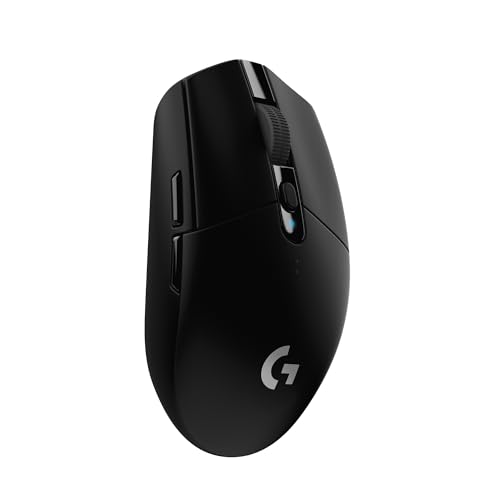
Left, right, wheel click and two side buttons cover most needs. In many shooters you bind the side buttons to melee, push-to-talk or a utility key. Five or six buttons suit general use and keep the mouse light. Examples include the Logitech G305 in our under $50 list.
Seven to Nine Buttons
Extra buttons near the thumb or on the top let you map DPI switching, a sniper button or game-specific functions. Mice such as the Razer Basilisk V3 X HyperSpeed have nine customizable controls. This range suits strategy games and general use.
Ten to Twelve and More: MMO and Grid Mice
MMO mice have a thumb grid of 12 or more buttons so you can press hotbar actions without moving your hand to the keyboard. The learning curve is real: the buttons must be reachable and distinguishable by feel. See best MMO gaming mice and our Razer Naga V2 HyperSpeed review.
Do Extra Buttons Add Weight?
Yes. Each button adds a switch, a spring and plastic, and a thumb grid adds noticeable weight. Competitive shooter players often choose light mice with few buttons; see lightweight gaming mice and mice for FPS.
How to Decide: Make a List
Write down what you would bind. Typical binds include push-to-talk, a weapon swap, a ping, a macro for repeated actions and a DPI shift. If your list is under three items, a simple mouse is enough. If you have many hotkeys, consider more buttons or a mouse with a button layer feature.
Reachability and Accidental Presses
Buttons that are hard to reach or that you press by accident are worse than no buttons. Rear side buttons can be easy to hit with the thumb while gripping. Check reviews for button placement and the force needed to press them.
Software and Profiles
Binding needs the maker’s software. Look for mice with onboard memory so profiles stay on the mouse. See gaming mice for Mac if you use macOS.
Recommendations by Type of Game
- Shooters: five to seven buttons, light weight.
- MOBA and strategy: seven to nine buttons for abilities and camera.
- MMO and RPG: twelve or more buttons.
- Work and general use: five to seven buttons.
See our gaming mouse buying guide.
Hand Size, Grip and Button Placement
Button count means little if you cannot reach the buttons. Your hand size and grip style decide which positions are practical. In a palm grip, the whole hand rests on the mouse and the thumb sits along the left side, so side buttons toward the front are easy to hit. In a claw or fingertip grip, the hand is more arched and the thumb sits differently, so buttons placed far back may be out of reach.
Small hands may struggle with a large mouse that has a wide thumb rest and many side buttons, because the thumb has to stretch. Large hands may find a very small mouse cramped, with buttons that land under the wrong part of the thumb. Check the mouse dimensions on the listing and compare them with a mouse you already like.
Think about which hand you use. Most gaming mice are shaped for right hands, and side buttons usually appear only on the left side. Left-handed players should check for a symmetrical shape or a version made for left-hand use, and confirm where the buttons sit.
If you can, hold the mouse in a store before buying, or look at pictures and videos from owners with a similar grip. A mouse that fits well with fewer buttons beats a feature-rich one that hurts after an hour.
Wired, Wireless and the Effect on Buttons
Connection type is separate from button count, but the two interact. Wireless mice need a battery, and more buttons and lighting can add weight and draw more power. If battery life matters to you, check the listing for the stated runtime and whether lighting can be turned down.
Wired mice avoid battery worries and are often lighter for the same feature set. The cable can drag on the desk, though a flexible cable or a cable holder helps. For a mouse with many side buttons that you press often, the wired option removes the need to track charge.
Many wireless gaming mice offer a low-latency mode through a small receiver. Check what the listing says about connection options, and note whether the extra buttons work in every mode. Some mice offer more than one wireless method, and certain buttons or features may differ by mode.
If you travel with your mouse, consider how the buttons behave in a bag. Protruding side buttons can be pressed accidentally and wake your computer, so some players switch off wireless mice or use a travel case.
Switch Feel and Button Durability
Not all buttons feel the same. The main left and right buttons usually use switches rated by the maker for a number of clicks, while side buttons are often lighter and softer. When comparing mice, look at what the maker says about the switches, and treat any click rating as the maker’s own estimate.
Feel matters. Some players like a crisp, clear click and others prefer a quieter, softer one. Think about whether you share a room, because loud clicks can be annoying. Side buttons should feel distinct from each other, so you can tell which one you have pressed without looking.
Pay attention to button travel and resistance. A light button is quick but can lead to accidental presses, and a stiff one reduces mistakes but can tire the thumb. If the listing mentions adjustable tension or replaceable switches, that may be useful for you.
Finally, consider long-term reliability. A mouse with many small side buttons has more parts that can wear out, so check the warranty on the listing. If a button starts to double-click or stops responding, it may be time to contact the maker or to replace the mouse.
Learning and Using Extra Buttons
Extra buttons only help if you use them. Start with a short list of actions you do most, such as a reload, a push-to-talk key, a quick-switch weapon or an ability. Assign them one at a time, and give yourself a few sessions to build muscle memory.
Do not try to map everything at once. A common mistake is assigning a dozen functions and then forgetting where each one is. Instead, group buttons by meaning, such as movement-related actions on one side and utility actions on another, and keep the layout the same across games where you can.
Consider using a layer or shift button, if your software offers one. Holding a button temporarily changes what other buttons do, which doubles the available actions without adding more physical buttons. This is useful for those who like a smaller mouse with many functions, but it adds a learning curve.
If a button does not feel useful after a few weeks, remap it or disable it. Fewer, well-chosen actions usually serve better than many. A button you press by accident is worse than no button at all, so reassign it to something harmless.
Trade-offs With Sensor, Weight and Shape
Buttons are only one part of the mouse. Sensor quality, weight and shape affect gameplay too, and a mouse with many buttons may make compromises elsewhere. Heavier bodies can feel slow for fast flicks, while lighter ones can feel twitchy to some players. Check the weight on the listing and compare it with a mouse you already know.
Shape affects how the buttons feel. A mouse with a high hump suits palm grips, while a lower, flatter one suits claw and fingertip grips. A shape that works for your hand with a few buttons may beat a heavily featured mouse that does not fit.
For sensor specifications, treat maker numbers with caution. Resolution and speed figures are stated by the maker, and a higher number does not automatically mean better tracking in your games. A stable, consistent sensor on your mouse pad matters more than a large figure.
Think about the game you play most. Fast competitive shooters often reward a light, simple mouse, while strategy and role-playing games may reward more buttons. If you play both, a mid-range button count with a comfortable shape is a good compromise.
A Simple Way to Count the Buttons You Will Use
The easiest route to the right button count is to look at your own habits. Open the games or programs you use most and list every action you currently perform with the keyboard that could move to the mouse. Be honest about which actions you perform often, and separate them from those you only use once a session.
Then sort the list by how quickly you need each action. Anything you press mid-fight, mid-aim or mid-build is a candidate for a thumb button. Anything you use rarely is fine on a keyboard key. Once you have the sorted list, count the top items and add the two main clicks, the wheel click and perhaps a spare for a profile or sensitivity switch. That number is your target.
- Primary and secondary click: always counted
- Wheel press: a third button you may or may not use
- Thumb buttons: often two, sometimes more
- Sensitivity or profile button: useful for switching between aim and desk work
- Extra side grid: for macros and complex games
If your list is short, a simpler mouse is the right fit, and you can put the weight and money toward a better sensor, shape or cable instead.
Buttons by Use Case in a Table
Different tasks lean on different button counts. The table gives a general idea, and your own list should overrule it when the two disagree.
| Use | Typical comfortable range | Why |
|---|---|---|
| Fast shooters | Five to six | Aim and click matter most; extra buttons risk accidental presses |
| Battle arena and strategy games | Six to eight | A few thumb buttons help with abilities, pings or camera jumps |
| Role-playing and MMO games | Nine to twelve or more | Many abilities and shortcuts benefit from a thumb grid |
| Office, editing and mixed use | Six to eight | Back and forward buttons speed up browsing and timelines |
| Casual play | Three to six | Simple is fine |
Notice that the high end of the table is for specific genres. Most players do well in the middle, and many find that a mouse with six to eight buttons covers nearly everything they want.
Why More Is Not Always Better
It is tempting to assume that extra buttons make a mouse more capable. In practice, every additional button introduces a place for your thumb or fingers to hit by accident. In a game that rewards precise aim, one stray press can cost a round. A button that you cannot reach comfortably, or that sits where your grip naturally rests, becomes a nuisance.
There is also a design cost. A large grid of buttons usually means a wider side panel, more internal parts and often a heavier body. Players who prefer light, quick-moving mice may see that as a downside. Others value the convenience and accept the weight. Think about which camp you belong to by recalling how your hand feels after a long session with the mouse you use now.
Finally, remember that software can add depth to a modest layout. Many mice let you assign layers or profiles, so one button can do different things in different programs. A moderate count with smart software often feels cleaner than a crowded one.
Mistakes Buyers Often Make
- Buying for a genre you do not play. An MMO grid is wasted on a shooter fan who never touches an MMO.
- Ignoring hand size and grip. A mouse with many side buttons may be uncomfortable if the thumb cannot reach all of them.
- Counting buttons the wrong way. Some listings count the wheel tilt or the sensitivity switch, so check what the figure includes.
- Forgetting the software. A mouse needs a way to remap buttons, and you should check that the maker’s app runs on your system.
- Not allowing time to adjust. It takes a week or two to build muscle memory for new buttons.
How Grip Style Changes the Answer
The way you hold a mouse decides which buttons are truly available. In a palm grip, the whole hand rests on the shell and the thumb sits along the side, which makes a pair of thumb buttons easy to reach and a larger grid harder to use without shifting. A claw grip arches the fingers and moves the palm back, so the thumb sits lower or further forward, and buttons near the front or the middle of the side panel work best. A fingertip grip uses light contact and small movements, which suits compact, light mice with few buttons.
Because of this, two people with the same list of actions can need different mice. Before you buy, hold your hand in your usual grip on a flat surface and imagine where the thumb would land. Compare that with product photos from the side and the top. If the buttons you want sit outside the natural range of your thumb, the mouse is likely a poor fit no matter how many buttons it has.
Left-handed players should check for a symmetrical design or a model made for the left hand, since many side-button layouts only suit right-handed users.
Trying Out a Layout Before You Commit
You can rehearse a button layout without buying anything. Put sticky notes on the keys you would like to move to the mouse, and see whether the list feels manageable. Or use the mouse you already own, assign a few actions to its side buttons through its software and play for a few sessions. If you find yourself using them without thinking, a mouse with a similar layout is a safe bet. If you keep forgetting them, you probably need fewer.
When you shop, read the listing for a diagram of the button positions, then compare it to the way you hold your mouse. Check the return terms for the seller, since comfort is personal and an exchange option takes the stress out of the decision.

Products Worth a Look
As an Amazon Associate, Reviews Took earns from qualifying purchases. These picks come from our guide: 5 Best XL and XXL Gaming Mouse Pads (Desk Mats, 2026).
-
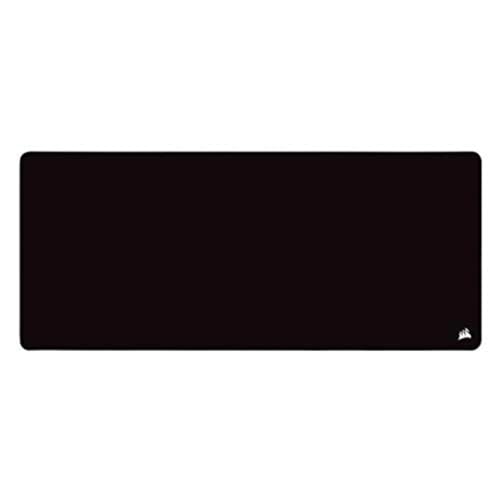
Corsair MM350 PRO Extended XL
 CORSAIR MM350 PRO Spill-Proof Cloth Gaming Mouse Pad – Extended XL – Black
-
SteelSeries QcK XXL
 SteelSeries QcK XXL Gaming Mouse Pad
-
Large Extended Gaming Mouse Pad (stitched edge)
Counting the Buttons You Actually Use
The most reliable way to choose a button count is to audit your own play before you shop. For one week, pay attention to what your mouse hand does. In a shooter, most players use the two main clicks, the wheel click and one or two side buttons for melee, a gadget or push-to-talk. Everything beyond that sits idle. In an MMO, the same player might lean on a full grid for abilities, mounts, potions and targeting. The gap between those two profiles is the whole argument: buttons earn their place only when a real action moves onto them and stays there.
Write the audit down. List the actions you perform in your main games, mark which ones currently live on the keyboard, and circle the ones that feel awkward — the potion key you fumble, the ability you avoid using because its key is a stretch. Those circled actions are your true button demand. If the list has two entries, a five- or six-button mouse serves you perfectly. If it has eight, a mid-count mouse makes sense. If it fills a page, a grid mouse stops being a novelty and becomes a genuine control upgrade. Shopping from that list protects you from paying for a dozen buttons that become decoration.
Keyboard habits change the answer
Players differ in how much they ask of the keyboard. Someone comfortable with layered keybinds, modifier keys and a gaming keypad may need almost nothing from the mouse beyond the basics. A player with a smaller keyboard, a laptop keyboard or limited mobility in one hand may shift far more onto the mouse and be glad of every extra button. Neither approach is more advanced; they are different distributions of the same work. When you read recommendations, translate them through your own habits rather than copying a streamer’s setup, because their distribution may be the opposite of yours.
What Each Extra Button Is Good For
Side buttons are the most valuable extras because the thumb can reach them without disturbing aim. Common assignments include melee attacks, grenades or abilities, push-to-talk, ping and marking, weapon inspect or a frequently used gadget. A DPI-shift button, sometimes called a sniper button, temporarily lowers sensitivity while held; some players love it for scoped shots, others never touch it and would rather the space held a general-purpose bind. Wheel-adjacent buttons suit actions you need occasionally but quickly, such as switching DPI stages or toggling a profile, since the index finger already rests nearby.
On grid mice, the side panel becomes a second keypad. The strongest uses are actions with cooldowns you check often, consumables, stance or form changes, pet and companion commands, and communication macros in team games. Outside games, the same grid serves video editing shortcuts, streaming controls, spreadsheet commands and accessibility needs. The pattern to notice: extra buttons shine for discrete, memorable actions. They are poor homes for anything analogue, anything you hold down continuously, or anything so critical that an accidental press ruins a round — put those on the keyboard where a deliberate press is harder to fake.
Accidental presses and how design prevents them
Fear of pressing the wrong button is the main reason players avoid high-count mice, and good designs take it seriously. Buttons with distinct shapes, spacing or texture let the thumb identify them by feel, and firmer switches on grid panels reduce slips during excited moments. You can also disable buttons you do not use in software, turning a twelve-button panel into the six buttons you trust while you learn, then enabling more as habits form. Expect a learning period of days, not minutes: your thumb needs repetitions before a new layout feels automatic, and early mistakes are tuition, not evidence the mouse is wrong for you.
Learning a New Layout Without Hurting Your Play
Move one action at a time. Bind a single new button, use it in low-stakes play until reaching for it is boring, then add the next. Players who rebind everything on day one usually revert within a week, because every fight becomes a memory test. Keep the old keyboard bind active alongside the mouse bind during the transition; redundancy feels untidy but removes the panic when your thumb hesitates. Practice in training modes, against bots or in casual matches where a fumbled potion costs nothing.
Profiles multiply the value of whatever buttons you have. Most gaming software lets one mouse carry different layouts per game, switching automatically when the game launches, so the same side button can be melee in a shooter and a healing spell in an MMO. Onboard memory matters if you play on more than one computer, because profiles stored on the mouse travel with it. If you attend events or play at a friend’s house, onboard storage is the difference between your layout arriving with you and starting from defaults.
When fewer buttons are the competitive choice
There is a reason most professional shooter players use simple five- or six-button mice: in a game decided by aim, every gram and every distraction counts, and a light, simple mouse disappears under the hand. Extra buttons add weight, and grid panels add width that some grips find awkward. If your audit shows a short list, choosing the simple mouse is not settling for less — it is matching the tool to the job. The same logic runs in reverse for the MMO player: choosing a basic mouse to look minimalist while your action bars overflow is its own kind of mismatch.
Buttons Beyond Gaming
A gaming mouse often becomes the everyday mouse too, and its buttons can serve work as well as play. Browser back and forward on side buttons is the classic assignment, joined by copy, paste, undo, window switching and push-to-talk for calls. Creators bind timeline tools, brush changes and export commands. For users with repetitive strain concerns, moving frequent clicks and shortcuts to well-placed buttons under a relaxed thumb can reduce keyboard stretching across a long day. When you count buttons for a purchase, count the whole day, not just the evening’s game; a mouse that earns its keep at work and at play justifies a slightly larger layout than gaming alone would suggest.
Durability, Feel and the Buttons Themselves
Button count gets the attention, but button quality decides satisfaction. Main clicks should feel crisp and even, without a mushy pre-travel or a loud ping that annoys a household. Side buttons should be reachable without shifting your grip and should not rattle when the mouse is shaken or lifted. On grid mice, check that the panel buttons are distinguishable by touch, since you will use them without looking. Switches wear with use, and a heavily used main click eventually softens or double-clicks; choosing a maker with a decent warranty and replaceable-feet, widely available parts support is a quiet form of insurance. None of this appears in the button-count headline, yet all of it decides whether the buttons you counted are buttons you enjoy pressing a thousand times a day.
The short version
Count actions, not buttons. Audit what your mouse hand should own, leave critical and held actions on the keyboard, add mouse buttons for discrete actions you use constantly, and learn the layout one bind at a time. Five or six buttons cover most shooter players completely; seven to nine suit mixed libraries; a full grid serves MMO players, creators and anyone shifting work off the keyboard for comfort. The best button count is the one where every button has a job you can name.
Button Layouts for Specific Genres, Worked Through
Battle royale and tactical shooter players live on a small set of urgent actions: interact, reload, melee, a healing item and a tactical ability. A six-button mouse covers that list with one spare, which is why this genre’s players rarely benefit from more. The spare is best spent on push-to-talk or a ping, the two communications actions that help a squad without risking a mis-press. Anything further belongs on the keyboard, where keys are larger, separated and pressed by fingers that are not also steering aim.
MOBA players sit in the middle. Abilities usually stay on the keyboard, but item actives, attack-move commands, camera controls and quick communication map beautifully to two or three side buttons, making a seven-to-nine-button mouse the sweet spot for many. RTS players value a reliable wheel and a couple of side buttons for control groups or idle-worker selection, while their other hand does the heavy lifting on the keyboard. Simulation and flight players often prefer a small mouse layout because their extra controls live on a stick, throttle or wheel, and the mouse is mainly a camera and menu tool.
The MMO case in full
MMO play is where the grid mouse justifies itself, so it deserves a closer look. A typical endgame character carries a rotation of core abilities, several cooldowns, defensive skills, consumables, a mount, targeting commands and social or communication macros. Keyboard-only players reach the far number keys and letter combinations with increasing strain as that list grows, and many quietly stop using their least accessible abilities. Moving a block of those actions to a thumb grid does not just add convenience; it changes which abilities get used at all. Players commonly report that defensives and consumables, the actions most often fumbled on a keyboard, become reliable once they live under the thumb.
The grid also rewards organisation. Group related actions together — healing together, defensives together, travel together — and keep the most urgent action on the button your thumb finds fastest, usually the front-centre of the panel. Colour or lighting zones, where the software offers them, can reinforce those groups. Expect to reorganise at least twice in the first month as real play reveals which actions truly are frequent. That reorganisation is normal and quick once the physical habit of reaching for the panel exists.
Ergonomics: Buttons and the Shape of a Long Session
Every button press is a small muscular event, and layout decides whether those events stay comfortable across a long session. Side buttons placed too high force the thumb to stretch; placed too low, they get pressed accidentally when lifting the mouse. On grid mice, the rear rows ask more reach than the front rows, so wise layouts put rare actions at the back. If your thumb or wrist aches after sessions, treat it as layout feedback before treating it as a need for a new mouse: move frequent actions closer, disable the buttons you grip by accident, and check that you are not squeezing the mouse to keep your thumb hovering over the panel.
Hand size interacts with count as well. A large grid mouse under a small hand turns every button into a reach, while a compact mouse under a large hand crams the thumb against a side cluster it cannot use precisely. This is why two players can disagree completely about the same model’s button layout and both be right. Where possible, judge a mouse with your own grip — fingertip, claw and palm grips each contact the side panel differently, and a layout praised by a palm-grip reviewer may frustrate a claw-grip buyer of the same mouse.
Left-handed and accessibility considerations
Truly ambidextrous mice with buttons on both sides remain uncommon, and many high-count designs are right-hand only. Left-handed players should check whether side buttons exist on the correct side and whether they can be disabled on the other, since ring-finger presses are a common annoyance. For players with limited finger mobility, a grid mouse can be transformative, consolidating actions onto the strongest digit, while for others a simple mouse plus keyboard layers works better. Makers’ software varies in how completely buttons can be remapped or disabled, so accessibility-driven buyers should confirm the software’s abilities on the product page before ordering, not after.
Software: Where Button Counts Are Won or Lost
A button you cannot configure is a button you do not really have, so software quality deserves as much scrutiny as the panel itself. Look for per-game profiles that switch automatically, onboard memory so profiles travel, the ability to assign modifier combinations and macros where the game’s rules allow them, and a simple way to disable buttons. Check whether the software is required constantly or only for setup; mice that store everything onboard behave the same on any computer, while software-dependent mice can revert to defaults on a fresh machine. Also confirm the rules of your main games before building elaborate macros: some titles restrict automated sequences, and a layout that depends on a banned macro is a layout you will have to rebuild.
Finally, plan for the second mouse. Many players eventually keep a light, simple mouse for shooters and a high-count mouse for everything else, switching per game rather than forcing one tool to do both jobs. If your library genuinely spans both worlds, that two-mouse answer is often more satisfying than any compromise model, and it reframes the buying question from how many buttons one mouse needs to which role each mouse in your drawer is hired to do.
A Worked Example: Building a Layout From Scratch
Imagine a player who splits time between a squad shooter and an MMO, using one seven-button mouse. In the shooter, the layout stays lean: side button one is melee, side button two is push-to-talk, the wheel click throws the equipped gadget, and a small button behind the wheel cycles DPI between a desktop stage and a game stage. Nothing else is bound, because nothing else earned a place in the audit. The layout can be learned in an evening and forgotten by the thumb within a week, which is exactly the goal.
In the MMO profile, the same physical buttons change jobs. The side buttons become the two defensive cooldowns the player used to fumble, the wheel click becomes the main consumable, and the DPI button, useless in a game without aiming, becomes a mount command. Keyboard binds stay where they were, so nothing is lost if the player switches games mid-evening. Two profiles, one mouse, no button asked to do more than one memorable thing per game — that is the pattern to copy, whatever your own genres are.
Notice what the example leaves out: no macros, no doubled binds, no button assigned just because it existed. Restraint is what makes a layout stick. If you finish your own layout with a spare button still unassigned, that is a success, not a waste — the spare is capacity for the next game, the next expansion or the next role you try, and it will be there when a real action comes looking for a home.
Sharing a mouse between people
In shared households one mouse often serves several players with different games and different hands, and button strategy changes accordingly. Profiles are the answer here too: each person keeps a layout, and the mouse switches with a button press or through the software. Keep one profile deliberately simple and clearly named as the household default, so a guest or a younger player is never confronted with a full grid of unfamiliar binds. Agree as a household that nobody rewrites another person’s profile; the fastest way to make extra buttons feel unreliable is to have their jobs change without warning. With that one rule in place, a higher-count mouse can serve a whole family better than several basic mice, because each player’s layout is waiting for them on the same hardware.
One last habit separates players who love their layout from players who abandon it: revisit the audit after any big change. A new game, a new role in an old game, a different keyboard or even a change of grip can quietly move actions between the keyboard and the mouse. Five minutes spent rebalancing binds after such a change keeps every button employed and every action reachable, and it prevents the slow drift back to a layout that no longer matches how you actually play.
Frequently Asked Questions
How many buttons for FPS?
Five to seven is plenty.
Do I need an MMO mouse?
Only if you play games with many hotkeys and will use the thumb grid.
Can I remap buttons?
Yes, in the mouse software.
Do more buttons make a mouse worse?
They add weight and cost, and can cause accidental presses.
What counts as a button?
Check what the maker counts. Count only the ones you can reach.
Are side buttons bad for fast shooters?
Not necessarily, but accidental presses can be an issue. Many players use two side buttons for a useful action or turn extra ones off in software.
Does grip style change how many buttons I can use?
Yes. A claw or fingertip grip may make rear side buttons harder to reach, while a palm grip often reaches more of them.
Can I use a gaming mouse with no software?
Usually yes for basic use, but profiles and remapping often need the maker's software. Some mice store settings on the mouse itself, so check the listing.
What if a side button gets pressed by accident?
Remap it to a harmless action or disable it in the mouse software. A mouse with a different shape may help too.
Are left-handed gaming mice common?
Fewer are made, but symmetrical shapes and left-handed versions exist. Check where the side buttons sit before buying.
How do I tell if a mouse is too heavy?
If your wrist or hand tires quickly or it feels slow to lift, it may be too heavy for you. Compare the listed weight with a mouse you like.
Should I buy a mouse with the most buttons I can find?
No. Choose the number you will actually use, in a shape that fits your hand.
Bottom Line
Choose the fewest buttons that cover the actions you really use: five to seven for shooters, seven to nine for strategy and a dozen or more for MMOs. Check reachability and weight. See our best gaming mouse for FPS and best MMO gaming mice.
Related Reading
- 6 Best Gaming Keyboard and Mouse Combos for PC
- 6 Best Hard Gaming Mouse Pads: Plastic, Glass and Polycarbonate
- Best Mouse Grip for Gaming: Palm, Claw and Fingertip Explained
- Best Windows Mouse Settings for Gaming: Pointer Speed, Precision
- 5 Best XL and XXL Gaming Mouse Pads (Desk Mats, 2026)
More Gaming Mouse Guides
- Gaming Mouse Buying Guide
- Best Wireless Gaming Mice
- Best Lightweight Gaming Mice
- Best Mouse DPI for Gaming