Disclosure: As an Amazon Associate, reviewstook.com earns from qualifying purchases. Links to Amazon on this page are affiliate links; they cost you nothing extra.
Quick answer: Both are compact wireless mice that run on a single AA battery. The G305 lists a HERO 12K sensor and up to 250 hours; the Orochi V2 lists an 18K sensor and up to 425 hours on HyperSpeed (950 on Bluetooth).
This comparison is built from the product listings on Amazon, not our own testing. Check price on Amazon and confirm details on the product pages.
By the Reviewstook Editorial Team. Last updated: October 31, 2026.

At a Glance
| Feature | Razer Orochi V2 | Logitech G305 |
|---|---|---|
| Price | Check price on Amazon | Check price on Amazon |
| Sensor | 5G Advanced 18K DPI | HERO 12,000 DPI |
| Wireless | HyperSpeed and Bluetooth | Lightspeed, 1 ms claim |
| Battery | Up to 425 h HyperSpeed / 950 h Bluetooth | Up to 250 h on one AA |
| Weight | Under 60 g excluding battery | Not stated here |
| Switches | Gen-2, 60M clicks | Not highlighted |
In this guide
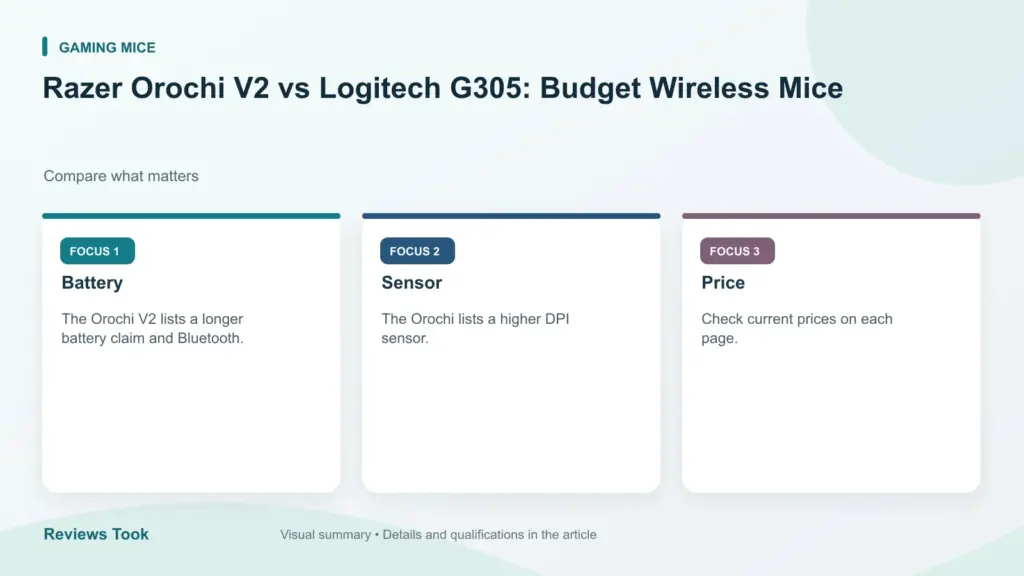
Key Differences
Battery
The Orochi V2 lists a longer battery claim and Bluetooth.
Sensor
The Orochi lists a higher DPI sensor.
Price
Check current prices on each page.
Which Should You Choose?
Choose the Razer Orochi V2 if
you want Bluetooth and a very long battery.
Choose the Logitech G305 if
you want Logitech Lightspeed at a modest price.
What the Differences Mean
A spec table shows what differs. This section explains why each difference matters, so you can weigh the rows that apply to you.
Sensor
A sensor with a higher maximum DPI is not automatically more accurate. Most players run a few hundred to about 1600 DPI. Tracking consistency matters more than the peak figure, and it is hard to judge from a spec sheet. In this comparison, Razer Orochi V2 lists “5G Advanced 18K DPI” while Logitech G305 lists “HERO 12,000 DPI”.
Connection
Connection type changes how you use the product. Wired means no battery and the lowest latency with no setup. A 2.4 GHz wireless mode is designed to match wired latency for games, while Bluetooth is convenient for laptops but usually slower. Wireless also means charging. In this comparison, Razer Orochi V2 lists “HyperSpeed and Bluetooth” while Logitech G305 lists “Lightspeed, 1 ms claim”.
Battery
Battery hours are measured under particular settings. Lighting, polling rate and wireless mode all shorten the real figure, so treat the number as a best case. In this comparison, Razer Orochi V2 lists “Up to 425 h HyperSpeed / 950 h Bluetooth” while Logitech G305 lists “Up to 250 h on one AA”.
Weight
Lighter models are easier to flick; heavier ones feel steadier. Neither is better, and comfort over a whole session matters more than the number. In this comparison, Razer Orochi V2 lists “Under 60 g excluding battery” while Logitech G305 lists “Not stated here”.
Switches
Switch type affects feel, sound and sometimes responsiveness. Optical and magnetic switches register the press without metal contact; mechanical switches use a physical contact. The right one is the one that feels good to you and suits the room you play in. In this comparison, Razer Orochi V2 lists “Gen-2, 60M clicks” while Logitech G305 lists “Not highlighted”.
Which Is Right for Which Buyer
- If you play competitive shooters, prioritize weight or key response, a layout you can control and a stable connection over extra features.
- If you play strategy or MMO games, look at the number of programmable buttons or keys and whether profiles can be stored on the device.
- If you use the same device for work, pay attention to comfort, noise and Bluetooth support.
- If you are on a budget, check the price on the day you buy and the return policy, and skip features you will not use.
Before You Buy: A Five-Point Check
- Confirm the exact model on the product page; similar names often hide different features.
- Check dimensions against your hand or desk.
- Look at the warranty and return window.
- Read what the companion software is required for.
- Keep the packaging for the first couple of weeks.
This comparison is based on the Amazon listings and manufacturer information, not our own testing. Treat it as a way to narrow the choice, then confirm the details that matter to you.
Living with a Single AA Battery
Both mice run on one AA battery, which is a different experience from a rechargeable mouse. There is no charging cable to find and no waiting; when the battery runs low you swap it and carry on. That suits people who forget to plug things in, and it suits a shared or travel setup where a spare battery in a bag solves the problem.
The battery type you choose affects weight and cost over time. Standard alkaline cells are widely available. Rechargeable AA cells can save money if you swap them regularly and keep a second one charging, though their voltage and capacity differ slightly, so battery meters and runtime figures may not match the listing. The hours quoted on the product page are the maker’s figures under specific settings, so expect real life to vary with lighting, polling and wireless mode.
Weight changes with the cell too. The Orochi V2 listing gives a weight excluding the battery, so add the battery when you compare it with other mice. A mouse with a battery at the back can feel more balanced to some users and more tail-heavy to others.
Good habits help: turn the mouse off with the switch if it has one when you travel, remove a battery if you will not use the mouse for a long time, and keep spare cells in a cool, dry place. If a battery ever leaks, clean the contacts carefully with a dry cloth and replace the cell.
Compact Size and Grip Fit
These are compact mice, and size is the first thing to check. A small mouse is easy to carry, fits a cramped desk and suits smaller hands or a fingertip and claw grip. For a large hand with a palm grip, a compact shape can feel cramped and tire the fingers over a long session.
A quick test is to hold a mouse you already own and see how much of it you need. If your fingertips hang past the buttons or your palm rests on the table, you may prefer something larger. If your fingers reach the buttons without stretching, a compact body should feel comfortable. Measure your current mouse and compare it with the dimensions on the listing when they are given.
Side buttons also matter. A compact mouse often has fewer buttons and puts them closer together, and a small hand reaches them easily while a large hand can hit them by accident. Check where the thumb rests and whether the shape is symmetrical or favors the right hand.
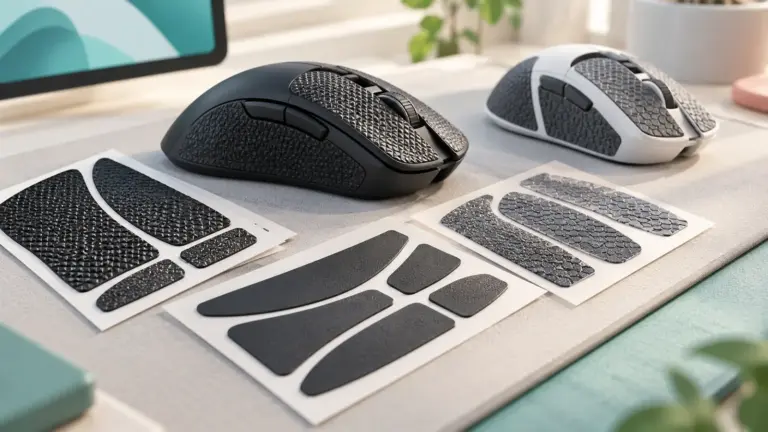
Texture and finish affect grip. A smooth surface looks neat but can become slippery with warm hands, while a textured one holds better. Some users add grip tape. Whatever you do, give the mouse a week of use before deciding, since your grip adapts.
Receivers, Bluetooth and Connection Stability
The listings describe different wireless options: one mentions HyperSpeed and Bluetooth, and the other a Lightspeed receiver. A USB receiver generally gives the most responsive connection for games, while Bluetooth is handy for a laptop or tablet because it does not take a port. Having both means you can use the receiver at the desk and Bluetooth on the go, if the product supports switching.
To keep a wireless connection steady, plug the receiver into a port close to the mouse instead of behind a tower, and use a short USB extension cable if the port is at the back. Metal desks, other wireless devices and a crowded 2.4 GHz area can all cause stutter. If the pointer lags, try moving the receiver, changing the port or turning off nearby devices.
Check how the receiver is stored. Some mice have a slot inside the battery bay, which is useful for travel and prevents losing the receiver. Also check whether a lost receiver can be replaced or re-paired, and read the manual for the pairing procedure.
On a work laptop, check that your organization allows external receivers or Bluetooth. Some company policies disable them, and a wireless mouse then becomes unusable.
DPI, Polling and Settings in Everyday Use
The DPI figures on the listings, 12,000 and 18K, are maximums. Day to day you will probably use a far lower setting, because high DPI makes small hand movements move the cursor a long way. Choose a step that feels controllable at the screen resolution you use, and increase it only if you run out of desk space.
Check what the mouse lets you change without software. Many mice cycle DPI steps with a button, and some store profiles on the device. Others need a companion program for any customization. Read what the software is required for before you buy, and see whether it supports your operating system.
Wireless mode also affects battery life. Higher polling rates and bright lighting use more power, and Bluetooth is often designed to be gentler on the battery. If your priority is a long-lasting AA cell, keep settings modest and treat the listing numbers as best-case figures.
Finally, pick a surface that suits an optical sensor. A matte cloth pad usually gives consistent tracking, while glass and very glossy desks can cause the pointer to skip. If tracking seems off, clean the sensor window with a dry swab first.
Travel, Office Use and Replacement Signs
A compact AA mouse is a good fit for a laptop bag, a hot desk and a couch setup. Pack it in a pouch so the buttons are not pressed, switch it off in transit and carry a spare battery. In an office, a quieter click and Bluetooth can be useful, so check customer comments for button noise.
Look after the mouse by wiping it with a slightly damp cloth, cleaning the sensor window and the battery contacts, and checking the feet for wear. Do not use harsh solvents.
Signs that it is time to replace the mouse include double-clicks when you press once, a cursor that jumps even on a clean pad, a connection that keeps dropping after you have tried a new battery and a different port, and corroded battery contacts that cannot be cleaned. Before buying a replacement, check the warranty and the return policy from the seller, since terms vary.
- Swap in a fresh battery before concluding the mouse has failed.
- Test the mouse on another computer to rule out a driver issue.
- Keep your receiver and spare battery together in a labelled bag.
A Desk Checklist Before You Choose
A mouse that looks good on a spec sheet can still feel wrong on your desk. Spend a few minutes on these points first.
- Measure your hand from wrist crease to middle fingertip.
- Note whether you grip with your palm, your fingertips or a claw shape.
- Check which USB ports are free and whether any are hidden behind a monitor.
- Decide whether the mouse stays on one desk or travels in a bag.
- Look at your mouse pad surface, since fabric and hard pads feel different under the feet.
Write down your answers and keep them next to the listing while you compare the Razer Orochi V2 and the Logitech G305.
Side by Side by Situation
| Situation | Razer Orochi V2 | Logitech G305 |
|---|---|---|
| Small hands | Compact shell suits many | Fits medium hands better |
| Carry in a bag | Smaller footprint helps | Slightly bulkier |
| Desk at home | Works fine | Works fine |
| Spare battery on hand | Either mouse runs on one AA | Either mouse runs on one AA |
Check each maker’s page for exact dimensions, because shell shape matters as much as length.
How to Read the Product Listing
Begin with the plain numbers: weight, dimensions, battery type and connection options. Then look at what the box contains, such as a receiver, a battery or a cable. Treat headline claims about battery life as the maker’s own figures under set conditions, not a promise for your habits. Compare the listed sensor and polling details only after you have decided whether you need them. Many everyday users never push either mouse near its limits, so shape and weight often decide the choice.
Short Glossary for Mouse Shopping
- DPI: how far the cursor moves for each inch you move the mouse.
- Polling rate: how often the mouse reports its position to the computer.
- Receiver: the small USB dongle that carries the wireless signal.
- Shell: the outer body that your hand rests on.
- Feet: the glide pads on the underside.
- Latency: the tiny delay between a click and the on-screen action.
Which Buyer Fits Which Mouse
- Student with a backpack: a smaller, lighter body is easier to carry between classes.
- Home office worker: comfort over long sessions matters more than any single spec.
- Casual player: either model covers common games, so pick by grip.
- Left-handed user: check the shape closely on each maker’s page and in customer photos before you order.
- Someone who dislikes swapping batteries: consider how often you are willing to open the shell.
When to Follow the Maker’s Manual or Ask Support
If a mouse behaves oddly, begin with the manual and the maker’s support page. Firmware steps, pairing instructions and battery handling all come from the manufacturer, and they can differ between models. Do not open a shell that is meant to stay closed, and follow the instructions printed on the battery for disposal. For a mouse that stops working under normal use, contact the seller or maker about a replacement instead of attempting repairs yourself.
Setup Notes for the First Week
Plug the receiver into a port close to the mouse, ideally on the front of a desktop or through a short extension. Try the mouse on your usual pad for a few days before judging comfort. Adjust the pointer speed in your system settings in small steps, and give your hand time to adapt. Wipe the feet and the sensor window with a dry cloth now and then so the glide stays smooth. Keep a spare battery in a drawer so a flat one never interrupts your work.
Common Wireless Hiccups and Calm Fixes
Most wireless trouble has a simple cause. A cursor that jumps may mean a dirty sensor window, a worn mouse pad or a receiver tucked behind a metal case. Move the receiver closer, clean the underside and try a different surface. If the mouse goes silent, swap in a fresh battery before anything else. Should problems continue, check the maker’s support page for firmware or driver notes, and keep your order details handy in case you need a replacement.
Small Mice, Real Hands: Who Compact Shells Actually Suit
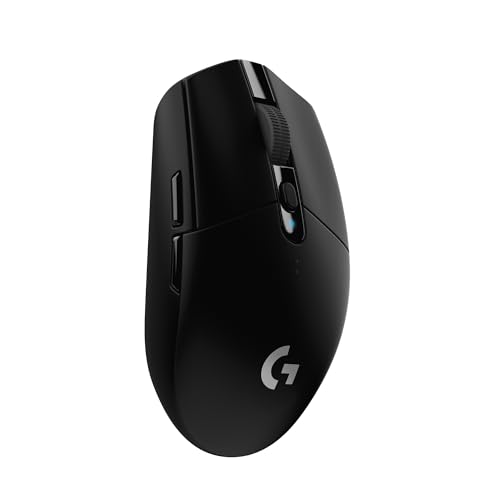
Both the Razer Orochi V2 and the Logitech G305 are compact wireless mice, and compactness is the decision hiding behind every other row of the table. A small shell suits fingertip and claw grips, smaller hands and travel bags. It can frustrate palm-grip players with large hands, whose fingers spill past the front and whose palm finds nothing to rest on.
Measure before you buy. The useful measurement runs from the crease of your wrist to the tip of your middle finger, compared against the length listed for each mouse. If your hand is much longer than the shell, you will steer the mouse mostly with your fingers. That is a perfectly good style, and many fast players prefer it, but it loads the fingers more than the arm, which some people feel as fatigue in long sessions of slow, precise work.
Grip style predicts satisfaction better than any sensor figure here. Fingertip players tend to love both of these mice. Claw players usually get on well with them too, since a short shell gives the fingers room to curl. Palm players should test carefully during the return window and be ready to conclude that a compact mouse is simply the wrong tool for their hand, however good its battery figures look.
There is also a middle path many buyers miss: a compact mouse as a second mouse. Plenty of people keep a full-size ergonomic mouse at their main desk and a small wireless mouse like one of these for the laptop bag, the couch and travel. If your main mouse already covers desk duty, the question for this pair changes from “which is better overall” to “which travels and pairs better”, and that reframing favors different strengths in each.
Two Wireless Modes on the Orochi V2, One Job on the G305
The Orochi V2 offers both a high-performance wireless link and Bluetooth; the G305 focuses on its Lightspeed wireless connection. That difference shapes how each mouse fits a week that mixes gaming, office work and travel.
The performance link is the gaming mode on both mice: it talks to a small USB receiver and is built to stay responsive in fast games. Bluetooth, offered by the Orochi V2, is the convenience mode. It pairs directly with laptops, tablets and many other devices without a receiver, which is ideal in a meeting room or a hot-desk office, and it is far gentler on the battery. It is not the mode to choose for a competitive match.
The G305’s single-mode focus has its own appeal: there is nothing to switch and nothing to misconfigure. You plug in the receiver, and the mouse does one job consistently. For a dedicated gaming setup or a family computer, that simplicity prevents the classic mistake of gaming for an evening on the slow connection without realizing it, a mistake the Orochi V2’s flexibility makes possible if you forget which mode you left it in.
Build one habit if you choose the Orochi V2: check the mode before a gaming session, the same way you check the battery. Build a different habit if you choose the G305: keep the receiver in the same port permanently, close to the pad, and treat that port as part of the mouse. Both habits take seconds and eliminate most wireless complaints owners report with either model.
Battery Figures, Translated Into Habits
Both mice run on a single AA battery, and both listings quote long runtimes: the Orochi V2 quotes its longest figure in Bluetooth mode and a shorter one on its performance link, while the G305 quotes a single figure for its wireless mode. These numbers are measured under each maker’s conditions, so compare them as a ranking, not as calendar promises.
The lesson in the Orochi V2’s two figures is that mode choice is battery choice. A mixed user who games on the performance link in the evening and works over Bluetooth in the day will land somewhere between the two numbers. A user who leaves the mouse on its performance link permanently should expect the shorter end of the range.
AA power has practical consequences beyond runtime. There is no charging downtime with either mouse: a low battery is a thirty-second swap, not an evening tethered to a cable. Keep one spare cell in the desk drawer and one in the laptop bag, and battery anxiety disappears. Rechargeable AA cells keep the running cost and waste down over years of swaps, and they suit both mice equally well.
Weight is the hidden battery topic. The Orochi V2’s headline weight is quoted excluding the battery, which is honest but easy to misread: the cell you fit adds noticeable mass to a very light shell, and different cell types weigh different amounts. If you are choosing the Orochi V2 specifically for the lightest possible feel, check what the fitted weight becomes with your battery of choice, and expect the G305 comparison to shift slightly once real cells are in both mice.
Sensors: 18K Against 12K, and Why It Rarely Decides
The Orochi V2 lists a higher maximum DPI than the G305’s HERO sensor, and as with most gaming mice, the ceiling is not the experience. Players typically run a few hundred to a couple of thousand DPI. At those settings, both sensors are designed to track fast flicks and slow corrections without spinning out, and the differences that remain are smaller than the differences made by your mousepad, your sensitivity and your own consistency.
Where sensor character can show up is power behavior and surface tolerance. A sensor designed for efficiency helps a battery-powered mouse stretch its runtime, which is part of the G305’s design story. Surface tolerance matters if you use the mouse away from a proper pad: hotel desks, glass tables and glossy surfaces challenge any optical sensor. A compact travel mouse will meet bad surfaces more often than a desk-bound one, so pack a thin pad if you travel with either mouse and your work matters.
The honest test is your own. During the return window, use the mouse on your actual surfaces: your pad, your desk and the table you travel to. Slow diagonal lines in a drawing program reveal tracking wobbles that spec sheets hide, and fast flicks in your main game reveal the rest. If both mice track cleanly in your real environments, and they very likely will, let shape, modes and battery habits make the decision.
Travel and the Laptop Bag Test
Compact wireless mice earn their keep in bags, so judge both against a realistic travel routine. The mouse should survive being carried daily, pair quickly when you sit down, and work on the surfaces travel actually offers.
Receiver management is the first test. A receiver left in a laptop port gets knocked; a receiver stored inside the mouse travels safely. Check how each model stores its receiver and make that your routine from day one, because a lost receiver turns a wireless mouse into a paperweight until a replacement arrives. The Orochi V2’s Bluetooth mode is insurance here: even without its receiver, it can still pair directly with the laptop and keep you working.
The second test is the two-minute setup. In a café, a client office or a lecture hall, you want the mouse working before your coffee cools. Bluetooth pairing you have done once at home reconnects automatically afterward; a receiver mouse is even simpler, provided the receiver is where you stored it. Practice the routine at home, including switching the Orochi V2 between its modes, so travel days hold no surprises.
The third test is the surface. Carry a thin travel pad if your work involves precision on unknown desks. It weighs almost nothing, protects the mouse’s feet from rough surfaces, and makes either mouse track the way it does at home.
Comfort Over Long Sessions With a Small Shell
A compact mouse changes how the hand works. With less shell to rest on, your fingers do more of the steering and gripping, which fingertip and claw players find natural and palm players find tiring. Over a long workday, that difference compounds, so mixed users should test these mice on a workday, not only in games, before the return window closes.
Desk setup matters as much as the shell. Keep the mouse close so your elbow stays near your side, set the chair so your forearm is roughly level, and avoid resting your wrist bone on a hard desk edge while your fingers steer; that combination, not the mouse alone, is what produces most end-of-day aches.
Breaks remain the cheapest comfort upgrade available. A minute of finger stretches and shoulder rolls each hour does more than any shell shape. And if you develop tingling, numbness or persistent pain, treat it as a health matter to address properly, not a problem to shop your way out of.
If you love the compact size for games but feel the strain at work, the two-mouse routine described earlier is the pragmatic answer: small mouse for play and travel, larger ergonomic mouse for the workday. Many long-term owners of both these models end up exactly there.
A First-Week Test Plan
Day one: fit a fresh battery, keep your usual sensitivity, and play your most familiar game. Note comfort after an hour and whether the shell size suits your grip honestly, not hopefully. If you chose the Orochi V2, spend the session on its performance link; if the G305, confirm the receiver sits close to the pad.
Midweek: run a full workday on the mouse, including the Orochi V2’s Bluetooth mode if you bought it for that flexibility. Test pairing with every device you plan to use, practice the mode switch, and carry the mouse in your bag for a day to test your receiver-storage routine.
End of week: decide on grip comfort first, then on how the mouse fit your mix of desk, work and travel. If it passes, stock spare batteries in the two places you use it most, save your settings, and keep the packaging until the return window closes. If the size is wrong for your hand, accept it quickly; no battery figure compensates for a shell your hand fights all day.
Extra Questions About This Pairing
Which of these is better for a small laptop bag?
Both are compact, so the decider is pairing style. The Orochi V2 can fall back on Bluetooth if its receiver is lost or left behind, while the G305 depends on its receiver. If your travel is mostly to one desk with a dock, either works; if you present and hot-desk often, the dual-mode flexibility is worth more.
Does the G305’s single wireless mode limit it for office work?
Not for ordinary office work through its receiver. The limitation appears only when you want to pair with devices that have no suitable USB port or when you want to switch between two computers without moving the receiver. For a single main computer, the simplicity is a benefit.
How much does the battery choice change the Orochi V2’s feel?
Noticeably, because the shell is so light to begin with. Different AA cell types have different weights, and on a mouse listed under sixty grams before the cell, that addition is a real share of the total you move. Try the cell you plan to use during the return window rather than assuming the headline weight is what your hand will feel.
Can either mouse keep up with fast-paced shooters?
Both are built for gaming over their performance wireless links, with sensors and switches aimed at that use. Your results will depend far more on sensitivity, pad space and practice than on which of these two is under your hand. Choose by grip fit and the mode and battery habits that match your routine.
What is the most common mistake buyers make with compact mice?
Buying by specifications without checking hand fit. A compact shell is a commitment to a grip style. Measure your hand, be honest about how you hold a mouse, and use the return window to test a full workday as well as a gaming session.
Click Feel and the Wheel on Small Shells
On a compact mouse, the main buttons cover most of the top shell, so click feel defines the whole experience. The Orochi V2 lists second-generation mechanical switches with a large click-life rating; the G305’s listing does not highlight its switches. Ratings speak to durability testing rather than feel, so judge with your fingers: the clicks should feel crisp and even between left and right, without a mushy pre-travel before the press registers.
Small shells amplify one flaw: button wobble. Because your fingers steer the mouse as well as click, any looseness in the buttons is felt constantly as a faint rattle during movement. Test both buttons with light side pressure during the return window. A well-built compact mouse feels like one solid piece; that solidity is worth more than any headline specification in this category.
The scroll wheel earns similar scrutiny. On a small mouse the wheel often handles a larger share of the work, from weapon switching to scrolling long documents one-handed while the other hand holds a phone or a notebook. Steps should be distinct enough to count by feel, and the middle click should not require a press so hard it moves the mouse. Neither listing makes the wheel a headline feature, so treat owner comments about wheel feel as useful evidence and keep the return option in mind.
Noise is the last click topic, and it matters in the places compact mice go: quiet offices, libraries, trains and late-night desks near bedrooms. Click volume that is unremarkable in a gaming room can be intrusive in a shared study space. If your mouse will live in quiet places, test it there during the first week, not just at your gaming desk.
Ownership: Feet, Cleaning and Spares
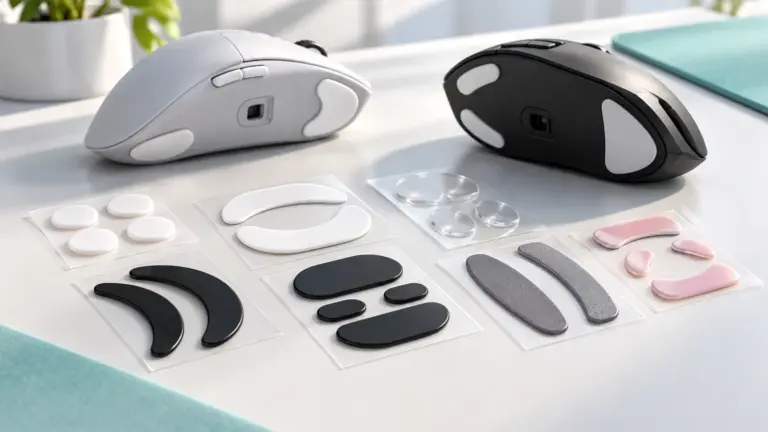
Compact mice travel, and travel wears feet faster than desk life does. Rough café tables and dusty hotel desks abrade the glides, and once the feet scratch, every movement feels gritty. Wipe the feet and the sensor window weekly with a dry or barely damp cloth, and check the feet for lifted edges before a trip rather than after the glide has already suffered.
Cleaning the shell is simple: power the mouse off, wipe it with a slightly damp cloth, clear the seam lines and the wheel gap with a dry swab, and let it dry before use. Sweat and skin oils build up fastest on small mice because the hand covers more of the shell, so a weekly wipe keeps both the grip and the appearance where they started.
Spares are the difference between a minor hiccup and a dead mouse. Keep a spare AA cell in the bag and at the desk, store the receiver inside the mouse when it travels, and note your sensitivity and button settings somewhere outside the software. If you use rechargeable cells, rotate two pairs so one pair is always charged.
Finally, save the receipt and warranty information. Switch, wheel and wireless faults tend to appear early if they appear at all, and a claim with paperwork ready takes minutes. A compact mouse that passes its first month in your routine will usually serve for years, provided its feet and battery habits are looked after.
Should I keep the box and packaging for a compact mouse?
Keep everything until the return window closes, including the receiver packaging and any included battery. Grip fit is the most common reason these mice go back, and a complete box makes a return or a warranty claim straightforward. After the window closes, the packaging can go; the receipt and your settings note are the parts worth keeping.
Frequently Asked Questions
Which is lighter?
The Orochi lists under 60 g excluding the battery.
Which is wireless?
Both.
Which is cheaper?
Check price on Amazon for both models to compare.
Is Razer Orochi V2 or Logitech G305 better for beginners?
Pick the one that fits your hand or desk and your budget. Features matter less than comfort for most beginners. See the verdict above for the main difference.
Can I use either with a Mac?
Basic functions normally work on any system, but companion software may be Windows-only. Check each product page.
What if I choose the wrong one?
Check the return window on Amazon and keep the packaging while you test it.
Do I need to buy batteries separately?
Check the product page. Some listings state whether a battery is included, and if it is not clear, plan to buy a standard AA cell. Keep a spare for the first few weeks.
Can I use a rechargeable AA battery?
Many mice work with rechargeable AA cells, but their voltage and capacity differ from standard cells, so battery indicators and runtime may not match the listing. Check the manual for guidance.
Is a compact mouse comfortable for big hands?
It depends on your grip. A fingertip or claw grip can work well, but a palm grip on a small mouse may feel cramped. Compare the listing dimensions with a mouse you already use.
What should I do if the mouse stutters on wireless?
Move the receiver closer, use a short USB extension, change ports and turn off nearby wireless devices. Replace the battery too, because a weak cell can cause lag.
Does Bluetooth work with a tablet or phone?
Many tablets and phones accept Bluetooth mice, but support varies by device and operating system. Confirm compatibility on the product page before you buy.
How can I make the battery last longer?
Use modest lighting and polling settings, switch the mouse off when you travel and avoid leaving it in a hot bag. Treat the listed hours as best-case figures.
Can I lose the receiver and still use the mouse?
If the mouse supports Bluetooth, you can use that. Otherwise check whether the maker offers a replacement or a re-pairing process, since not all do.
Is it safe to leave a battery in a mouse I do not use?
Batteries can leak over time. For long storage it is safer to remove the cell and keep the mouse in a dry place.
Bottom Line
Choose the Orochi V2 for battery and Bluetooth, the G305 for Lightspeed and value. See best wireless gaming mice.
Related Reading
- 6 Best Gaming Mice Under $50
- Is the Razer Orochi V2 Worth Buying? Listing-Based Review
- Logitech MX Vertical vs Razer Pro Click V2 Vertical
- Logitech G305 Lightspeed Review: Is It Worth It?
- Razer Naga V2 HyperSpeed Review: Is It Worth It?