Disclosure: As an Amazon Associate, reviewstook.com earns from qualifying purchases. Links to Amazon on this page are affiliate links; they cost you nothing extra.
Quick answer: Both are ergonomic Razer mice. The wired Basilisk V3 (check price on Amazon) has 11 programmable buttons and a Focus+ 26K sensor; the V3 X HyperSpeed has nine controls, HyperSpeed and Bluetooth wireless and an 18K sensor.
This comparison is built from the product listings on Amazon, not our own testing. Confirm details on the product pages.
By the Reviewstook Editorial Team. Last updated: October 31, 2026.

At a Glance
| Feature | Razer Basilisk V3 | Razer Basilisk V3 X HyperSpeed |
|---|---|---|
| Price | Check price on Amazon | Check price on Amazon |
| Connection | Wired | HyperSpeed and Bluetooth |
| Buttons | 11 programmable | 9 customizable controls |
| Sensor | Focus+ 26K DPI | 5G Advanced 18K DPI |
| Switches | Optical Gen 2, 70M clicks | Mechanical Gen-2, 60M clicks |
| Battery | Not applicable | Up to 285 h HyperSpeed, 535 h Bluetooth |
In this guide
Key Differences
Wireless
Only the V3 X is wireless.
Buttons and sensor
The wired V3 has more buttons and a higher-spec sensor.
Switches
The V3 lists optical switches; the V3 X lists mechanical.
Which Should You Choose?
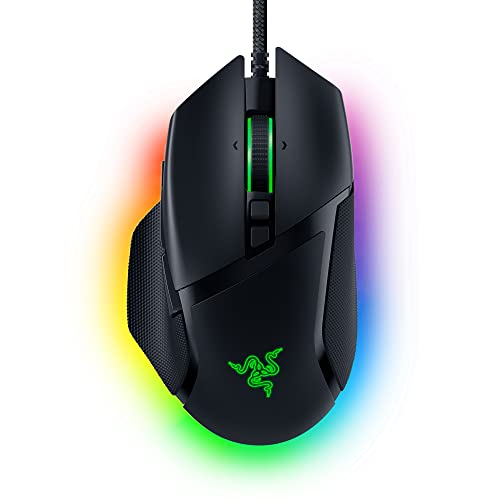
Choose the Razer Basilisk V3 if
you want more buttons, a higher-spec sensor and a cable.

Choose the Razer Basilisk V3 X HyperSpeed if
you want wireless.
What the Differences Mean
A spec table shows what differs. This section explains why each difference matters, so you can weigh the rows that apply to you.
Connection
Connection type changes how you use the product. Wired means no battery and the lowest latency with no setup. A 2.4 GHz wireless mode is designed to match wired latency for games, while Bluetooth is convenient for laptops but usually slower. Wireless also means charging. In this comparison, Razer Basilisk V3 lists “Wired” while Razer Basilisk V3 X HyperSpeed lists “HyperSpeed and Bluetooth”.
Buttons and controls
More buttons help only if you will bind them and can reach them without shifting your grip. Extra controls add weight and cost, so count the ones you would really use. In this comparison, Razer Basilisk V3 lists “11 programmable” while Razer Basilisk V3 X HyperSpeed lists “9 customizable controls”.
Sensor
A sensor with a higher maximum DPI is not automatically more accurate. Most players run a few hundred to about 1600 DPI. Tracking consistency matters more than the peak figure, and it is hard to judge from a spec sheet. In this comparison, Razer Basilisk V3 lists “Focus+ 26K DPI” while Razer Basilisk V3 X HyperSpeed lists “5G Advanced 18K DPI”.
Switches
Switch type affects feel, sound and sometimes responsiveness. Optical and magnetic switches register the press without metal contact; mechanical switches use a physical contact. The right one is the one that feels good to you and suits the room you play in. In this comparison, Razer Basilisk V3 lists “Optical Gen 2, 70M clicks” while Razer Basilisk V3 X HyperSpeed lists “Mechanical Gen-2, 60M clicks”.
Battery
Battery hours are measured under particular settings. Lighting, polling rate and wireless mode all shorten the real figure, so treat the number as a best case. In this comparison, Razer Basilisk V3 lists “Not applicable” while Razer Basilisk V3 X HyperSpeed lists “Up to 285 h HyperSpeed, 535 h Bluetooth”.
Which Is Right for Which Buyer
- If you play competitive shooters, prioritize weight or key response, a layout you can control and a stable connection over extra features.
- If you play strategy or MMO games, look at the number of programmable buttons or keys and whether profiles can be stored on the device.
- If you use the same device for work, pay attention to comfort, noise and Bluetooth support.
- If you are on a budget, check the price on the day you buy and the return policy, and skip features you will not use.
Before You Buy: A Five-Point Check
- Confirm the exact model on the product page; similar names often hide different features.
- Check dimensions against your hand or desk.
- Look at the warranty and return window.
- Read what the companion software is required for.
- Keep the packaging for the first couple of weeks.
This comparison is based on the Amazon listings and manufacturer information, not our own testing. Treat it as a way to narrow the choice, then confirm the details that matter to you.
Shape and Grip for an Ergonomic Right-Handed Mouse
Both Basilisk mice are described in the post as ergonomic, and that usually means a shell contoured for one hand, with a thumb rest and a raised back. Mice built this way tend to suit palm and claw grips, where the hand rests on the shell. Fingertip grippers, who barely touch the mouse with the palm, may find a large ergonomic shell less agile. Check the listed length, width and height against your hand size before deciding.
The post notes that the V3 listing mentions a thumb rest and advises checking the V3 X page. Do that, because a thumb rest changes how the hand sits and how far the thumb must reach for the side buttons. Handedness is another point to confirm: contoured mice are usually shaped for the right hand, and a left-handed buyer should look for an explicit statement on the product page rather than assuming.
Some questions to answer:
- Do my fingers reach the main buttons comfortably without stretching?
- Is the thumb rest in a position where my thumb naturally lands?
- Will the mouse feel too heavy or too light for the way I move it?
- Is the surface textured enough that it will not slip in my hand?
Because comfort is personal, the return window deserves as much attention as the specification table. Use the mouse for a few days of normal work and games before deciding whether it suits you, and keep the packaging until then.
How Many Buttons Do You Really Need
The post lists 11 programmable buttons on the wired V3 and nine customizable controls on the V3 X. Extra buttons are only valuable if you assign them to actions you will use. Before buying, write down what you would bind: a quick weapon swap, a push-to-talk key, a macro for a repeated task, or a shortcut for work. If you cannot name more than a few, the difference between nine and eleven controls is unlikely to matter.
It also helps to think about reach. Buttons placed where your thumb must stretch or your grip must change will not get used in the heat of a game. A smaller set within easy reach is more useful than many awkward ones. If you want to use the scroll wheel’s tilt or a sensitivity button, check where those are on each mouse and whether they can be remapped.
Practical advice for setting up buttons:
- Start with defaults and change one binding at a time.
- Keep common actions on the buttons closest to your thumb.
- Use profiles if you play different games with different needs.
- Check whether your profiles can be stored on the mouse itself.
The post says neither mouse is an MMO mouse in the usual sense. If you play games with many abilities, look at the layout of the buttons carefully and consider whether a mouse with a dedicated button grid would suit you better. For shooters and general use, a modest number of well-placed buttons is usually sufficient.
Living With Wired and Wireless Day to Day
The main difference in this comparison is that the V3 is wired and the V3 X HyperSpeed supports wireless. Both approaches have everyday consequences that a table does not show. A cable never needs charging and does not depend on a receiver, but it can drag on the desk or catch on objects. A good cable that moves freely, or a cable holder that lifts it off the desk, helps a lot. Wireless removes the cable but adds a battery to watch and a receiver to place.
Consider how you will use the mouse:
- Fixed desk setup: a wired mouse is simple and has no battery to manage.
- Clean, cable-free desk or travel: wireless is more convenient, especially with Bluetooth for laptops.
- Shared use across computers: check how easily the wireless mouse can switch between connections.
The post lists a long battery claim for the V3 X, but real runtimes depend on lighting, connection mode and settings. Treat the figure as a best case, and check the manual to learn how to check the battery level and how to charge it. Keep the receiver plugged into a front port or a short extension for a reliable link. If you pick wireless, it is also wise to know what happens when the battery runs flat. Find out whether the mouse can be used while charging, as that makes the transition painless.
Sensor and Switch Details in Context
The listings give different sensors and switch types for these mice, and it is easy to over-read them. A higher DPI ceiling does not by itself make a mouse more accurate, because most players use a modest setting and care more about consistent tracking. What matters in practice is how the mouse behaves on your surface at the DPI you actually use, and a spec sheet cannot show that. Both sensors in this comparison are aimed at gaming, so for many people the difference will be small.
Switch types affect feel and sound. The post lists optical switches for the V3 and mechanical switches for the V3 X, and the claimed click lifespans differ. Treat lifespan figures as manufacturer claims rather than guarantees. The more important question is how the click feels to you: some people prefer a crisp, light press, others a firmer one. Noise matters if you share a room or take calls.
To make a decision:
- Set your DPI to a comfortable value, usually well below the maximum.
- Test the mouse on the pad you will use, not just on a desk.
- Notice whether clicks feel consistent or whether any button double-registers.
- Read the warranty terms, because they tell you what support to expect if a switch fails.
If a button begins to double-click or miss presses after cleaning and a firmware update, that is a sign it may be time to replace the mouse or claim under warranty.
A Desk Setup Checklist for Either Mouse
Choosing between the Razer Basilisk V3 and the Razer Basilisk V3 X HyperSpeed is easier when you look at the place where the mouse will live. Run through these points before you decide.
- Check the free space on your desk and the position of your keyboard, since a wired cable needs a clear path while a wireless mouse needs a spot for its receiver.
- Look at where your computer ports sit. A front port is easier to reach than one behind a tower.
- Think about whether you move the mouse between a desk and a laptop bag.
- Decide if you can accept charging or changing a battery as part of your routine.
- Note the size of your hand and how you hold a mouse, whether palm, claw or fingertip.
- List the games or programs you use, and how many shortcuts you want under your fingers.
- Check whether your mousepad is large enough for wide sweeps.
The answers tell you more about which mouse suits you than a list of specifications alone.
Two Everyday Situations Side by Side
| Situation | Razer Basilisk V3 | Razer Basilisk V3 X HyperSpeed |
|---|---|---|
| Fixed desktop at home | A cable keeps connection simple | Works well if you like a tidy desk |
| Laptop on the move | Cable can tangle in a bag | Receiver and battery suit travel |
| Many shortcuts needed | More programmable buttons available | A smaller set of controls |
| Long sessions | No battery to think about | Plan for battery life |
| Shared workspace | Plug and play | Pair the receiver before use |
Use this table as a prompt for your own routine, and confirm the exact specifications on the product page, since details can change between listings.
Mistakes to Avoid When Choosing a Gaming Mouse
A very common mistake is buying for the longest feature list instead of for the way your hand actually feels. An extra button is useless if you never press it, while a comfortable shape will pay off every single day. Another mistake is assuming that wireless always means a compromise. Modern wireless designs are built for gaming, so judge each mouse by its own listing instead of by old assumptions.
People also forget to check compatibility with their software and system, and some skip the setup software entirely, which leaves useful buttons unassigned. Others change DPI settings constantly looking for an answer that was really about grip. Spend a week with one configuration before you change it again. And do not overlook the return policy of the seller, so you have a way out if the shape turns out wrong for you.
Grip Style and How It Points Toward One Mouse
Your grip matters more than any single specification. A palm grip rests the whole hand on the mouse and suits a larger, supportive body with a thumb rest. A claw grip arches the fingers and likes a slightly higher back. A fingertip grip uses light touches and suits smaller, lighter shapes.
Both mice here share an ergonomic right-handed form, so the choice often rests on how many controls you want within reach of your thumb and how much weight you like to move. If you tend to rest your thumb on the side and use the buttons beneath it, think about how many you will really need. Compare the two descriptions above with the way you hold your current mouse, then pick the one that looks closest to your comfort zone.
Setting Up and Tuning Your New Mouse
Whichever model you choose, take a few minutes at the beginning. Install the maker’s software if you want to remap buttons, and set a sensitivity that feels natural for desktop work. Then adjust it for games in small steps.
Save a profile for each game or application you use so the buttons switch automatically. Clean the bottom feet occasionally and keep the surface under the mouse free of crumbs and dust. Revisit your settings after a couple of weeks, once your hand has settled into the shape, and make small corrections until the mouse feels like an extension of your arm.
If you share the desk with others, label which mouse belongs to which computer, and keep the spare receiver or cable in a drawer. A tidy setup makes it easier to switch between work and play without fuss.
Wired Versus Wireless: What Actually Changes at Your Desk
The headline difference between the Basilisk V3 and the Basilisk V3 X HyperSpeed is the cable, but the cable changes more than freedom of movement. It changes how you arrange your desk, how you pack for travel, what can go wrong mid-session and what you maintain over the mouse’s life. Working through those practical differences is more useful than another look at the sensor row.
With the wired Basilisk V3, setup ends when you plug it in. There is no receiver to lose, no battery to check and no pairing step when you move between machines. For a desktop that never moves, that simplicity is a genuine feature: the mouse works during boot, in BIOS menus and on any machine you plug it into, including ones where you cannot install software or pair devices.
The cost of that simplicity is drag. A cable pulls against the mouse on every wide movement, and the pull changes with direction, which some players feel as inconsistency in their aim. A cable management solution such as a bungee or a high anchor point reduces most of it, but it is one more thing on the desk, and it never fully equals the freedom of the V3 X HyperSpeed running wirelessly.
The V3 X answers with two wireless modes, and they serve different purposes. HyperSpeed is the gaming mode, built for a responsive link to its receiver. Bluetooth is the convenience mode: slower and less suited to fast games, but it pairs directly with laptops and tablets without a receiver, and it stretches battery life dramatically. Owning both modes means the mouse can be a gaming mouse at your desk and a travel mouse in a bag without carrying anything extra.
Planning Your Buttons: Eleven Against Nine
The Basilisk V3 lists eleven programmable buttons; the V3 X lists nine customizable controls. The raw gap is small, and what matters is how you plan to use them. Start by listing the actions you actually repeat: in a shooter that might be melee, grenade and ping; in a MOBA, item actives and attack-move; at work, copy, paste, forward and back. Most people fill four to six slots honestly. Both mice cover that with room to spare.
The extra buttons on the wired V3 become valuable when your list is genuinely long, or when you use layered profiles: one set of binds for gaming, another for editing or office work, switched by profile rather than reprogrammed each time. If you cannot name the actions that would occupy buttons ten and eleven, those buttons are not a reason to choose the wired model on their own.
Placement matters as much as count. Buttons you reach by shifting your grip cost time and can disturb your aim, so the useful buttons on any mouse are the ones under your thumb’s natural rest position and under fingers that are not busy with primary clicks. When you test either mouse during its return window, bind the buttons and use them in real matches, not in a menu, because reach problems only appear under pressure.
One more habit separates satisfied owners from frustrated ones: keep the two most important binds identical across every profile. Muscle memory does not respect profile boundaries, and the button you press in a panic will be the one your thumb learned first.
Optical and Mechanical Switches in Daily Use
The Basilisk V3 uses optical switches, which register a click with light rather than a closing metal contact. The Basilisk V3 X uses mechanical switches, the traditional design. The listings attach large click-life ratings to both, and those ratings describe lab durability testing; the differences you will actually feel are in consistency and character.
Optical switches avoid the contact bounce that mechanical switches must filter out in firmware, which is why optical designs are associated with consistent registration and resistance to the double-click faults that can develop as mechanical contacts wear. For a mouse you plan to keep for years of heavy clicking, that is a meaningful long-term argument for the wired V3, assuming everything else about it suits you.
Mechanical switches, in turn, are the feel most players grew up with: a familiar tactile snap that many people simply prefer under the finger. Feel is not a trivial factor in a device you click thousands of times a day. If you have used mechanical-switch mice happily for years, the V3 X will feel like home from the first session.
Sound belongs in this decision too. Click noise carries in shared rooms, late-night sessions and calls where your microphone sits near the mouse. Neither listing makes quietness a headline claim, so if you play near sleeping family members or record audio, weigh the return window heavily and test the actual click volume in your actual room.
Battery Life on the V3 X: Reading the Two Numbers
The V3 X HyperSpeed lists two battery figures, a longer one for Bluetooth and a shorter one for HyperSpeed, and the gap between them teaches the right lesson: wireless mode is a battery decision. The high-performance link that makes HyperSpeed suitable for gaming draws more power, while Bluetooth sips power for office work and travel.
The practical routine is simple. Use HyperSpeed at your gaming desk, where the receiver lives. Switch to Bluetooth when the mouse travels with a laptop or spends the day in documents and browsing. That habit stretches the interval between charges from weeks toward months for mixed users, without giving up gaming performance where it matters.
All battery figures are measured under the maker’s conditions, so treat them as comparisons between modes rather than promises about your calendar. Lighting settings, session length and how often the mouse sleeps all move the real number. What you can control is the routine: check the charge before a long session, keep the charging cable somewhere fixed, and never let a ranked evening depend on a battery you have not looked at in weeks.
The wired Basilisk V3 removes this entire topic, which is worth stating plainly. If you dislike maintaining one more charged device, that is a legitimate reason to choose the cable, and no sensor advantage on the wireless side cancels a preference you will feel every single day.
Two Computers, One Mouse
A common setup for this pair’s buyers is a gaming desktop plus a work laptop, and the two mice solve it differently. The V3 X was built for it: HyperSpeed to the desktop through its receiver, Bluetooth to the laptop, switched on the mouse. One device, one shape your hand already knows, and no replugging anything when you change machines.
The wired V3 can move between machines too, but it means moving the cable, and on a laptop with few ports that can mean giving up a port you need. Where the wired mouse wins is shared or restricted machines: a work computer that forbids Bluetooth pairing or software installation still accepts a wired mouse without discussion.
Think about profiles alongside connections. If your binds live in software on each machine, moving the mouse means your settings do not follow unless they are stored on the device. Check how each model handles onboard storage on its product page if you switch machines often, because that detail decides whether the two-computer life is smooth or annoying.
The Sensor Gap, Honestly Assessed
The wired V3 lists a Focus+ sensor with a higher maximum DPI than the V3 X’s 5G Advanced sensor, and this is the row of the table most likely to be overweighted. Maximum DPI is a ceiling, not a quality score. Most players set their mouse somewhere in the hundreds to low thousands of DPI, far below either ceiling, and at those settings both sensors track the small, fast movements of real play.
Where a higher-end sensor can matter is at the margins: very high sensitivity settings, unusual surfaces and extreme flick speeds. If you play at unusually high DPI, use a hard or glossy pad, or have had tracking problems with older mice, the wired model’s sensor is a point in its favor. For the majority of players on cloth pads at ordinary settings, shape, connection and buttons will decide satisfaction long before the sensor does.
Test tracking on your own pad during the return window. A clean, uniform cloth surface gives any modern optical sensor its best case; a worn, shiny patch in the center of an old pad causes problems that look like sensor faults. Rule out the surface before blaming the mouse.
A First-Week Test Plan
Day one with either mouse: set your usual sensitivity, bind only the buttons you listed earlier, and play your most familiar game. Note hand comfort after an hour and whether you overshoot or undershoot. For the V3 X, also note which wireless mode you used, so battery impressions later are tied to the right mode.
Midweek, test the feature you actually bought. V3 owners should test the extra buttons under match pressure and the cable behavior across their full range of movement, ideally with and without a bungee or raised anchor. V3 X owners should run a full evening on HyperSpeed, then a workday on Bluetooth, and confirm switching between machines is as smooth as promised.
By the end of the week, decide on comfort first, then the headline feature, then everything else. Keep the packaging until you decide. If the mouse passes, save your profile settings somewhere outside the software, register the warranty and settle in; a well-chosen ergonomic mouse should disappear under your hand, and disappearance is the real test both of these are trying to pass.
Extra Questions About This Pairing
Is wireless latency still a reason to choose the wired Basilisk V3?
For most players, modern gaming wireless links are responsive enough that connection type is no longer the deciding factor it once was. Desk freedom, battery upkeep and multi-device use are the differences you will actually feel. Players with a strong personal preference for a cable’s consistency can still choose it without giving up anything meaningful in ordinary play.
Which Basilisk suits a laptop-first setup?
The V3 X HyperSpeed, because Bluetooth pairs directly with the laptop and the receiver-based mode is there when you dock at a desk. The wired V3 works with a laptop too, but it occupies a port and adds a cable to a setup that usually values portability.
Do the extra buttons on the Basilisk V3 help in shooters?
Only the ones you can reach without shifting your grip. In shooters, two or three well-placed binds usually cover melee, equipment and ping. Extra buttons help more in MOBA, MMO and productivity profiles than in fast shooters, so judge the count against your whole week of use, not one game.
How should I split HyperSpeed and Bluetooth use on the V3 X?
HyperSpeed for gaming sessions at your desk, Bluetooth for work, travel and media use. That split is exactly what the two battery figures are telling you: performance when you need it, endurance when you do not.
What wears out first on a mouse like these?
Typically the feet, then the wheel and switches over years of use. Keep the mouse clean, replace worn feet if replacements are available for the model, and save your settings so a warranty replacement or a second unit can be configured in minutes.
The Ergonomic Shape Across a Whole Day
Both Basilisk models share an ergonomic, right-handed design philosophy, and that shape is the feature your hand will judge every day. An ergonomic shell supports a natural, slightly cupped hand position, which suits palm and relaxed claw grips and longer sessions at a desk. It is not a symmetrical shape, so left-handed users should look elsewhere entirely; no button count or sensor figure compensates for a shell built for the other hand.
Judge the shape over a full day, not a first impression. A sculpted mouse can feel unusual for the first hour if you are coming from a flat, symmetrical shell, because your ring finger and pinky finally have somewhere deliberate to rest. By the second or third session, that support either disappears into comfort or keeps announcing itself. Only the second outcome is a problem, and the return window exists for exactly that discovery.
Hand size interacts with the sculpting. Larger hands can settle into the curves fully; smaller hands may find their fingers reaching for the far buttons. Measure your hand, compare it with the listed dimensions, and be honest about your grip: fingertip players, who steer with their fingers and barely touch the shell, get the least from ergonomic sculpting and may not need either of these mice’s shape at all.
Alternate tasks during your test week. Gaming loads the hand in bursts; document work loads it in a long, steady hold. A shape that feels perfect in matches but tiring in spreadsheets is the wrong choice for a mixed-use desk, which describes most desks this pair will land on.
Placement Details: Cable Routing and Receiver Position
Small setup details decide whether each connection type performs at its best. For the wired Basilisk V3, route the cable so it approaches the mouse in a gentle curve with slack on the desk, rather than hanging off the desk edge where its weight pulls constantly. A raised anchor point or bungee near the back of the pad keeps the cable off the surface during wide swipes. Keep the cable away from monitor stands and desk edges that can pinch or fray it over months of movement.
For the V3 X HyperSpeed, the receiver’s position is the equivalent detail. Plug it into a port close to the pad, ideally at the front of the case or on a short extension that brings it onto the desk, and keep large metal objects and other wireless devices from crowding it. A receiver buried behind a steel case, far from the mouse, is the most common cause of the stutter that gives wireless an undeserved bad name.
Bluetooth pairing deserves one minute of care as well: pair the mouse with the laptop once, confirm it reconnects after sleep, and learn the switching control before you travel with it. Discovering how to switch modes is much easier at your desk than in a meeting room.
Whichever model you choose, finish setup by checking for firmware and software updates from the maker’s official support pages, applied exactly as instructed with the mouse reliably connected. Then export your settings. Ten minutes of placement and updates at the start prevents the two most common complaints about both wired and wireless mice: drag that was really routing, and dropouts that were really receiver placement.
Can I use the Basilisk V3 X HyperSpeed while it charges?
Check the product page for the exact charging arrangement of the version you buy, including whether a cable is included and whether the mouse works while connected. For gaming sessions, the practical approach is to charge between sessions and play on the wireless link, topping up before a long evening rather than during it.
Which model is better for a shared family computer?
The wired Basilisk V3 is the lower-maintenance choice for a shared machine: no pairing, no battery checks and no receiver to lose, and it works for whoever sits down. The V3 X suits a shared setup only if one person mainly uses it and manages the charging and pairing.
What to Do in the First Ten Minutes With Either Mouse
Unbox carefully and keep everything, including the receiver and any cable, until the return window closes. Plug in or pair the mouse, then resist changing settings for the first session: play and work at your old sensitivity so the only new variable is the mouse itself. Check that the wheel steps feel distinct, that each side button clicks without shifting your grip, and that the mouse sits flat without rocking.
Then open the maker’s software once, set your DPI stages to the two or three values you genuinely use, and bind the buttons you planned before buying. Save or export the profile immediately. This ten-minute routine prevents the most common early complaint about both models, which is not a hardware fault at all but a mouse still running factory settings that suit nobody in particular.
Frequently Asked Questions
Do both have a thumb rest?
The V3 listing mentions a thumb rest; check the V3 X page.
Which is cheaper?
Check price on Amazon for both.
Which is better for MMO?
Neither is an MMO mouse.
Is Razer Basilisk V3 or Razer Basilisk V3 X HyperSpeed better for beginners?
Pick the one that fits your hand or desk and your budget. Features matter less than comfort for most beginners. See the verdict above for the main difference.
Can I use either with a Mac?
Basic functions normally work on any system, but companion software may be Windows-only. Check each product page.
What if I choose the wrong one?
Check the return window on Amazon and keep the packaging while you test it.
Are the Basilisk mice suitable for left-handed users?
Ergonomic mice with a thumb rest are usually shaped for the right hand. Check each product page for an explicit statement about handedness before ordering.
How do I know how many buttons I will use?
List the actions you want, such as weapon swap, push-to-talk or shortcuts. If you cannot name more than a few, a mouse with fewer buttons may be enough.
Is wireless slower than wired for gaming?
A dedicated wireless mode is designed to match wired response for games, while Bluetooth is generally better for convenience. Try the mode you plan to use and see how it feels.
Can I use the wireless mouse while it charges?
This depends on the model and its cable. Check the manual or product page to see whether it can be used while charging.
How should I set DPI?
Pick a value that lets you aim comfortably on your mouse pad. Most players use settings well below the maximum, and you can adjust in small steps until it feels right.
Do mechanical and optical switches feel different?
They can. Optical switches register the press without metal contact, while mechanical ones use a physical contact. The best choice is whichever feels right to you and suits your noise needs.
How do I clean a gaming mouse?
Unplug it or switch it off, then wipe the shell with a lightly damp lint-free cloth. Keep liquid away from buttons and the sensor opening, and let it dry before use.
When should I replace a mouse?
Consider it when clicks double-register or fail, the scroll wheel skips, or a wireless battery no longer lasts. Check the warranty first.
Bottom Line
Choose the wired V3 for buttons and value, the V3 X for wireless. See best Razer gaming mice.
Related Reading
- 6 Best Gaming Mice Under $50
- Razer Basilisk V3 X HyperSpeed Review: Is It Worth It?
- Is the Razer Basilisk V3 Worth Buying? Listing-Based Review
- Razer Viper V3 HyperSpeed Review: Is It Worth It?
- Razer Viper V3 HyperSpeed vs SteelSeries Aerox 5