Disclosure: As an Amazon Associate, reviewstook.com earns from qualifying purchases. Links to Amazon on this page are affiliate links; they cost you nothing extra.
Quick answer: Both are Logitech Lightspeed wireless gaming mice. The G305 has a HERO 12K sensor and 250-hour battery; the G502 Lightspeed has a Hero 25K sensor, 11 buttons and PowerPlay compatibility. Check price on Amazon for each before you buy.
This comparison is built from the product listings on Amazon, not our own testing. Check price on Amazon and confirm details on the product pages.
By the Reviewstook Editorial Team. Last updated: October 31, 2026.

At a Glance
| Feature | Logitech G305 | Logitech G502 Lightspeed |
|---|---|---|
| Price | Check price on Amazon | Check price on Amazon |
| Sensor | HERO, up to 12,000 DPI | Hero 25K (via G HUB), up to 25,600 DPI |
| Wireless | Lightspeed, 1 ms claim | Lightspeed |
| Battery | Up to 250 hours on one AA | Rechargeable; PowerPlay compatible |
| Buttons | Few | 11 customizable buttons |
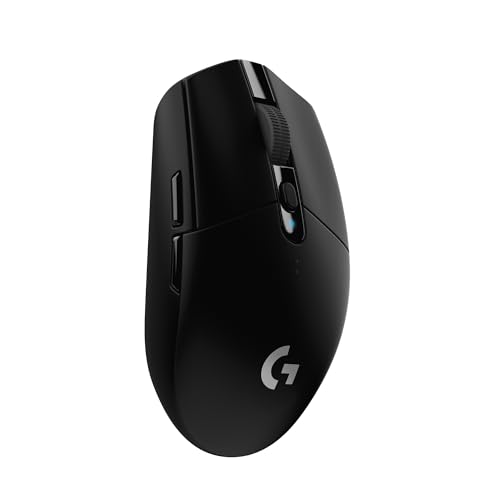
| Shape | Compact and portable | Large, classic G502 shape |
In this guide
Key Differences
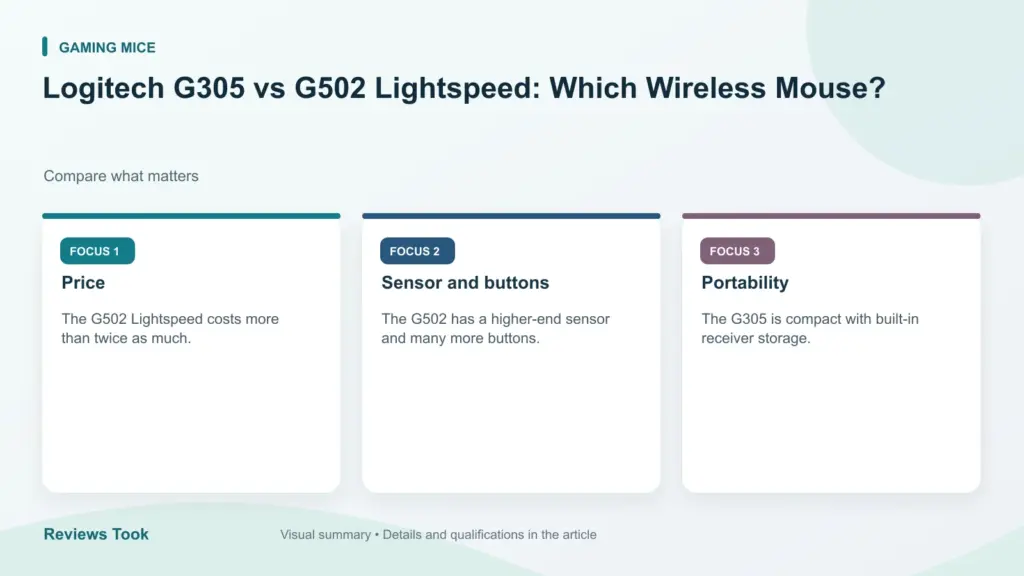
Price
The G502 Lightspeed sits in a higher price tier than the G305.
Sensor and buttons
The G502 has a higher-end sensor and many more buttons.
Portability
The G305 is compact with built-in receiver storage.
Which Should You Choose?
Choose the Logitech G305 if
you want reliable wireless at the lowest price.
Choose the Logitech G502 Lightspeed if
you want many buttons and the classic G502 shape.
What the Differences Mean
A spec table shows what differs. This section explains why each difference matters, so you can weigh the rows that apply to you.
Sensor
A sensor with a higher maximum DPI is not automatically more accurate. Most players run a few hundred to about 1600 DPI. Tracking consistency matters more than the peak figure, and it is hard to judge from a spec sheet. In this comparison, Logitech G305 lists “HERO, up to 12,000 DPI” while Logitech G502 Lightspeed lists “Hero 25K (via G HUB), up to 25,600 DPI”.
Connection
Connection type changes how you use the product. Wired means no battery and the lowest latency with no setup. A 2.4 GHz wireless mode is designed to match wired latency for games, while Bluetooth is convenient for laptops but usually slower. Wireless also means charging. In this comparison, Logitech G305 lists “Lightspeed, 1 ms claim” while Logitech G502 Lightspeed lists “Lightspeed”.
Battery
Battery hours are measured under particular settings. Lighting, polling rate and wireless mode all shorten the real figure, so treat the number as a best case. In this comparison, Logitech G305 lists “Up to 250 hours on one AA” while Logitech G502 Lightspeed lists “Rechargeable; PowerPlay compatible”.
Buttons and controls
More buttons help only if you will bind them and can reach them without shifting your grip. Extra controls add weight and cost, so count the ones you would really use. In this comparison, Logitech G305 lists “Few” while Logitech G502 Lightspeed lists “11 customizable buttons”.
Which Is Right for Which Buyer
- If you play competitive shooters, prioritize weight or key response, a layout you can control and a stable connection over extra features.
- If you play strategy or MMO games, look at the number of programmable buttons or keys and whether profiles can be stored on the device.
- If you use the same device for work, pay attention to comfort, noise and Bluetooth support.
- If you are on a budget, check the price on the day you buy and the return policy, and skip features you will not use.
Before You Buy: A Five-Point Check
- Confirm the exact model on the product page; similar names often hide different features.
- Check dimensions against your hand or desk.
- Look at the warranty and return window.
- Read what the companion software is required for.
- Keep the packaging for the first couple of weeks.
This comparison is based on the Amazon listings and manufacturer information, not our own testing. Treat it as a way to narrow the choice, then confirm the details that matter to you.
Grip Style and Hand Size
Shape often matters more than the spec table, and the two mice here are very different in feel. The listing describes the G305 as compact and portable, and the G502 Lightspeed as large with the classic G502 shape. Before you decide on features, decide which size suits your hand.
There are three common grips. In a palm grip, the whole hand rests on the mouse, which tends to suit larger bodies with a good back support. In a claw grip, the fingers arch and the palm touches the back of the mouse. In a fingertip grip, only the fingers touch, and the palm hovers, which usually favors smaller, lighter mice. Many people use a mix. If you have smaller hands or prefer fingertip control, a compact body may feel easier to move. If you have larger hands or want a full-palm rest and room for thumb controls, a larger body may feel more stable.
You can estimate your fit by measuring your hand length and comparing it with the mouse dimensions on each product page. Dimensions are not a perfect guide, so also read how buyers describe the fit and check the return window.
- Note which grip you use now, and whether you are happy with it.
- Compare the length and width on the product pages.
- Think about thumb reach if you plan to use side buttons.
- Remember that you can adapt to a new shape over a week or two.
Power Source and Battery Habits
The listing shows two different approaches to power. The G305 uses a single AA battery, and the G502 Lightspeed is rechargeable and compatible with a wireless charging system. These choices change your daily routine, so think about which suits you.
A replaceable battery means you swap in a new one when it runs out and carry on, with no charging cable involved. It suits people who forget to charge, or who travel and want spares. The trade-off is buying and disposing of batteries, or buying rechargeable ones and charging them separately. A built-in rechargeable battery means you plug in a cable or use a charging mat or similar system when needed. It avoids buying batteries, but you must remember to charge, and a long session on a flat battery may require a cable. Check the listing to see whether you can keep playing while charging.
Battery life figures are best-case numbers measured under particular settings, so real life will vary with lighting, polling rate and usage. Check the product page for how each figure was measured.
- Keep a spare battery nearby if you choose the replaceable type.
- Charge on a routine, such as overnight, if you choose the rechargeable type.
- Check whether the charging accessory is sold separately.
- Replace a rechargeable mouse if the battery no longer lasts a full session.
Using Programmable Buttons Well
The G502 Lightspeed lists eleven customizable buttons, and the G305 lists few. More buttons are only an advantage if you actually use them, so be honest about your habits.
Extra buttons can hold macros, game actions, voice chat toggles, profile switches and productivity shortcuts. They suit games with many abilities and tasks with repeated actions, such as editing or spreadsheet work. They do nothing for games that need only aim and fire. Buttons also need to be reachable without shifting your grip, or you risk accidental presses.
Think about software too. The listing says the Hero 25K sensor is configured via G HUB, which suggests the companion software handles settings. Check what the software is needed for on each product page, whether settings are stored on the mouse itself, and whether the software works on your operating system. A mouse with onboard memory keeps its settings when you move to another computer.
- Count the actions you really want on a button.
- Try a simple layout first and add to it gradually.
- Avoid placing risky actions near buttons you press by accident.
- Check that your game allows custom bindings.
If you only need left, right, scroll and a couple of side buttons, a simpler mouse avoids paying for controls you will not touch.
Budget Versus Features
The two mice are in different price tiers on the listings, and the right choice depends on what the extra cost buys you in practice. This is a decision about value, not a ranking of quality.
The lower-priced option gives you wireless freedom, a compact body and a simple feature set. It makes sense if you want to try wireless without a large outlay, use the mouse for general work and casual gaming, or need something easy to carry. The higher-priced option adds a larger body, more buttons, a higher-rated sensor figure and a rechargeable battery. It makes sense if you value the shape, use many buttons and want a single mouse for long sessions.
Be careful about paying for headline numbers. A higher maximum DPI figure does not mean better aim, since most players use far lower settings. Ask instead whether the shape feels right, the buttons help you and the battery routine suits you. If neither mouse fits your hand, no feature list will fix that.
- Compare the current prices on the day you buy, since listed prices change.
- Check the warranty length and terms on each page.
- Keep the packaging while you test.
- Choose the cheaper option if you cannot name features you will use on the other.
When it is time to replace, common signs are double-clicking, a scroll wheel that skips, a sensor that jitters and a battery that no longer holds a useful charge.
A Glossary of Gaming Mouse Terms
- DPI: dots per inch, a measure of how far the cursor moves for a given hand movement. Higher numbers are not always better, because control matters more than the figure.
- Polling rate: how often the mouse reports its position to the computer. A higher rate can feel smoother.
- Sensor: the optical part that tracks movement across the surface.
- Latency: the delay between your movement and the on-screen result.
- Wireless receiver: a small USB dongle that links the mouse to your computer. Keep it close to the mouse for the best signal.
- Programmable buttons: buttons you can reassign to actions or macros through the maker software.
- Onboard memory: storage inside the mouse that keeps your settings when you move to another computer.
Hand Size and Grip Style: Fit Questions
Palm, claw and fingertip grips
How you hold a mouse matters as much as the specifications. A palm grip rests the whole hand on the mouse, a claw grip arches the fingers, and a fingertip grip uses only the tips. Larger, heavier mice suit palm grip users, while smaller, lighter mice suit claw and fingertip grips.
Weight
The Logitech G305 is generally a lighter, more compact design, while the Logitech G502 Lightspeed is bigger and has more buttons and weights. Check the weight listed on each product page and think about how long you play.
Hand size
If you have small hands, a very large mouse can tire your fingers. If you have large hands, a compact mouse can cramp them. Compare the length and width with your hand measurements.
Left or right handed
Many gaming mice are shaped for right-handed use. Confirm that the shape suits you.
Decision Table by Player Type
| You are… | Consider | Check |
|---|---|---|
| A travel gamer or laptop user | The compact G305 | Battery type and storage for the receiver |
| A player who wants many buttons | The G502 Lightspeed | Button layout and software support |
| A competitive shooter player | Whichever feels steady in your grip | Weight and sensor behavior |
| An office user who also games | A comfortable shape for long sessions | Button noise and scroll wheel feel |
| A person who changes batteries rarely | A model with longer battery life | Maker battery information |
Setup Checklist
- Plug the receiver into a USB port close to the mouse, and avoid hubs that sit behind a metal case.
- Insert batteries or charge the mouse as the manual describes.
- Install the maker software from the official page if you want to customize buttons and lighting.
- Set the cursor speed and pointer options in the system settings.
- Try the mouse on the surface you will use, such as a cloth pad, and adjust sensitivity gradually.
- Assign useful shortcuts to extra buttons.
- Save your profile to onboard memory if the mouse supports it.
Mistakes to Avoid
Chasing the biggest DPI number. Most players use moderate settings.
Ignoring the mouse pad. A clean, even surface improves tracking.
Forgetting battery backups. Keep a spare battery or know how long a charge lasts.
Buying for looks. Comfort comes first, and lighting is a bonus.
Clean the feet and sensor window with a dry cloth, and follow the maker care notes. If the mouse behaves erratically, check batteries, the receiver position and the surface before assuming a fault.
Which Mouse Fits Which Player
These two wireless mice suit different habits, and a quick decision guide by situation can save a long debate.
| If you mostly | Lean toward |
|---|---|
| Travel with a laptop and want something compact | The smaller, lighter mouse that runs on a single battery |
| Play games with many binds | The mouse with extra programmable buttons |
| Have a small hand or prefer a light grip | The smaller body |
| Have a large hand and a palm grip | The bigger body with a thumb rest |
| Want to tune weight | The model that offers adjustable weights, if that is a feature you value |
| Prefer not to charge anything | A mouse that uses replaceable batteries |
Grip style matters more than most specifications. Claw, palm and fingertip grips each favour a different shape, so think about how your hand rests on a mouse before you decide. If possible, hold both in a shop or compare the stated dimensions and weight against a mouse you already like. Left handed users should check that the shape is symmetrical or suited to them, since many gaming mice favour the right hand. Think too about how you use the scroll wheel, the side buttons and the cable-free freedom of movement, because those small details decide whether a mouse feels natural after an hour of use.
Setup and Care Notes
Both mice use a small wireless receiver, and a few habits help them work well over time.
- Plug the receiver in close. A USB extension cable can move the receiver nearer the mouse and away from a crowded port behind a computer.
- Keep other wireless gear away. Routers, hard drives and other receivers can add interference.
- Install the maker’s software if you need it. It is used to remap buttons and manage settings, and it can be skipped if the default behaviour suits you.
- Use a suitable surface. Glossy or glass tops can confuse a sensor. A cloth mouse mat usually helps.
- Clean the feet and sensor window. Wipe dust gently with a dry or slightly damp cloth, with the mouse turned off.
- Check the power source. If the mouse stutters, try a fresh battery or a full charge before assuming a fault.
For warranty, battery type and exact feature details, rely on the maker’s own product pages and manuals.
Going Deeper: How This Choice Plays Out Over a Full Week of Play
Most buying advice for the choice between the Logitech G305 and the G502 Lightspeed is written as if the decision ends at checkout. In practice the first evening tells you very little. A mouse can feel exciting for twenty minutes because it is new, lighter or differently shaped, and then start to annoy you on day three when a button sits slightly wrong under your thumb or the shell edge meets your ring finger during long tracking fights. Judge any option in this guide across a full week: one session when you are fresh, one when you are tired, and one longer session in the game you actually play most. Comfort that survives tired hands is the comfort that matters.
Pay attention to the small repeat actions rather than the highlight moments. How often do you lift and reset the mouse on your pad? Does the scroll wheel stay precise when you switch weapons hundreds of times in an evening? Do side buttons get pressed by accident when you grip harder in a tense round? These micro events decide whether the choice between the Logitech G305 and the G502 Lightspeed feel like a tool you forget about or a problem you keep managing. A mouse you stop noticing is usually the right mouse, because your attention stays on crosshair placement, positioning and decisions instead of on your own hand.
There is also a learning curve that is easy to misread as a flaw. Changing shape, weight or button layout disturbs muscle memory for several days, and aim often dips before it recovers. Give a genuinely different shape a fair adjustment window, but distinguish adjustment from pain. Tingling, sharp wrist ache or a finger that keeps cramping is not something to push through; it is information that the shape does not suit your hand or grip. Mild unfamiliarity fades. Repeated strain does not, and no performance argument for the choice between the Logitech G305 and the G502 Lightspeed is worth an injury that keeps you off the computer.
A Practical Self-Test Before You Change Anything
Before ordering, run a short self-test with the mouse you already own, because it tells you what actually needs fixing. Open a practice range or an aim trainer and spend a few minutes on three tasks: slow tracking of a moving target, quick flicks between two distant points, and small corrections around a single point. Note where each task breaks down. If tracking is shaky but flicks land well, your sensitivity or surface may be the issue rather than the mouse. If flicks overshoot in both directions, your grip may be unstable. Writing down the failure mode stops you buying a new mouse to solve a settings problem.
Next, measure your hand honestly and look at how you hold your current mouse when you are not thinking about it. Photograph your grip from the side during a real game, or simply freeze mid-match and look down. Many players describe themselves as palm grip users and discover their palm barely touches the shell, or claim a claw grip while resting most of their weight through the heel of the hand. The grip you actually use, in the third hour of a session, is the one to buy for. This matters especially for the choice between the Logitech G305 and the G502 Lightspeed, where two wireless mice from the same family that suit almost opposite kinds of player changes which shapes will feel natural.
Finally, list the two or three things you genuinely dislike about your current setup, in order. It might be cable drag, a scroll wheel that skips, a shape that is too narrow, or a battery routine that interrupts play. Rank them. A good purchase fixes the top item on that list and does not make the second item worse. A purchase driven by a review headline often fixes something you never complained about while leaving your real problem untouched. Keep the list beside you while you read the picks in this guide and check each candidate against it, one by one.
Tuning Sensitivity and Control as a Repeatable Process
Sensitivity tuning works best as a process you can repeat, not as a number you borrow from a professional player. Start from the setting you already use and change one variable at a time: in-game sensitivity first, leaving the mouse setting alone for several sessions. Make small changes and play real matches, not only trainer drills, because pressure changes how you move. If your crosshair consistently stops short of targets, nudge sensitivity up slightly; if you swing past targets and correct backwards, nudge it down. Consistency across a whole evening matters more than one impressive round played on a new setting.
Keep a simple record for a week: the setting used, the game played, and one sentence about how aiming felt. That modest log prevents the common cycle of changing settings daily and never building muscle memory at any of them. Most players improve fastest when they hold a setting steady long enough for their hand to learn it, then review. This applies whatever you choose among the choice between the Logitech G305 and the G502 Lightspeed; a well tuned ordinary setup beats a constantly retuned premium one, because aim is a learned motor skill and learning needs a stable target to learn against.
Do not overlook the surface under the mouse while you tune. A worn pad, a desk with changing friction, or a pad that is too small for low sensitivity play will all masquerade as sensitivity problems. If you regularly run out of pad and have to lift and reset mid-fight, either raise sensitivity a little or get more space; both are legitimate answers and neither requires a new mouse. Likewise, clean mouse feet glide more predictably than dusty ones, and predictable glide makes any sensitivity feel more accurate. Tune the whole chain — hand, mouse, pad and settings — rather than blaming the last link you bought.
Desk, Posture and Session Setup That Supports Your Aim
Your chair height and desk height quietly decide how your mouse hand behaves. If your elbow hangs well below the desk, your wrist tends to press into the desk edge and your forearm drags, which adds friction to every movement. If you sit very high, you may steer mostly from the fingers and tire quickly. A comfortable starting point is an elbow roughly level with the desk, shoulders relaxed, and enough pad space that your forearm can rest without the wrist bone grinding on a hard edge. Small changes here often improve comfort more than a new shape does.
Lighting and monitor position matter in a less obvious way: players who lean in toward the screen tend to grip harder and shrug their shoulders, and grip tension travels straight into aim. Sit back, keep the screen at a distance where you can see your surroundings in game without squinting, and let your shoulders drop between rounds. During longer sessions, brief pauses to open and close your hand, roll your shoulders and look away from the screen keep blood flowing and prevent the slow build of tension that turns a comfortable mouse into a painful one by the end of the night.
Cable and receiver placement belong in the same conversation. A wired mouse benefits from slack managed so the cable does not catch on a monitor stand or drag across a rough desk edge; a simple bungee or a raised anchor point can transform how a wired mouse feels. A wireless mouse benefits from its receiver sitting close, ideally on an extension near the pad, away from metal enclosures and crowded hubs that can clutter the signal path. For anyone weighing up the choice between the Logitech G305 and the G502 Lightspeed, these free setup fixes are worth doing first, because they improve every mouse you will ever plug in at that desk.
Troubleshooting the Problems Players Blame on the Wrong Thing
Cursor skipping or stutter is often blamed on a sensor, yet the more common causes are mundane: a dirty sensor lens, hair or dust on the pad, a glossy or patterned surface, or a wireless receiver placed far away behind a metal case. Work through the boring causes first. Clean the lens gently with a dry cotton bud, try a plain pad or even a sheet of matte paper as a test surface, move the receiver closer, and test a different port. If the problem follows the mouse across two computers, the mouse is suspect; if it stays with one desk or one machine, look at the environment.
Accidental side button presses and missed scroll steps usually come from grip and hand position rather than defects. If you trigger a side button when you lift the mouse, your thumb is probably gripping exactly where the button sits; a small shift in thumb placement, or disabling that binding for a week while you adjust, often cures it. If the wheel feels inconsistent, check whether you scroll with the fingertip or the first joint, because the two motions suit different wheel tensions. Before concluding that a mouse from this guide is wrong for you, spend one session deliberately adjusting how you hold it.
Double clicking complaints deserve a careful check too. Test the button slowly in a simple drawing or clicking test outside your game, and note whether the problem appears at a particular pressure or angle. Dust around the button, a worn switch and an over-firm grip can produce similar symptoms. Keep notes on when issues happen — only when cold, only after long sessions, only in one game — because patterns point to causes. A problem that appears in every application from the first click of the day is a hardware conversation; a problem that appears only in one title is usually a binding, a macro or a settings conflict waiting to be found.
Care, Cleaning and Making a Mouse Last
A gaming mouse lives in one of the dirtiest environments on a desk: skin oils, snack dust and pet hair all migrate into the wheel well, the seams and the sensor cavity. A short monthly routine keeps performance steady. Unplug or switch off the mouse, wipe the shell with a slightly damp microfibre cloth, clear the wheel and button seams with a soft brush or compressed air used gently, and clean the sensor lens with a dry bud. Avoid soaking the shell or spraying liquid directly onto the mouse; moisture inside a switch causes more problems than the dirt you were removing.
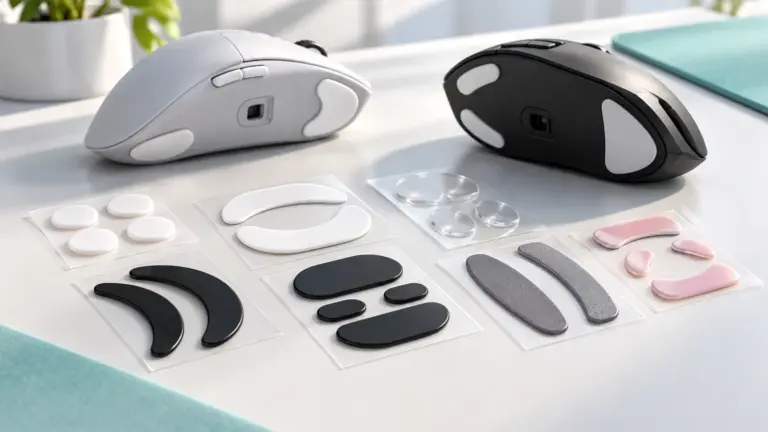
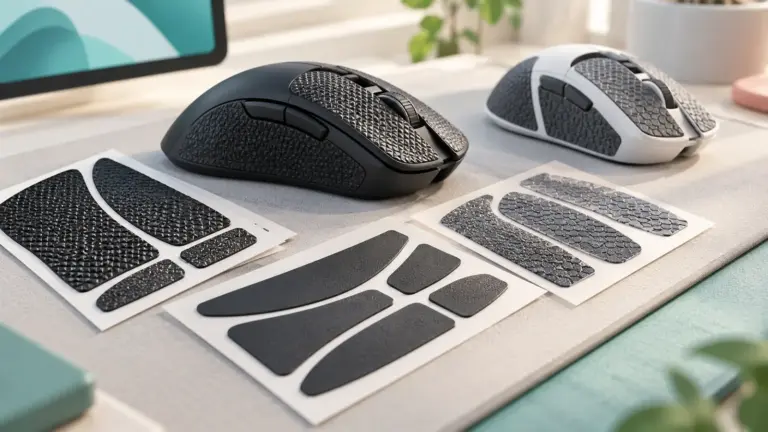
Mouse feet deserve inspection because they wear invisibly. When feet become shiny, torn or uneven, glide turns scratchy and inconsistent, and many players misdiagnose the change as a sensor fault or a personal slump. Replacement feet are inexpensive for popular models and restore the original glide in minutes; clean the old adhesive away fully before fitting new ones so the mouse sits flat. If you play on a hard pad, expect feet to wear faster and check them more often. For owners of the choice between the Logitech G305 and the G502 Lightspeed, fresh feet are often the cheapest genuine upgrade available.
Battery habits decide how a wireless mouse ages. Avoid leaving a rechargeable mouse flat for weeks, and avoid keeping it permanently at full charge on a dock if the maker advises against it; ordinary regular use is kinder than either extreme. For mice using replaceable cells, keep a spare ready so a low battery never forces a mid-session scramble, and remove cells from a mouse going into long storage. Store a spare mouse in a drawer away from sunlight and heat, with its receiver kept with it, because a lost receiver can retire an otherwise perfectly good wireless mouse.
Choosing Between the Picks: Scenarios That Make the Decision Easier
Abstract comparisons become clearer when you attach them to real evenings of play. Imagine a competitive player who queues ranked shooters most nights, practises in a range before matches and cares about every lift and reset. That player should weight shape safety, weight and reliable wireless or a drag-free cable above extra buttons, and should be suspicious of any feature that adds bulk. Now imagine a player who splits time between an MMO, a strategy title and work documents. That player lives on bindings, wheel control and comfort across long mixed sessions, and may happily trade a little weight for controls that save keystrokes all day.
A third common scenario is the shared or multi-purpose desk: homework, work calls and games on the same machine, sometimes by more than one person. Here, easy switching between devices, onboard profiles that do not depend on software being open, and a shape that several hand sizes can tolerate become the deciding factors. This is exactly where two wireless mice from the same family that suit almost opposite kinds of player can matter more than a headline specification. A mouse that is perfect for one specialist can be a poor household mouse, and there is no shame in choosing the adaptable option when the desk itself is shared.
Budget timing is a scenario of its own. If your current mouse is failing — a button gone, a wheel unusable — replacing it now with a solid option from this guide beats suffering for months while waiting for a dream model. If your current mouse works and merely feels ordinary, you can afford to be picky about shape and to wait for the exact variant you want. Either way, decide which scenario is actually yours before comparing picks, because the best choice for the choice between the Logitech G305 and the G502 Lightspeed depends less on the products than on the evenings you will spend using them.
Practice Routines That Reveal Whether a New Mouse Suits You
When a new mouse arrives, resist the urge to judge it in the first match. Spend the first session on low-stakes practice: tracking drills, target switching and simple movement around a map you know well. Notice whether you can stop the cursor where you intend without a second correction, and whether your hand relaxes between actions. Then play normally for several days without changing settings, even if results dip. The dip is the cost of relearning; what you are watching for is whether the trend across the week points upward and whether comfort improves as the shape becomes familiar.
Build two or three small routines you can repeat whenever you change anything — mouse, pad, sensitivity or even chair height. A minute of slow tracking, a minute of flicks between fixed points and a minute of tiny corrections gives you a rough benchmark you can compare across setups and across weeks. You will not get laboratory precision, but you will get something better than mood: a repeatable impression. Players who test this way stop churning through gear, because they can tell the difference between a real improvement and the brief excitement of unboxing something new.
Also practise the non-aiming actions your games demand. Reloads, ability keys bound to the mouse, push-to-talk, ping wheels and inventory scrolling all run through the same hand. A mouse that aims beautifully but makes your most-used binding awkward will frustrate you daily. Run through your actual binding set in a safe environment, adjust anything that forces an uncomfortable stretch, and only then take the setup into ranked play. For readers deciding on the choice between the Logitech G305 and the G502 Lightspeed, this whole-hand test is the closest thing to a guarantee that the mouse fits your games rather than just your grip.
Reading Listings Carefully: What Product Pages Do and Do Not Tell You
Product pages are useful and incomplete at the same time. They are good for confirming dimensions, button counts, connection types, what is included in the box and which software a mouse uses. They are weaker evidence for comfort, long-term durability and how a shape will suit your particular hand, because those depend on you. Treat phrases about professional players and tournament victories as atmosphere rather than evidence. The most valuable parts of a listing are often the least glamorous: the size diagram, the weight with and without a cable or battery where stated, and the list of what the buttons can be assigned to do.
Photographs deserve a sceptical look as well. Renders can make a shell look lower, narrower or more sculpted than the object that arrives, and scale is hard to judge without a hand or a familiar object beside it. Compare stated dimensions with a mouse you know: measure your current mouse with a ruler and put the numbers side by side. A difference of a few millimetres in width or hump height is not trivial; it is often exactly the difference between a shape that disappears under your hand and one you keep adjusting. This habit protects buyers of the choice between the Logitech G305 and the G502 Lightspeed from the most common disappointment of all, which is a good mouse in the wrong size.
Finally, check the practical details that decide ownership rather than performance: how the mouse charges or which cells it takes, whether a receiver is included and where it stores, whether replacement feet and grips are easy to find, and what the return options are if the shape does not suit you. A generous return window is worth real money with mice, because fit is personal and no review can settle it for you. Buy from a route that lets you send back a mouse that hurts your hand, and keep the packaging until you are sure. Sensible buying process beats perfect prediction, every time.
Frequently Asked Questions
Which is better for FPS?
Both are used; pick by shape and weight.
Which has more buttons?
The G502 Lightspeed.
Which is cheaper?
The G305.
Is Logitech G305 or Logitech G502 Lightspeed better for beginners?
Pick the one that fits your hand or desk and your budget. Features matter less than comfort for most beginners. See the verdict above for the main difference.
Can I use either with a Mac?
Basic functions normally work on any system, but companion software may be Windows-only. Check each product page.
What if I choose the wrong one?
Check the return window on Amazon and keep the packaging while you test it.
Which mouse suits larger hands?
The listing describes the G502 Lightspeed as large, so it may suit larger hands or a palm grip. Compare the dimensions with your hand and check the return policy.
Which is easier to carry?
The listing describes the G305 as compact and portable, with built-in receiver storage. Check the product page for details of the receiver storage.
Do I need software to use either mouse?
Basic movement and clicks normally work without it. Software is typically used for button assignments, lighting and sensor settings, so check the product page for what it covers.
Can I use these mice on any surface?
Most optical gaming mice work on common desk surfaces and mouse pads, but glass and very glossy surfaces can cause problems. A cloth or hard mouse pad is a safe choice.
Do I need a high DPI sensor?
Not for most people. Many players use a few hundred to about 1600 DPI, so a very high maximum figure is rarely used. Tracking consistency and shape matter more.
Is Lightspeed wireless good for competitive games?
Lightspeed is the maker's name for its wireless technology, designed for gaming. Whether it feels right is personal, so test it in the games you play during the return window.
Can I use the G502 Lightspeed while it is charging?
Check the product page for how charging works and whether you can play during it. This detail depends on the charging method.
How do I know if I should upgrade my current mouse?
Upgrade if your mouse double-clicks, tracks poorly, is uncomfortable or lacks features you want. If it works well and fits your hand, a new model may not change much.
Bottom Line
Choose the G305 to save money, the G502 Lightspeed for features. See best Logitech gaming mice.
Related Reading
- 6 Best Gaming Mice Under $50
- Logitech G502 Lightspeed Review: Is It Worth It?
- Logitech G502 Lightspeed vs G502 X Plus: Is the Upgrade Worth It?
- Logitech G PRO 2 Lightspeed Review: Is It Worth It?
- Logitech G305 Lightspeed Review: Is It Worth It?